
Users can refer to the steps below on how to return an order.
💡Note: open price products cannot be returned.
Users can click on the 3 dots on the top right hand corner to reveal the “Return” Button.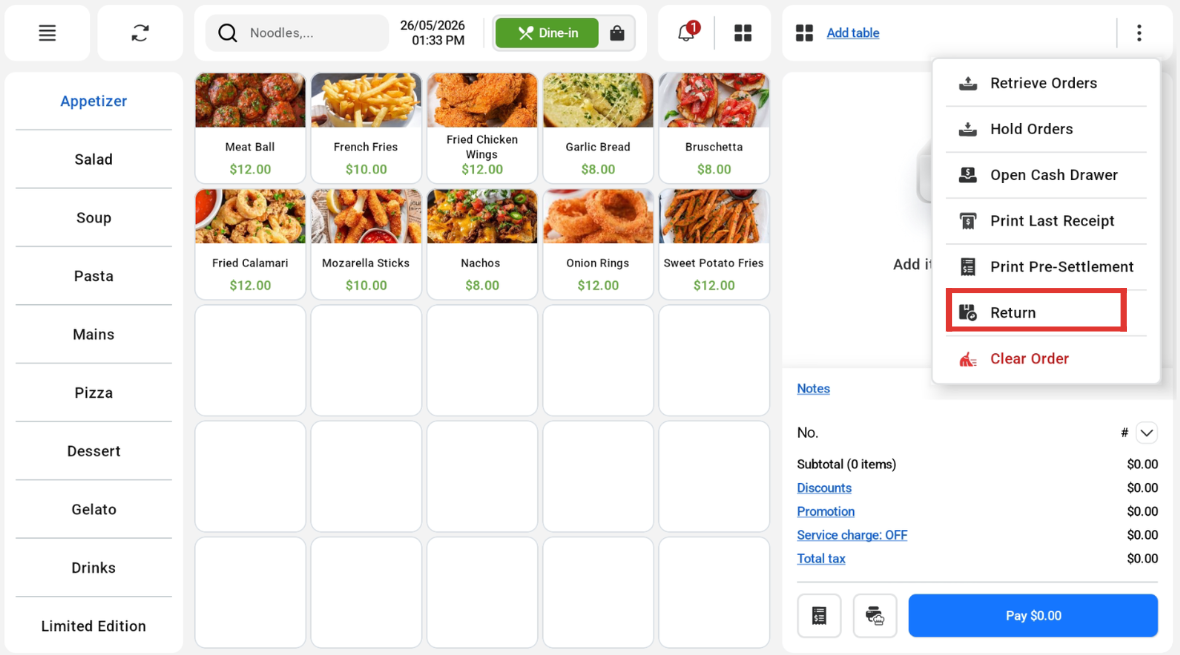
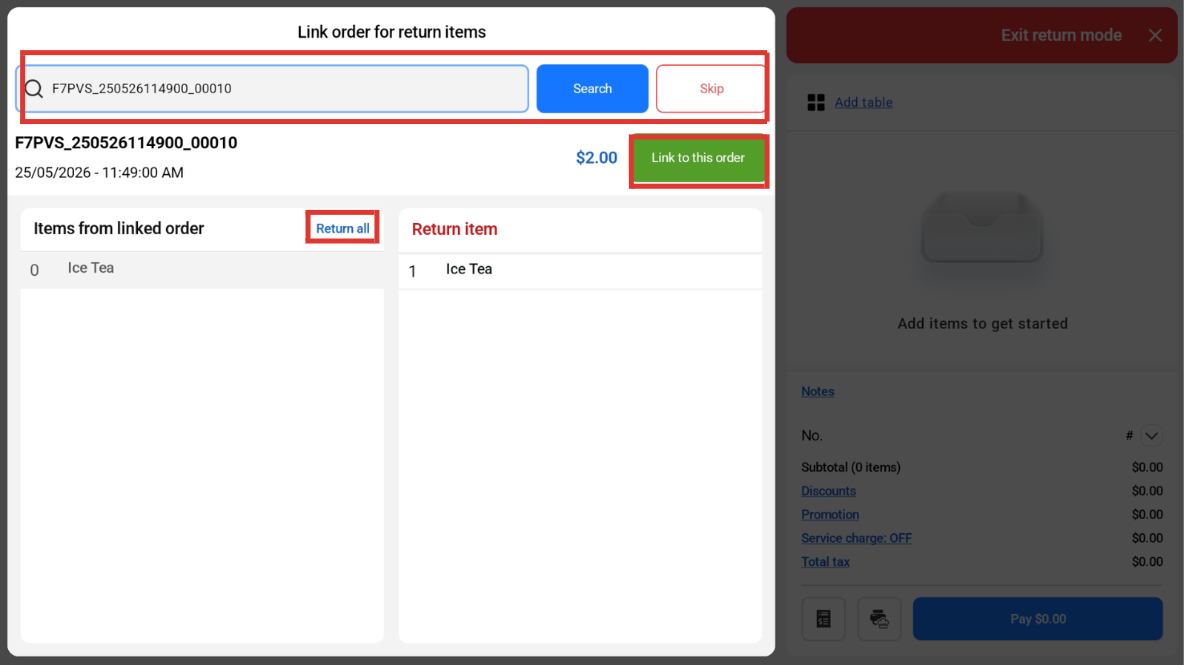
In the pop up window, users can:
a) insert the order number.
b) click on the Search button to retrieve the particular order.
c) if users do not have reference to the previous order, click Skip, there will be no order linked to this return operation.
d) select the item that was previously purchased by the customer in order to proceed for the return order.
e) select multiple items that need to be returned, alternatively, users can click on Return All to return the entire order.
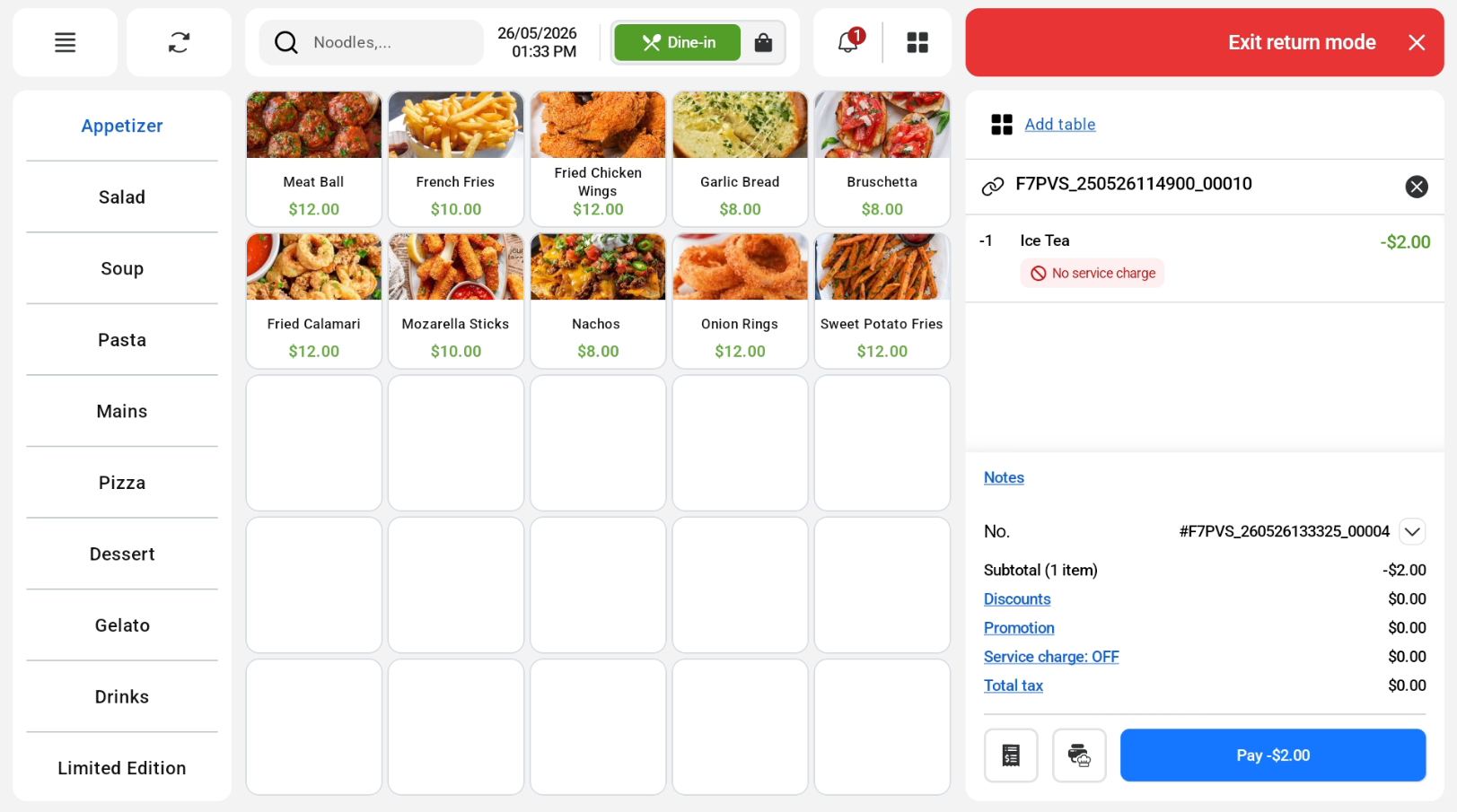
 A red header indicating “Exit Return Mode” and linked order number and selected items to be returned will be shown at the Sales Screen.
 Once users are done with adding products to be refunded, users can click on Exit Return Mode X.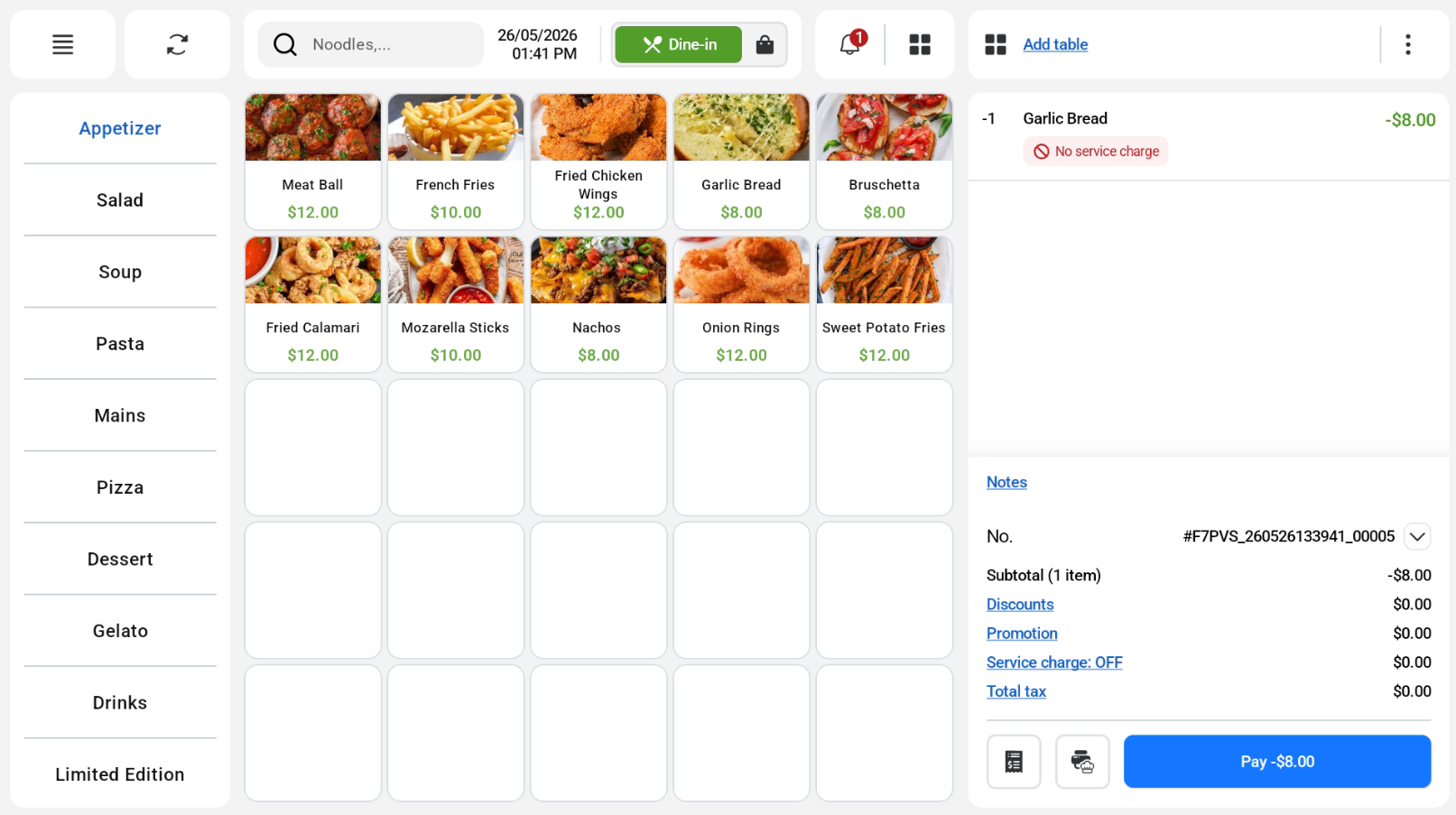
If there is an exchange of products, users can continue to add products to the order cart.
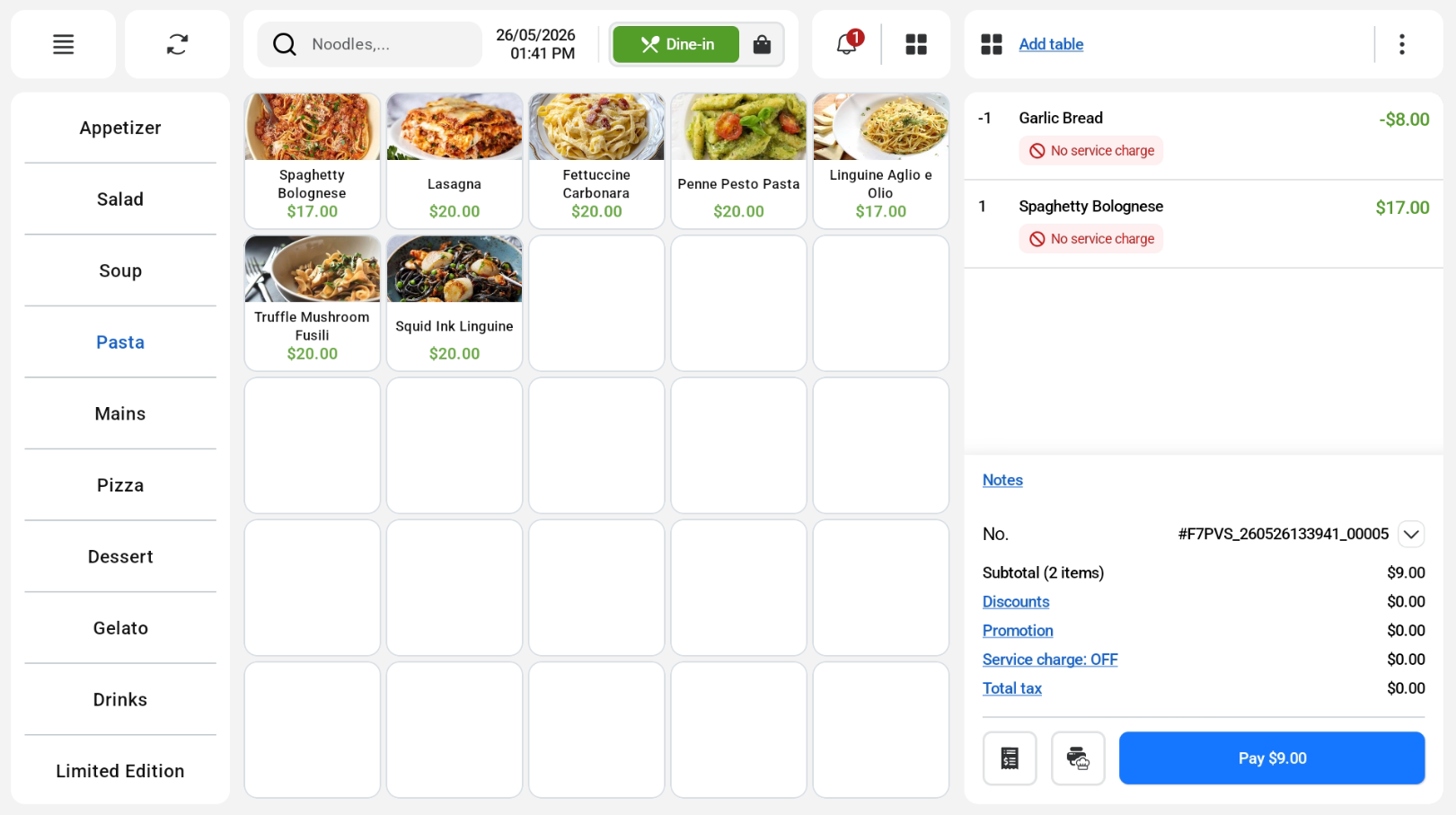
Once finalised, users can proceed with checking out the return order.
** If the amount shown in the payment page is shown as
● a negative number, it signifies that users should return customers with the particular amount.
● a positive number, it signifies that customers should top up the particular amount.
