1. Configuration
Under EPOS Backend > EPOS Apps > Kitchen Printing > Display Tab, there is a new tab to configure the online kitchen display.
To configure which kitchen printer to become Online Kitchen Display, user can click Online Display config or Add Printer. Users can choose which printer they would like to configure as online kitchen display. Not all printers need to be online kitchen display.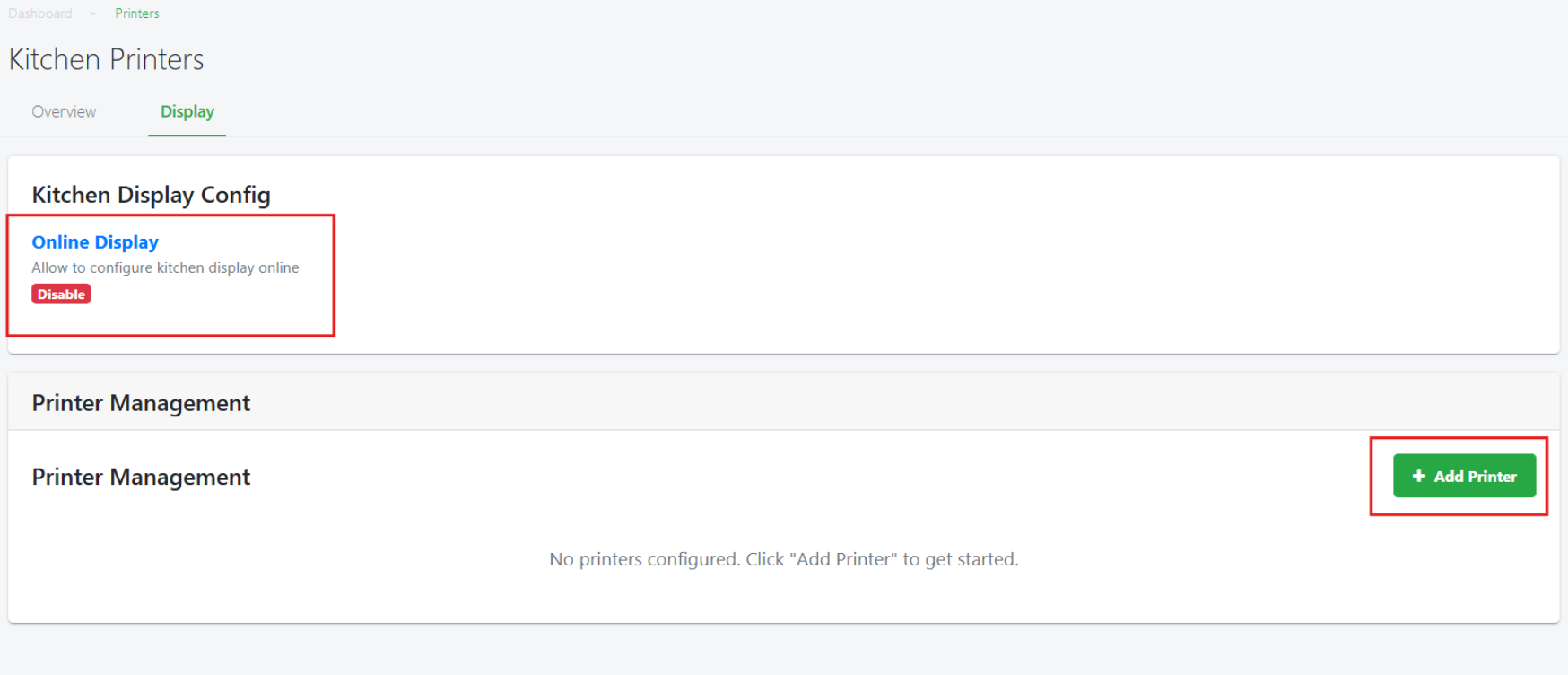
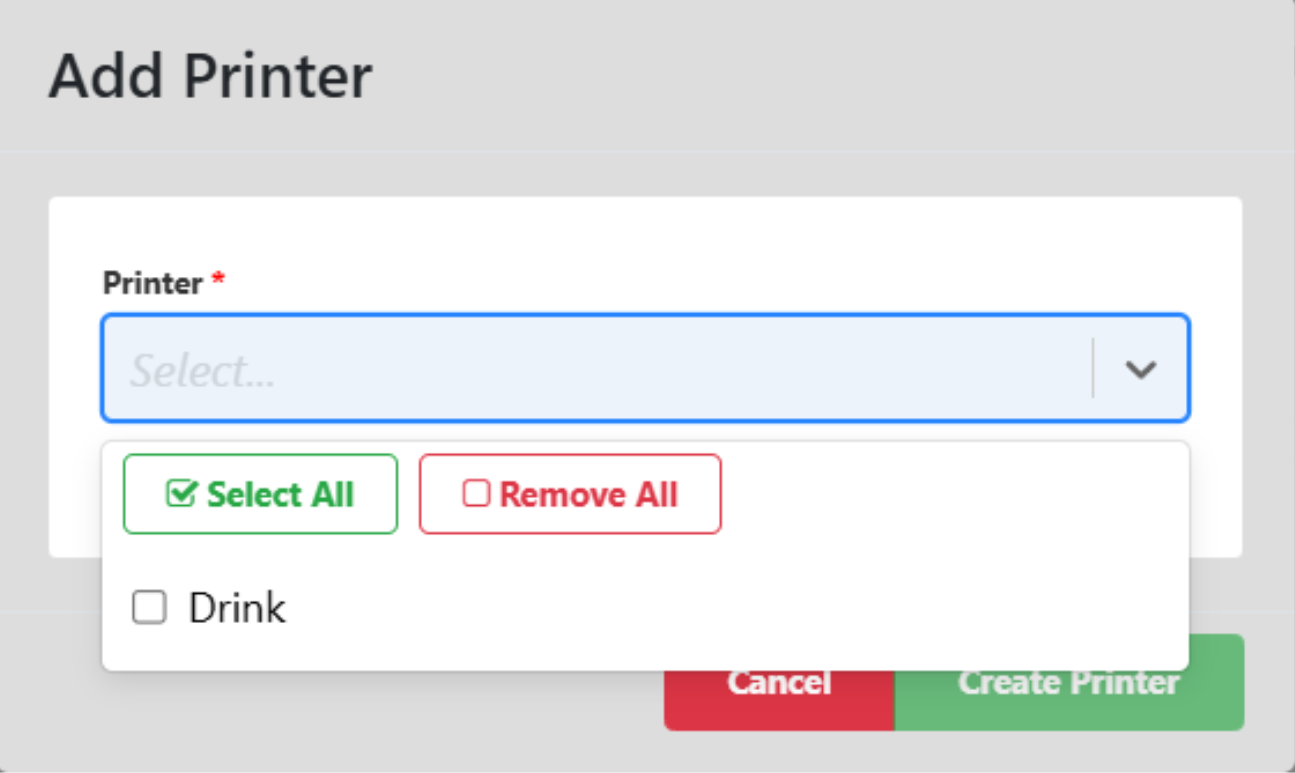 Once at least 1 kitchen printer to be configured as online kitchen display, the Online Display status will be enabled.
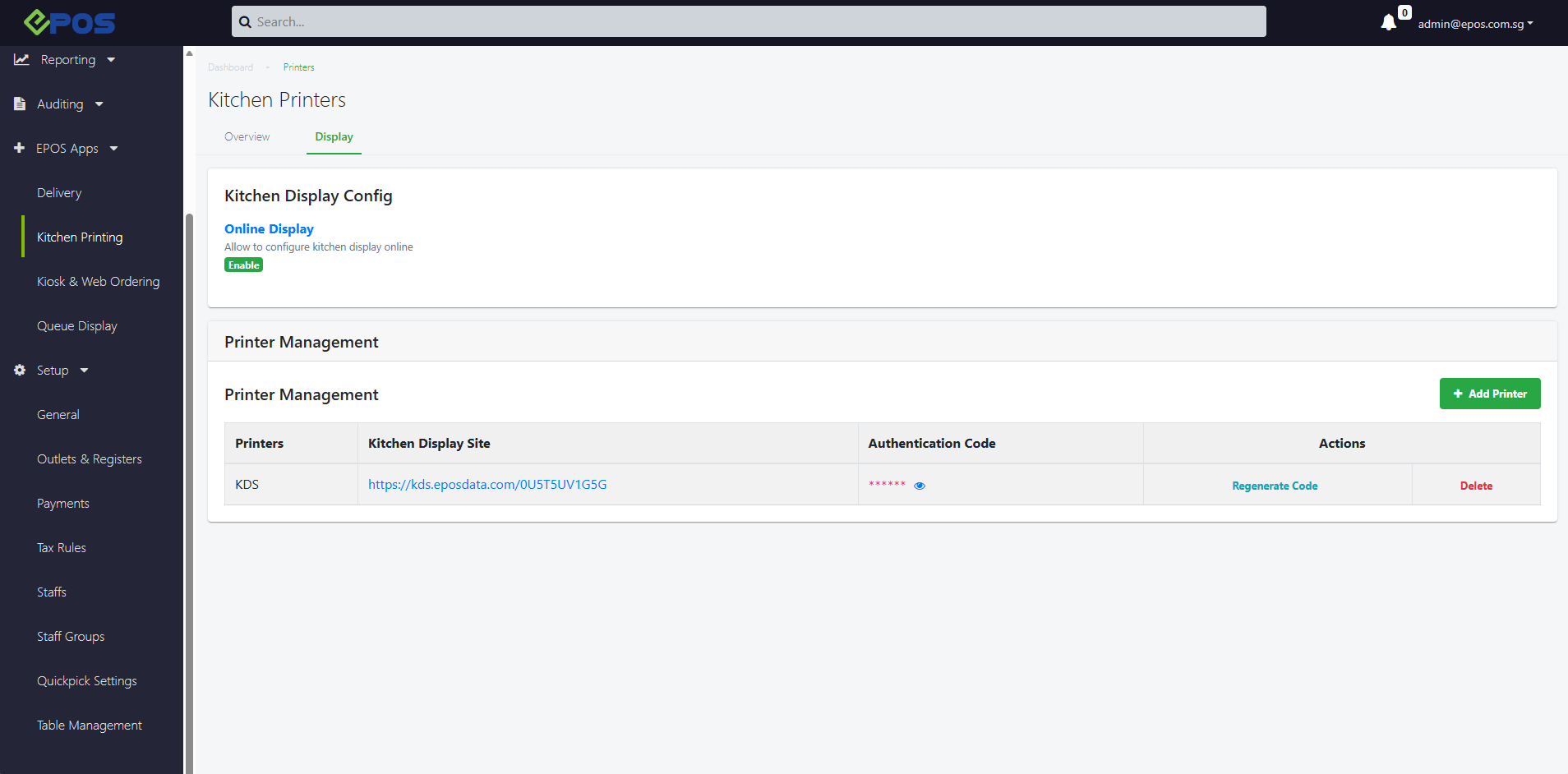
2. Display
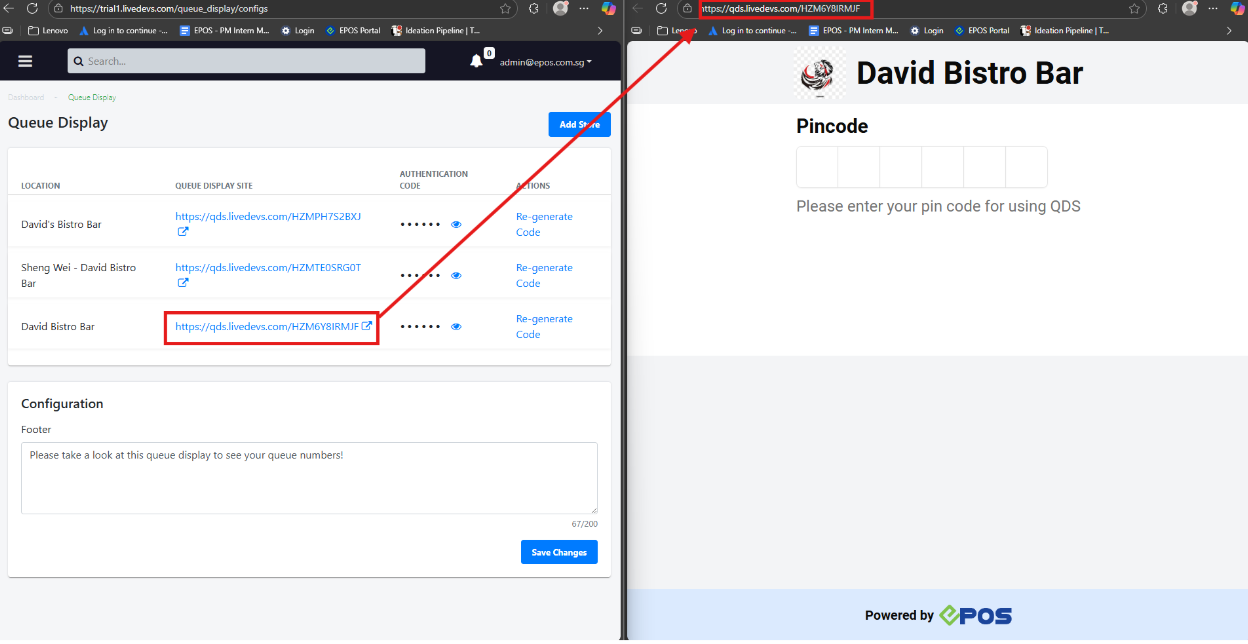
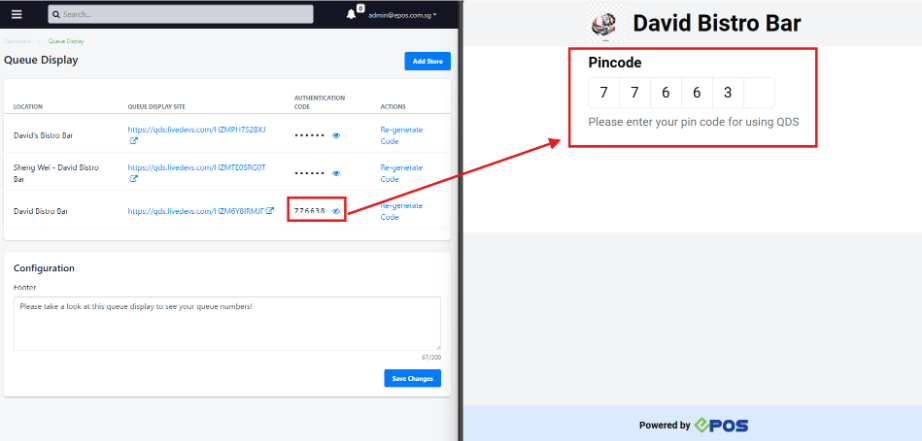
Once the kitchen printer is set up, there will be a hyperlink URL that directs users to the Kitchen Display Site. Using the KDS device’s web browser, users can click on the link to direct them to the online KDS site.
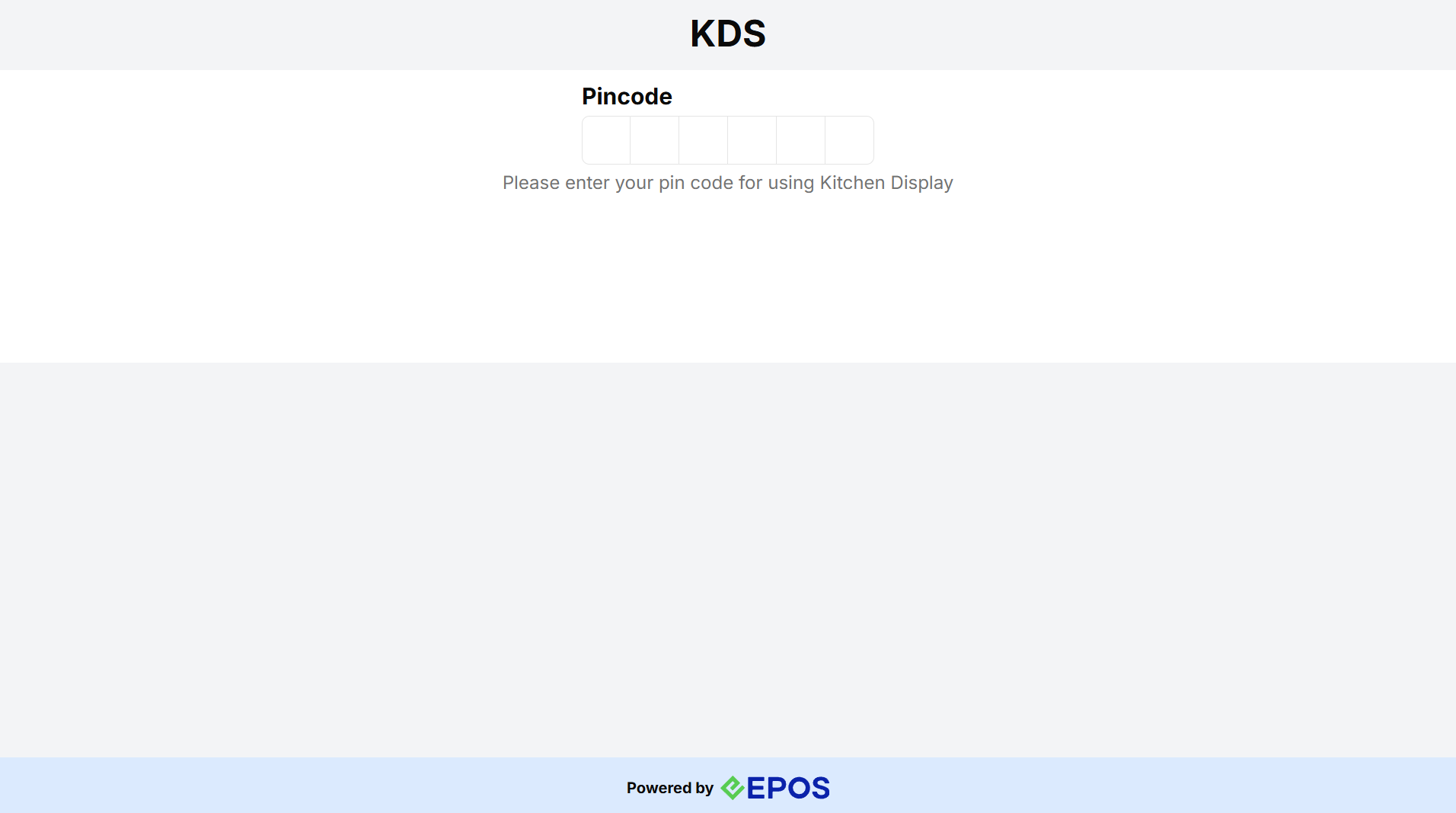
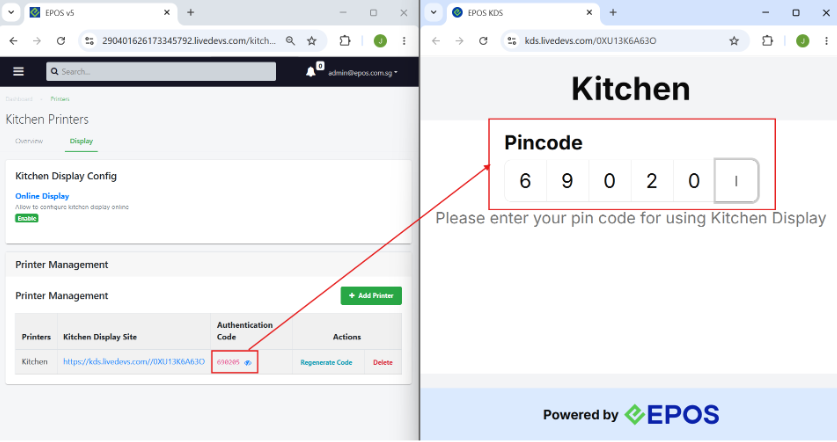
Users can click on the “Eye” icon to reveal the pin code for using the KDS. Selecting Regenerate code will provide a new authentication code and disable the old code.
3. Features
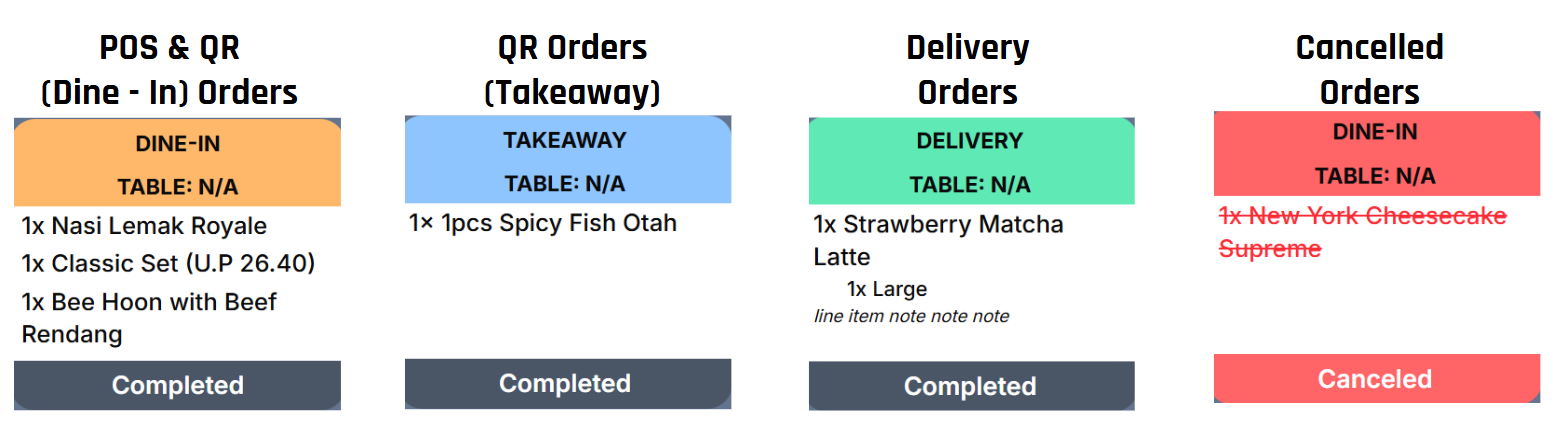
Different Orders Modes will have different Header Colours and Header names. The colours will help aid the Kitchen Staff when preparing the food according to the different order modes.
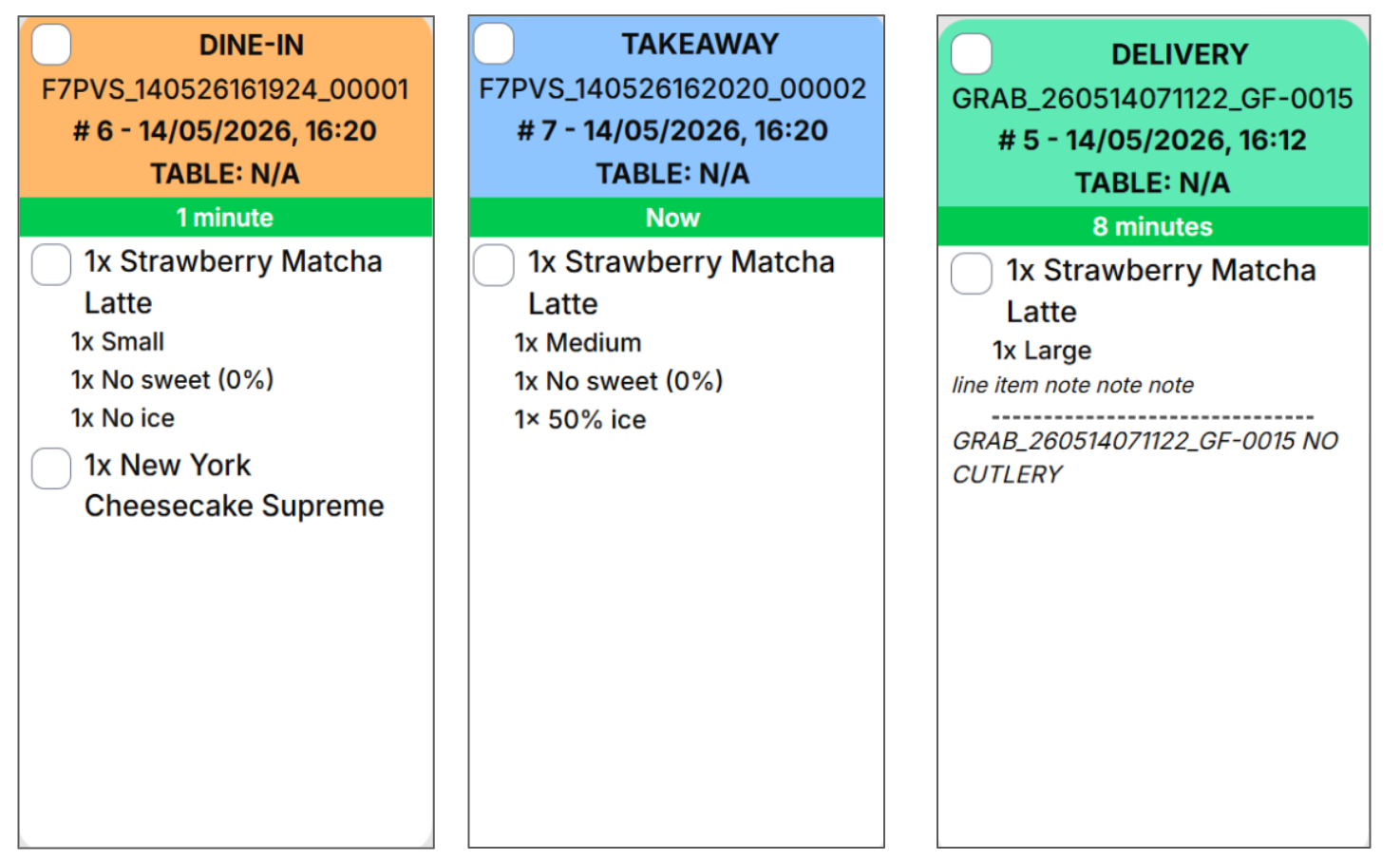
Order Ticket
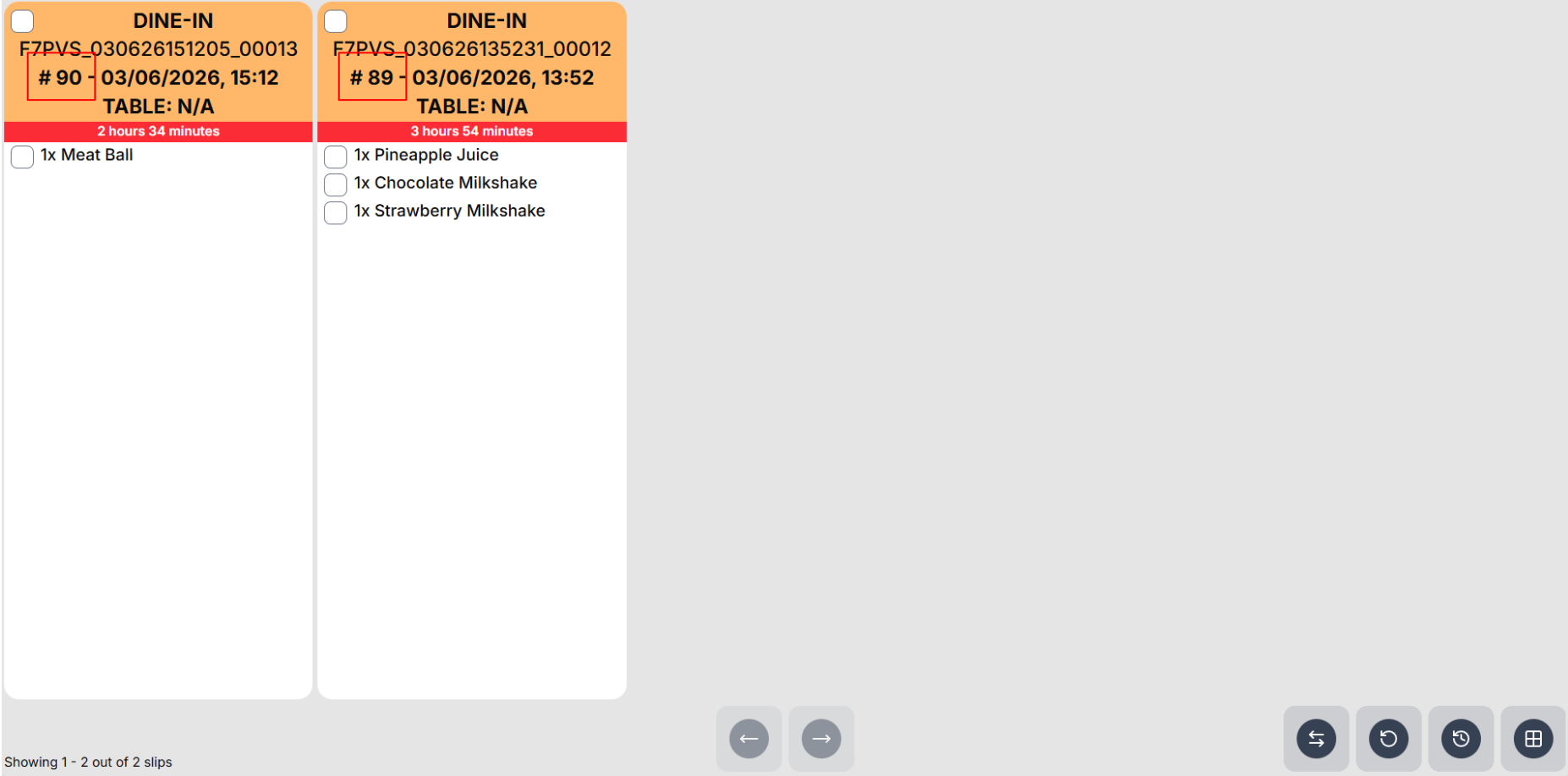
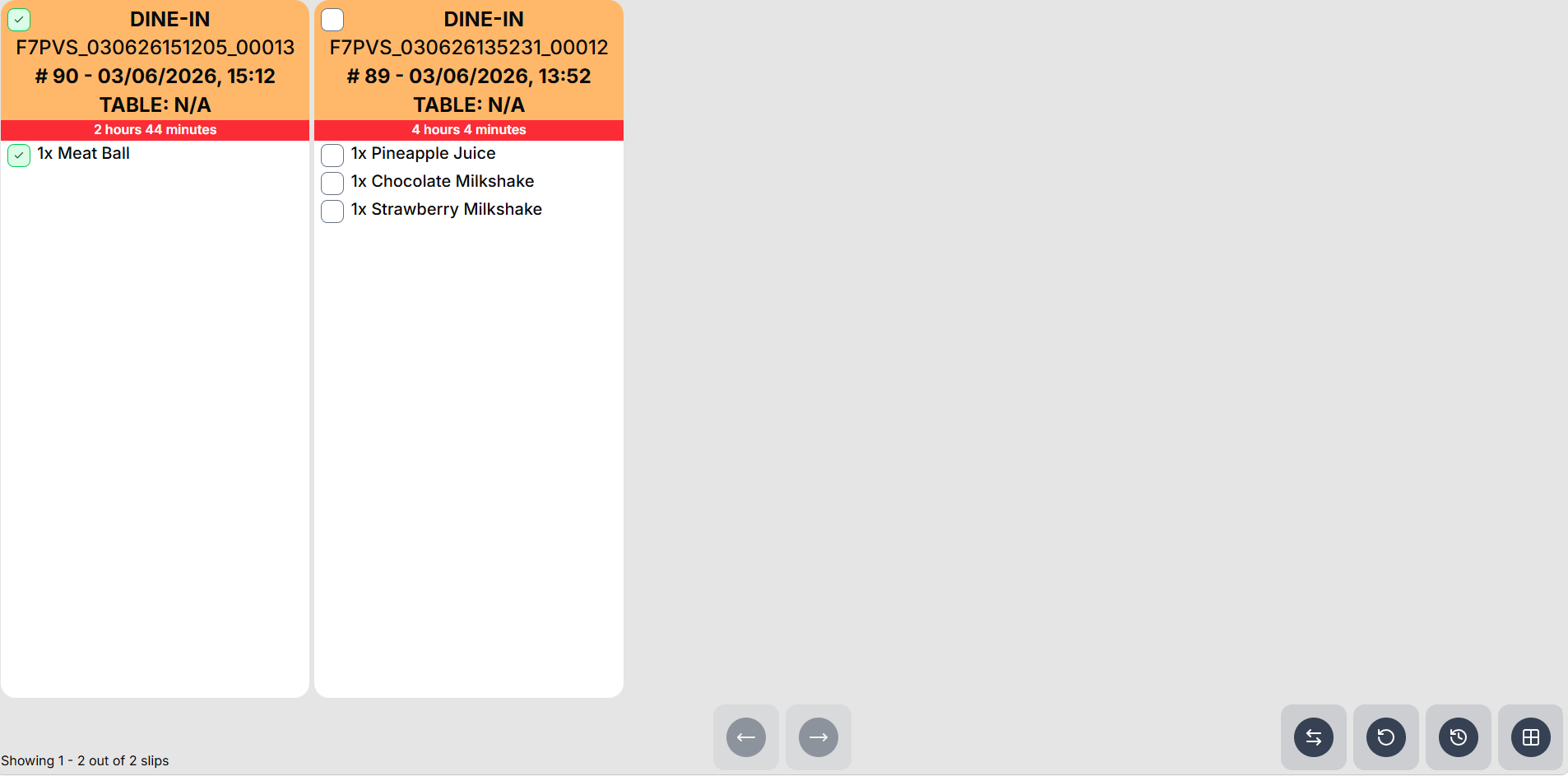
Each order ticket that flows into the KDS will contain the required information for the chef to prepare the order. 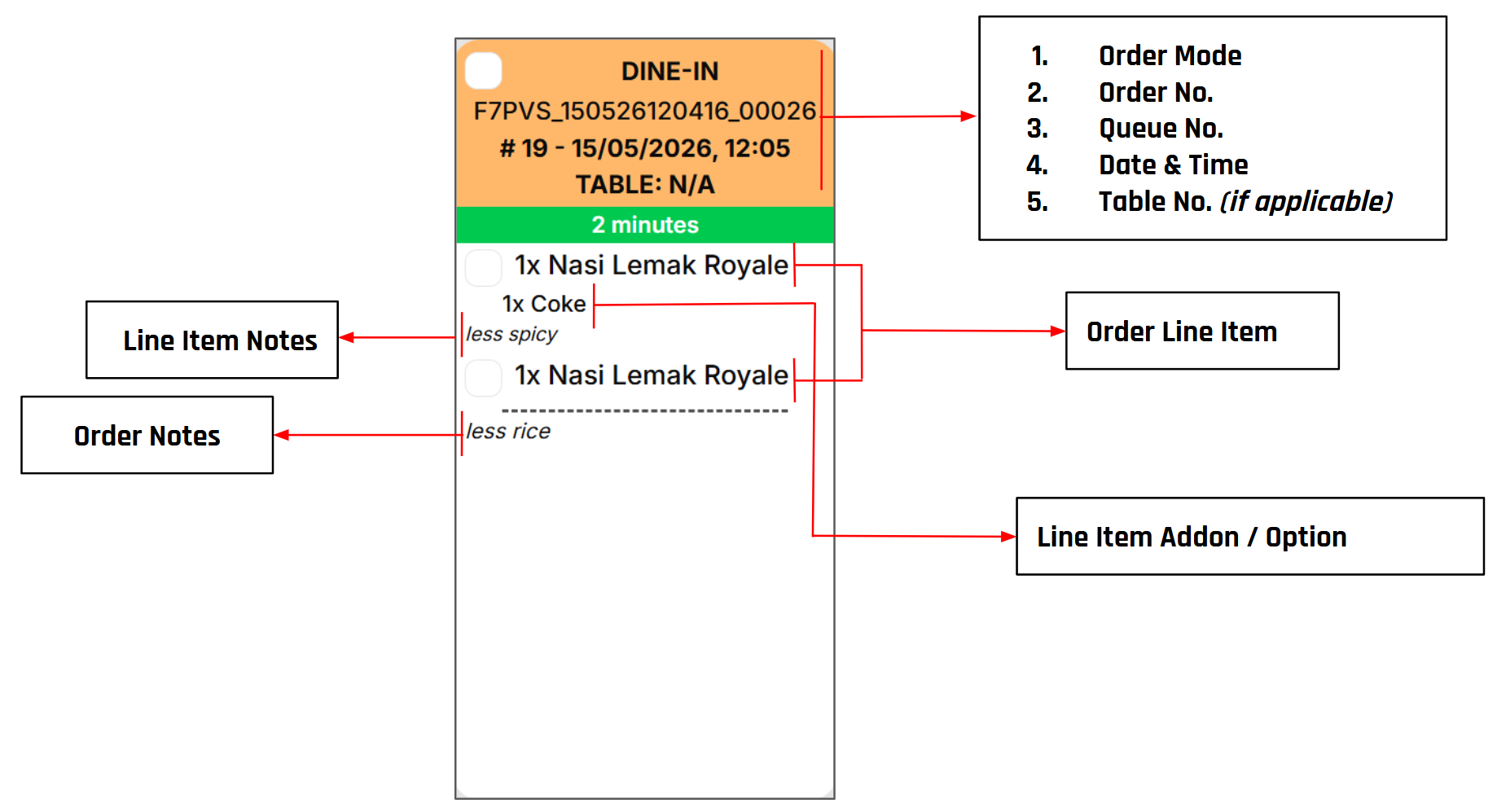
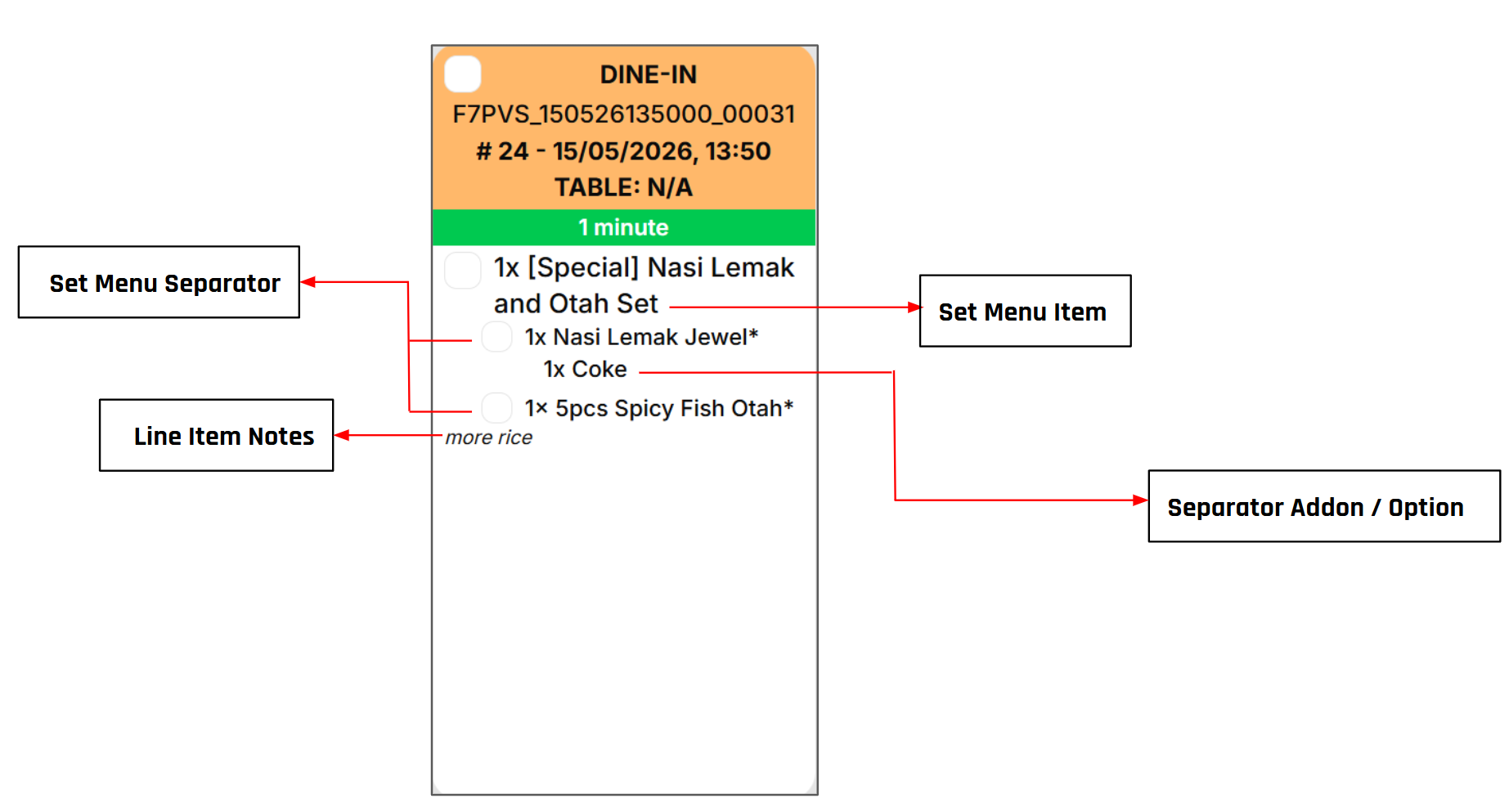
For set menu items, the ticket will contain additional information like set menu item and separator.
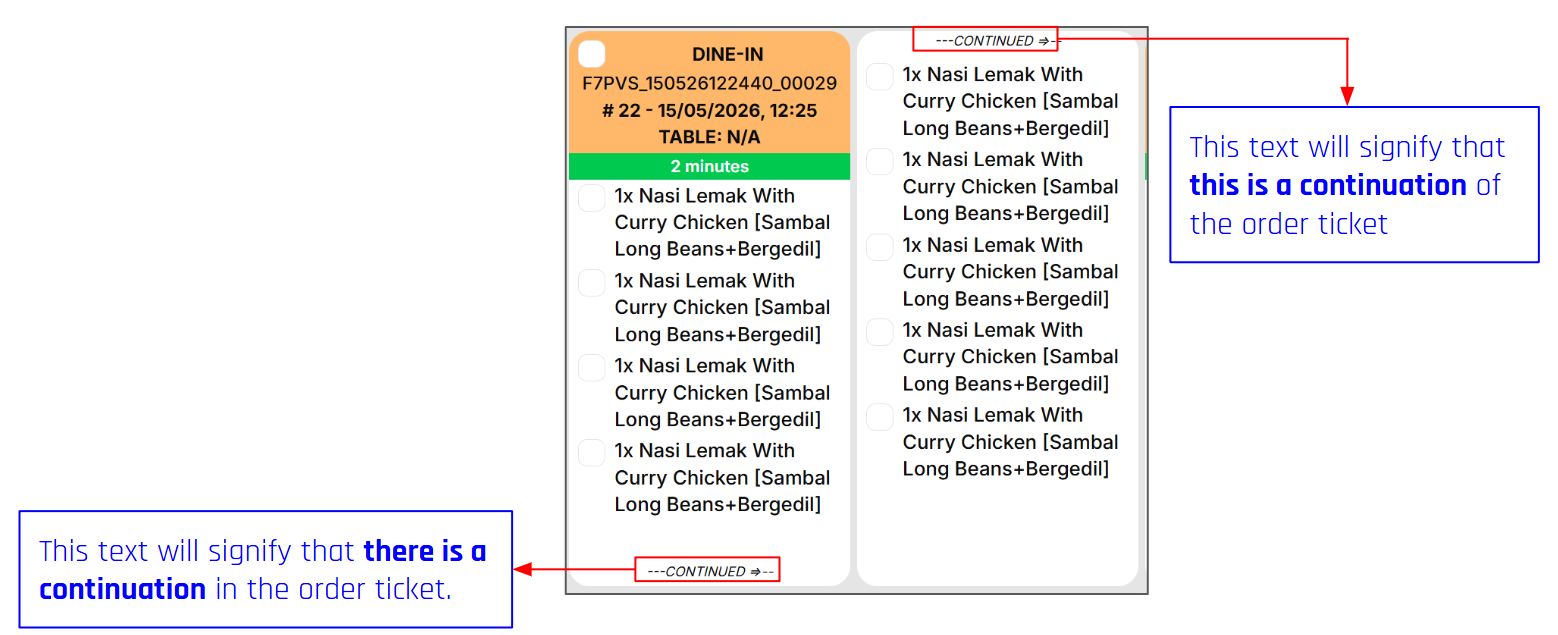
For orders with many line items that are too long, it will be broken down and take up 2 ticket spaces.
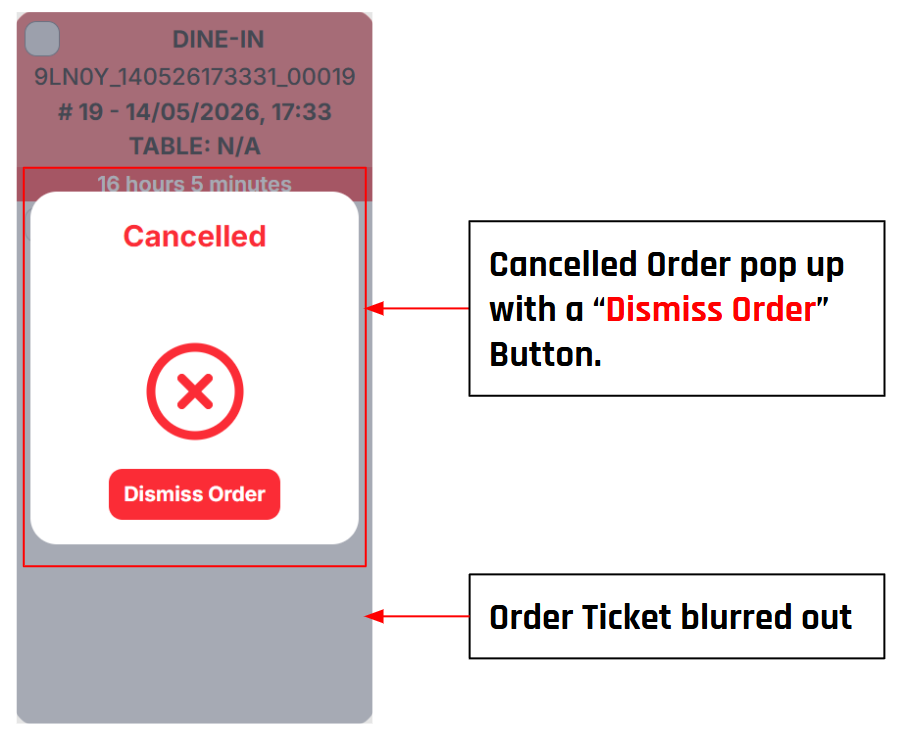
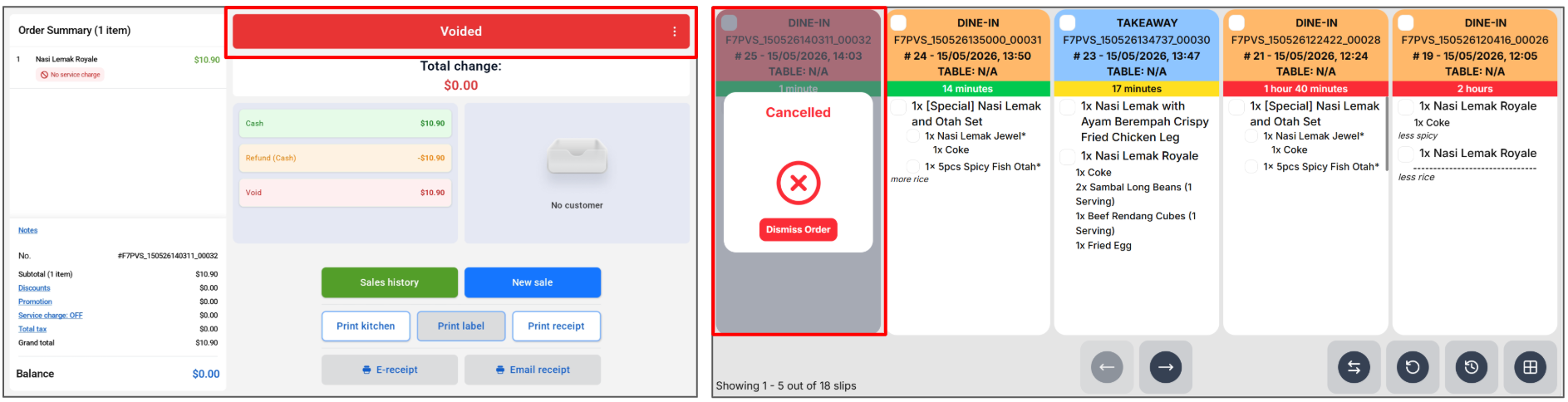
For cancelled orders or orders that were voided on the POS, there will be a cancelled order pop up with a “Dismiss Order” button. The content of the ticket will also be blurred to prevent cancelled orders from being accidentally made.
4. Hidden Configuration & Elapsed Timers
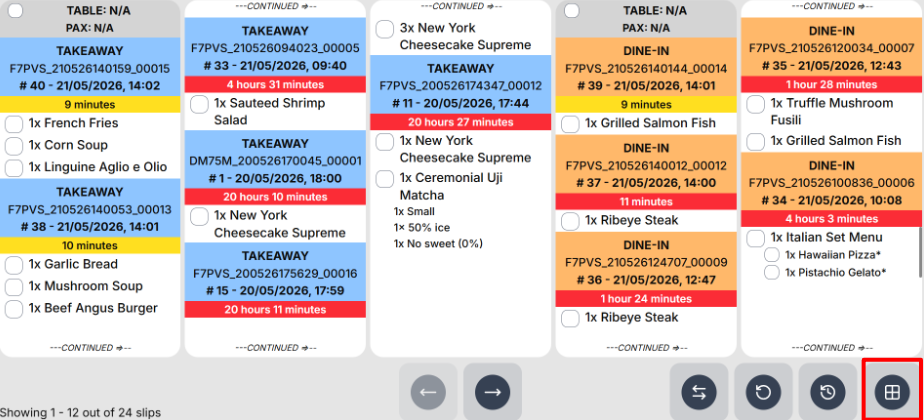
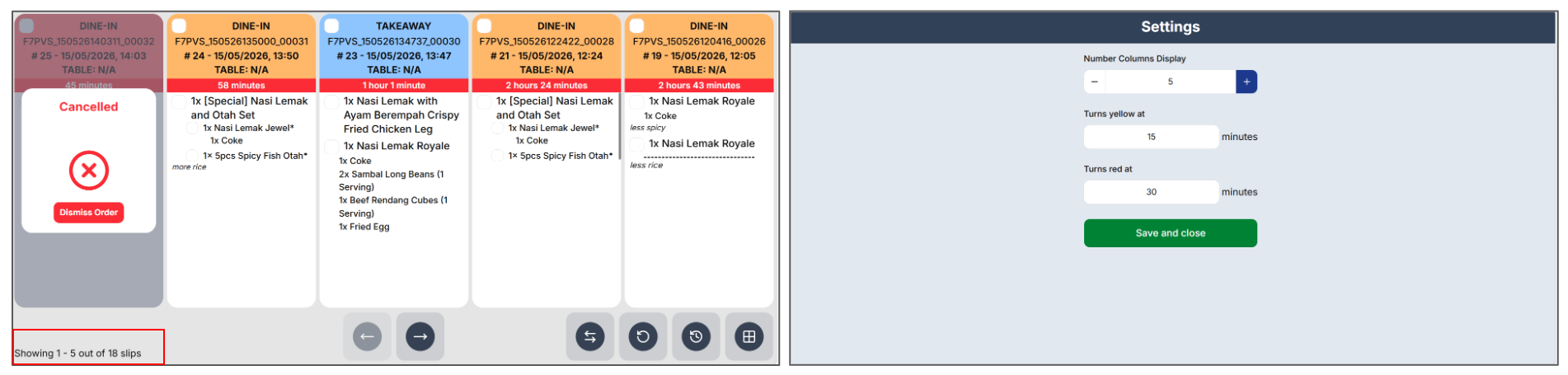
Elapsed time colour and number of columns display can be configured by long pressing on the bottom left corner (boxed in red). Here will be how the settings will look like on the online KDS.
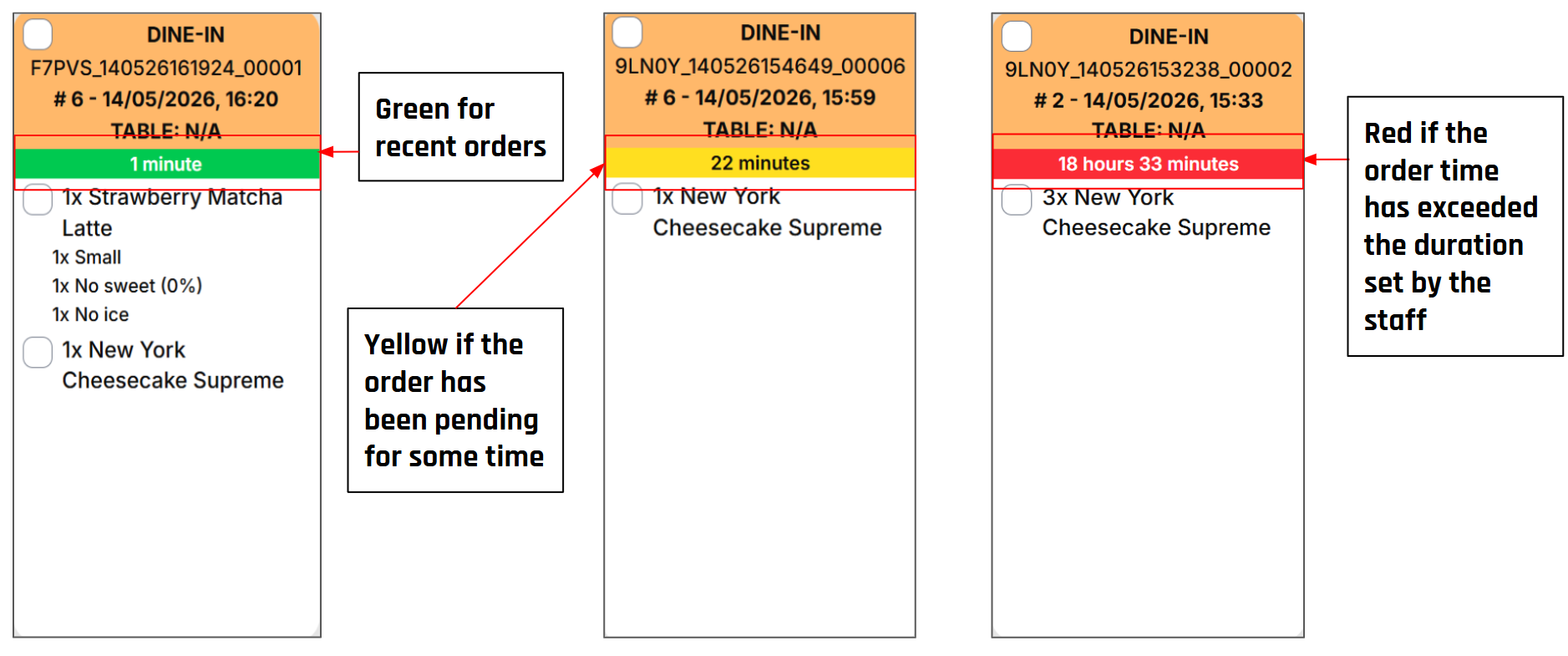
Different elapsed time will have different Colours as shown below. The colours will help aid the Kitchen Staff when potentially missing out food orders. Here will be how the different timers will look like on the online KDS.
5. Online KDS Order Page
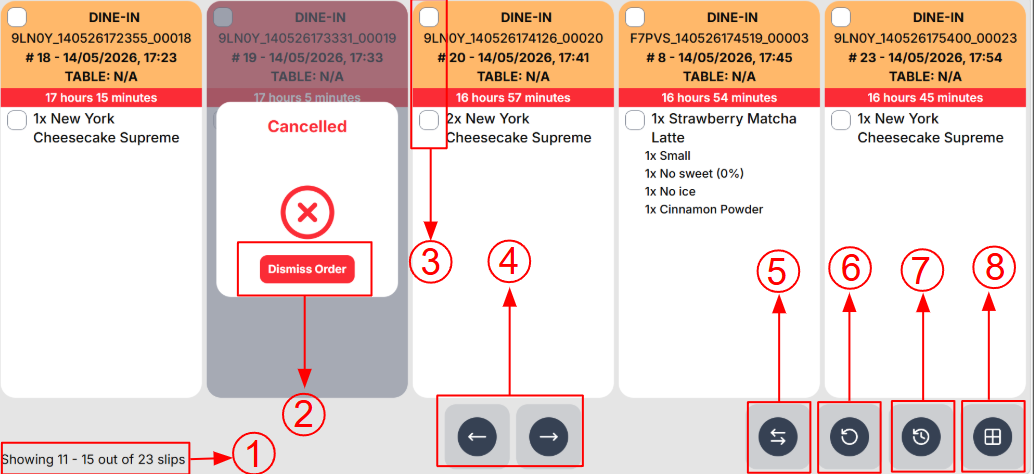
The Order Page is the KDS’s Main Page, where users are allowed to View, Complete and Dismiss ongoing orders. There a few buttons and functions in the order page as shown below. This page will auto-refresh every 45 seconds to pull latest information from the POS.
|
No. |
Feature |
Function |
|
1 |
Hidden configuration |
To allow users to adjust elapsed time and number column display settings |
|
2 |
Dismiss Order button |
To allow users to dismiss “Voided” Orders to the Order History Page |
|
3 |
Complete Item Checkbox |
To allow users to mark an item or order complete |
|
4 |
Pagination buttons |
To allow users to navigate between pages |
|
5 |
Recent Sort button |
To allow users to sort orders by most or least recent |
|
6 |
Manual Refresh / Confirm Button |
To allow users to manually pull latest updates from POS or to confirm completion of completed orders |
|
7 |
Order History Button |
To allow users to view the Order History Page |
|
8 |
Order sorting button |
To allow users to sort orders by ticket or table |
Completing an Order
The Kitchen Staff will prepare the order according to the items displayed in the order ticket.
Once done Kitchen Staff will:
- check the check boxes beside the line item.
- Once all items have been checked or the check box at the top has been checked, kitchen staff can then send the completed order into the Order history page.
6. Order History Page
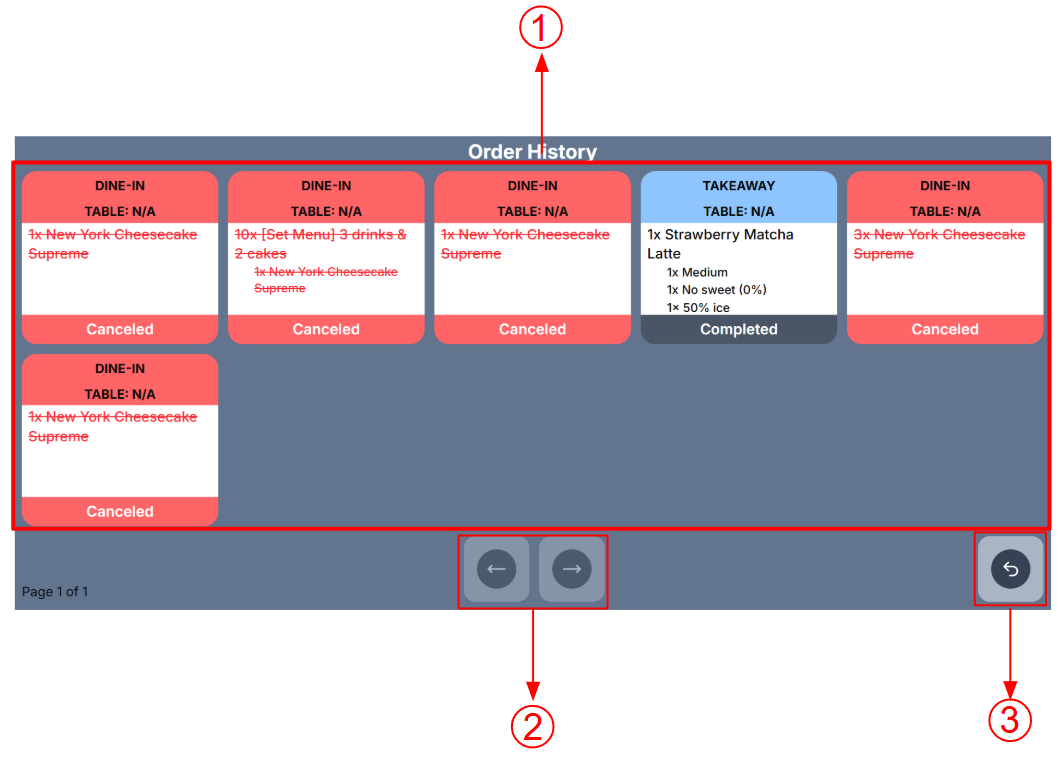
Users will be able to view the past orders in the order history page. Below each ticket, there will be a footer that indicates the status of the ticket: Completed / Cancelled. Orders will stay on the Order History page for 24 hours before they are cleared out.
|
No. |
Feature |
Function |
|
1 |
Order History Tickets view |
Orders that are Dismissed or completed in the Order Page will be displayed here |
|
2 |
Pagination buttons |
To allow users to navigate between pages |
|
3 |
Back Button |
To allow users to return to the Order Page. |
7. Void Order
Orders that are voided on the hybrid kiosk will be reflected on the online KDS.
8. Order Sorting Button
Users will be able to sort orders by ticket or table view. To toggle between the view, users can click on the grid button.
Ticket View:
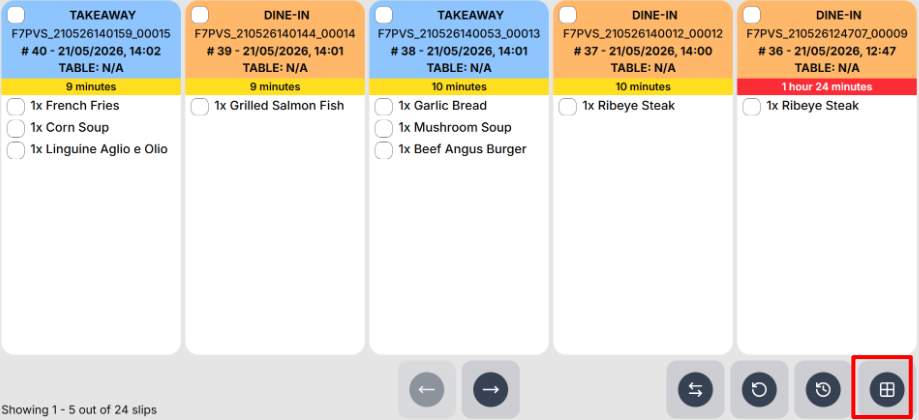 Table View: