GrabFood and FoodPanda Delivery Integration is supported.
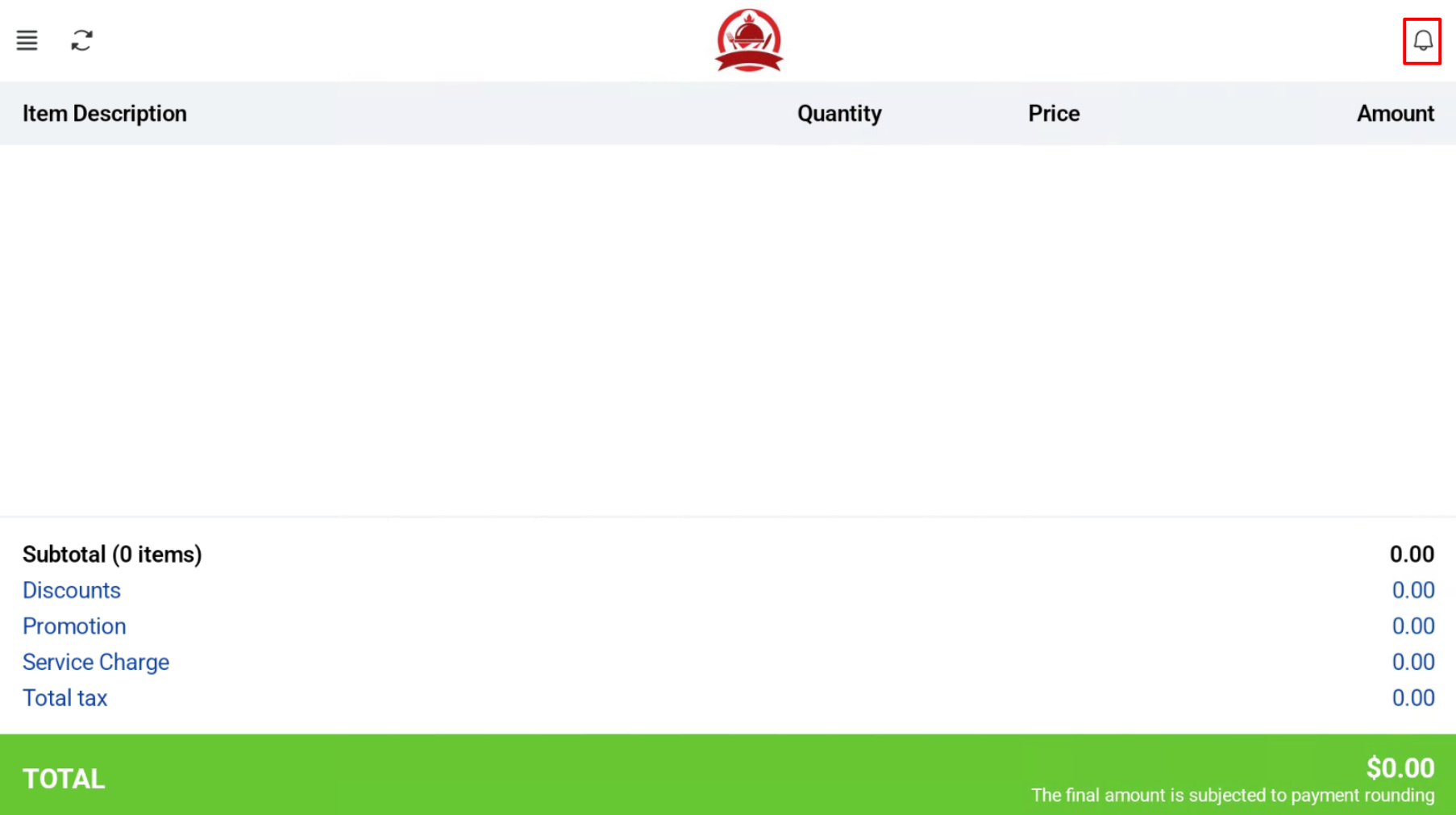
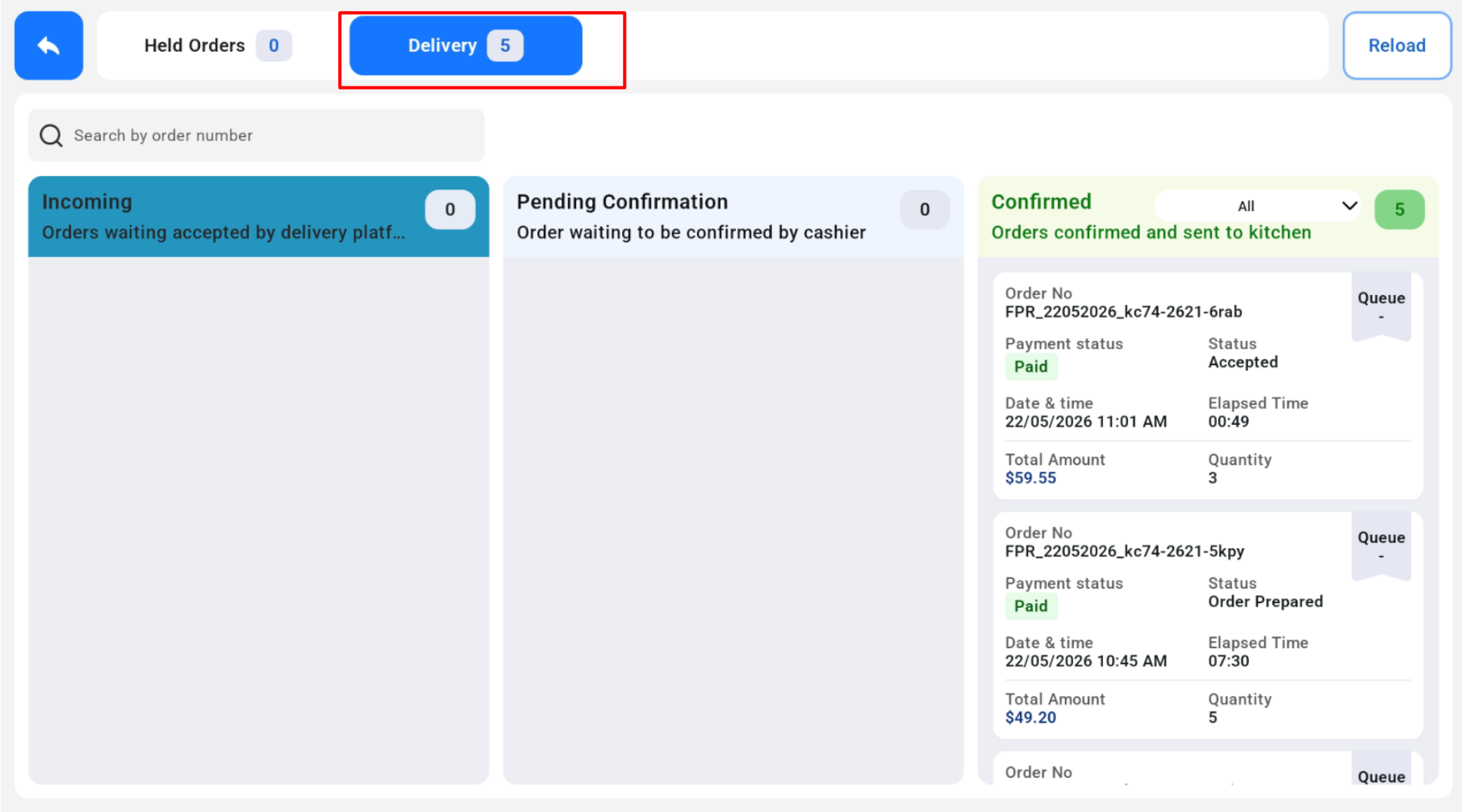
The Bell Icon will show the number of incoming and pending confirmation delivery orders. In the POS mode, click into the Bell Icon and navigate to the Delivery tab. There are 4 different columns:
- Incoming
- Pending Confirmation
- Confirmed
- Cancelled/Rejected
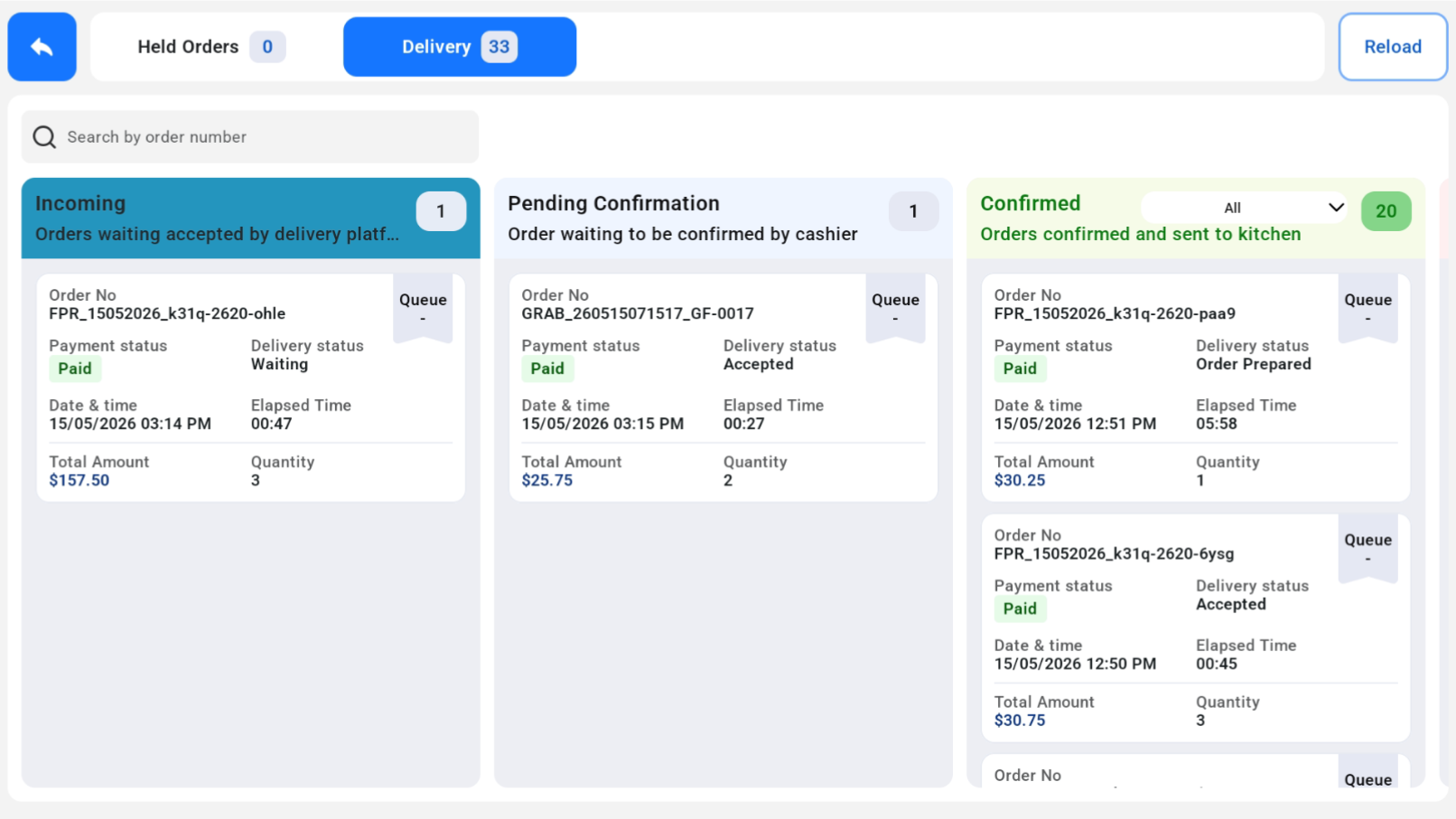
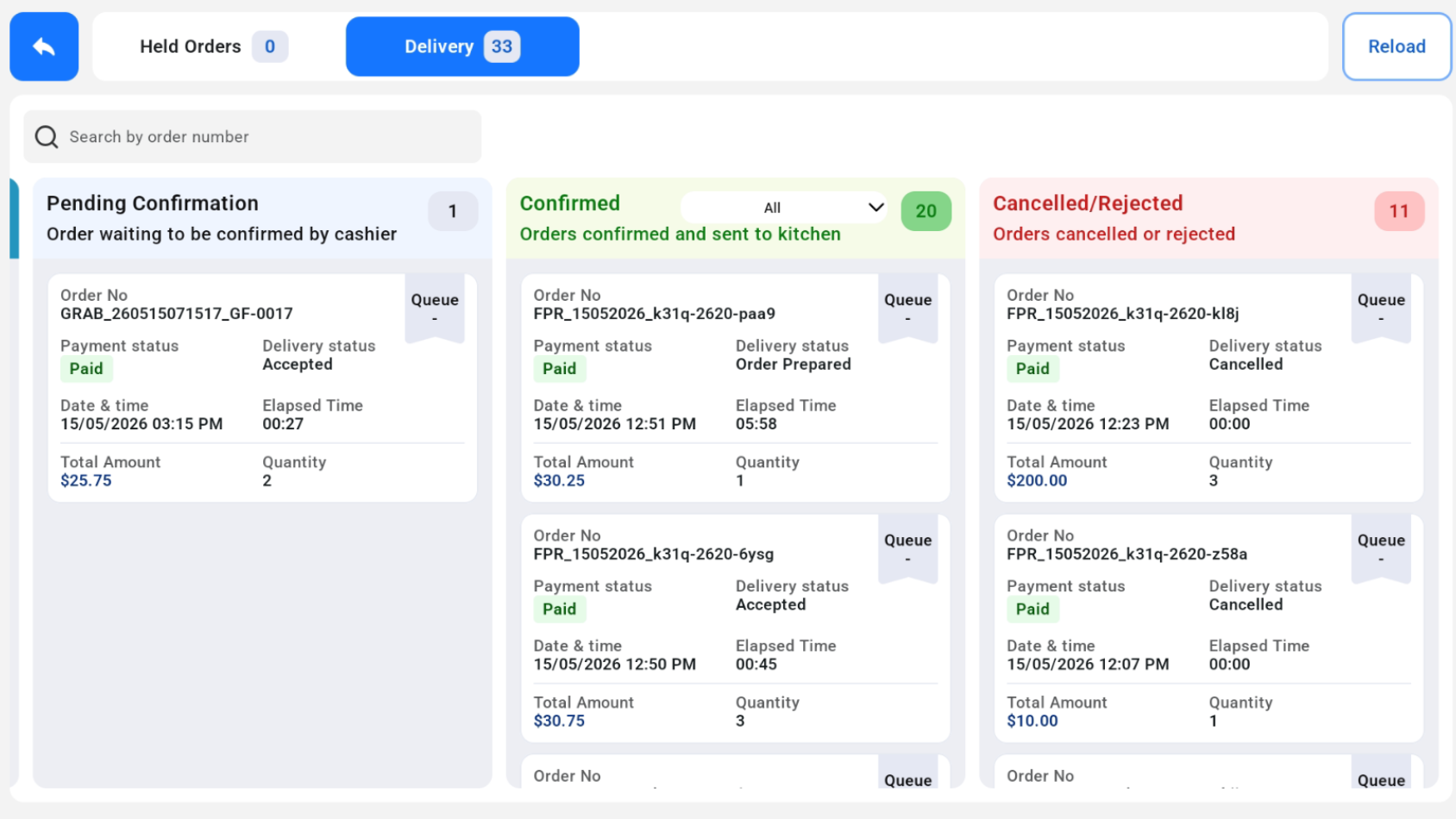
Incoming Tab
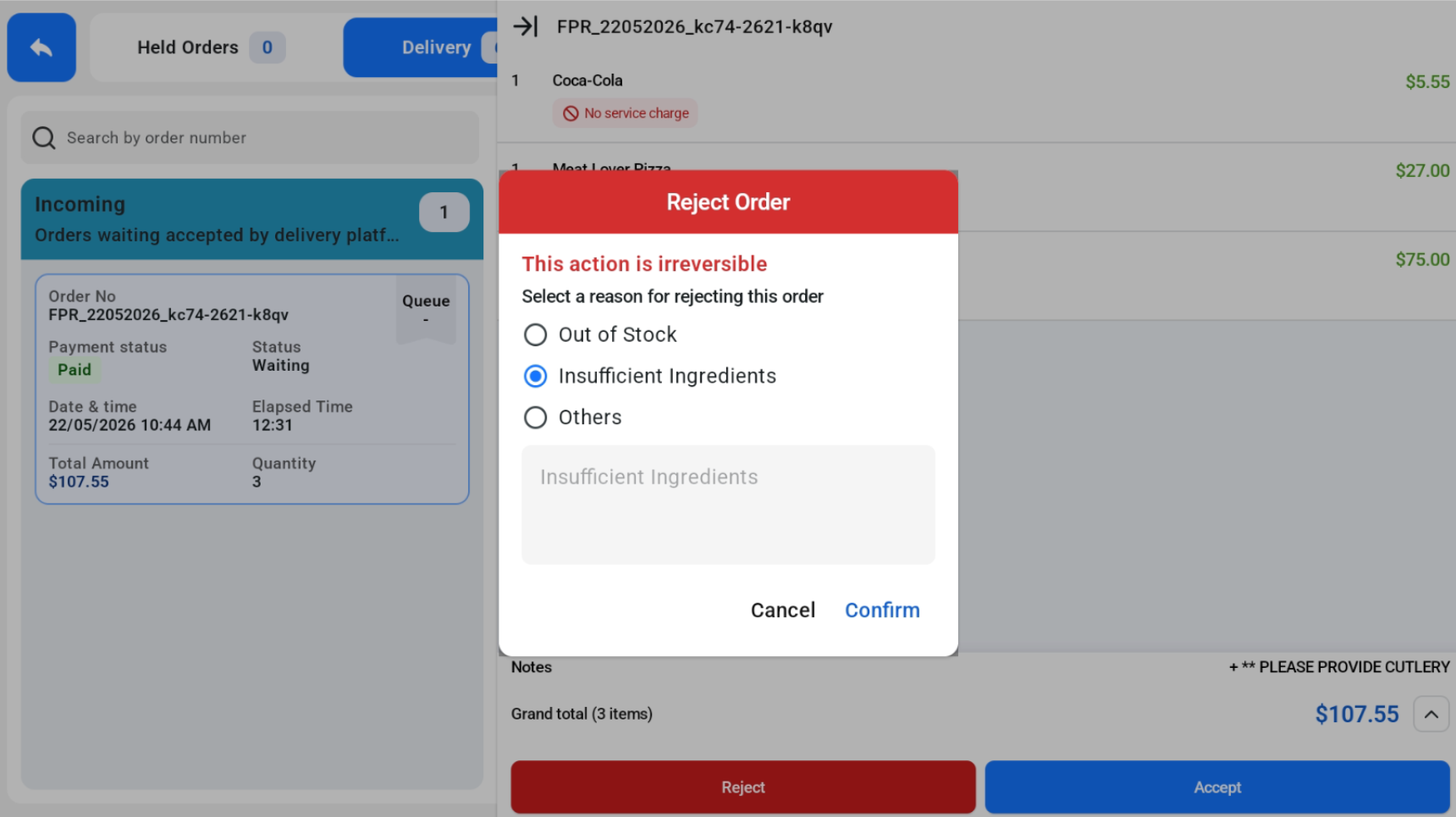
Orders are to be accepted in the delivery platform. User can click accept to move the order to “Pending Confirmation” column or click Reject to cancel the order.
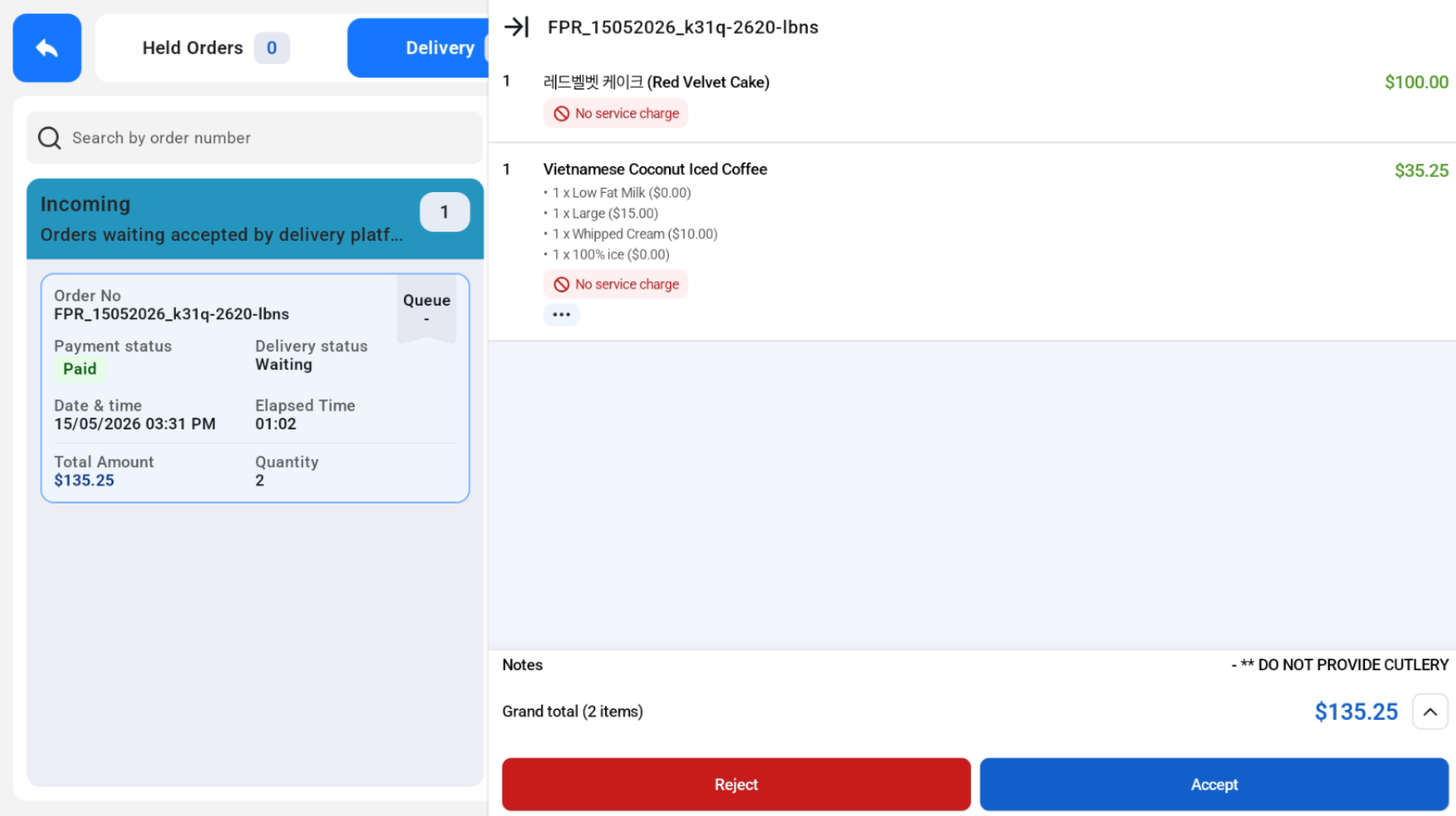
Pending Confirmation Tab
Orders that are waiting to be confirmed by cashiers fall under the Pending Confirmation tab. Cashier can click “Send to Kitchen” to send the order to the kitchen.
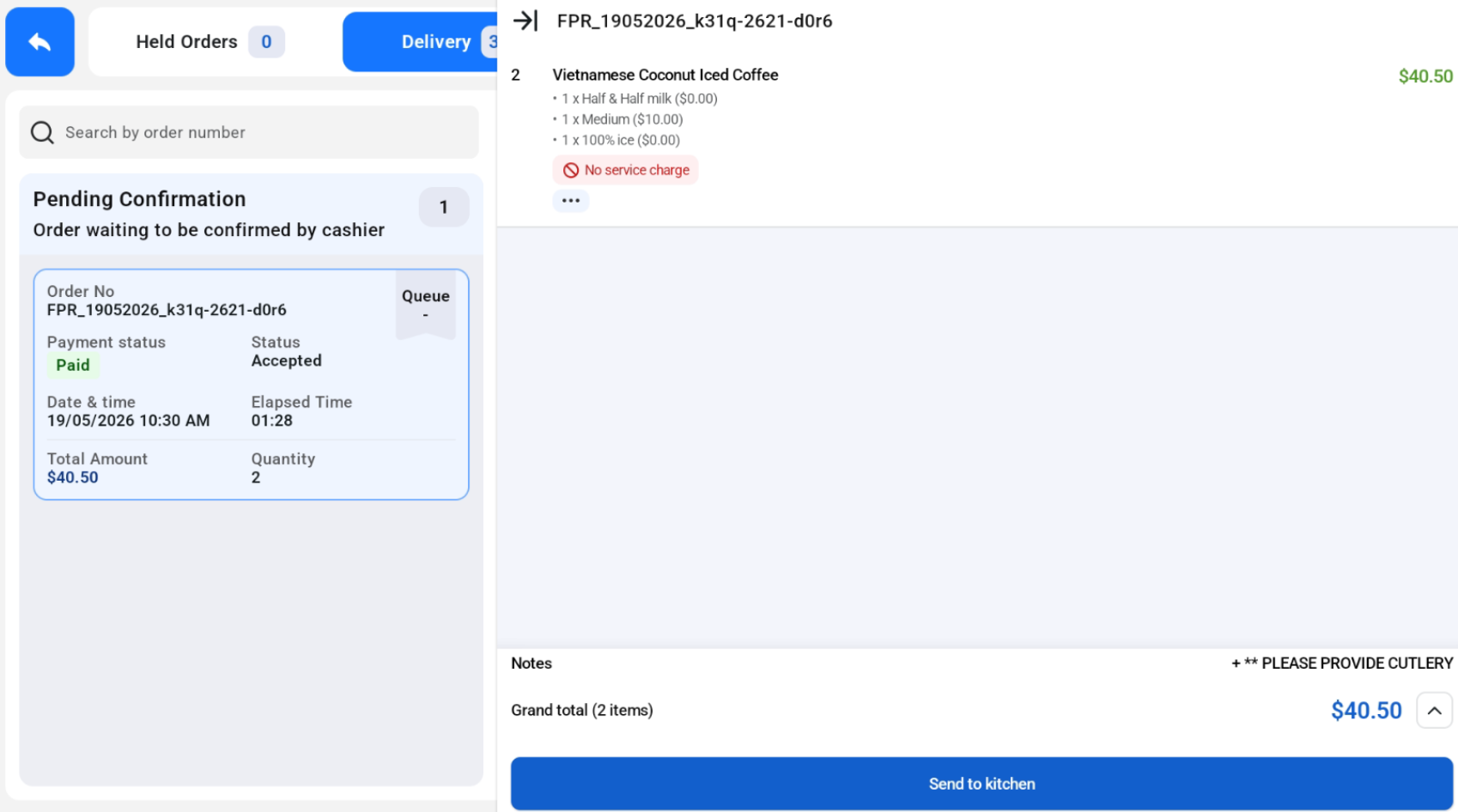
Confirmed Tab
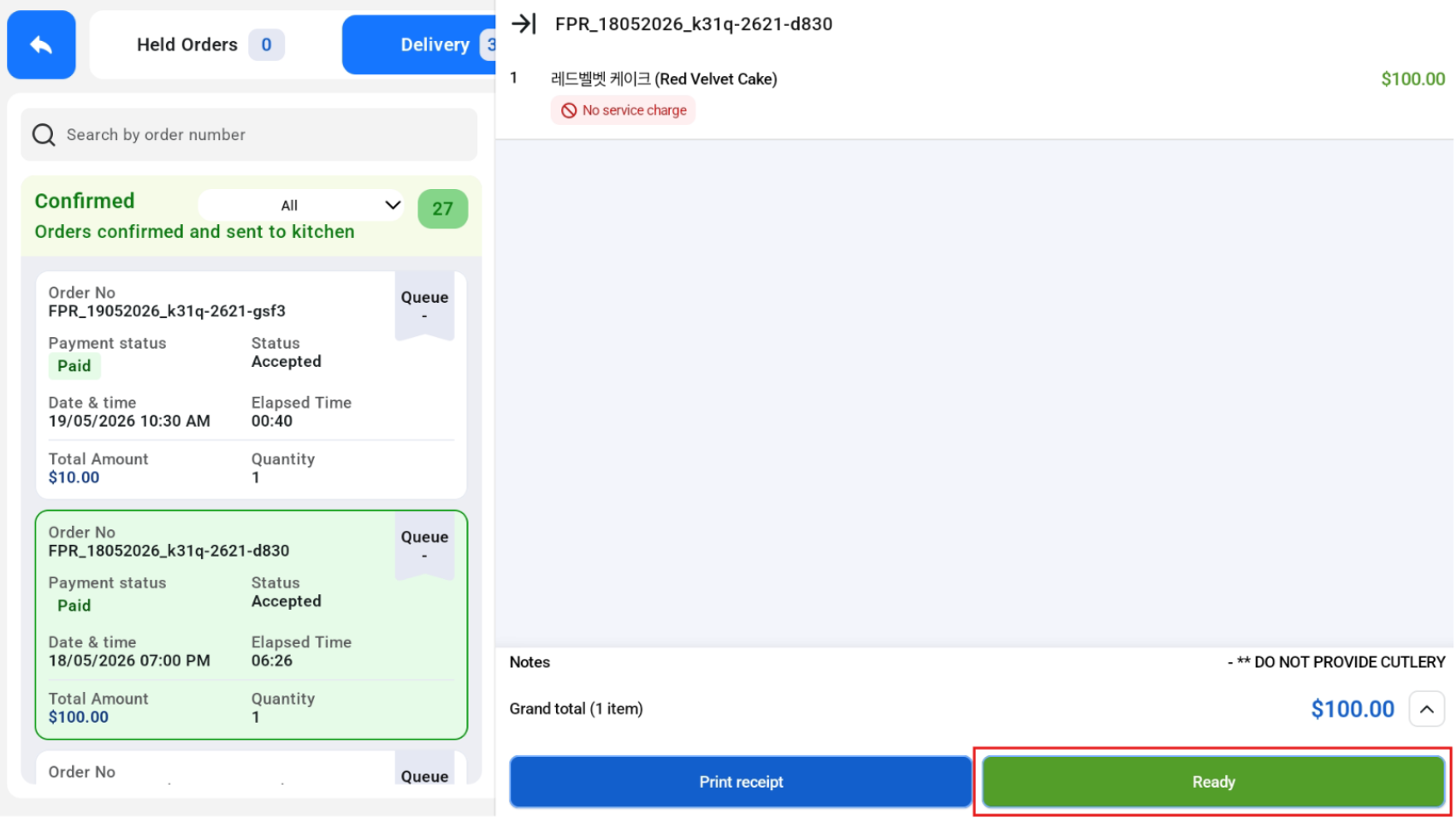
Orders that are confirmed and sent to the kitchen fall under the Confirmed Tab. User is able to filter the orders by their status.
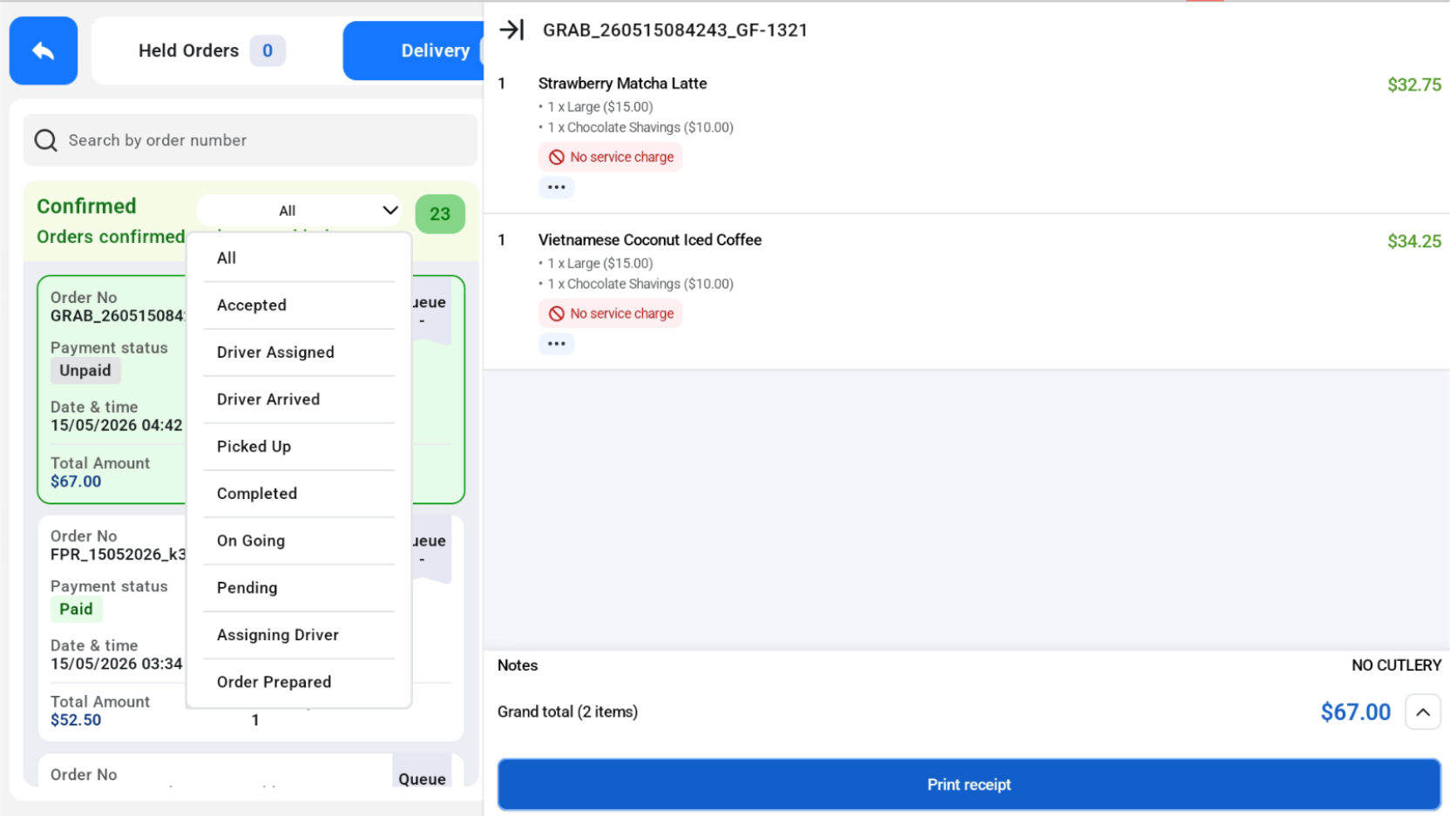
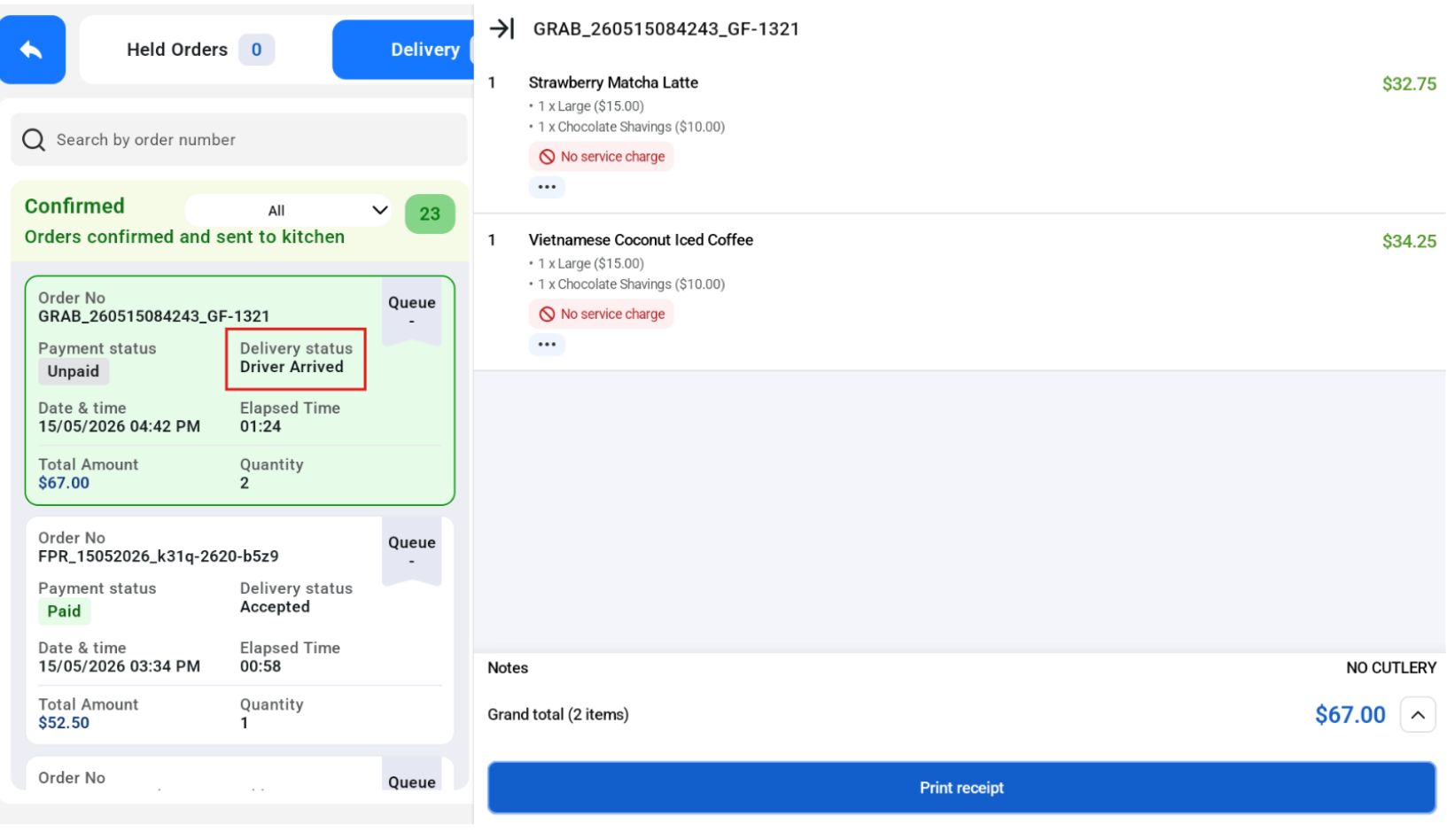
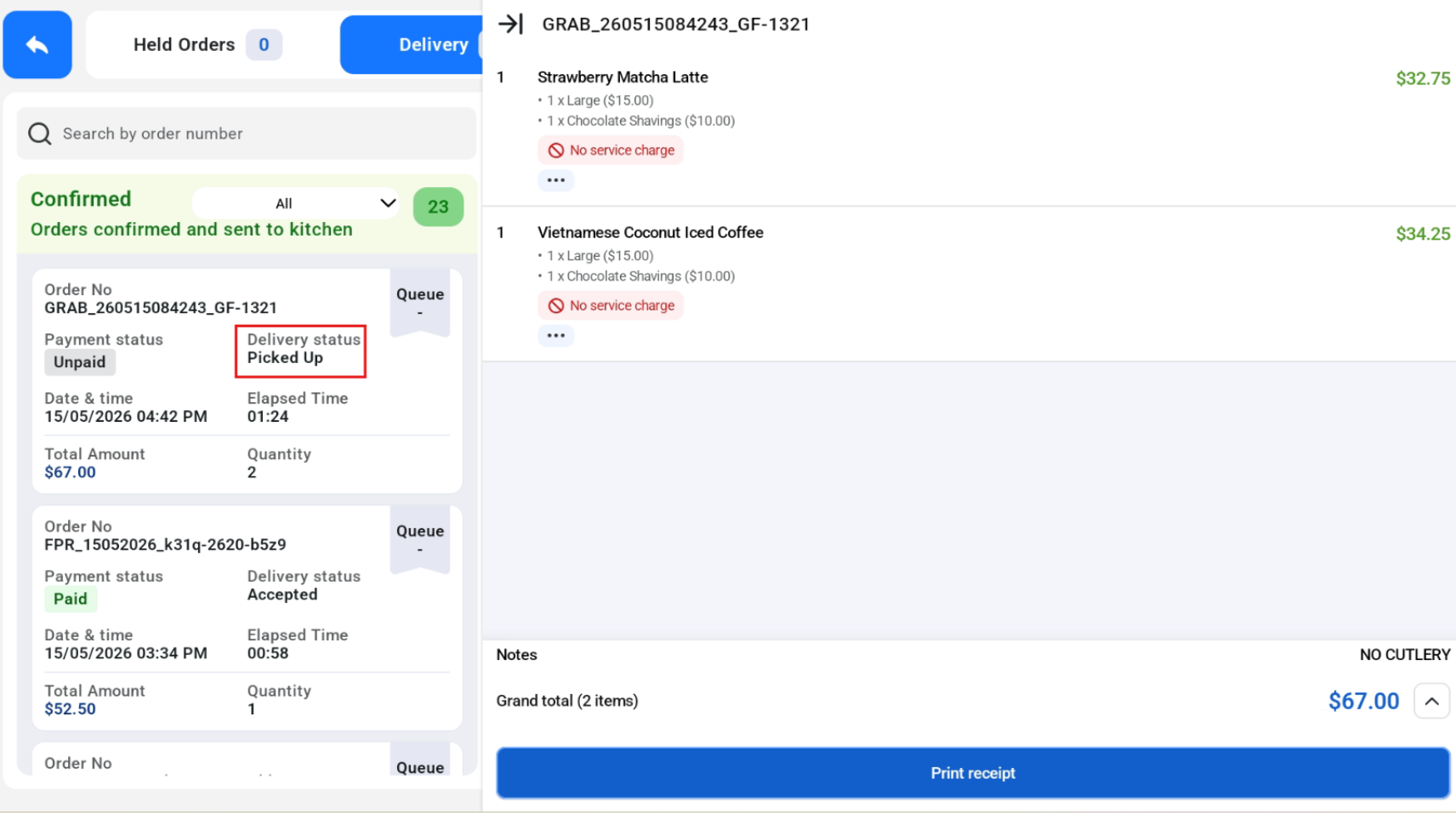
GrabFood Orders will automatically update when the status changes from Accepted to Driver Arrived to Picked Up.
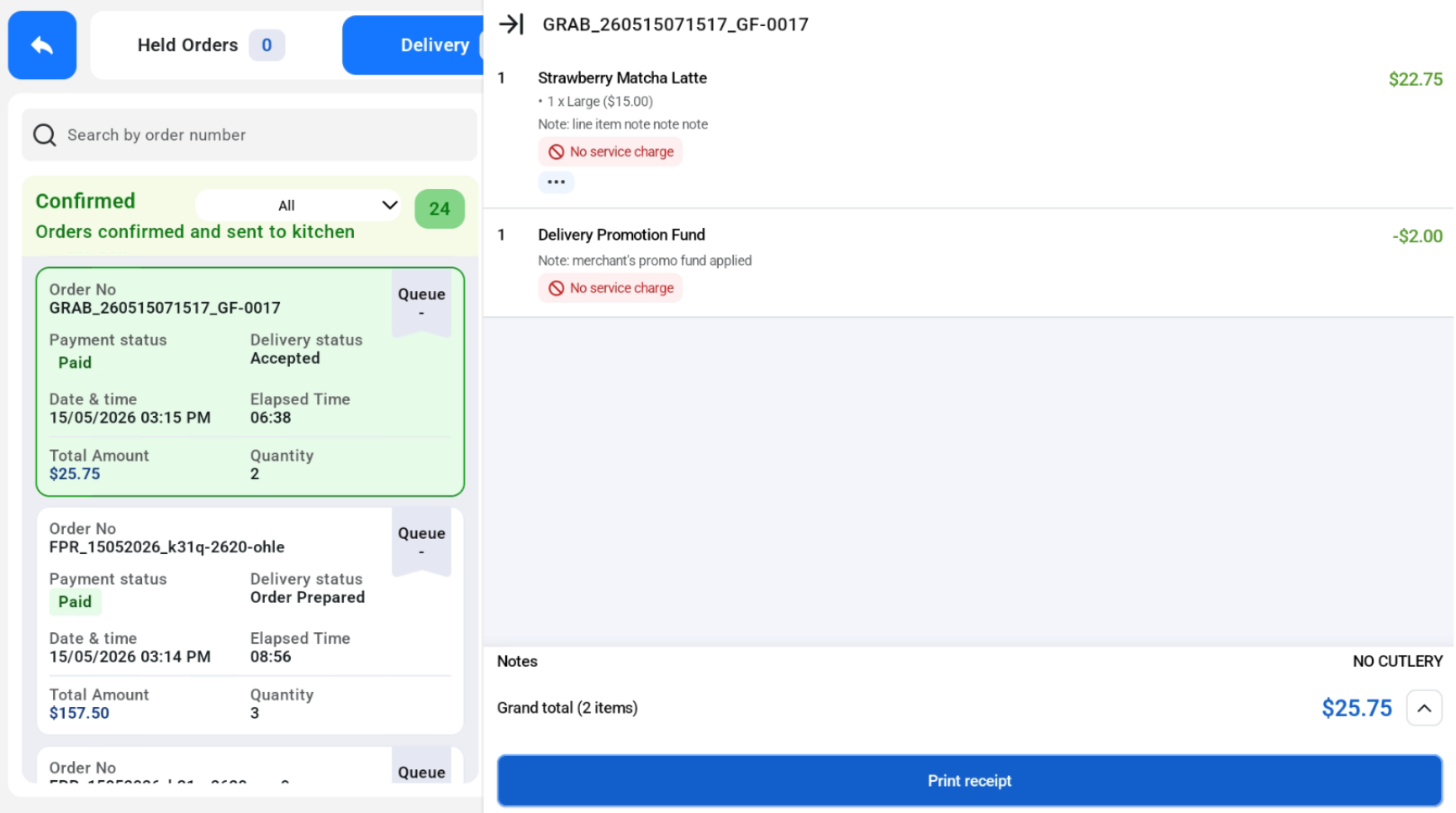
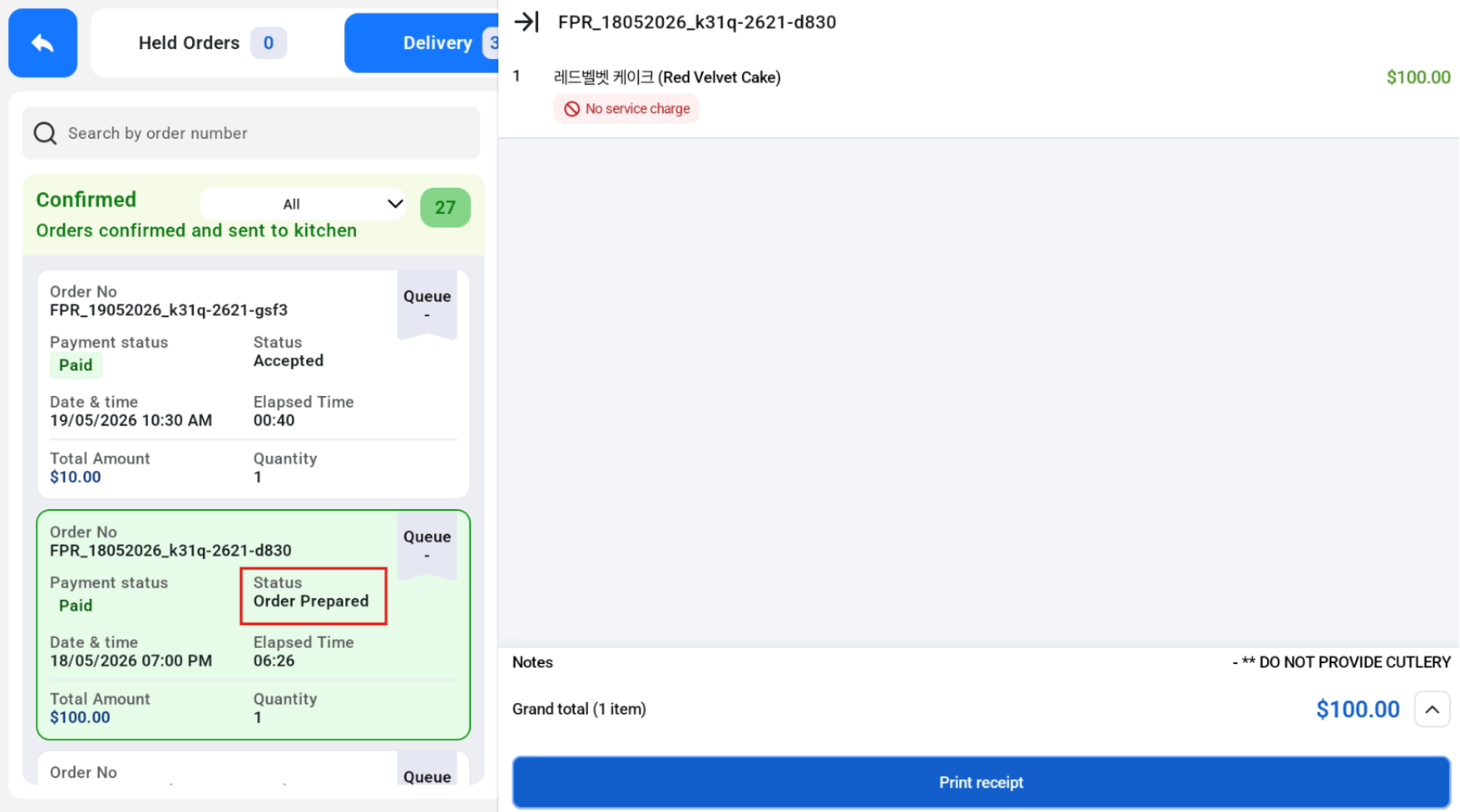
For FoodPanda orders, there will be a “Ready” button. When clicked, the delivery status will change from Accepted to Order Prepared
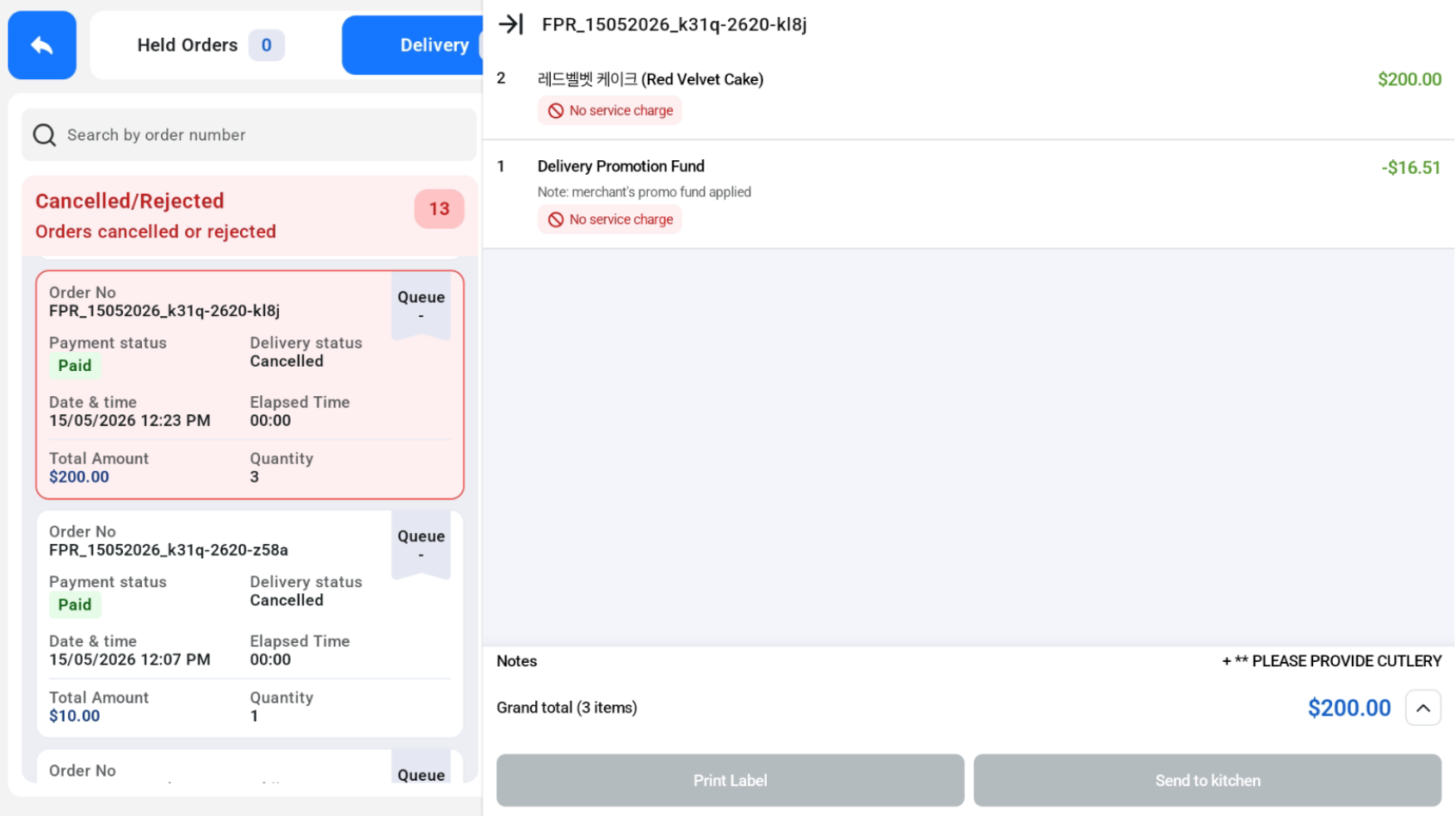
Cancelled/Rejected Tab
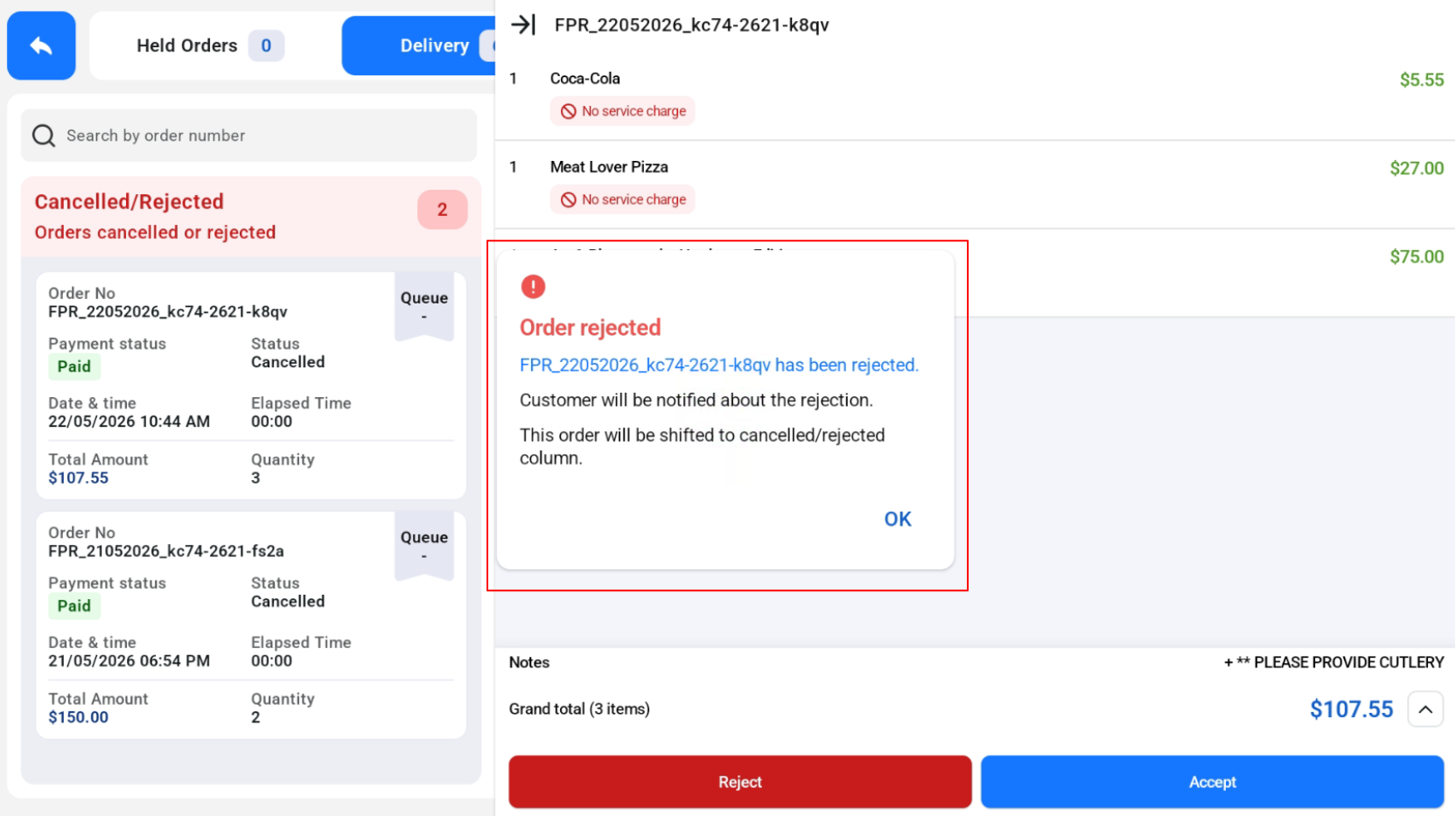
When an order is rejected from the Incoming Tab, user will need to select the rejection status. After clicking confirm, the order will be moved to the Cancelled/Rejected Tab.
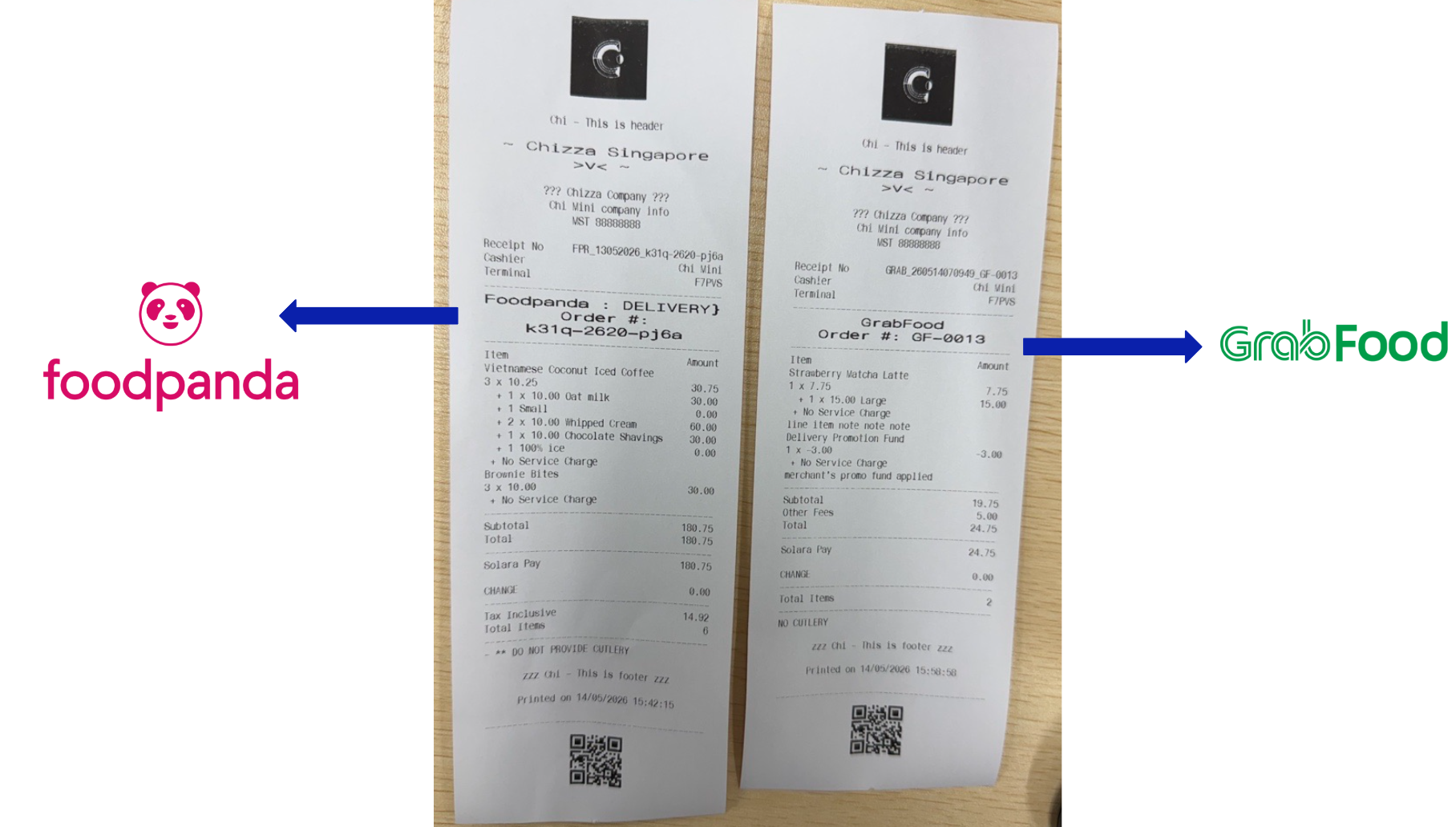
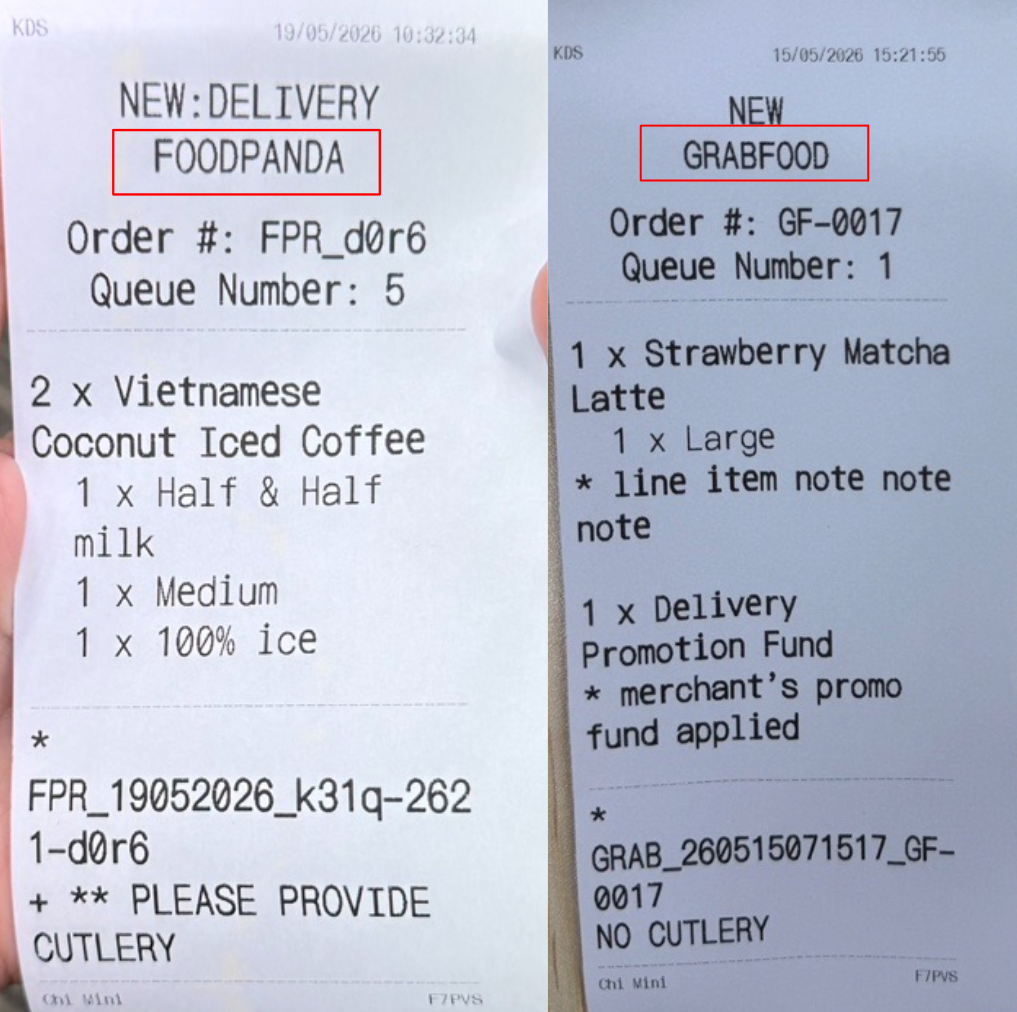
Receipt Details
The receipt will be printing according to the delivery platform details.
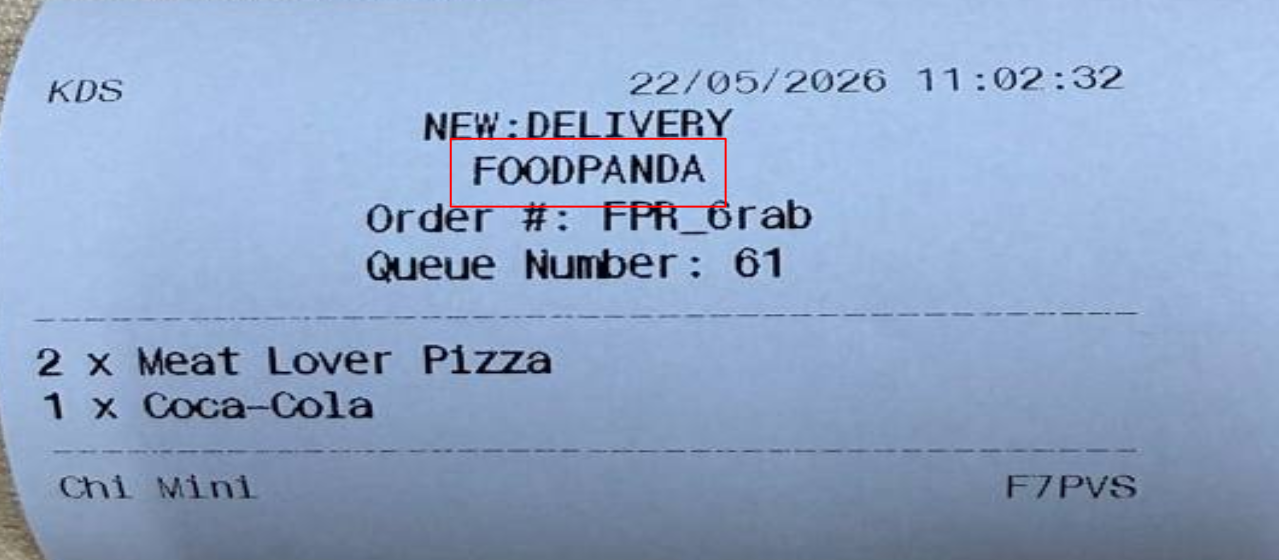
 Kitchen Slips (Small)
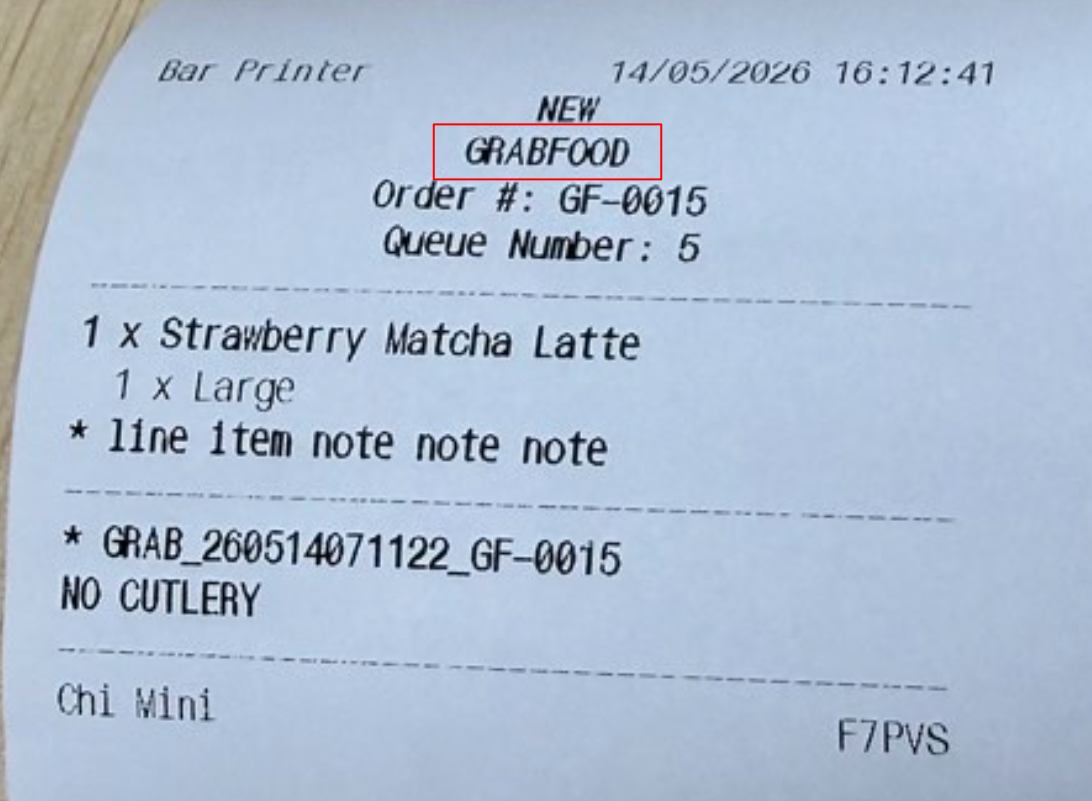
Kitchen Slips (Large)
Bell Icon in Kiosk Mode
There is also a bell icon in the cashier screen of the Kiosk mode, which displays the number of orders inside. If the kiosk is not being used by the customer, the cashier can press the bell icon and directly go to the POS mode to check delivery order.