There are 2 ways to register.
1. WhatsApp QR Code + Login with Phone number
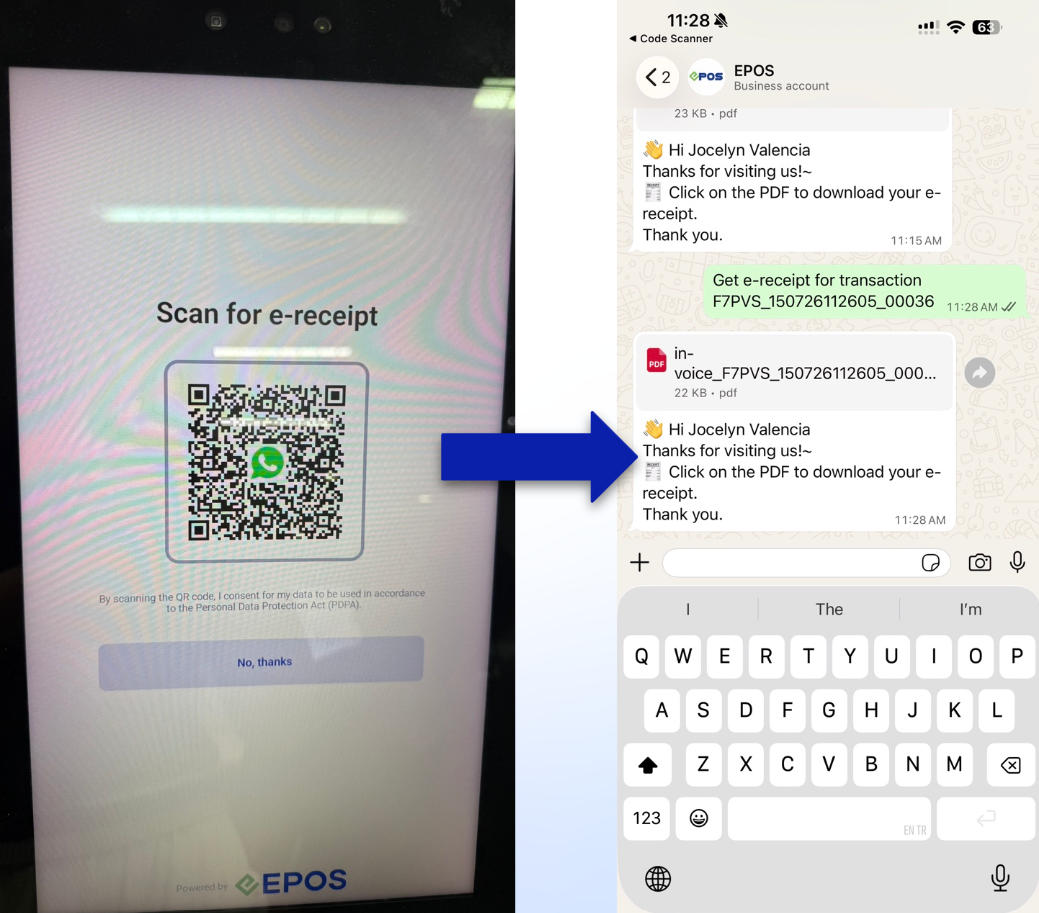
If customer is not tagged to order and merchant is using WhatsApp integration, the WhatsApp signup QR code will be shown in both cashier and customer screen.
Cashier Screen
Customer Screen
2. WhatsApp QR Code + Scan E-Card
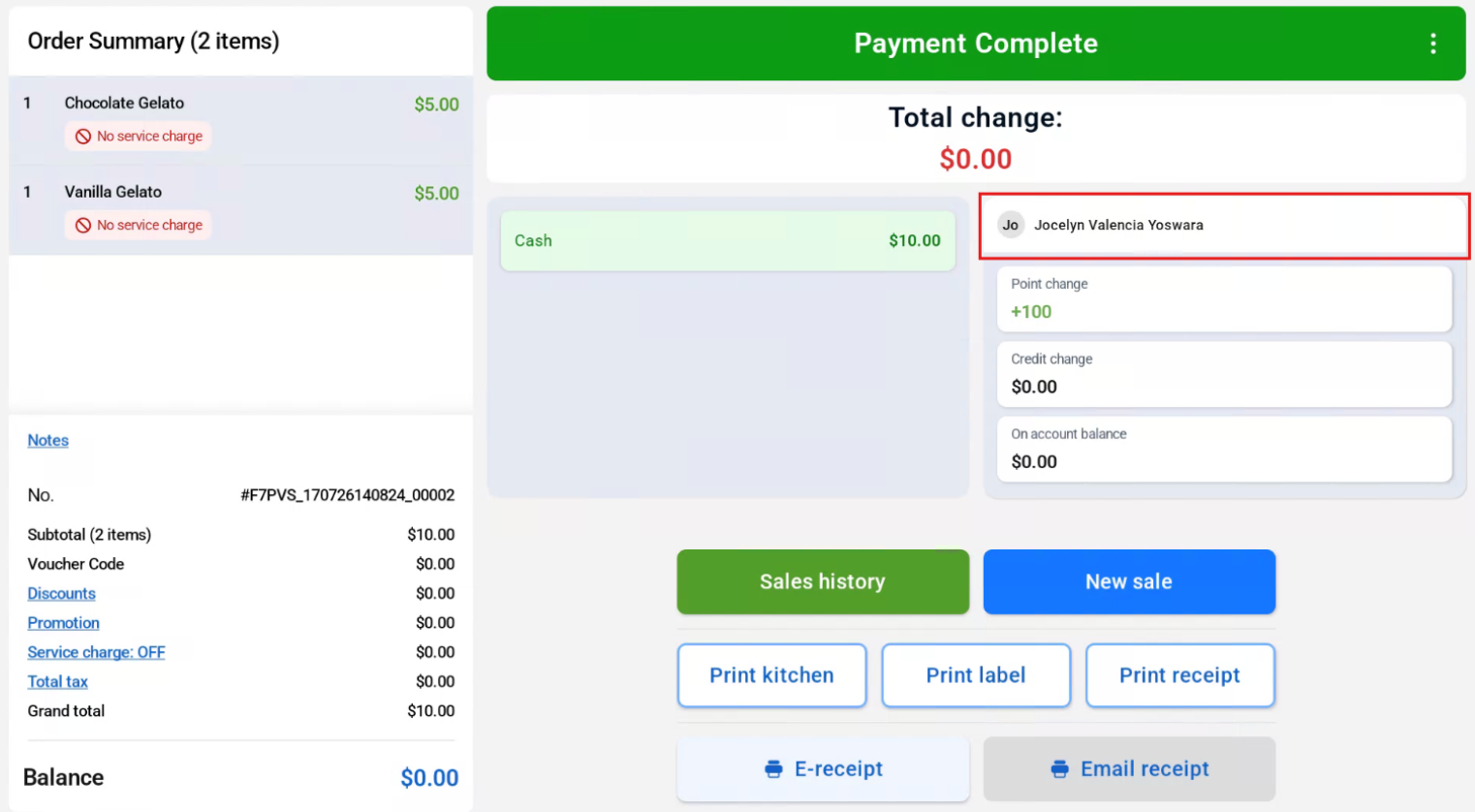
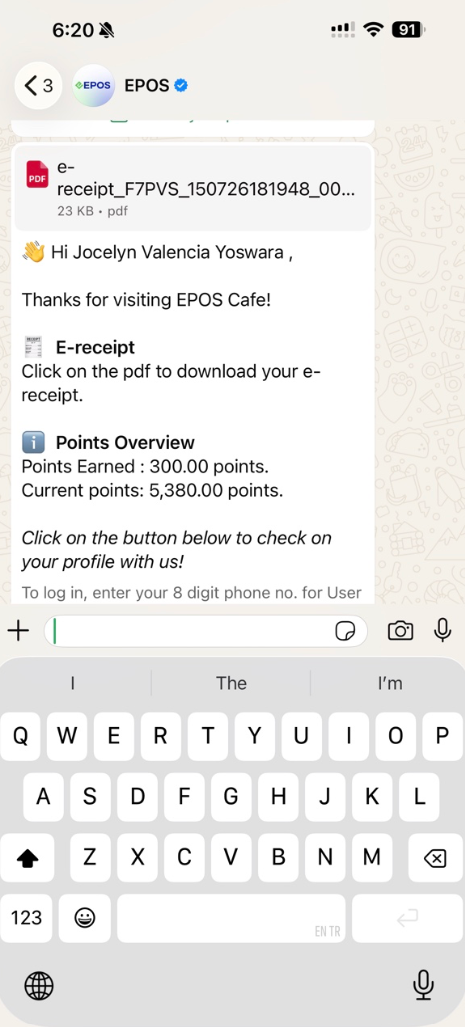
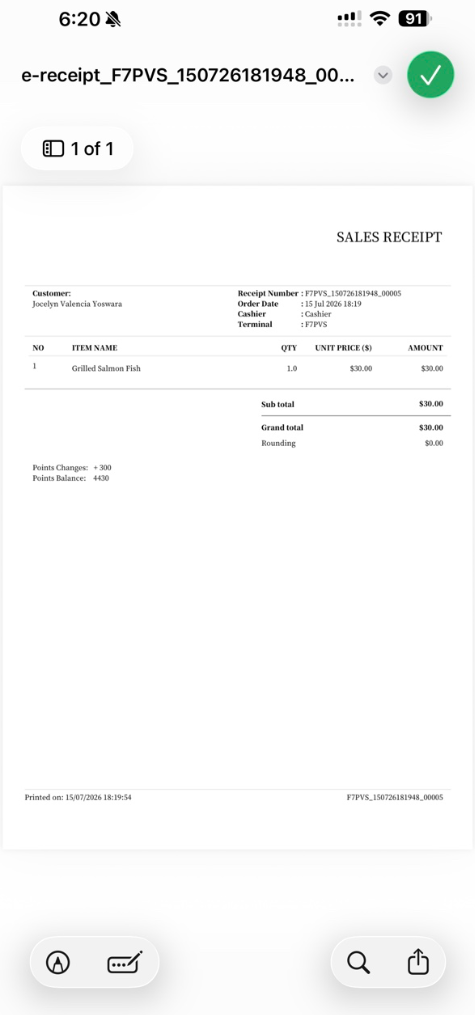
Customer tagged to order & Auto Send E-Receipt Toggled ON:
When customer tagged to order with valid phone number and auto send e-receipt is turned on, customer can directly receive e-receipt sent to customer’s WhatsApp. No additional steps are required.
Customer not tagged to order & Auto Send E-Receipt Toggled ON:
Pop up will be shown in both Cashier and Customer Screen to enter customer’s phone number after transaction is completed. Customer can scan to get e-receipt without signing up as a member.
Cashier Screen
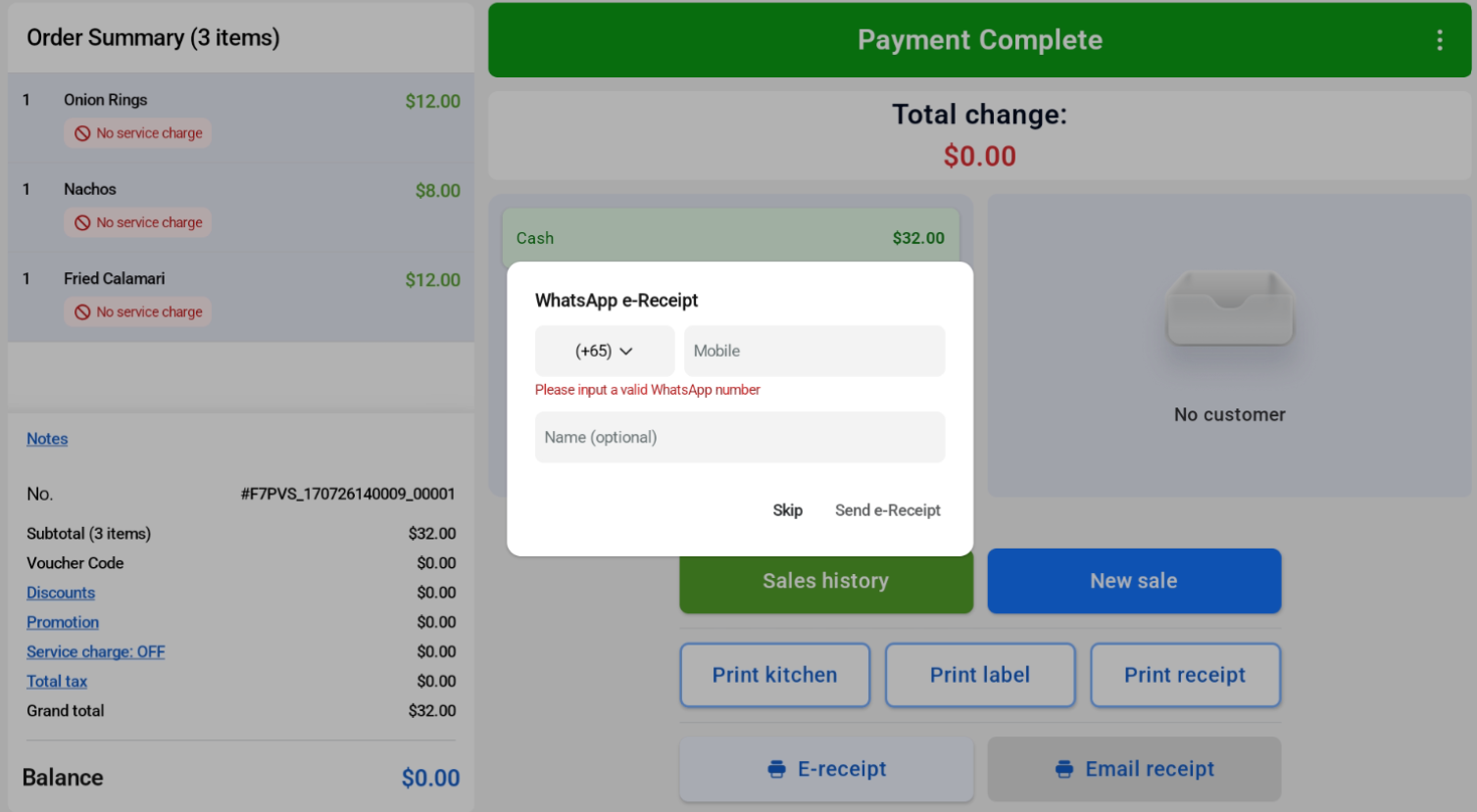
Customer Screen
If customer is an existing customer, e-receipt will be sent to customer and order will be added to the customer’s profile.
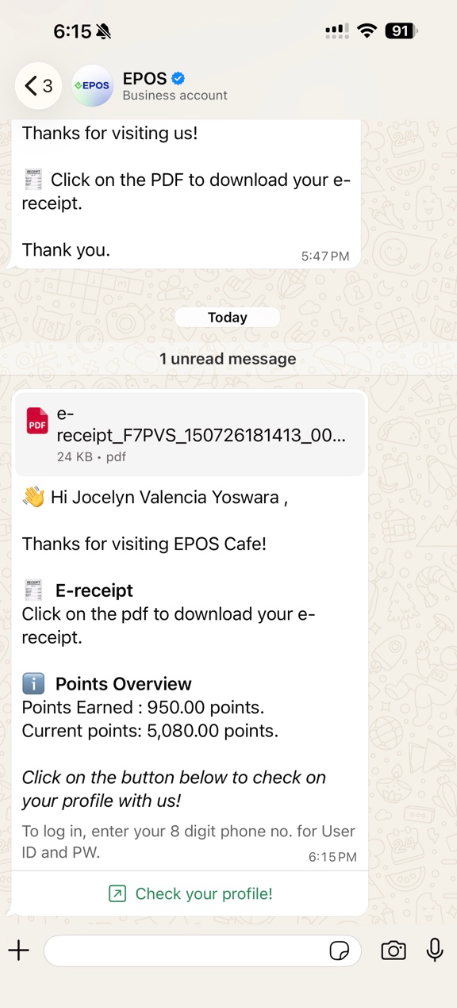
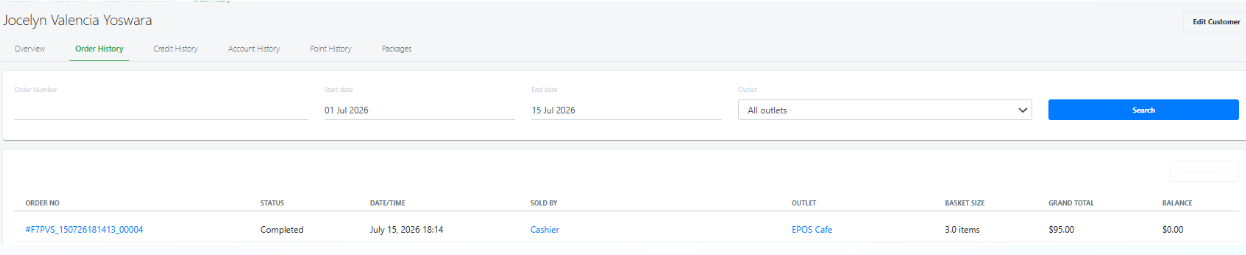
If customer is a new member, the e-receipt will be sent to customer, customer will be registered to backend and order will be added to customer’s profile.
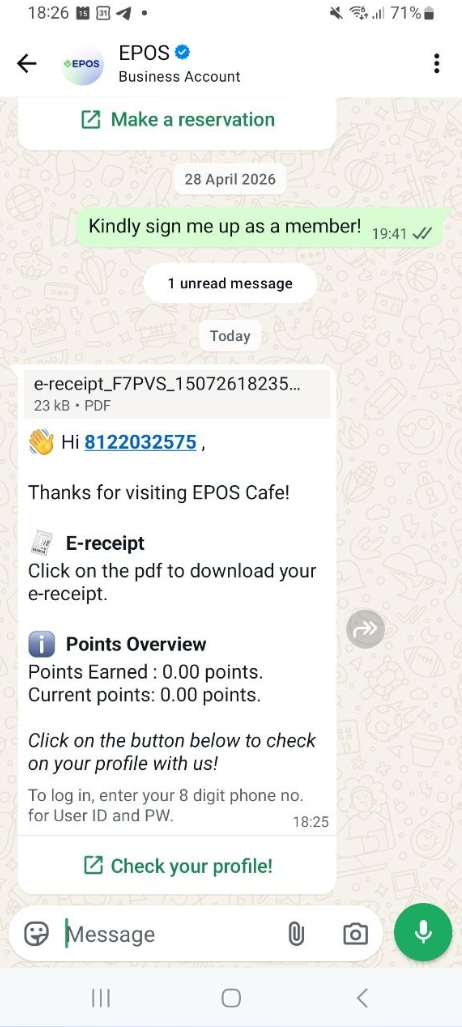
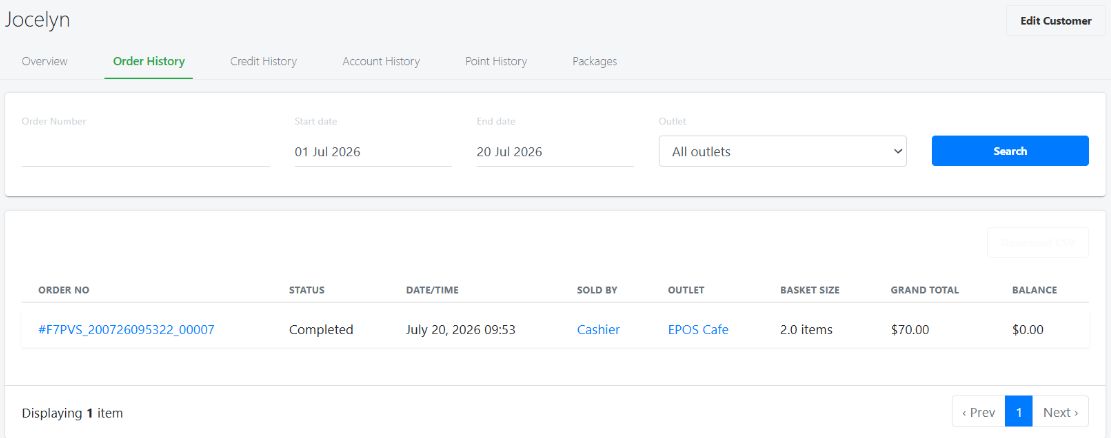
Customer not tagged to order & Auto Send E-Receipt Toggled OFF:
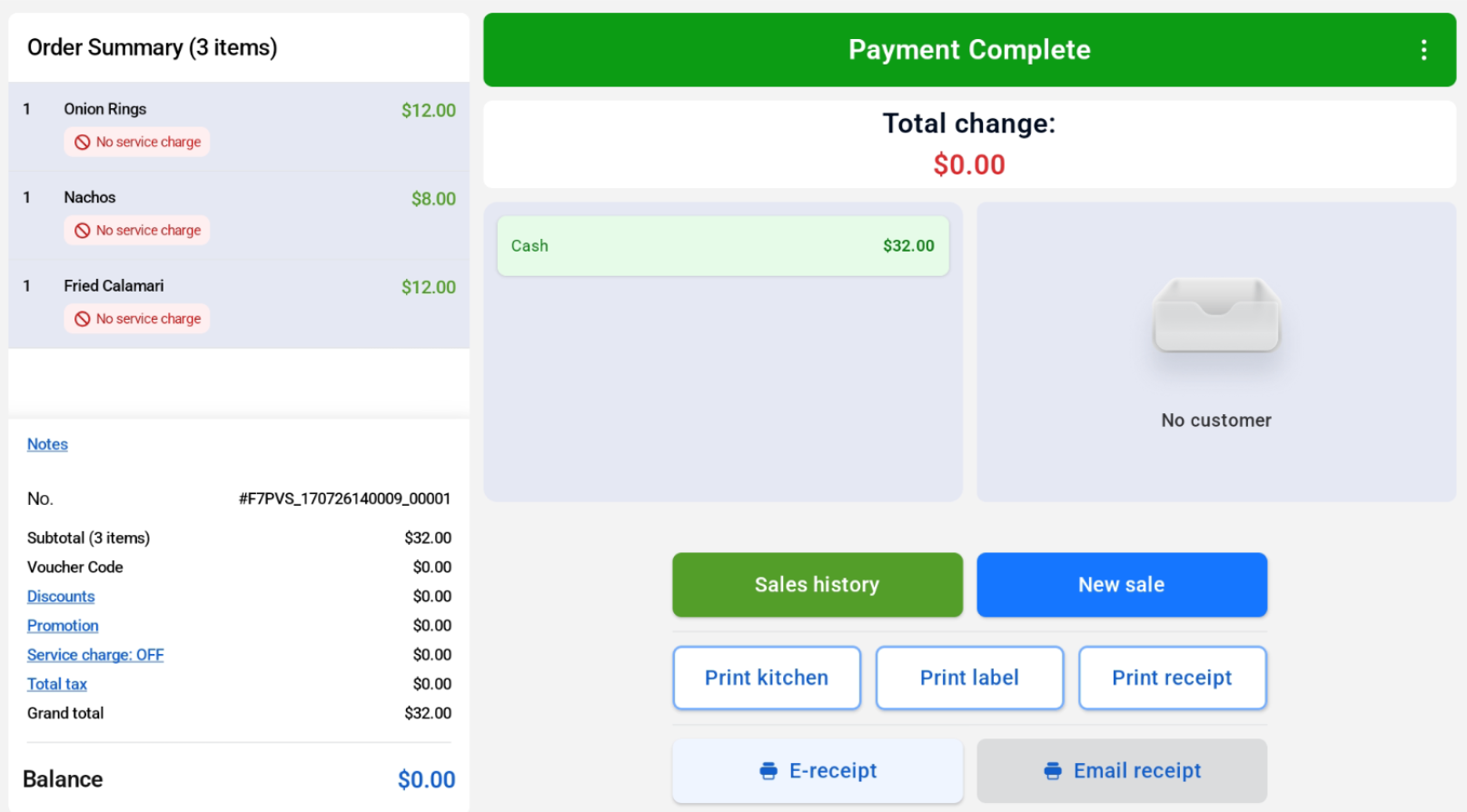
If auto send e-receipt is OFF, there won’t be a pop up on cashier side. Cashier can click E-Receipt button to trigger sending e-receipt. In customer side, there will only be a WhatsApp QR for customer to scan e-receipt without signing up.
Cashier Screen
Customer Screen