Voucher Availability
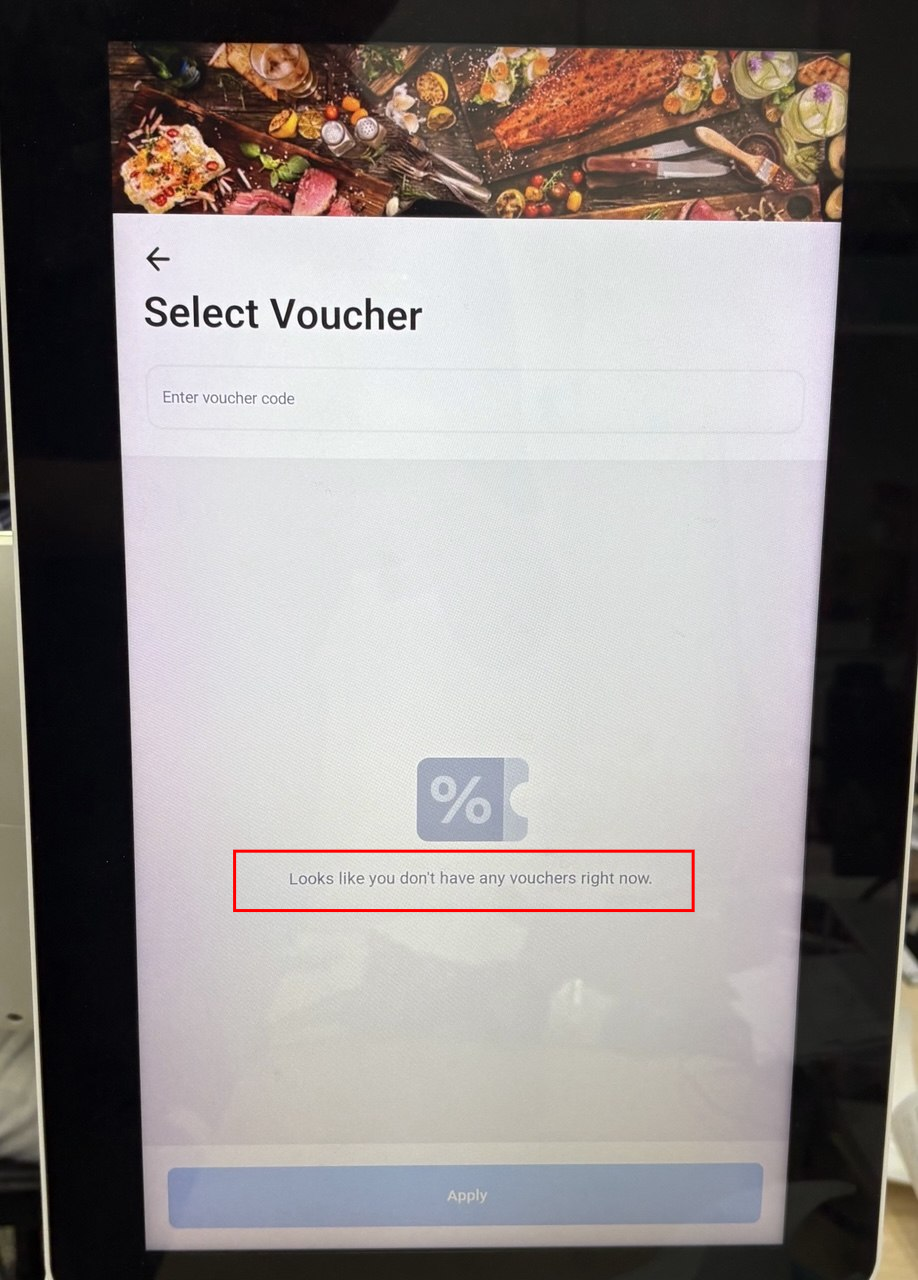
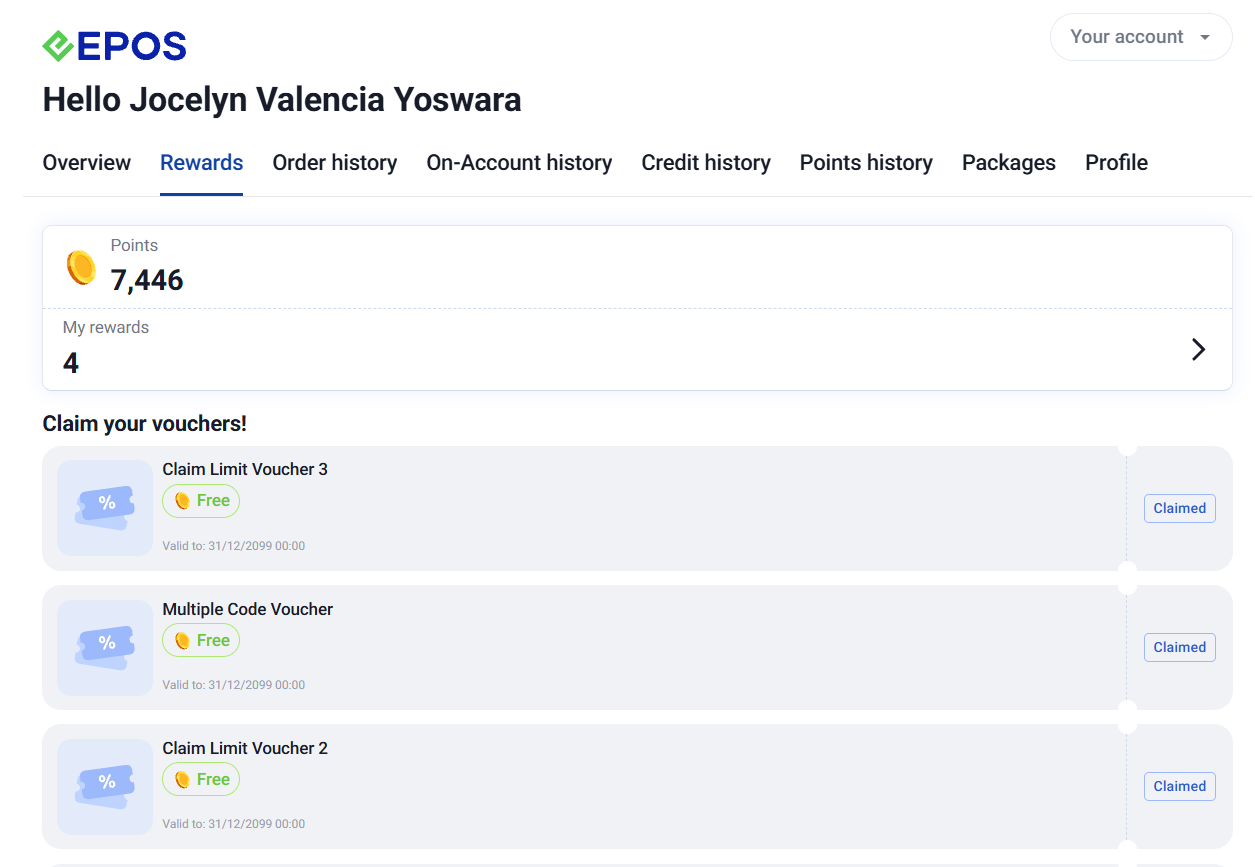
How vouchers appear depends on whether the merchant uses the Loyalty plugin:
- Loyalty plugin installed: vouchers are broadcast to the Member’s Portal and need to be claimed by the customer before they can be used.
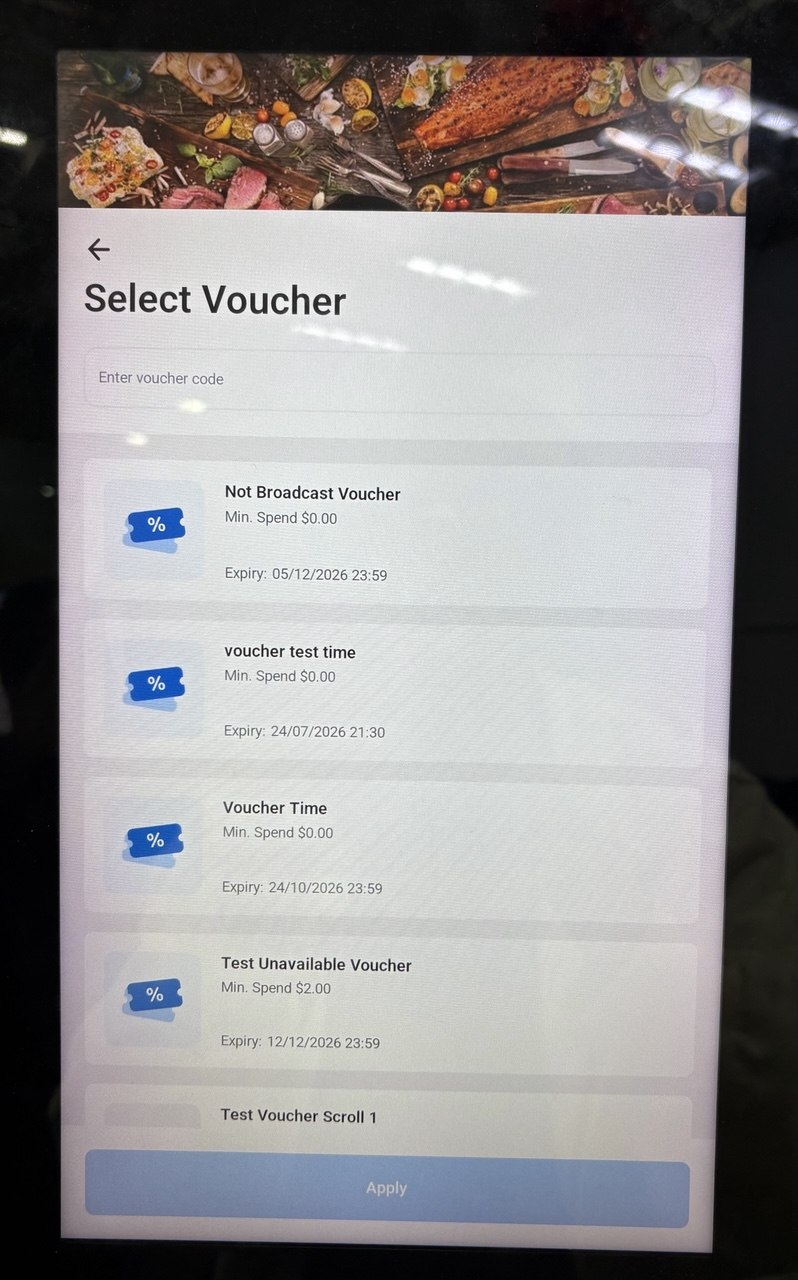
- Loyalty plugin not installed: vouchers appear automatically for eligible customers.
Loyalty Plugin Installed
Loyalty Plugin Not Installed
Voucher Page
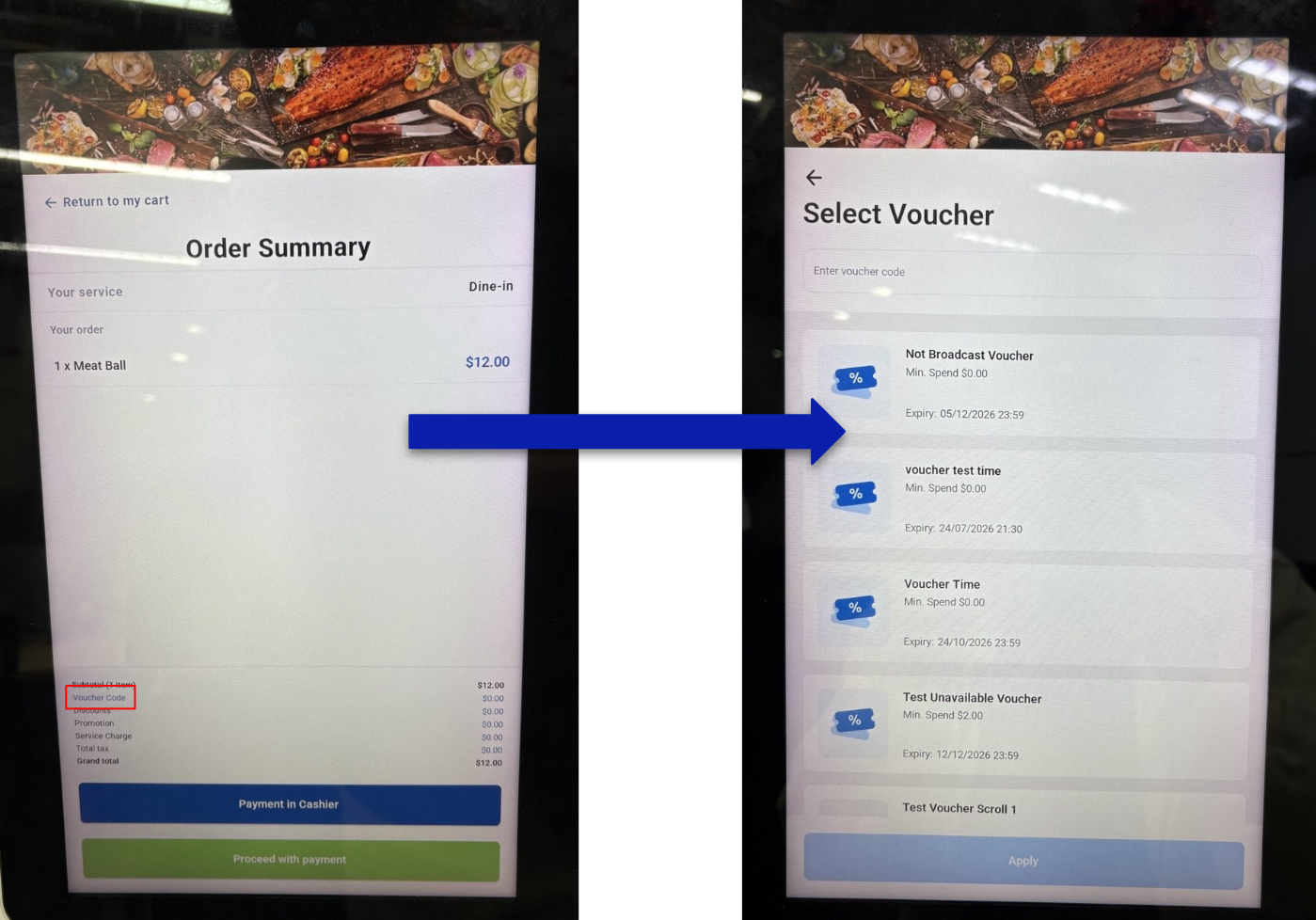
Users need to click “Voucher Code” in order to access the vouchers page.
Apply Voucher
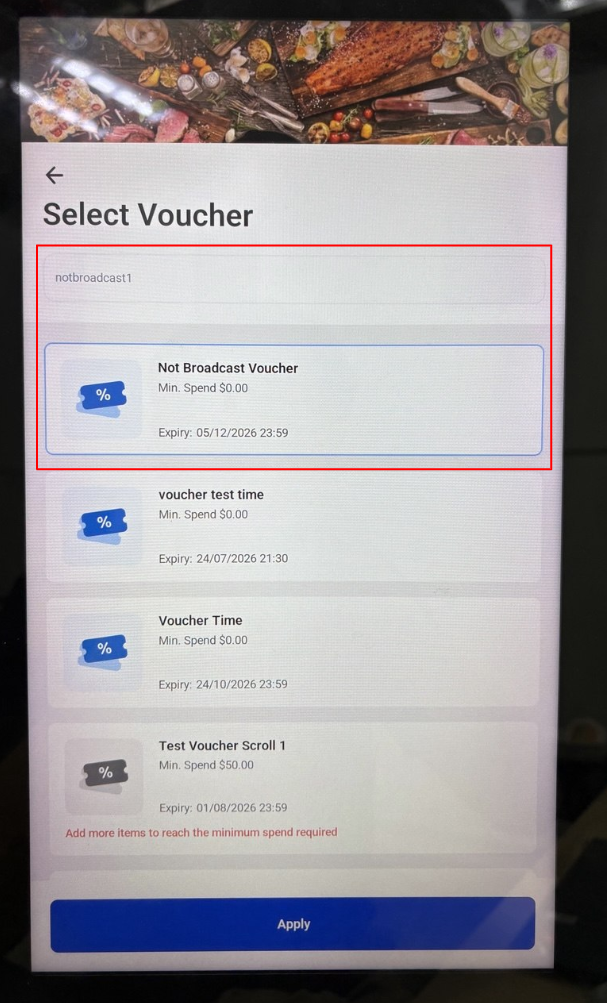
Users can apply a voucher by selecting it from the list, or by scanning or entering the voucher code in the input field.
Selection
Successful Application
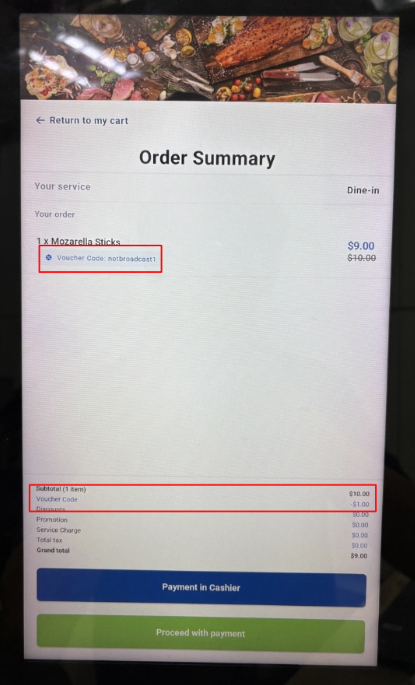
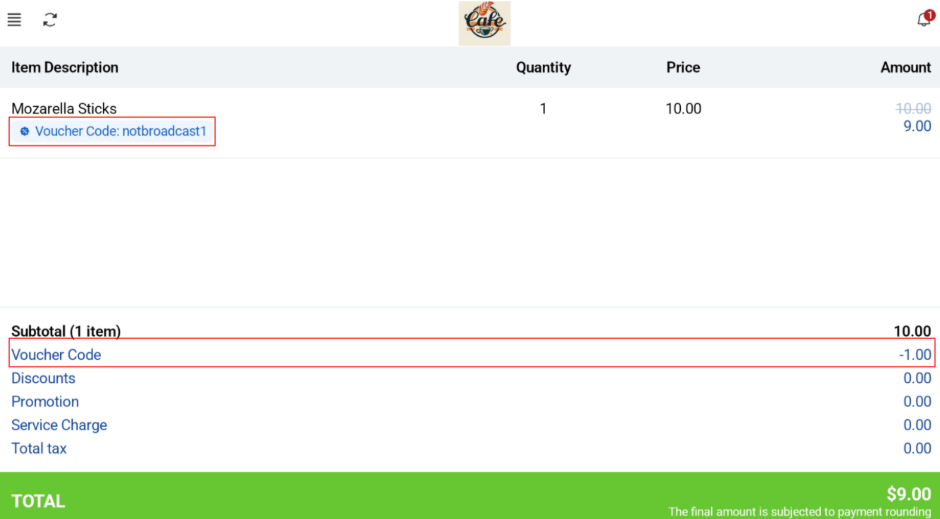
If voucher is successfully applied, voucher code and amount will be displayed.
Customer Screen
Cashier Screen
Invalid Cases
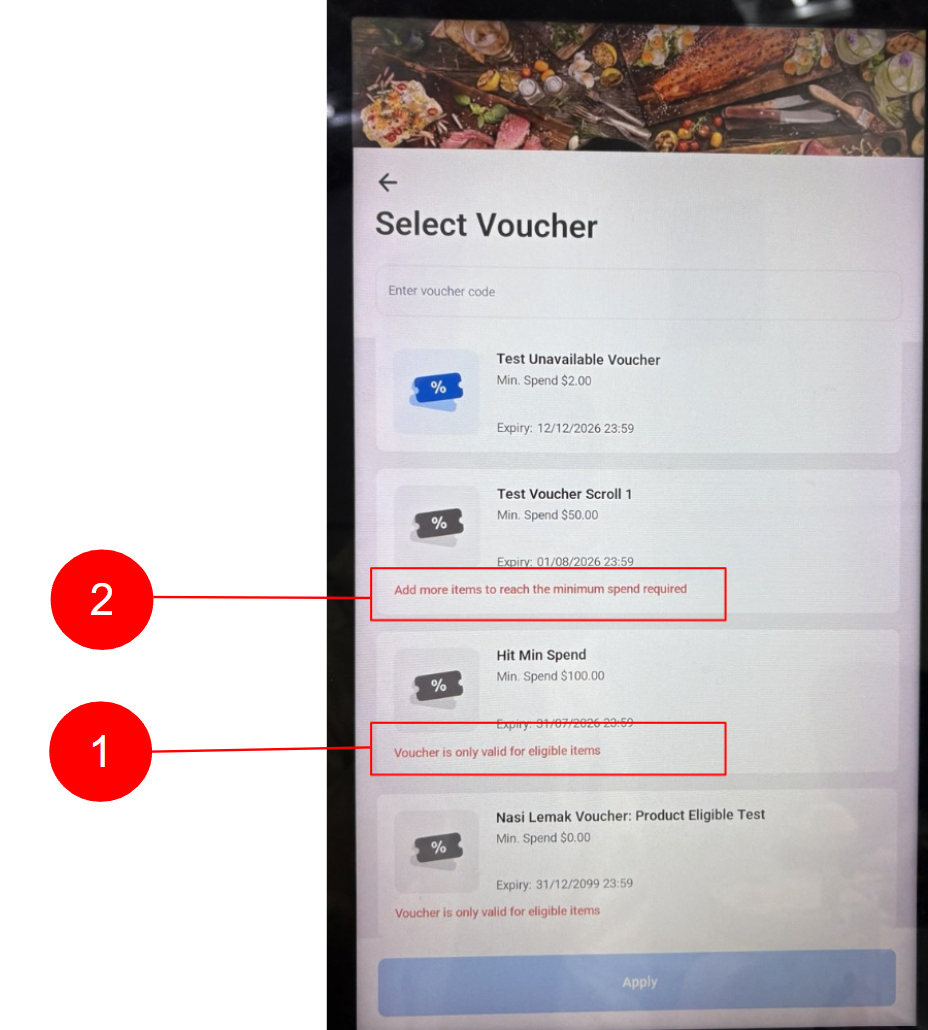
There are 3 invalid cases:
- Voucher only eligible for selected items
- Voucher does not reach minimum required spend
- Other invalid case.
Ineligible vouchers for this order are greyed out and cannot be selected.
Remove Voucher
User need to remove current voucher before being able to select another voucher to apply.
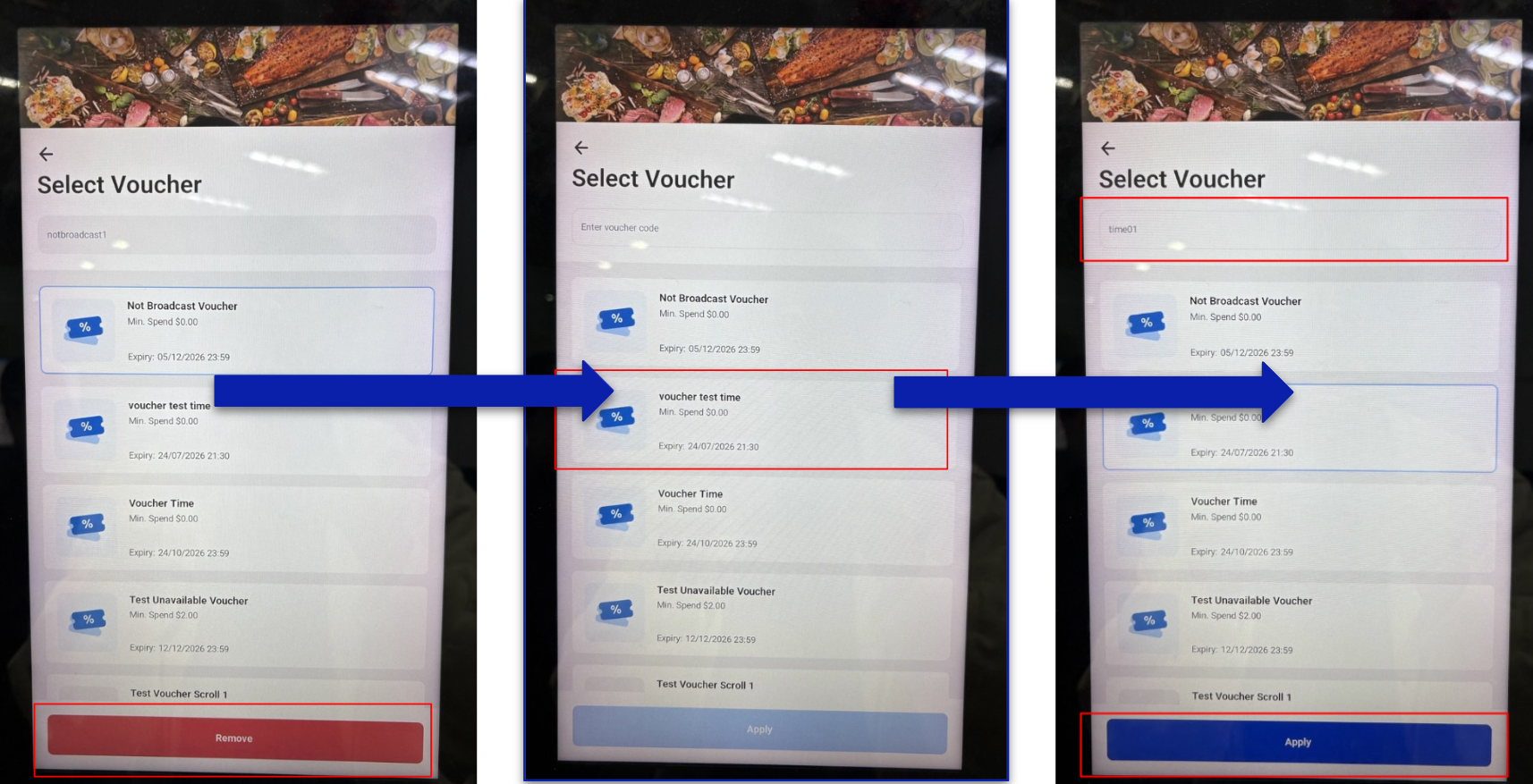
If user try to apply voucher without removing, there will be an error message “Please remove the selected voucher first.”
No Voucher Available
If there are no available vouchers, there will be a message “Looks like you don’t have any vouchers right now.”