Staff can add or change a customer’s email address from the Customer Details window on the Android POS, without going to the Backend. Customers need an email address on their account to reset their password and to receive the email OTP when redeeming credits.
Before you start: Staff permission
Staff will only see the Edit button if their staff group is allowed to edit customer details. To set this, go to Backend > Setup > Staff Groups, select the staff group, open the POS Permissions tab, select Edit Customer Details and choose a permission.
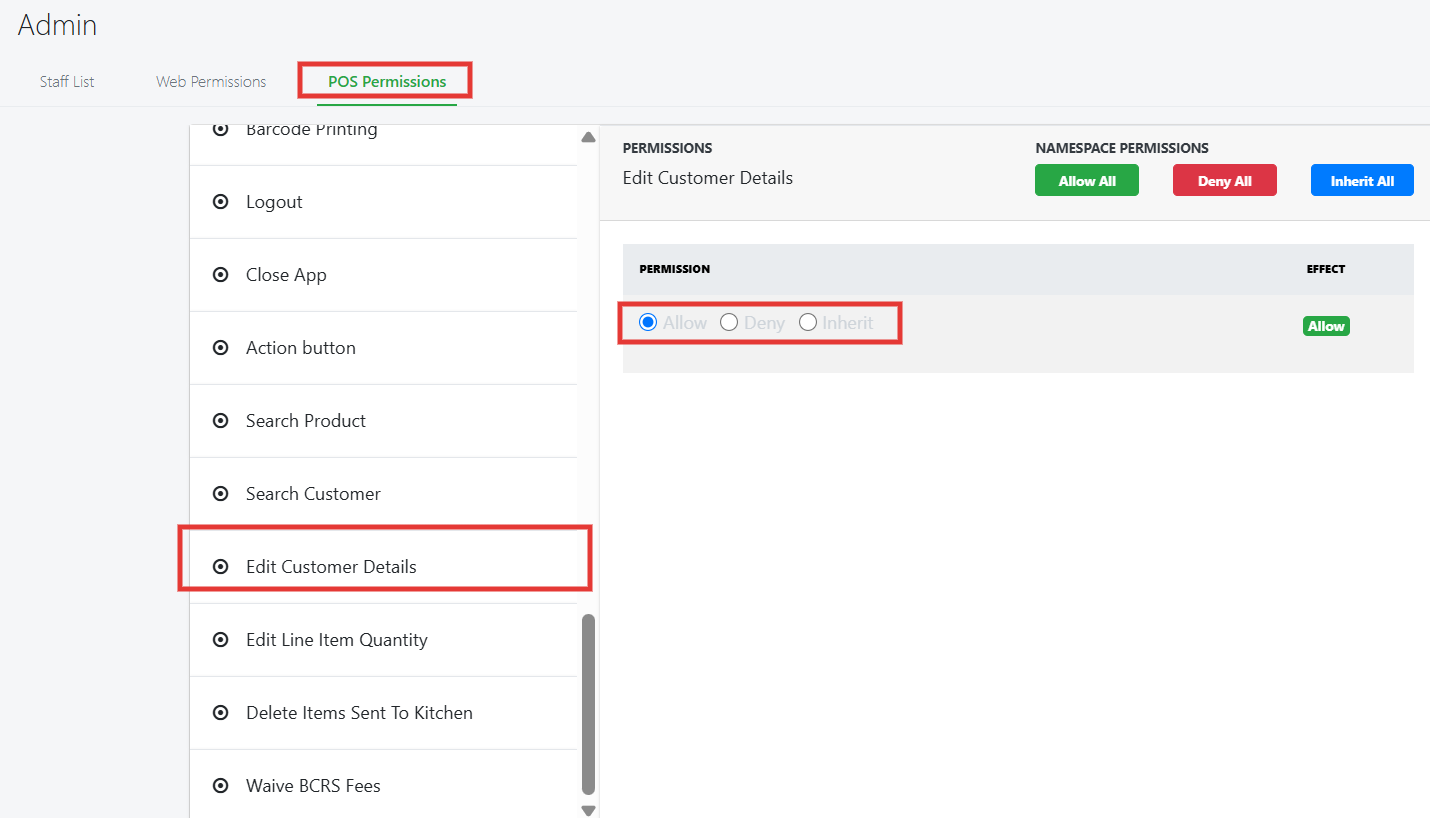
- Allow: staff in the group can edit customer emails on the POS. The Edit button appears at the top left of Customer Details.
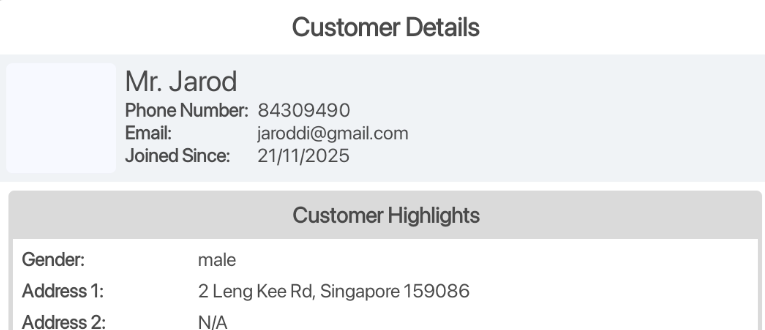
- Deny: staff in the group cannot edit customer emails. There is no Edit button in Customer Details.
- Inherit: if any staff in the group is set to Allow, the whole group can edit customer emails. If all staff in the group are set to Deny, the group cannot.
Customer Details when the permission is set to Deny:
Follow the steps below on how to add or edit a customer’s email address
1. Search for the customer and open their Customer Details window. See Customer Information for how to do this.
2. Tap Edit at the top left of the Customer Details window. If the customer has no email address yet, the Email field shows N/A.
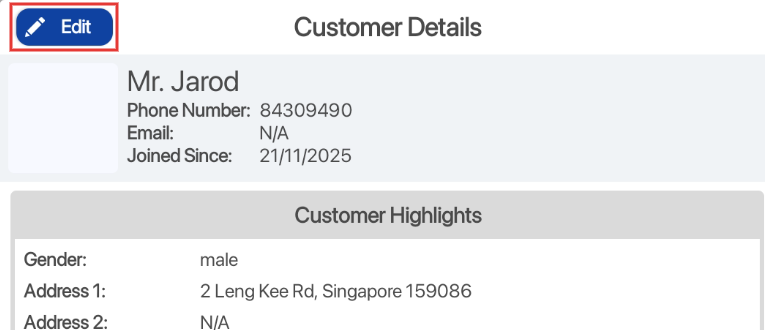
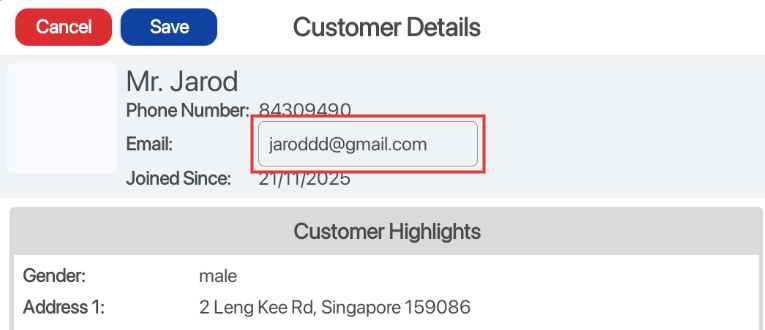
3. The Email field becomes a text box, and Cancel and Save buttons appear at the top left.
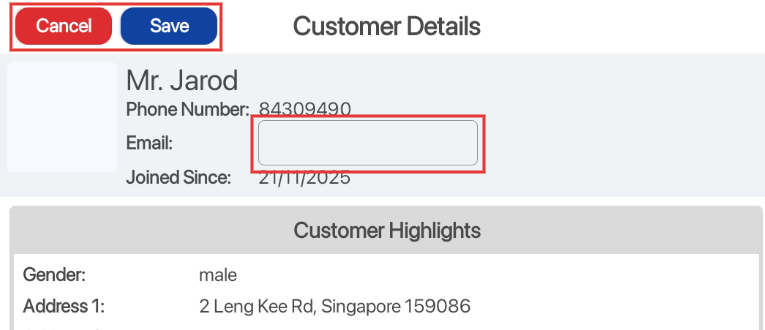
4. Tap the text box and key in the customer’s email address using the keyboard.
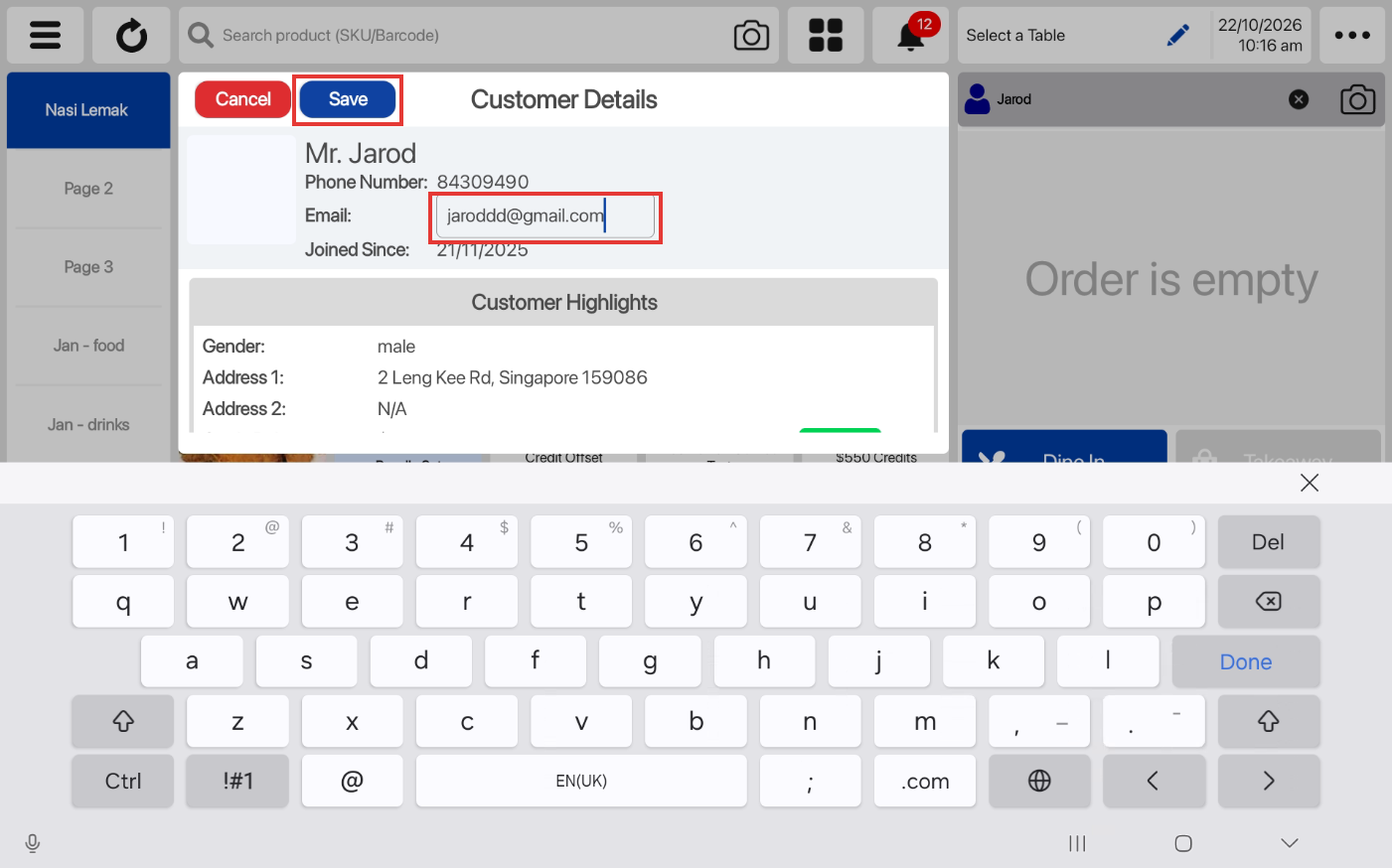
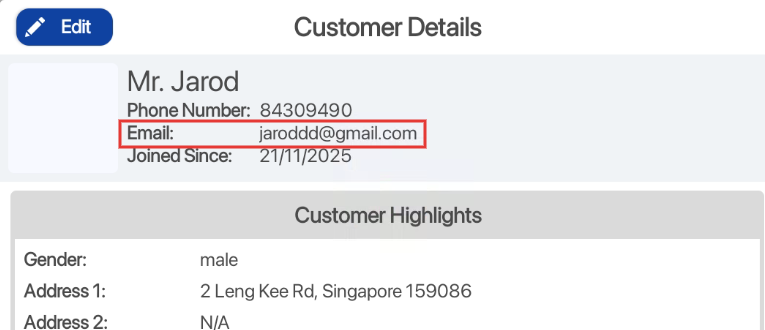
5. Tap Save to save the email address, or Cancel to discard the change. The saved email address shows in Customer Details.
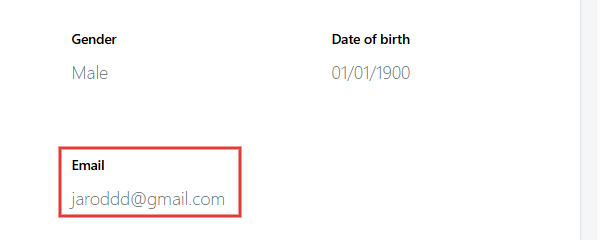
6. The email address is synced to the Backend. You can see it under Backend > Customers > Customers by selecting the customer.
Updating an existing email address
Follow the same steps. The text box shows the customer’s current email address, so you can change it and tap Save.
Error messages
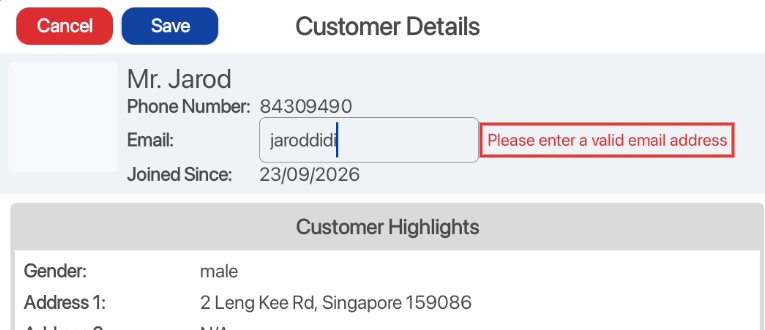
“Please enter a valid email address”
Shown beside the text box when the email address is not in a valid format. Correct the email address and save again.
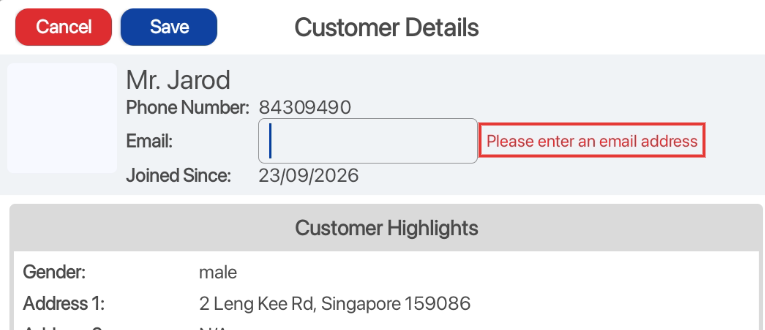
“Please enter an email address”
Shown when the text box is left empty for a customer who already has an email address saved. A saved email address can be changed, but not removed.
Leaving the email empty
If the customer has no email address saved, you can leave the text box empty and tap Save. The Email field stays as N/A.
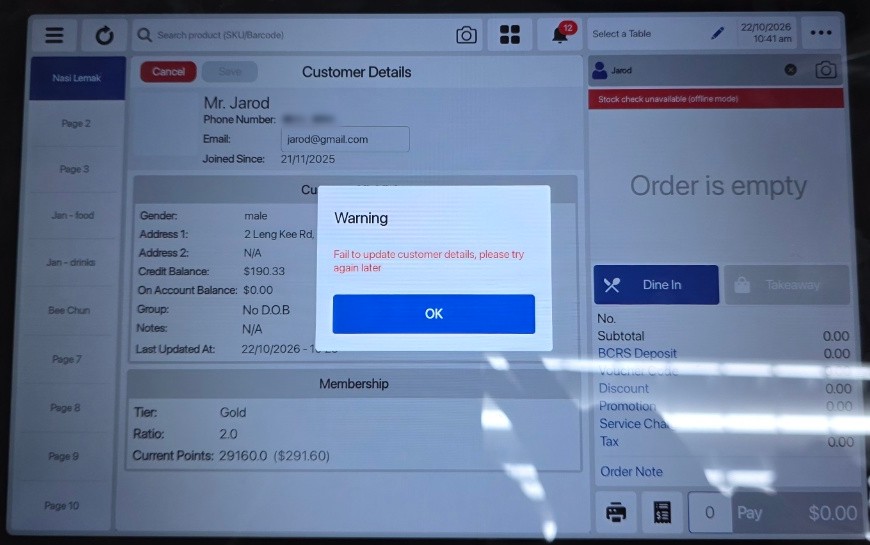
“Fail to update customer details, please try again later”
Shown in a Warning popup when the POS cannot sync the change to the Backend. Tap OK and try again later.