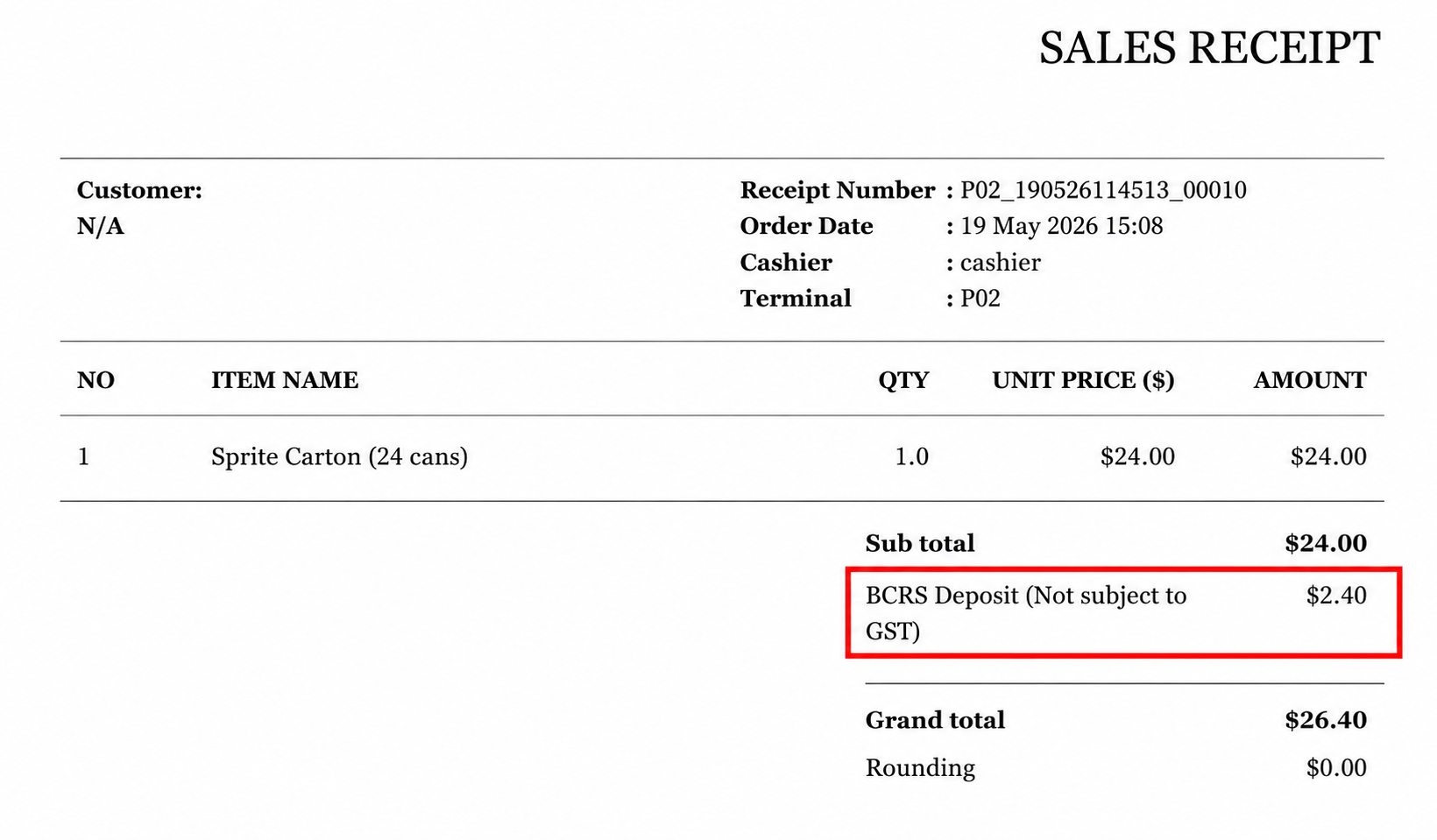
This post will cover how cashiers can process BCRS eligible items using the Portrait POS. Merchants can use this information to better understand the end-to-end BCRS application, reduce cashier errors during checkout, and ensure compliance with deposit collection and waiver procedures.
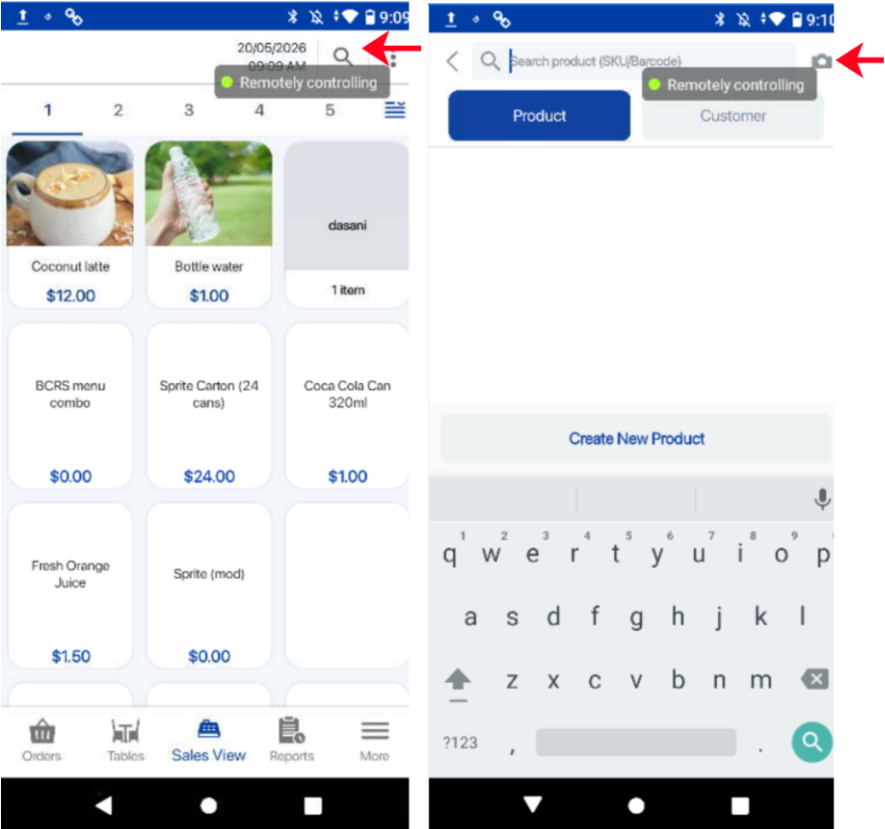
1. The cashier can find the product through searching for its sku/barcode, or through barcode scanning.
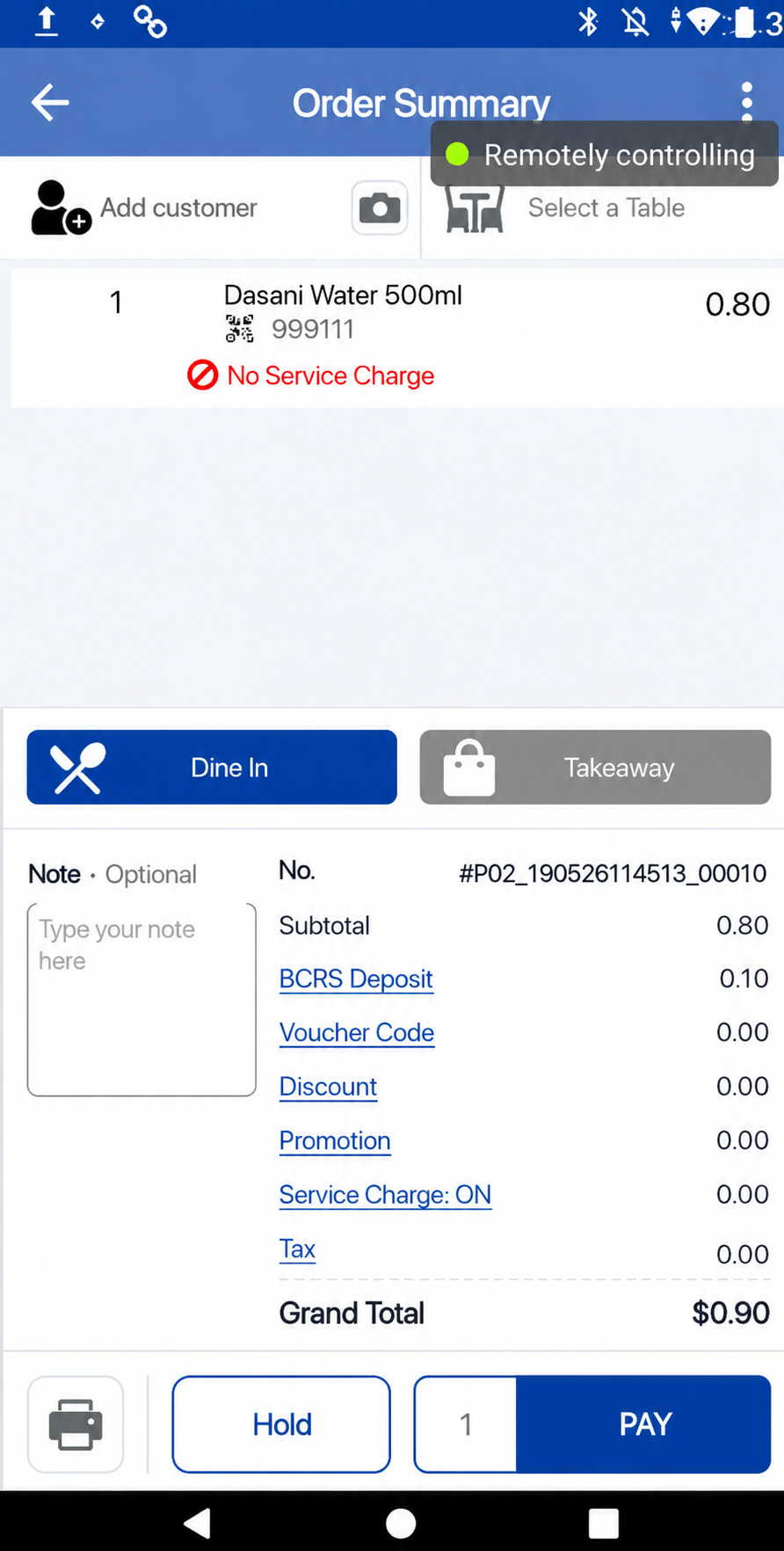
2. The order summary will display the total BCRS deposit when a BCRS eligible item is added to the cart.
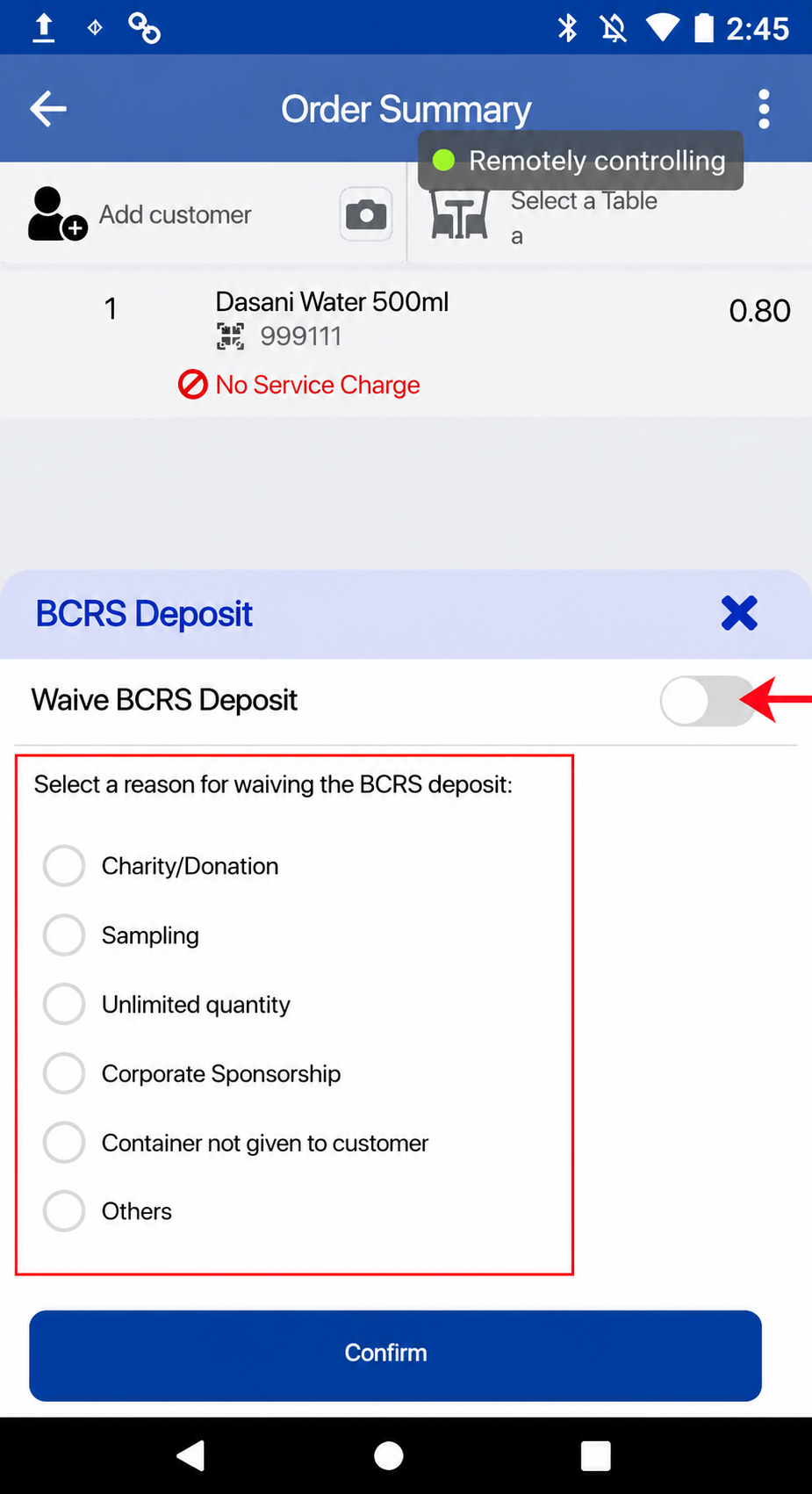
3. Cashier can choose to waive the BCRS deposit. To do this, the cashier can click on the “BCRS Deposit” label and check the toggle button to “Waive BCRS Deposit”.
4. The cashier may then select from a range of legitimate reasons to waive the deposit.
5. The BCRS Deposit will be reflected on
a) Portrait POS sales receipt
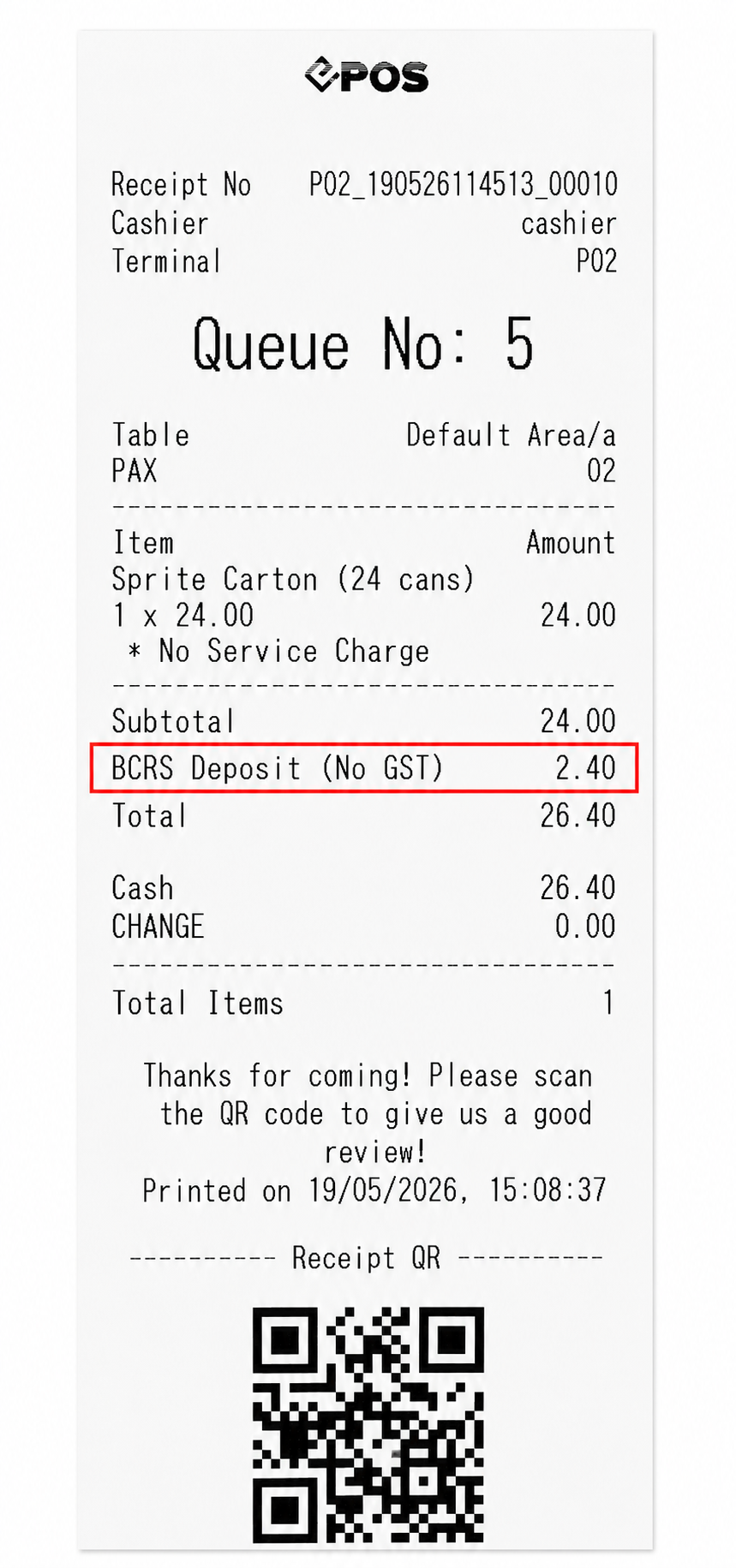
b) Backend sales e-receipt