BCRS eligible items can be set up in EPOS Backend. Go to EPOS Backend > Product, make sure the BCRS Eligible checkbox is ticked, and add the BCRS barcode under Product > Manage Barcodes.
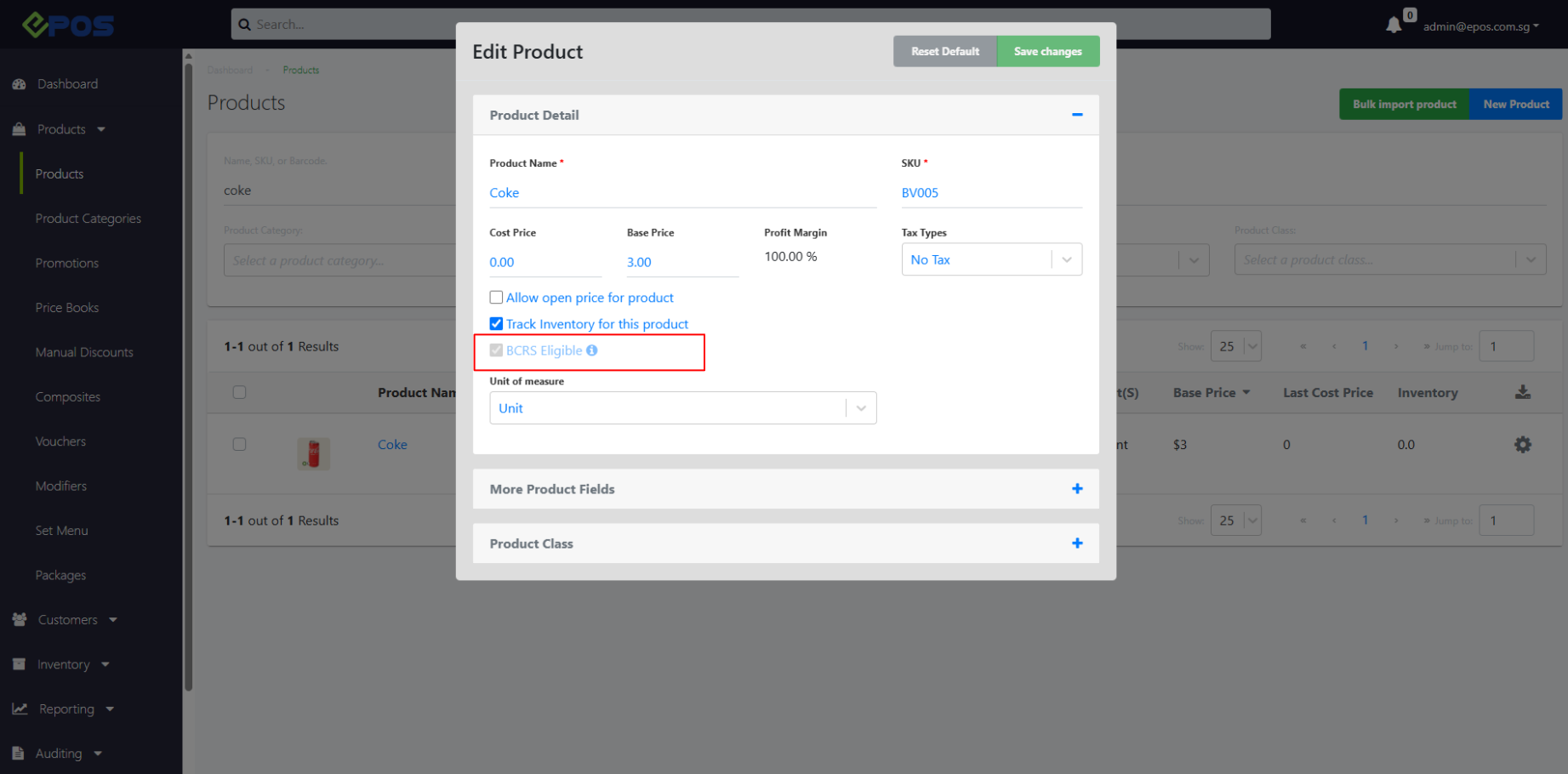
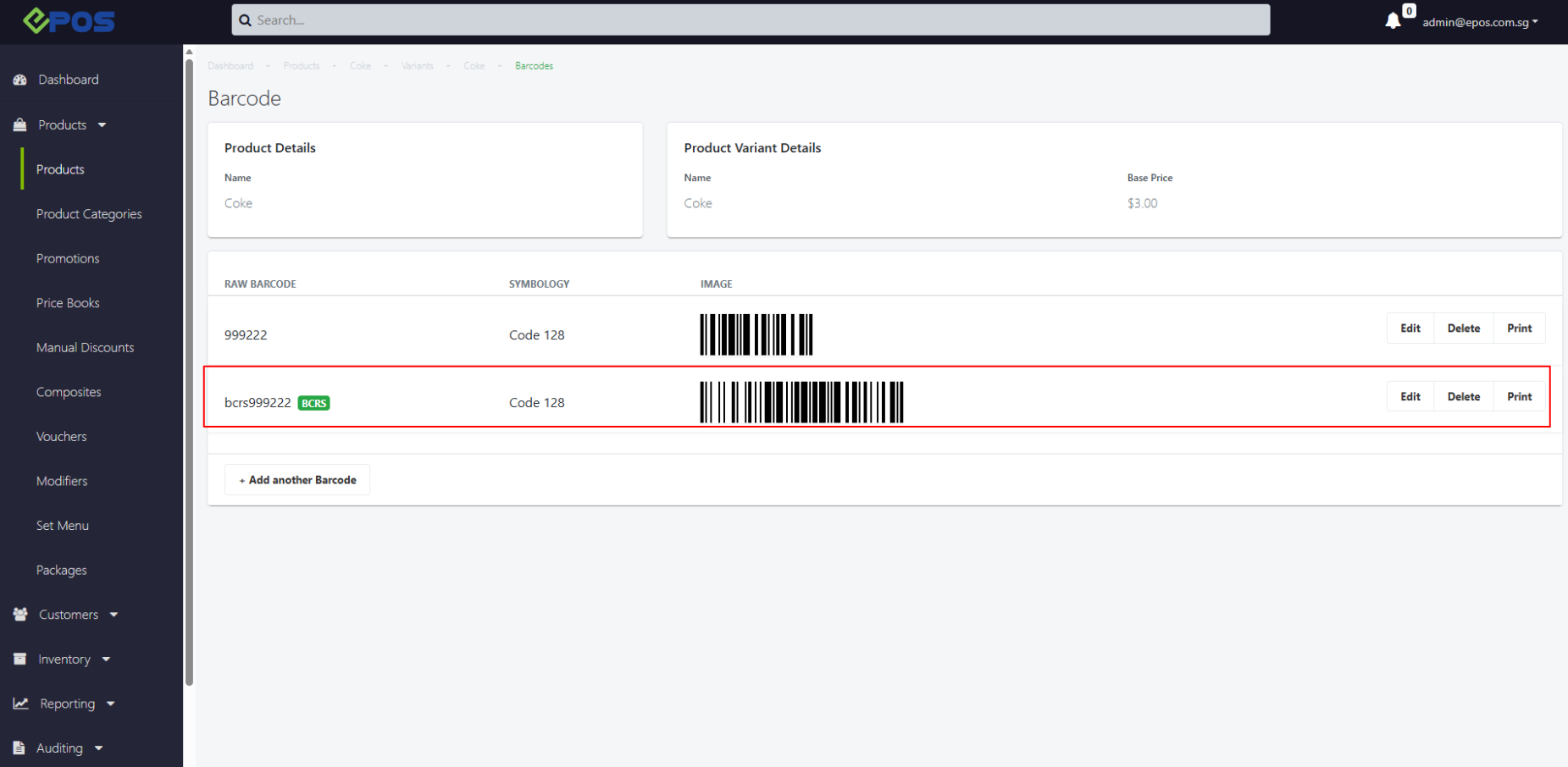

BCRS eligible items can be set up in EPOS Backend. Go to EPOS Backend > Product, make sure the BCRS Eligible checkbox is ticked, and add the BCRS barcode under Product > Manage Barcodes.
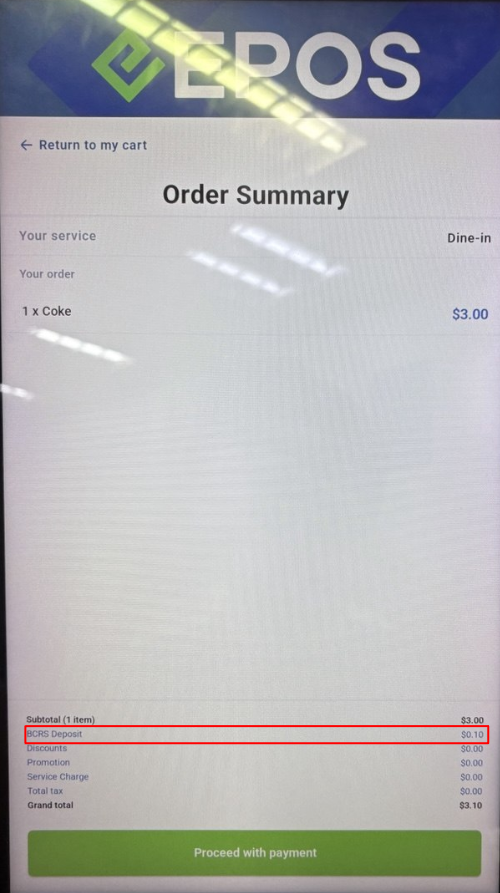
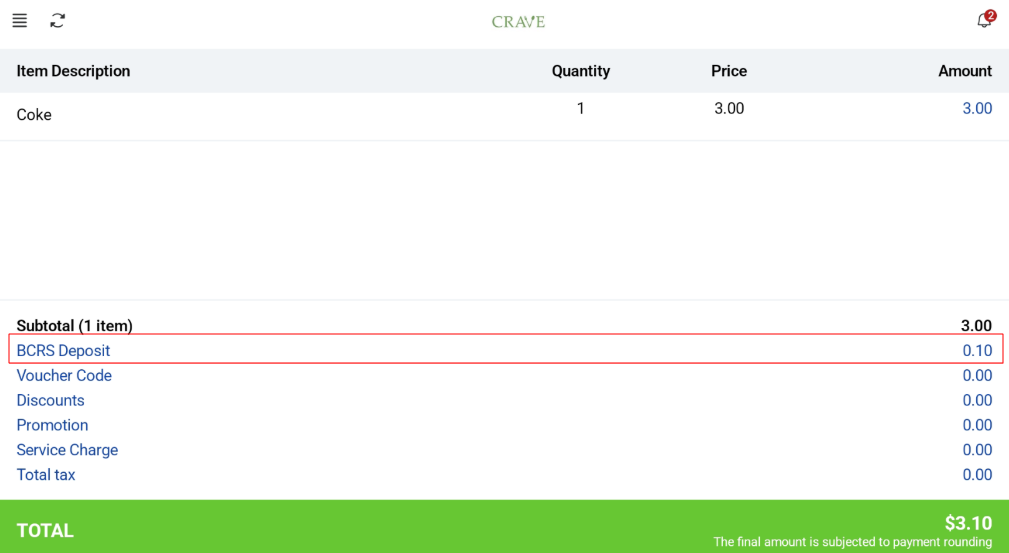
When a BCRS Eligible item is added to cart, the total BCRS deposit will be calculated and displayed in the order summary.
Customer View:
Cashier View:
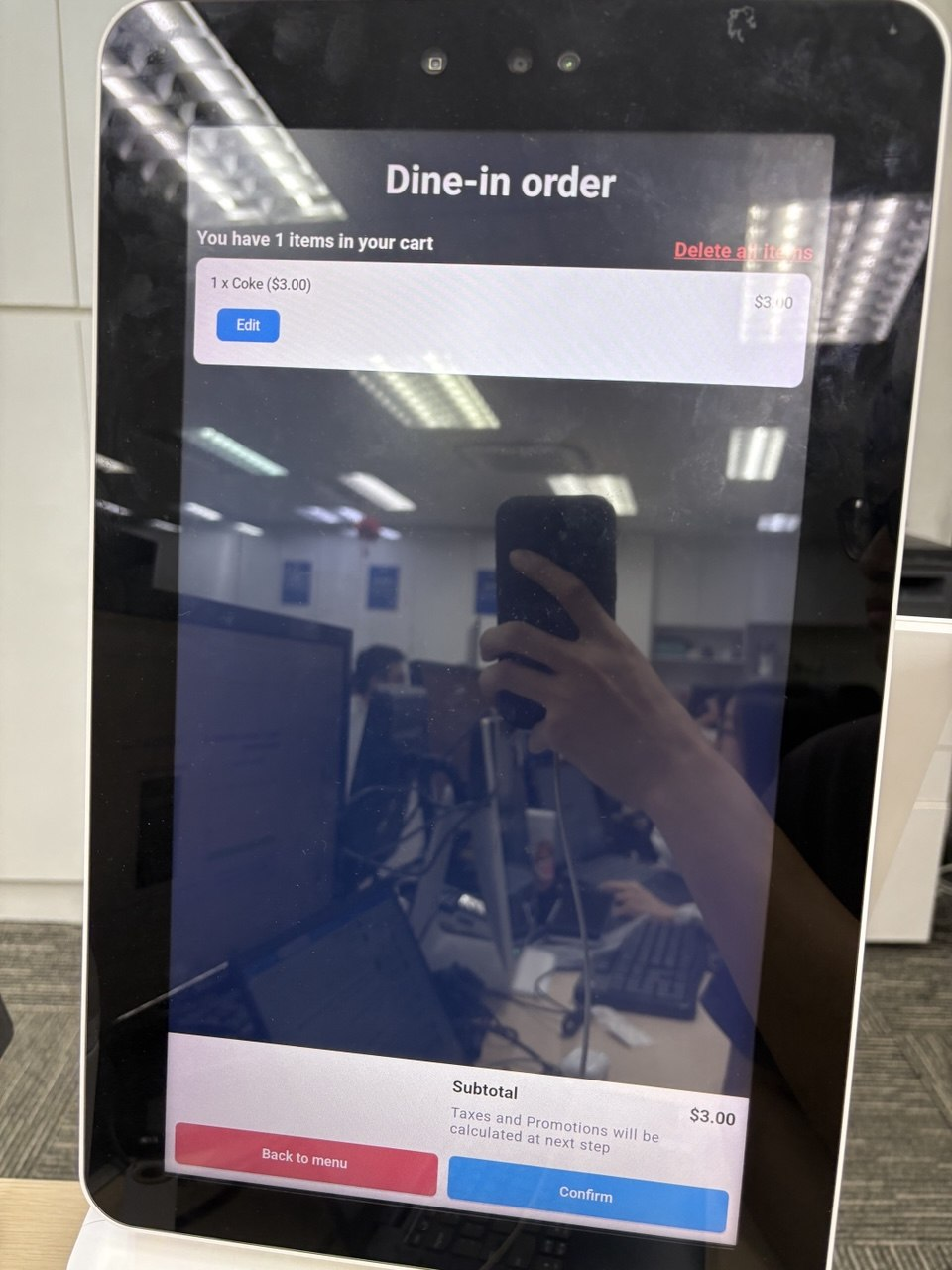
On the cart page, the customer can see the items in the cart, but the BCRS deposit amount is not shown yet. It is shown on the order summary page.
For composite products, the BCRS deposit is calculated based on the number of child products.
Customer View:
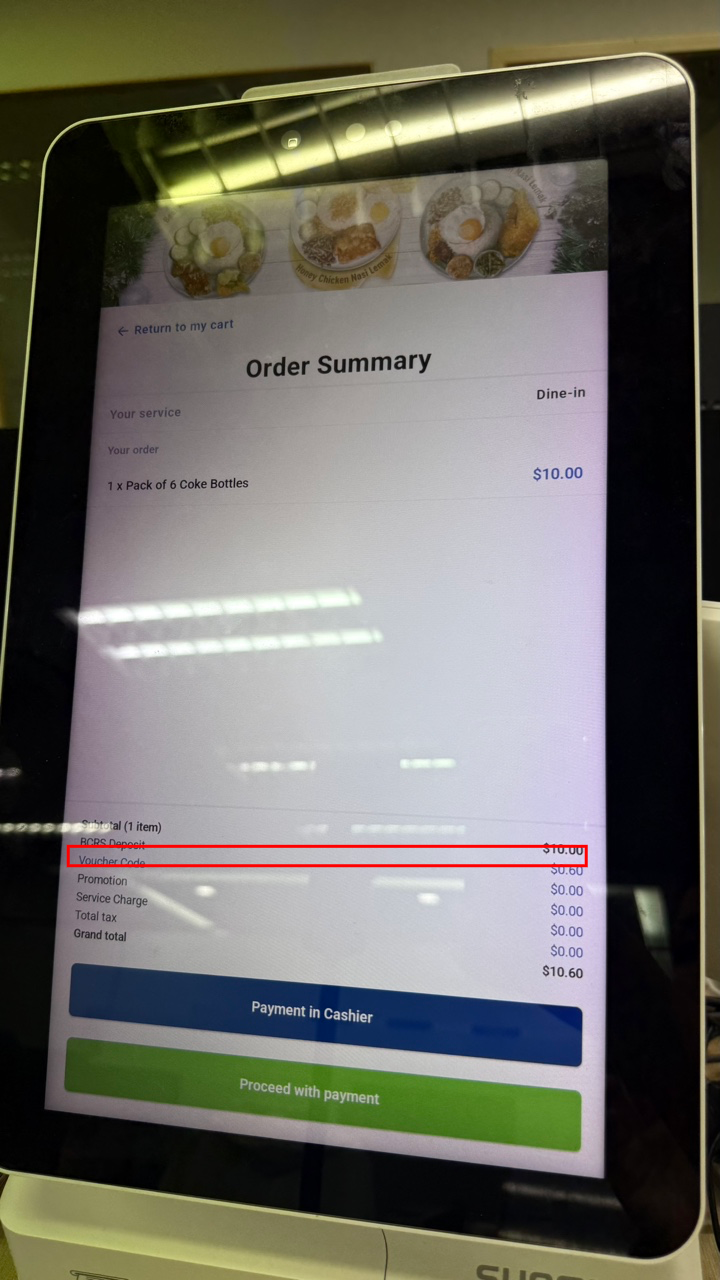
Cashier View:
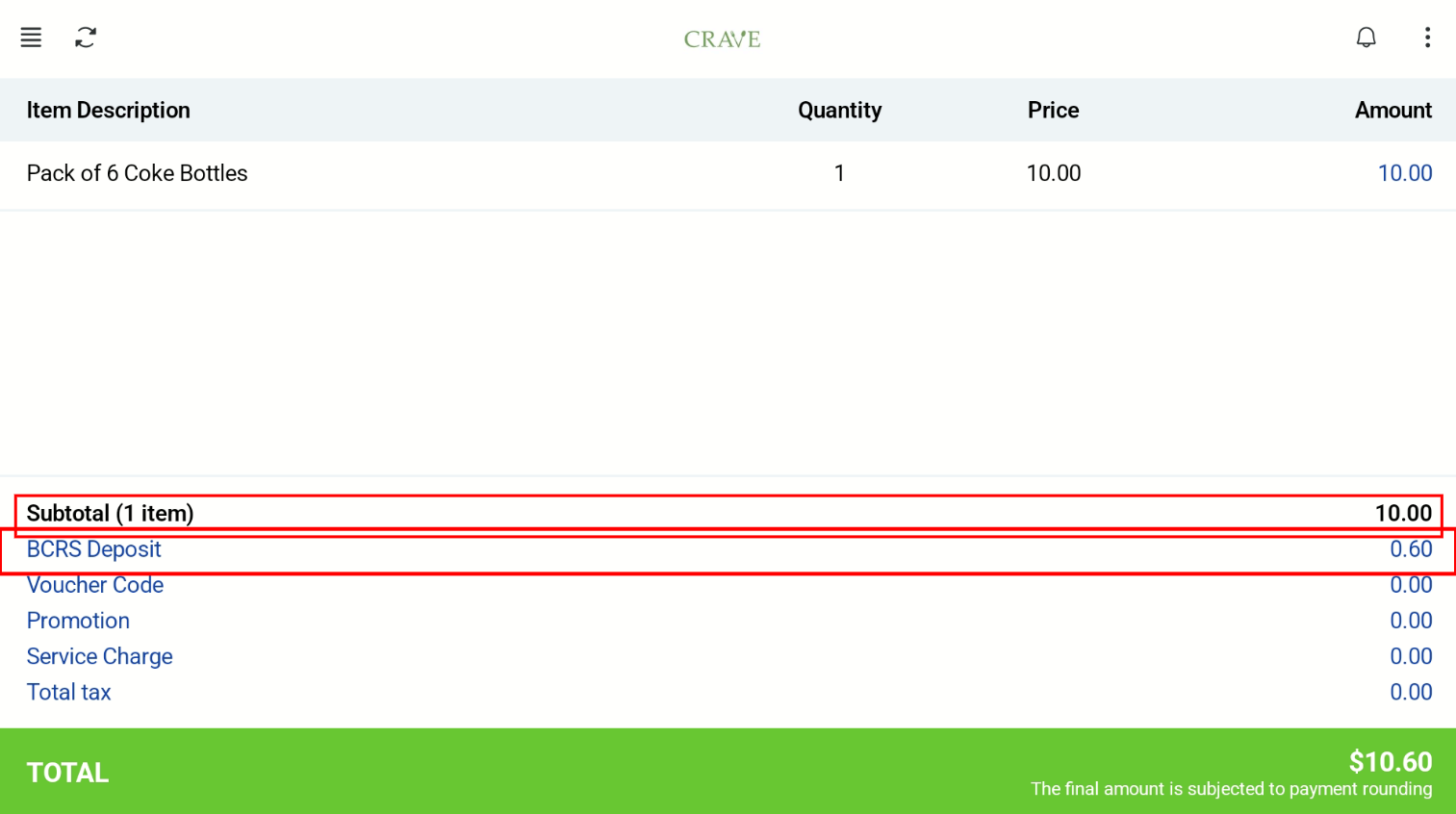
“BCRS Deposit” will appear in the receipt with the calculated amount when there is at least 1 BCRS Eligible item in the cart.
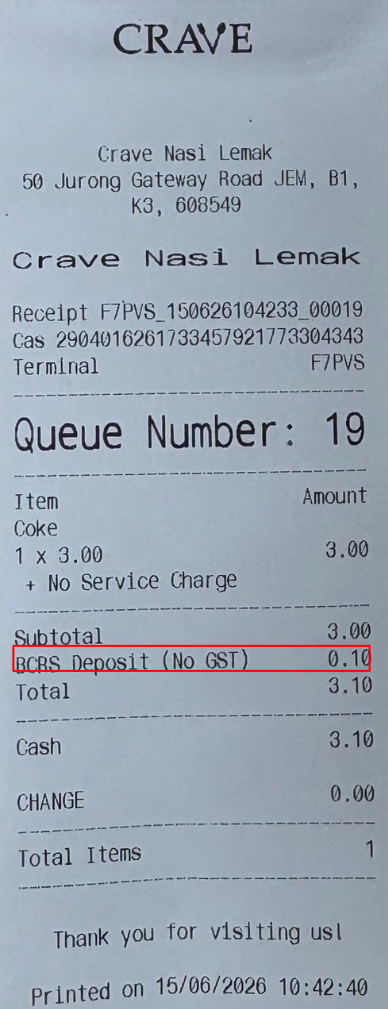
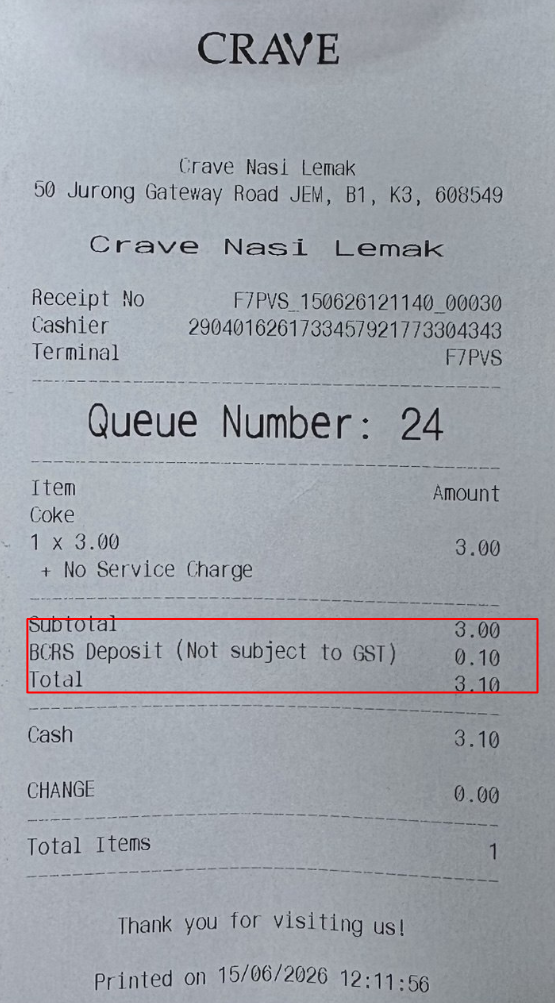
For set menu, BCRS deposit is calculated for the drink component.
Customer View:
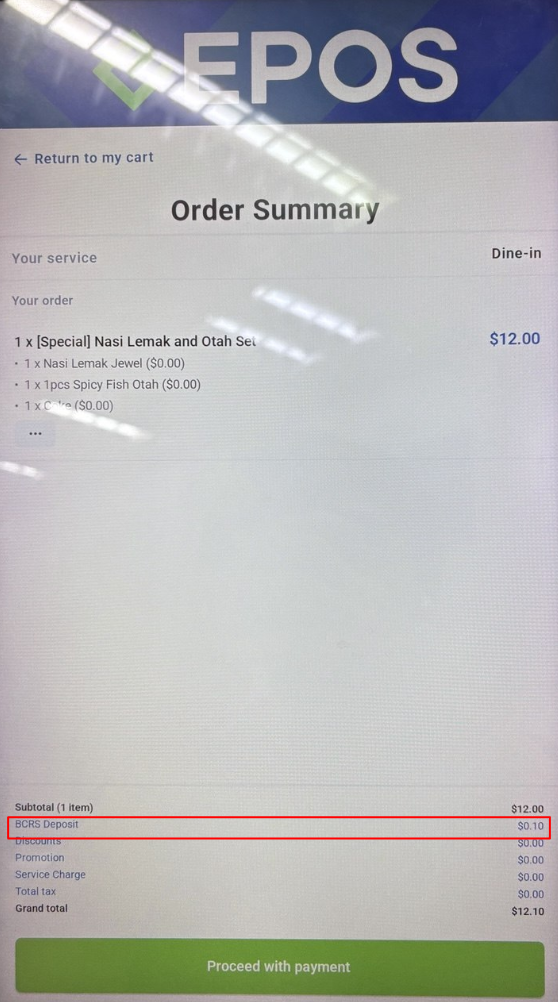
Cashier View:
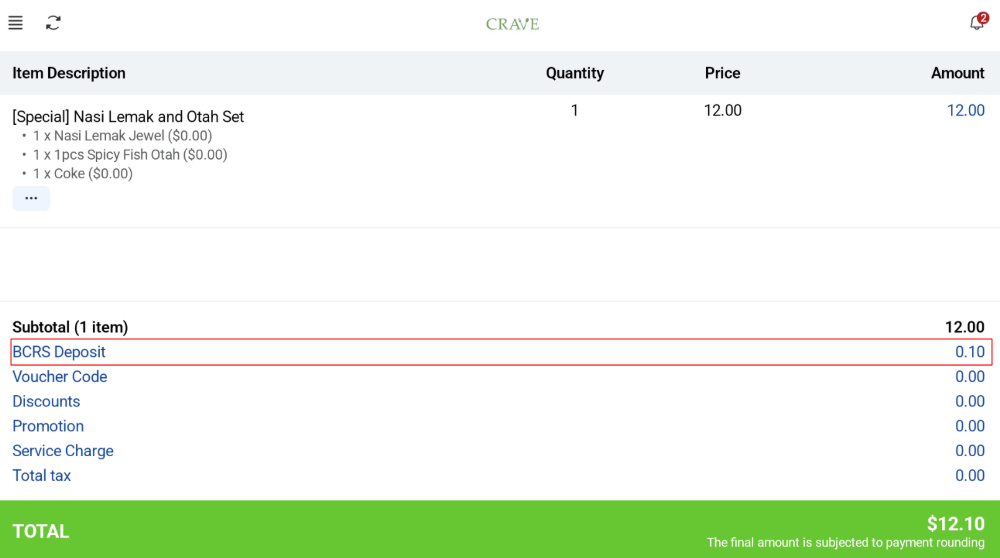
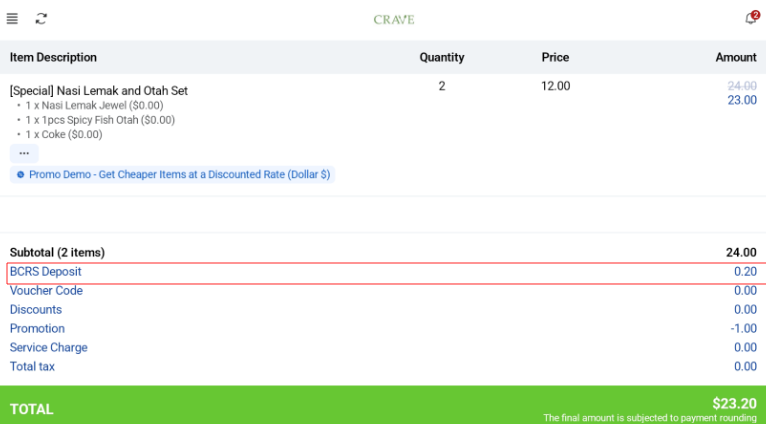
If there are multiple drinks, BCRS deposit is calculated as $0.10 x number of drink containers. For example, if there are 2 sets with 1 drink each, BCRS = $0.10 x 2 = $0.20.
Customer View:
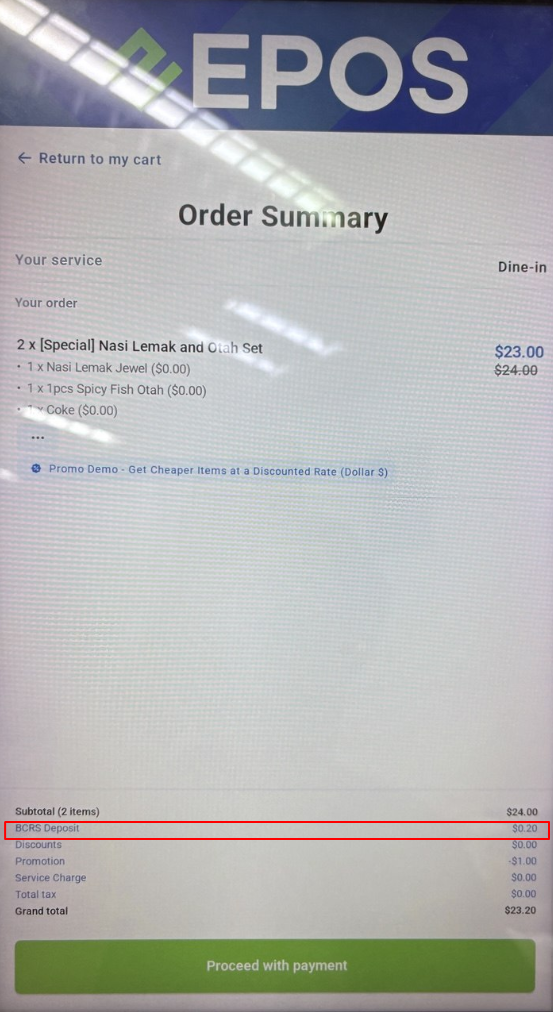
Cashier View:
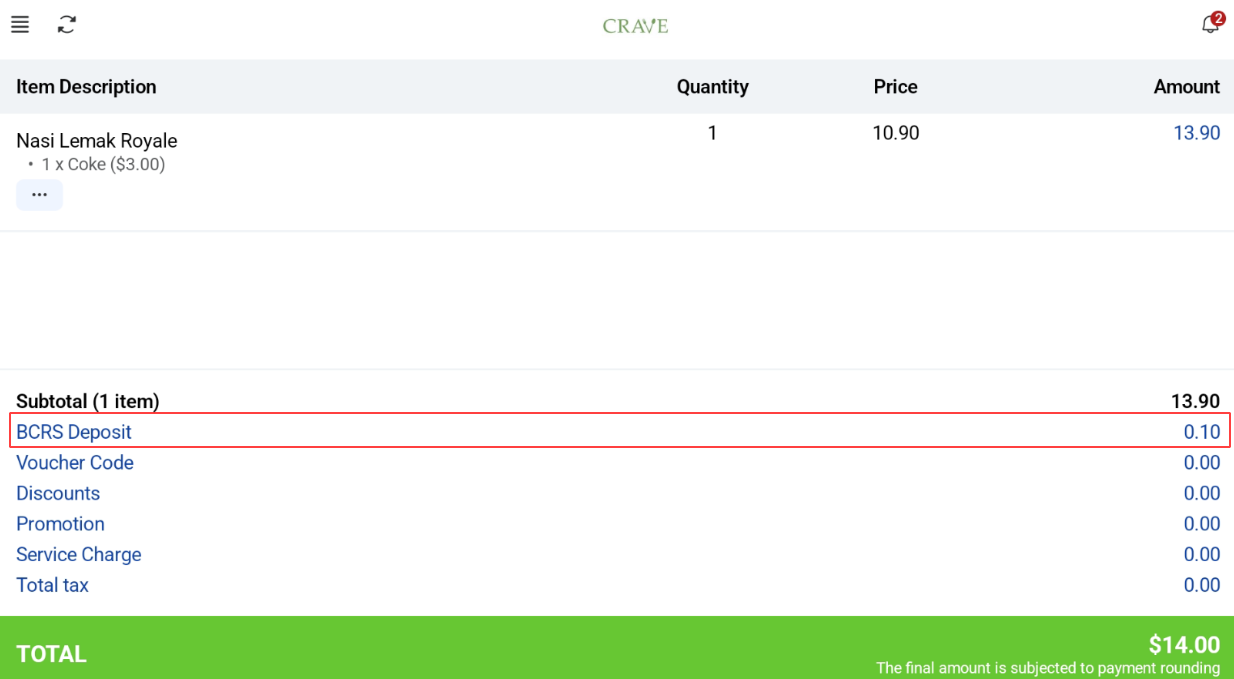
If there are modifier with BCRS item, it will be detected and added accordingly.
Customer View:
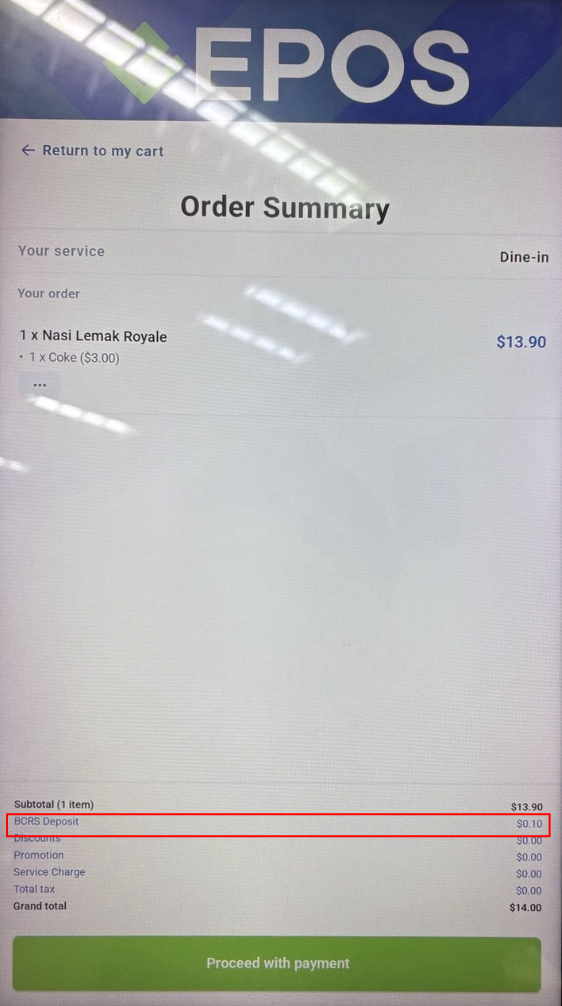
Cashier View:
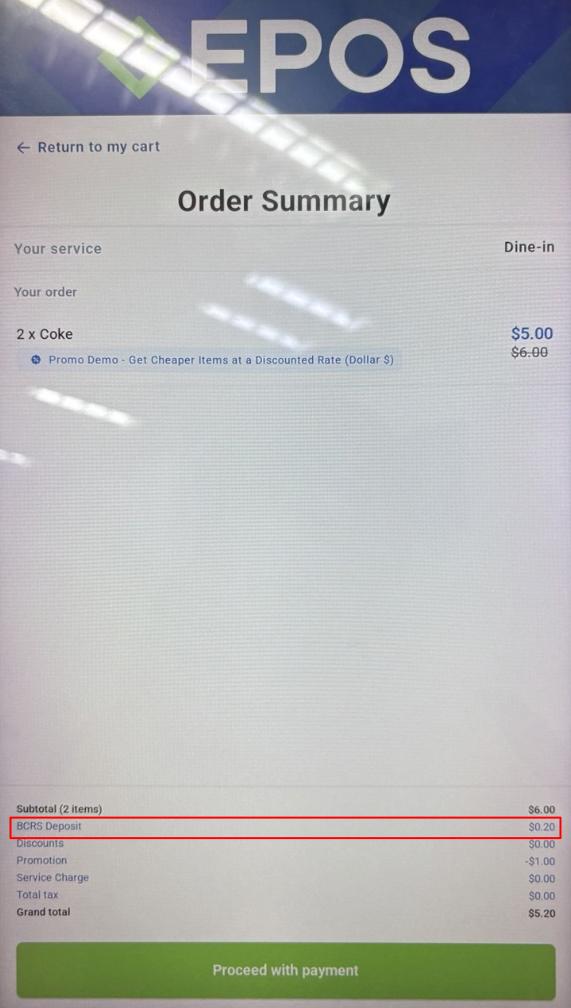
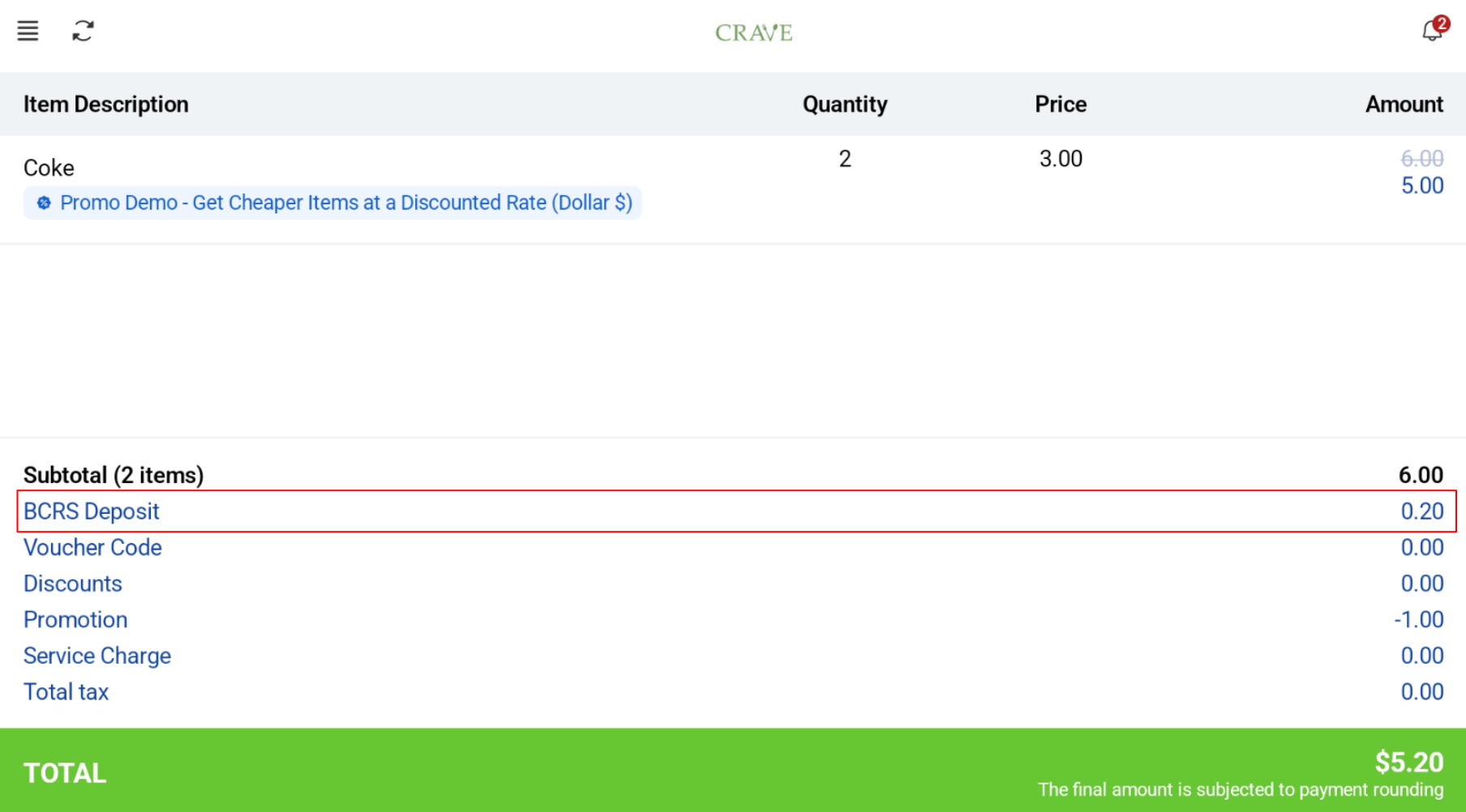
BCRS eligible drinks can be bought with promotion and “BCRS Deposit” will still show.
Customer View:
Cashier View:
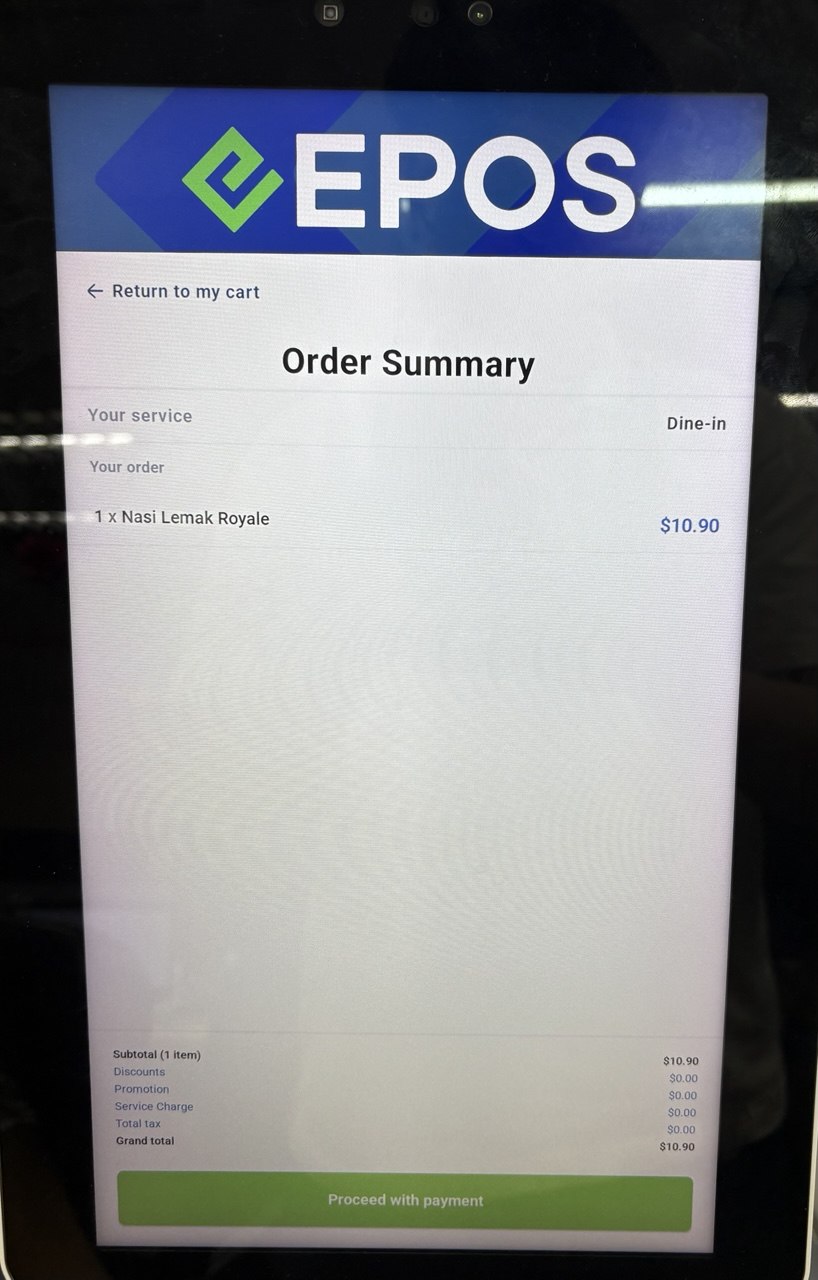
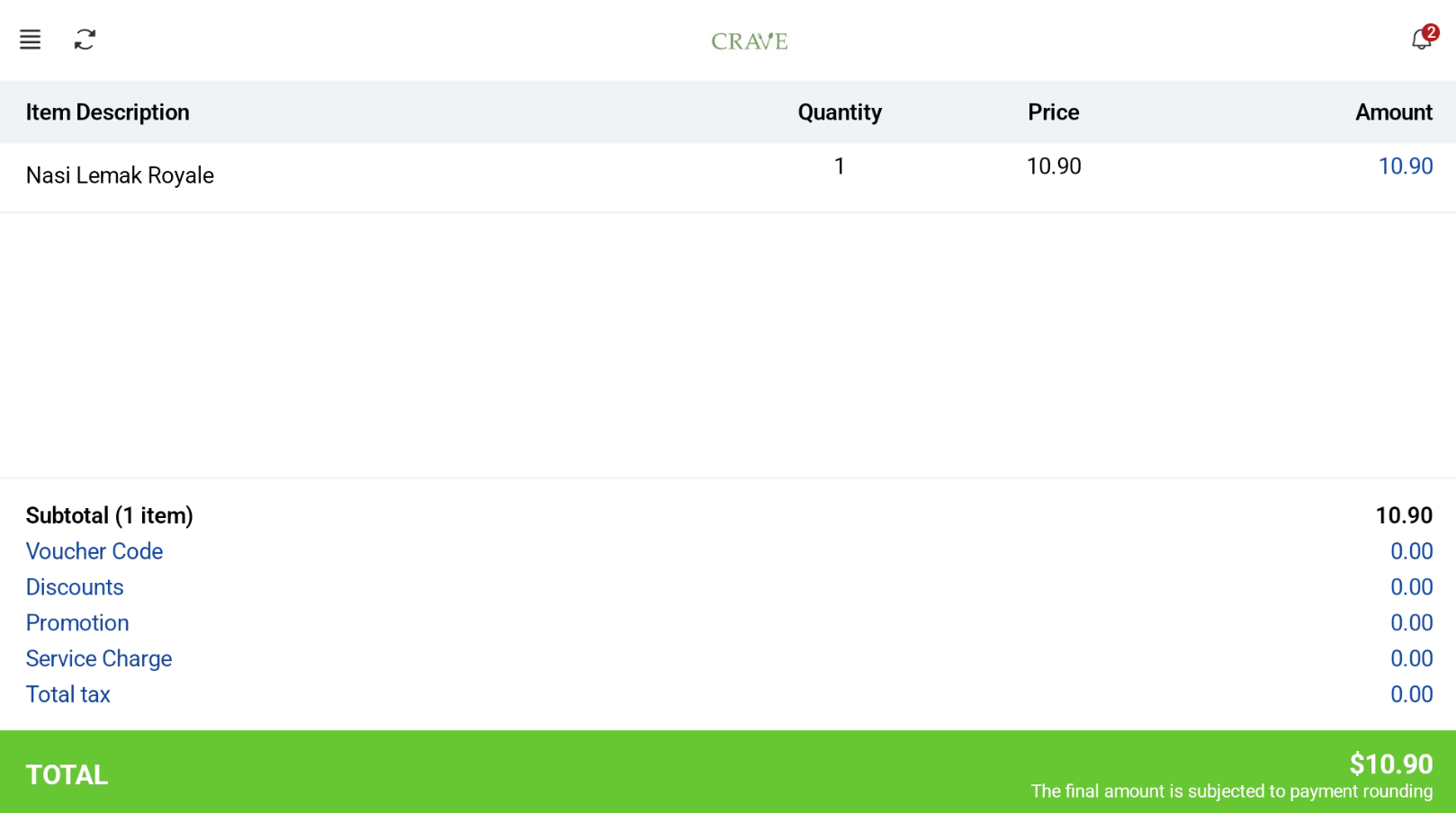
If there are no BCRS Eligible items in the cart, “BCRS Deposit” line is not displayed in Hybrid Kiosk UI and Receipt.
Customer View:
Cashier View:
58mm receipt:
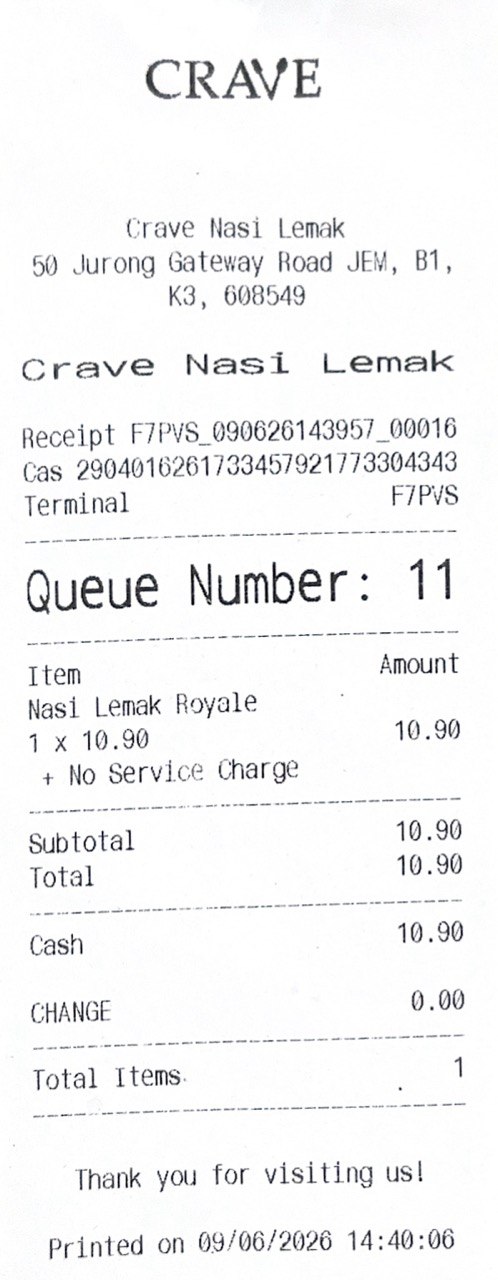
80mm receipt: