There are two options for users to update the quantity of a product added to the order cart. Updating the product quantity in the order cart will be recorded in the backend portal as part of Order Audit.
1. Using Quickpick
Users can click on the product multiple times to add multiple quantities of a product. Eg: click 5 times, 5 units will be added to the order cart.
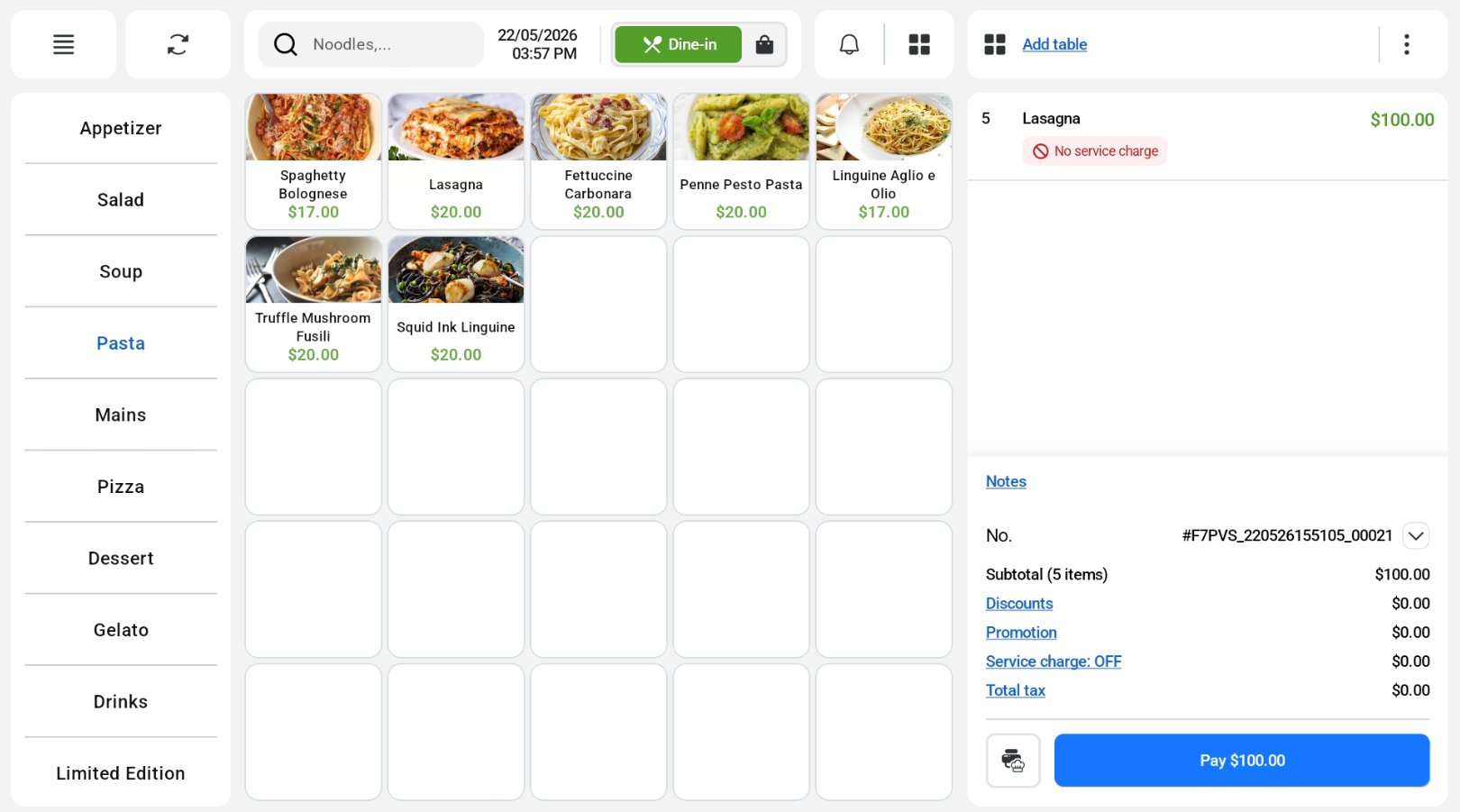 2. Using Product Details Function
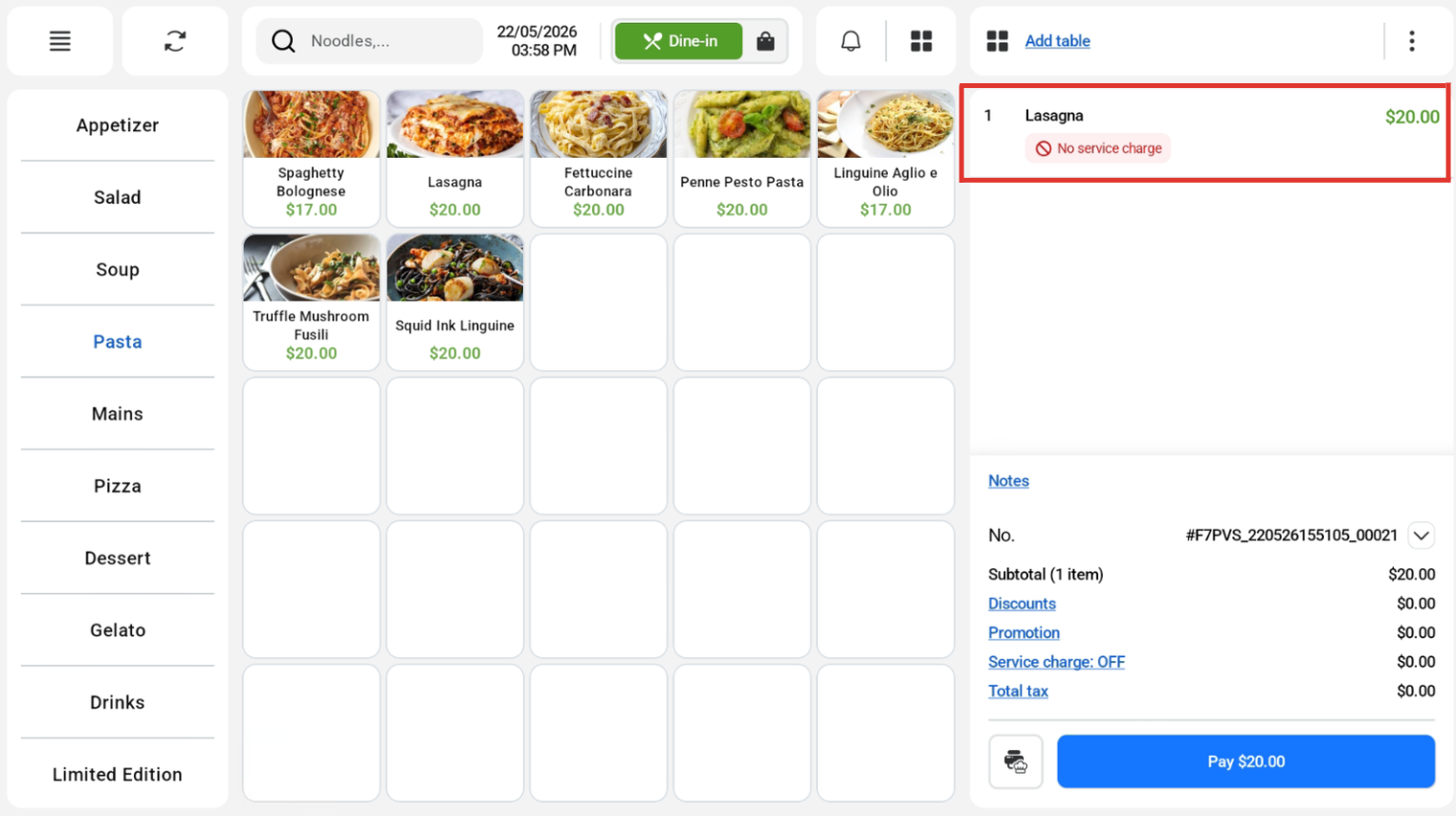
Users can click on the product in the order cart.
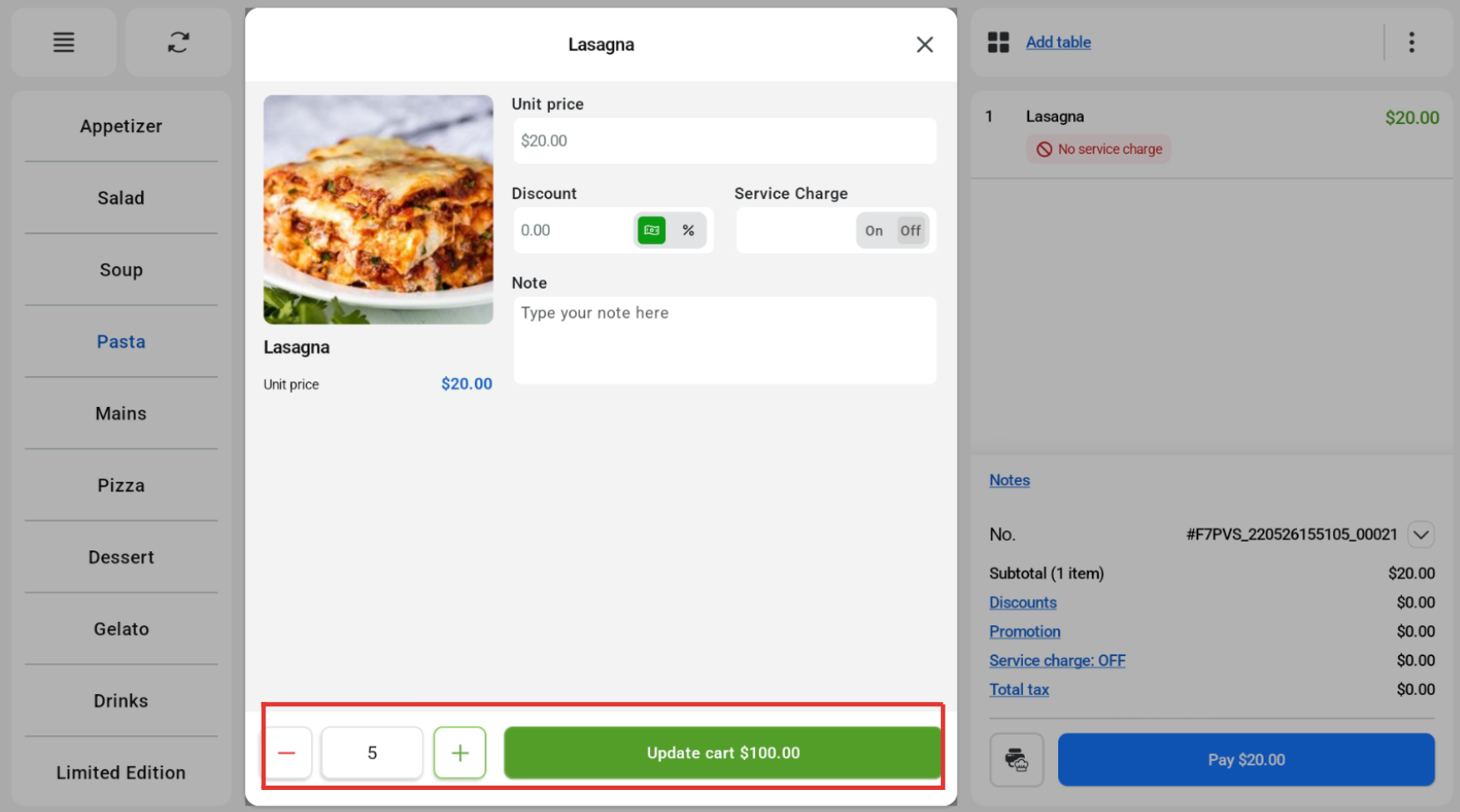
 At the product details window, users can edit the quantity accordingly using the ‘+’ and ‘-‘ buttons. Once done, users can click update cart to save the new quantity.
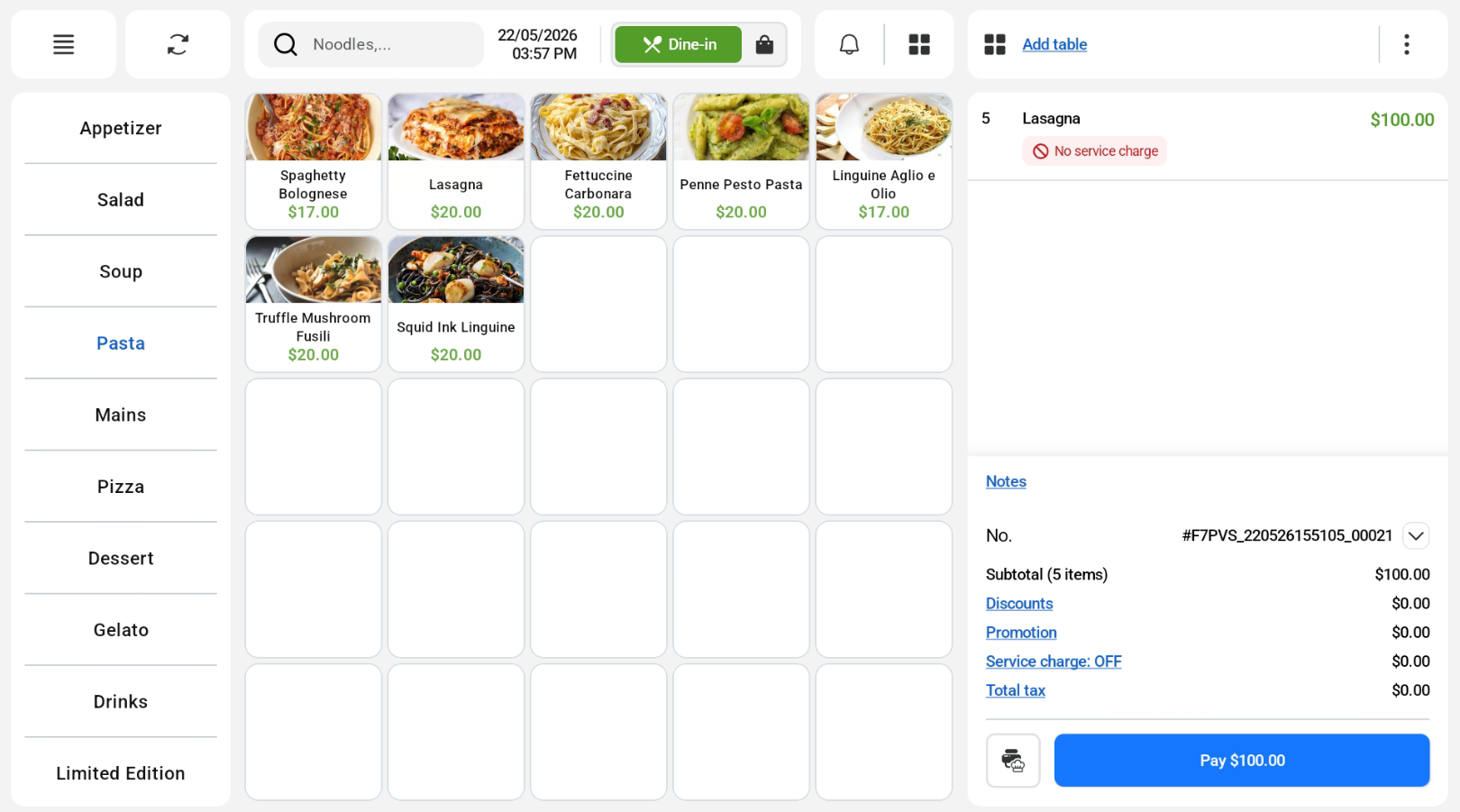
 The new quantity is reflected accordingly.
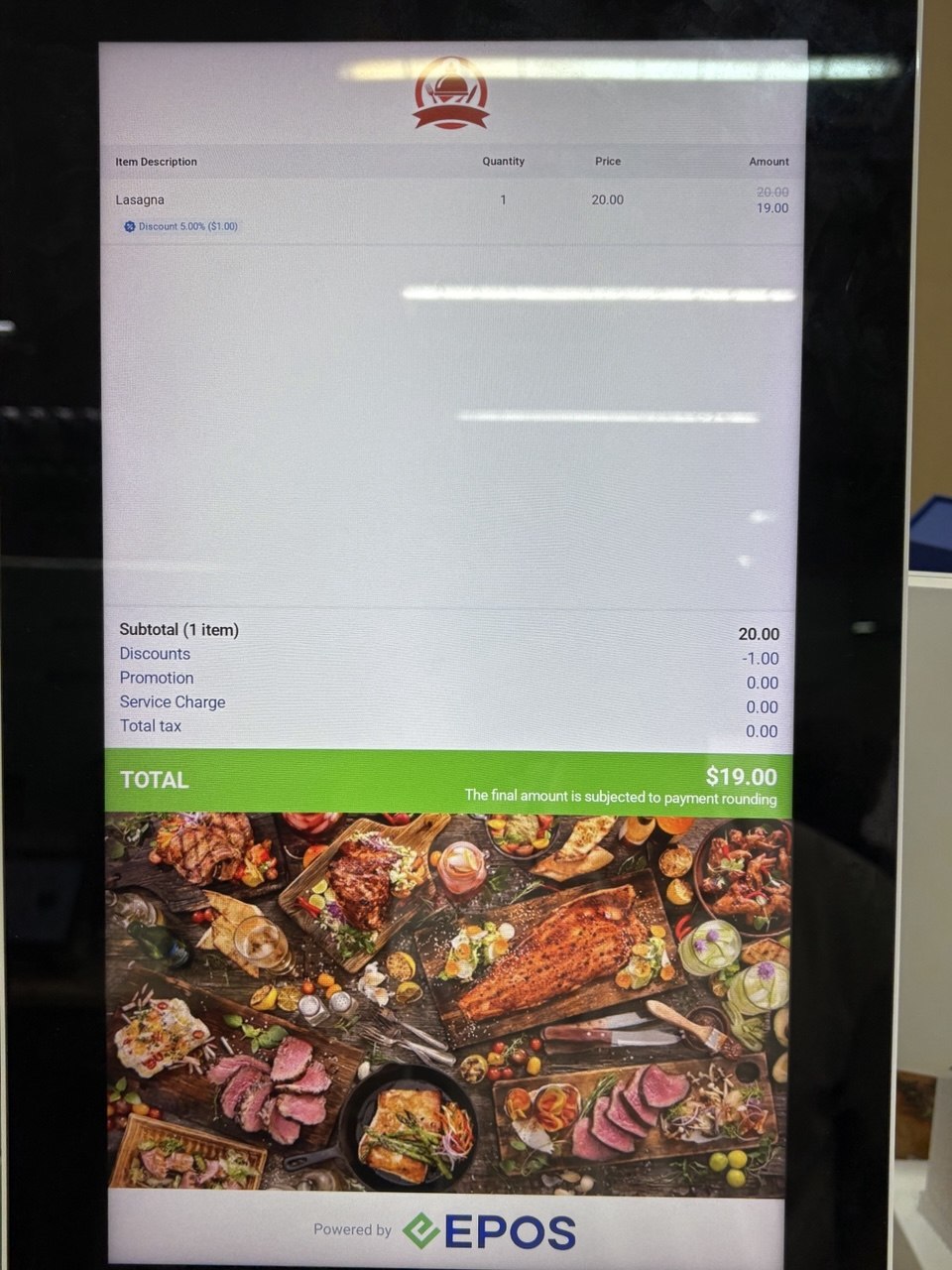
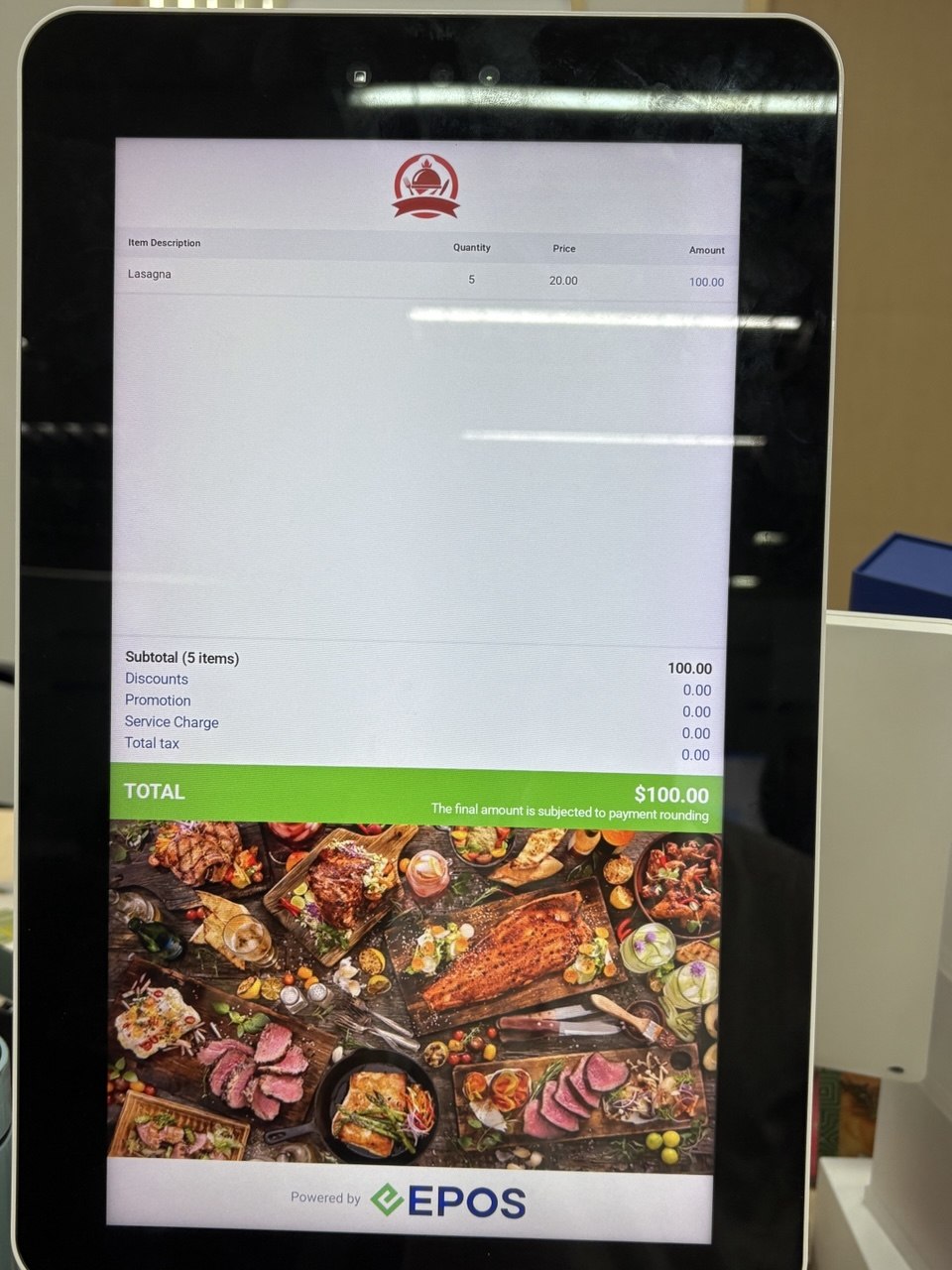
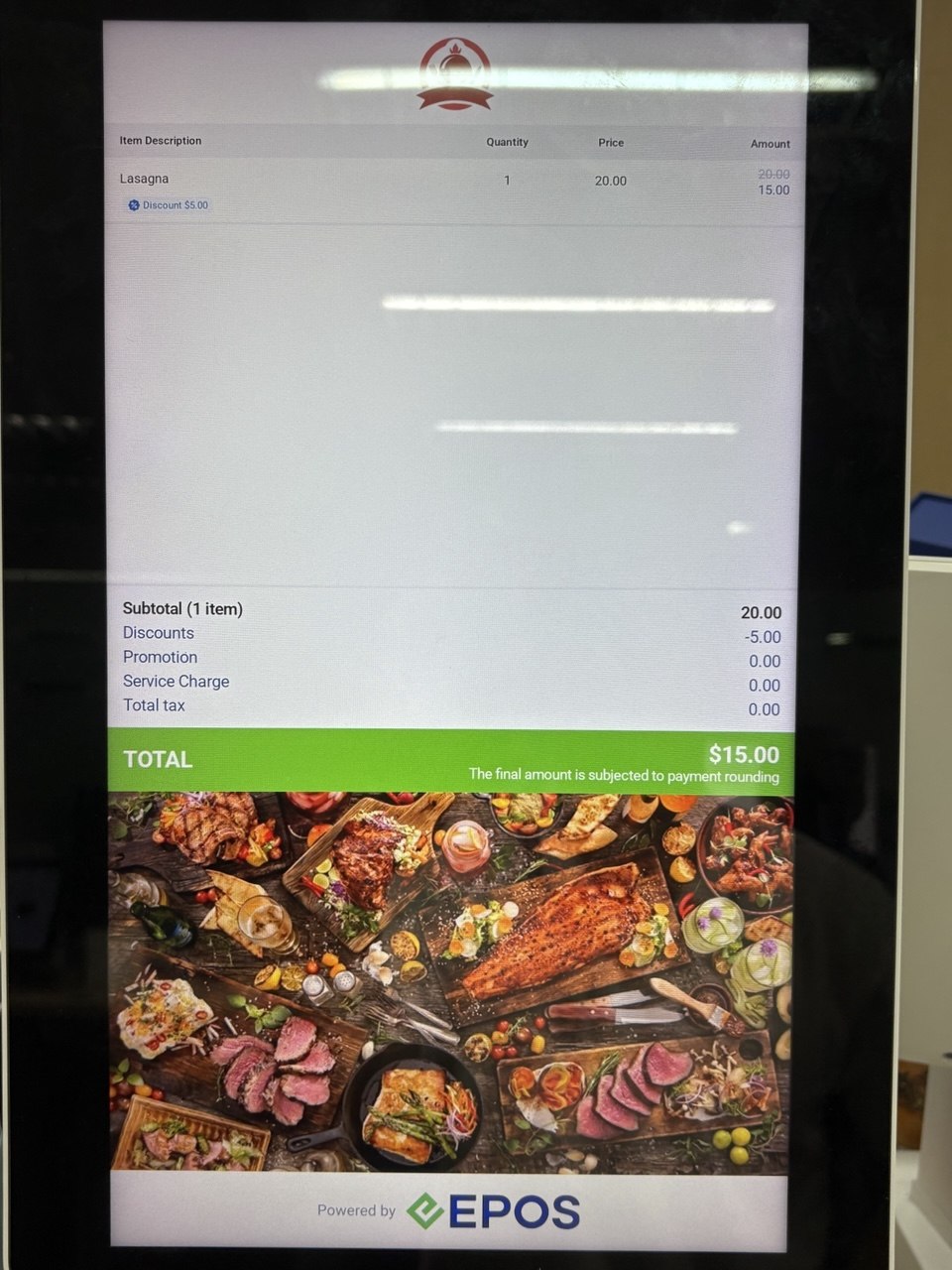
Customer is able to view the updated quantity on the kiosk.
There are two options for users to remove a product in the order cart.
1. Using Swipe
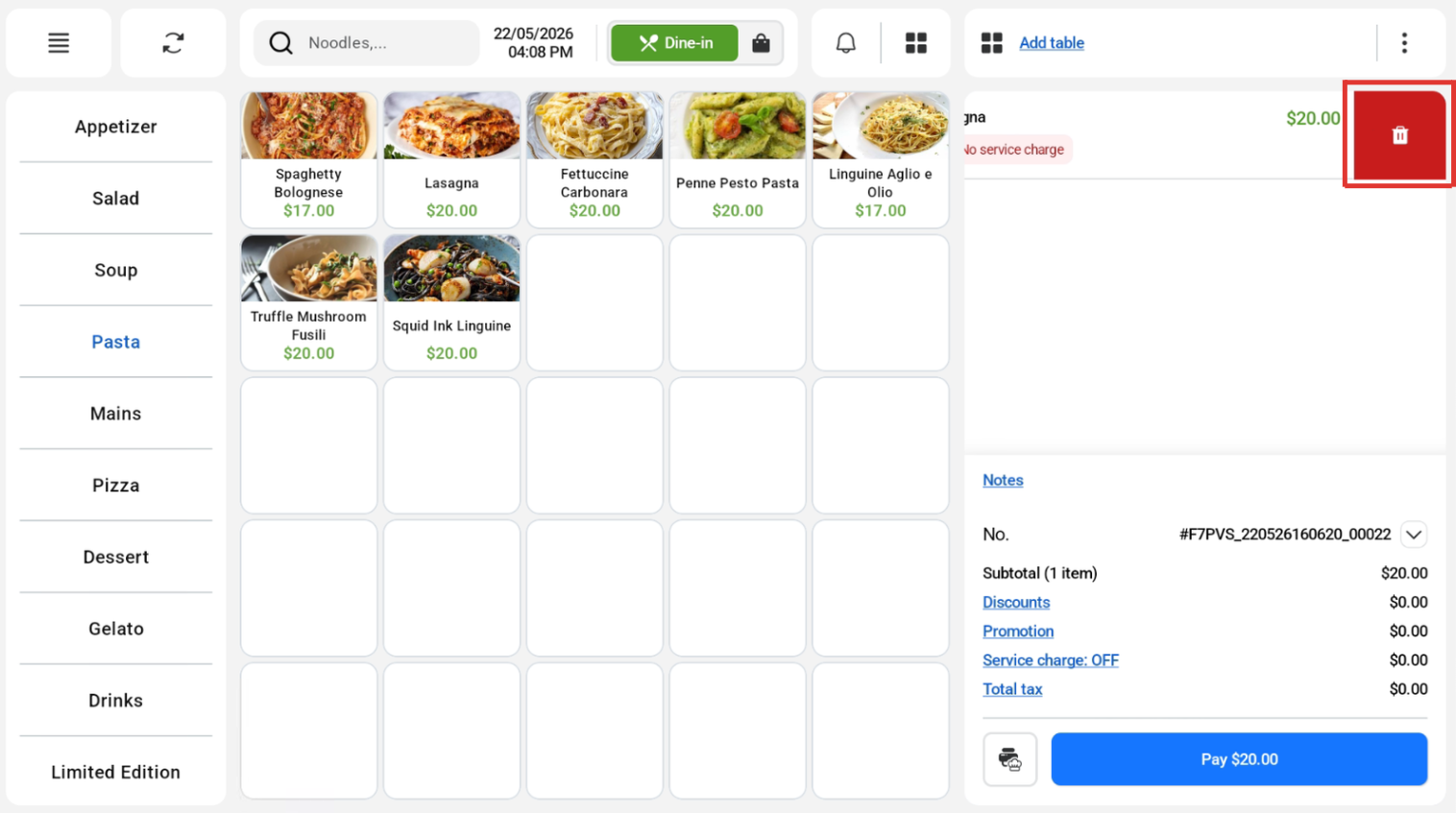
Users can swipe left on the product they would like to remove in the order cart and click on the delete icon to remove the product.
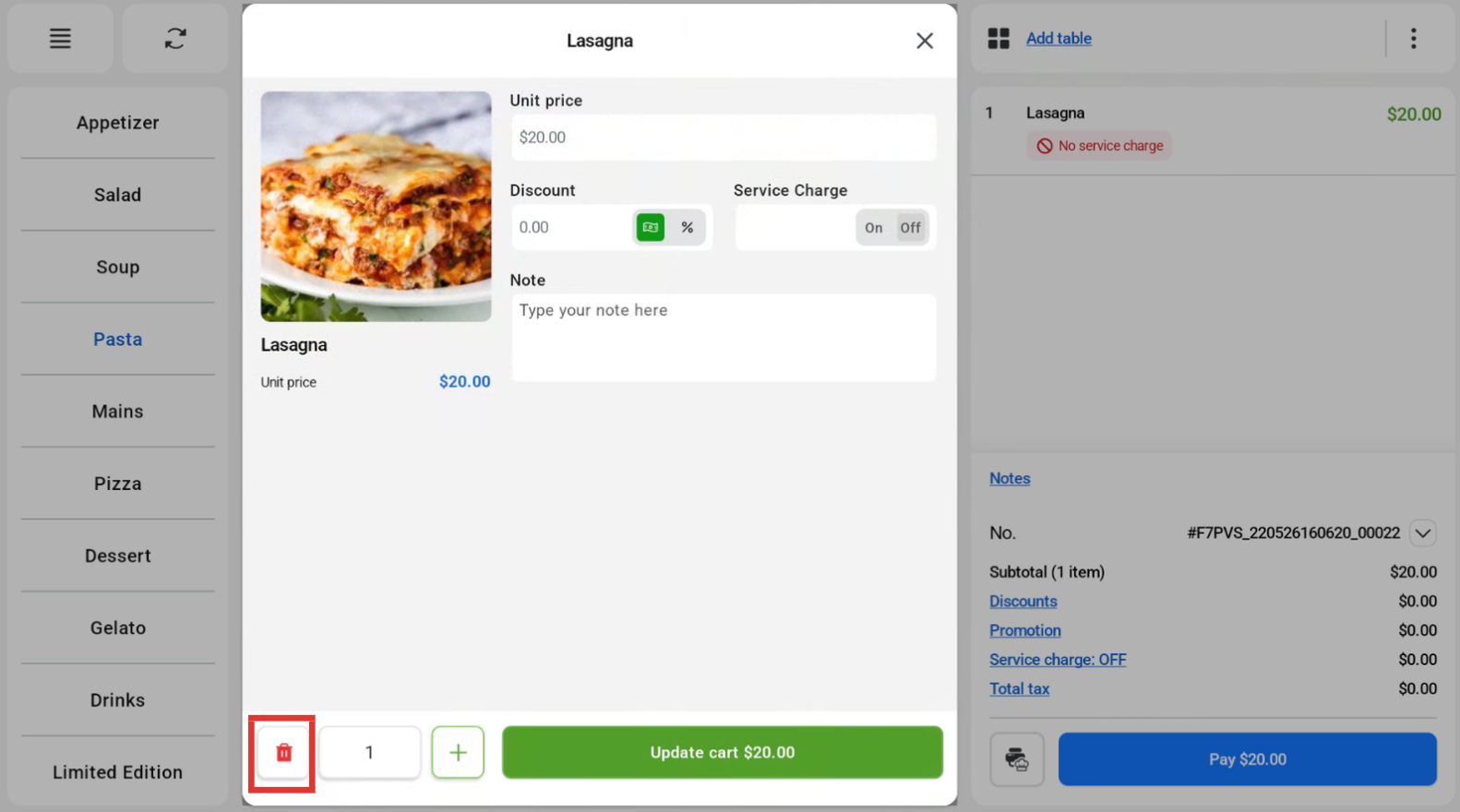
2. Using Product Details
Users can click into the product in the order cart and click on the delete icon to remove the product if it has a quantity of 1.
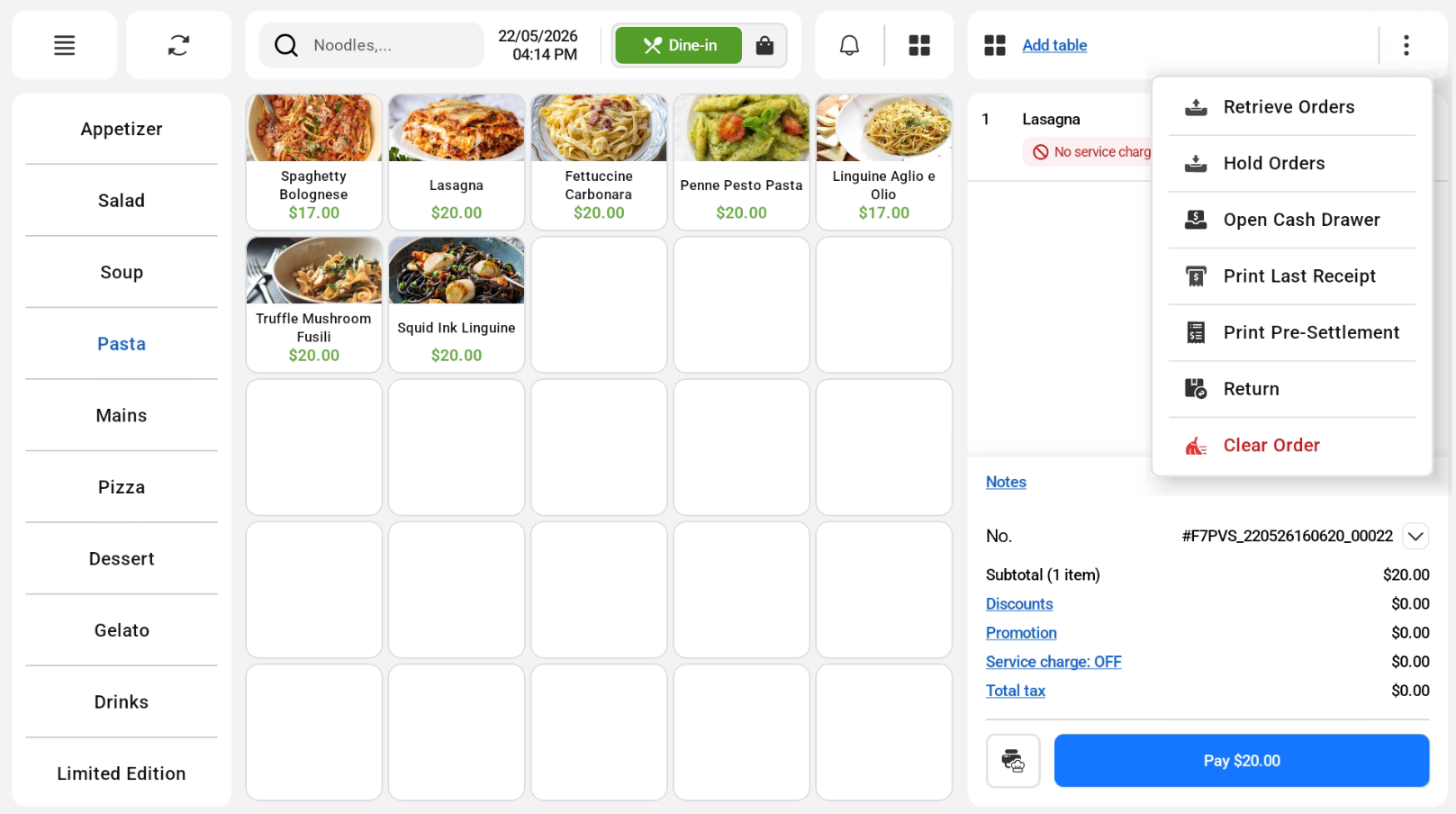
To remove a whole order, click on the 3 dots at the top right-hand corner, and click ‘Clear Order’ that is marked in red.
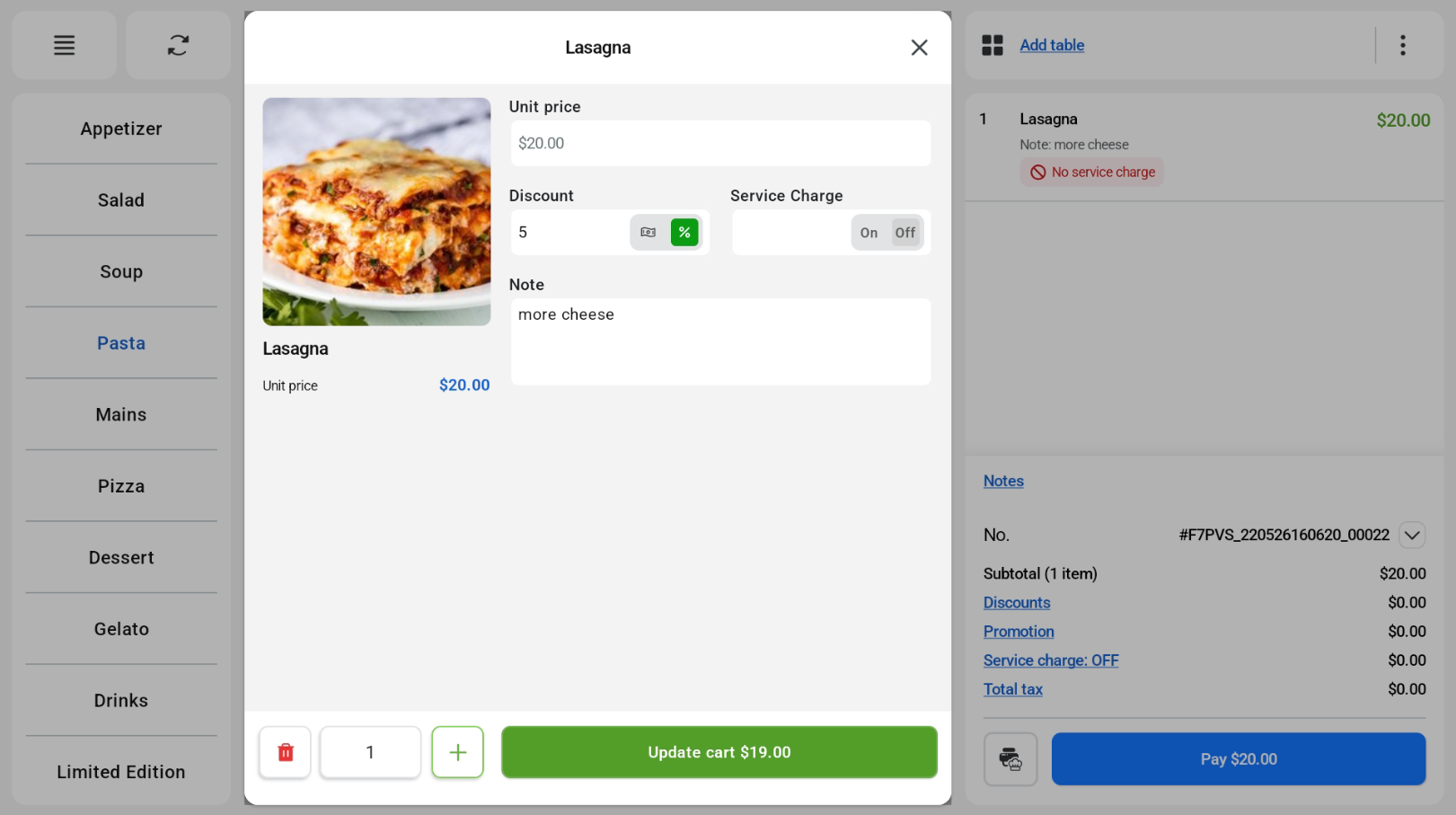
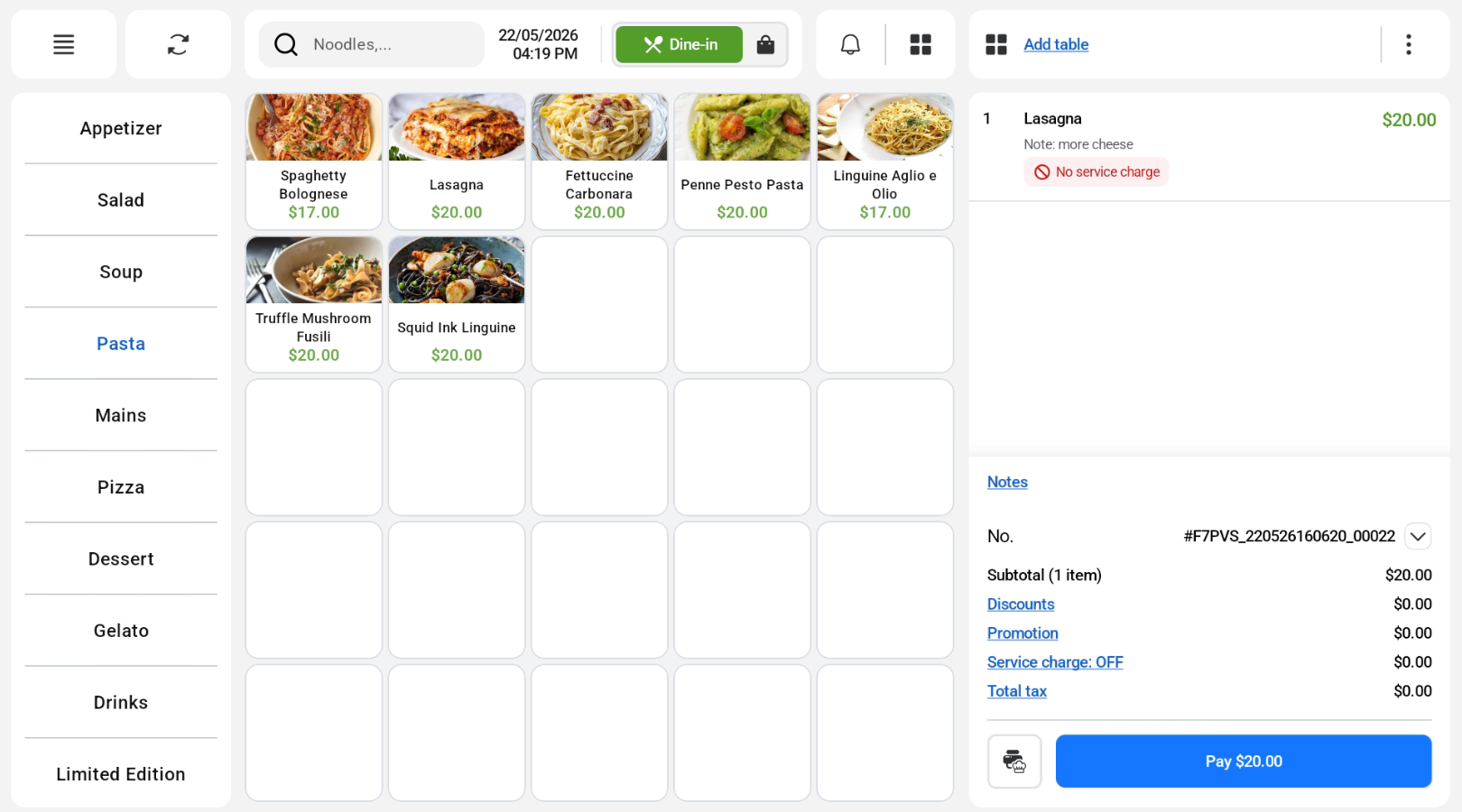
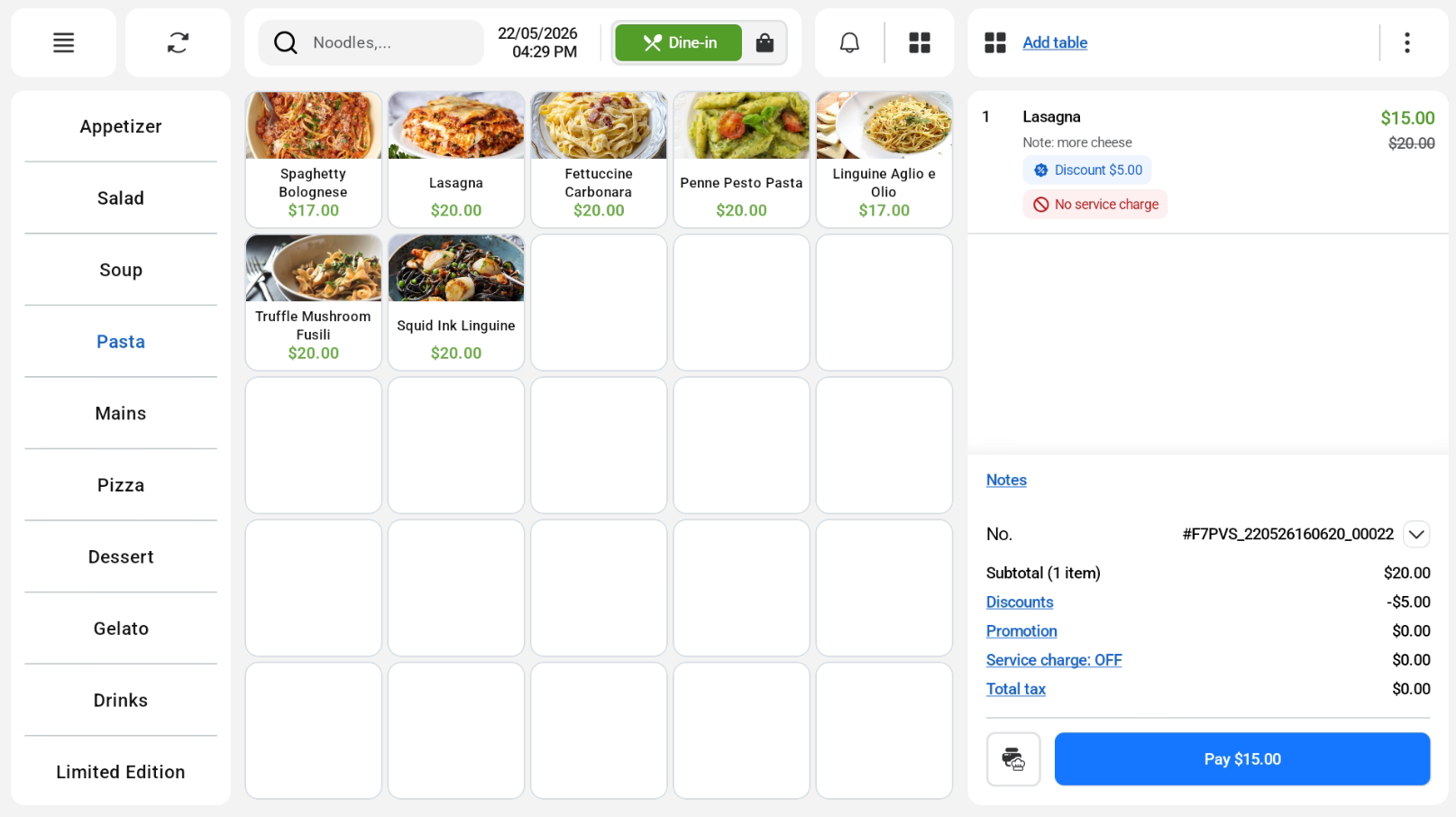
Users can click on the product in the order cart on the sales screen and type their note under the ‘Note’ section. Once done, user can click ‘Update Cart’.
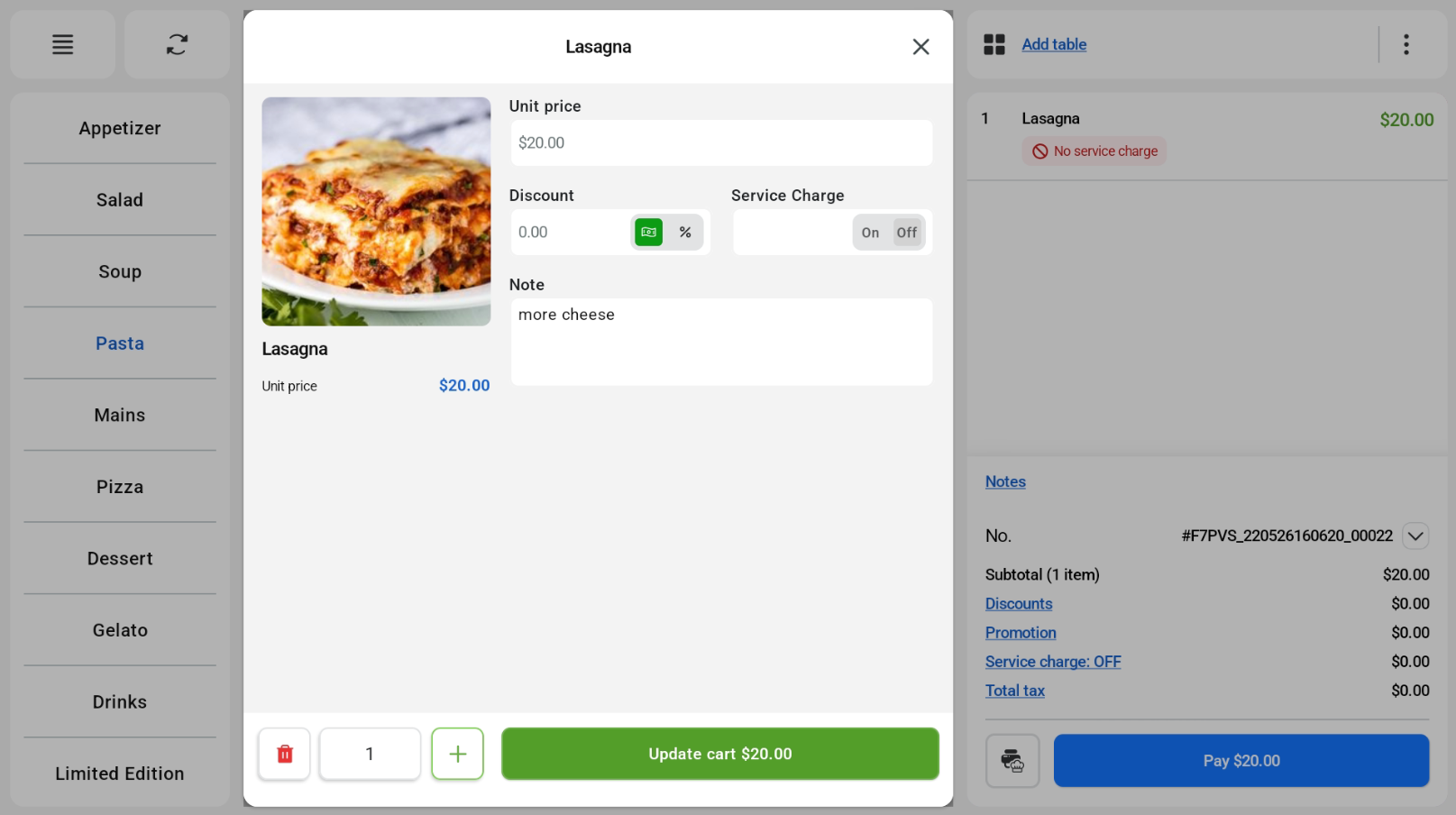
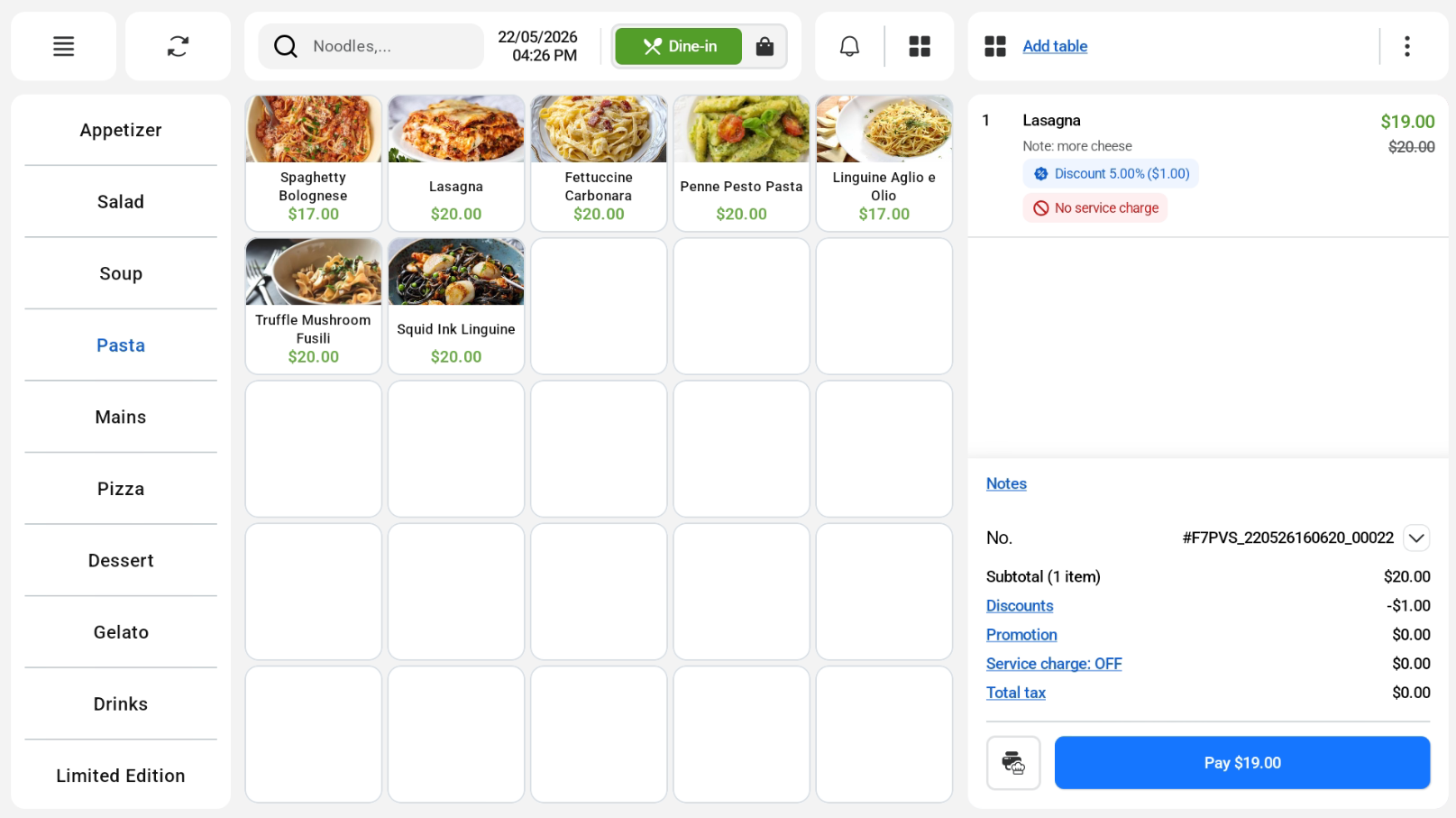
The note will be reflected under the product accordingly.
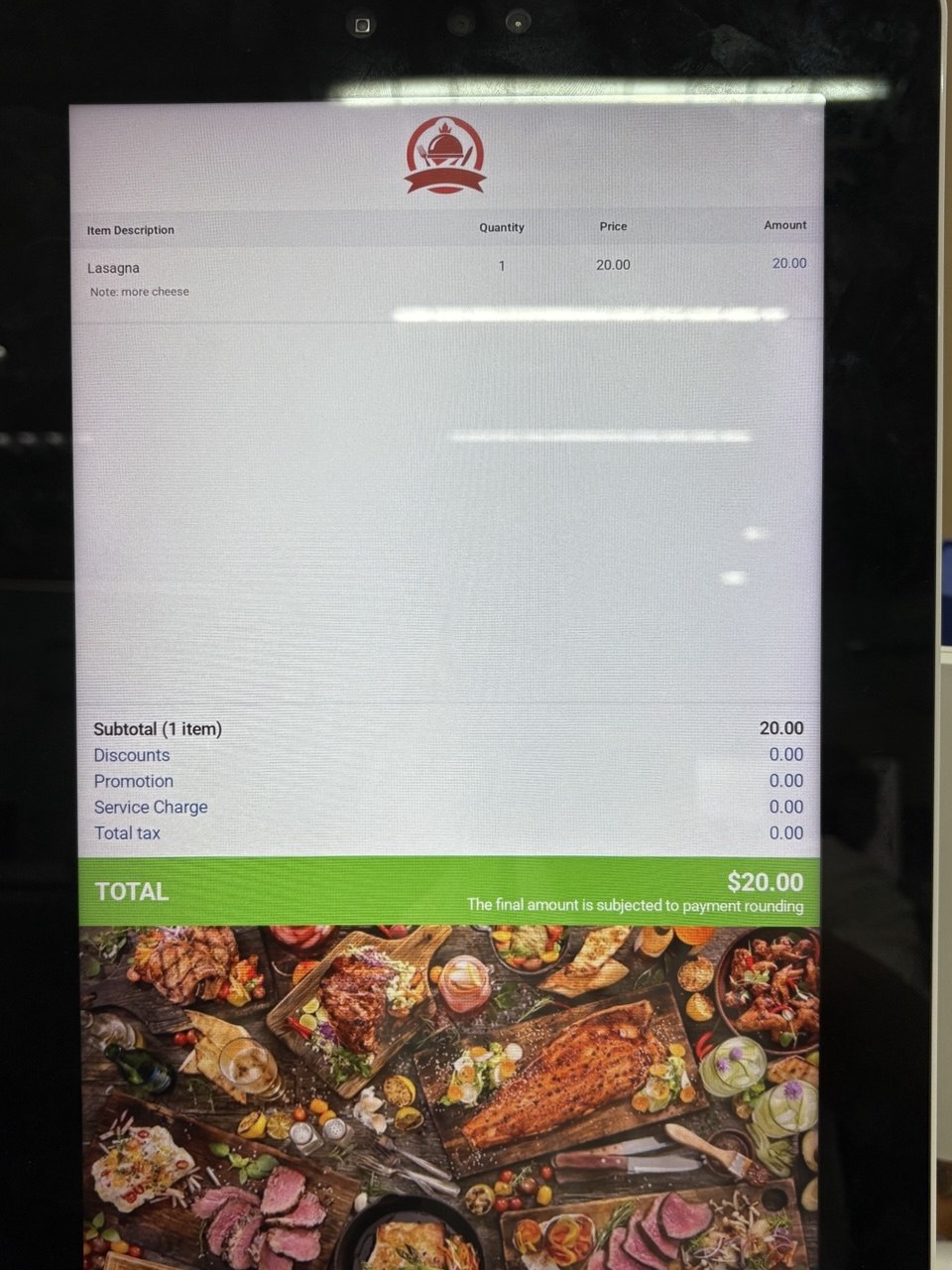
Customer is able to view product note on the Kiosk.
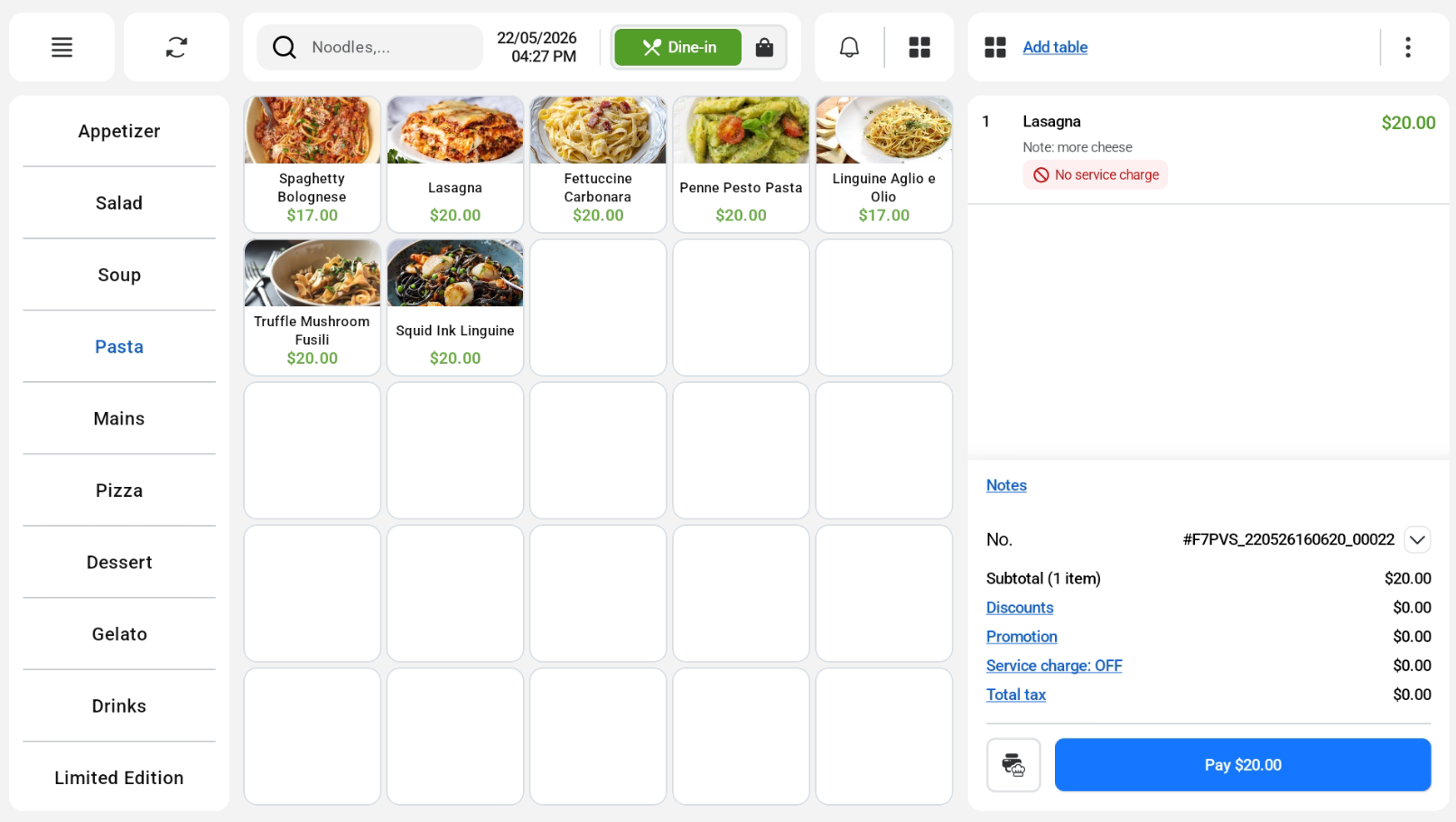
Users can give discounts to each product. Users can click on the product in the order cart on the sales screen.
Users can give either a flat discount or a percentage discount by toggling the button under the Discount tab. Once done, click update cart.
Flat Discount
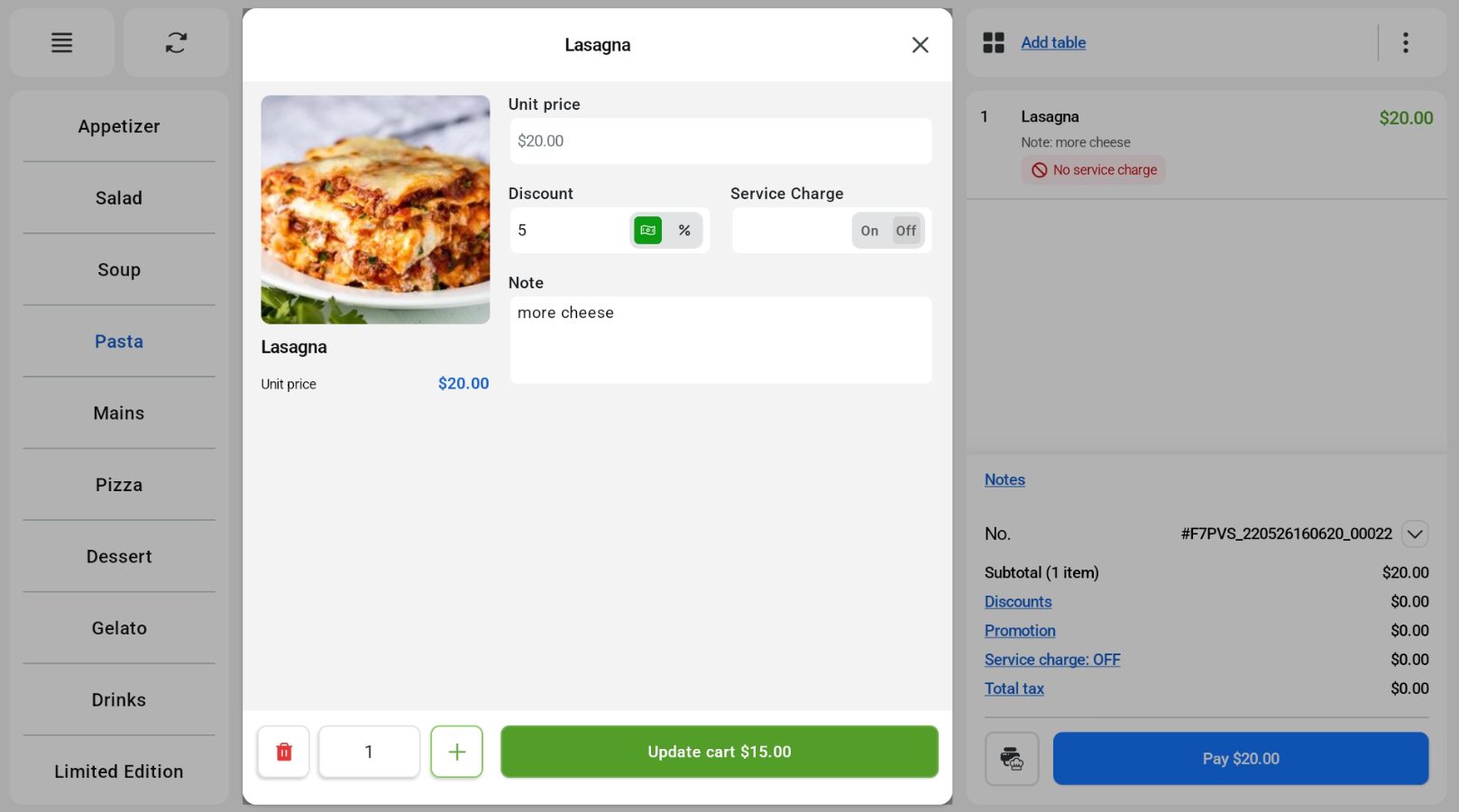
Percentage Discount