Hardware Capabilities

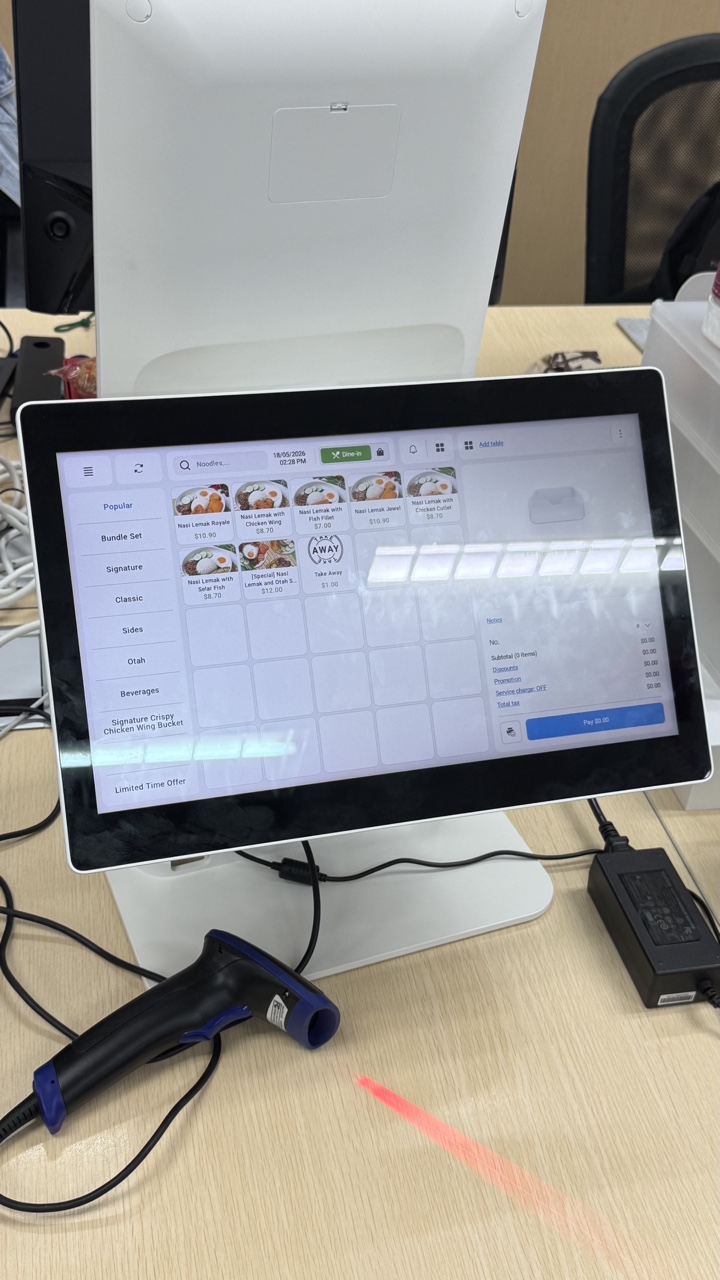
Hybrid Kiosk supports the following hardware on the Sunmi K2 Mini.

Built-in scanner

The built-in scanner works in both POS Mode and Kiosk Mode. Use it to scan staff codes and membership barcodes.
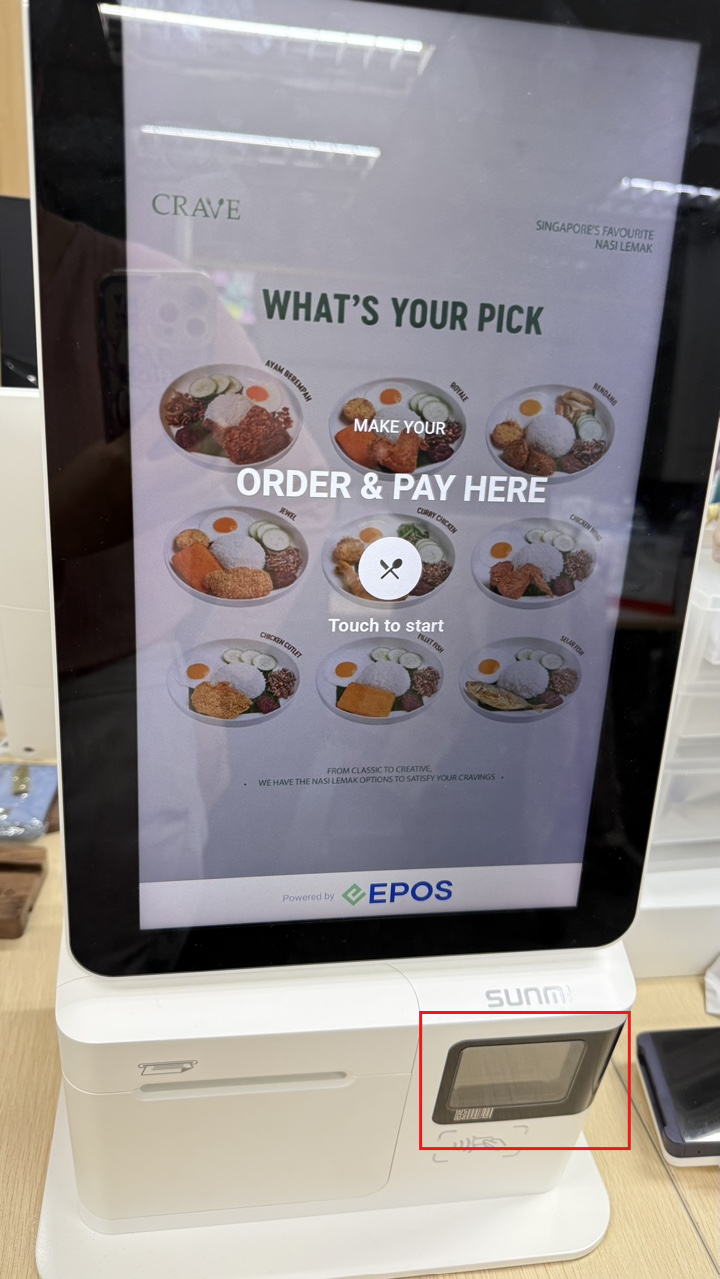
Built-in scanner

USB barcode scanner

Plug the USB barcode scanner into the device to scan items, staff codes and membership barcodes.
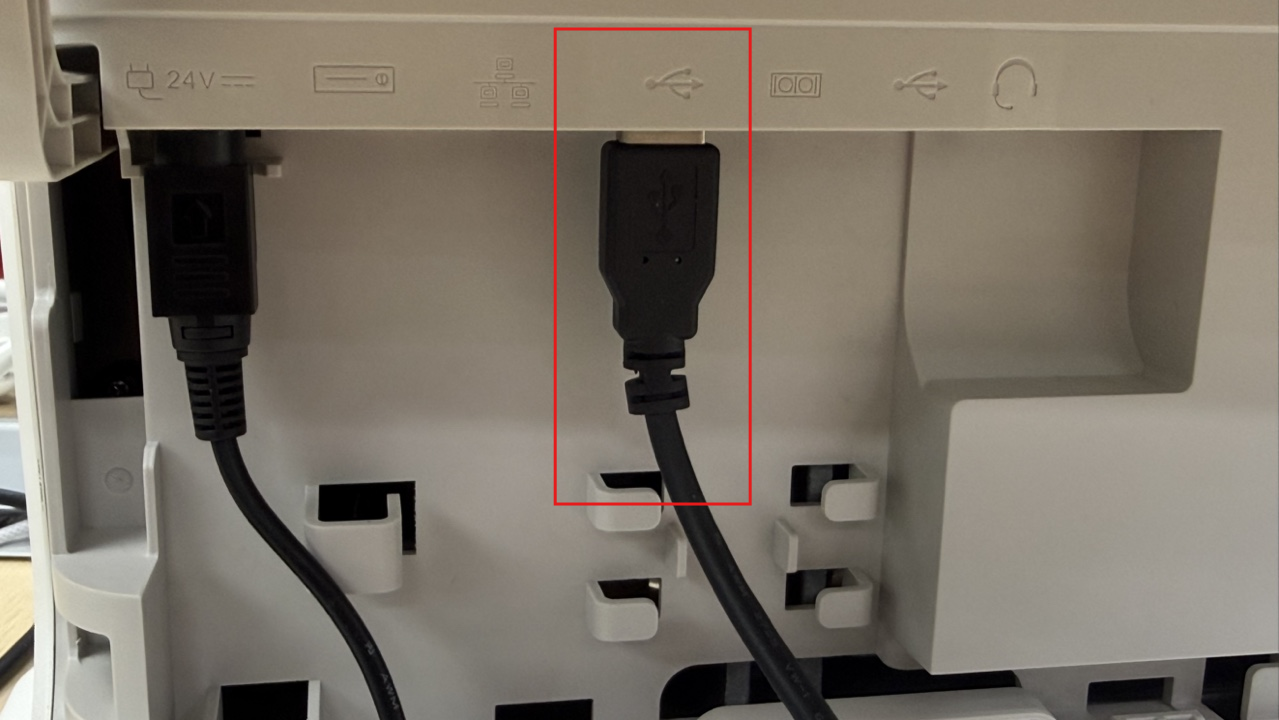
USB barcode scanner

USB barcode scanner

Built-in receipt printer

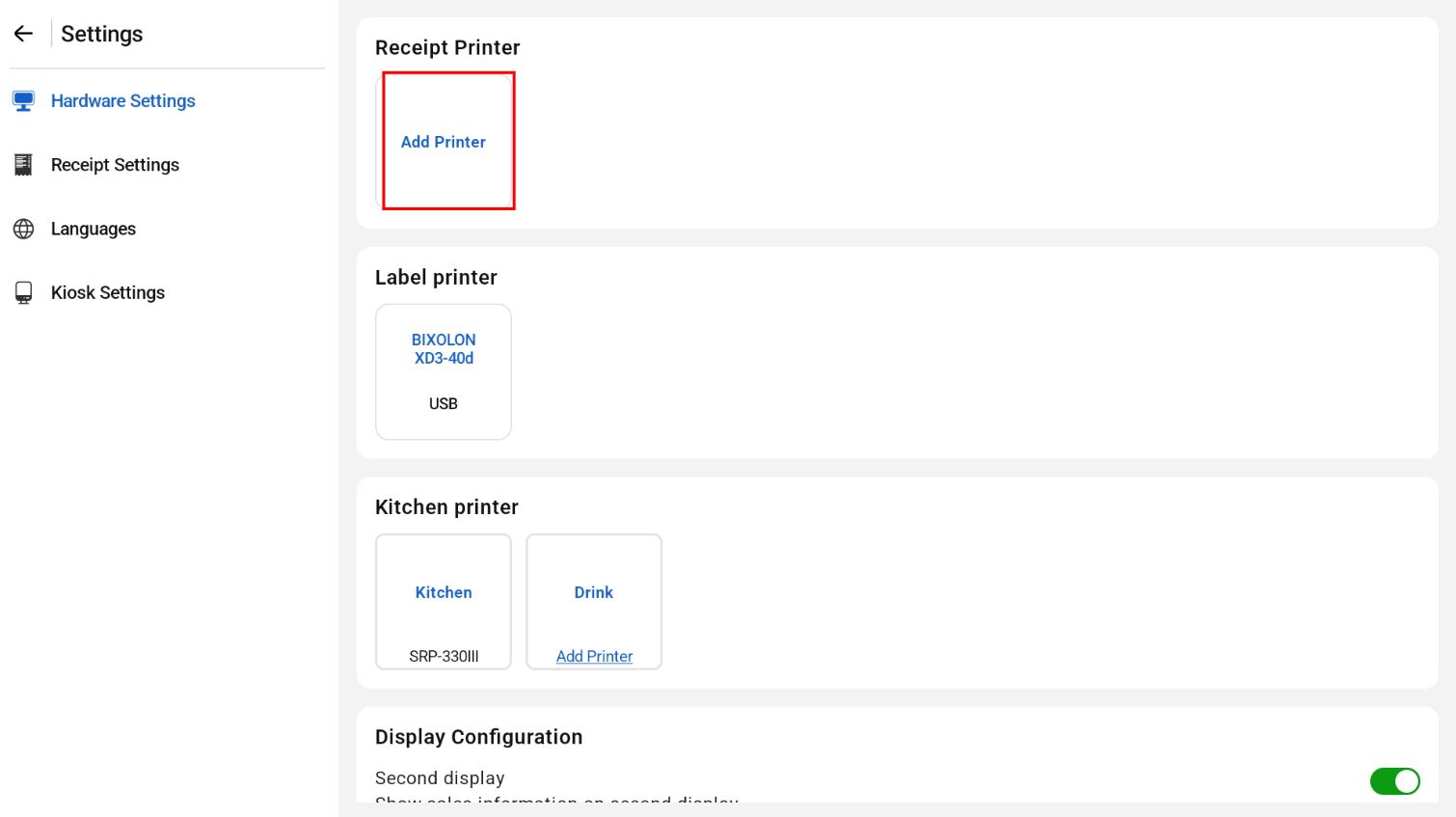
  1. In EPOS Hardware Settings, tap Receipt Printer > Add Printer.
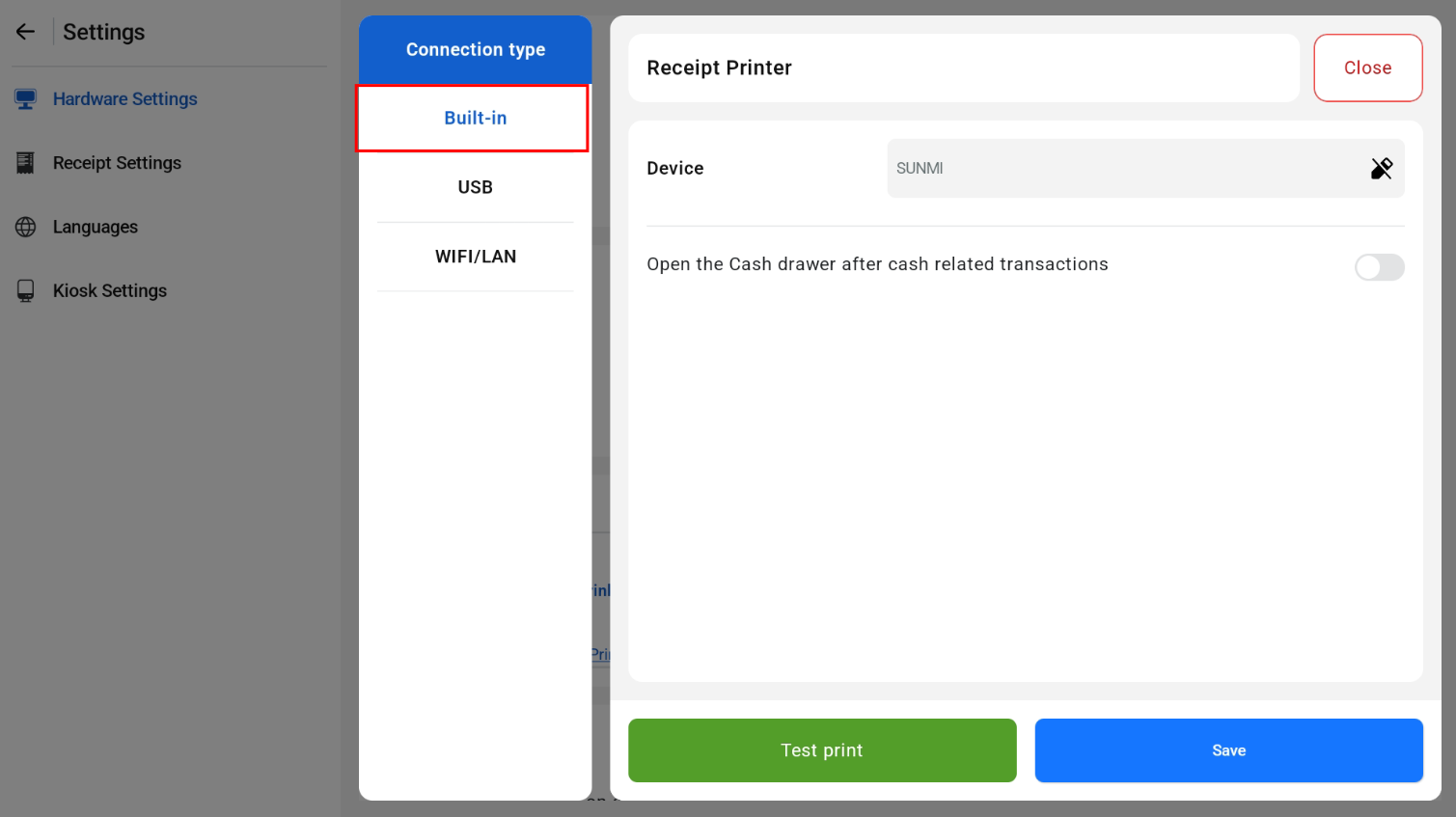
  2. Set Connection Type to Built-in and tap Save.

Adding a built-in receipt printer in Hardware Settings

Adding a built-in receipt printer in Hardware Settings

Sunmi settings for the built-in receipt printer

Make sure the Sunmi receipt format is set up properly in the device settings.
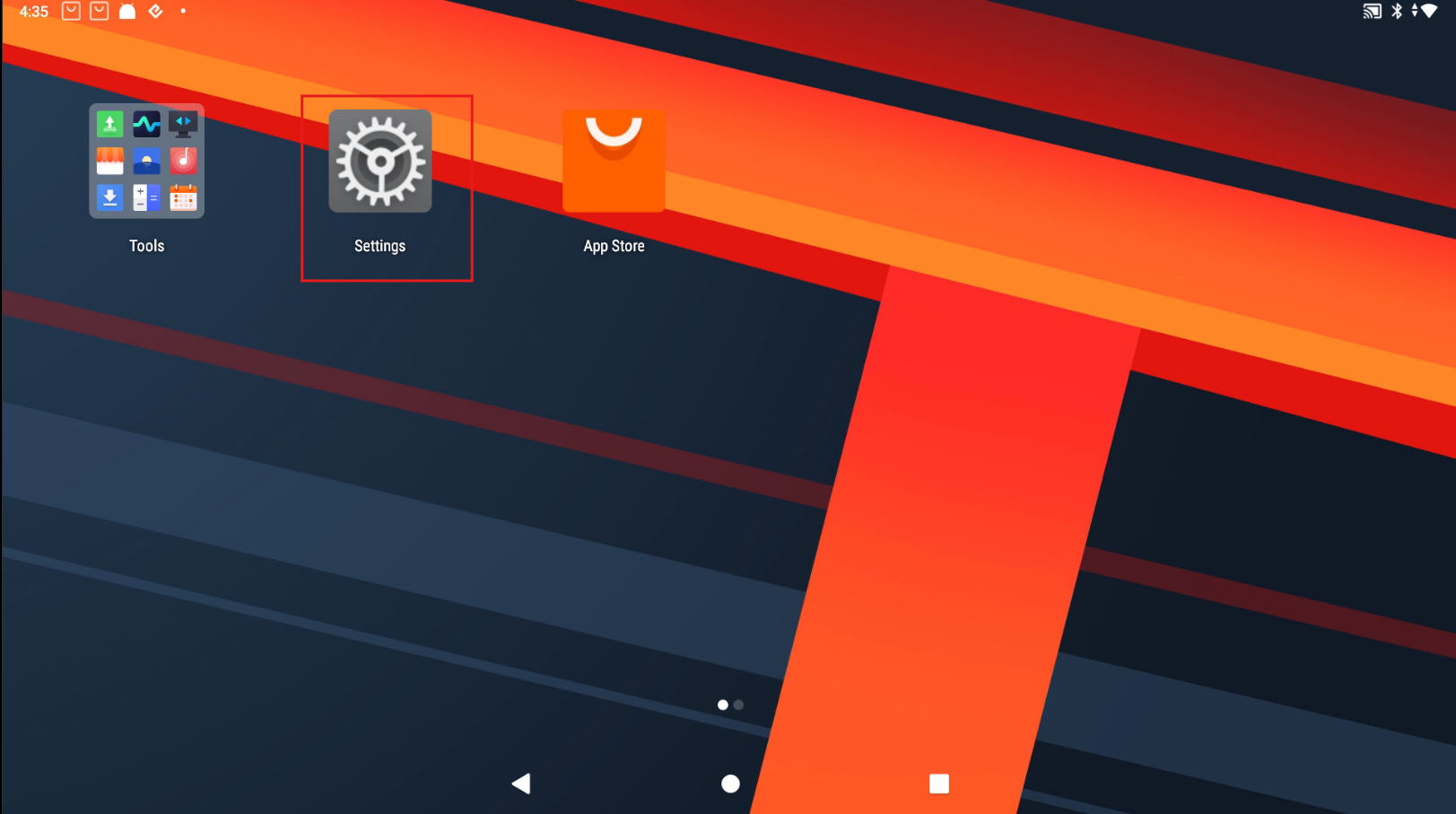
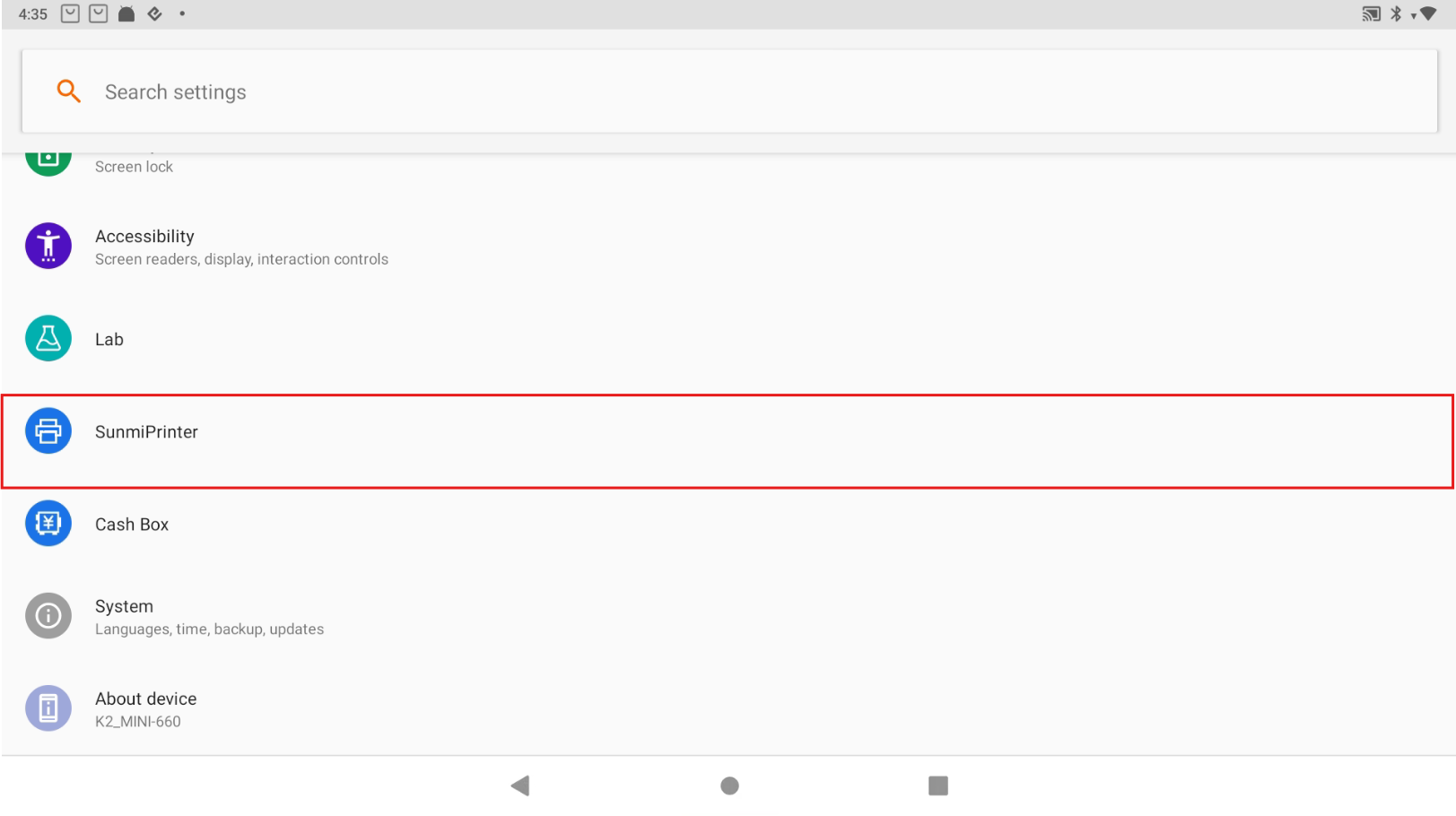
  1. Go to the device Settings.
  2. Search for Sunmi Printer.

Searching for Sunmi Printer in the device settings

Searching for Sunmi Printer in the device settings

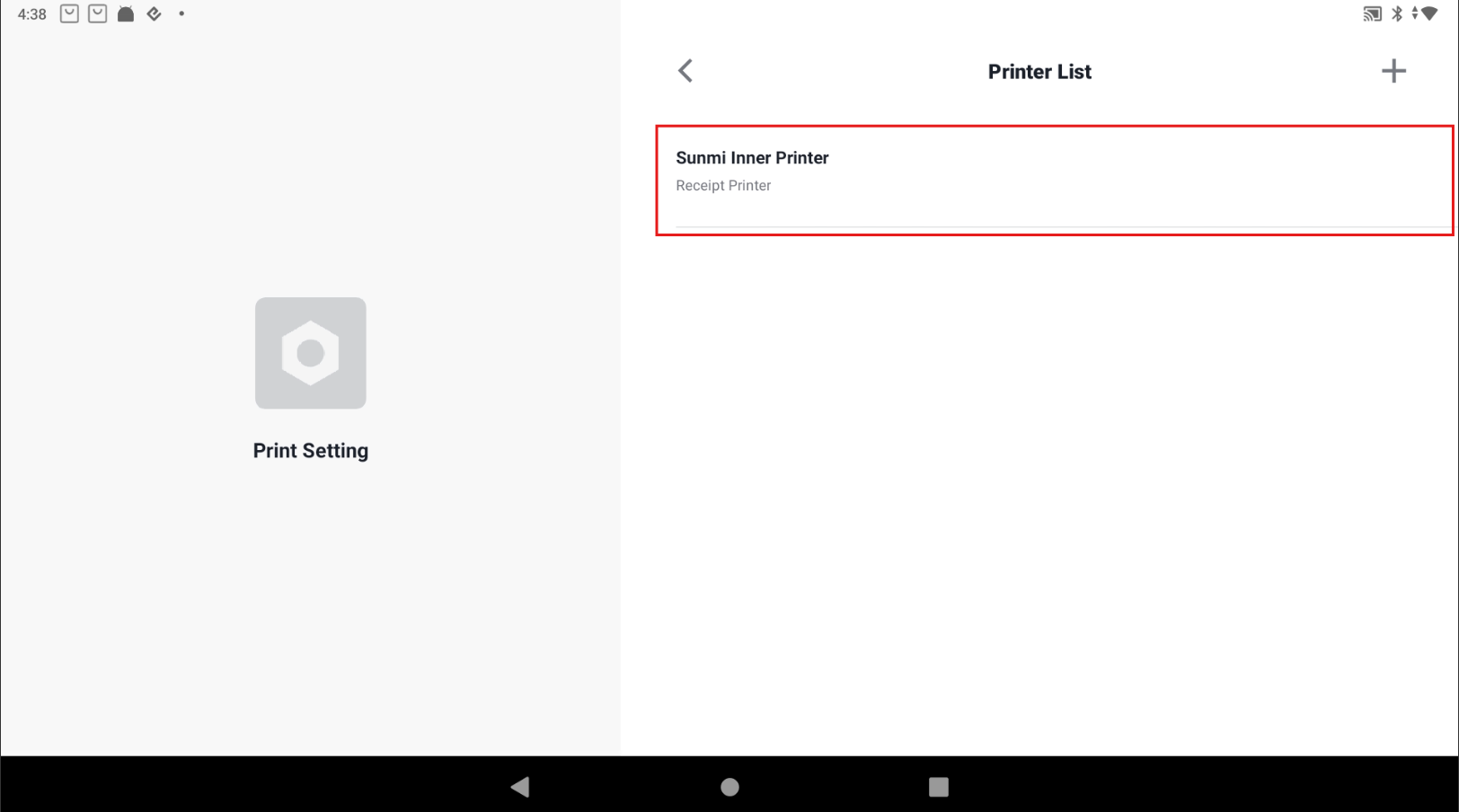
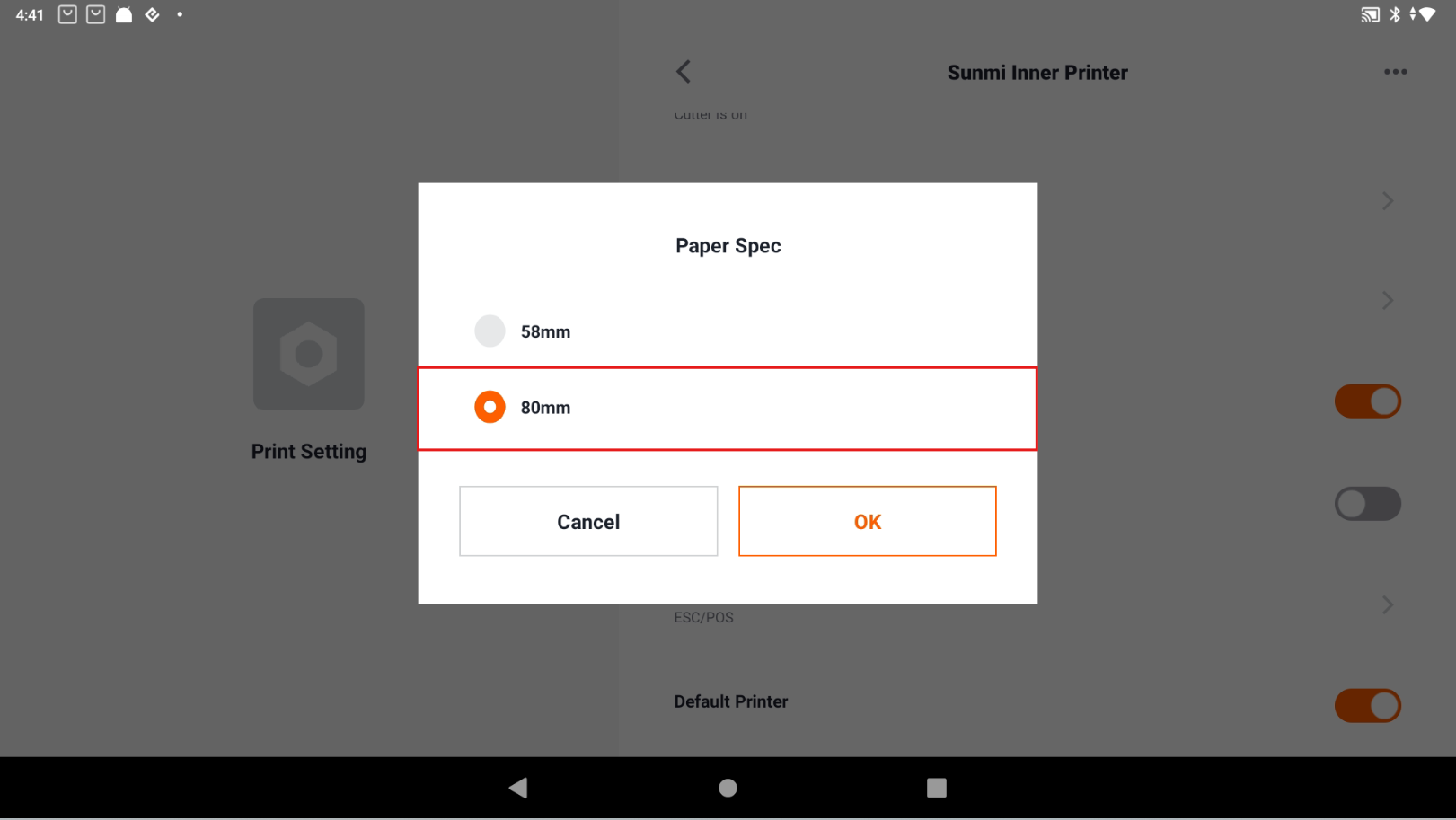
  1. Tap Sunmi Inner Printer.
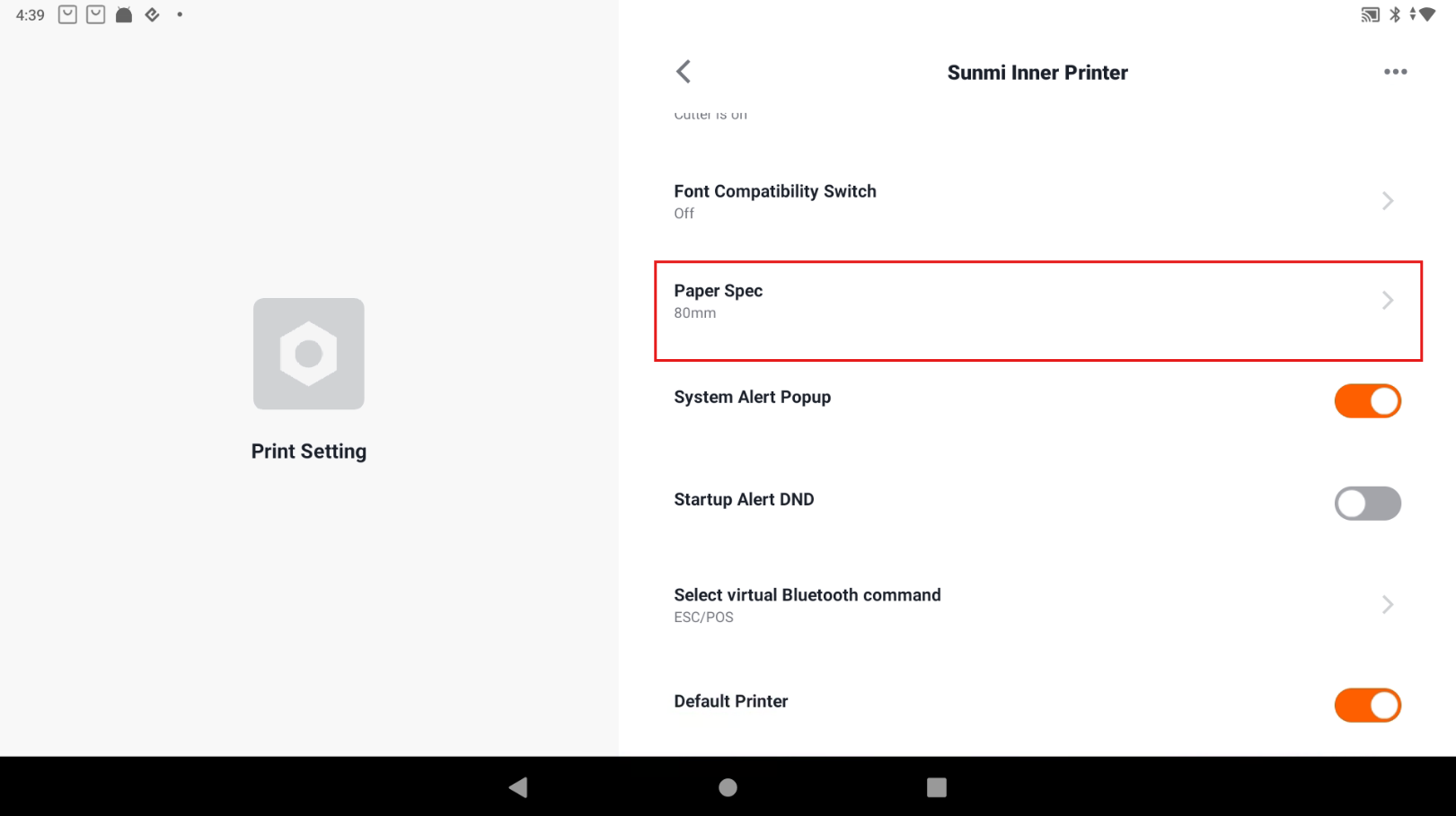
  2. Adjust the Paper Spec.

Sunmi Inner Printer settings

Sunmi Inner Printer settings

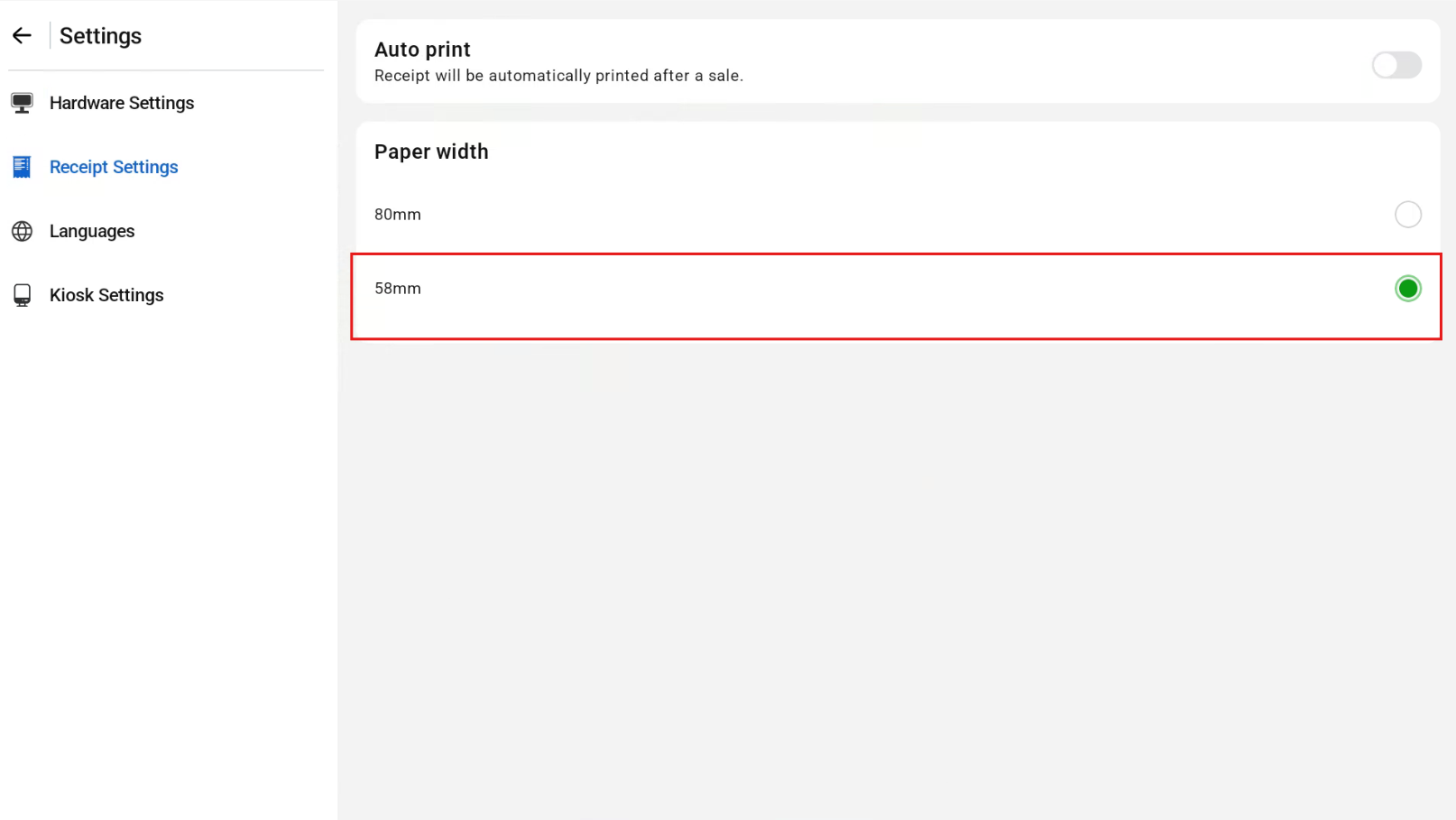
58 mm receipt

Set the paper width to 58 mm in both the Sunmi settings and the EPOS app receipt settings:
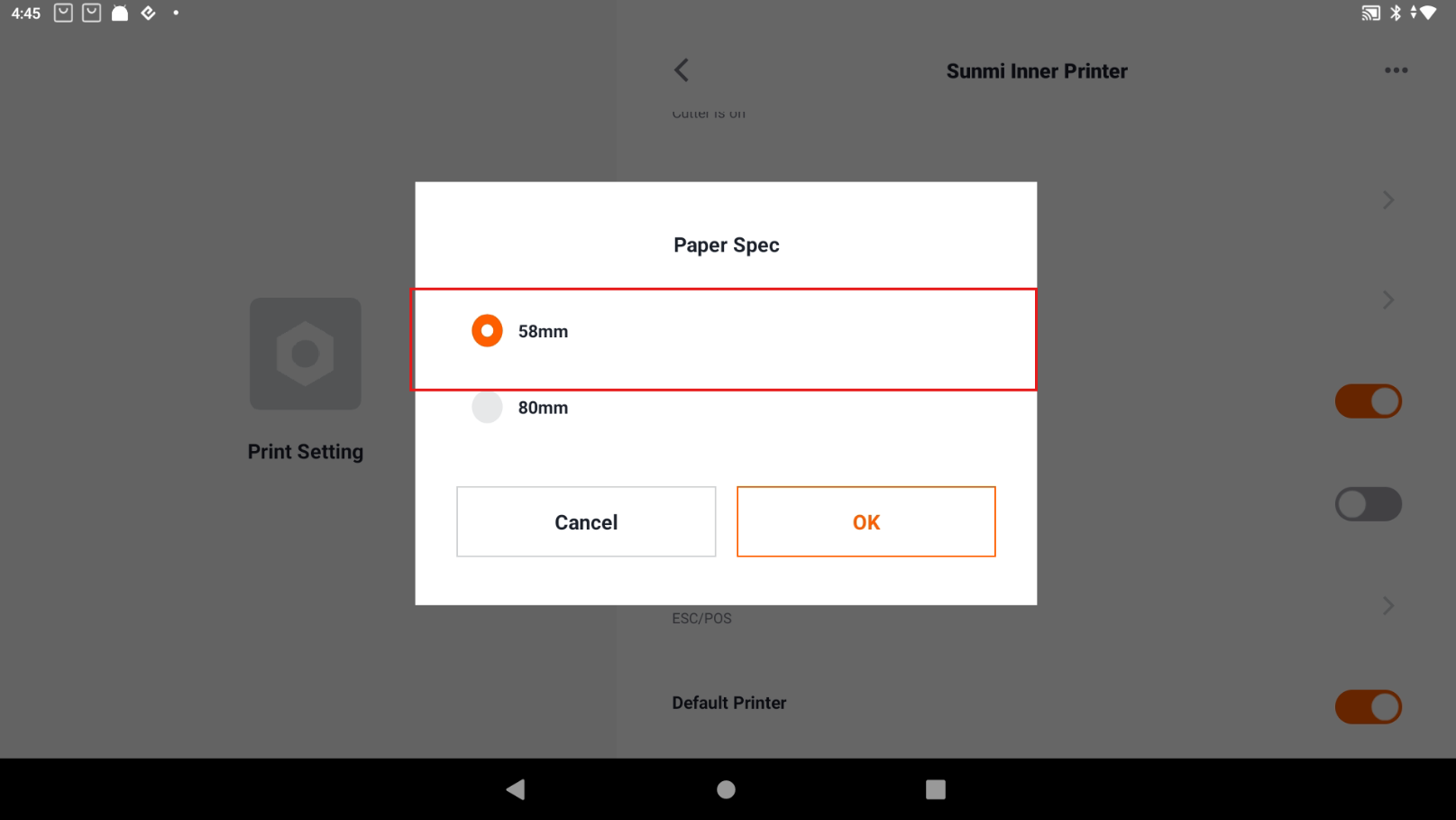
  • Sunmi Inner Printer: Paper Spec 58 mm
  • EPOS Receipt Settings: Paper Width 58 mm

58 mm paper width settings

58 mm paper width settings

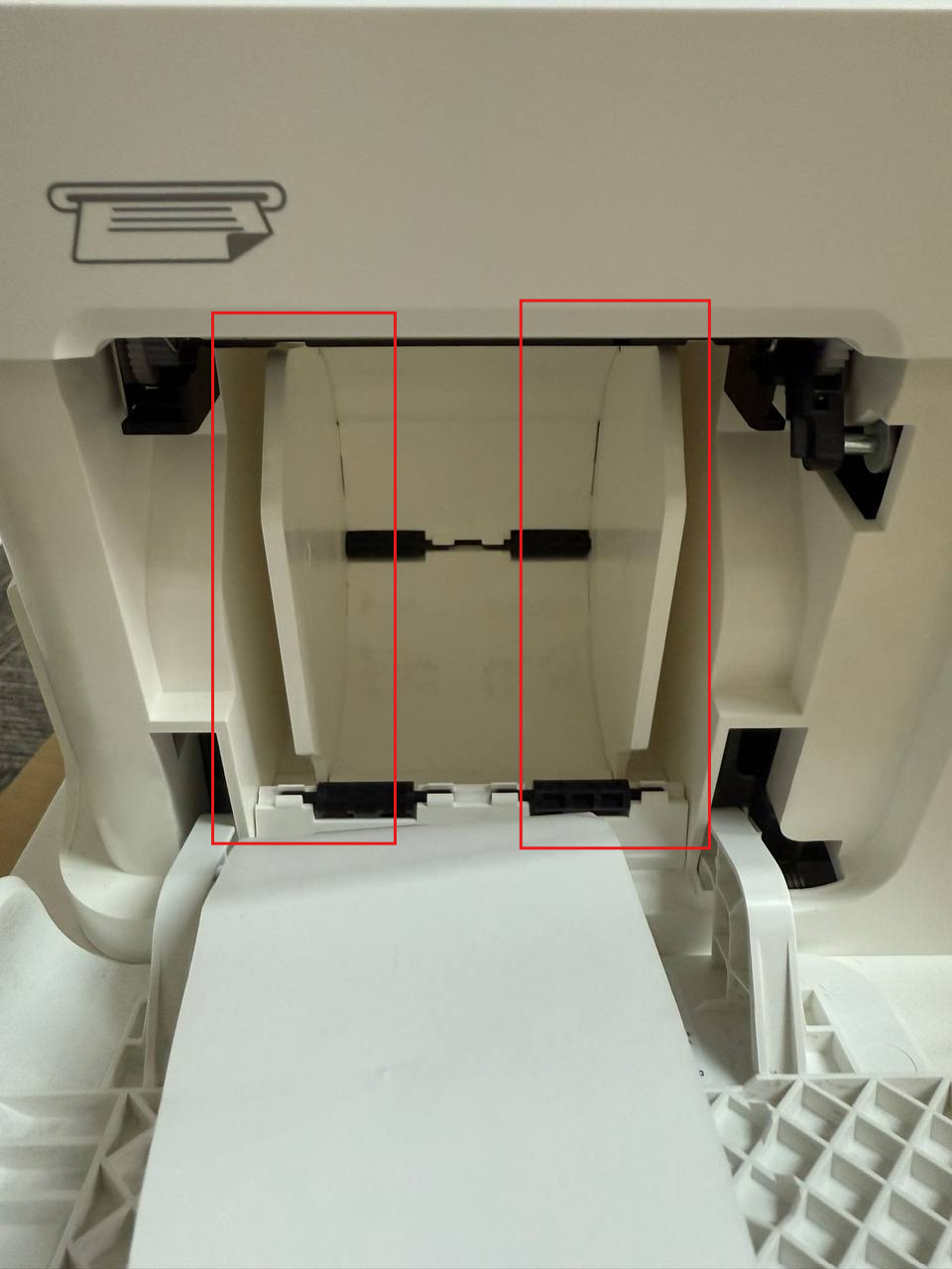
Open the printer cover, make sure the two plates are inside, then load the 58 mm receipt roll.

Printer plates for 58 mm receipt rolls Printer plates for 58 mm receipt rolls

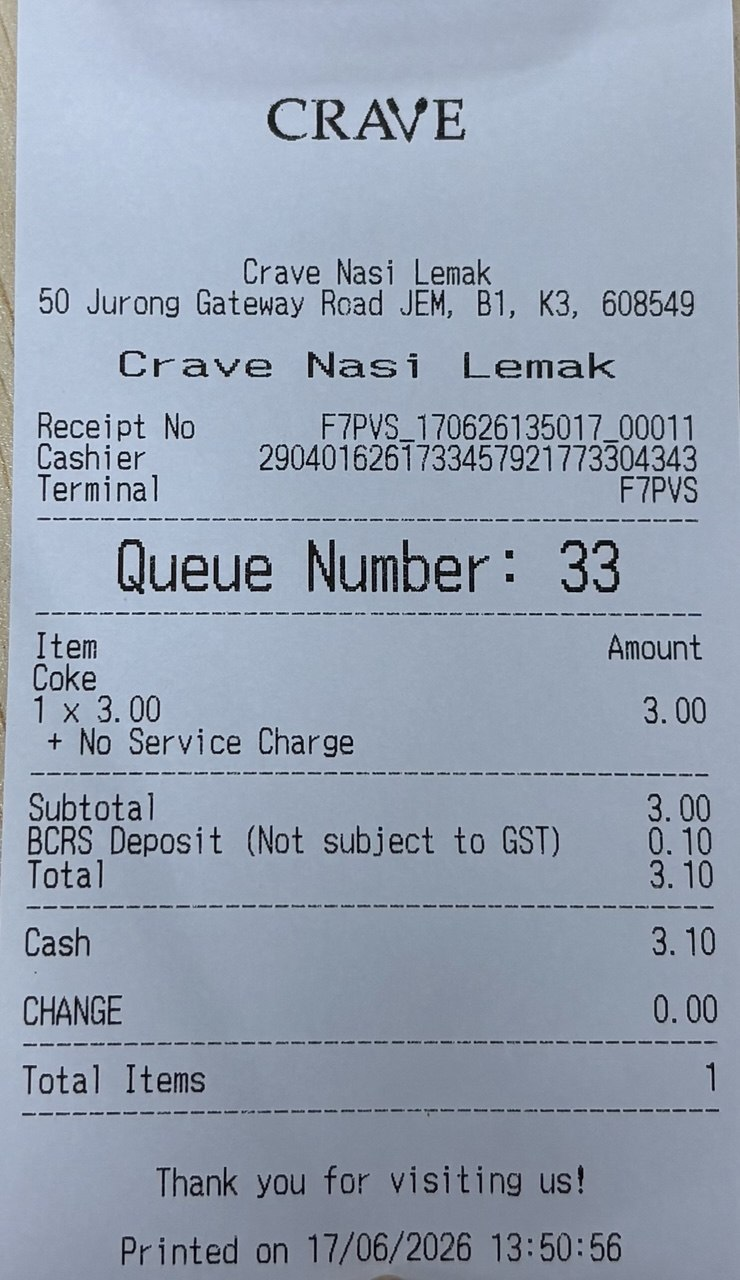
The built-in printer can print receipts in 58 mm format.

Sample 58 mm receipt

80 mm receipt

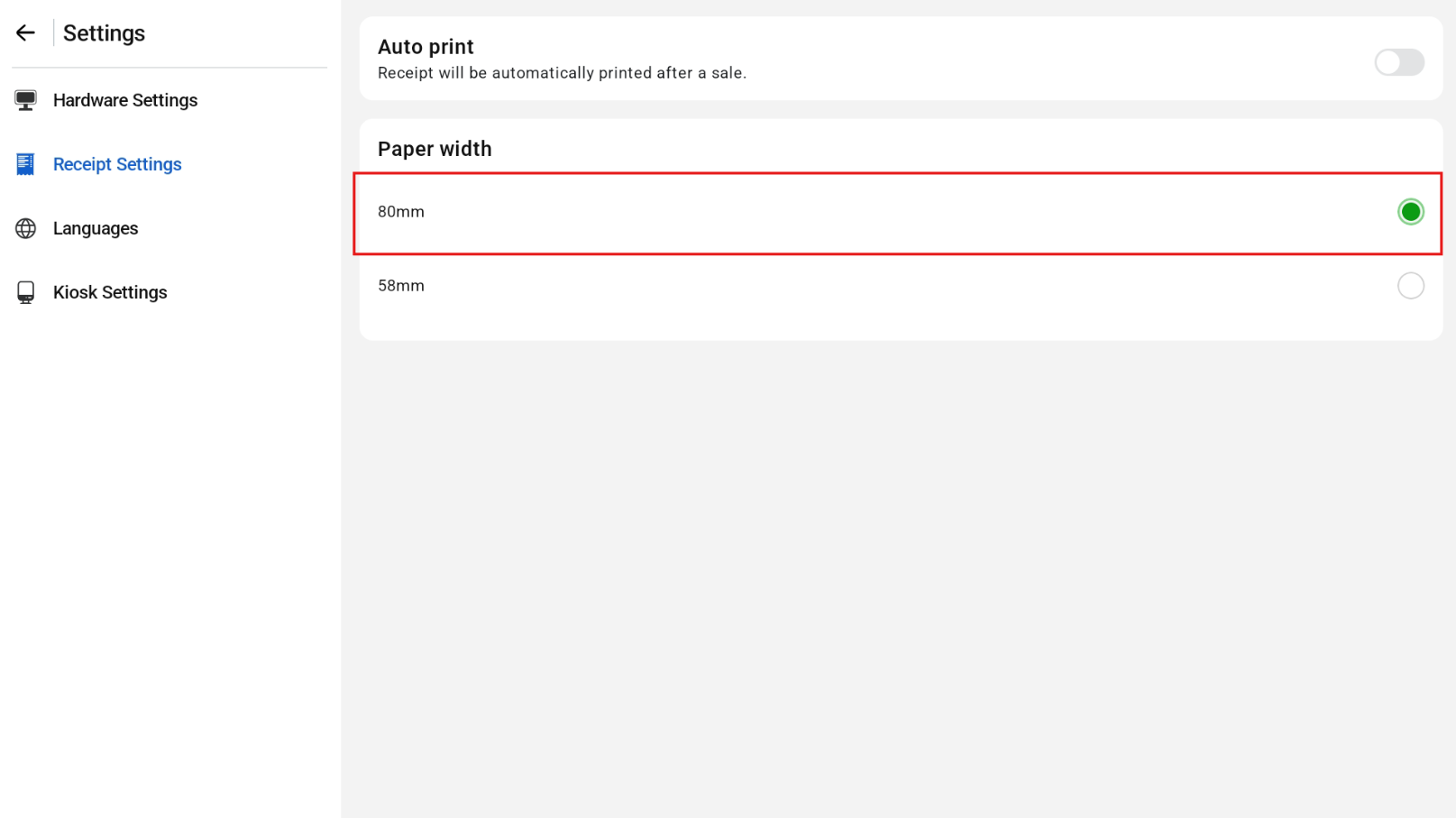
Set the paper width to 80 mm in both the Sunmi settings and the EPOS app receipt settings:
  • Sunmi Inner Printer: Paper Spec 80 mm
  • EPOS Receipt Settings: Paper Width 80 mm

80 mm paper width settings

80 mm paper width settings

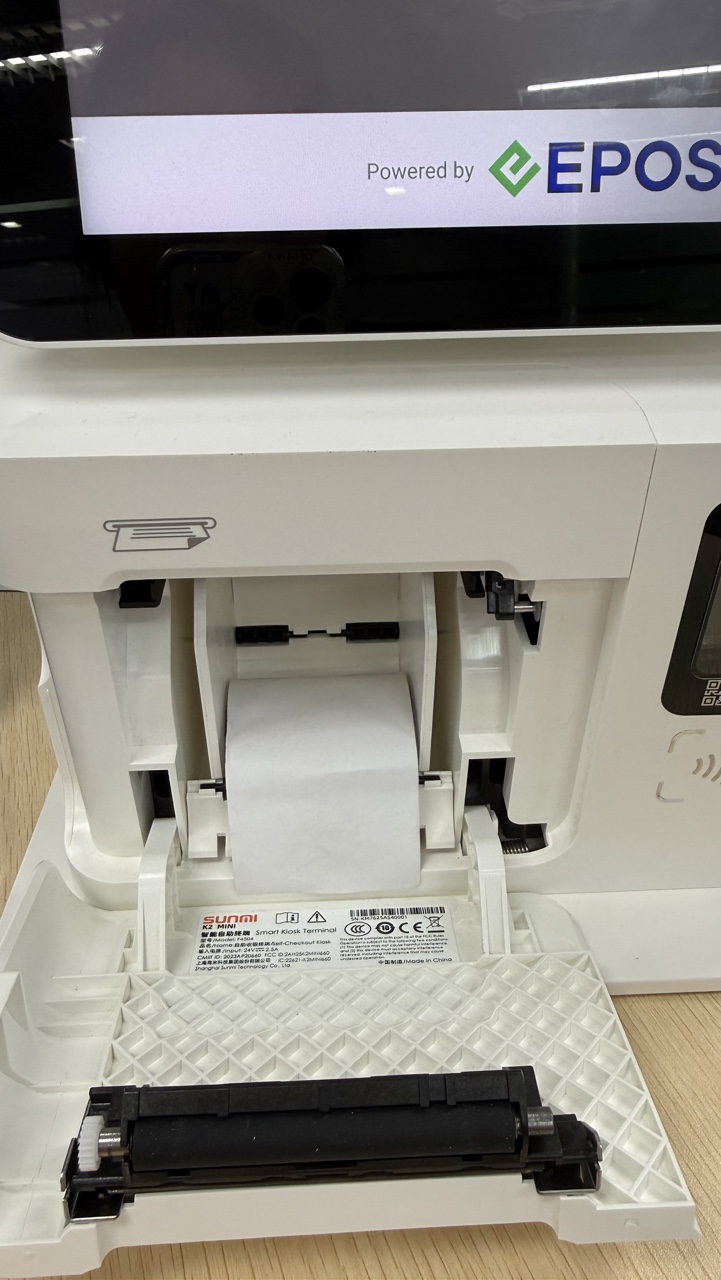
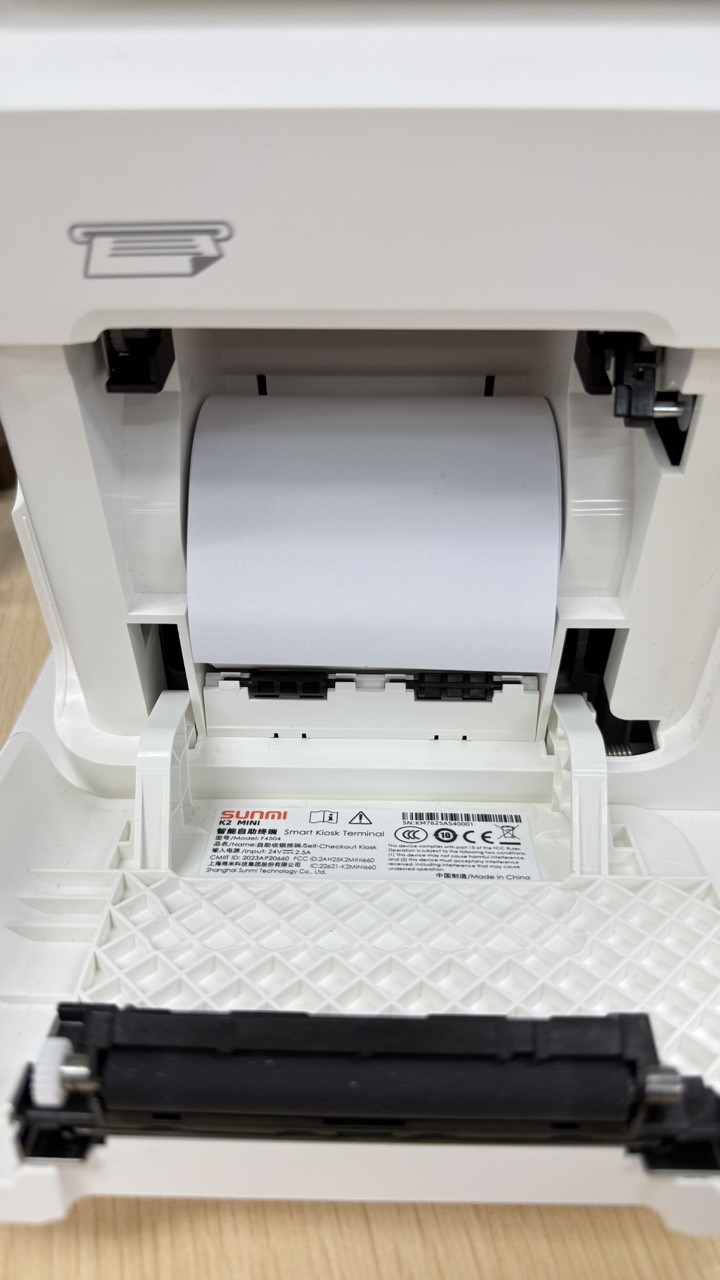
Open the printer cover and remove the two plates: push the rectangle plate forward, remove the 2 plates, then put the rectangle plate back. Load the 80 mm receipt roll.
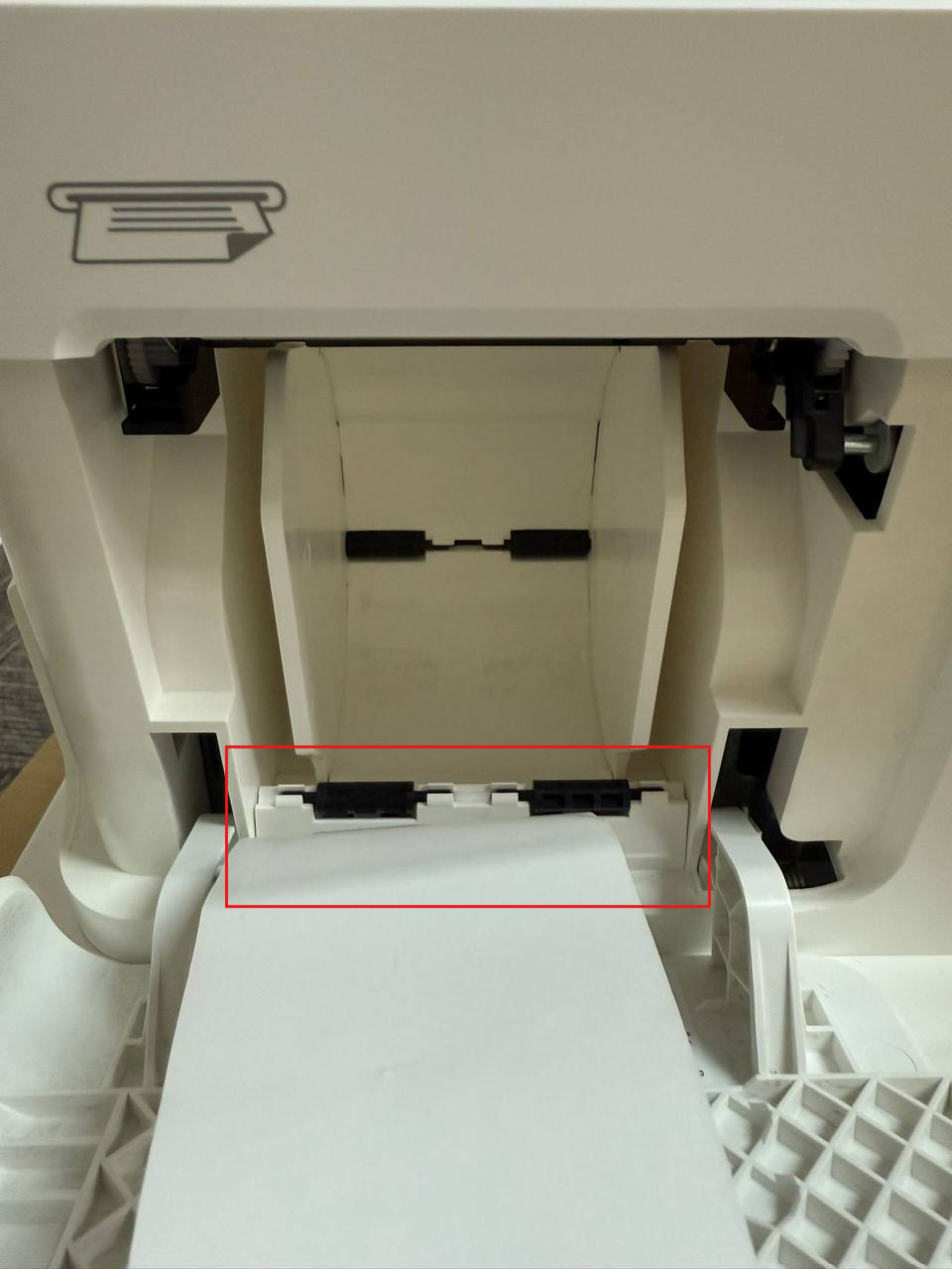
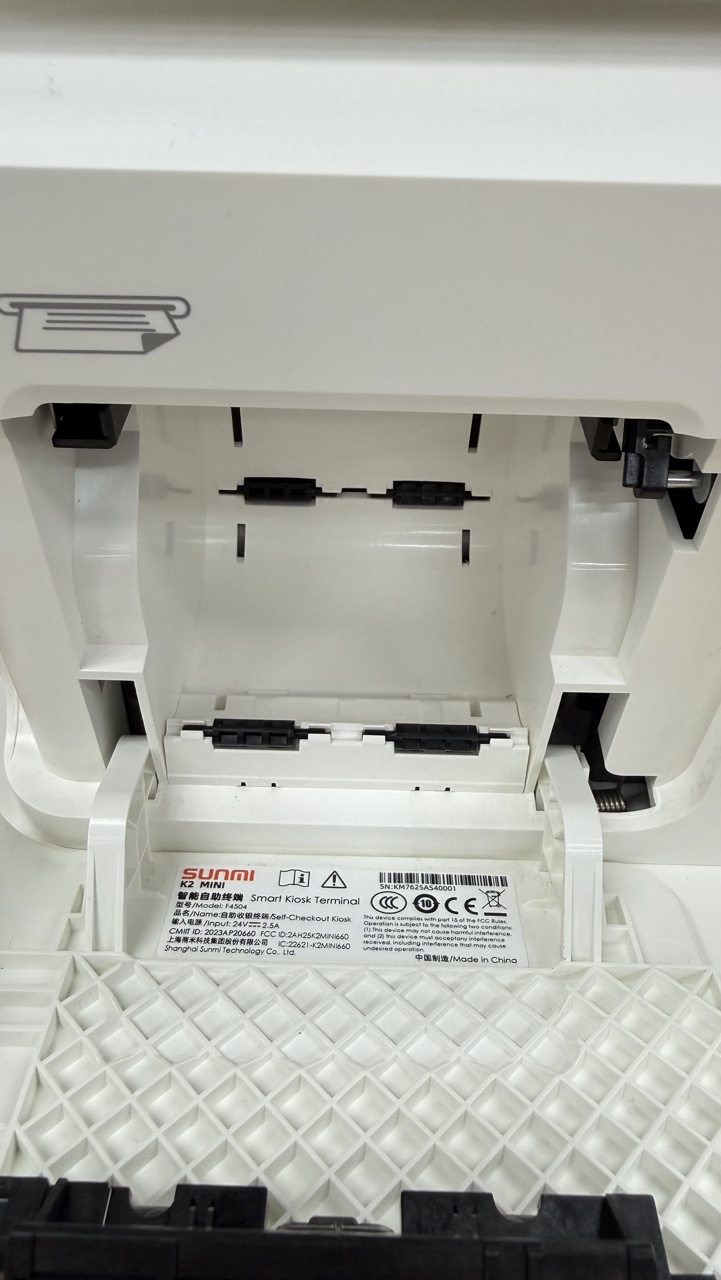
Removing the printer plates for 80 mm receipt rolls Removing the printer plates for 80 mm receipt rolls

Removing the printer plates for 80 mm receipt rolls

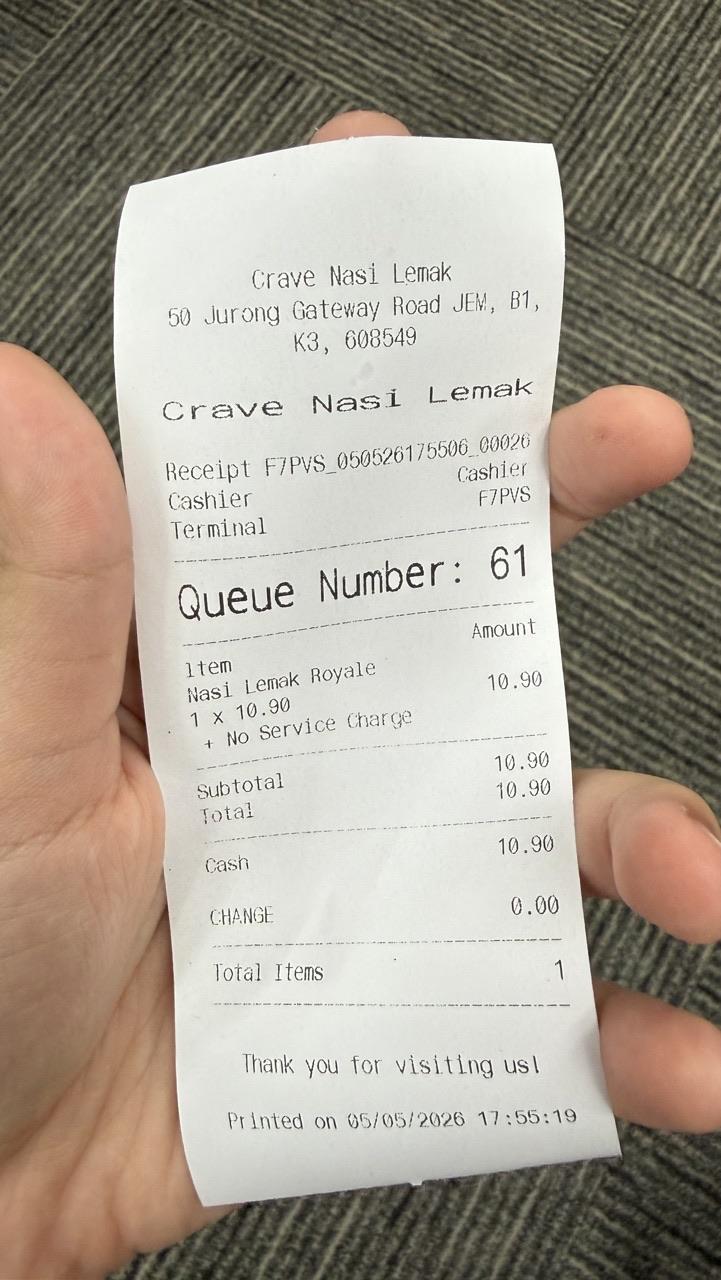
The built-in printer can print receipts in 80 mm format.
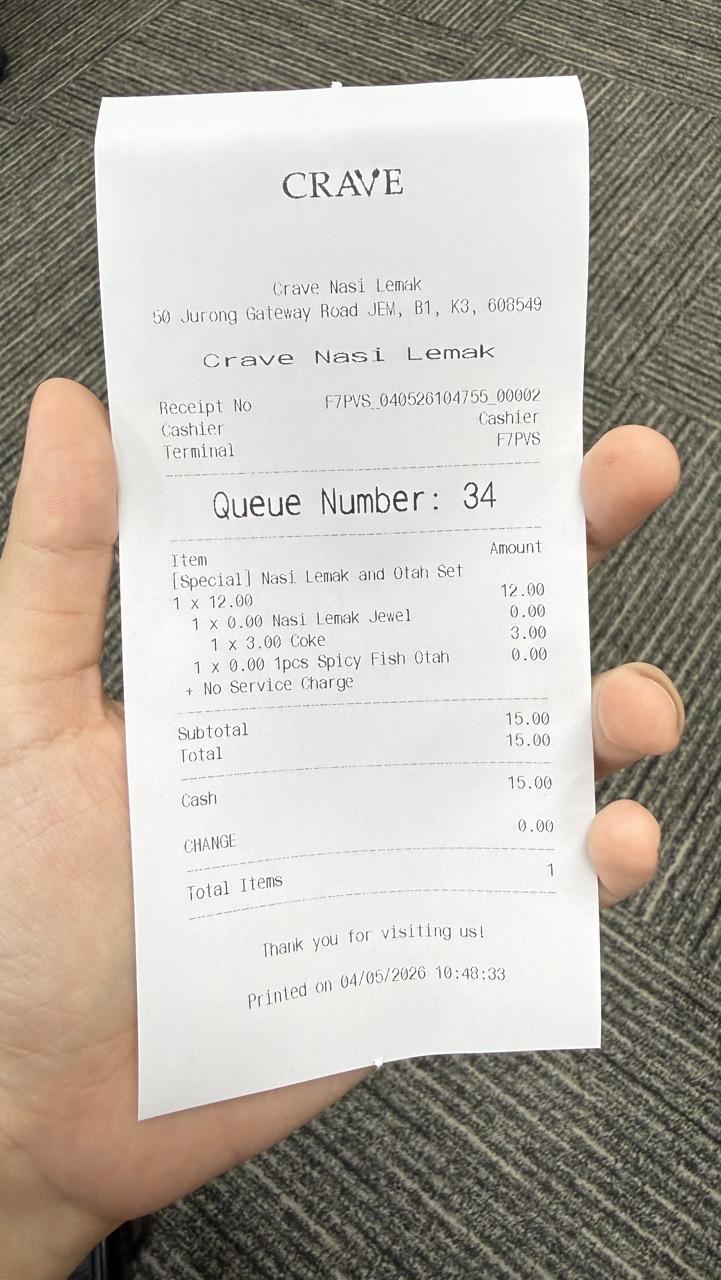
Sample 80 mm receipt

Wi-Fi/LAN receipt printer

Wi-Fi/LAN receipt printers are also supported. Enter the printer’s IP address and port number to connect.
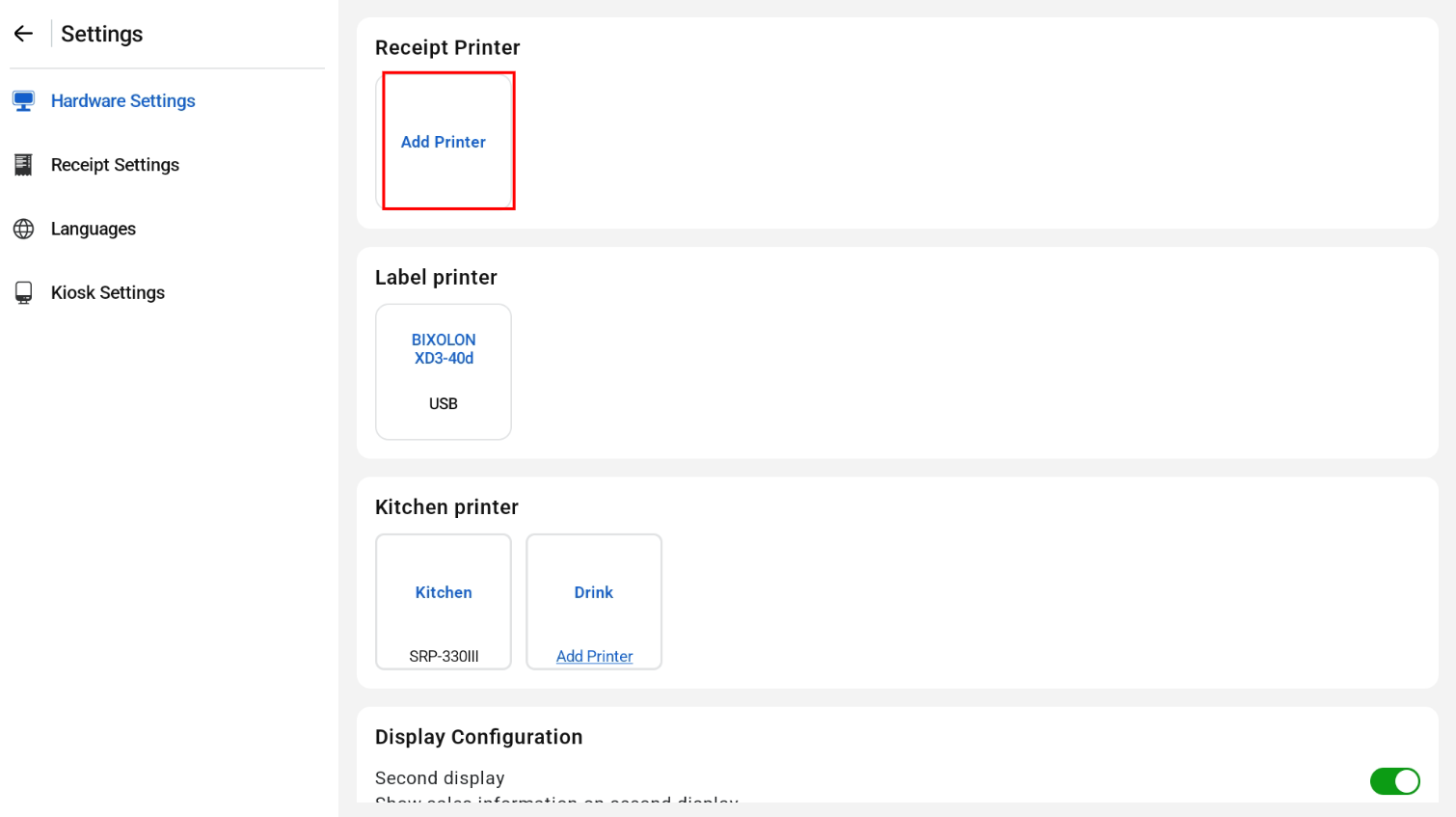
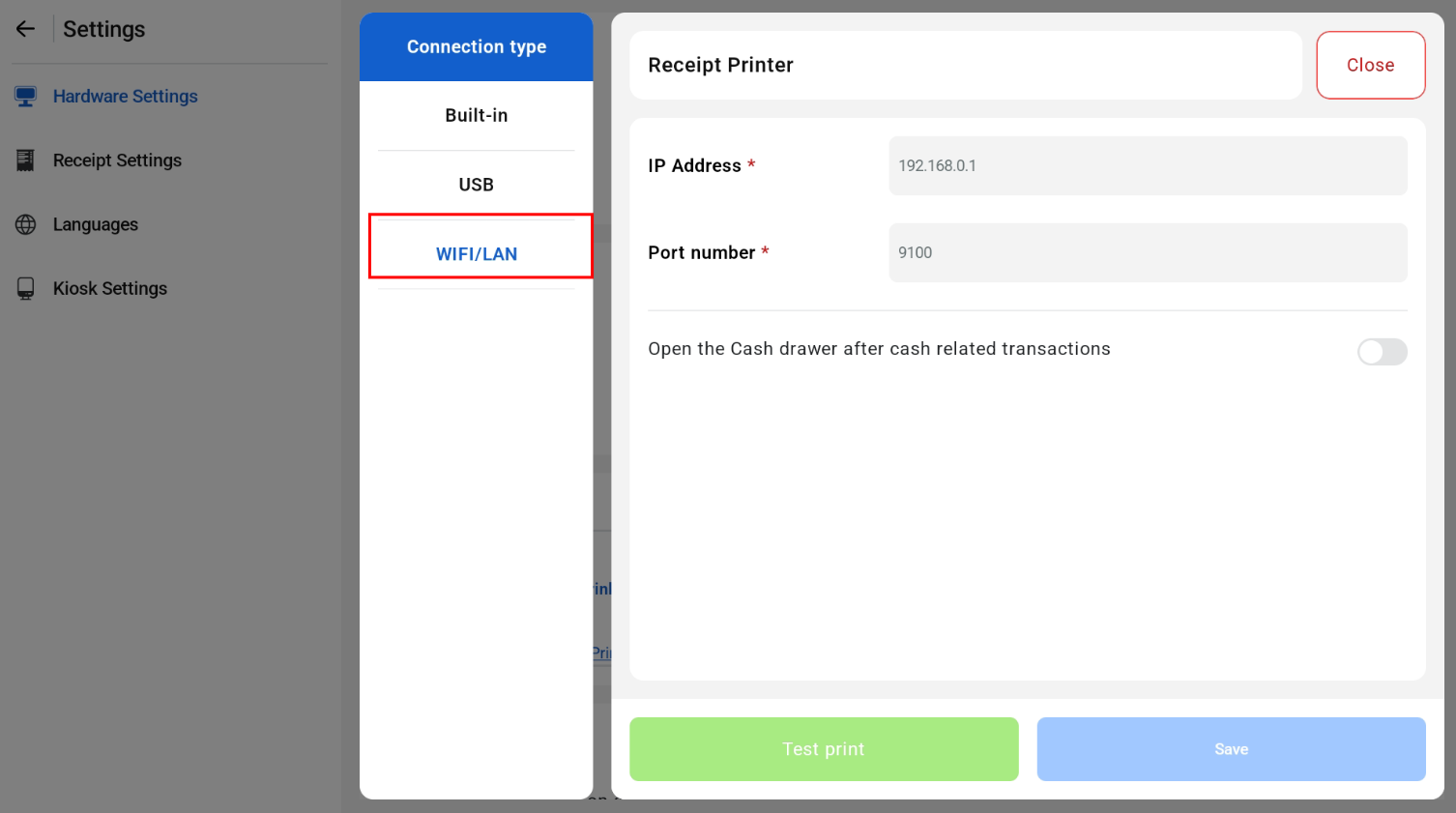
Wi-Fi/LAN receipt printer settings

Wi-Fi/LAN receipt printer settings

USB receipt printer

USB receipt printers are also supported. Connect the printer with a USB cable. The sample receipt below was printed on a Bixolon SRP-330III.
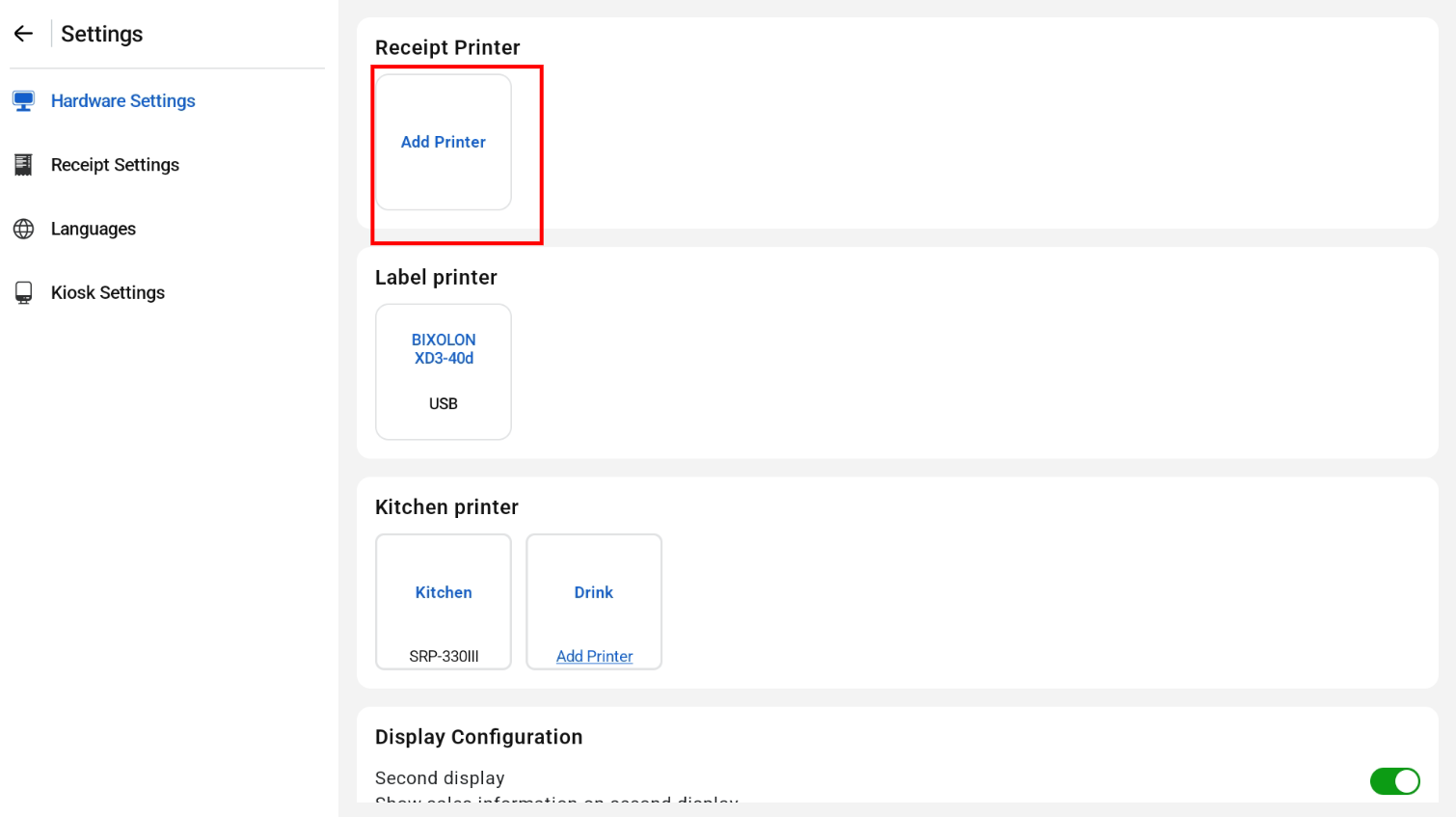
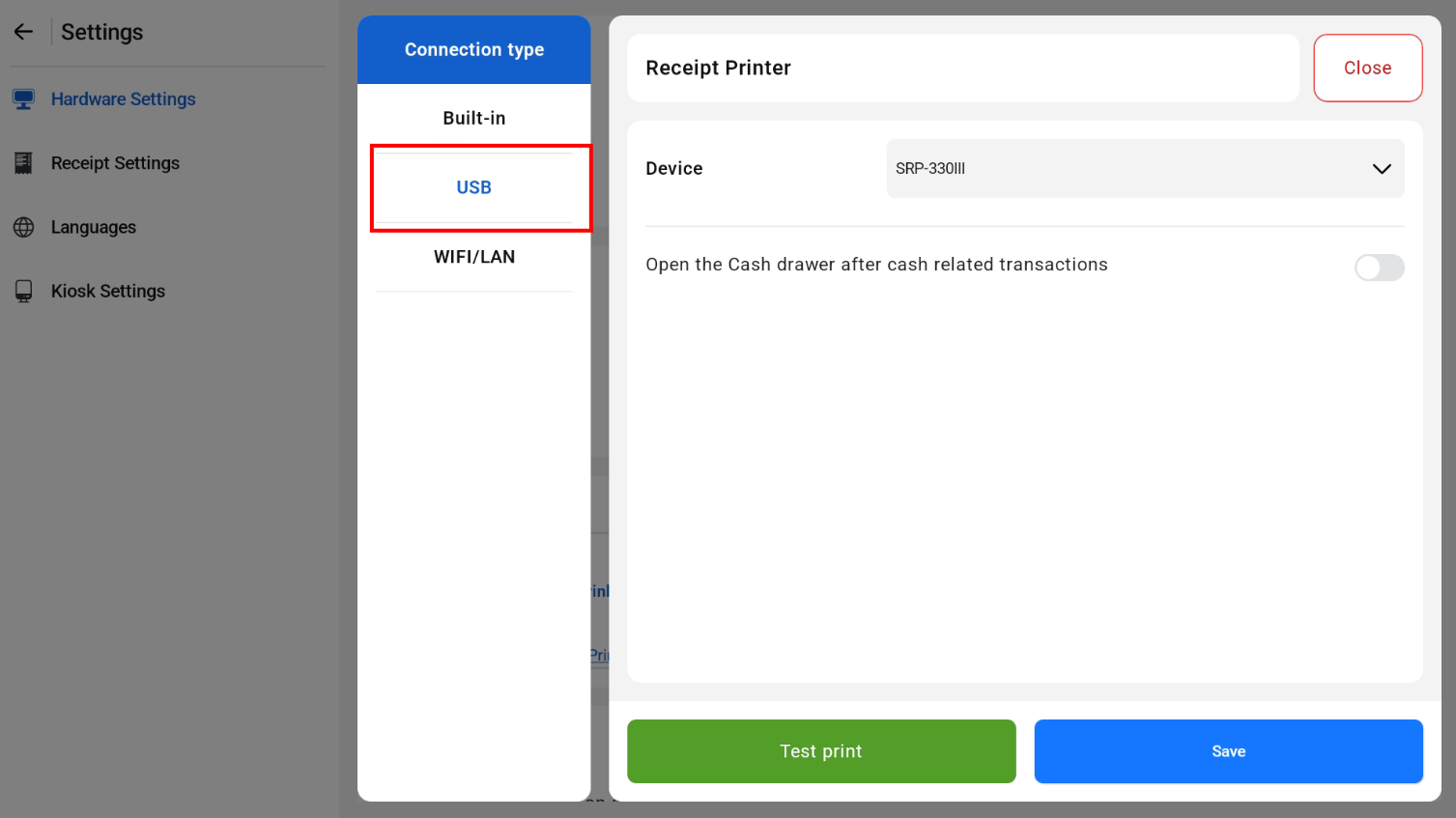
USB receipt printer settings and sample receipt

USB receipt printer settings and sample receipt

USB receipt printer settings and sample receipt

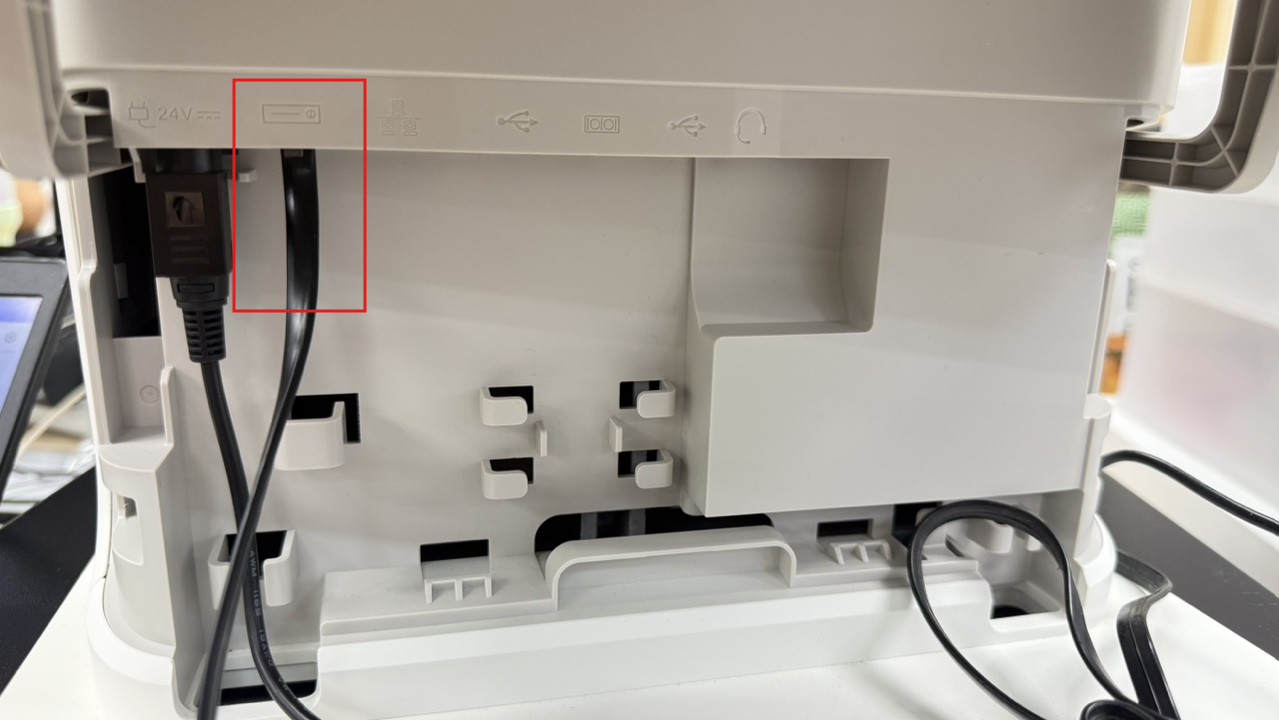
  1. Plug the cash drawer cable into the cash drawer port on the Sunmi K2 Mini.

Cash drawer port on the Sunmi K2 Mini

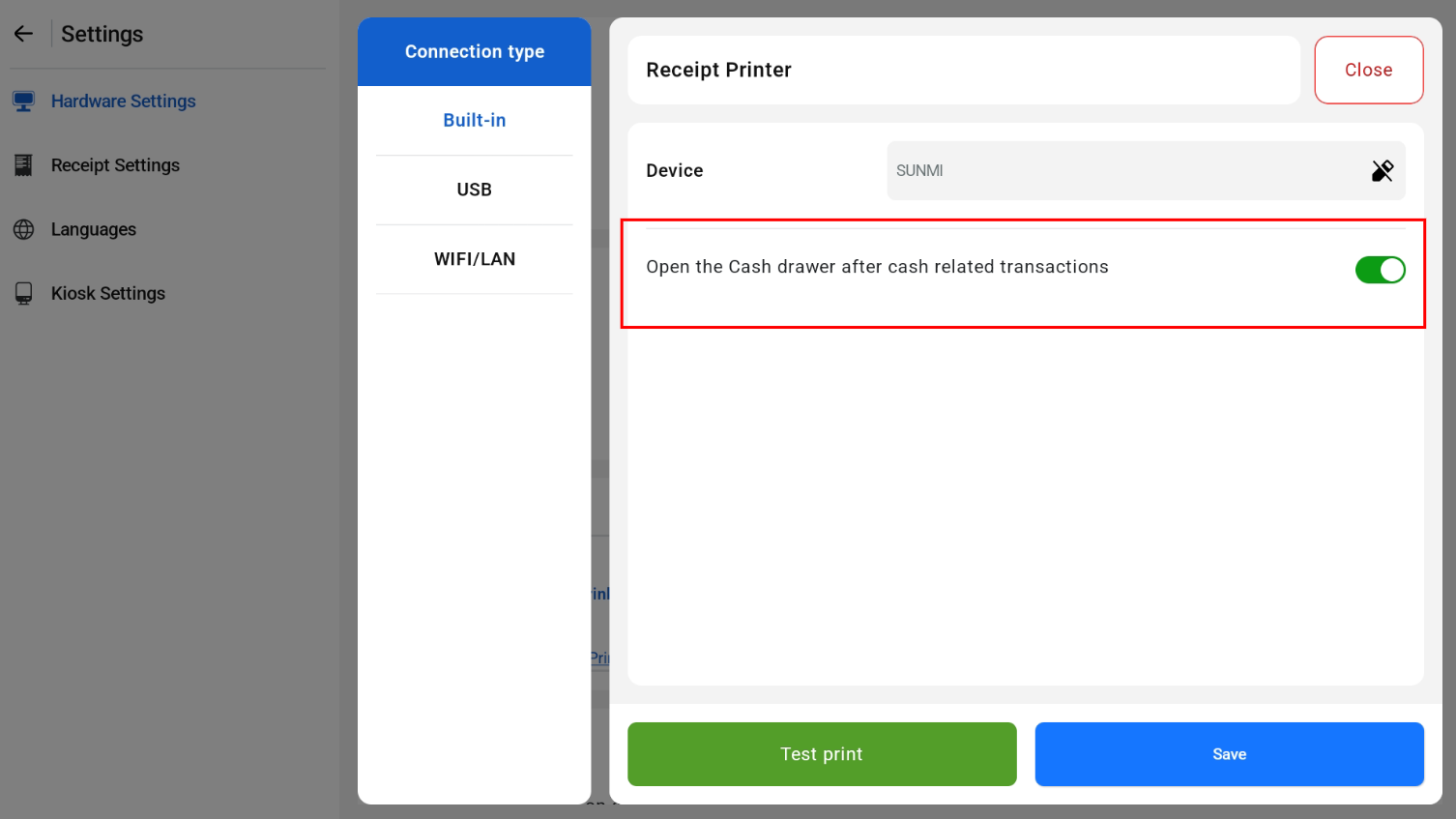
  1. In the receipt printer settings, turn on Open the Cash drawer after cash related transactions.

Open cash drawer after cash related transactions setting

Kitchen printer

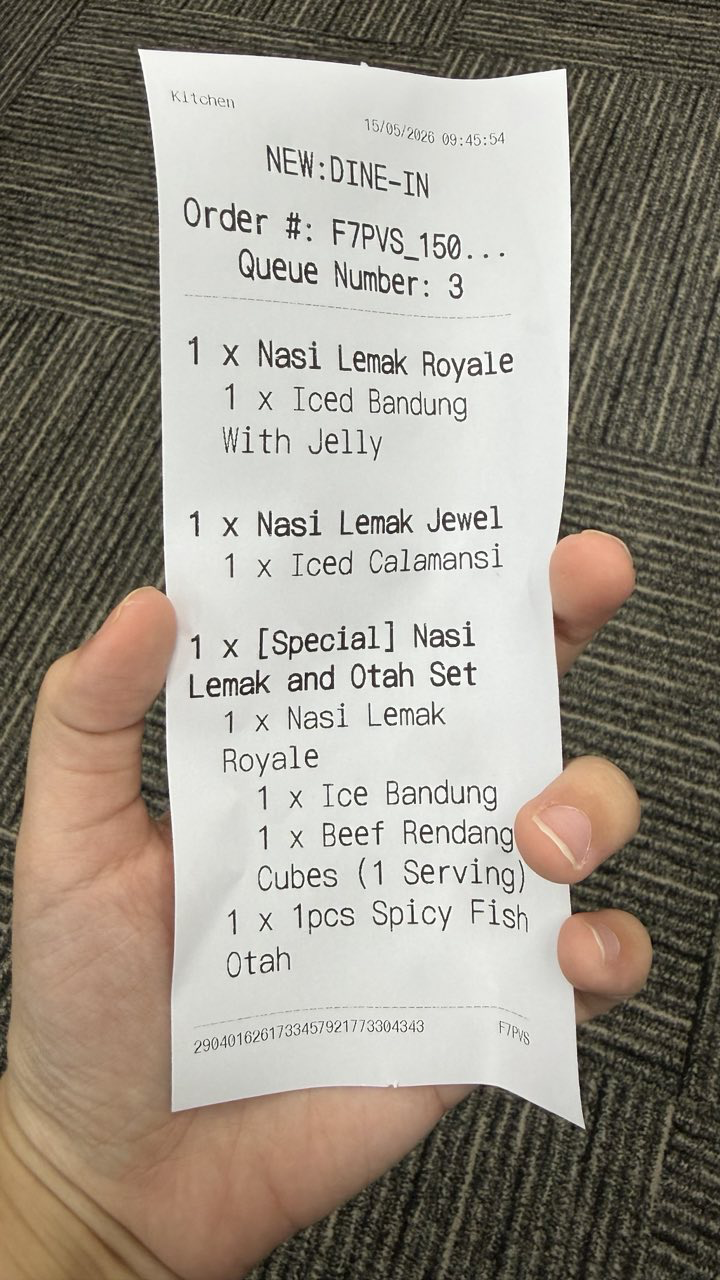
Built-in, USB and Wi-Fi/LAN kitchen printers are supported.
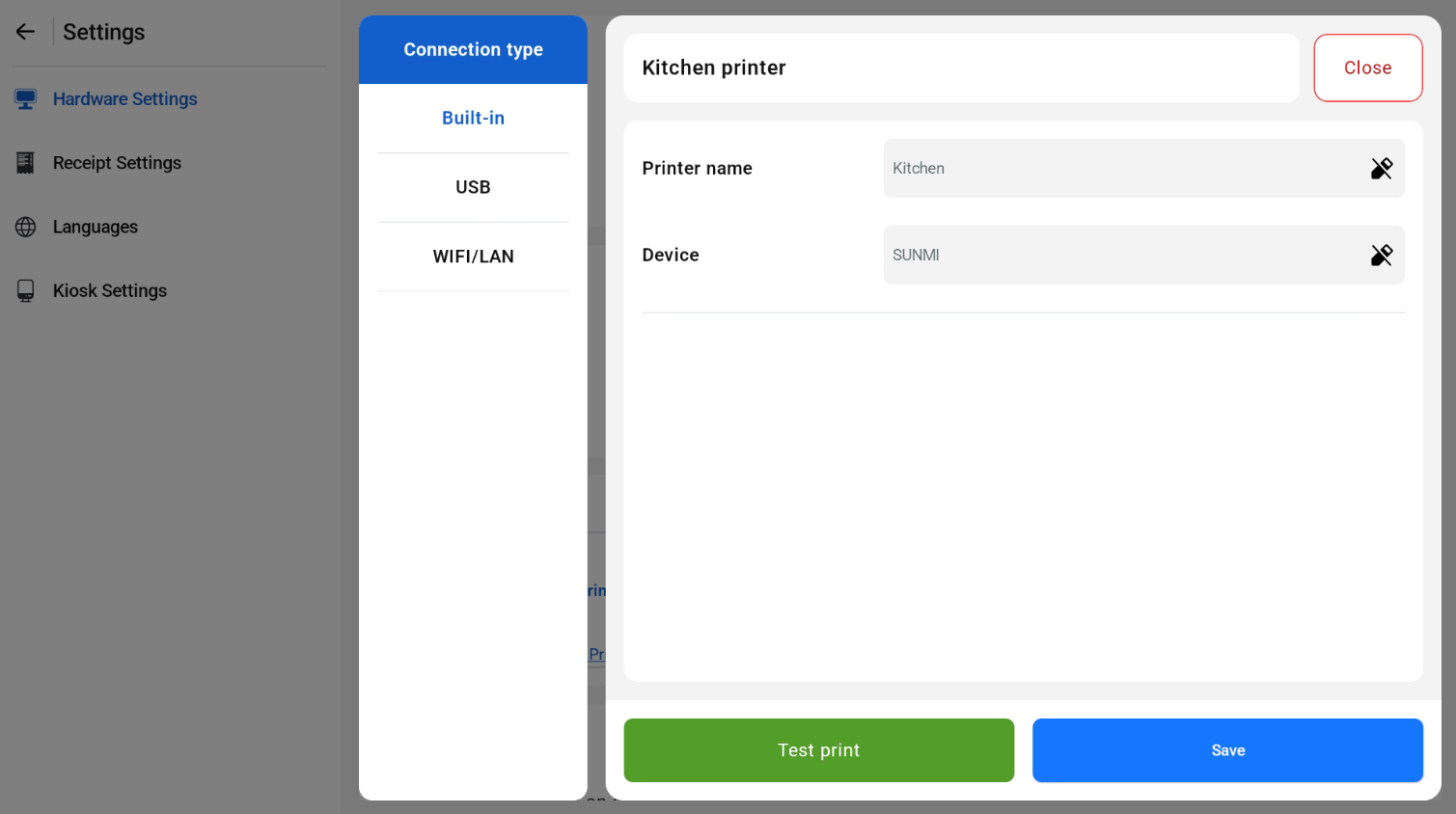
Built-in kitchen printer settings and sample docket

Built-in kitchen printer settings and sample docket

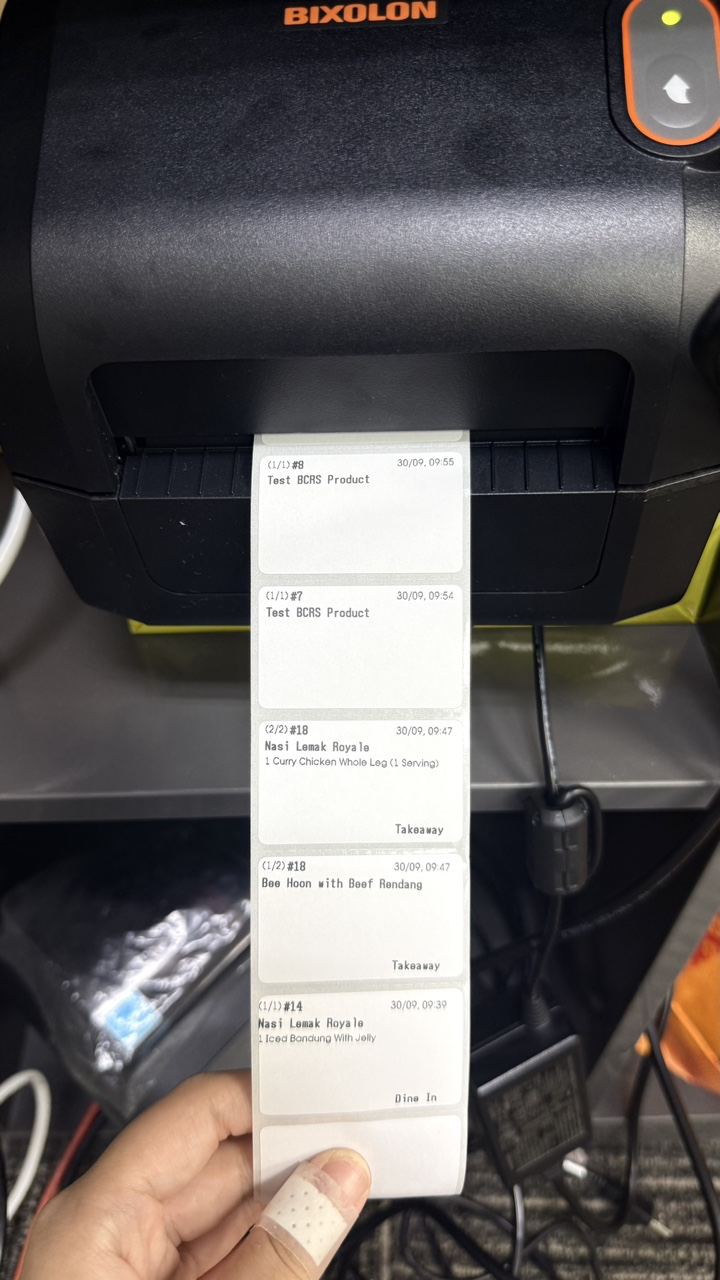
Label printer

USB and Wi-Fi/LAN label printers are supported.
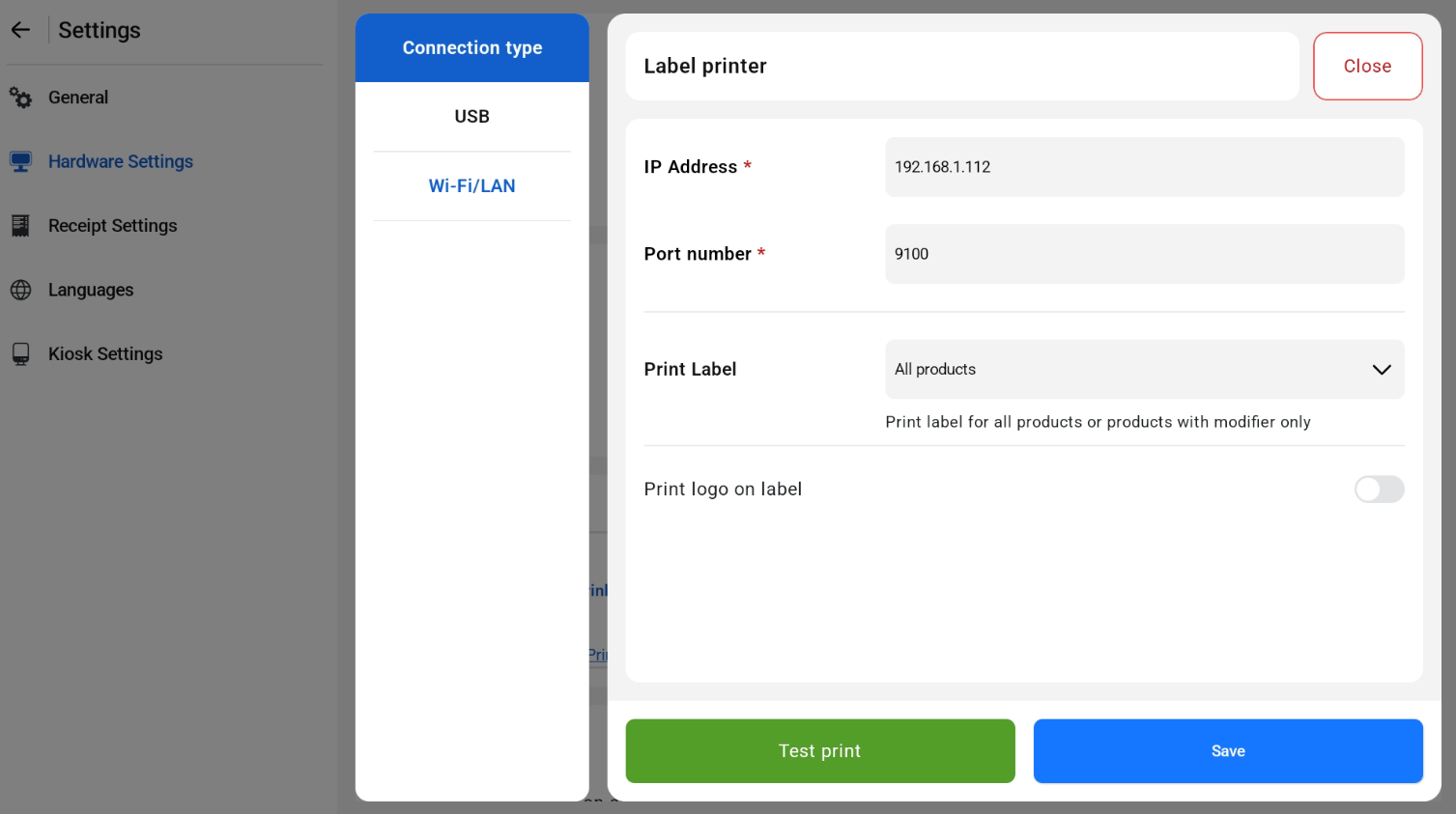
Wi-Fi/LAN label printer settings and sample labels

Wi-Fi/LAN label printer settings and sample labels

To show the customer screen in POS Mode, turn on Second display in Hardware Settings.
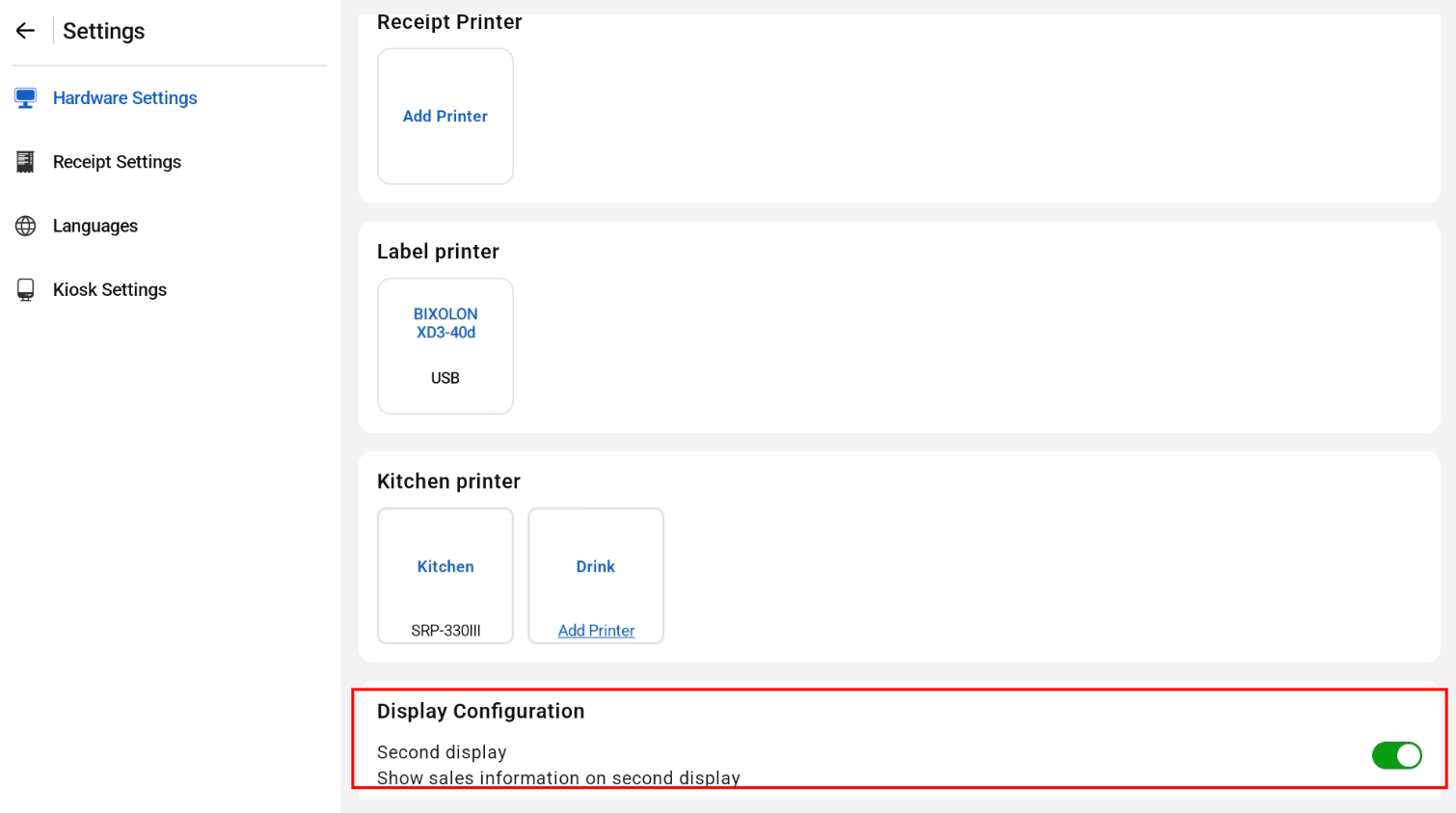
Second display setting in Hardware Settings

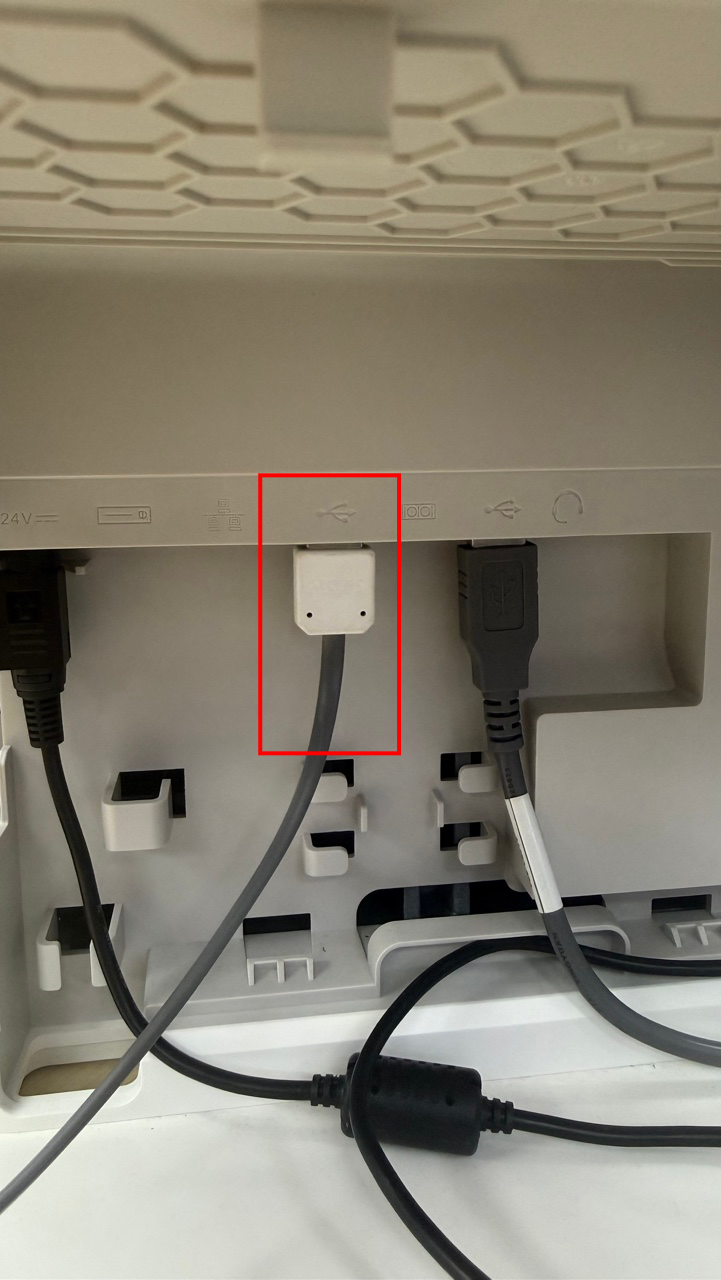
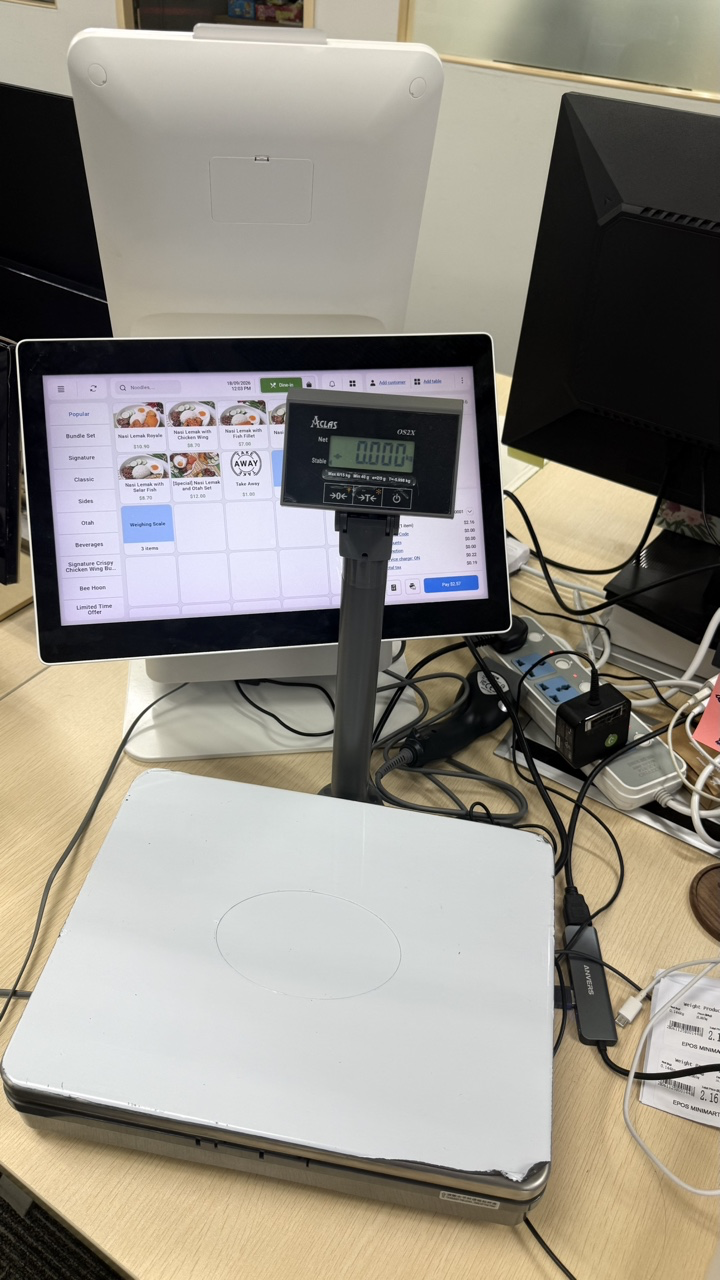
  1. Plug the integrated weighing scale cable into a USB port.

Weighing scale connected by USB Weighing scale connected by USB

  1. In POS Hardware Settings, set Weight Scale Port to USB Serial.

Supported models: Aclas OS2X and Mettler Toledo (MT-bRite).
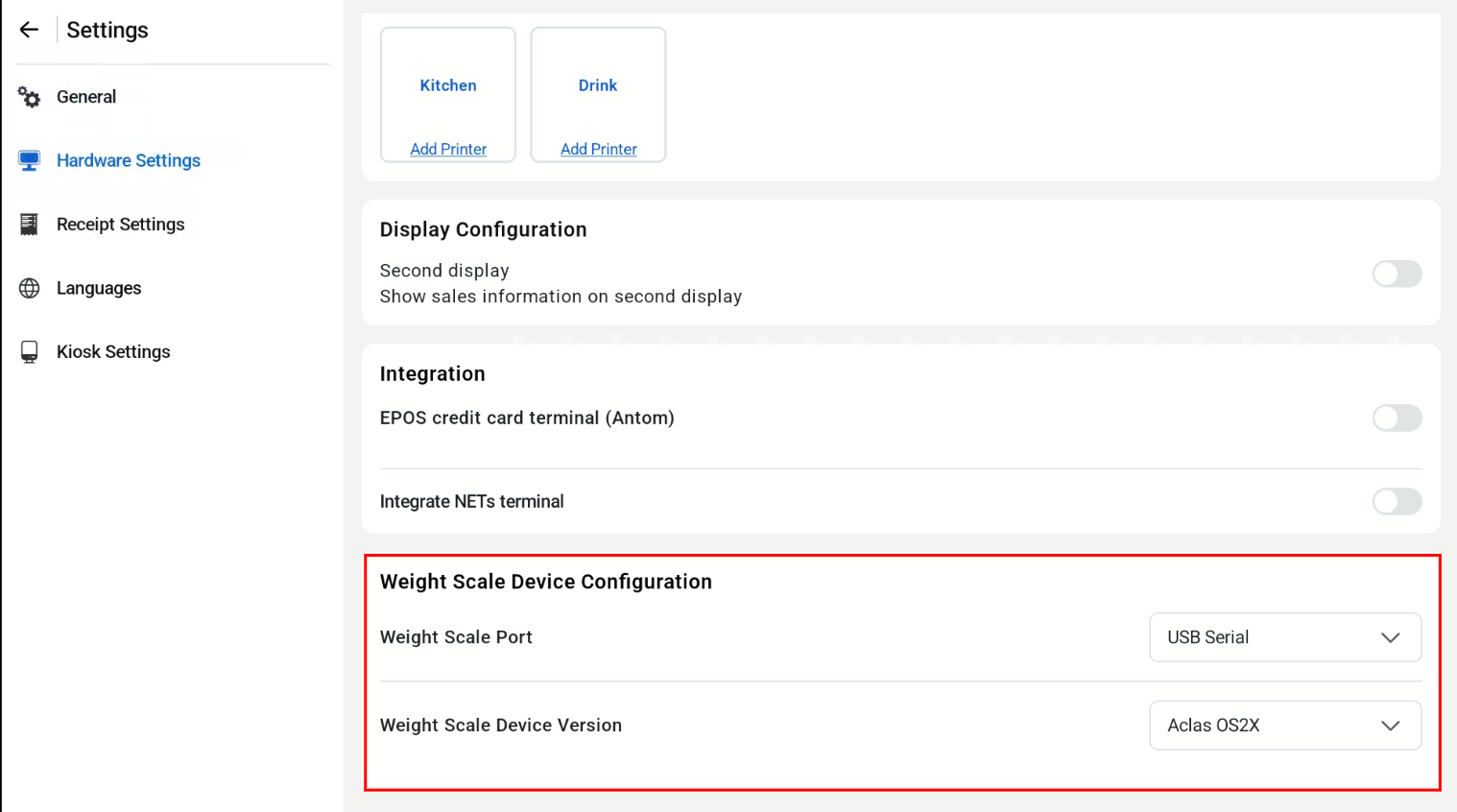
Weight Scale Device Configuration in Hardware Settings