Configuration
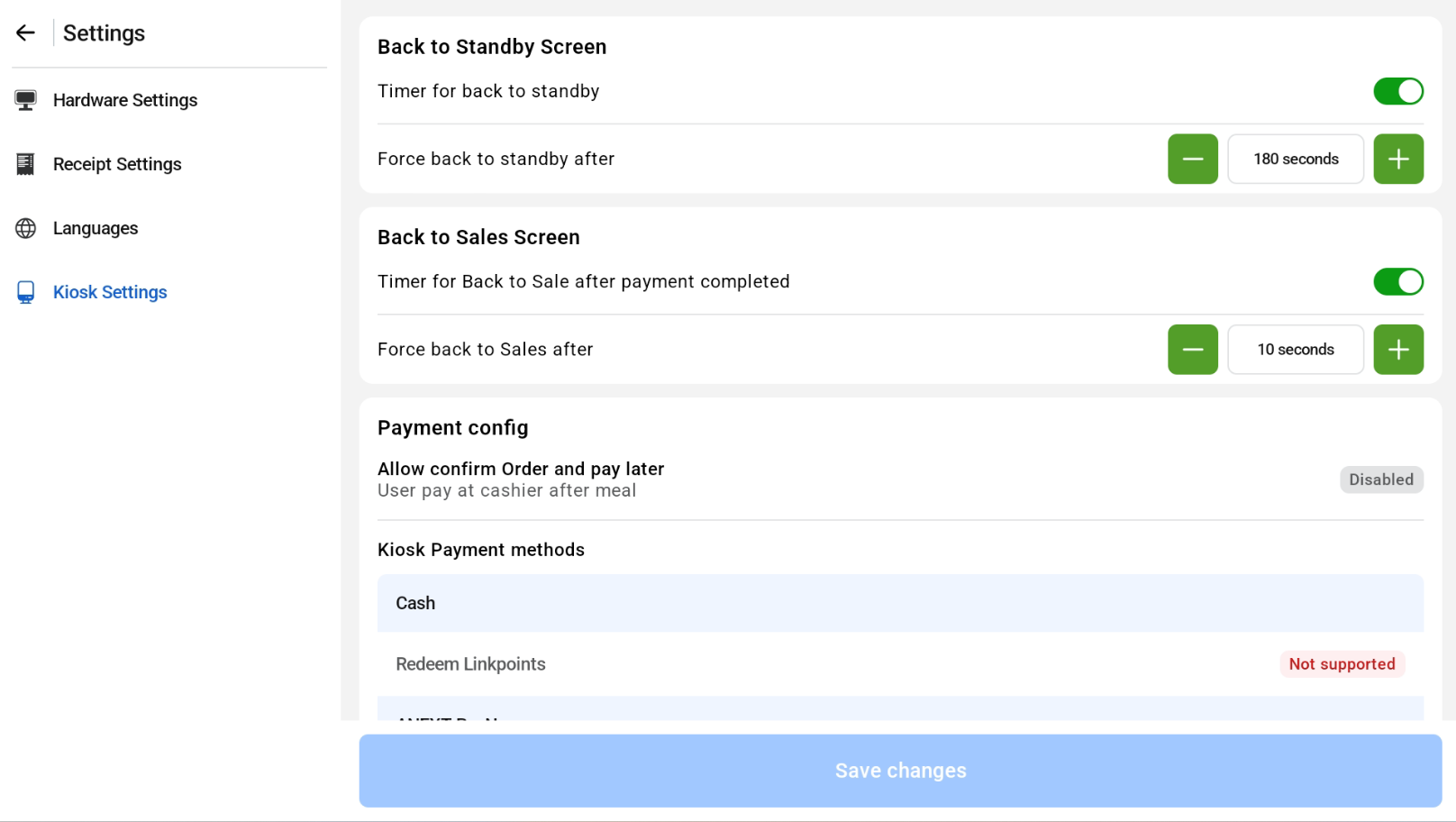
Settings for the self-ordering kiosk can be found under Settings > Kiosk Settings. Previously, these settings were only available in the hidden config.
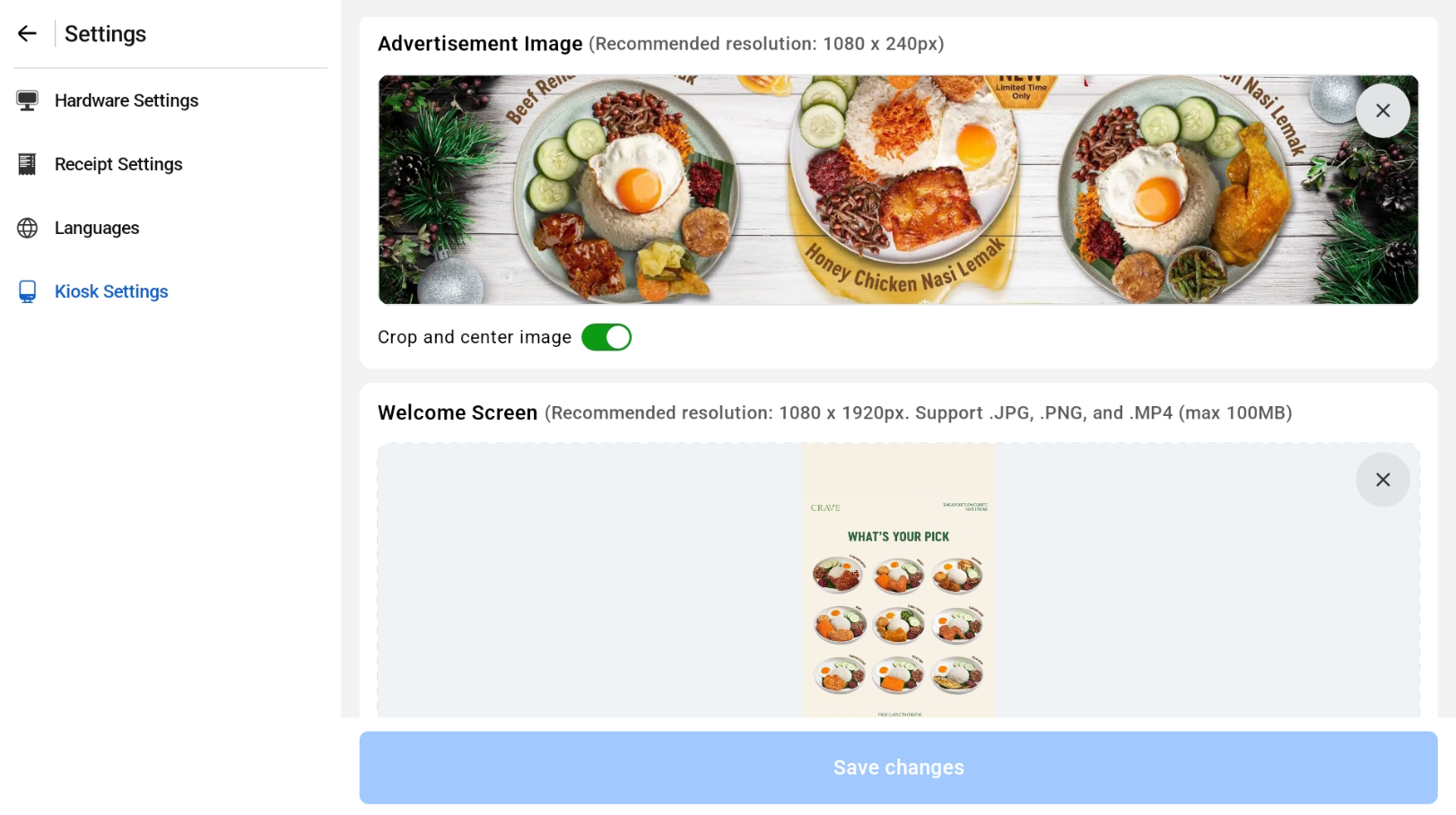
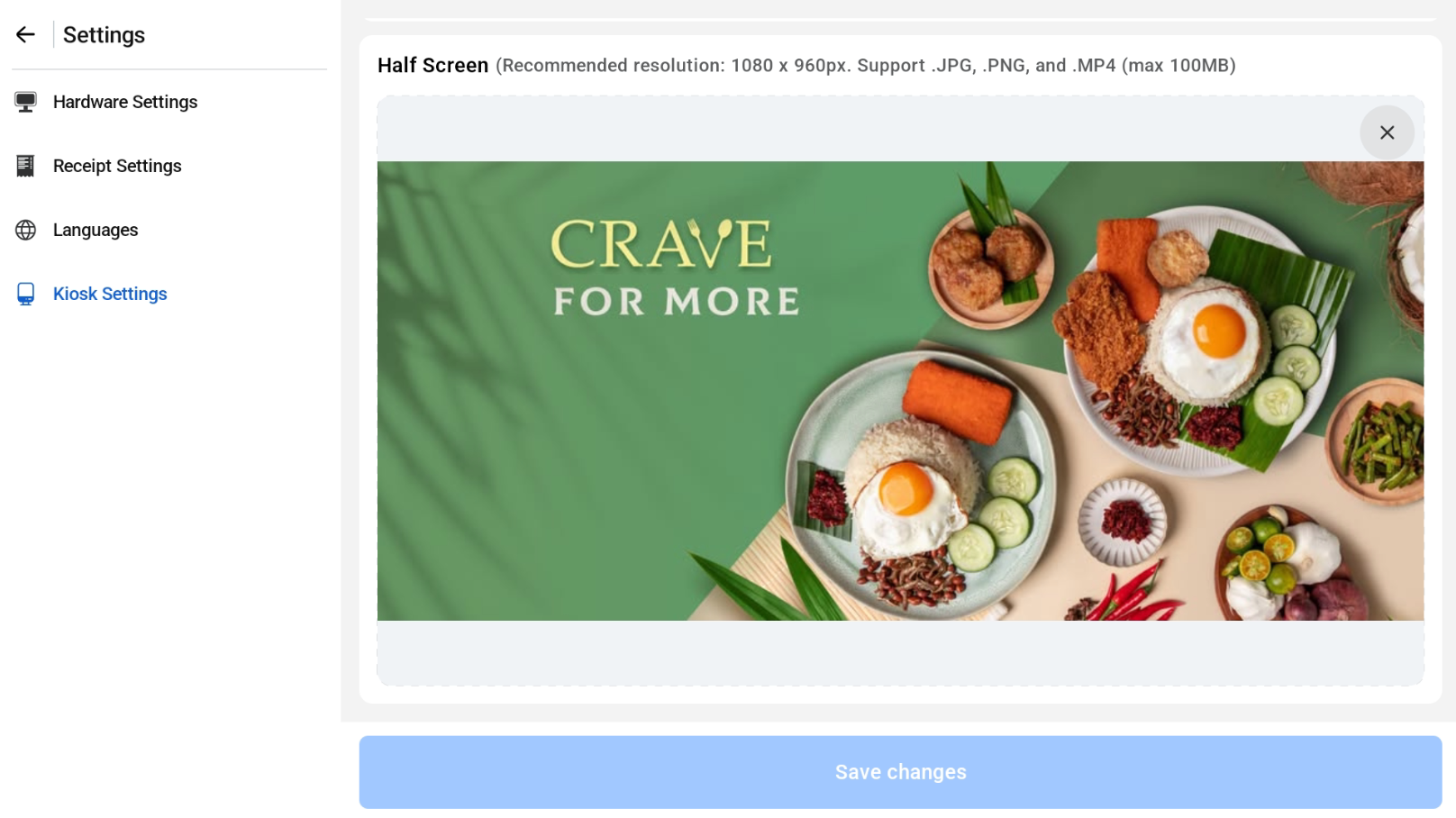
Welcome Screen, Half Screen and Advertisement images are used for the customer screen in Kiosk and POS mode. If no image is added, the EPOS logo is shown by default.
Welcome Screen (POS & Kiosk Mode)
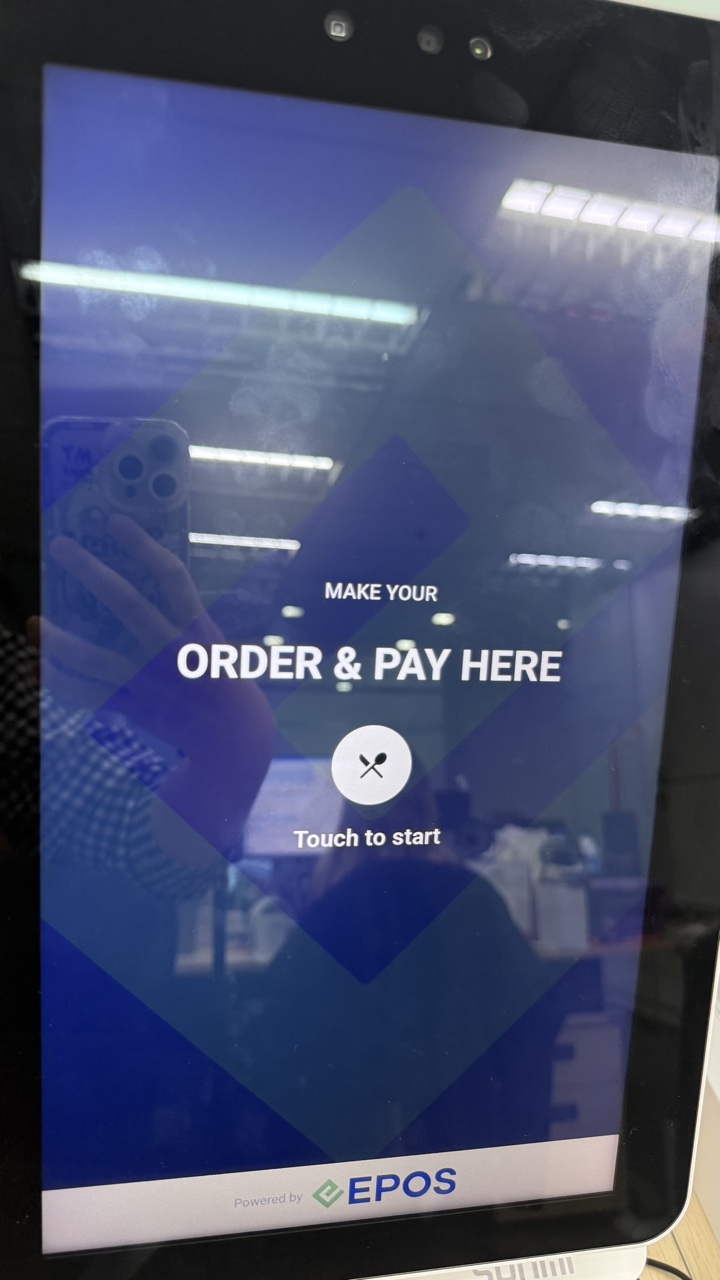
The Welcome Screen image added in Kiosk Settings is shown on the idle screen in both POS mode (left) and Kiosk mode (right).
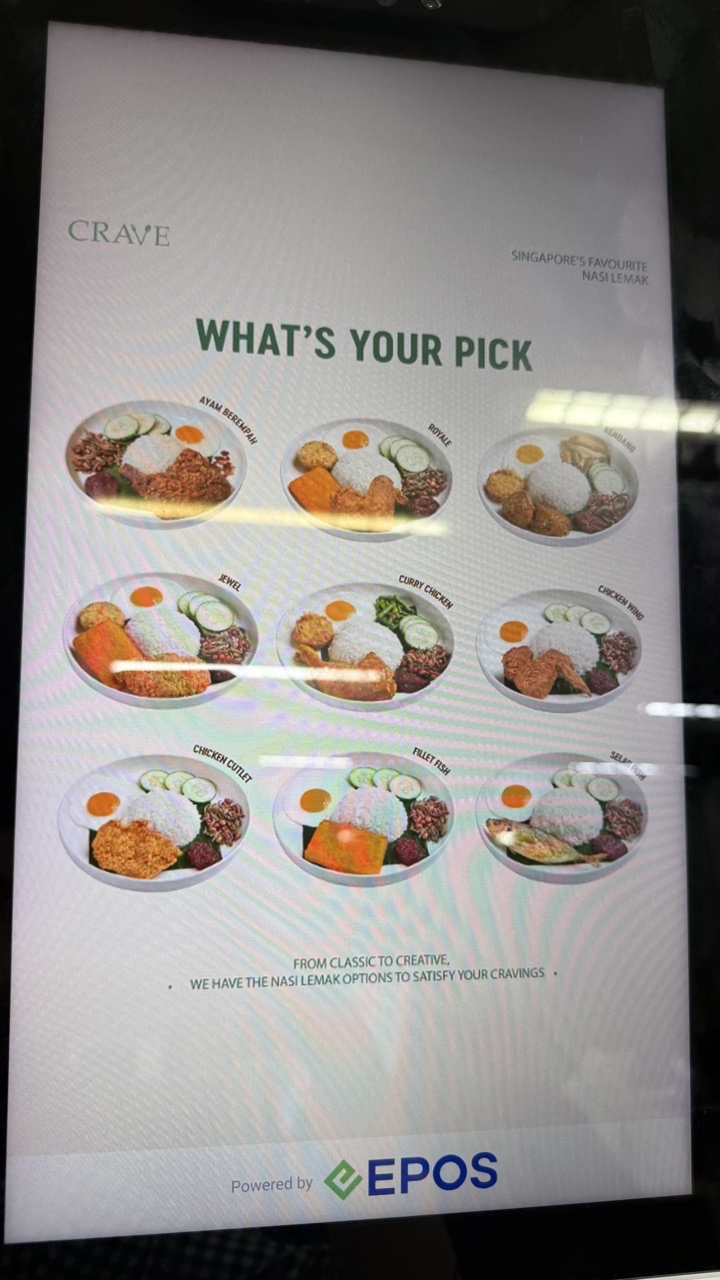
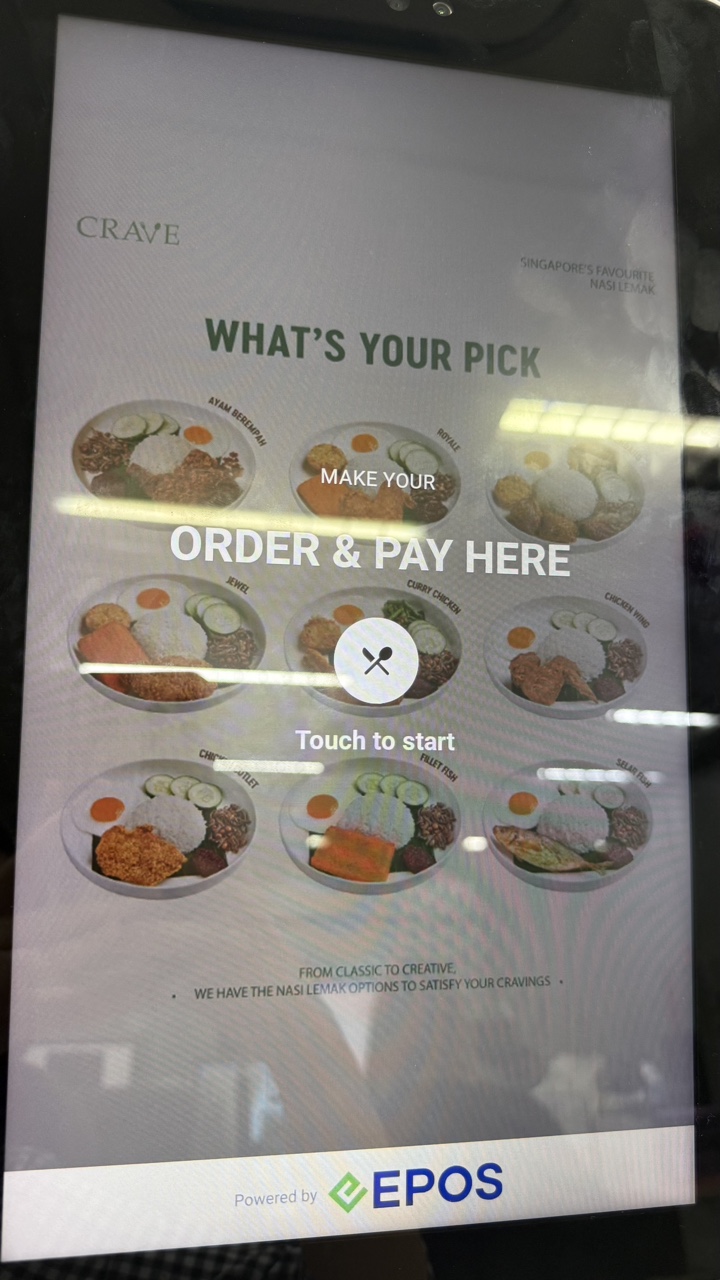
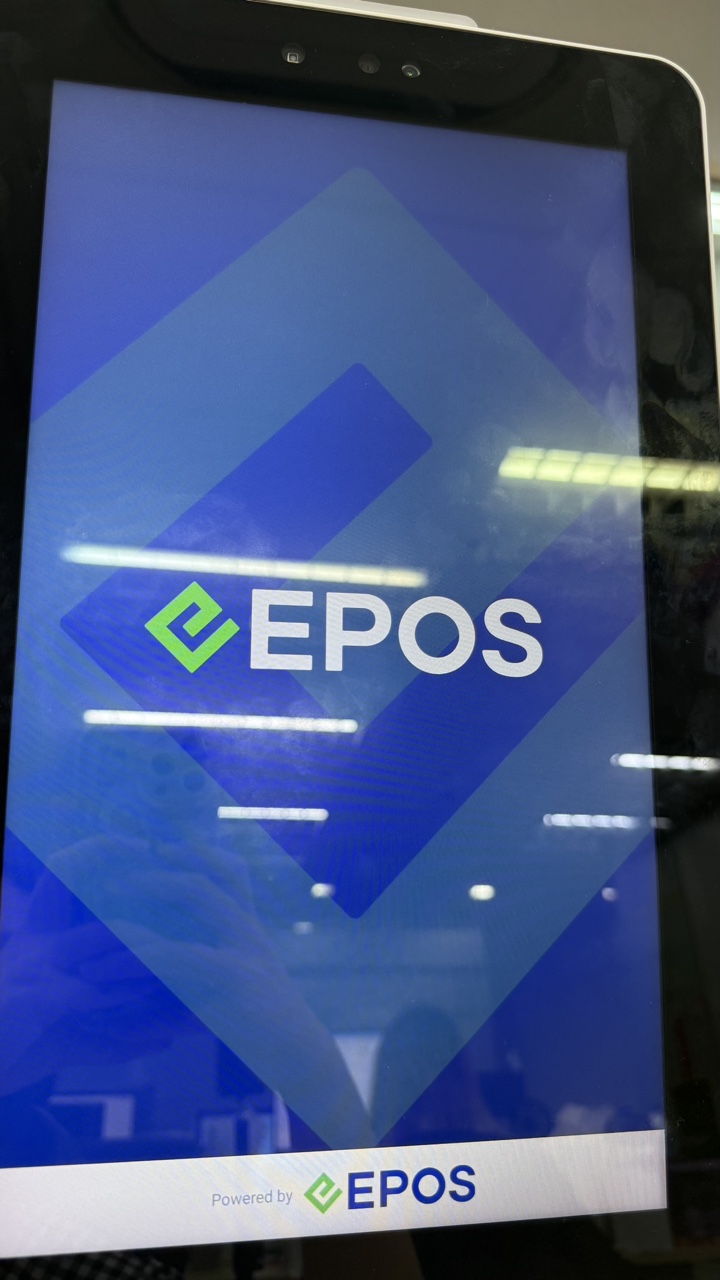
If no image is added, the EPOS logo is shown instead.
Half Screen (POS Mode)
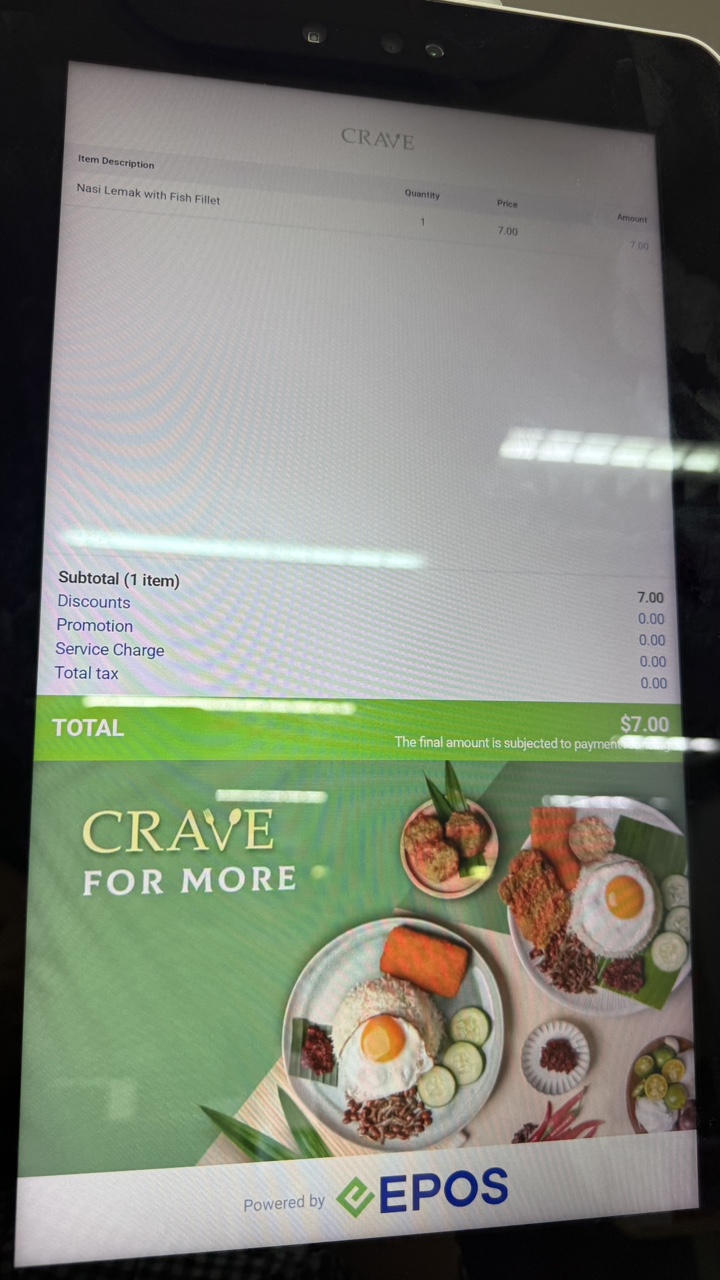
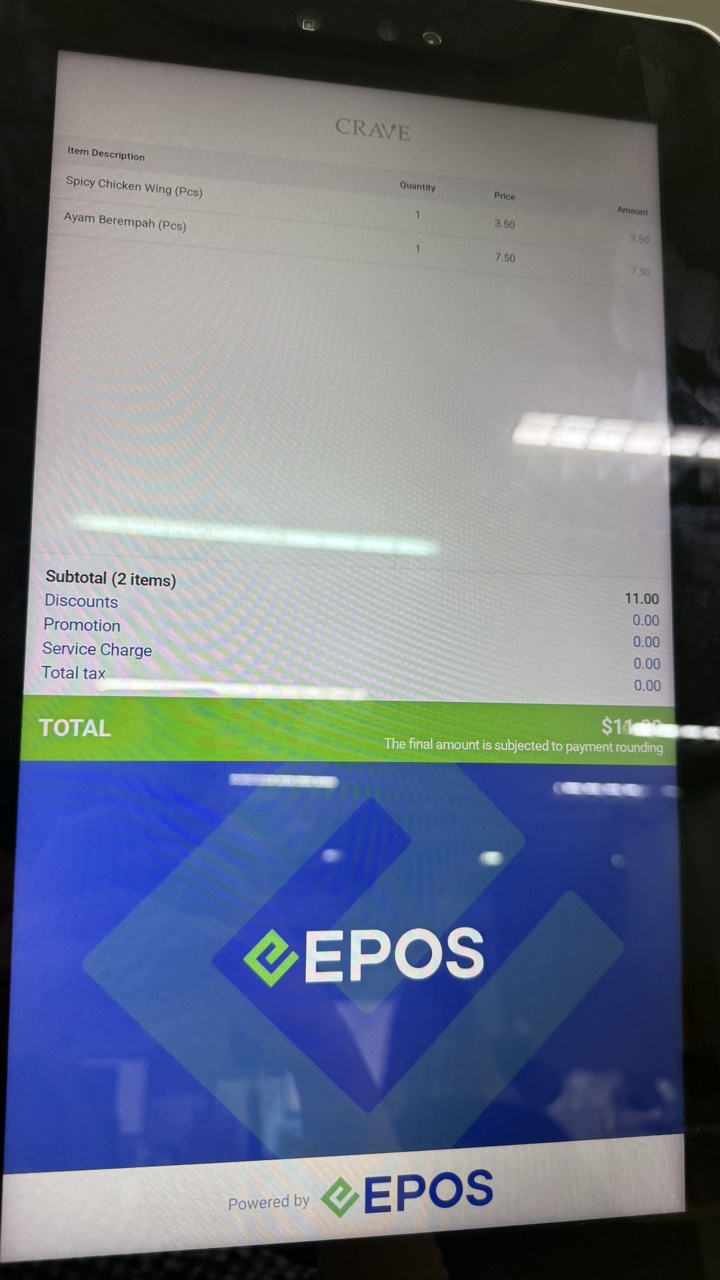
The Half Screen image added in Kiosk Settings is shown on the POS mode customer screen while an order is being processed (left). If no image is added, the EPOS logo is shown (right).
Advertisement Page (Kiosk Mode)
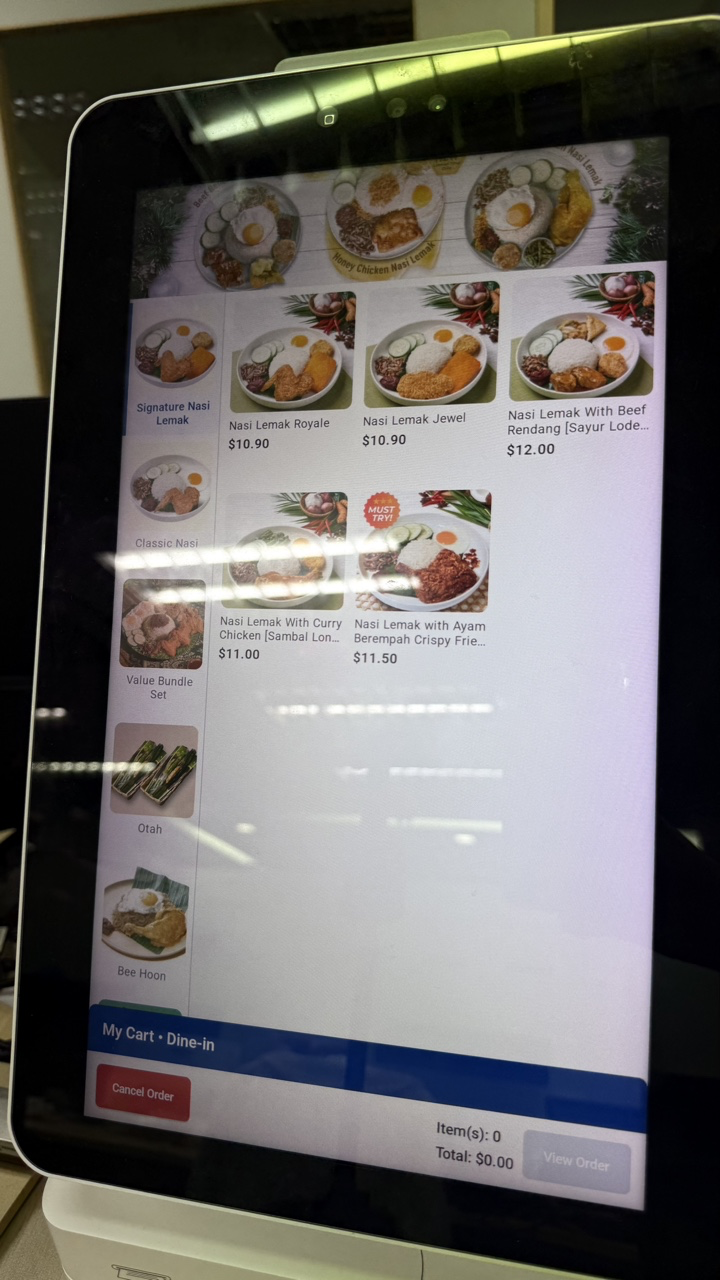
The Advertisement image added in Kiosk Settings is shown in Kiosk mode (left). If no image is added, the EPOS logo is shown (right).
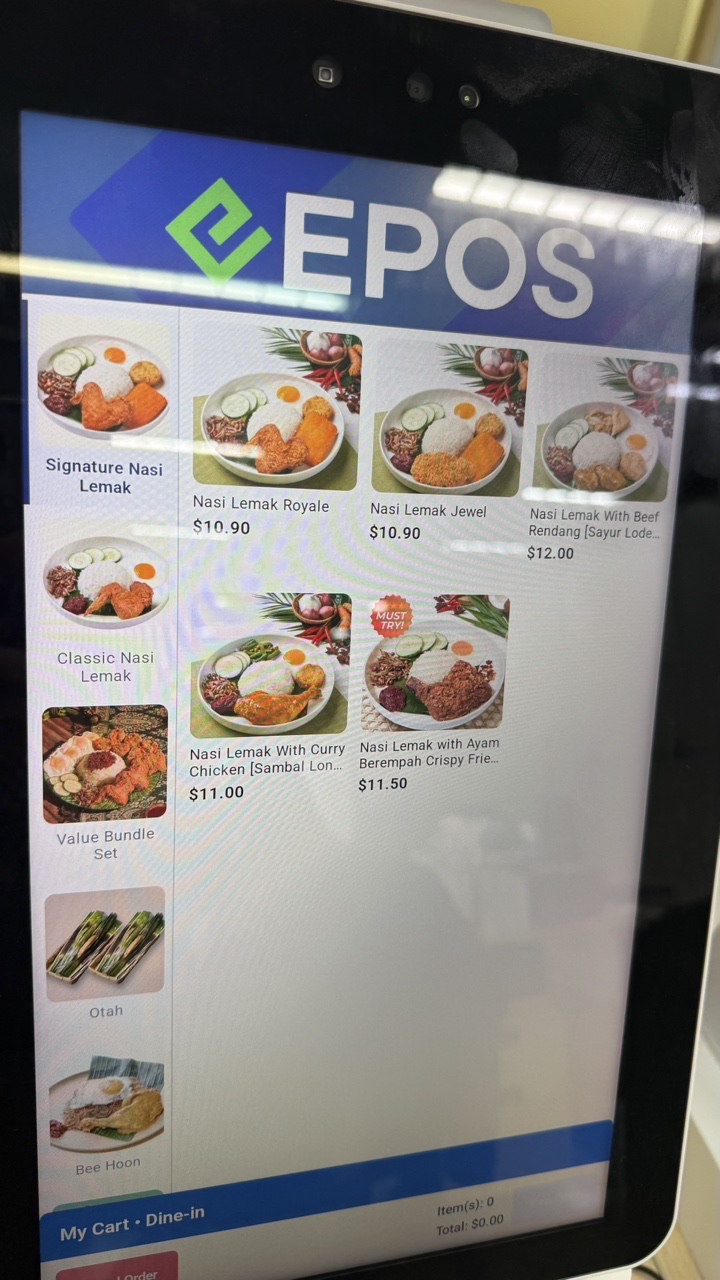
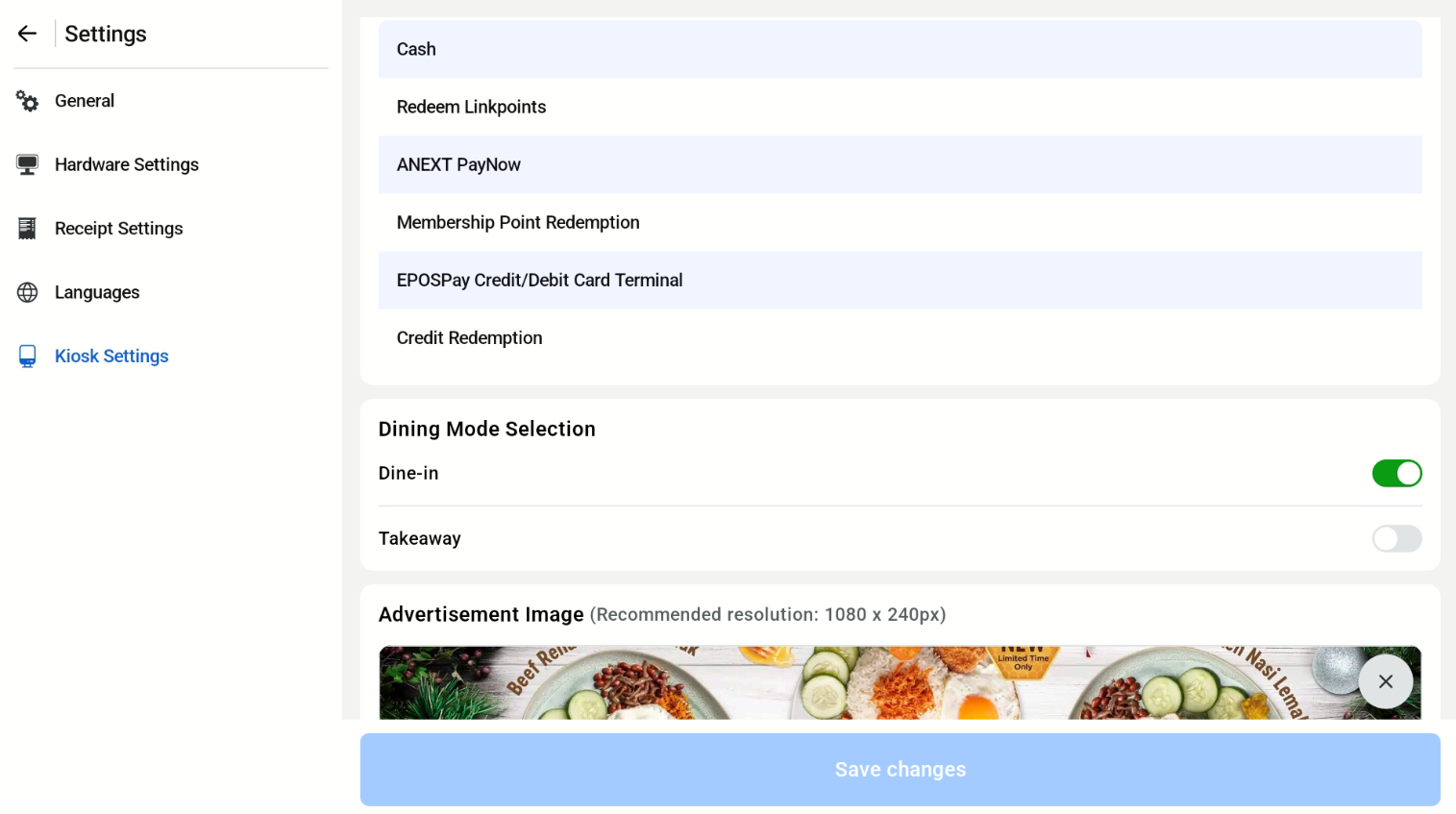
Dining Mode Selection (F&B Kiosk)
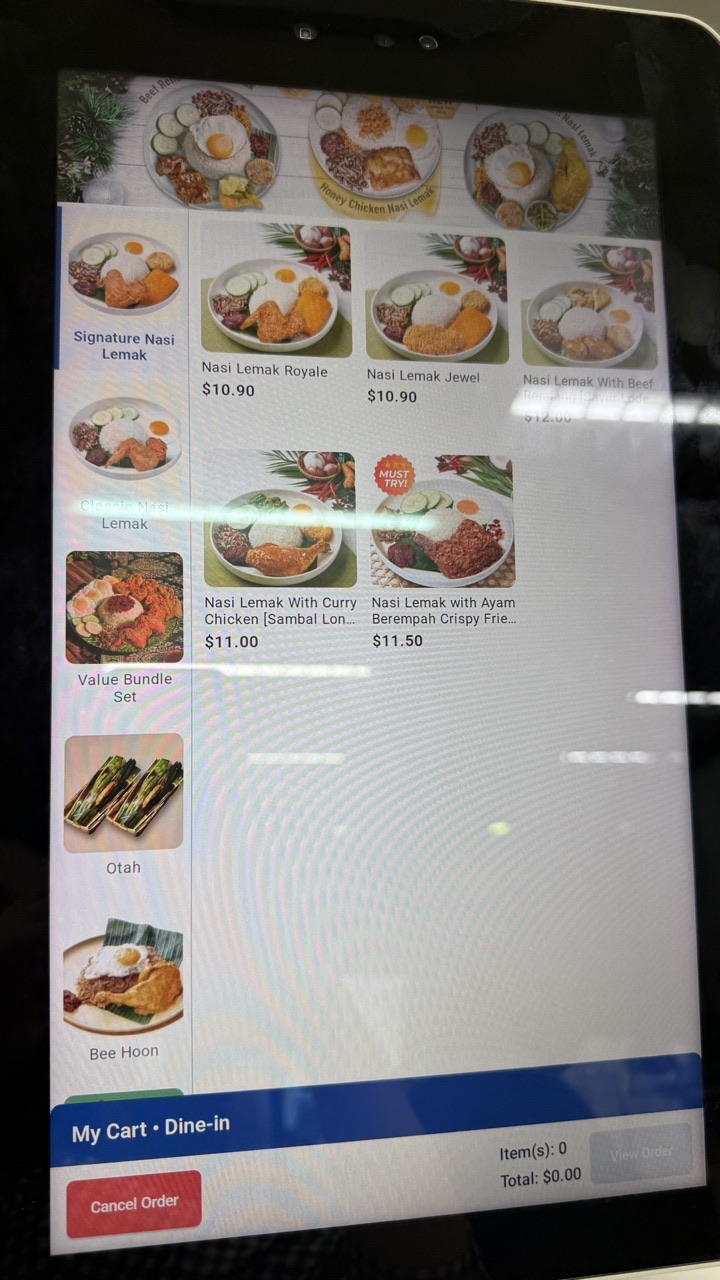
For F&B Kiosk, the cashier can enable or disable each dining mode under Dining Mode Selection. In this example, only Dine-in is enabled, so the dining mode is set to Dine In automatically and customers will not see the dining mode selection page.