Package Products

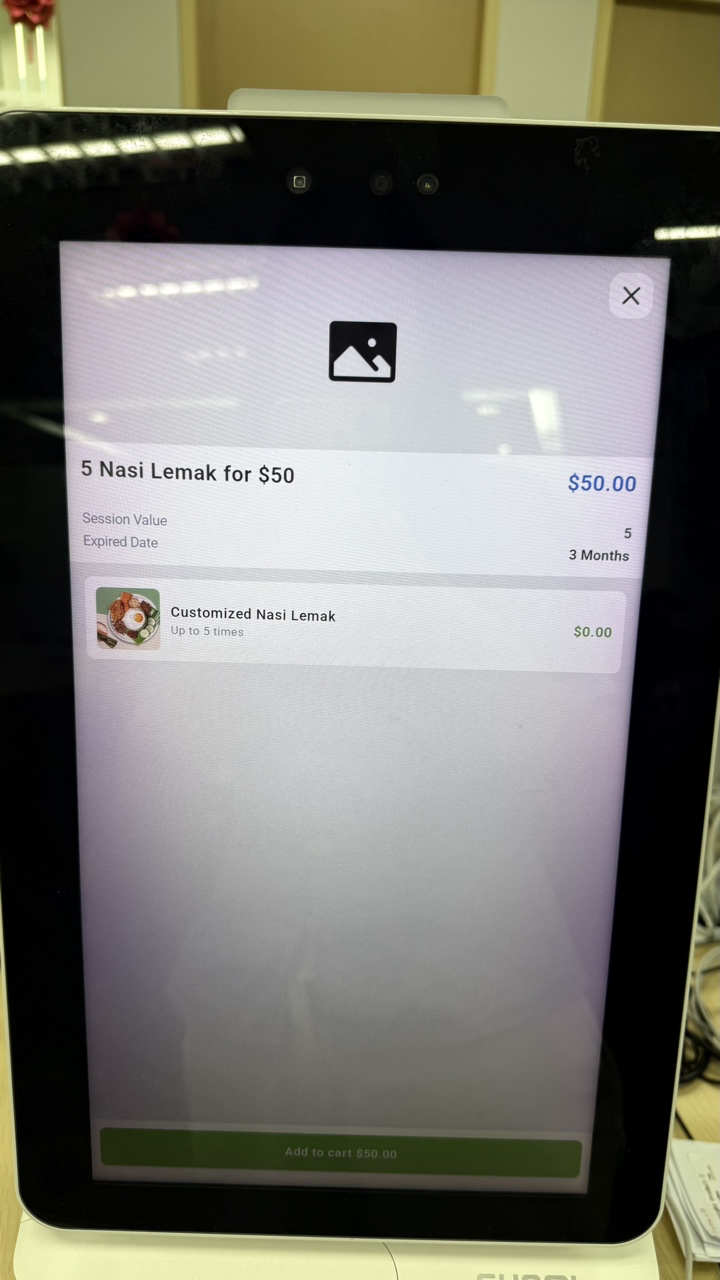
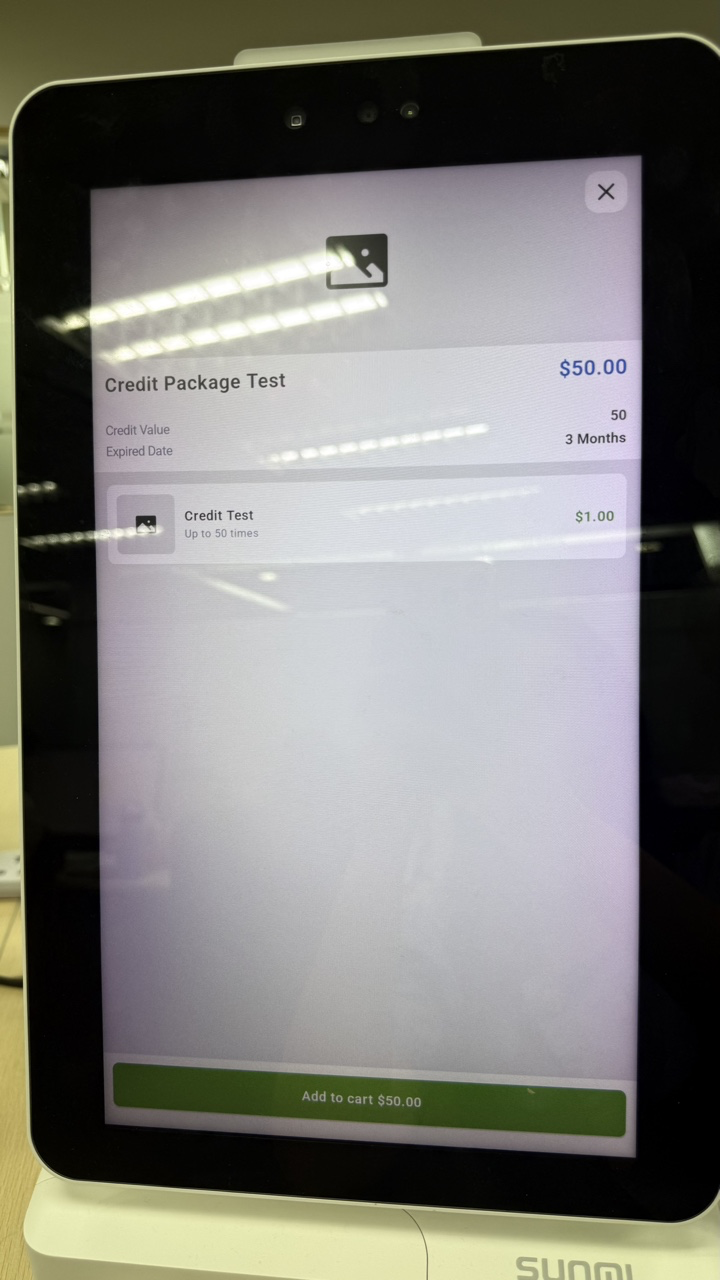
Hybrid Kiosk supports session packages and credit packages. Packages can be bought in POS Mode or Kiosk Mode, but they can only be redeemed in POS Mode.

Buying a package

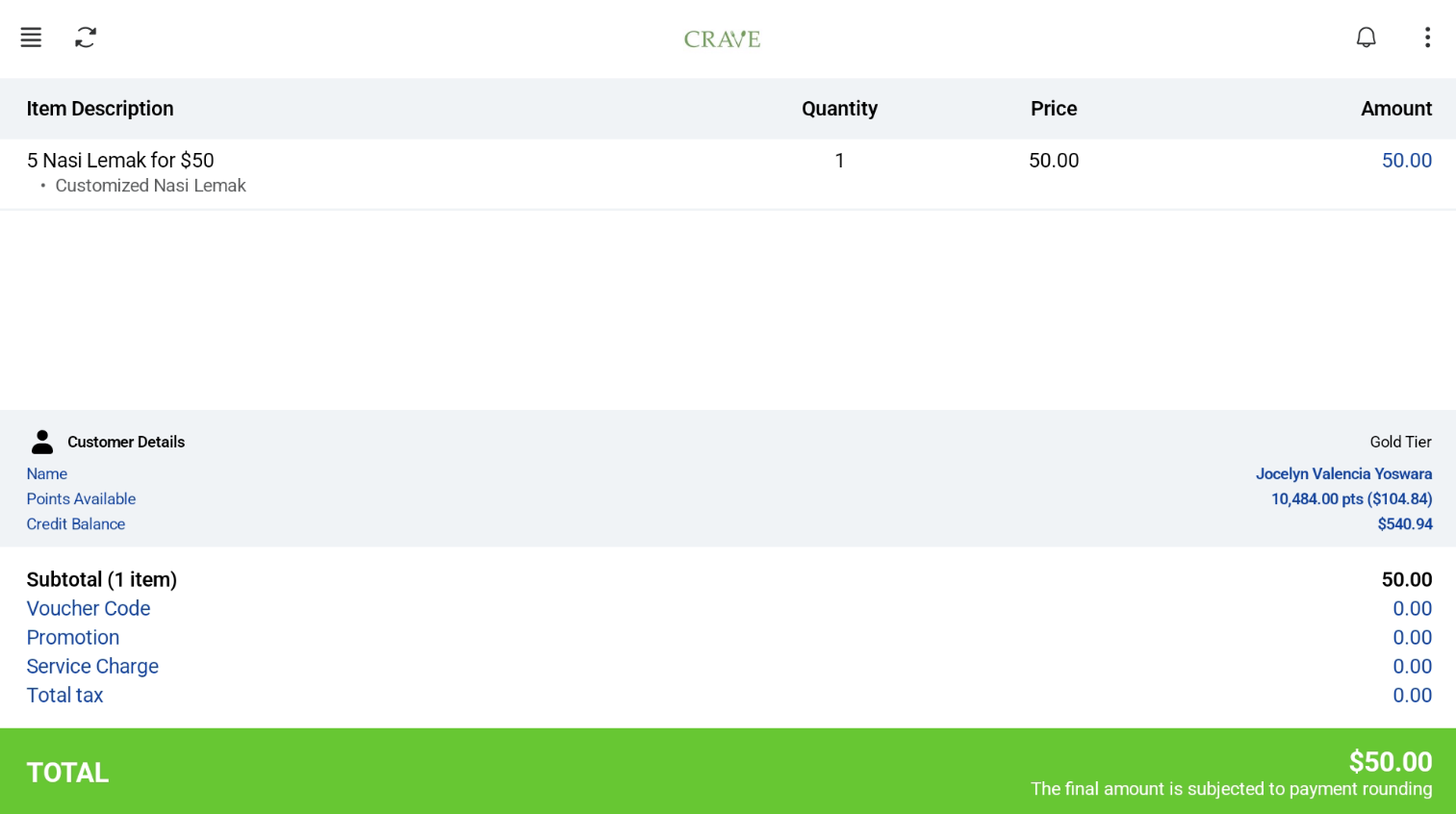
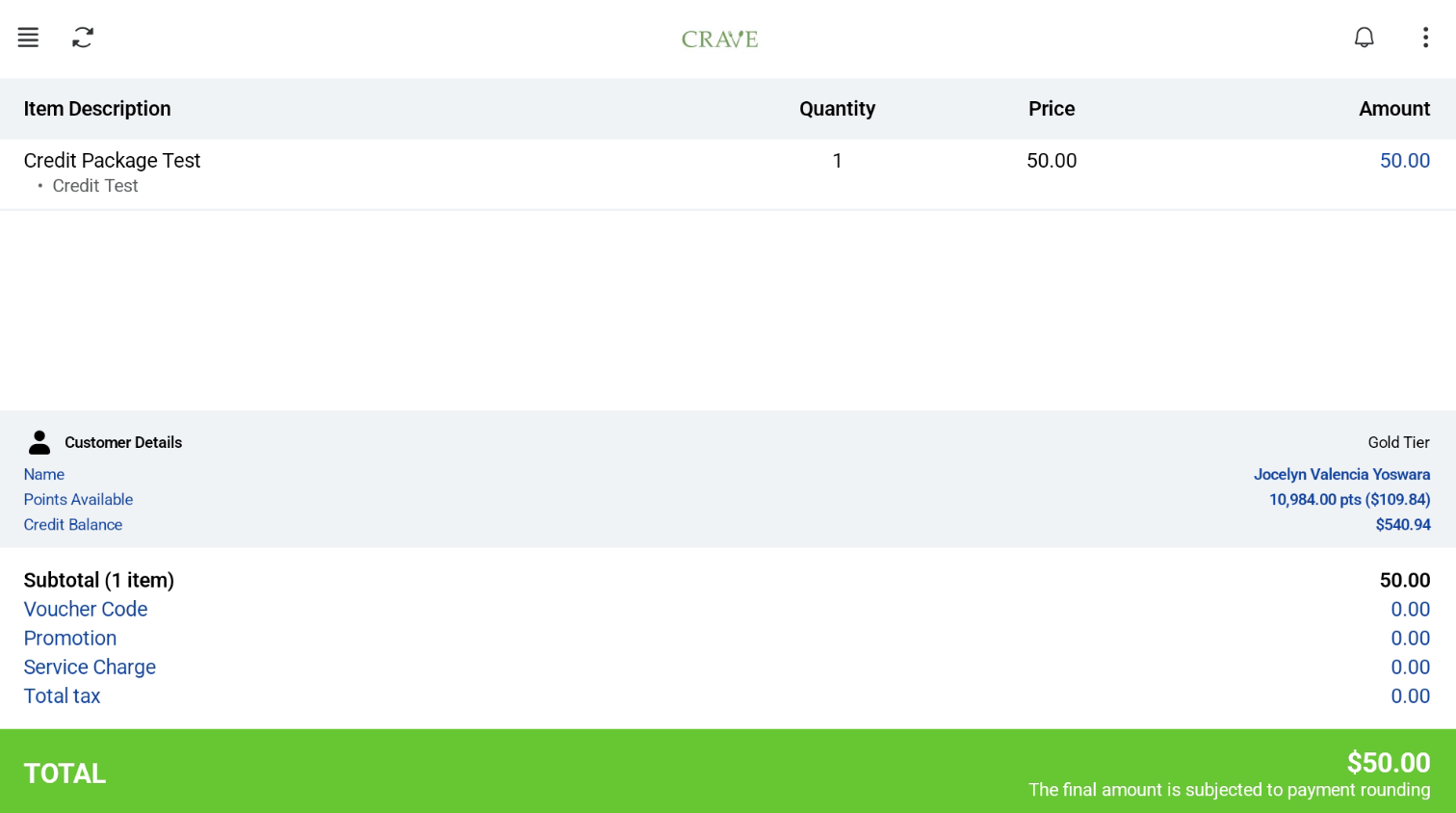
  1. Tag the customer to the order. A package product can only be added to the cart when a customer is tagged.
  2. Add the package product to the cart and complete the payment.
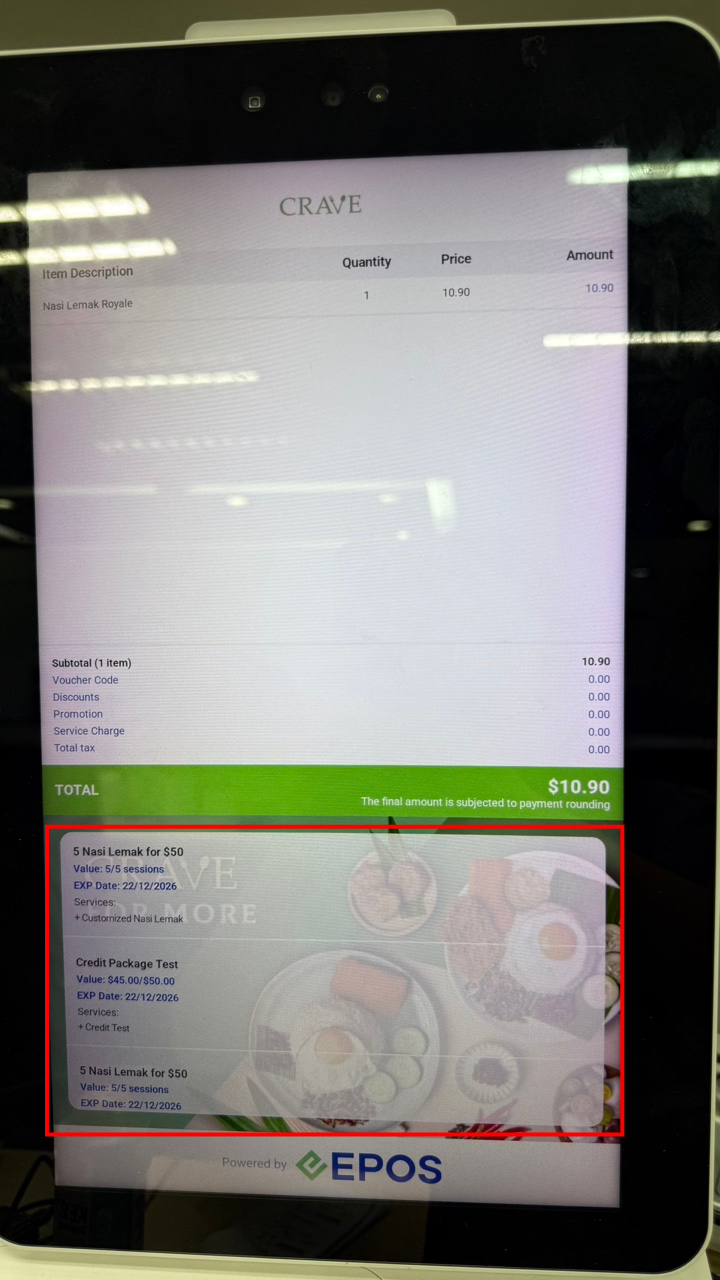
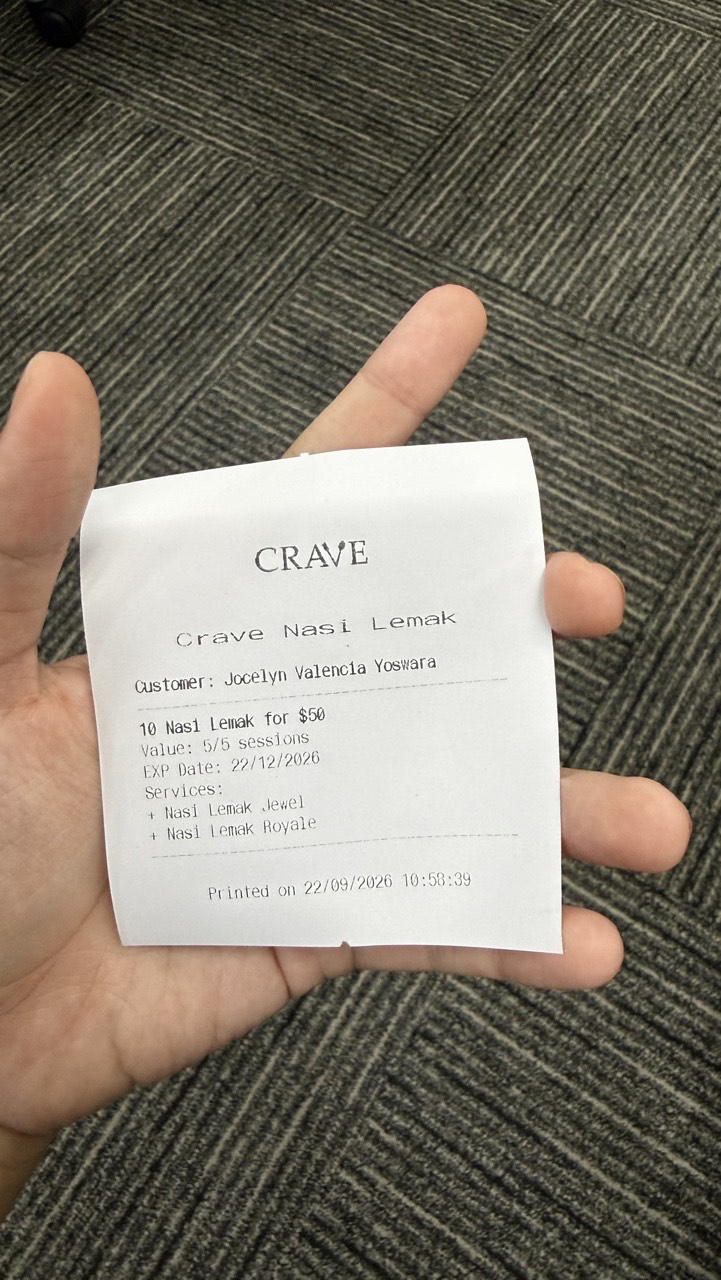
  3. The package is added to the customer’s account. The customer can see the package details on the receipt or on the customer screen.

The customer details are shown on both 58 mm and 80 mm receipts.

Redeeming a package

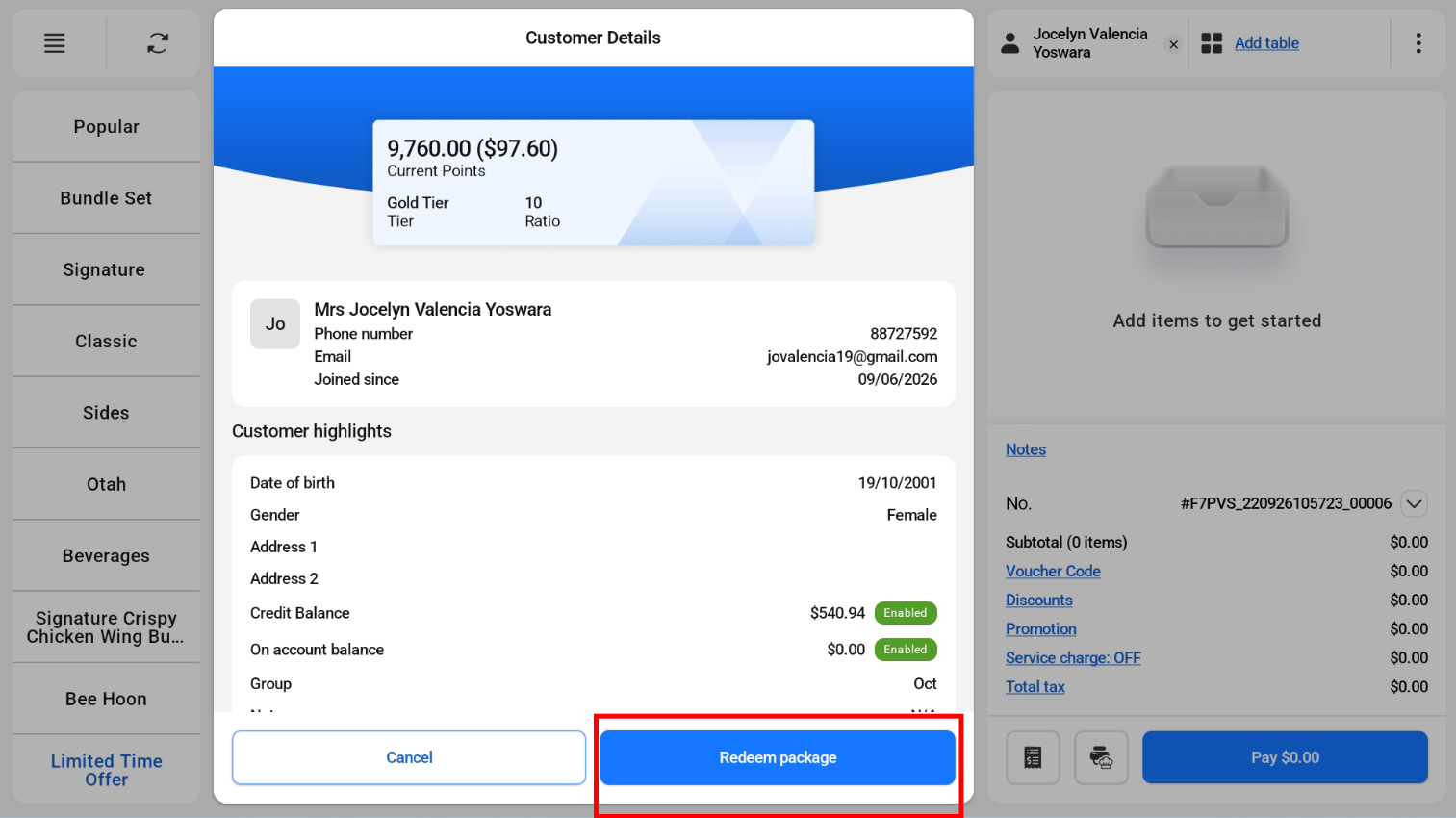
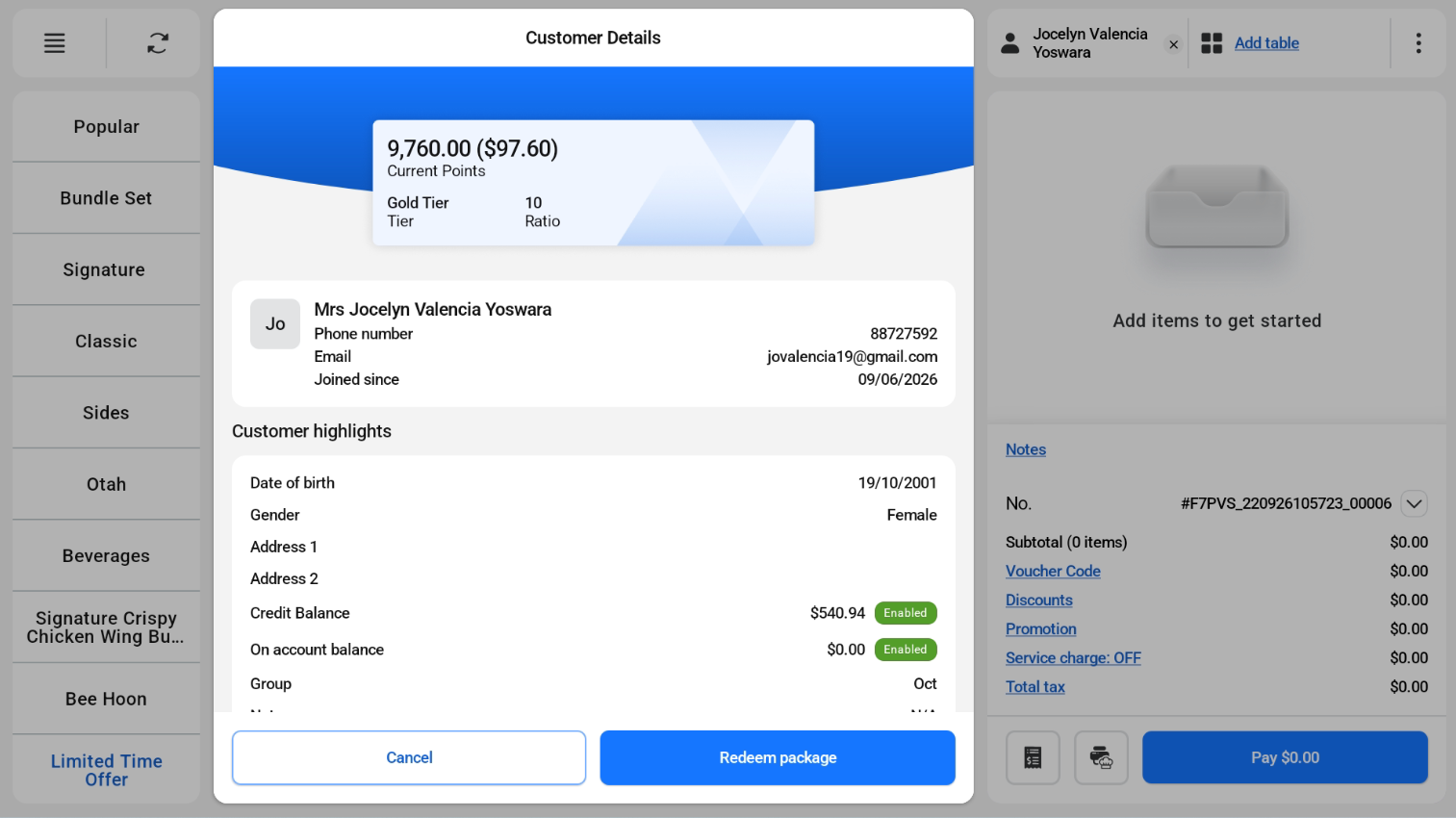
  1. Open the customer details page and tap Redeem Package.
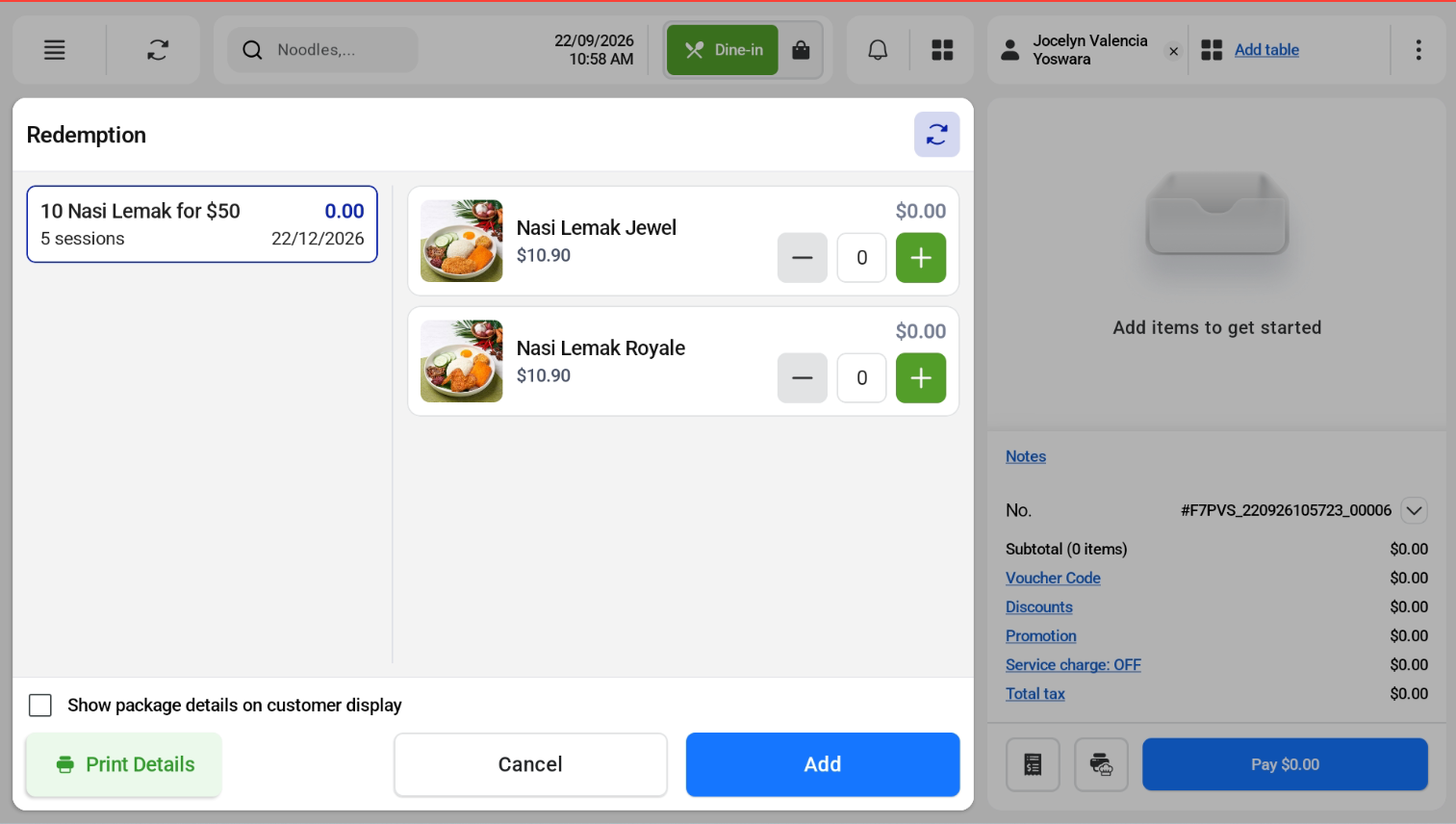
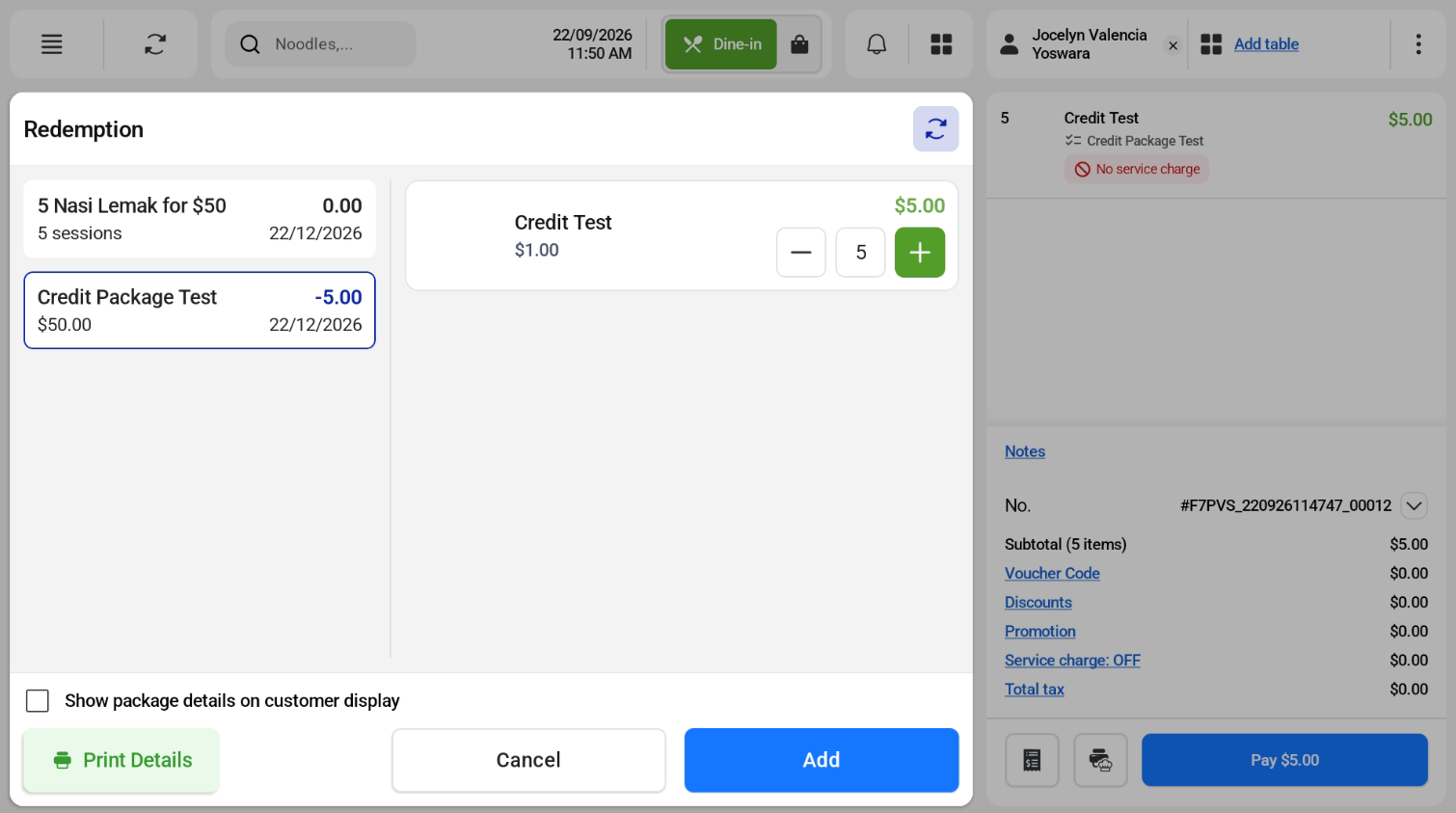
  2. Enter the number of sessions or credits to redeem.
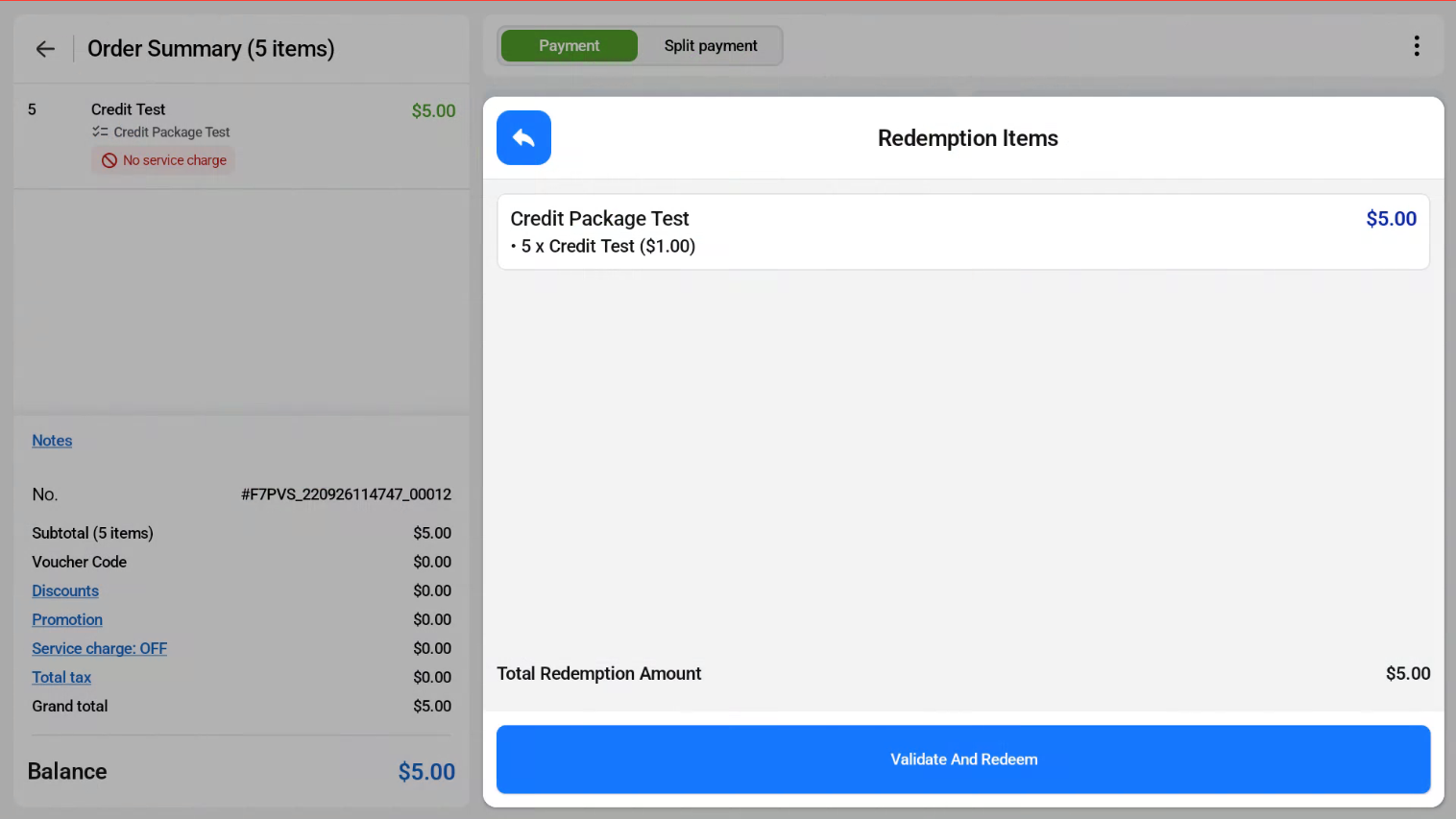
  3. On the payment page, tap Validate and Redeem.
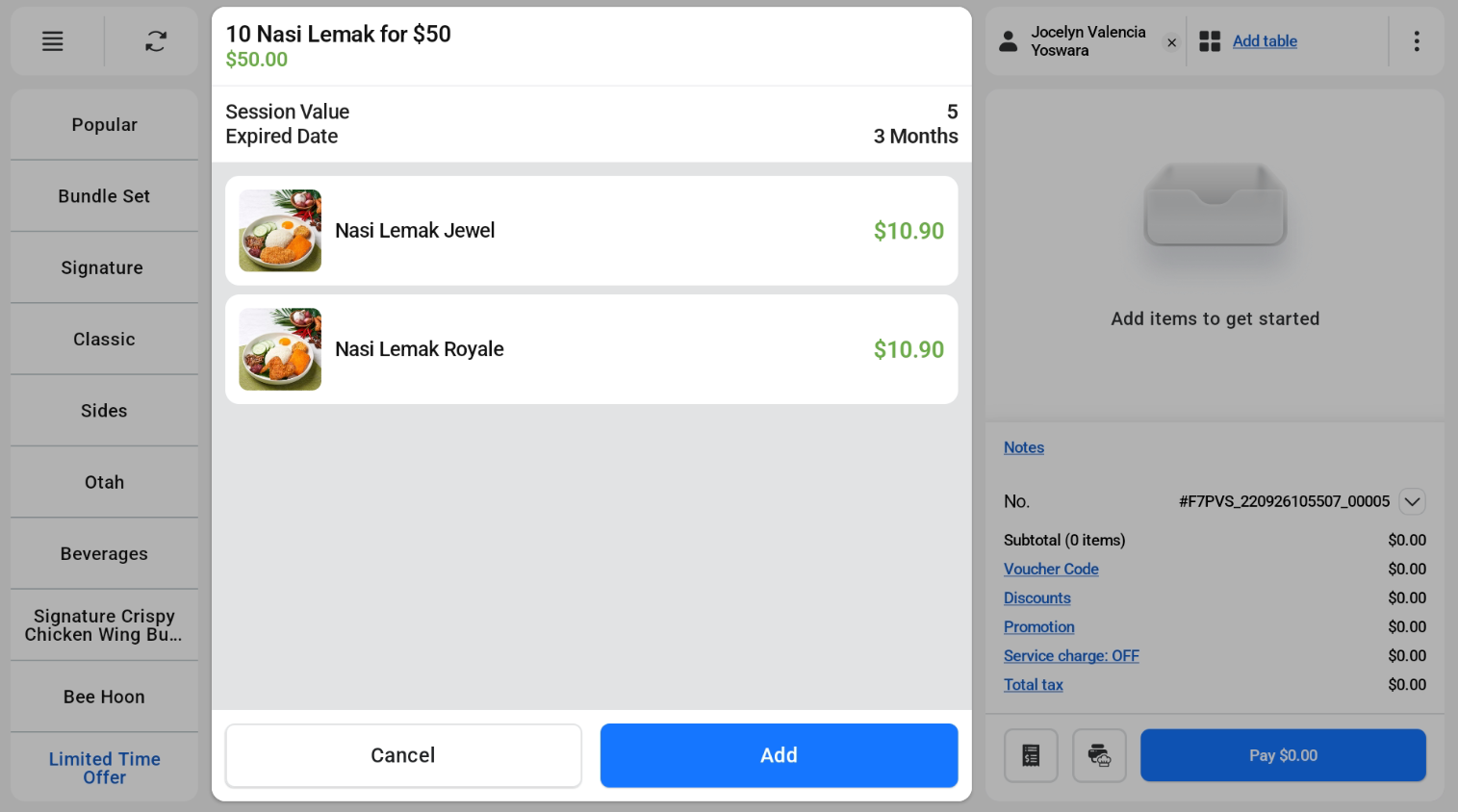
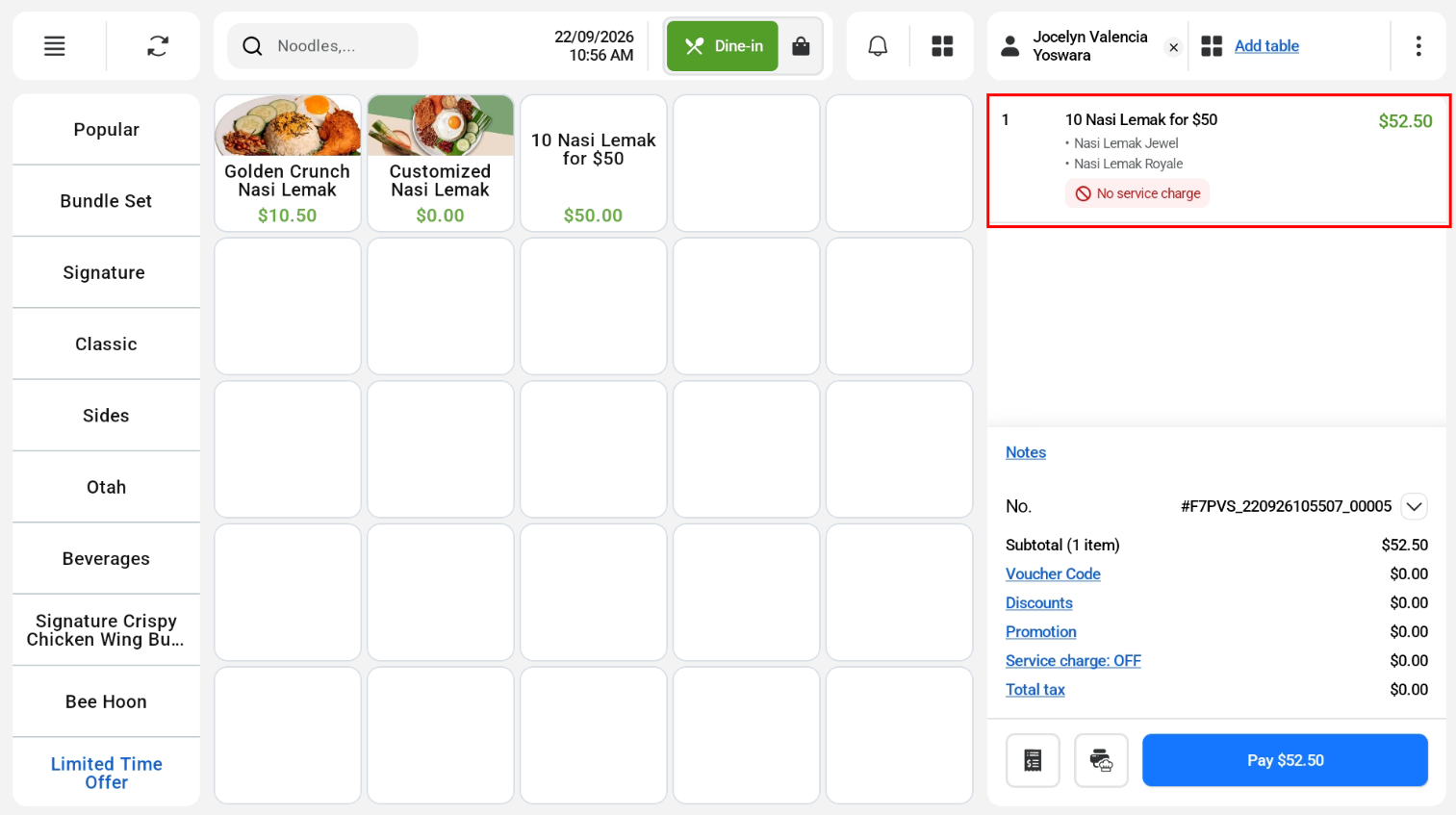
Adding a package product in POS Mode

Adding a package product in POS Mode

Redeeming a session package in POS Mode

Redeeming a session package in POS Mode

Redeeming a session package in POS Mode Redeeming a session package in POS Mode

Redeeming a credit package in POS Mode

Redeeming a credit package in POS Mode

Redeeming a credit package in POS Mode

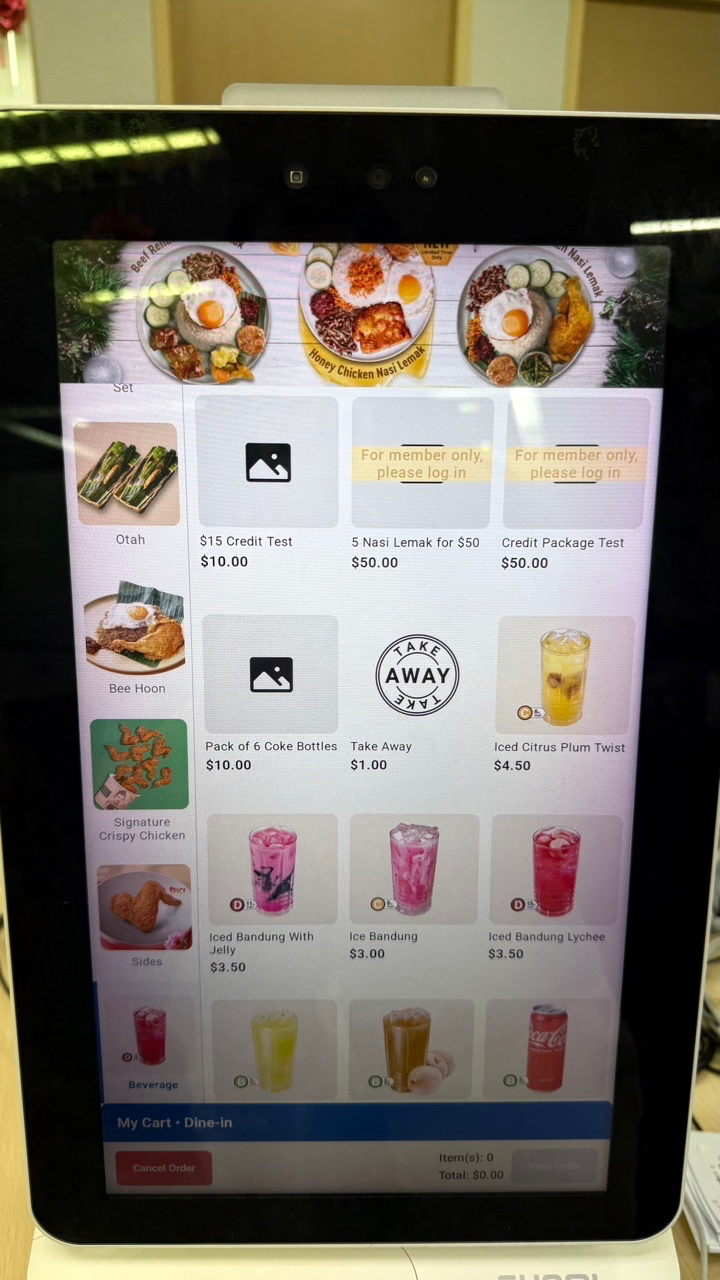
Customers can buy packages on the kiosk and redeem them in POS Mode. If the customer has not signed in, the menu page shows a label saying the product is for members only, and the customer needs to sign in.

Buying a package on the F&B Kiosk Buying a package on the F&B Kiosk

Buying a package on the F&B Kiosk

Buying a package on the F&B Kiosk

Members only label on package products

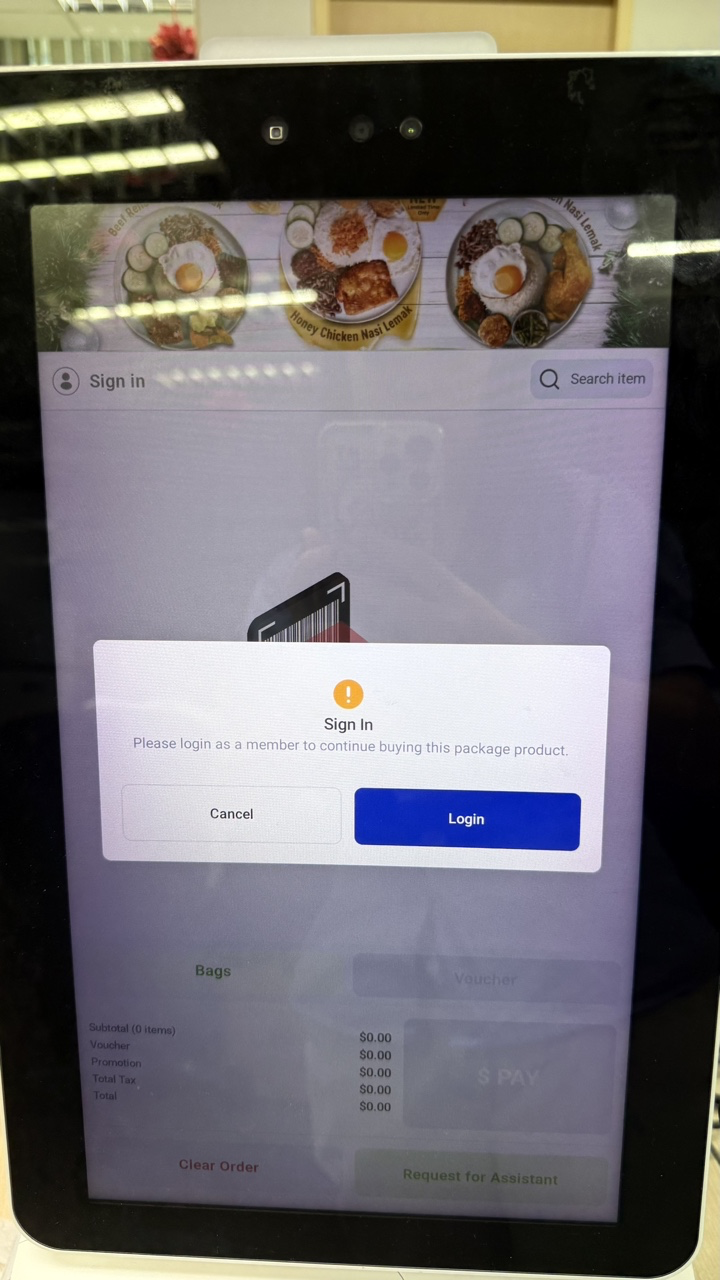
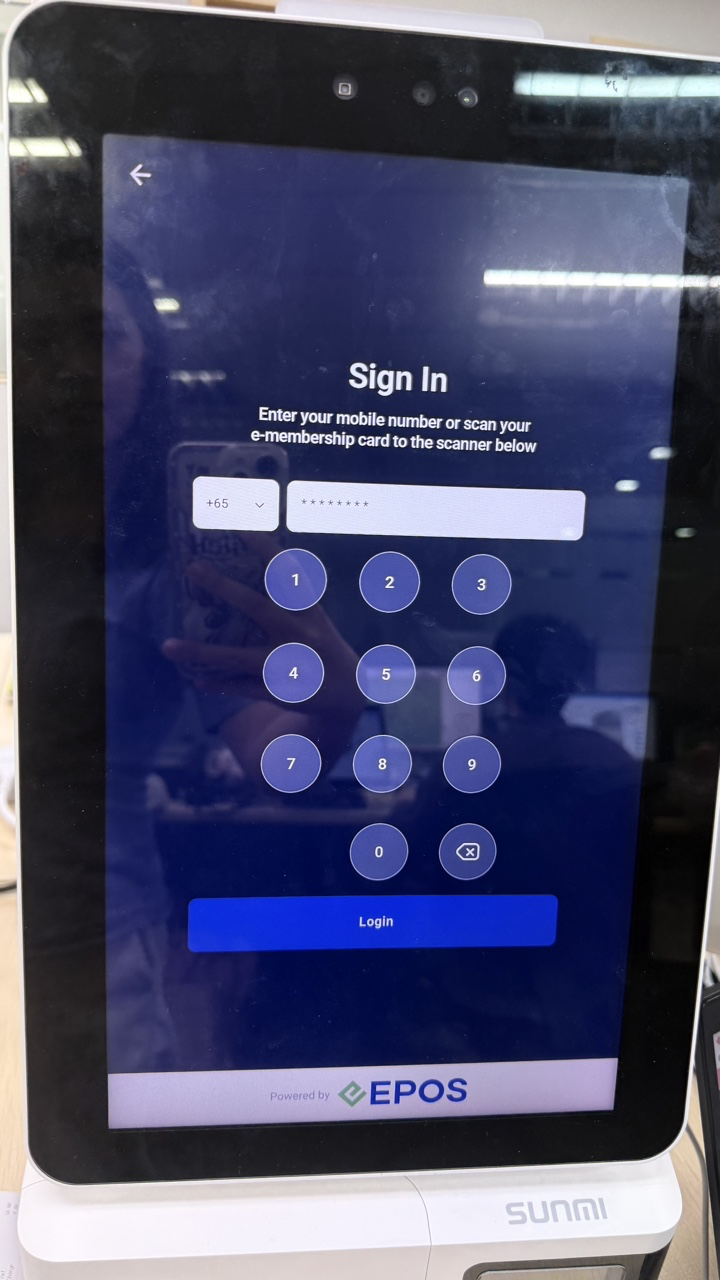
Customers can buy packages on the kiosk and redeem them in POS Mode. If the customer has not signed in and adds a package product to the cart, they are asked to sign in.

Sign-in prompt for package products on the Retail Kiosk Sign-in prompt for package products on the Retail Kiosk