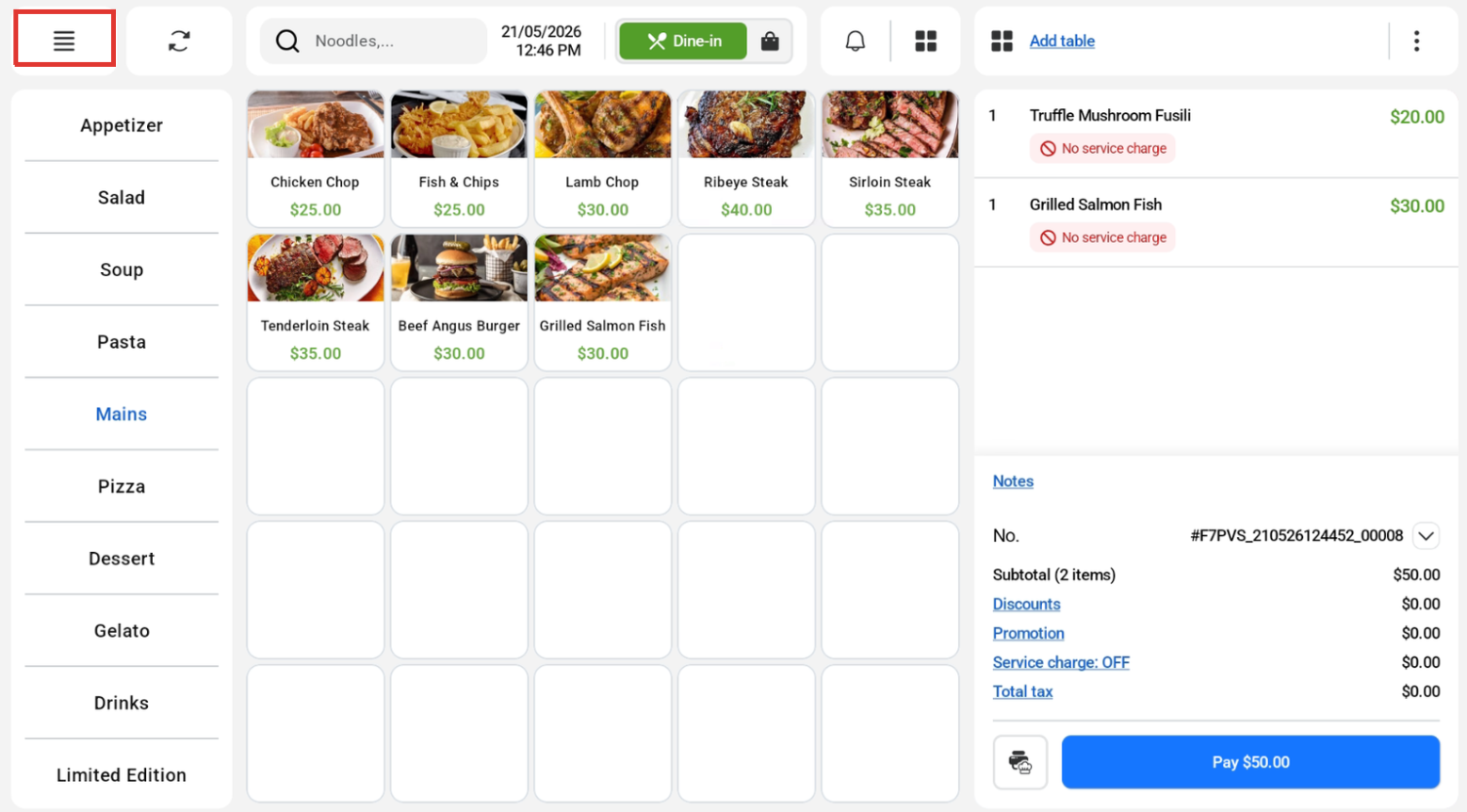
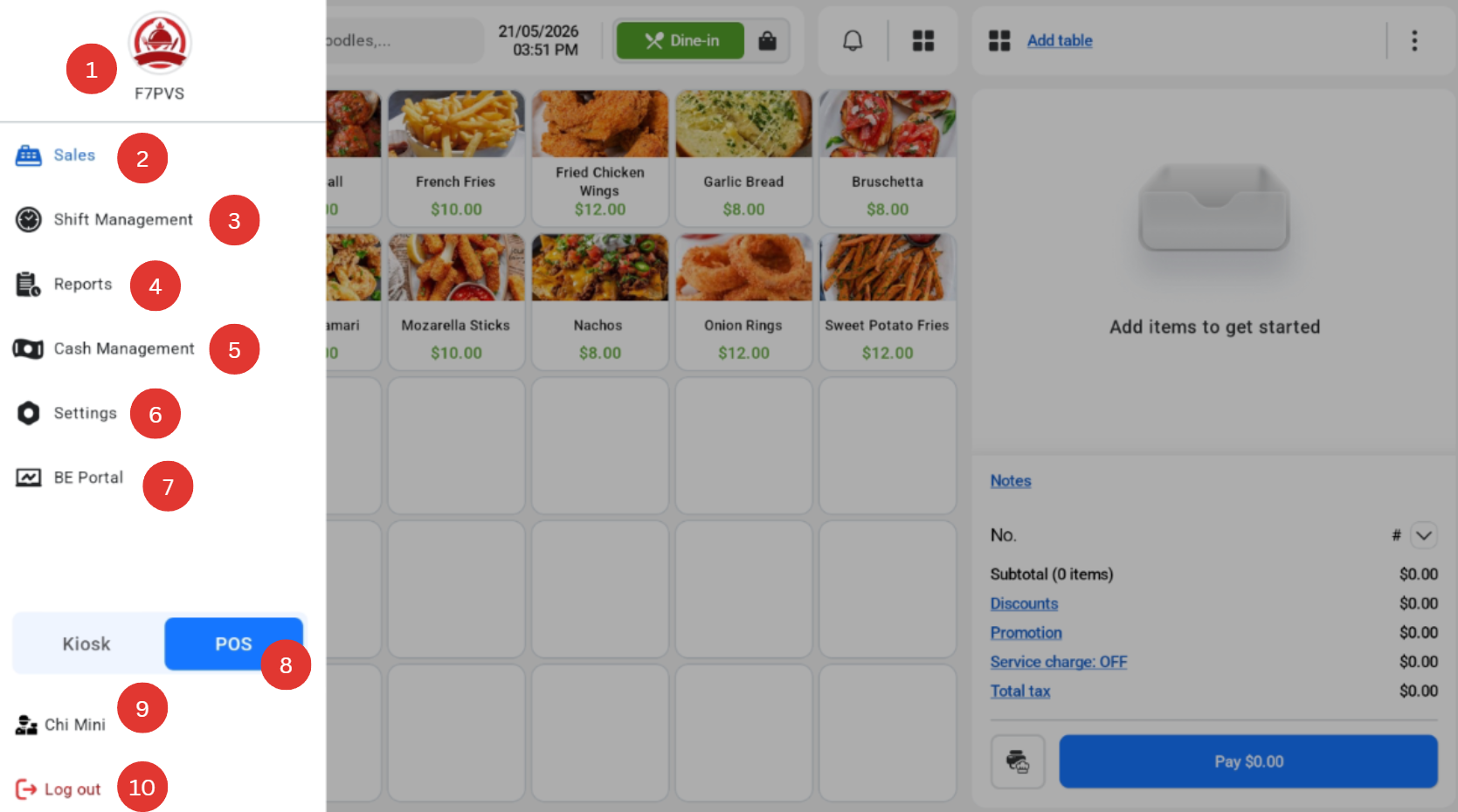
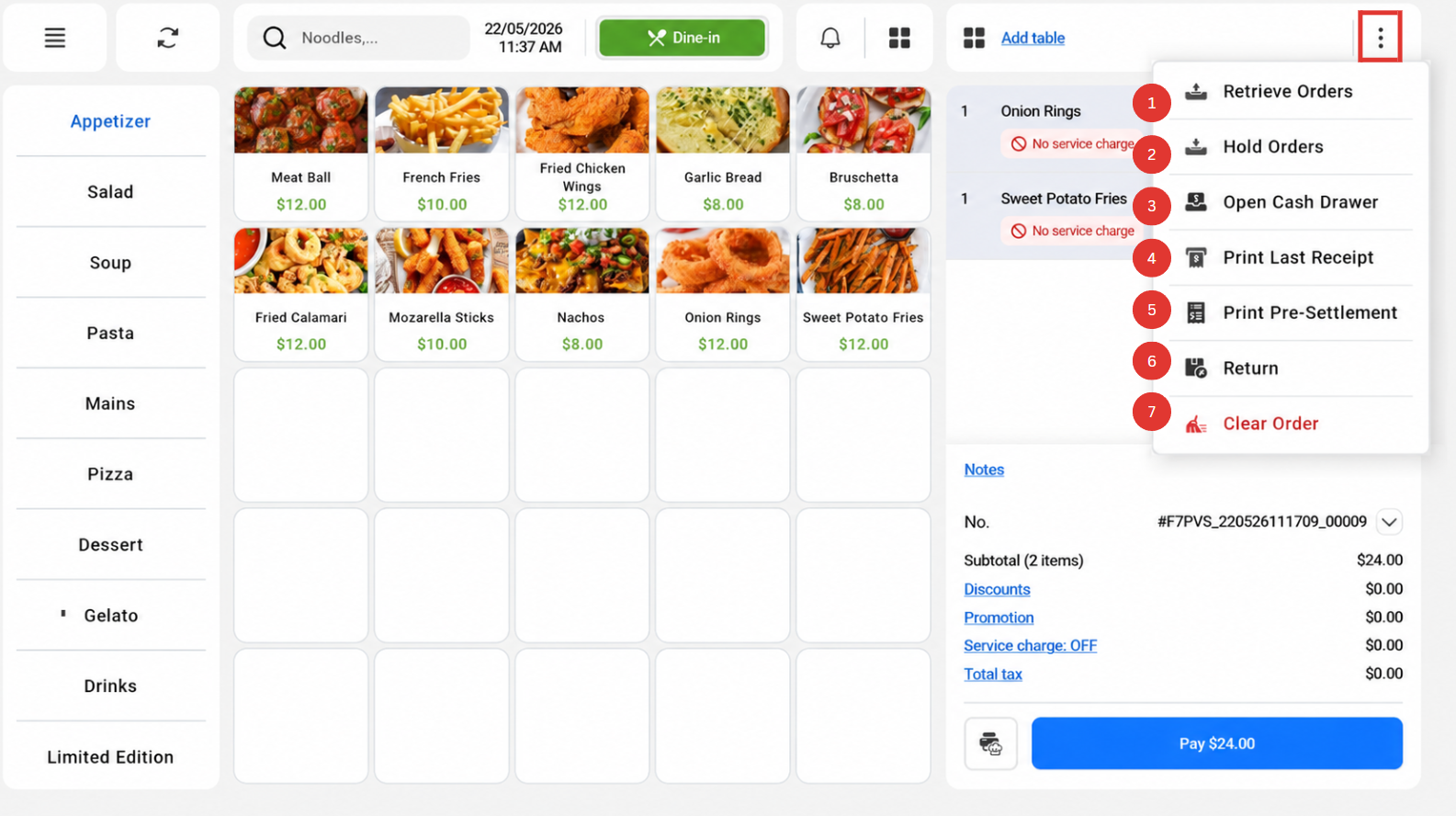
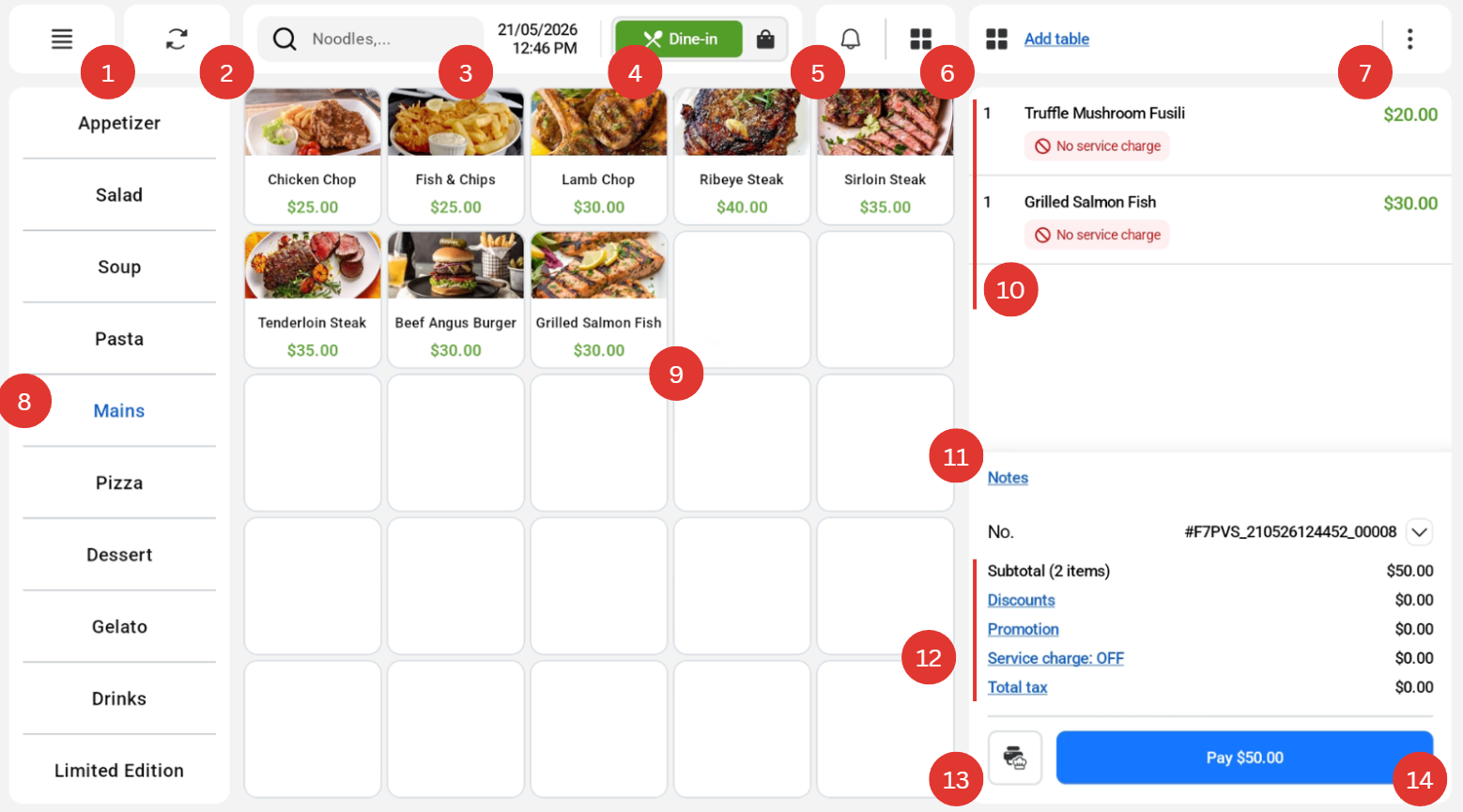
After logging in and starting a shift on EPOS Frontend POS, users will be directed to the main Sales page. The image below shows each function on the main Sales page.
|
Number |
Name |
Function |
|
1 |
POS Sidebar menu |
Display menu which allows users to perform EPOS Frontend POS related actions |
|
2 |
Sync |
Allow users to sync any changes made on Backend portal to Frontend POS immediately |
|
3 |
Search |
Allow users to search for existing products and create new product |
|
4 |
Mode |
Allows user to toggle between Dine-in and Takeaway mode |
|
5 |
Bell Functionality |
Allow users to view held orders, delivery orders and their status |
|
6 |
Table Management |
There are 2 table management buttons that allow the user to display table layout and table orders. For the right button, there must be an active order before being able to add table. |
|
7 |
POS Order menu |
Display menu which allows users to perform order related actions |
|
8 |
Toggle Pages |
Allow users to toggle between the different menu categories |
|
9 |
Add Products |
Allow users to add items into the cart |
|
10 |
Order Information |
Display products in order cart, order number, subtotal |
|
11 |
Notes |
Allow users to add notes for their order |
|
12 |
Order Information |
Displays order number, subtotal, discount, promotion, service charge and tax. Users can click into those individually to configure. |
|
13 |
Send to Kitchen |
Allow users to send items to the kitchen printer and KDS manually |
|
14 |
Pay |
Allow users to check out the current order and proceed to the payment page |