
Staff Alerts

The Retail Kiosk in Kiosk Mode uses a light and sound alert to call staff when a customer needs help or an action needs staff approval.

Kiosk light

  • Green: the kiosk is not in use and is available.
  • Off: the kiosk is in use.
  • The light turns green again when the kiosk returns to the Welcome screen.

When an alert is triggered

Which actions trigger an alert depends on the config in the EPOS Backend. The options are Minus / Delete Line Item, Clear Order and Add Restricted Item.

When an alert is triggered, the red light blinks and a sound plays to let the customer know that staff will assist shortly. The red light turns off after staff scan the staff barcode on the cashier screen.
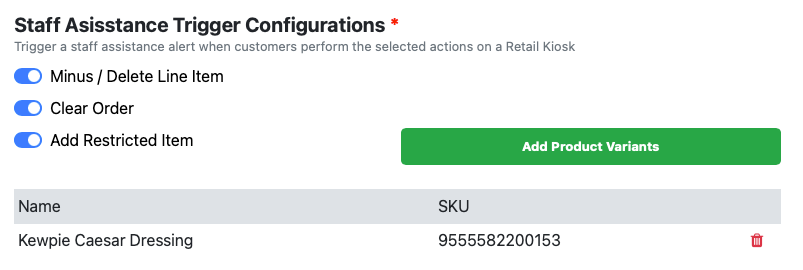

Staff Assistance Trigger Configurations in EPOS Backend

When a customer adds a restricted item to the cart, the red light blinks and a sound plays to let the customer know that staff will assist shortly.

The red light turns off after staff scan the staff barcode on the cashier screen. Staff can then check the customer’s ID in staff assistance mode directly on the cashier screen.

When a customer reduces the quantity of an item or deletes it from the cart, the red light blinks and a sound plays to let the customer know that staff will assist shortly.

The red light turns off after staff scan the staff barcode on the cashier screen. Staff can then confirm the change from the cashier screen.

When a customer clears the order, the red light blinks and a sound plays to let the customer know that staff will assist shortly.

The red light turns off after staff scan the staff barcode on the cashier screen. Staff can then clear the order from the cashier screen.

When a customer requests staff assistance, the red light blinks and a sound plays to let the customer know that staff will assist shortly.

The red light turns off after staff scan the staff barcode on the cashier screen. Staff then assist the customer in staff assistance mode.