
There is no Create Delivery Order button in the Delivery Orders main page. To create a delivery order, users will navigate through an existing invoice.
|
Step |
Description |
|
– |
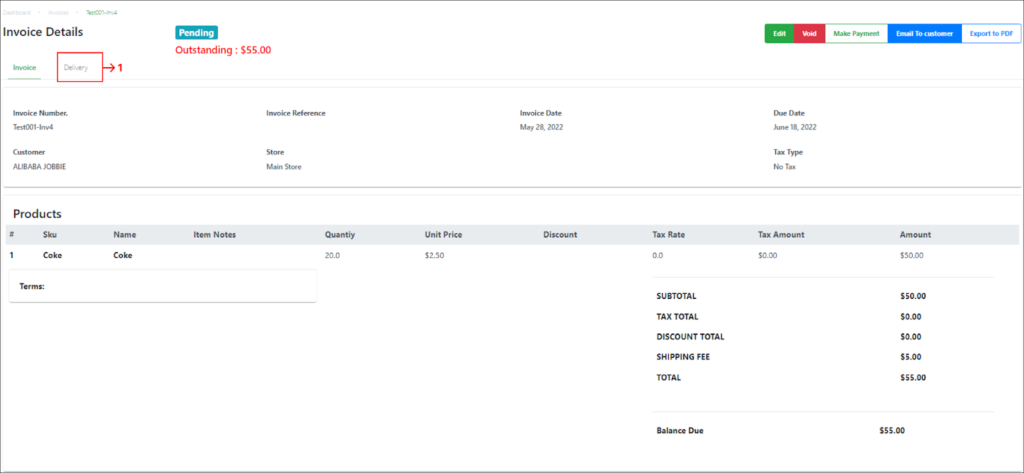
Select an invoice from the invoices list in the main Invoices page. |
|
1 |
Select the Delivery tab on the Invoice Details page. |
|
2 |
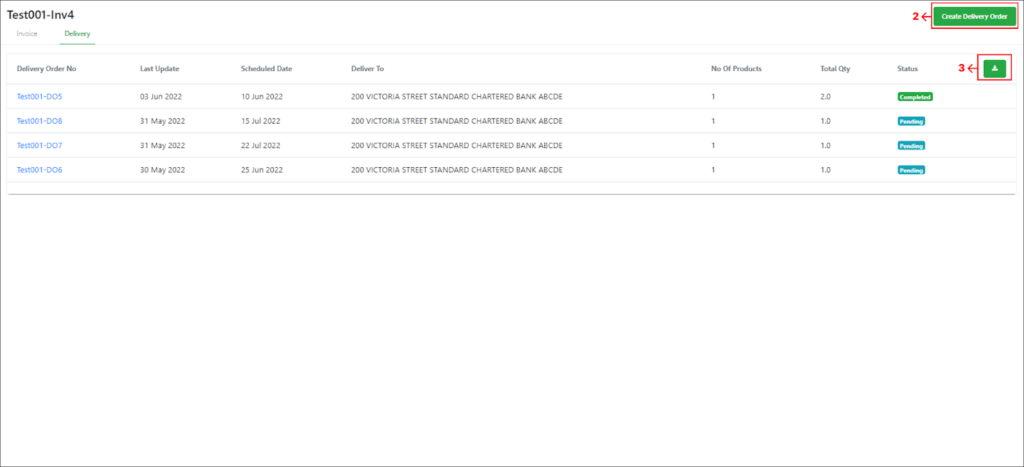
Select Create Delivery Order on the top right side of the page. |
|
– |
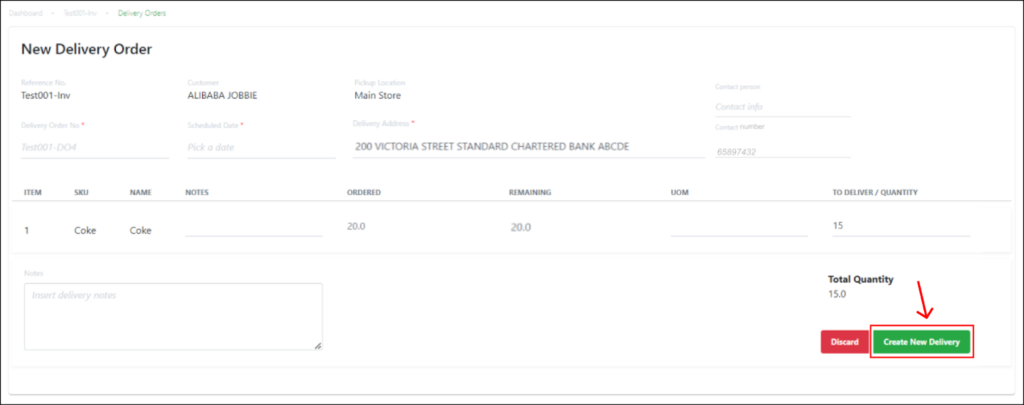
A New Delivery Order page will be displayed. |
Users will perform the following steps to create a new delivery order.
|
Step |
Description |
|
1 |
To create a new delivery order, users are required to fill up all mandatory fields. For more information on each of the fields, refer to Delivery Order Details 💡 Optional fields can be skipped and left blank |
|
2 |
Click on Create New Delivery to complete delivery order creation. |
|
3 |
Delivery order will be created successfully and now be listed in the delivery order list in the main delivery order page. 💡 Once a delivery order is successfully created, it cannot be deleted from the Backend Portal. |
💡 The Discard button in the New Delivery Order page allows users to discard a delivery order that they have been working on before it is saved as a delivery order in the backend
