For Orders, there is only one way sync from WooCommerce to EPOS.
When integration is successful, Default WooCommerce store and payment will automatically be created.
orders from Woo >EPOS will always be mapped to this default store and payment method.
Note: Do not Rename the the Default Store or Default Payment Method,

Transactions will be auto-synced to EPOS successfully as shown below.

When an order is completed on WooCommerce side,users can click on the order number and sales invoice to see order details.
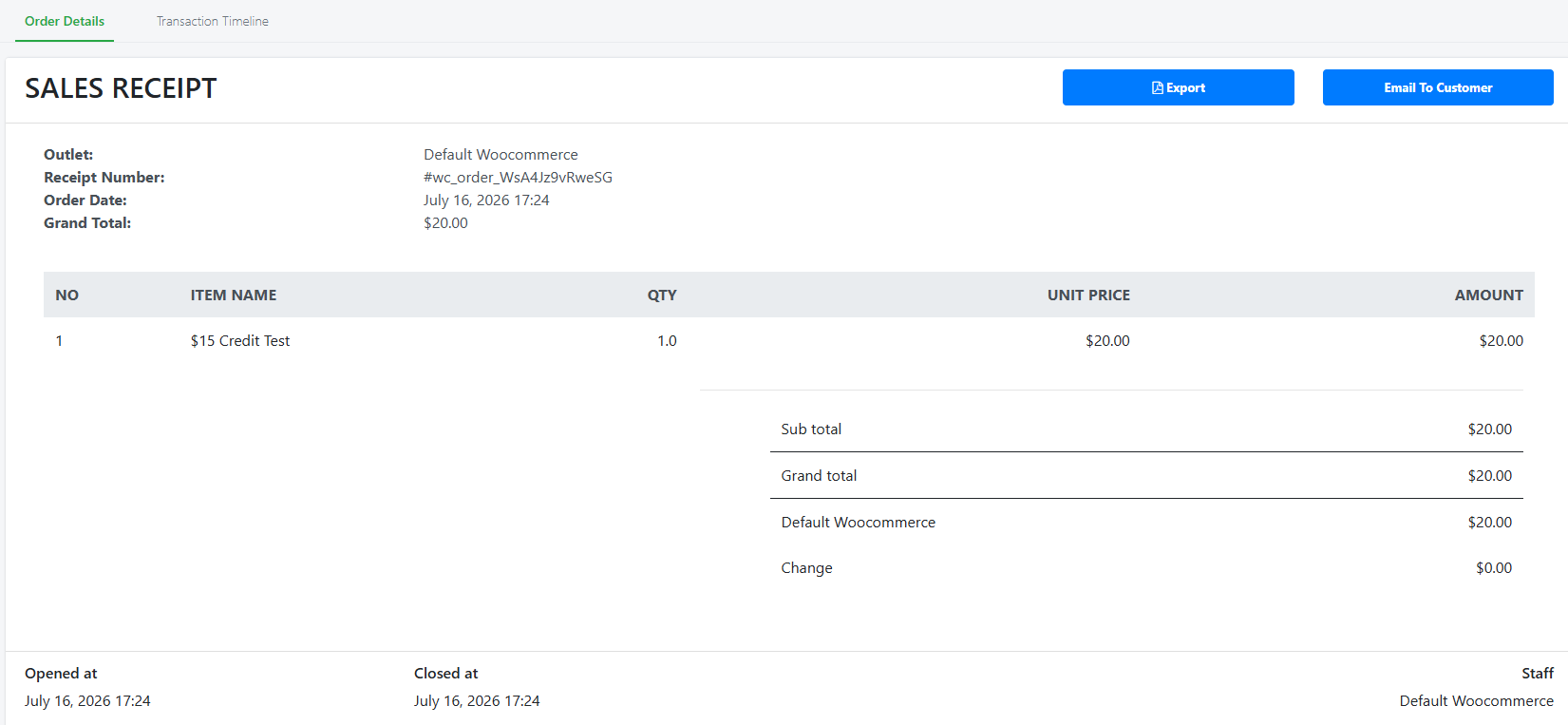
Check if orders created in Woo is sync to backend in EPOS
Backend > Integrations > Woocommerce > Orders,
Any customised fields entries that are not in EPOS will cause order sync to fail.
Order status that sync completely in EPOS will be Completed or Processing.
Order with status Cancelled, Refunded or on Hold from WooCommerce will show as Voided in EPOS.
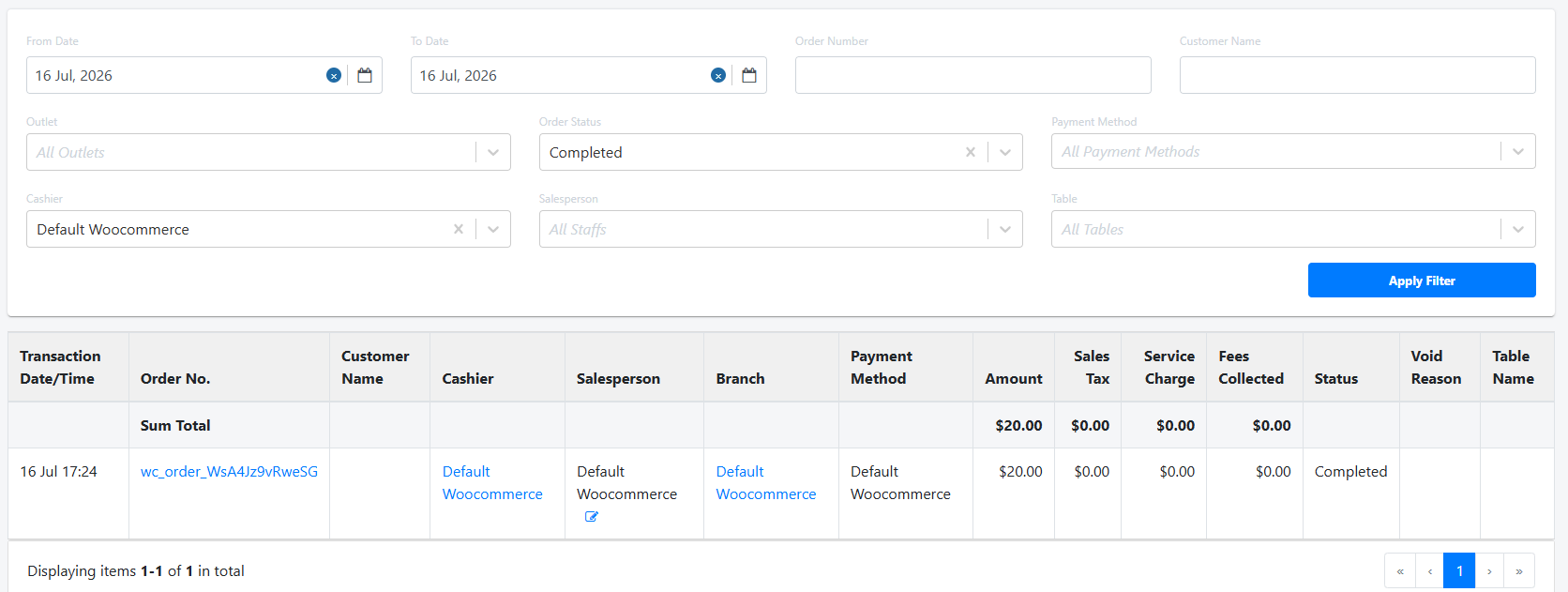
To view orders under Sales Report,
- Backend > Reporting > Sales Report > Transaction List
WooCommerce Order will be reflected as well.
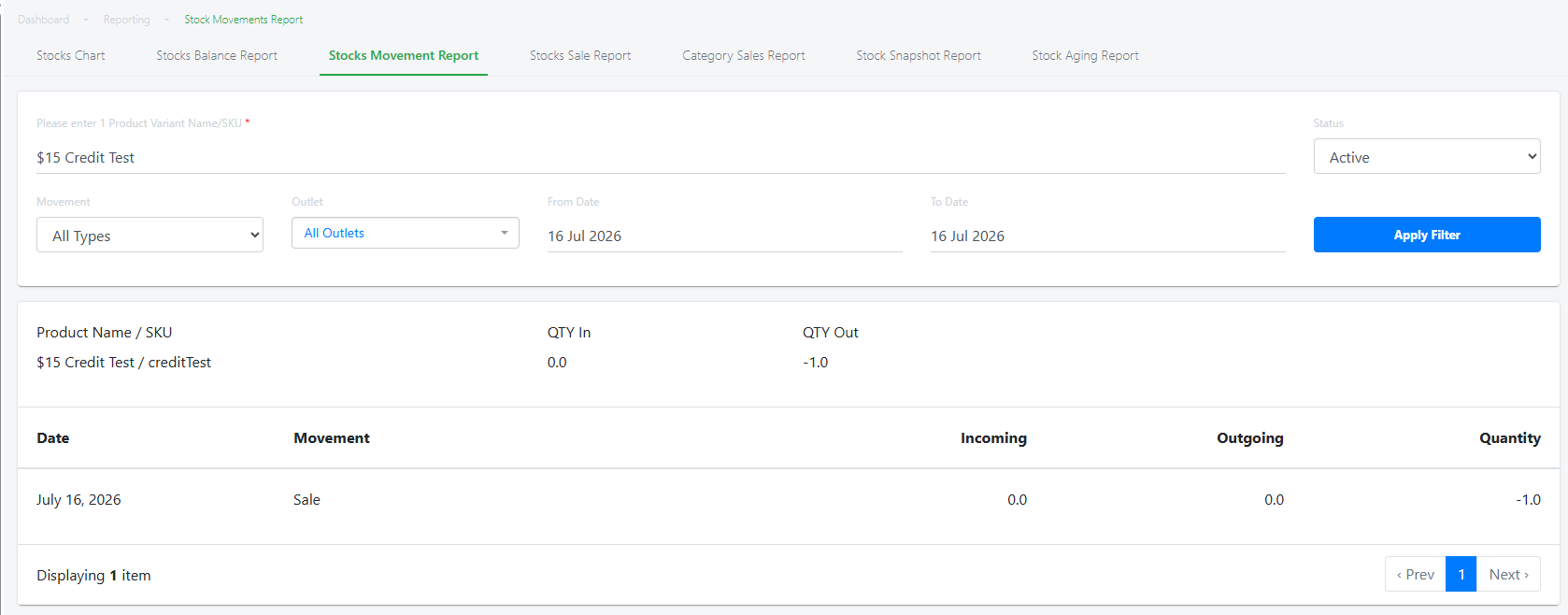
At the same time, Inventory deduction orders synced from WooCommerce
- Backend > Reporting > Stock Report >Stock Movement Report
To view under Inventory changes,
- Product > product list > select product > inventory

As integration sync is from WooCommerce to EPOS, it will be reflected on WooCommerce first.
When order is canceled, the order details will be shown cancelled.
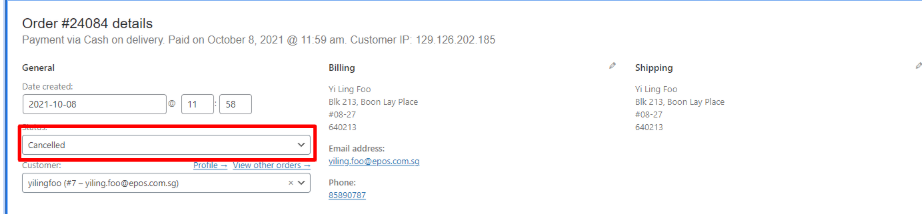
The Stock quantity will be updated(replenished).

IN EPOS Backend:
After order is cancelled in WooCommerce = Order will return message on WooCommerce Tab. Order had been cancelled already”.

Under Inventory Tab, it will also be updated accordingly.

Order Status “Processing” from WooCommerce will be sync to EPOS as “Finished”
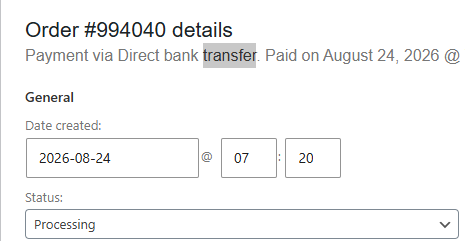
Order sync to EPOS as “Finished“

Inventory Levels Deducted:

NOTE: Do not create backdated or advance orders in WooCommerce. It will not be sync to EPOS
From WooCommerce to EPOS Frontend:
Backend > Integrations > Third Party Syncing
Createa new config to setup the store would like to sync WooCommerce orders to native app POS.
Tick ‘Allow orders from origin to sync to POS’.
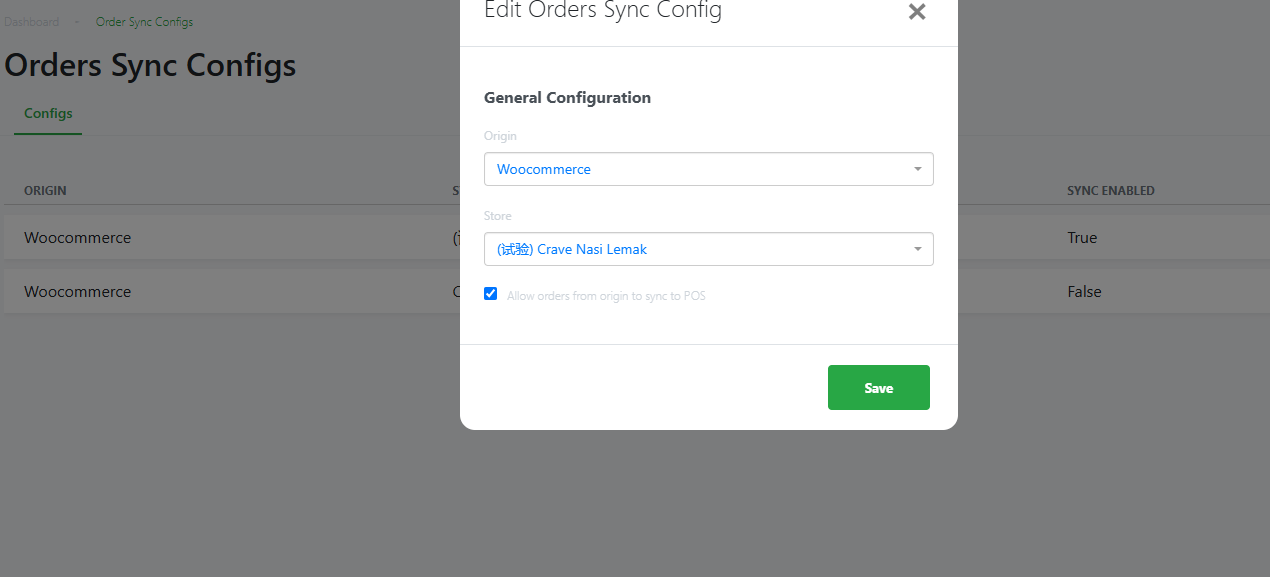
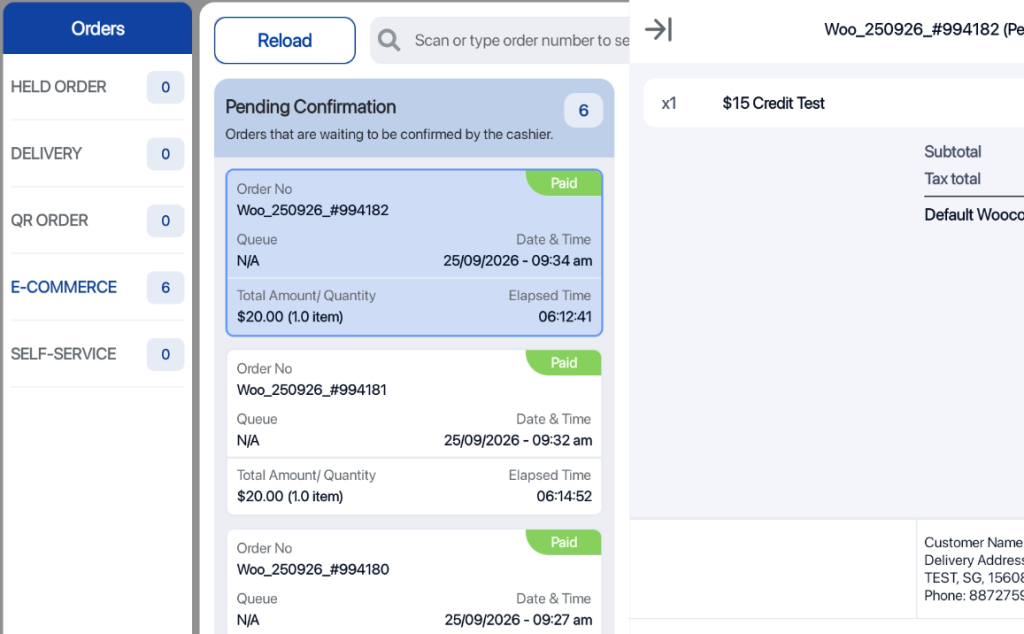
WooCommerce orders will sync to POS
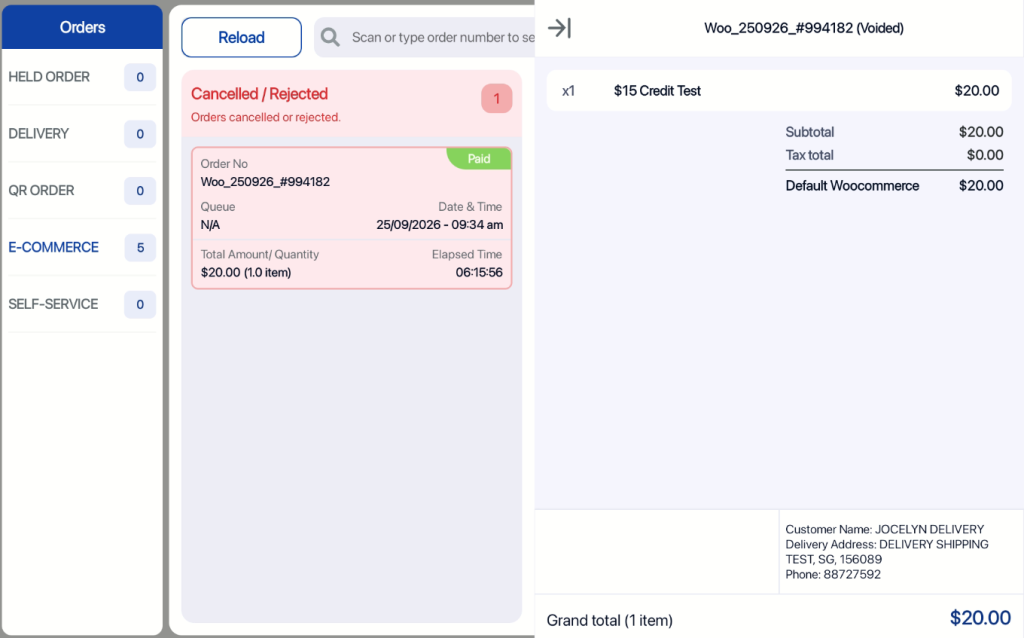
- Bell Icon > E-Commerce Tab and user can choose to confirm/void.
- Once the order is synced, inventory is deducted automatically (although the order is not confirm/void here yet.
- Cashier can view customer details on WooCommerce order, for both customers logged in via EPOS CRM Plugin (if installed) and guest customers.
- Customer details includes Name, Delivery Address, and Phone Number for cashier to see shipping information.
Windows POS
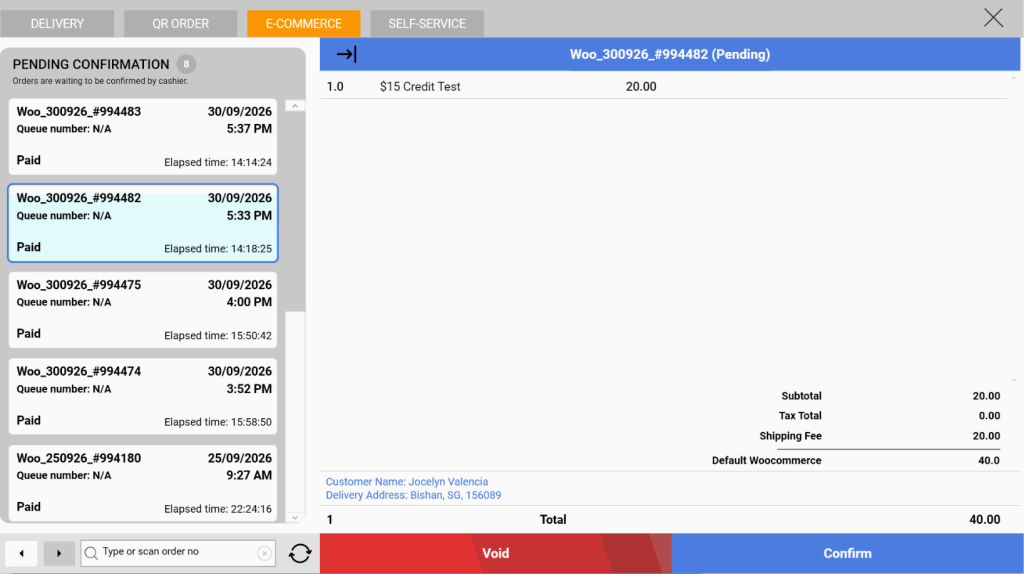
Android POS
Confirmation:
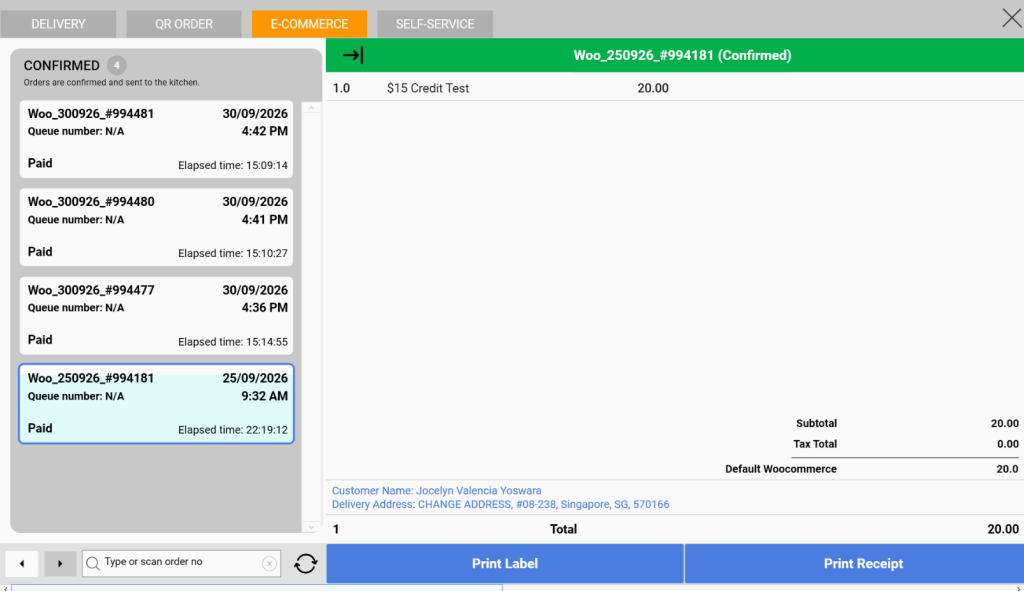
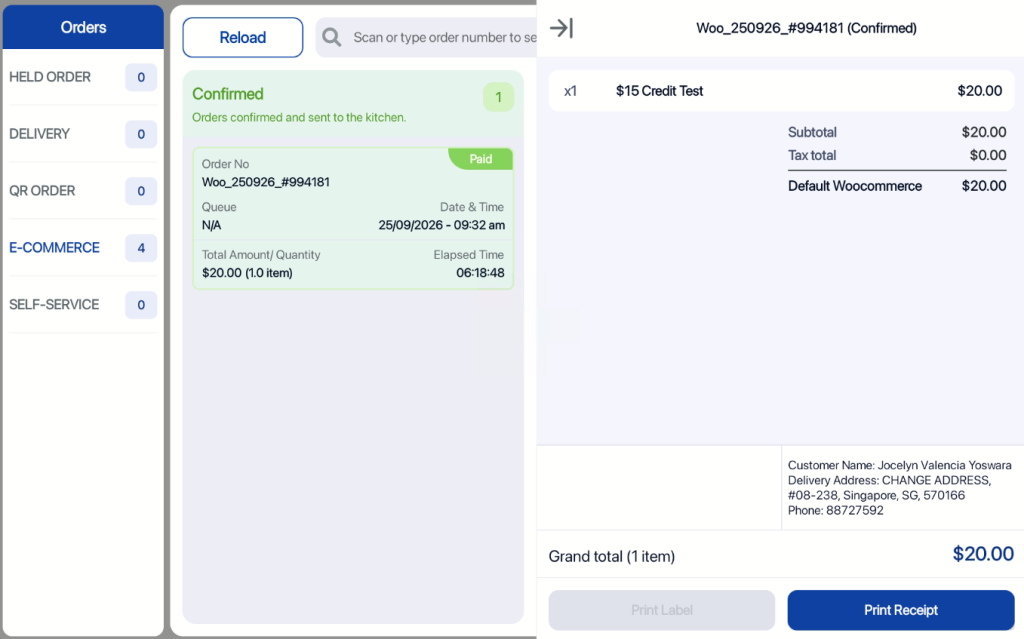
When users click confirmed, the order will move to confirm section.Users can go back to this order and click “Print Receipt” or Print “Label” if they wish to reprint the receipt or label.
Windows POS
Android POS
Voiding:
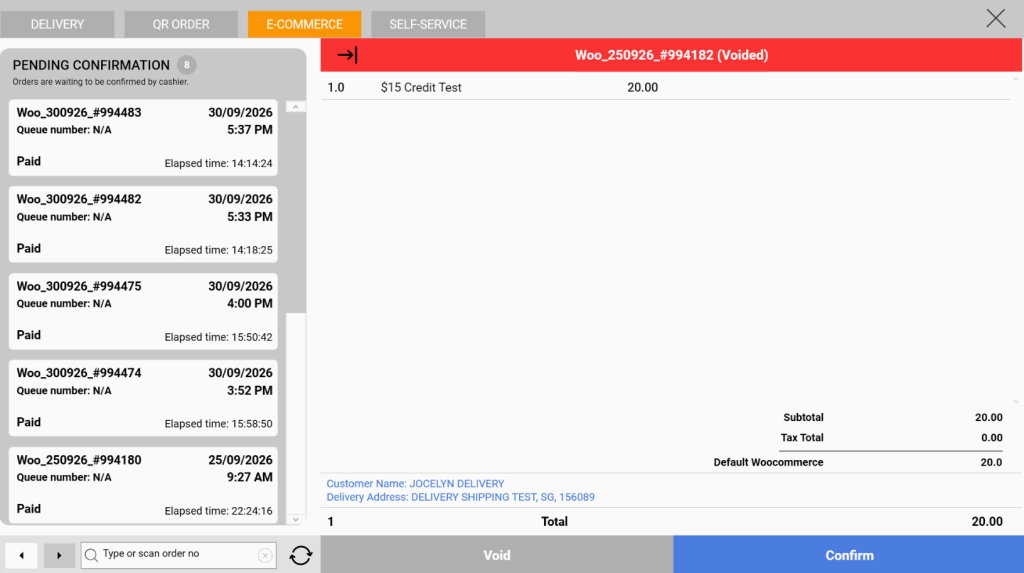
When users click “Void”, this order will be voided.
The inventory will be updated in both EPOS V5 and WooCommerce.
However the status of order is not and only be changed on WooCommerce
Windows POS
Android POS