Once the user goes to the checkout page, the user can click ‘Voucher Code’ to show the vouchers that the customer has. Users can either select the available voucher directly or enter the voucher code to apply.
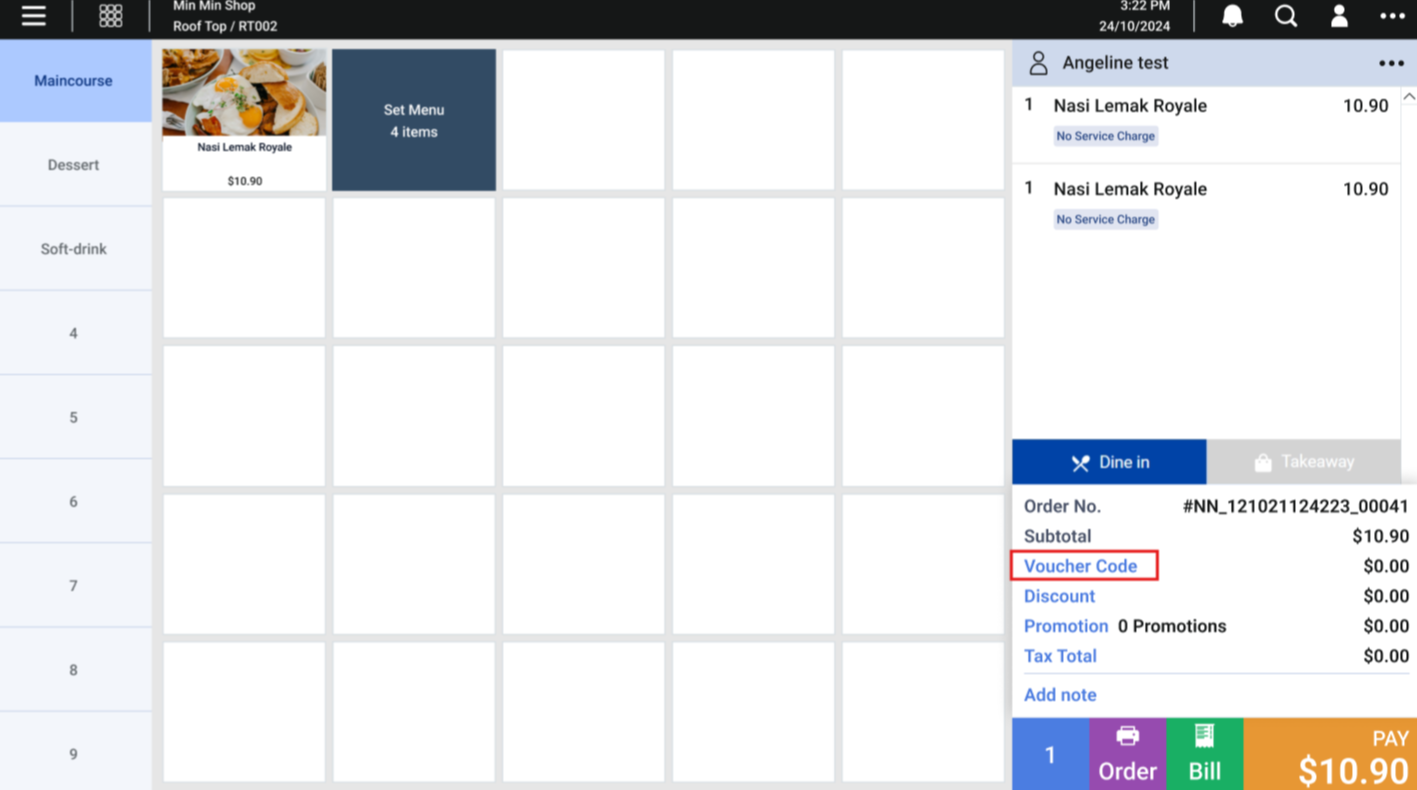
Apply Voucher via Select Available Voucher
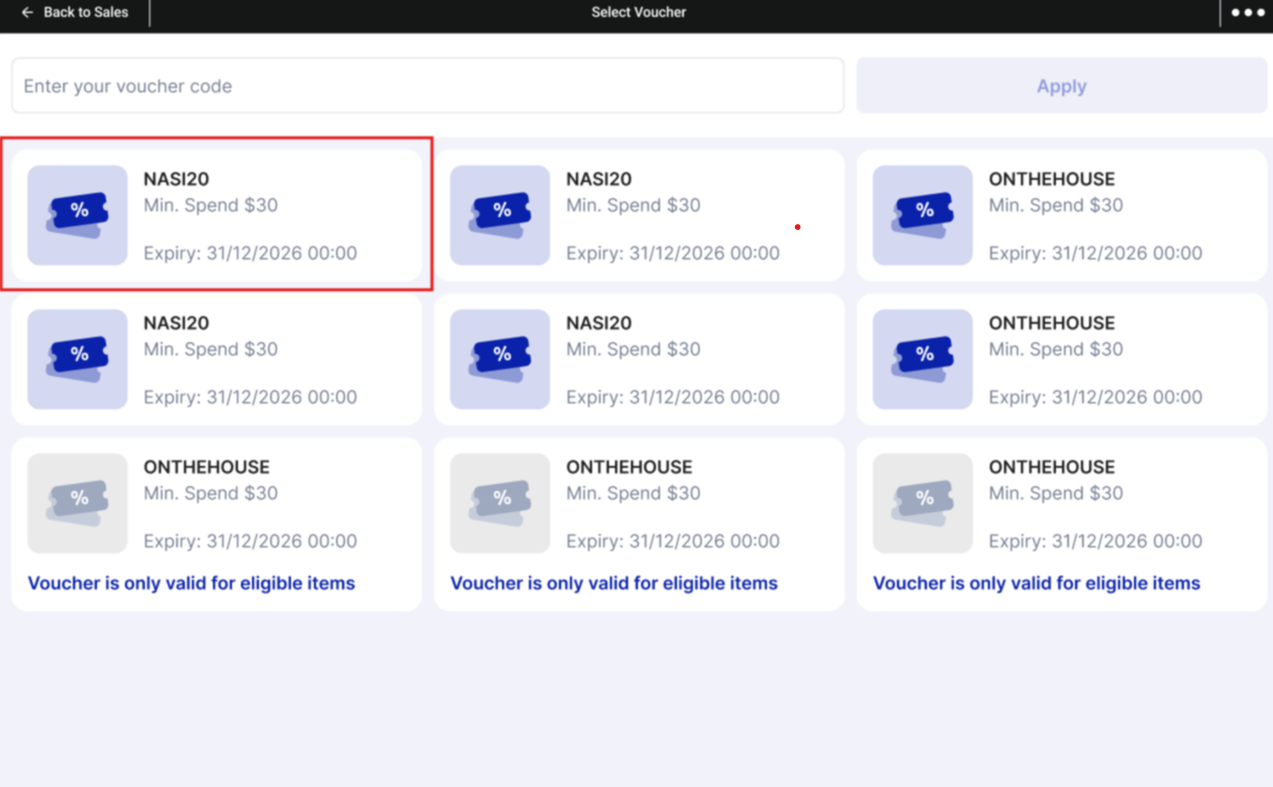
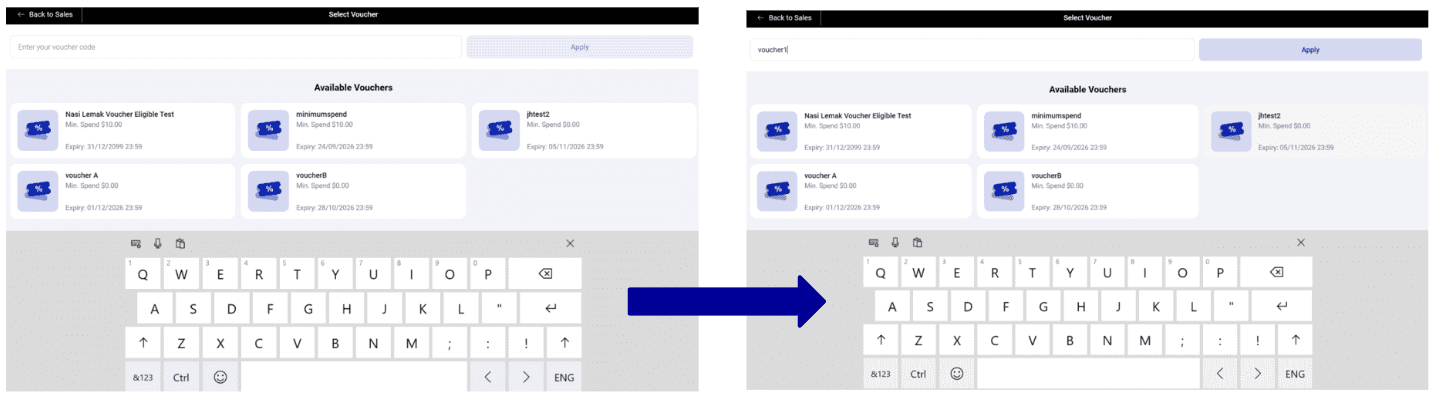
Users can select the available vouchers and click ‘Apply’ once the voucher code appears in the search field.
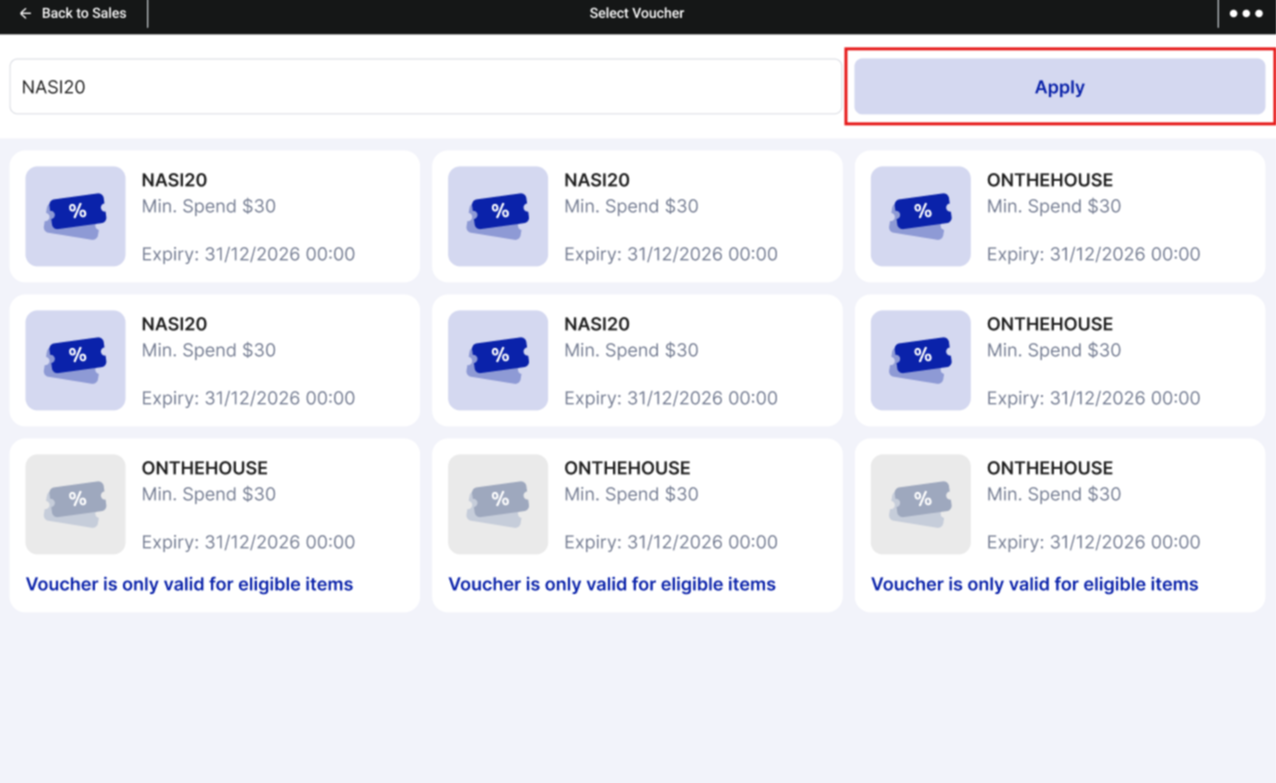
Apply Voucher via Type Voucher Code
Users can also type in the voucher code and click ‘Apply’ once done.
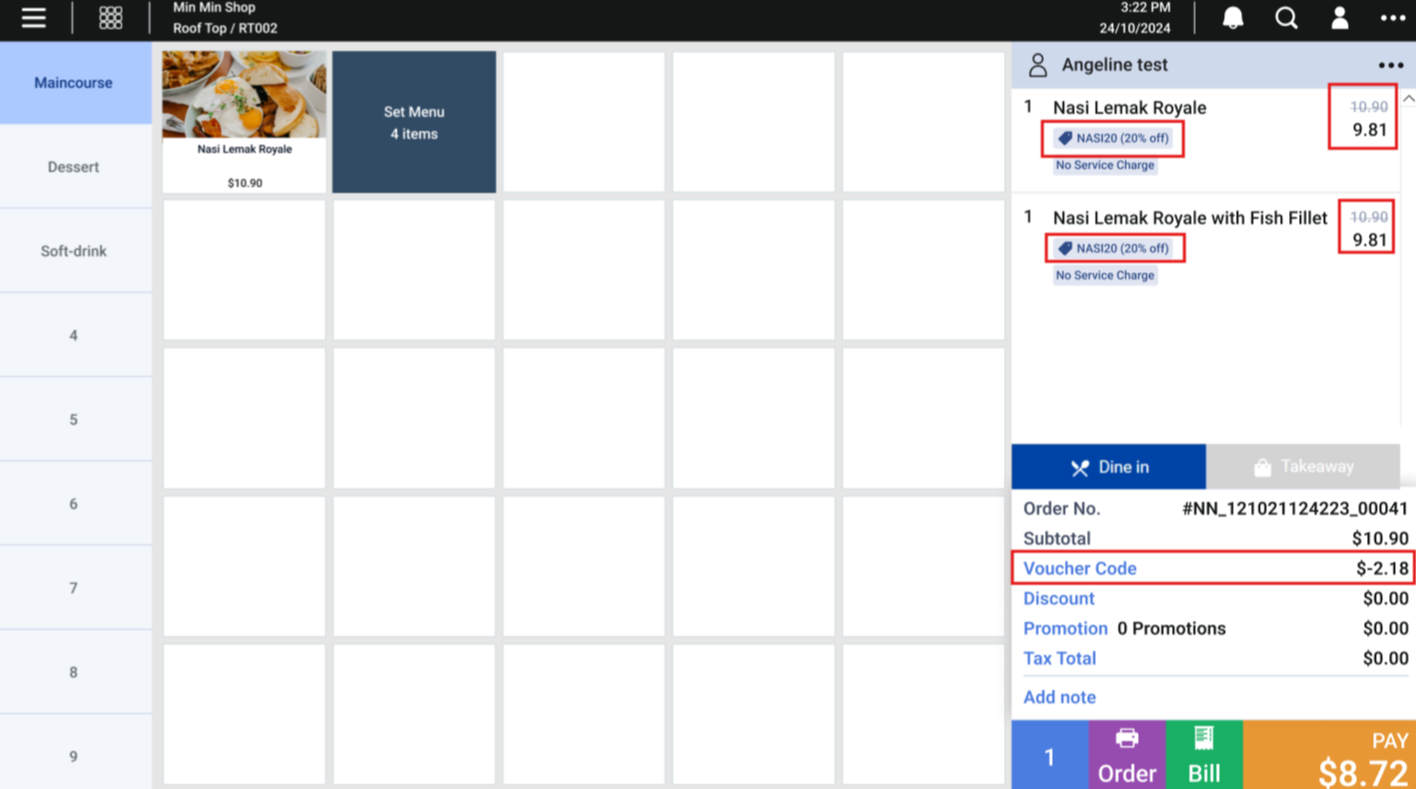
Voucher Code Applied
Once applied, voucher code and the discount amount will be shown in the sales view. Users can proceed with checkout as per usual process.
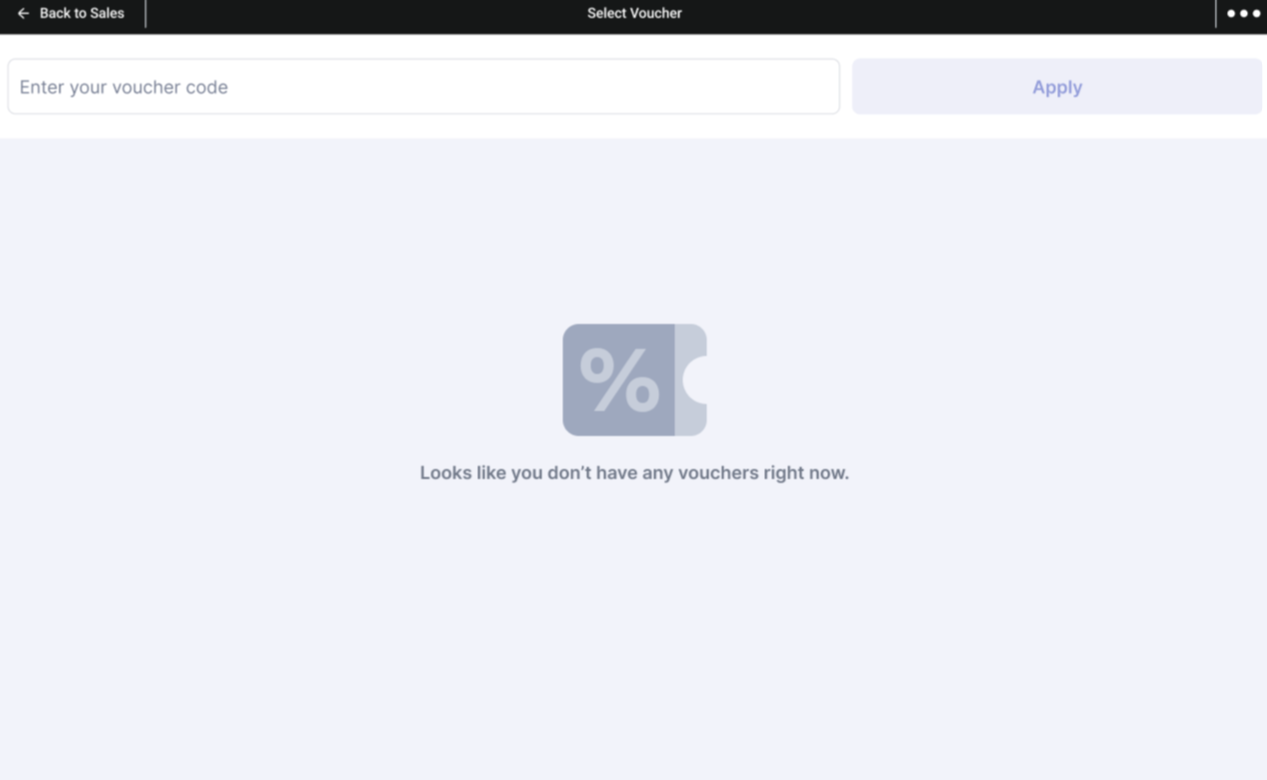
No Available Vouchers
If the customer does not have any vouchers, there will not be any available voucher displayed. However, users can still apply the voucher code in the field.
Removal or Change of Vouchers
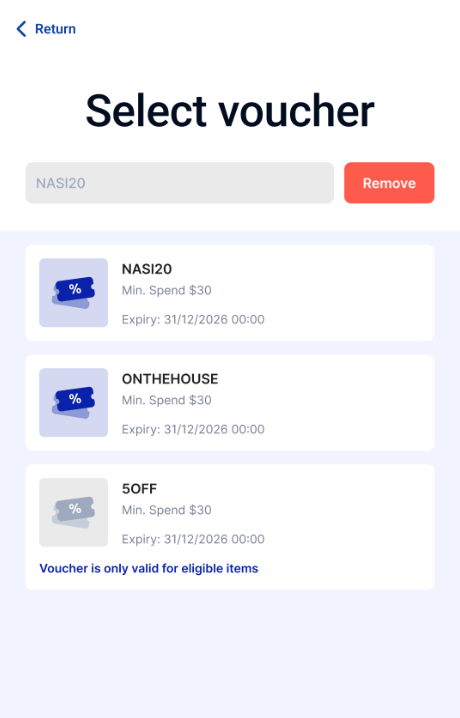
Customers can click ‘Voucher Code’ again to remove or change voucher usage. They will be brought to the Vouchers page, with their code already filled in the field.
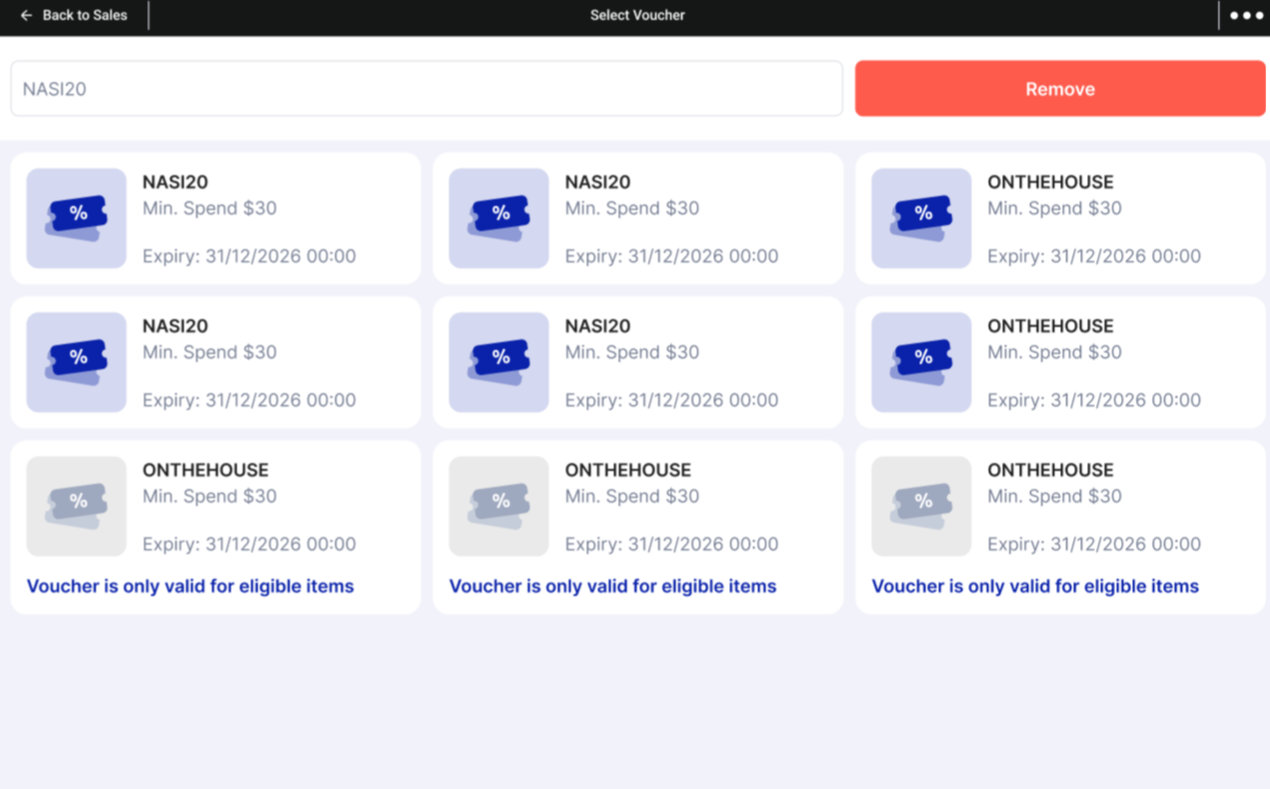
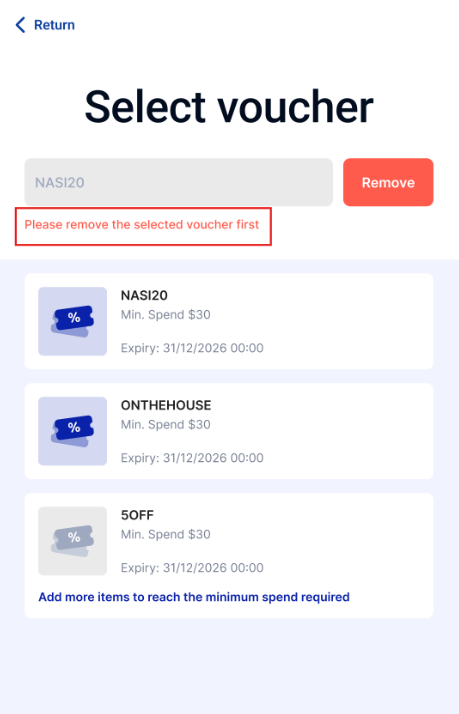
Please note that a voucher needs to be removed first in order to select another voucher.

Customers can select and apply the voucher again afterwards. 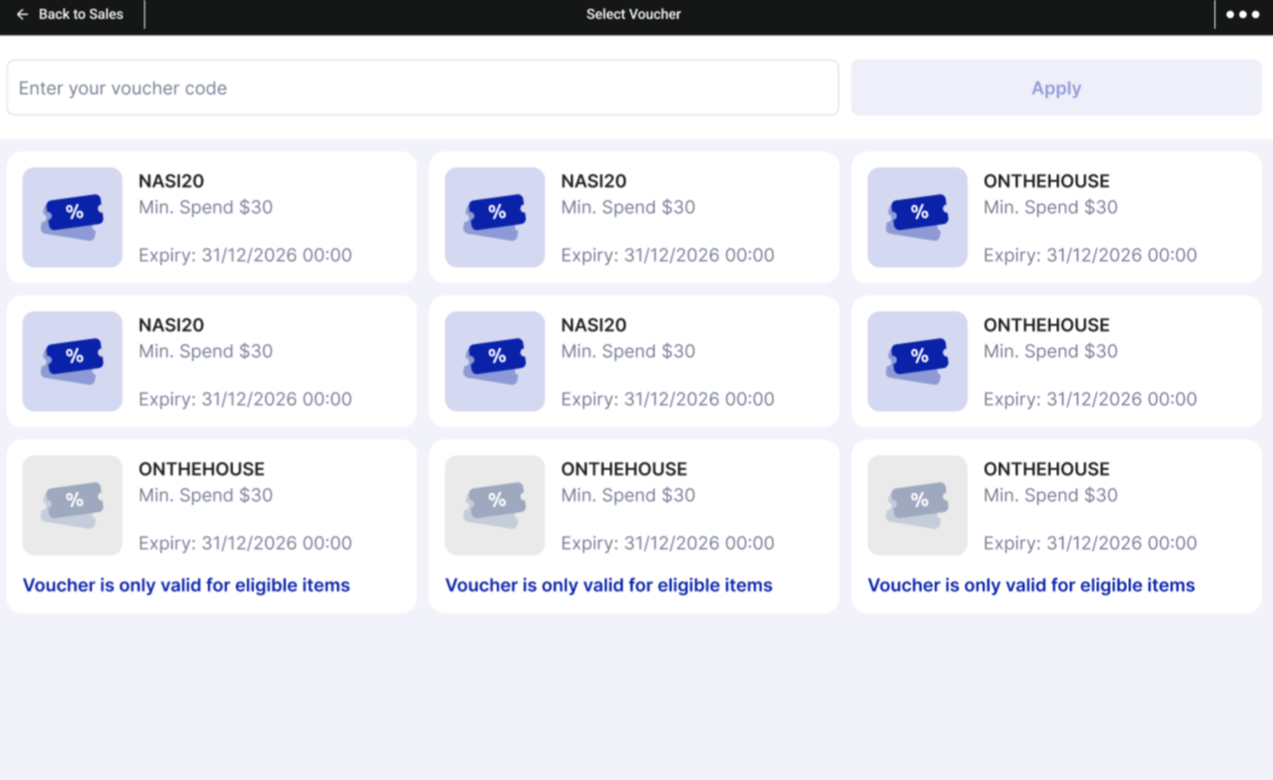
Applying Vouchers
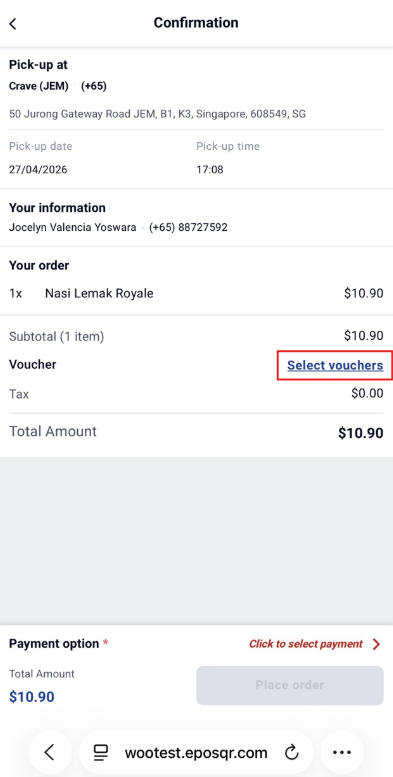
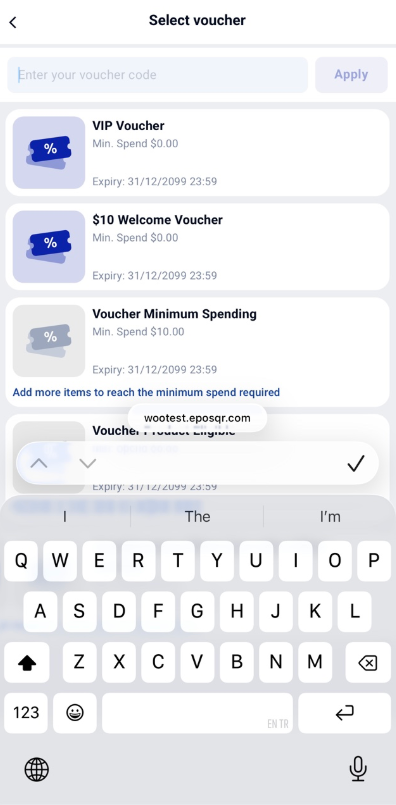
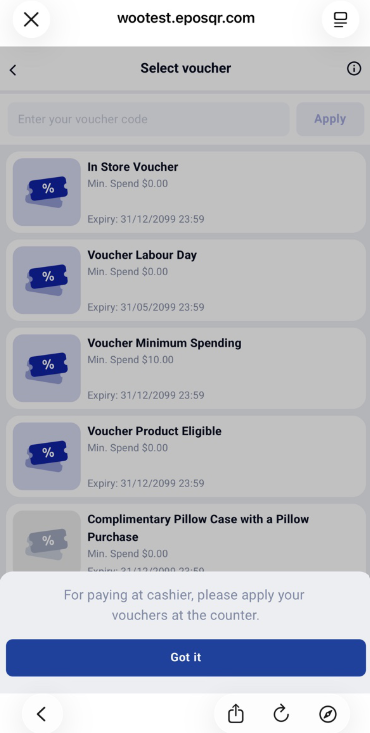
Once the customer goes to the checkout page and clicks “Select Vouchers”, the vouchers that they have will be shown in the voucher page selection. Customers are able to select the available vouchers or enter the voucher code to apply it.
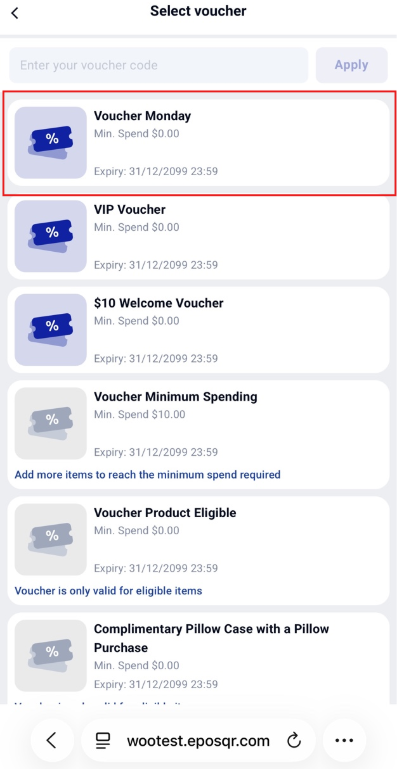
Apply Voucher via Selection of Voucher
Users can click on the voucher directly, and once the voucher code appears in the search field, they can click apply to use the voucher.
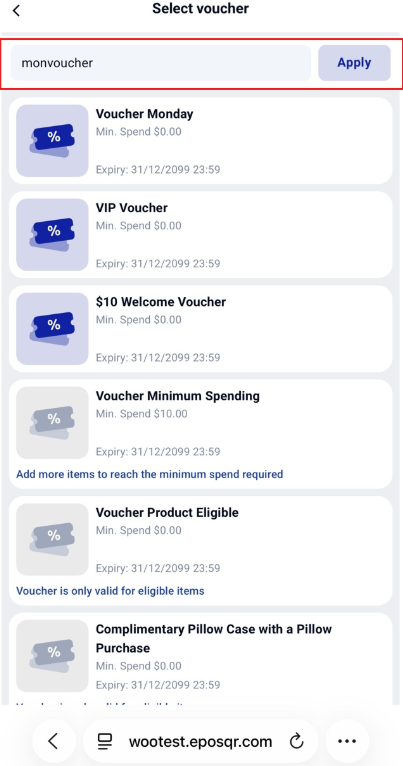
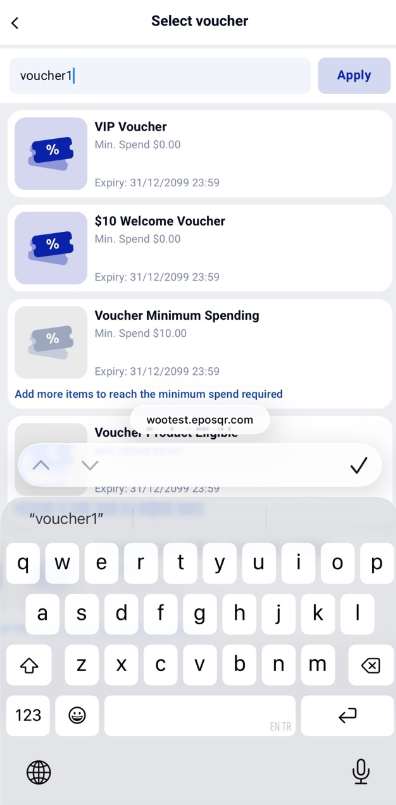
Apply Voucher via Type in Voucher code
Users can type in the voucher code in the search bar and apply it as well.
No Vouchers
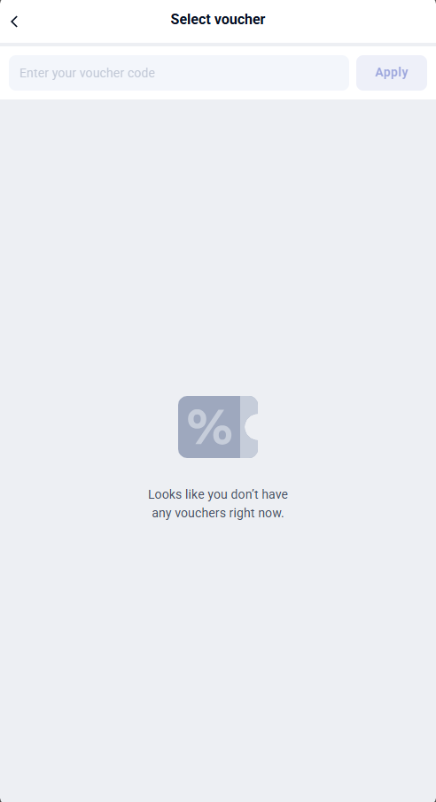
If the customer does not have any voucher, there will not be any available voucher displayed. However, they can still apply the voucher code in the field.
Tooltip for Payment at Cashier
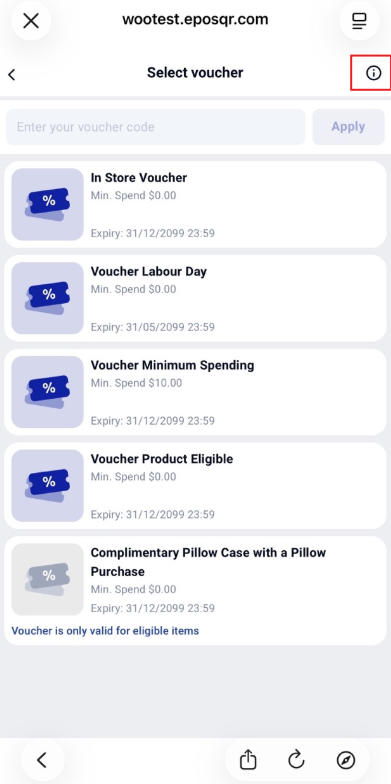
There is a tooltip on the top right-hand corner of the voucher page, which will let users know that the voucher can only be applied at the counter for the ‘Pay at Cashier’ payment method.
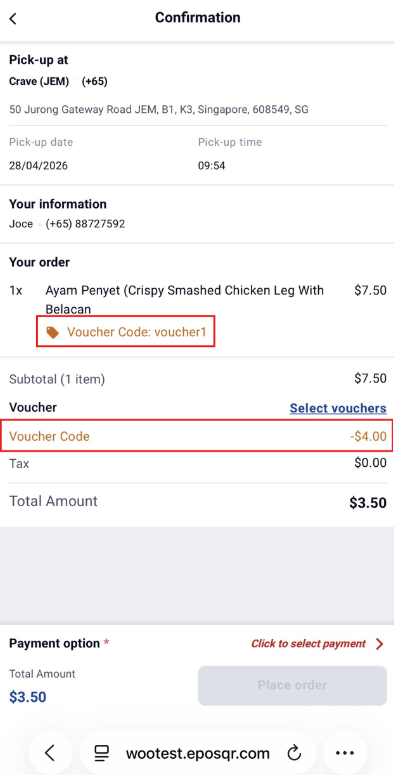
Voucher Code Applied
Once applied, voucher code and the discount amount will be shown in the checkout page. Customers can proceed with checkout as per usual process.
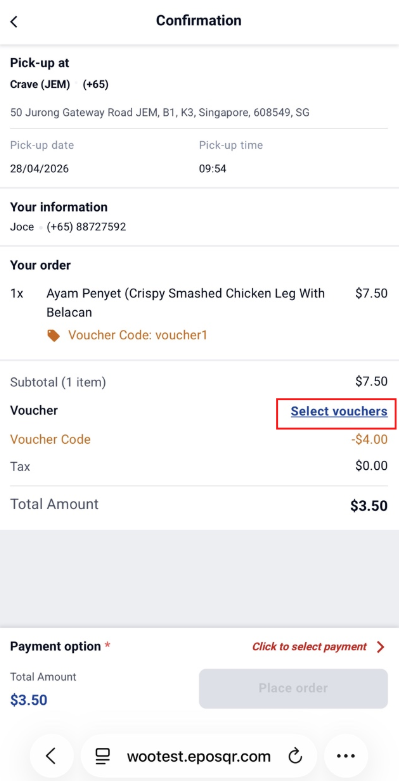
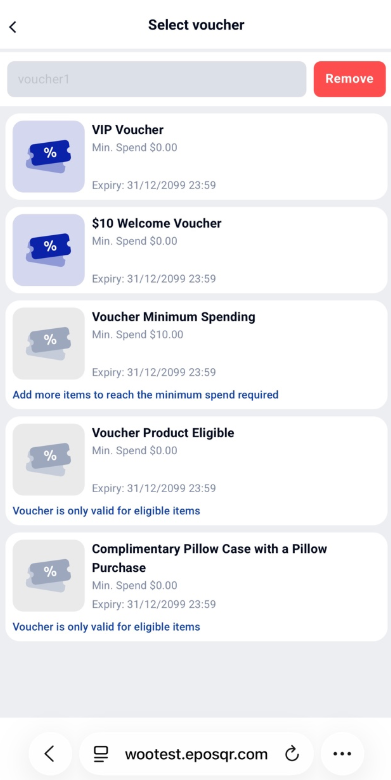
Removal or Change of Vouchers
Customers can click ‘Select Vouchers’ again to remove or change voucher usage. Please note that a voucher needs to be removed first in order to select another voucher. Customers can select and apply the voucher again afterwards.
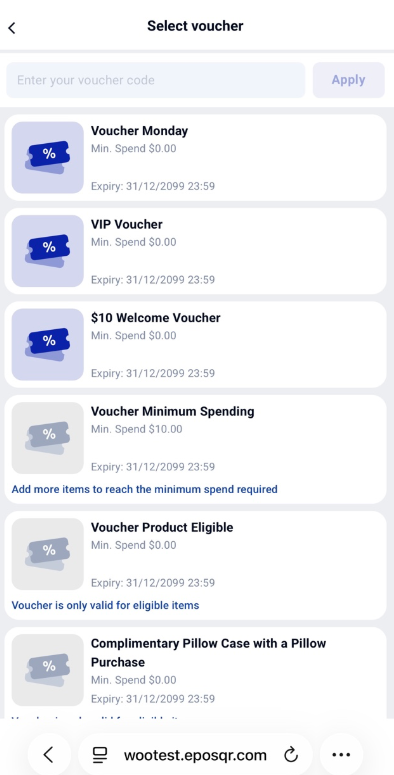
Once the user goes to the checkout page, the user can click ‘Voucher Code’ to show the vouchers that the customer has. Users can either select the available voucher directly or enter the voucher code to apply.
Apply Voucher via Select Available Voucher
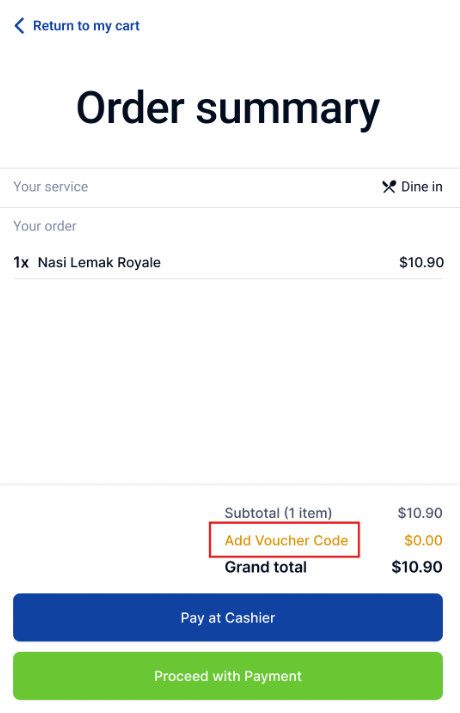
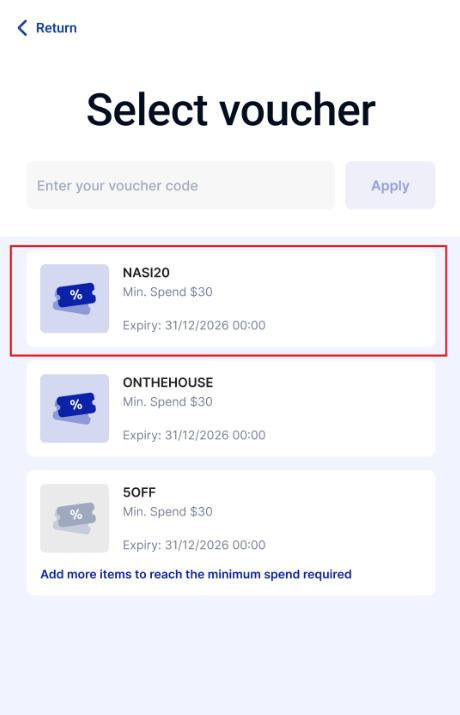
Users can click ‘Add Voucher Code’, select the available voucher, and click ‘Apply’ once the voucher code appears in the search field.
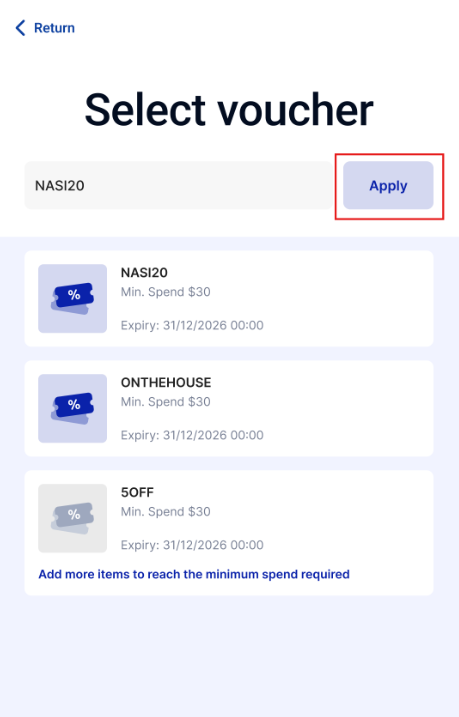
Apply Voucher via Type Voucher Code
Users can also type in the voucher code, and click ‘Apply’ once done.
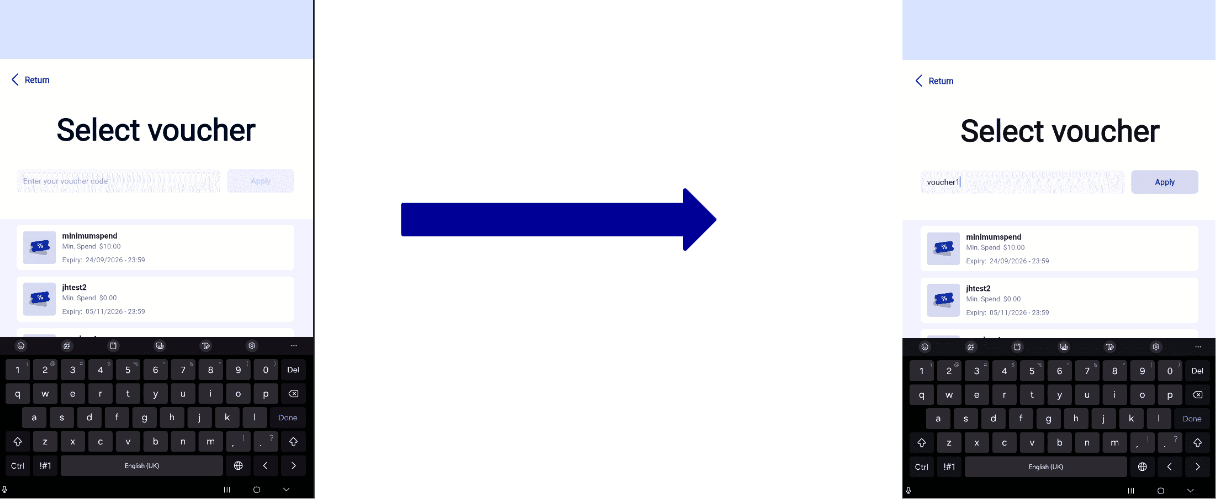
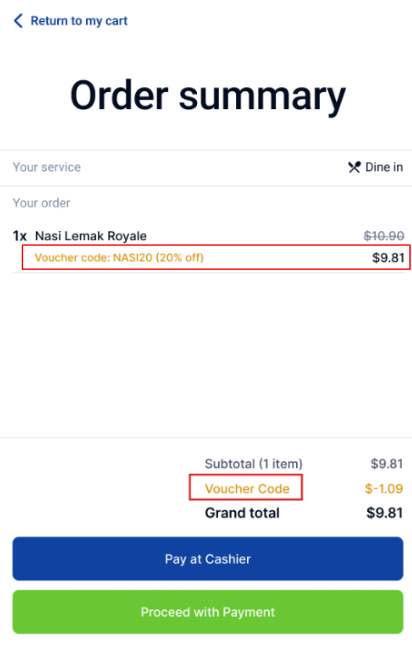
Voucher Code Applied
Once applied, voucher code and the discount amount will be shown in the checkout page. Users can proceed with checkout as per usual process.
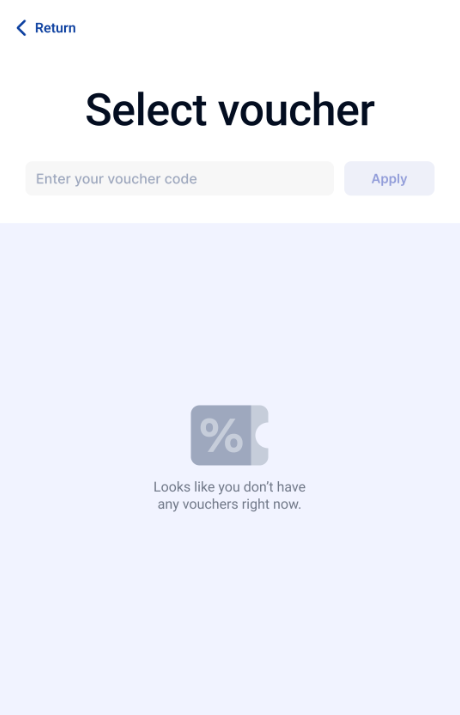
No Available Vouchers
If the customer does not have any vouchers, there will not be any available voucher displayed. However, users can still apply the voucher code in the field.
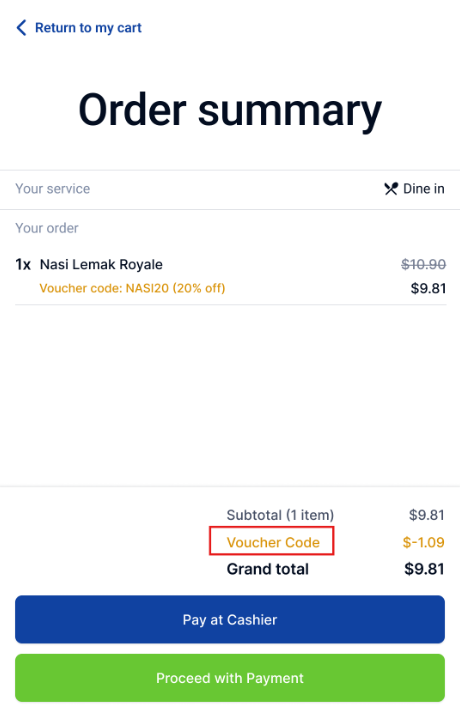
Removal or Change of Vouchers
Customers can click ‘Voucher Code’ again to remove or change voucher usage. Please note that a voucher needs to be removed first in order to select another voucher. Customers can select and apply the voucher again afterwards.
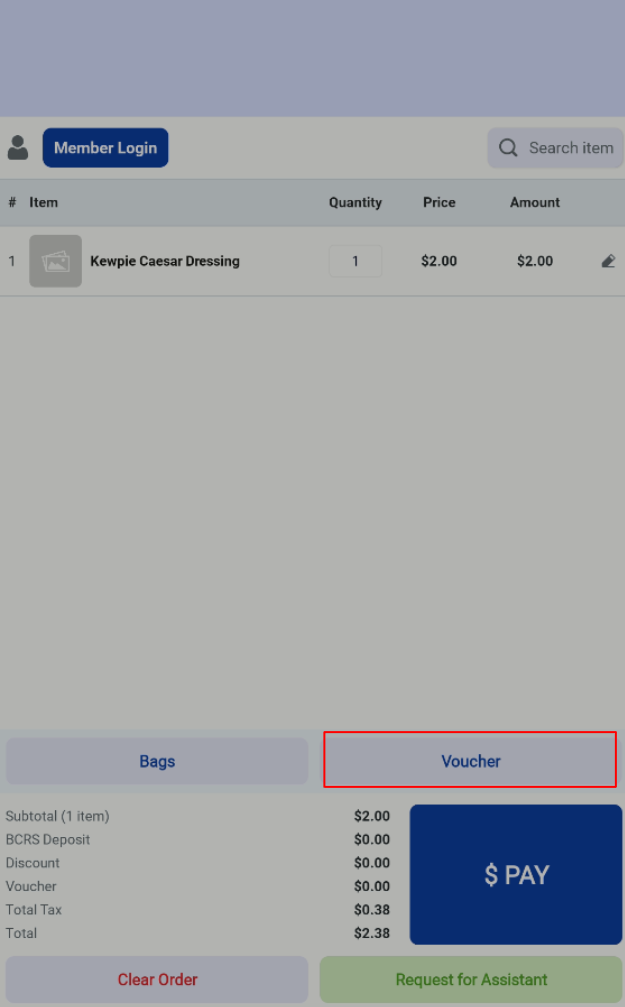
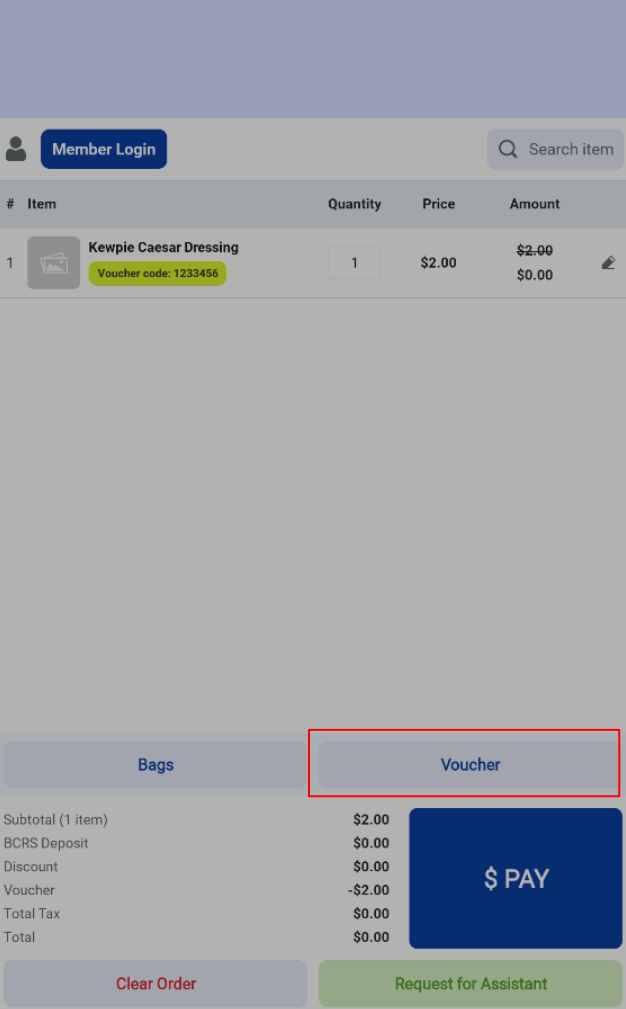
Once the user goes to the checkout page, the user can click ‘Voucher’ to show the vouchers that the customer has. Users can either select the available voucher directly or type/scan the voucher code to apply.
Apply Voucher via Select Available Voucher
Users can click ‘Voucher’, select the available voucher, and click ‘Apply’ once the voucher code appears in the search field.
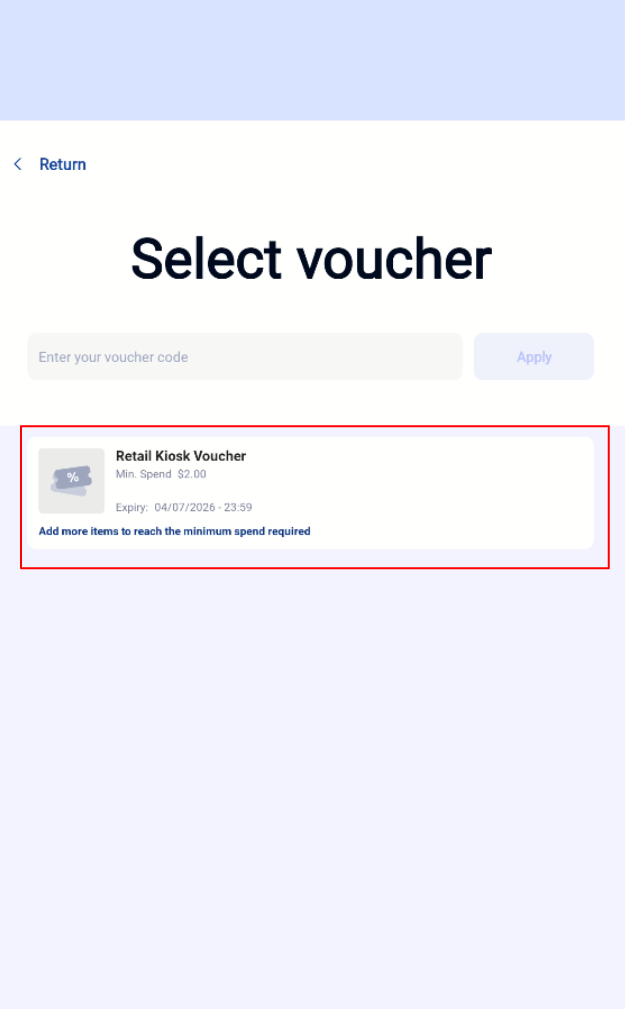
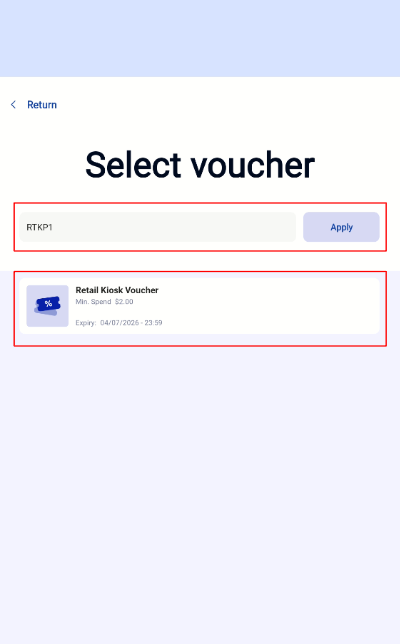
Apply Voucher via Type/Scan Voucher Code
Users can also type/scan in the voucher code, and click ‘Apply’ once done.
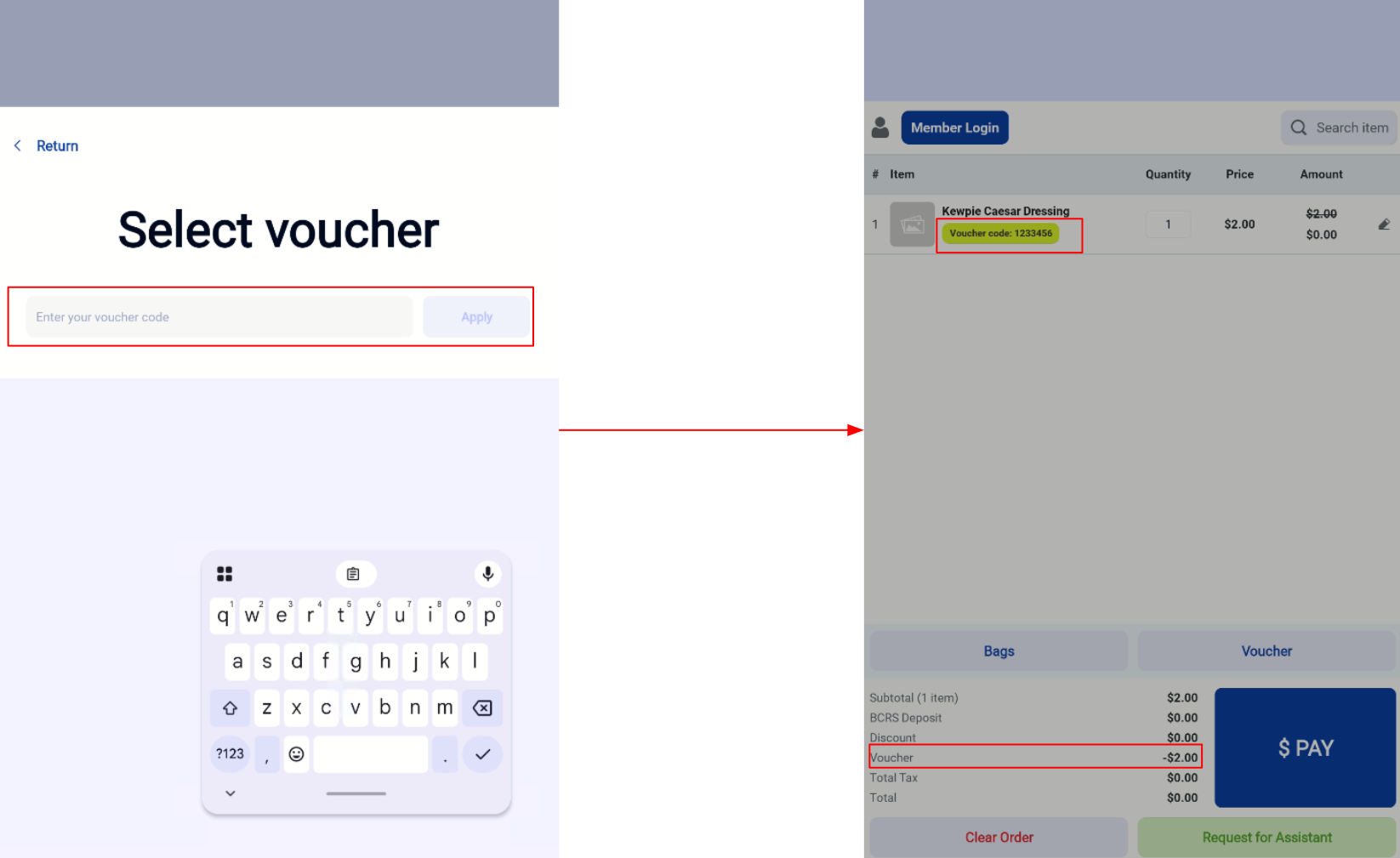
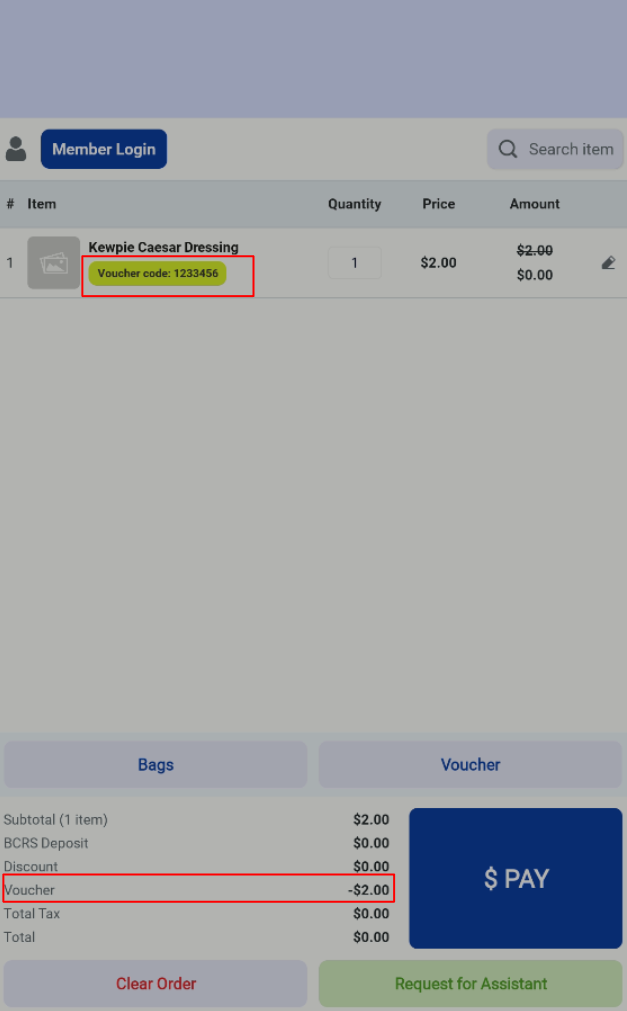
Voucher Code Applied
Once applied, voucher code and the discount amount will be shown in the checkout page. Users can proceed with checkout as per usual process.
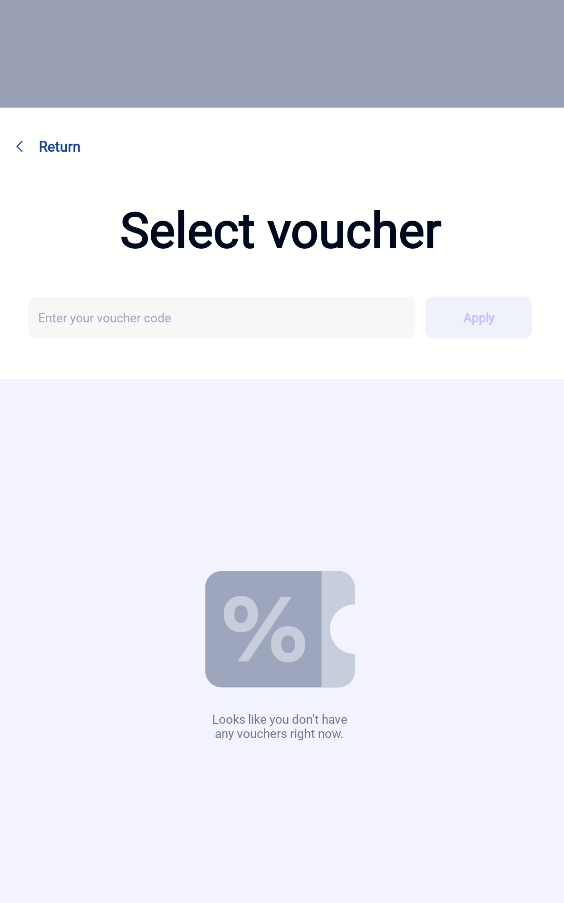
No Available Vouchers
If the customer does not have any vouchers, there will not be any available voucher displayed. However, users can still apply the voucher code in the field.
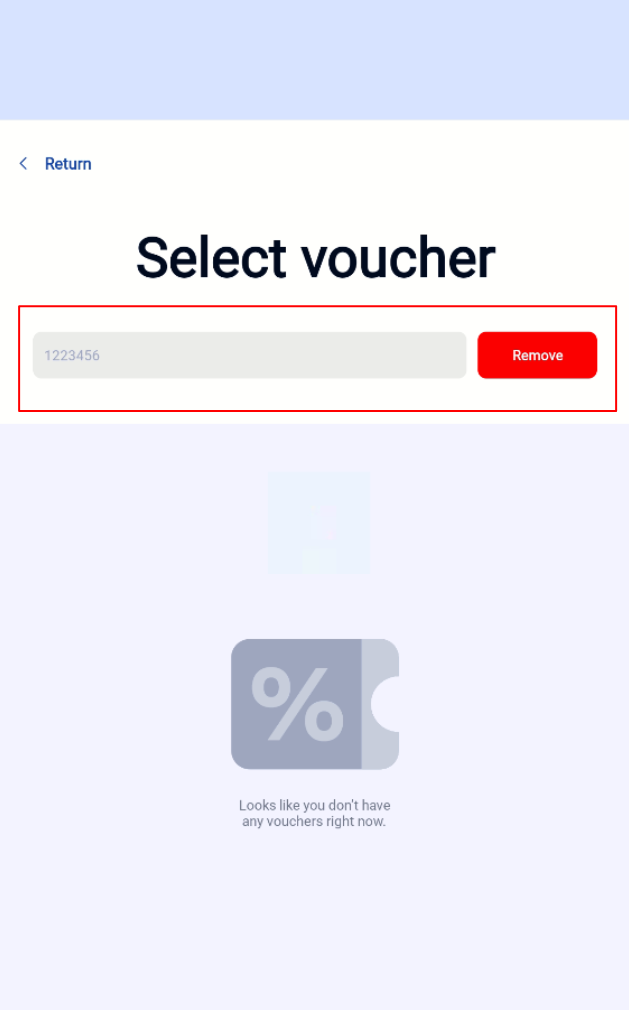
Removal or Change of Vouchers
Customers can click ‘Voucher’ again to remove or change voucher usage. Please note that a voucher needs to be removed first in order to select another voucher. Customers can select and apply the voucher again afterwards.
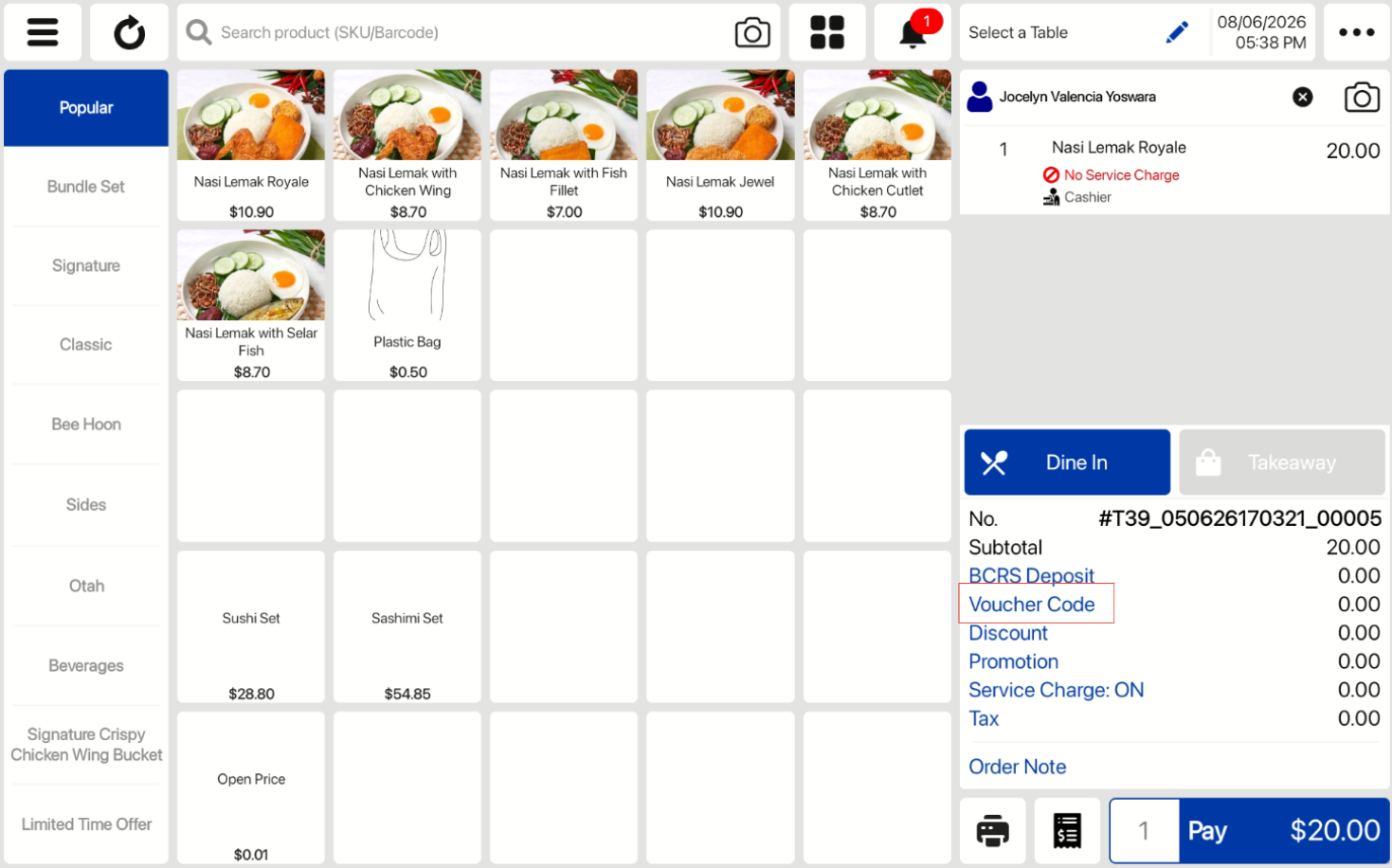
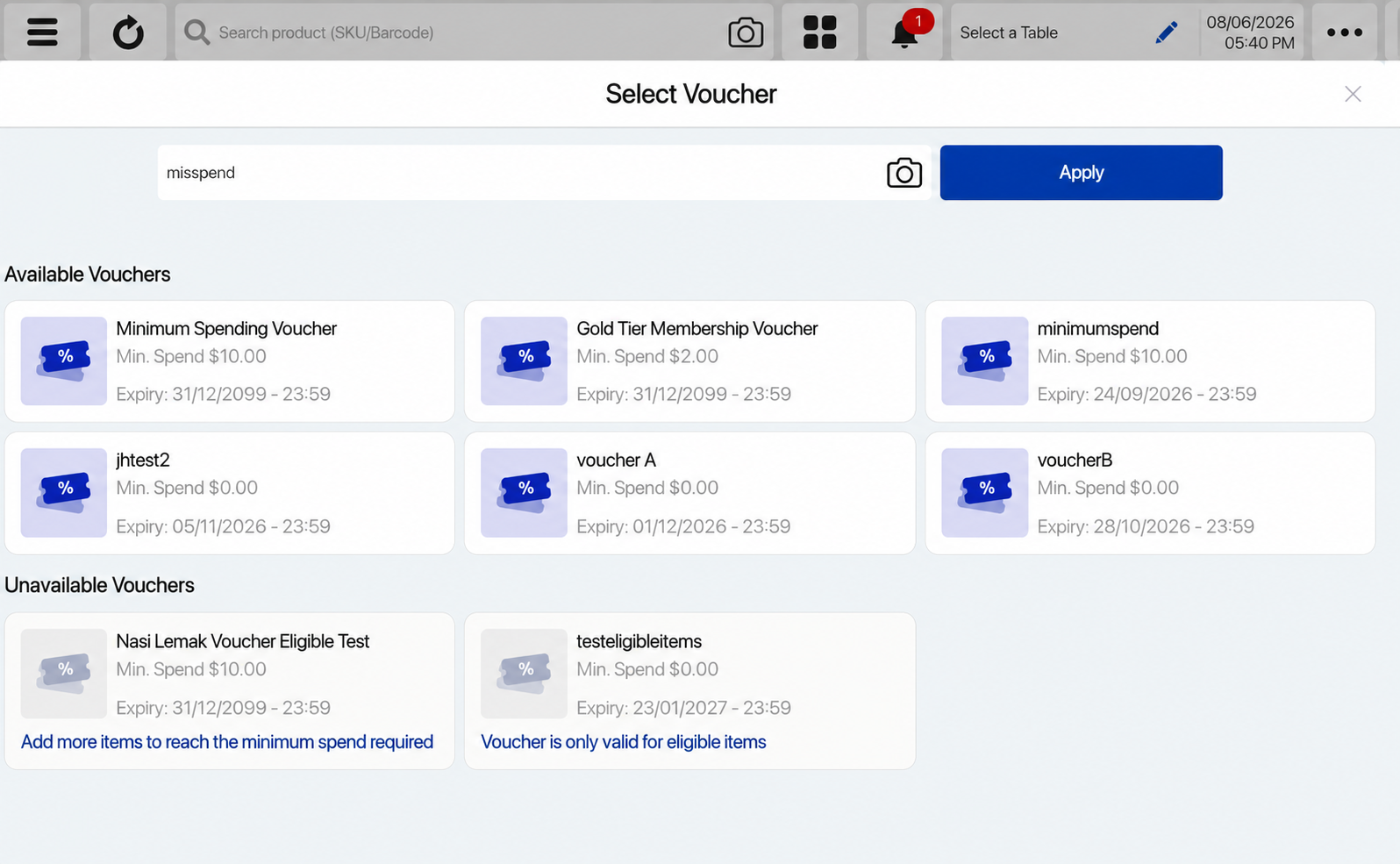
Once the user goes to the checkout page, the user can click ‘Voucher Code’ to show the vouchers that the customer has. Users can either select the available voucher directly, enter the voucher code to apply or use the camera function.
Apply Voucher via Select Available Voucher
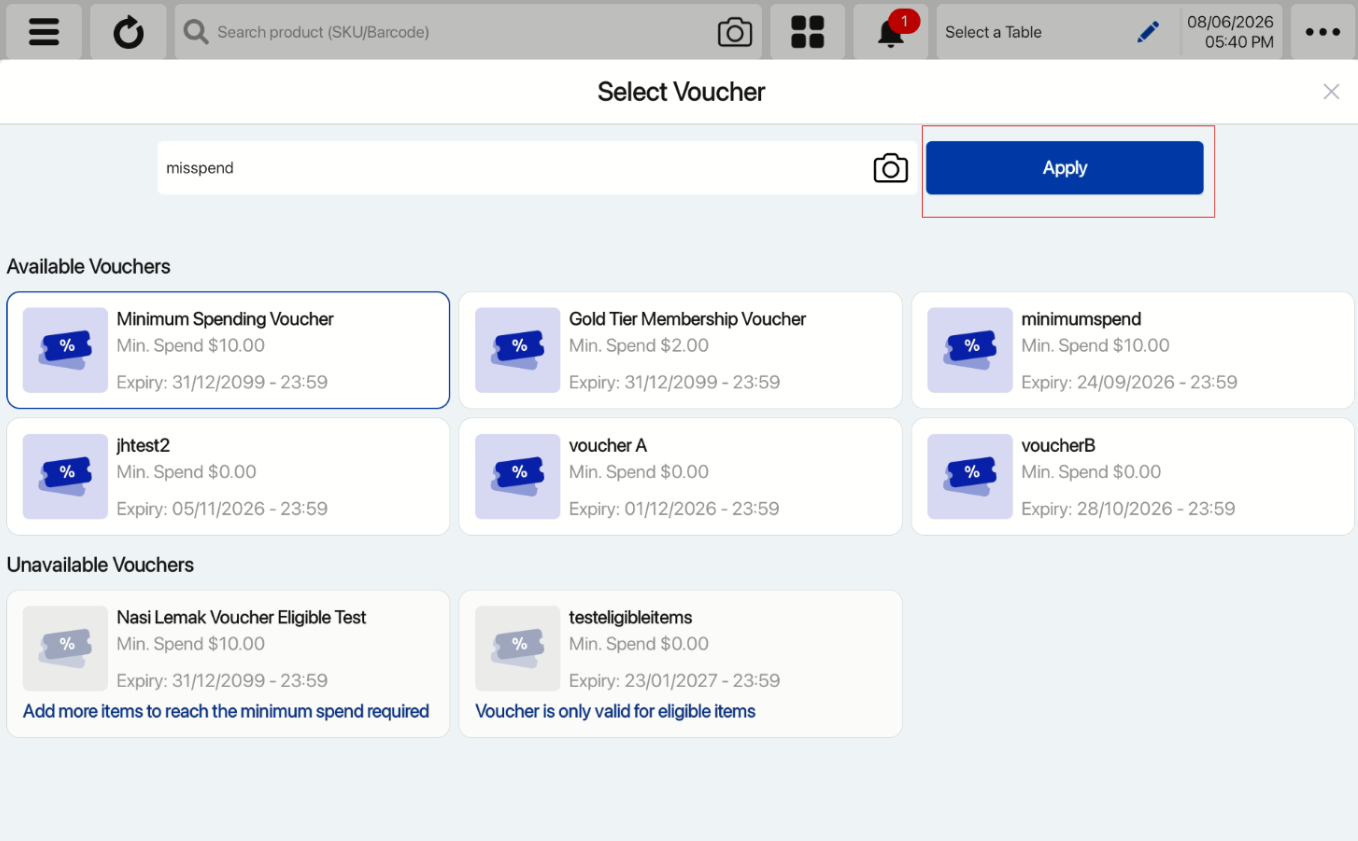
Users can select the available vouchers and click ‘Apply’ once the voucher code appears in the search field.
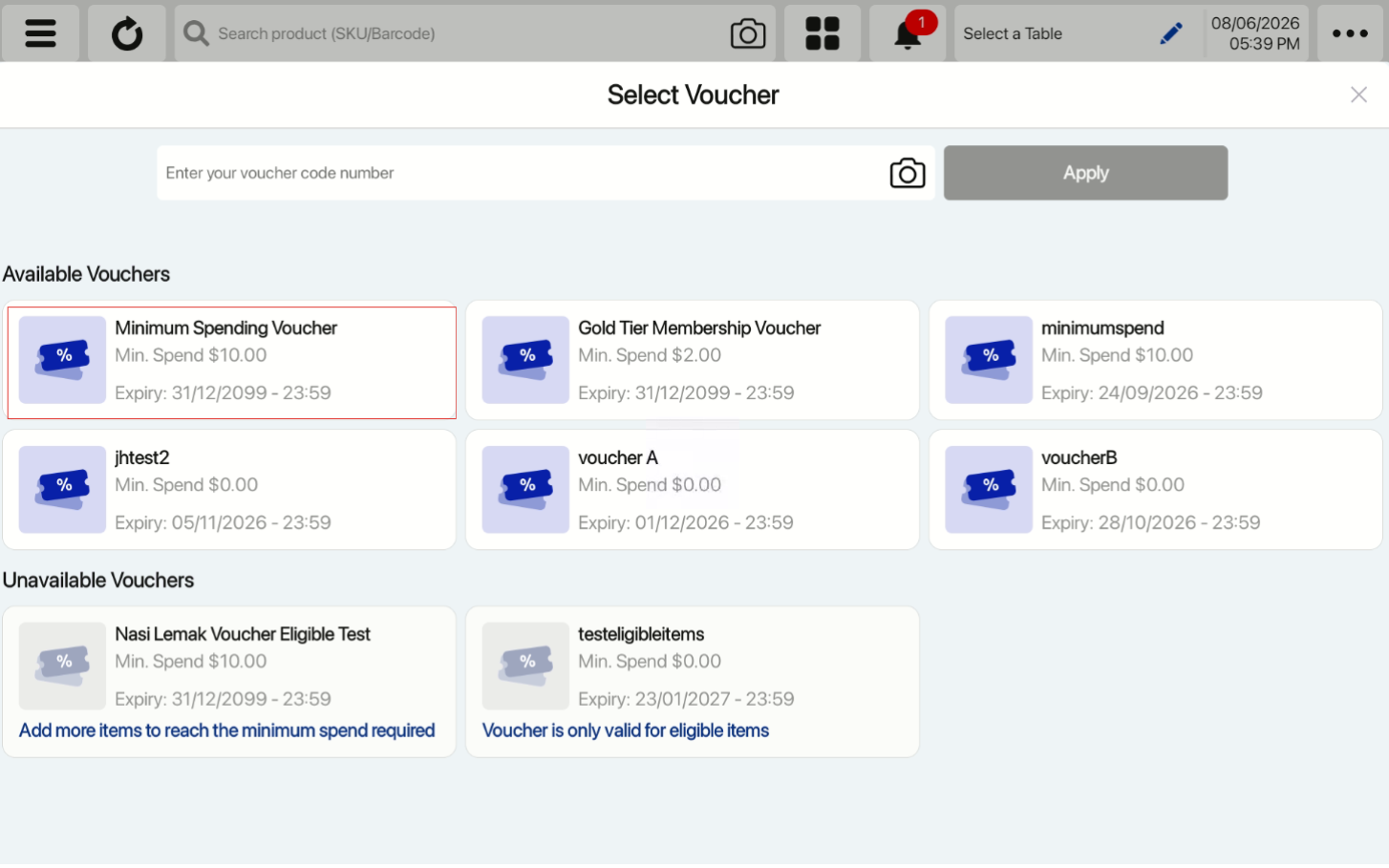
There will be a blue outline over the selected voucher as well.
Apply Voucher via Type Voucher Code
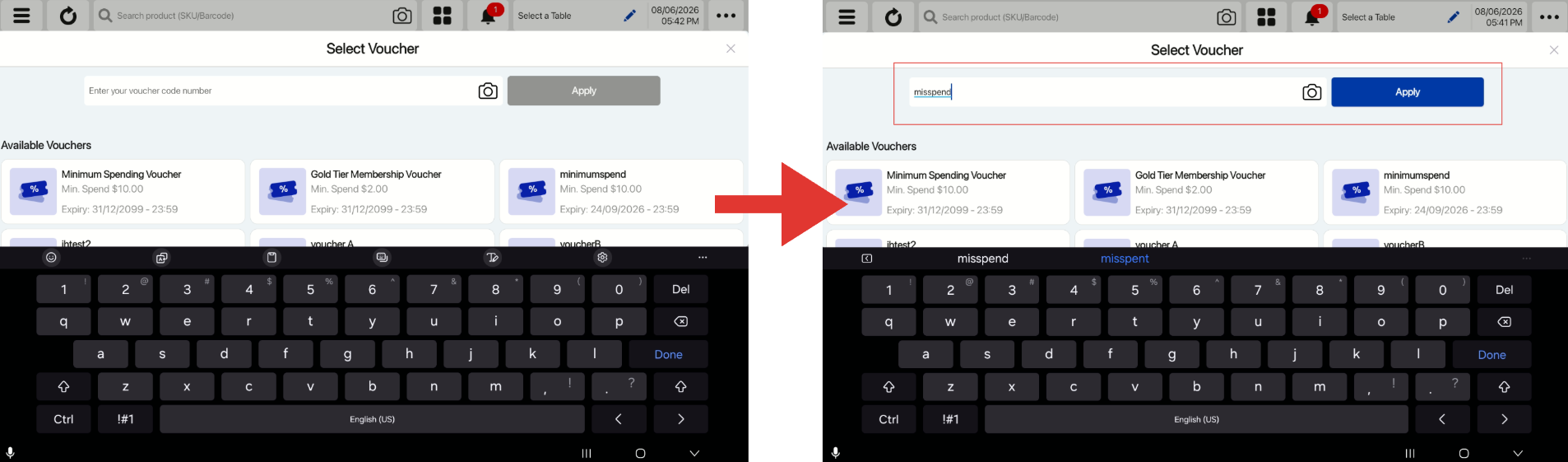
Users can also type in the voucher code and click ‘Apply’ once done.
Apply Voucher via Camera
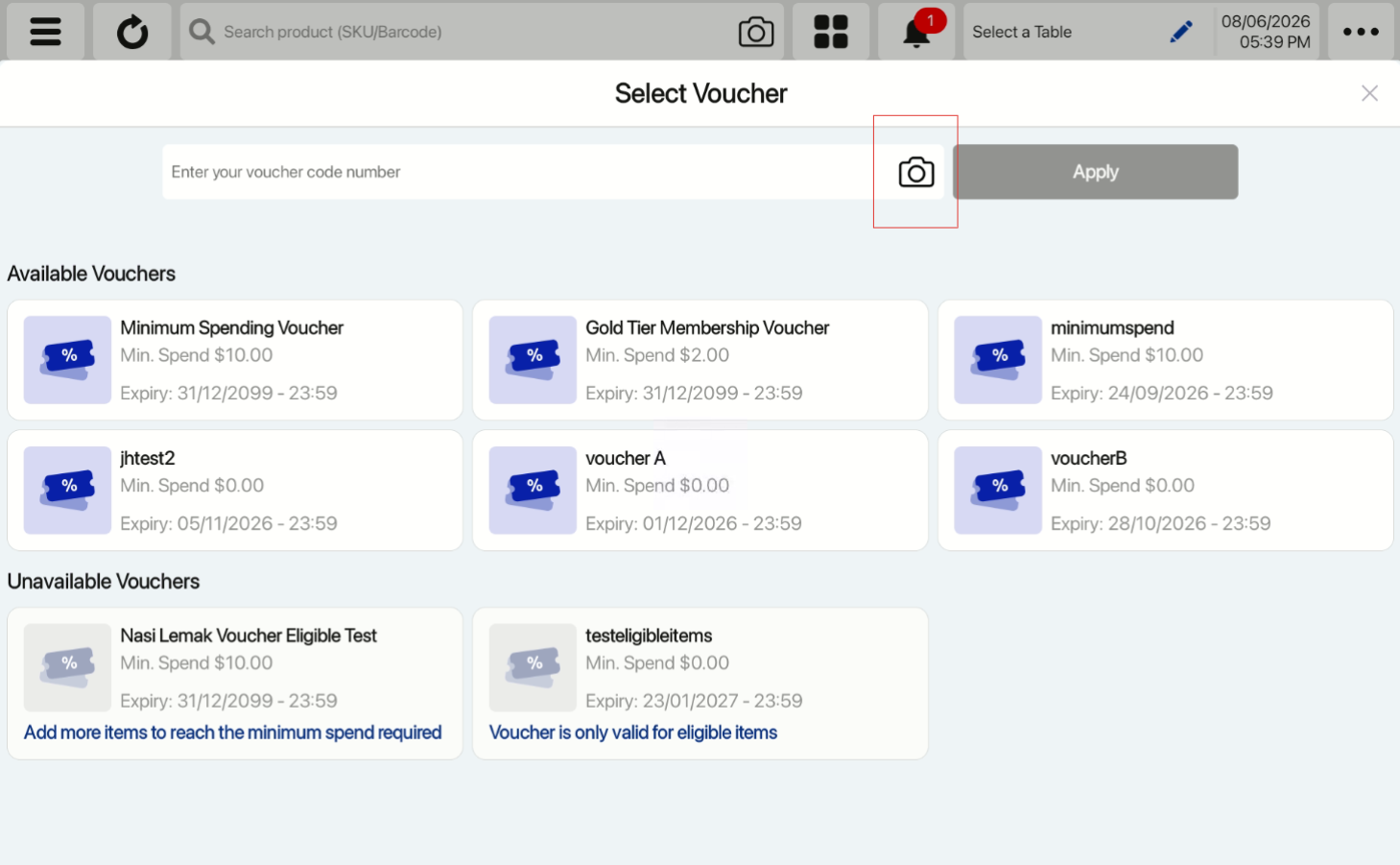
Users can click on the camera icon in the search field.
Users will be able to scan voucher using the camera pop up (not full screen).
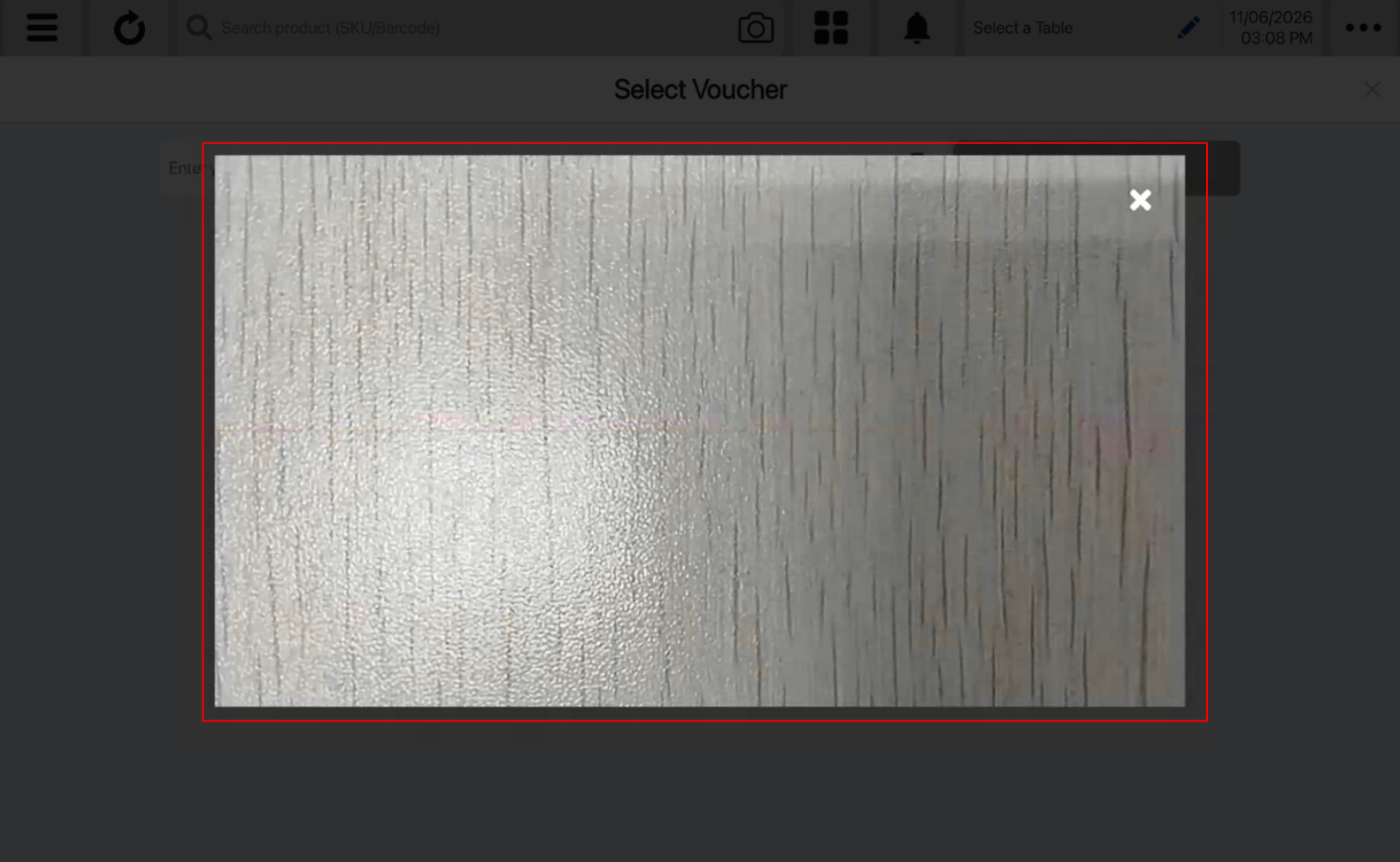
Once the voucher is scanned, the code will appear on the search field, and users can click Apply.
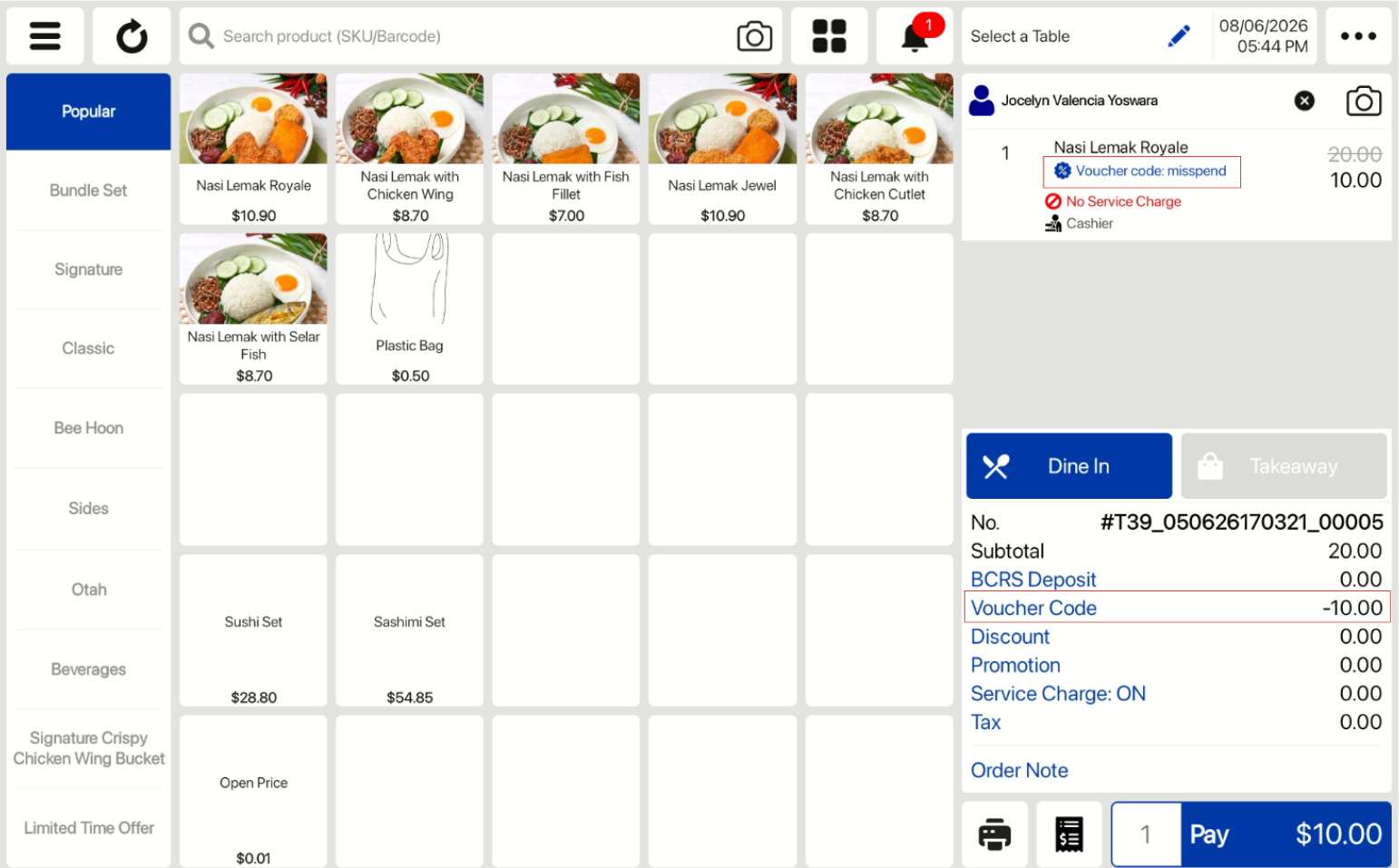
Voucher Code Applied
Once applied, voucher code and the discount amount will be shown in the sales view. Users can proceed with checkout as per usual process.
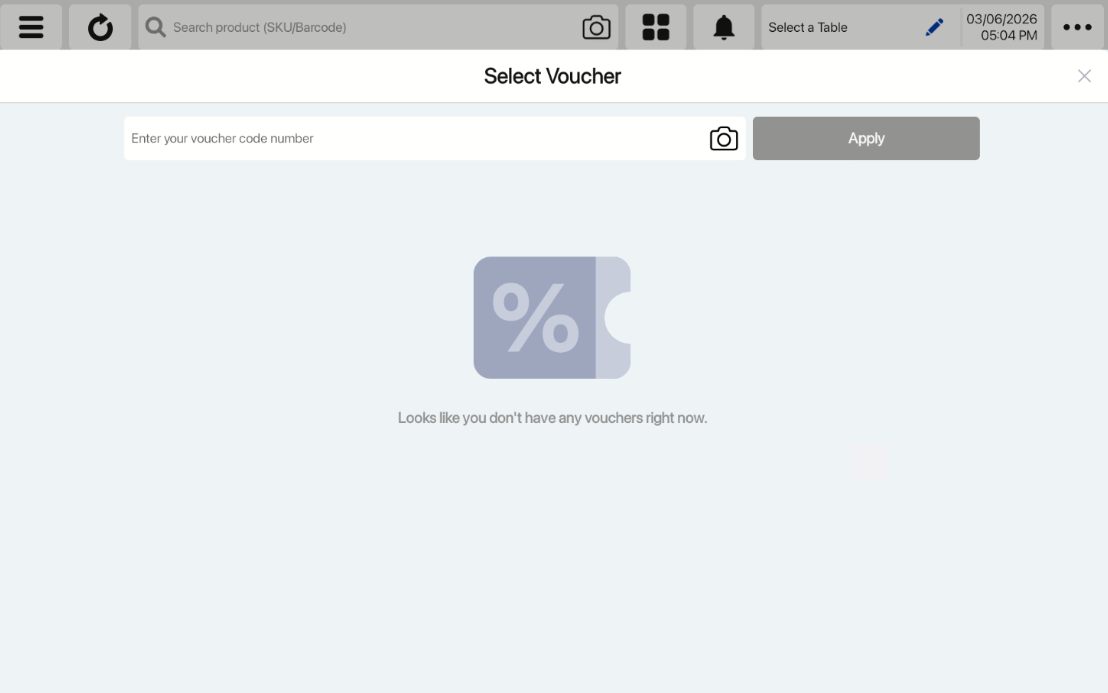
No Available Vouchers
If the customer does not have any vouchers, there will not be any available voucher displayed. However, users can still apply the voucher code in the field.
Removal or Change of Vouchers
Customers can click ‘Voucher Code’ again to remove or change voucher usage.
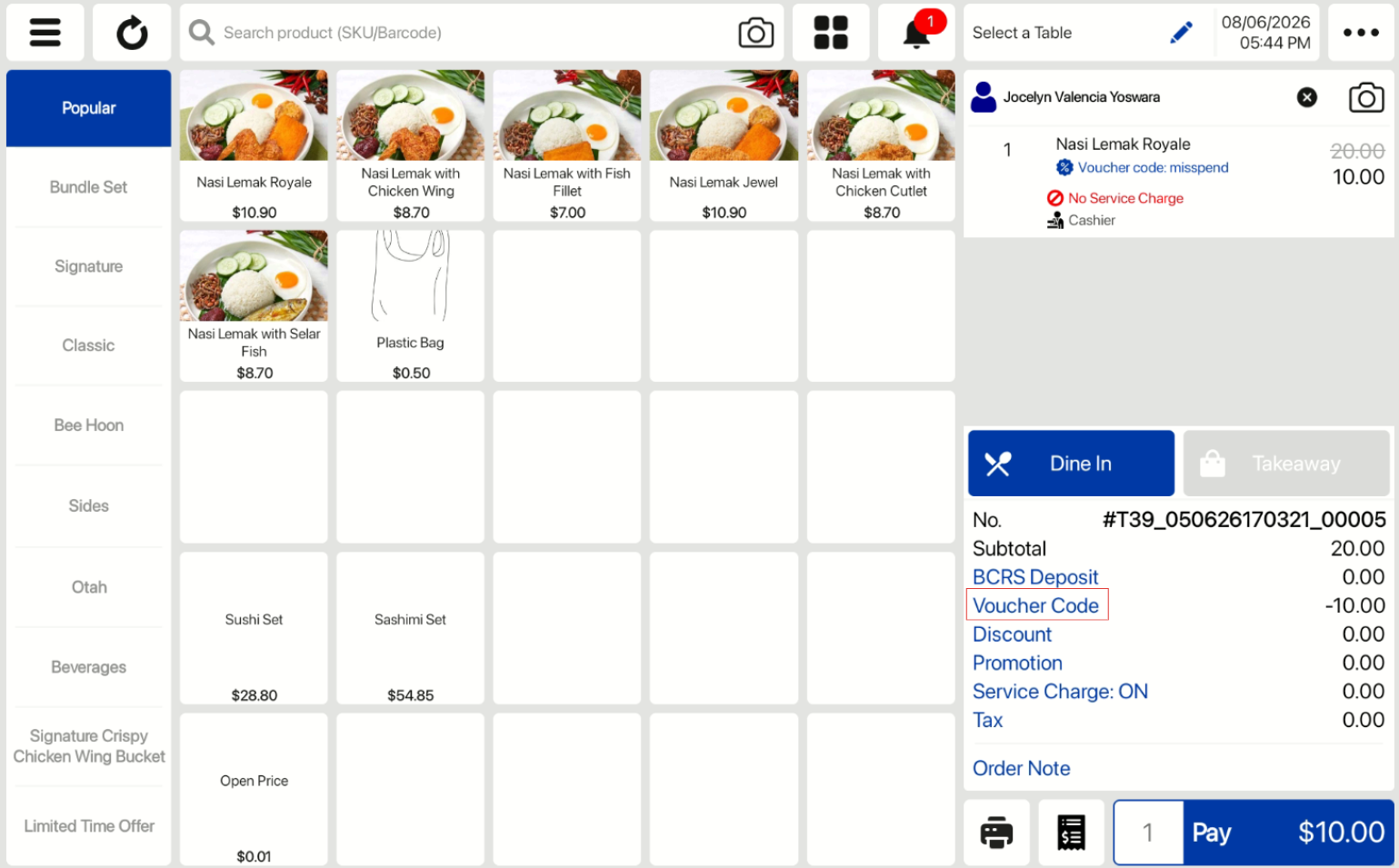 They will be brought to the Vouchers page, with their code already filled in the field.
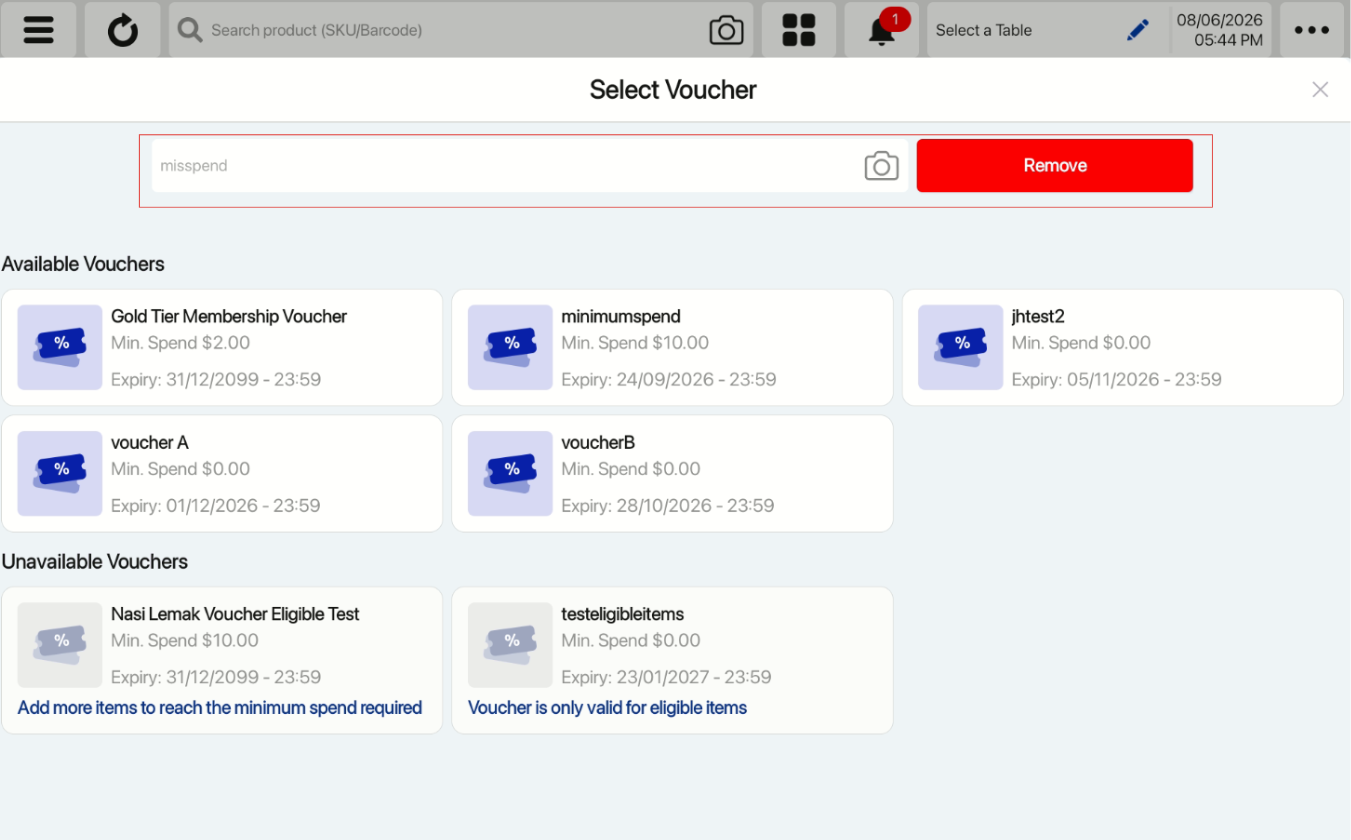 Please note that active voucher needs to be removed first in order to select another voucher. Please note that the camera functionality is also disabled when there is another voucher applied.
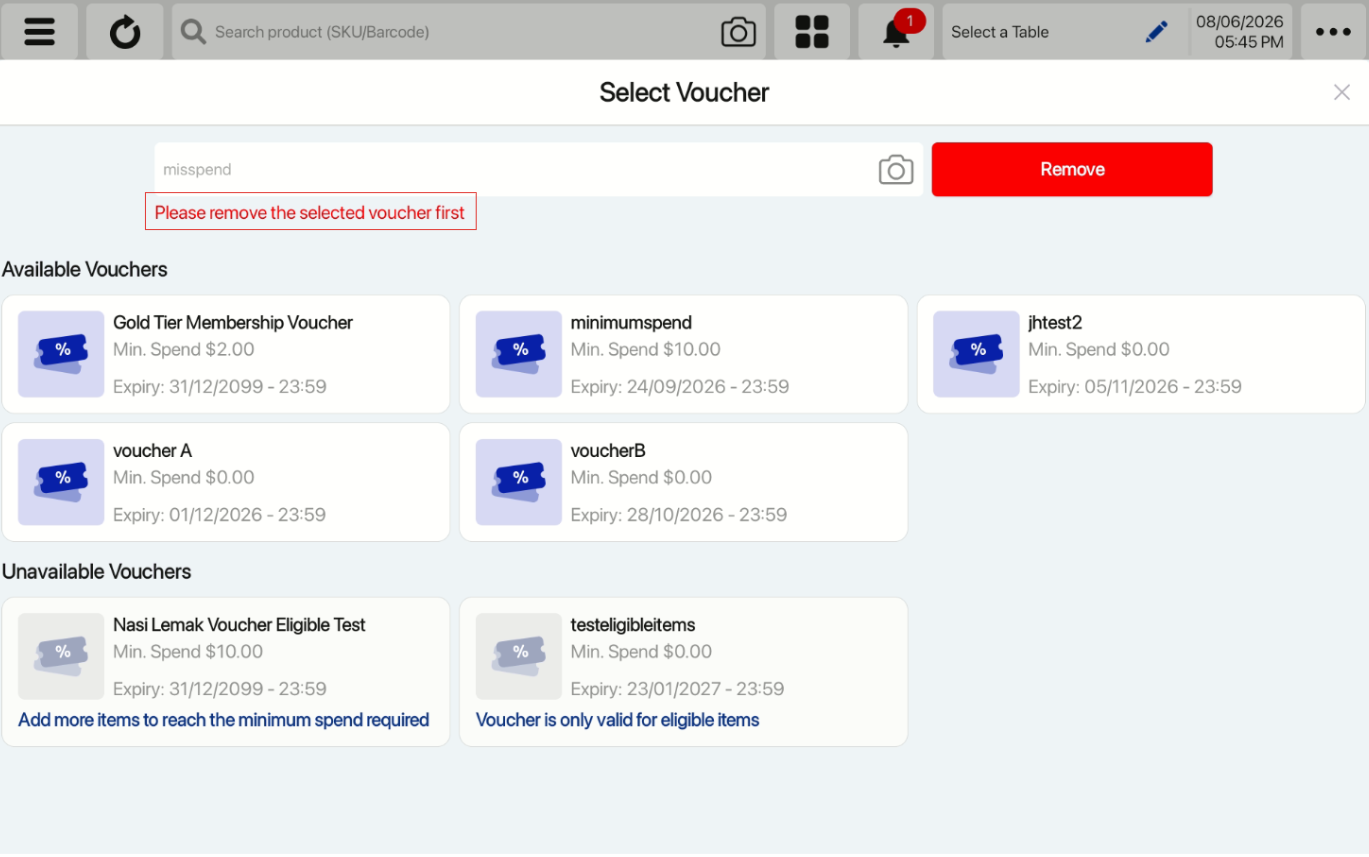 Customers can select and apply the voucher again afterwards.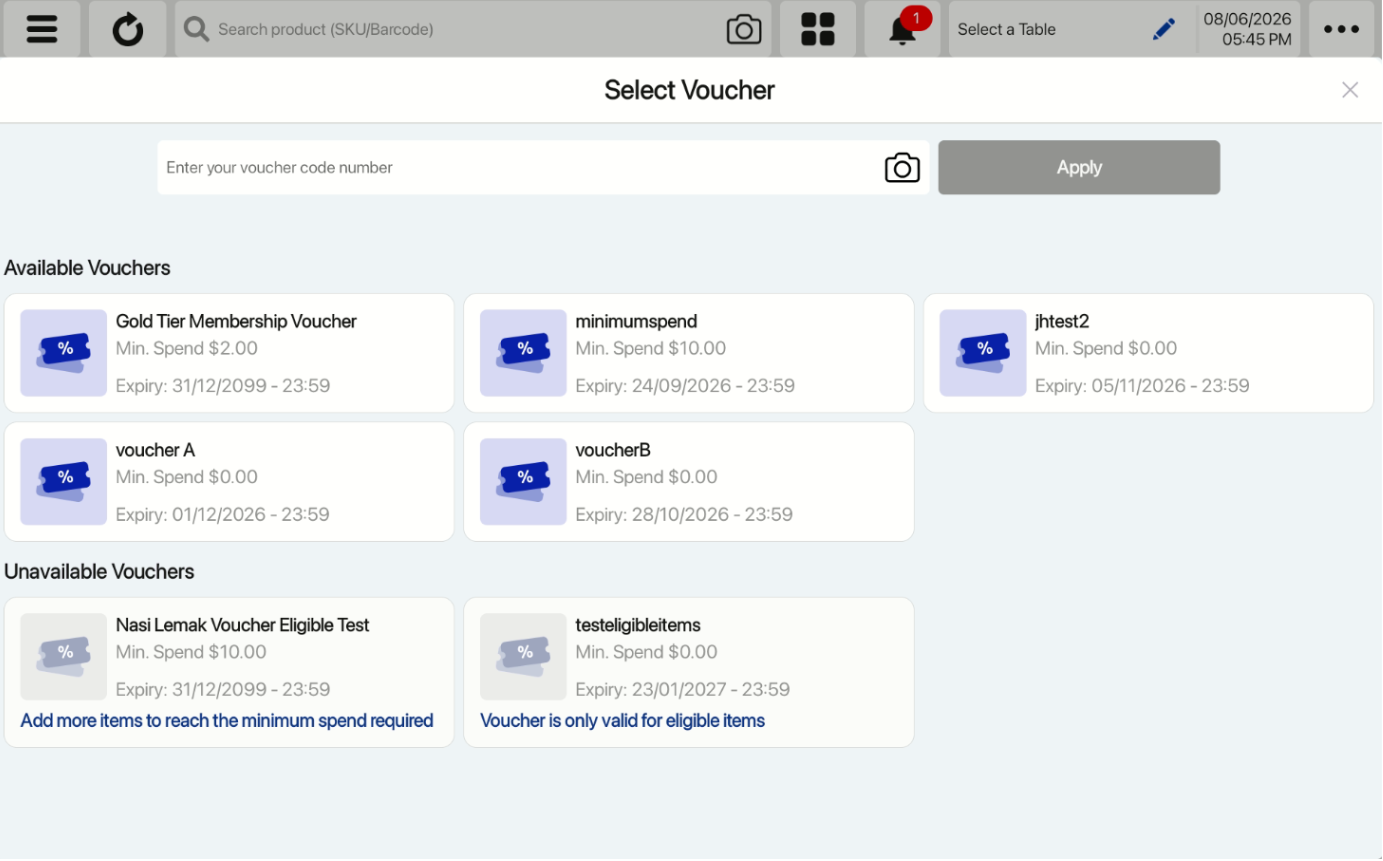
Types of Vouchers
- Broadcast Voucher
- Welcome Gift Voucher
- Normal Voucher
Broadcast Voucher
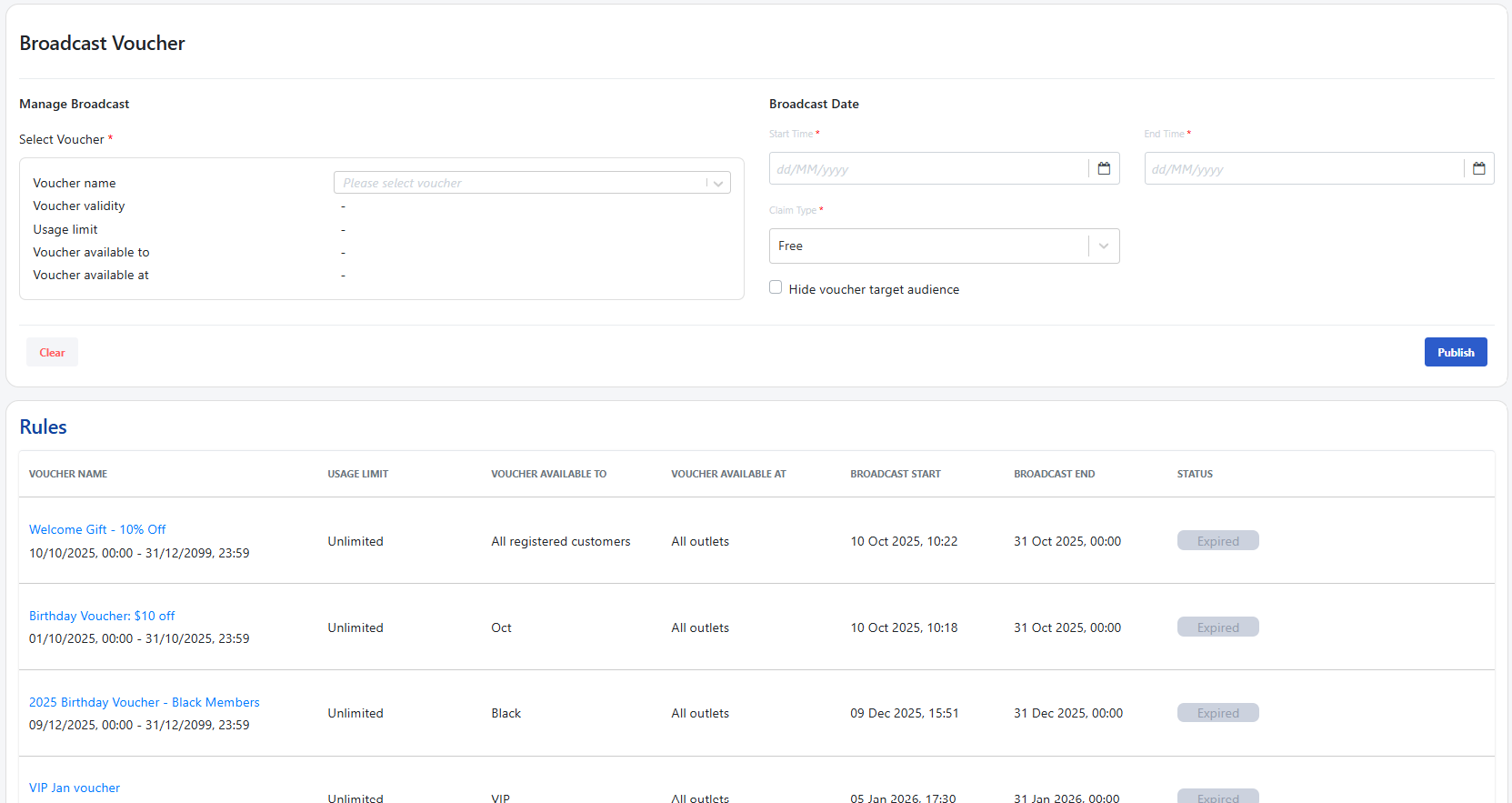
Vouchers must be broadcasted and claimed by the user in the member’s portal in order for the voucher to be displayed in the voucher list. If the voucher is not broadcasted or not claimed by user, the voucher will not be displayed on the website’s voucher dropdown list. The user’s most recent claimed voucher on the member’s portal will be shown at the top.
Navigate to: Customers > Membership > Loyalty > Broadcast Vouchers
Welcome Gift Voucher
Welcome Gift Voucher will automatically be displayed in the voucher list as the voucher is automatically claimed by the customer upon signing up. Voucher can be configured depending on member tier, duration and validity period. The user’s most recent claimed voucher on the member’s portal will be shown at the top.
Navigate to: Customer > Membership > Loyalty > Welcome Gifts
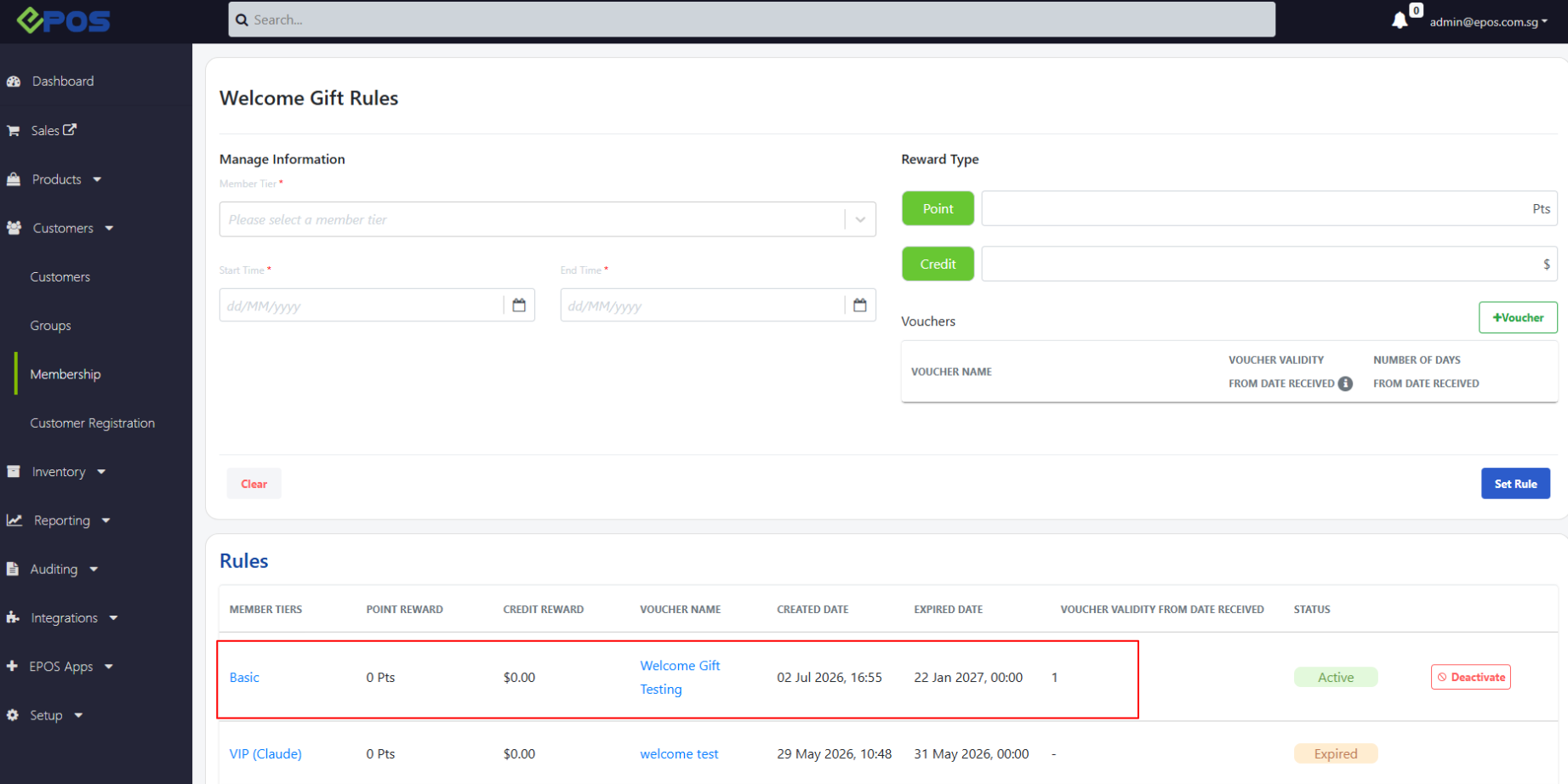
Normal Voucher Usage
All available vouchers that customers have will be displayed to all EPOS platforms. Business owners do not need to broadcast voucher to Member’s Portal and users do not need to claim the voucher in Member’s Portal. The last created voucher by the merchant will be shown at the top.
Navigate to: Products > Vouchers
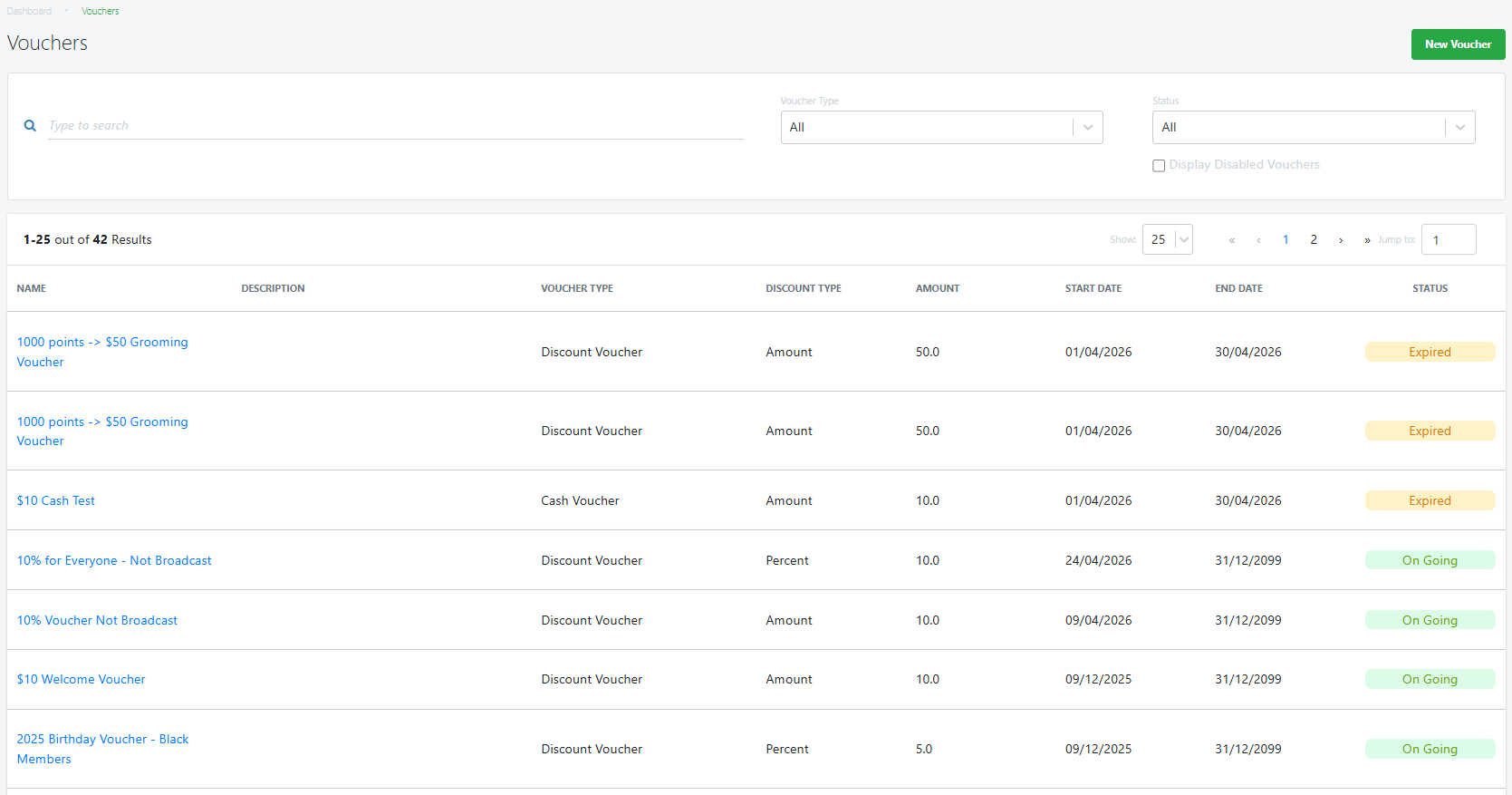
Types of discount voucher in dropdown list
There are 2 types of vouchers: Available Vouchers and Unavailable Vouchers
Voucher will be list under available group if:
- Voucher applicable on store (applicable in every store or specific store only)
- Voucher applicable for customer list or everyone
- Voucher have not reached usage or redemption limit
- Voucher is still available and valid on the current timestamp
- Order meets minimum spend requirement
- At least one product in card is eligible for this voucher
Users will be able to select available vouchers and apply to the order.
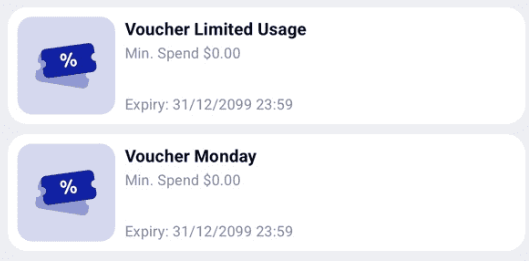
Voucher will be list under unavailable group if:
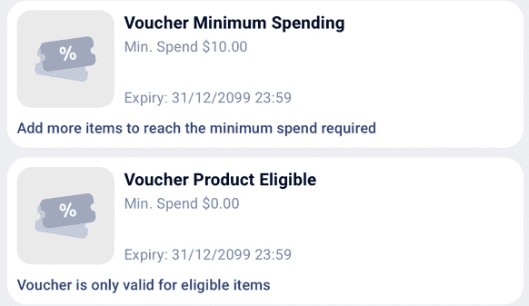
- Order doesn’t meet minimum spend requirement
- There is no product eligible with this voucher
Vouchers under the unavailable group will be disabled and cannot be selected. There will also be a reason explaining to users why they are unable to redeem the voucher.