Backend Portal

Under General Configuration, there are 3 key settings that are specific to Retail Kiosk. These options let merchants customize how the kiosk behaves.
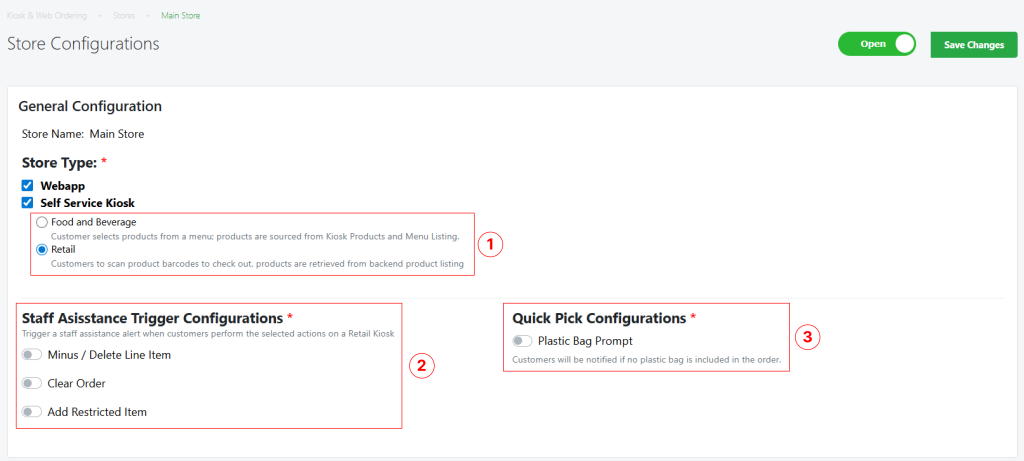
General Configuration screen showing Kiosk Mode, Staff Assistance Trigger Configurations and Quick Pick Configurations

1. Kiosk Mode: Food & Beverage / Retail

Choose the kiosk’s operating mode to match your store workflow:

  • Food & Beverage
    Customers select products from a menu interface. Items are sourced from the Kiosk Products and Menu Listing modules.
  • Retail
    Customers scan product barcodes to add items to the cart. Products are retrieved from the backend product listing.

2. Staff Assistance Trigger Configurations

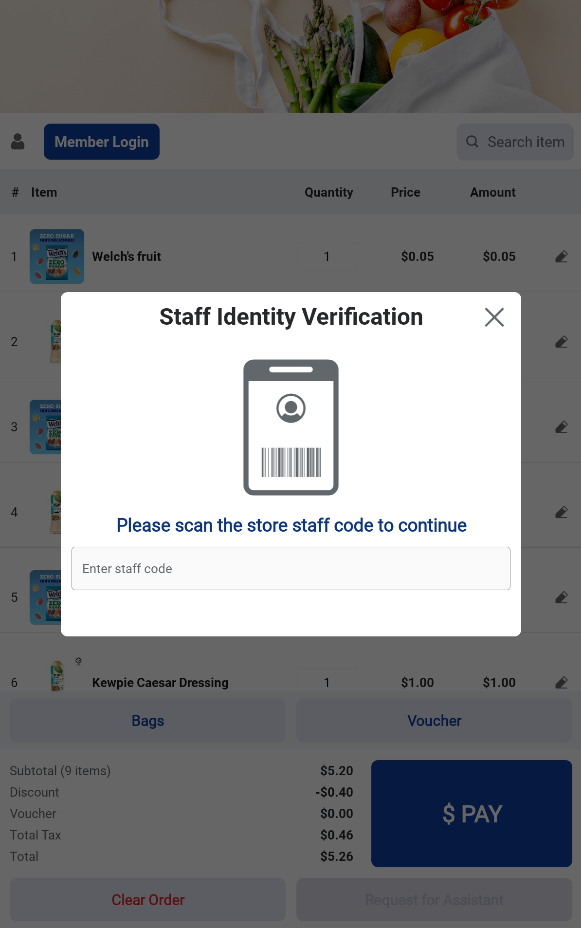
Enable triggers that require staff assistance. When a selected action is performed by a customer, the kiosk will prompt for staff verification before proceeding. The triggers include:

  • Minus / Delete Line Item — require staff approval when a line item is removed or its quantity decreased.
  • Clear Order — require staff assistance to clear the current order.
  • Add Restricted Item — prompts staff verification when age- or regulation-restricted products are added.

3. Quick Pick Configurations

Controls the Quick Pick behaviour on the kiosk, such as the Plastic Bag Prompt:

  • Plastic Bag Prompt — when enabled, customers are reminded if their order does not include a plastic bag.

This helps reduce missed add-ons and improves average order completeness at checkout.
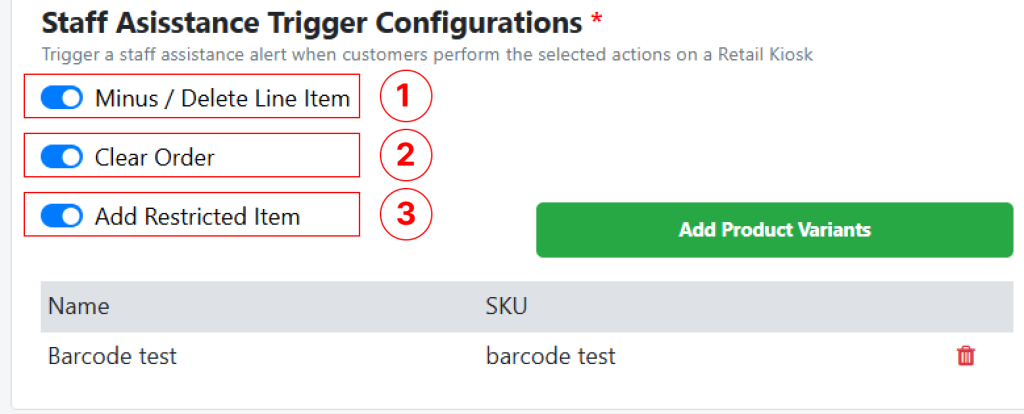
Trigger a staff assistance alert when customers perform the selected actions on a Retail Kiosk.

  1. Minus / Delete Line Item
    When enabled, the kiosk will prompt for staff assistance whenever a customer removes or decreases the quantity of a line item.
  2. Clear Order
    When enabled, staff assistance is required before a customer can clear their entire order.
  3. Add Restricted Item
    When enabled, adding any restricted item to the cart will trigger a staff verification prompt.

Under Restricted Items, users can specify which product variants are considered restricted.

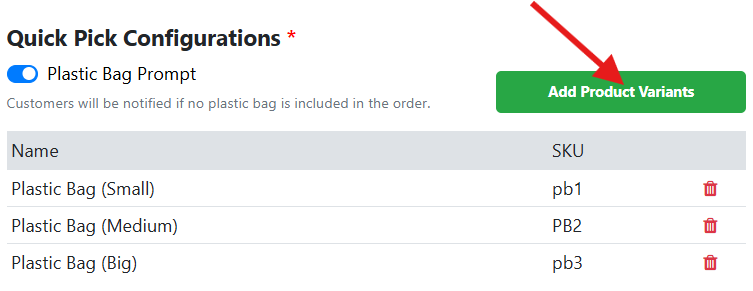
Click Add Product Variants to include items in the restricted list. Added items will appear with their Name and SKU, and they can be removed using the delete icon.

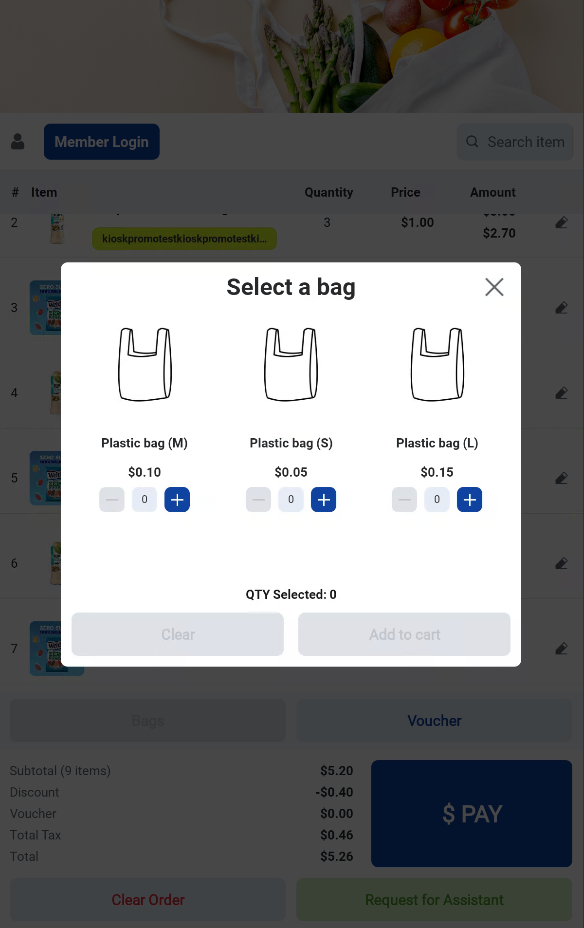
The Quick Pick Configurations section allows users to manage the product variants displayed on the kiosk front end. Users can easily view, add, or delete variants based on current requirements, ensuring that the kiosk shows only the most relevant options to customers.

By clicking the Add Product Variants button, users can quickly include additional items. Any existing variant listed can be removed by selecting the delete icon beside each entry. Quick Pick Configuration Table

Product variants configured in the backend will be reflected on the frontend — Bags Popup.