
The General Settings page allows you to customise key display and behaviour options for your kiosk. You can manage screen timers, default login, and visual content such as your advertisement and welcome screens — all from one place.
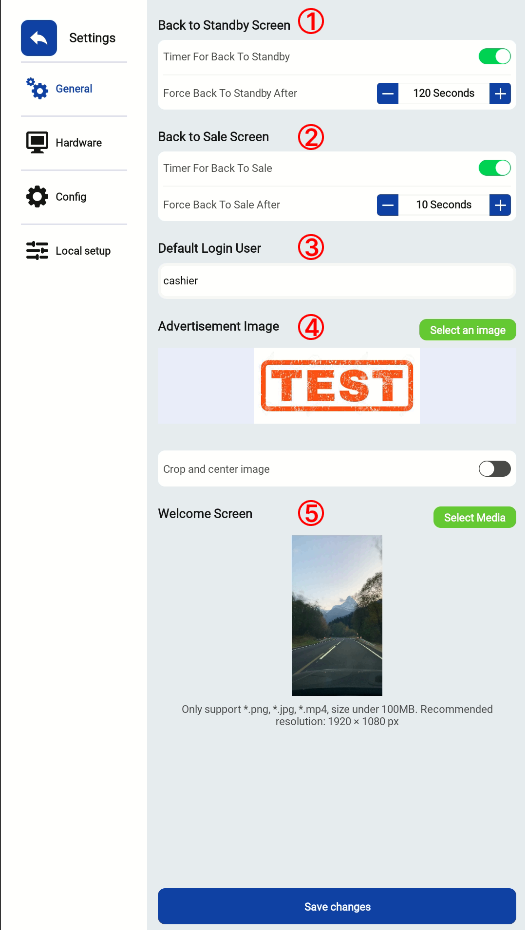
You can configure how long the kiosk remains on specific screens before automatically switching:
- Back to Standby Screen – Set how many seconds of inactivity before the kiosk returns to the standby screen.
- Back to Sale Screen – Set how quickly the kiosk returns to the sale screen after completing a transaction.
Both timers can be easily adjusted using the + / – controls, and you can toggle them on or off.
3. Set a default login user (e.g., “cashier”) so that the kiosk automatically logs in under this account each time it starts up.
4. You can upload an advertisement image to display during idle times.
-
Supported formats: .png, .jpg
-
Option to crop and center the image for better fit.
5. Customise your welcome screen by uploading an image or video that appears when the kiosk starts.
-
Supported formats: .png, .jpg, .mp4 (under 100MB)
-
Recommended resolution: 1920 x 1080 px
Click Save changes after updating your settings to apply them immediately.
