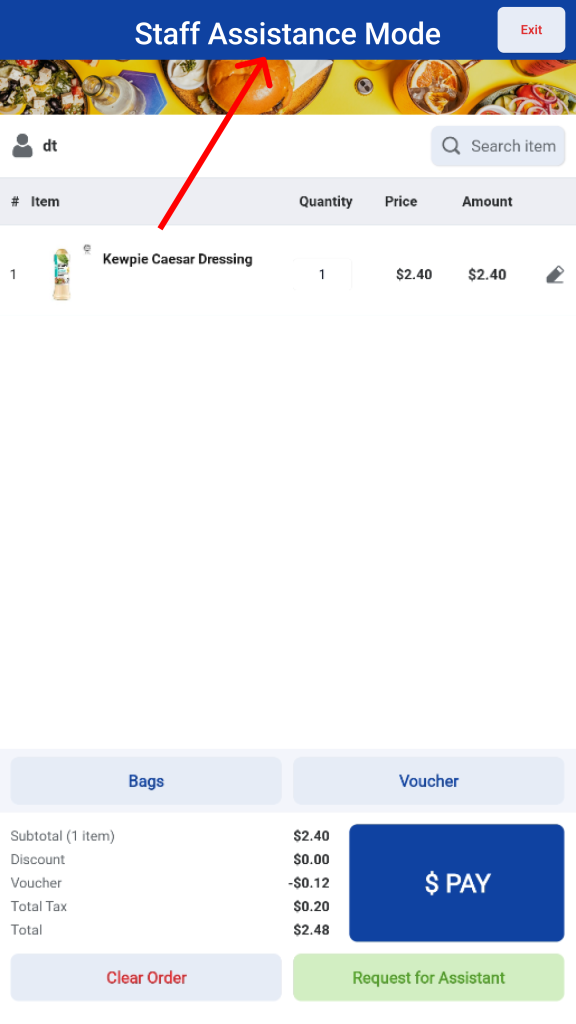
Users can begin the ordering process by scanning product barcodes using the kiosk’s built-in scanner or a connected hand-held scanner.
1. Add Product to Cart
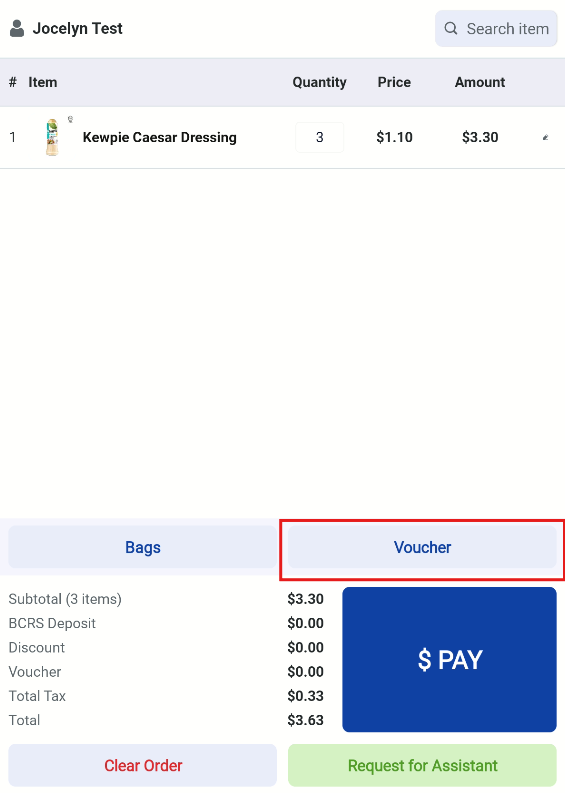
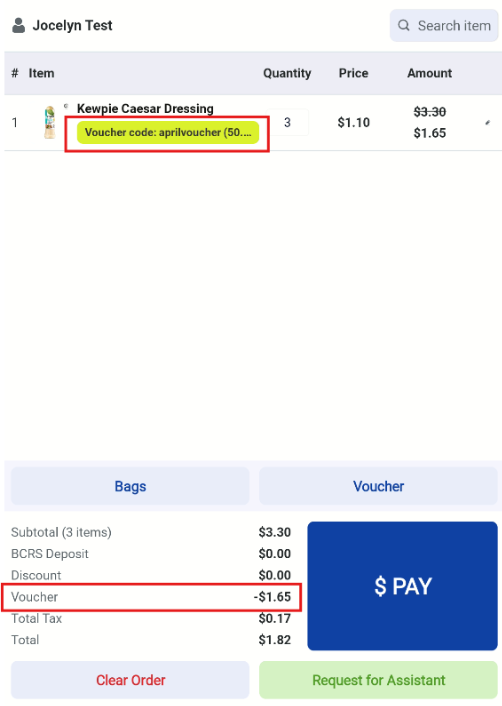
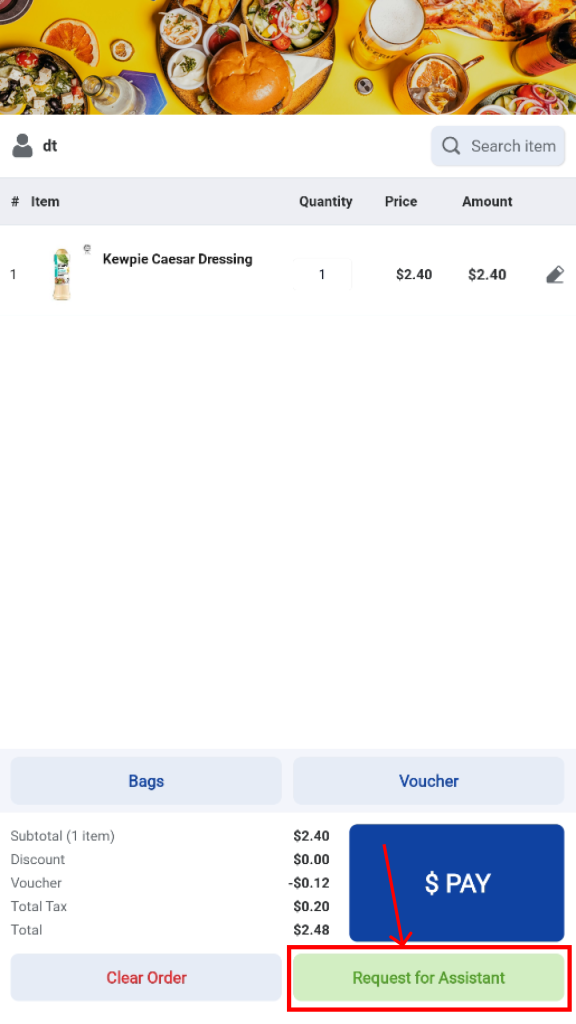
Each successful scan will immediately appear on the kiosk’s Order Summary page.
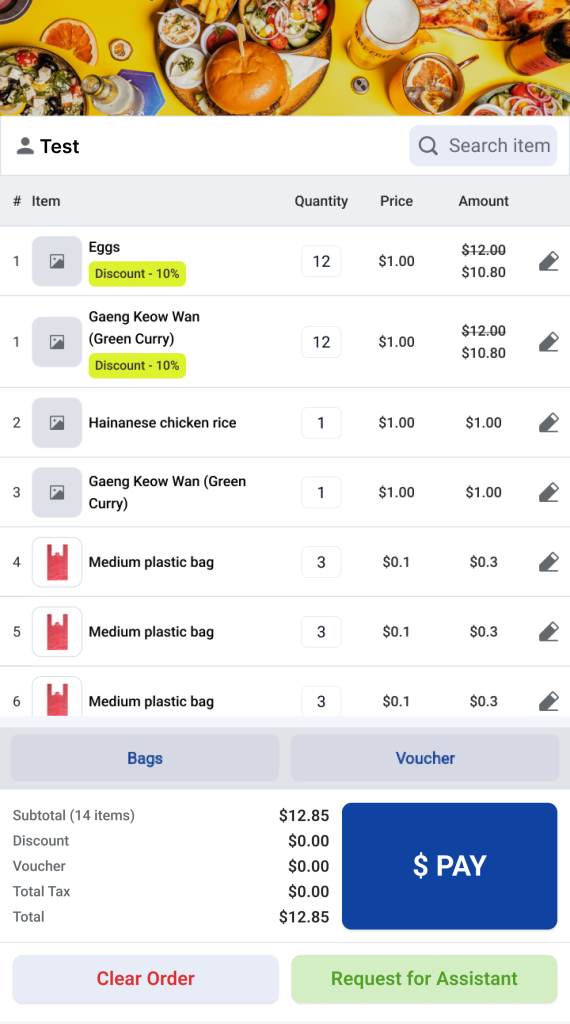
2. Edit Product Quantity & Add Notes
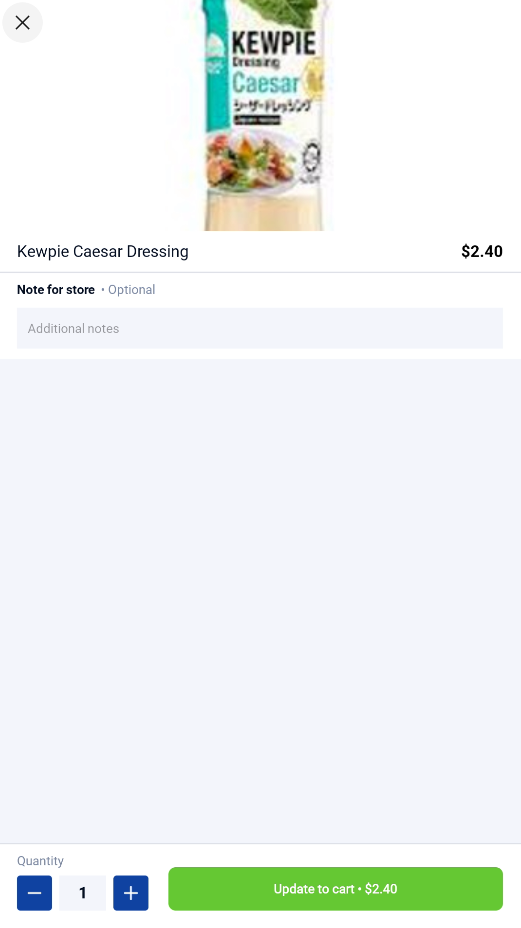
Users can tap the  icon beside any product to adjust its quantity. Additional notes (e.g., special requests or instructions) can also be added for each item.
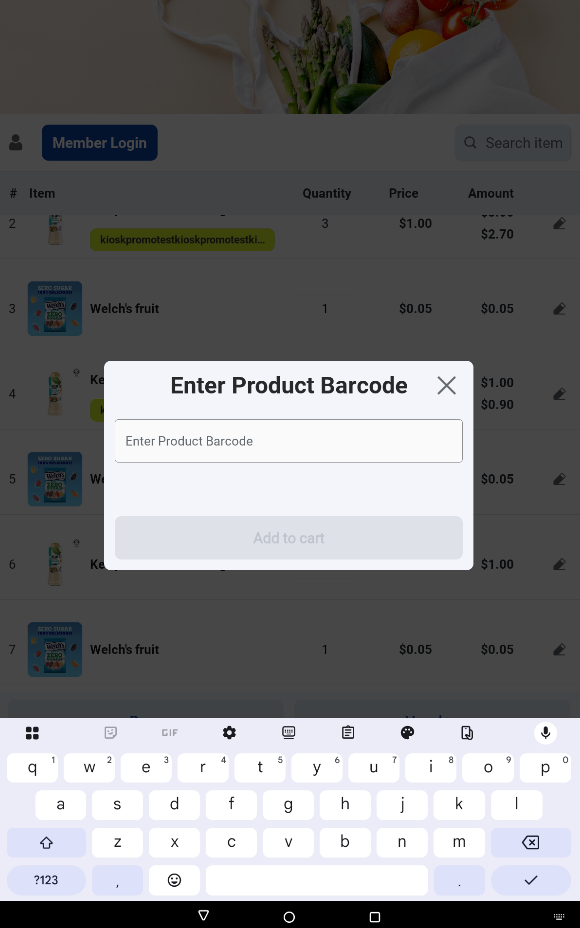
3. Search for Products
Users can also search for products manually by entering the product barcode numbers or scanning a barcode will also automatically bring up the matching product.
4. Clear an Existing Order
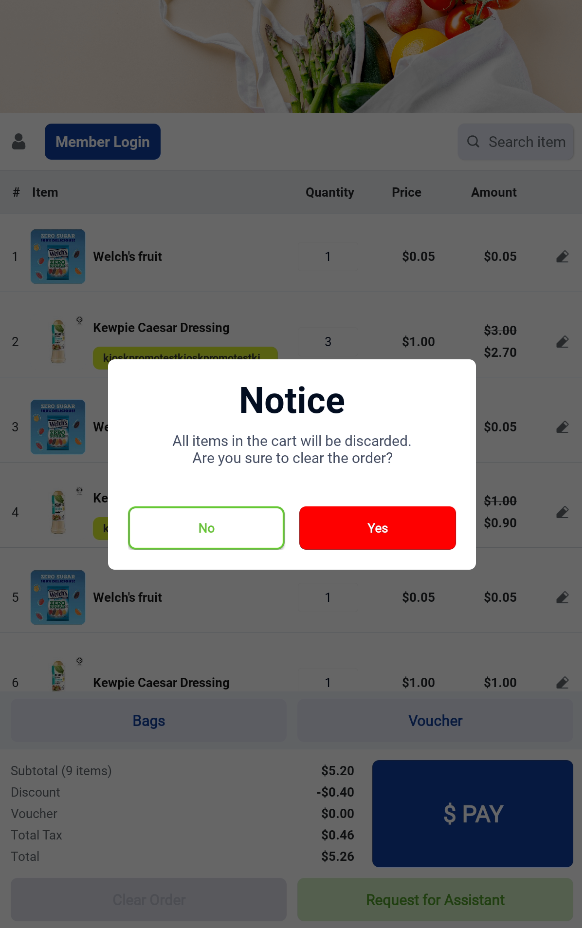
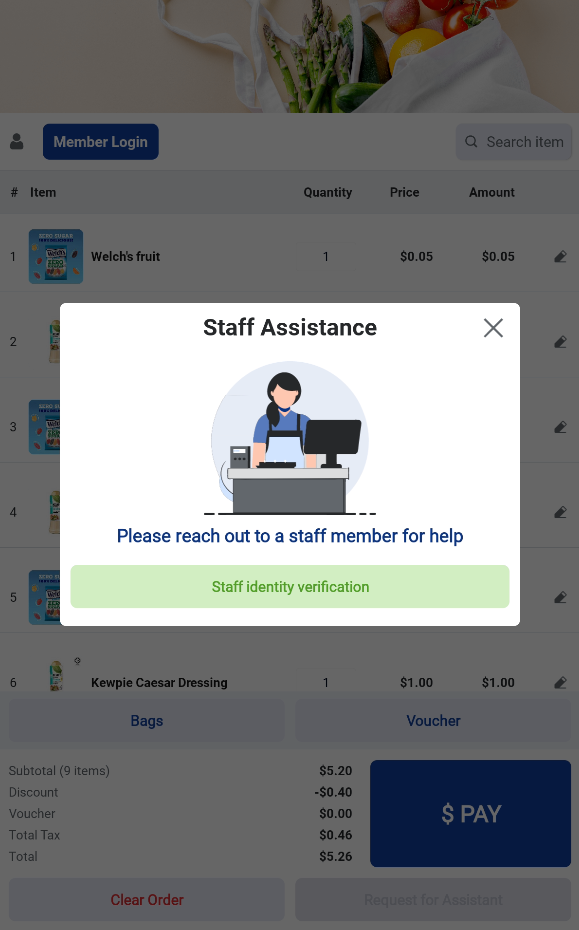
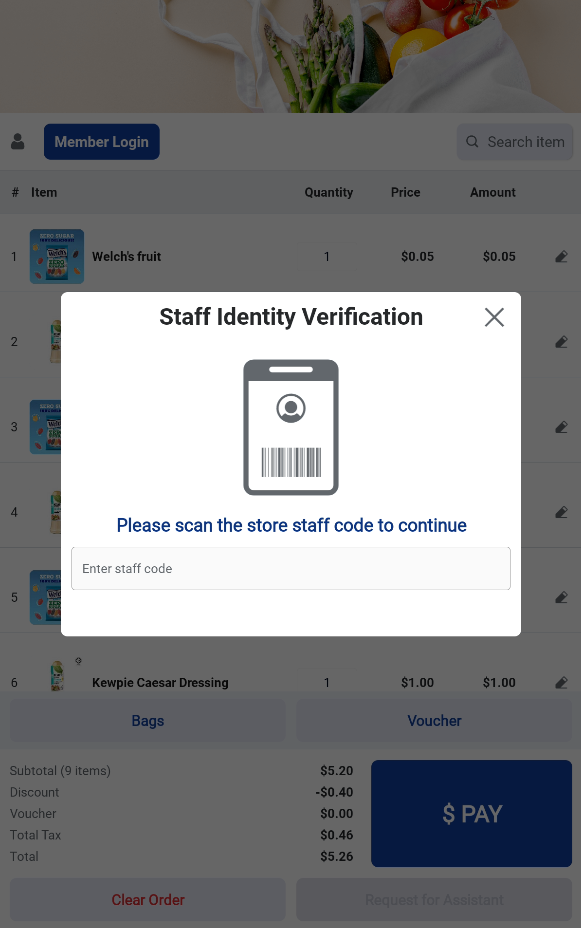
Users may choose to clear the current order at any time. Once the order is cleared, the kiosk will return to the Welcome screen. (Note: merchant can configure whether clearing order will trigger staff assistance mode)
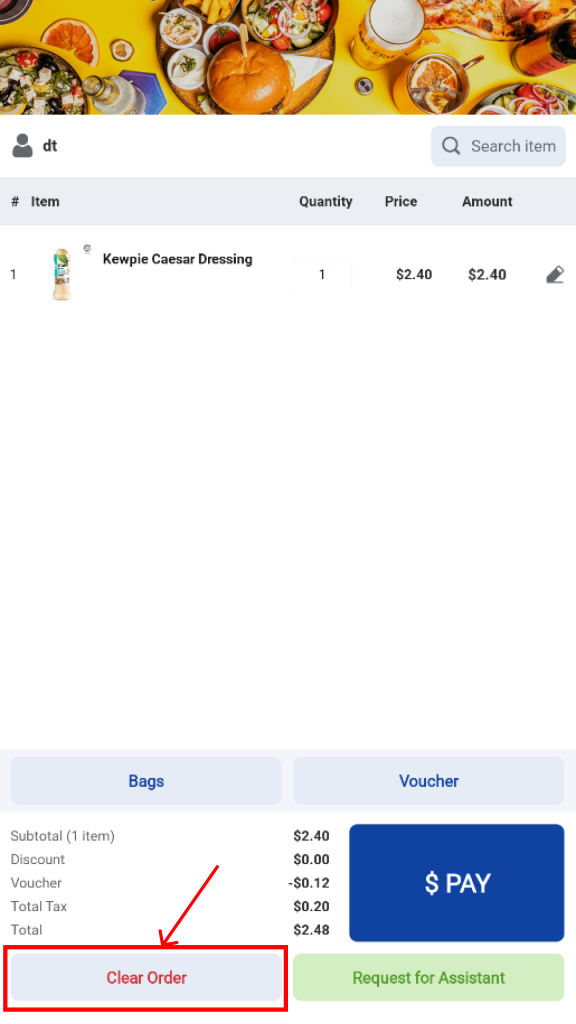
Before clearing the order, a confirmation pop-up will appear to prevent accidental cancellations.