To set-up the commission configurations, users can follow the steps below:
1. Navigate to Setup > Commission
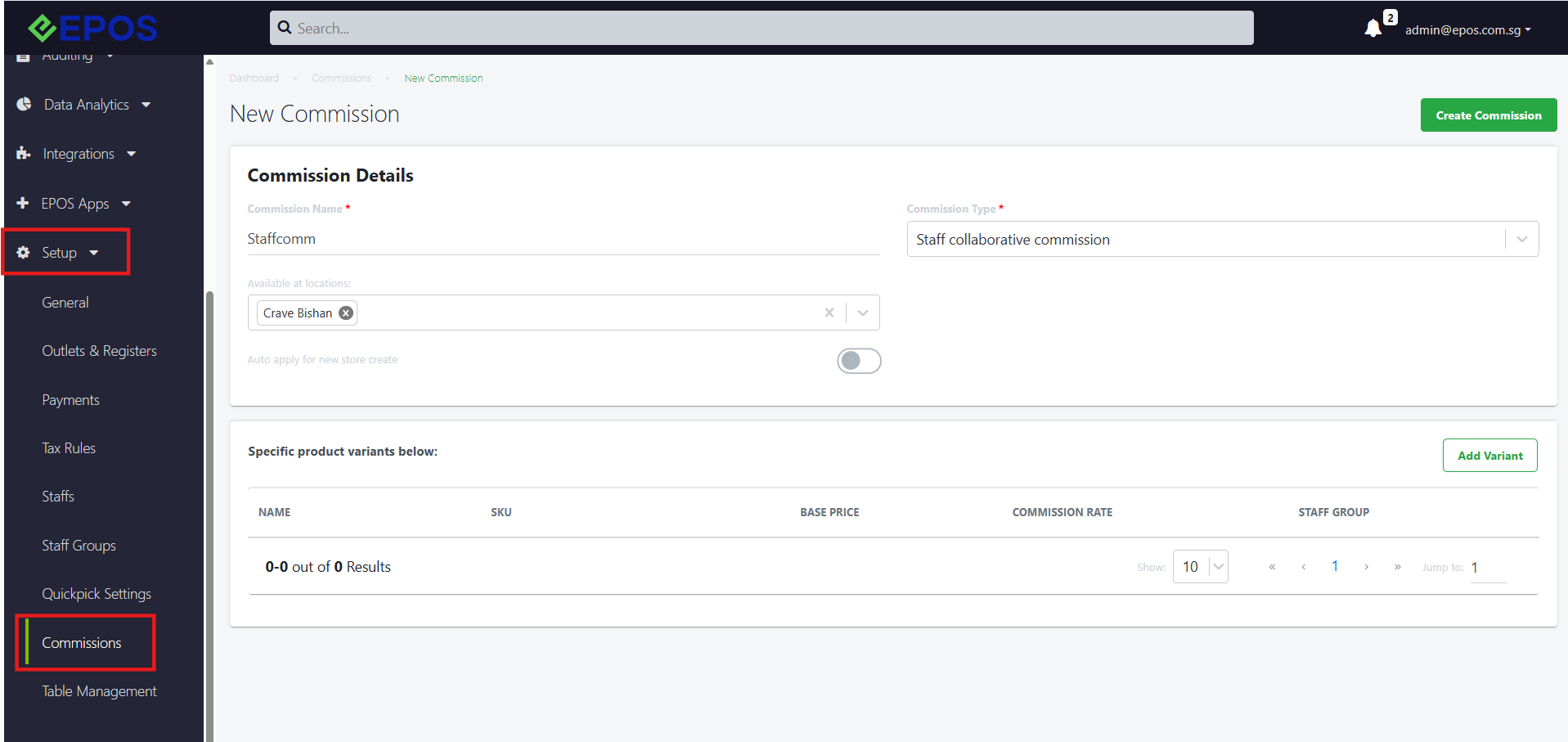
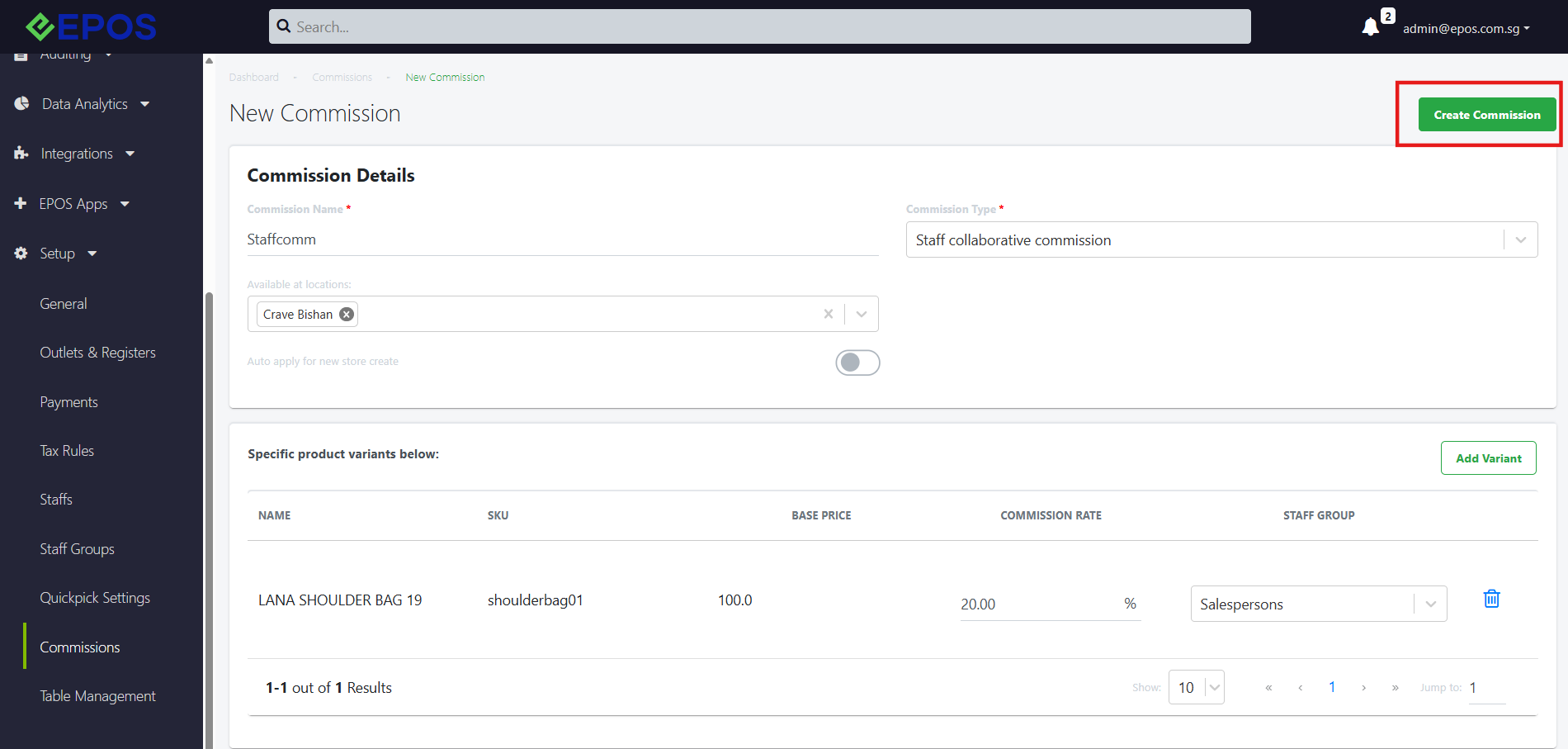
2. User must fill in the Commission Name, Commission Type as “Staff Collaborative commission” & available locations to create the commission.
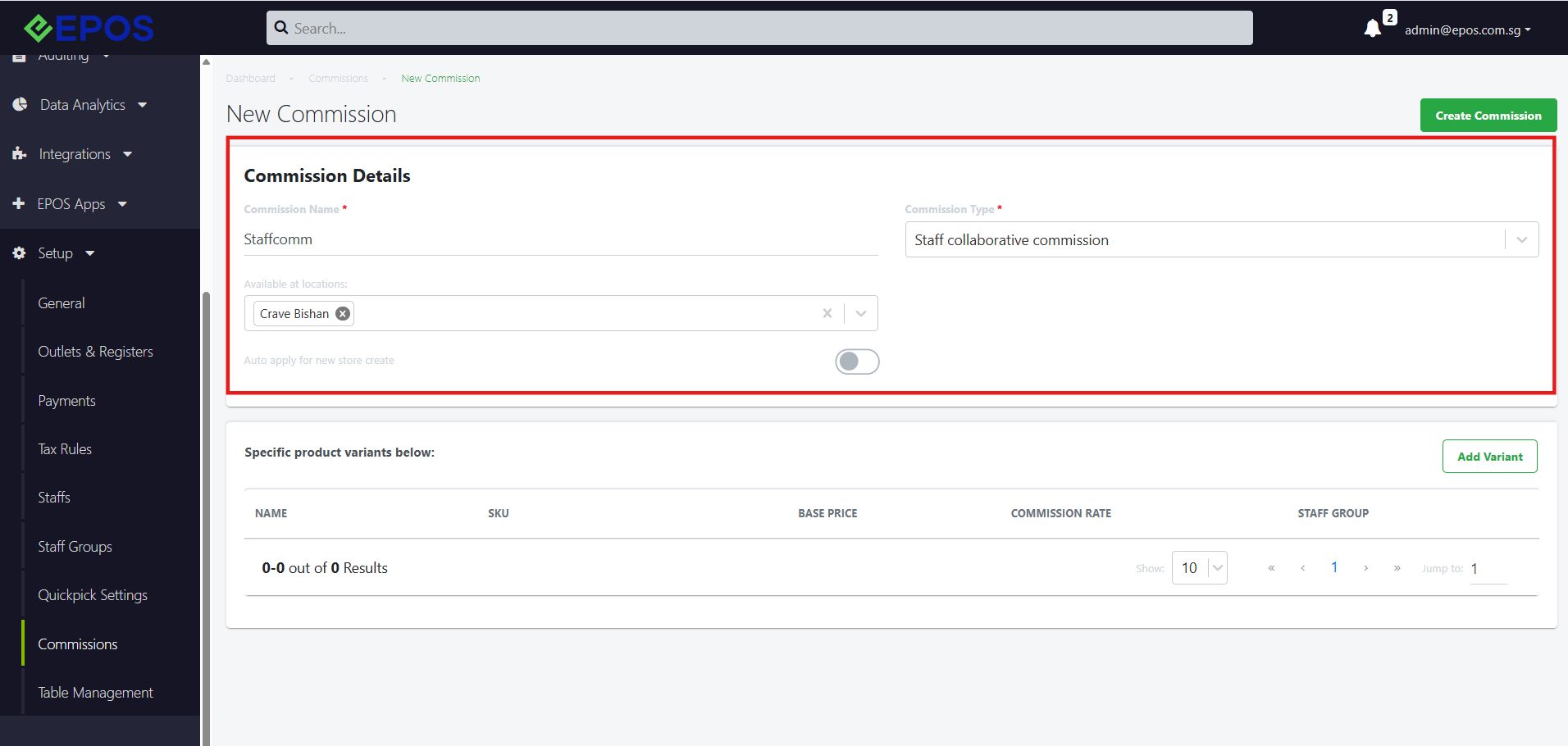
3. Next, the user should add the product variants they would like commission rates to be applied for.
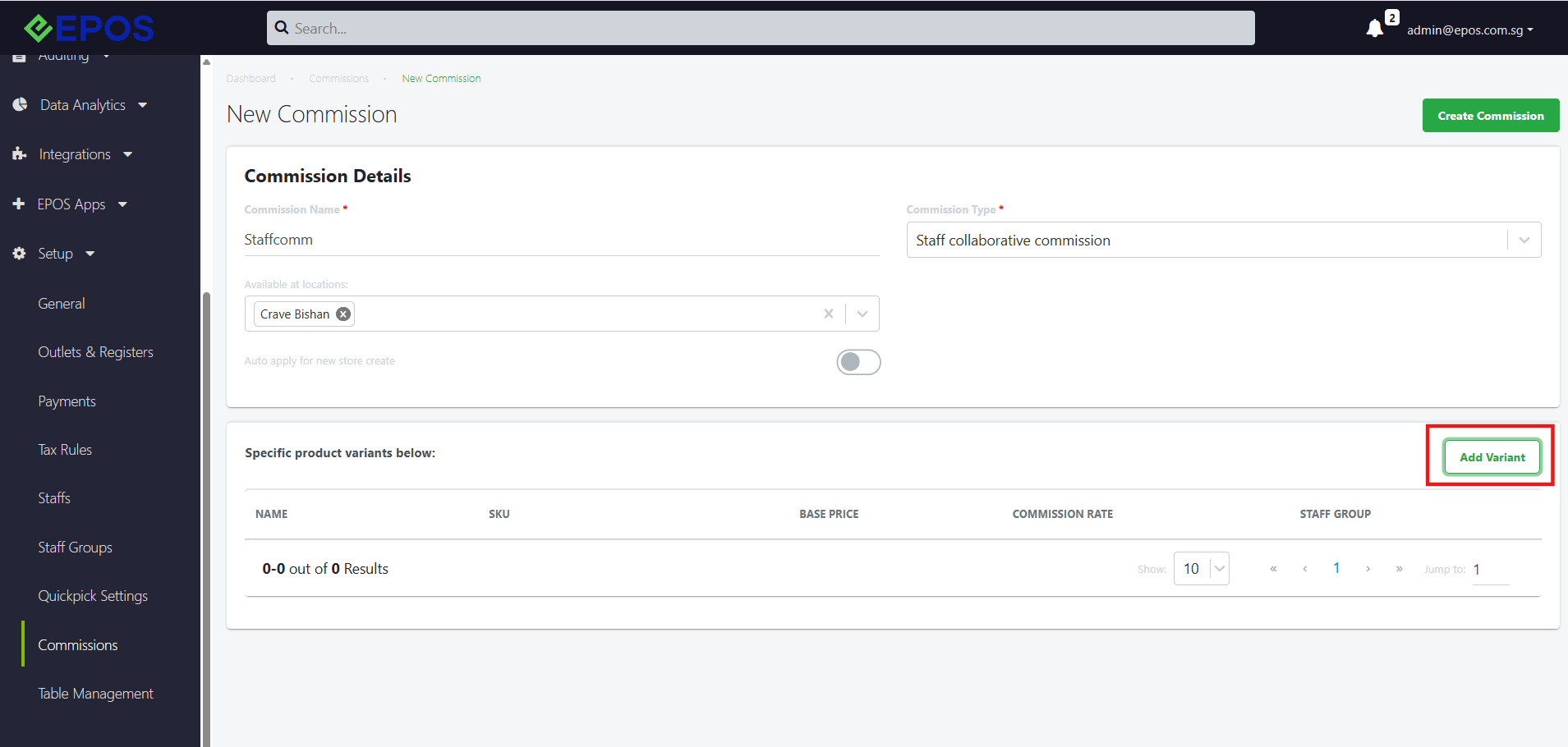
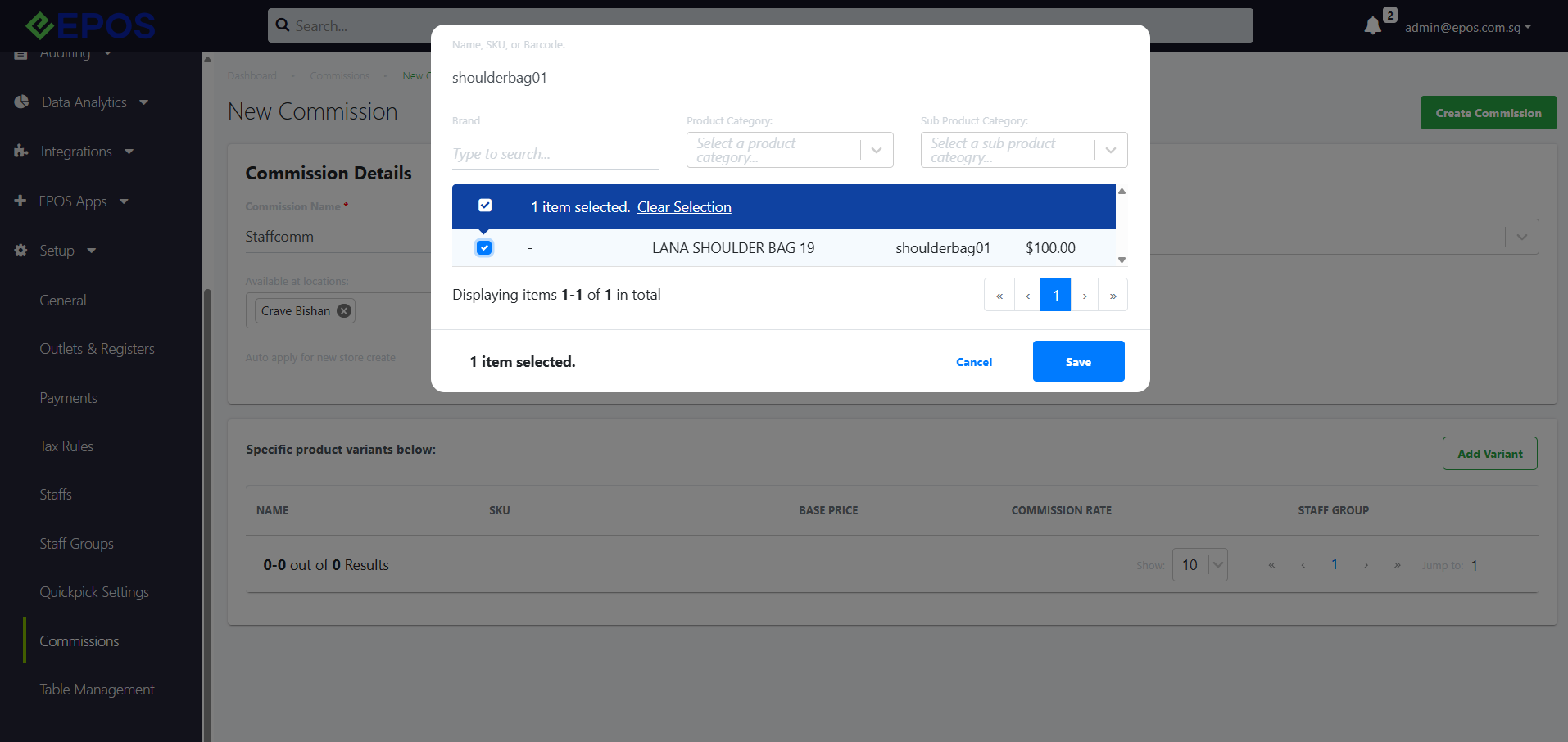
4. The user should configure the commission rate and commission staff group for each of the products they have added.
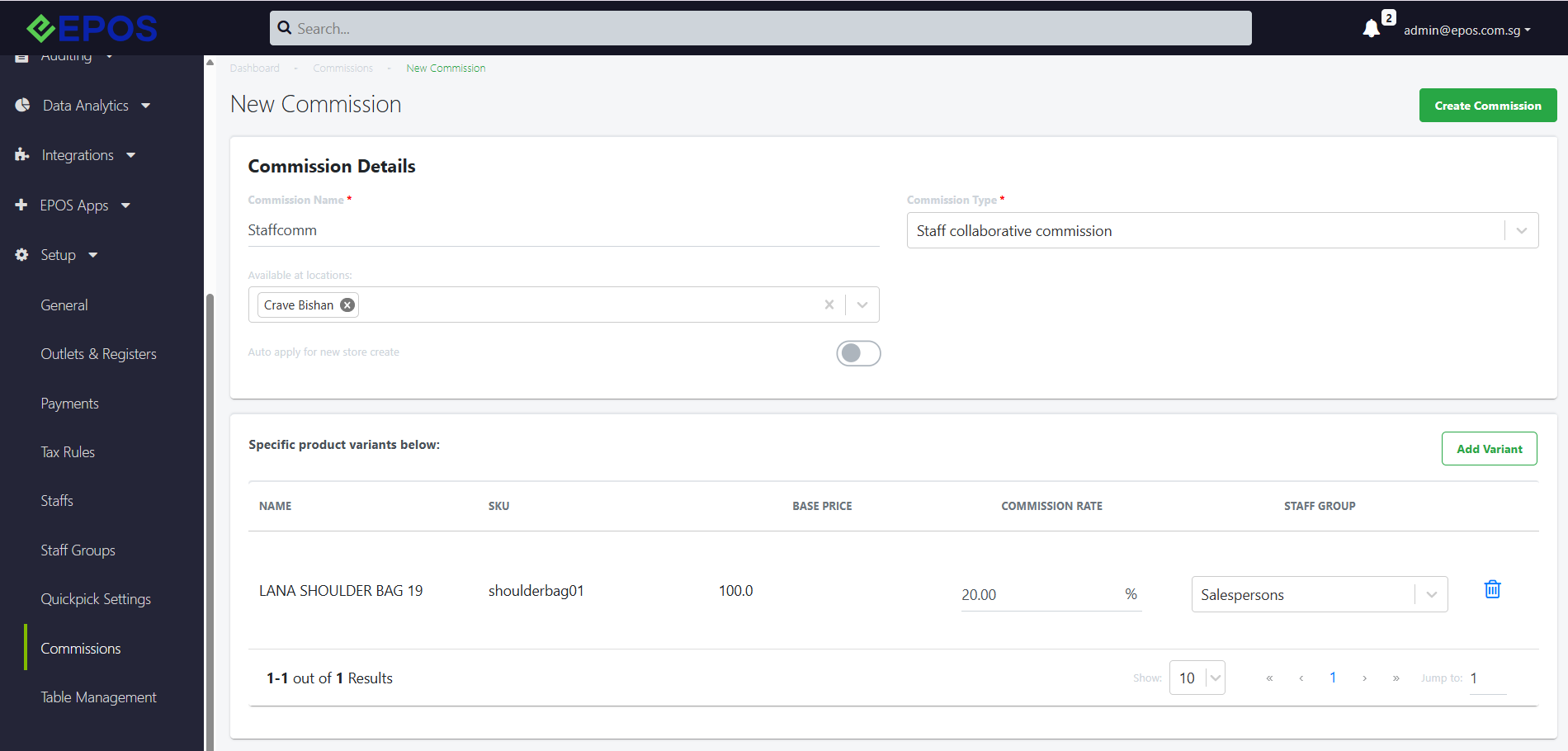
When the cashier records a sale and tags a salesperson, the commission rate will be applied for tagged salespersons based on the commission rate assigned to their staff group.
Note: The user should take note of the following scenarios when configuring commissions rates
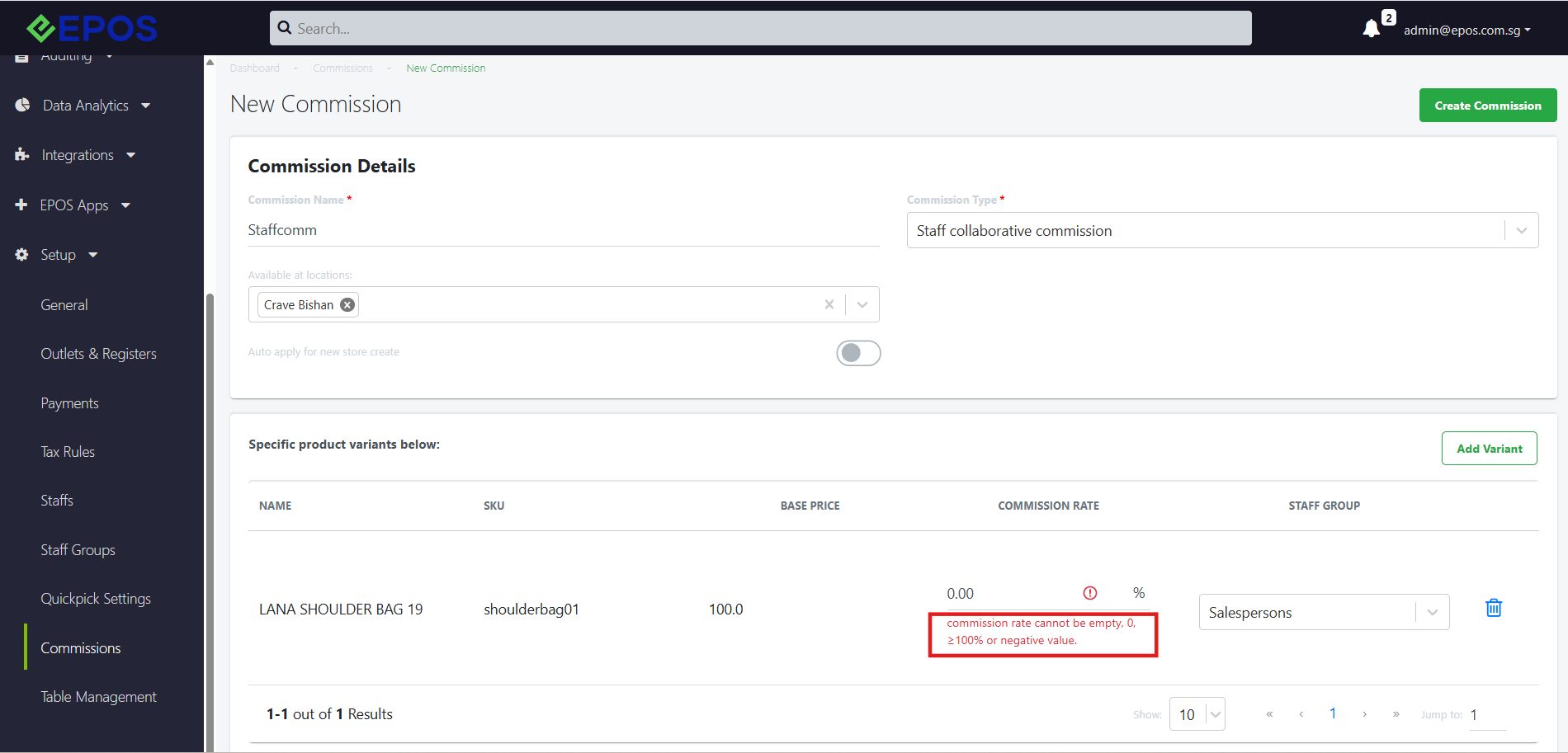
- Commission rate cannot be 0, empty, >100% or a negative value
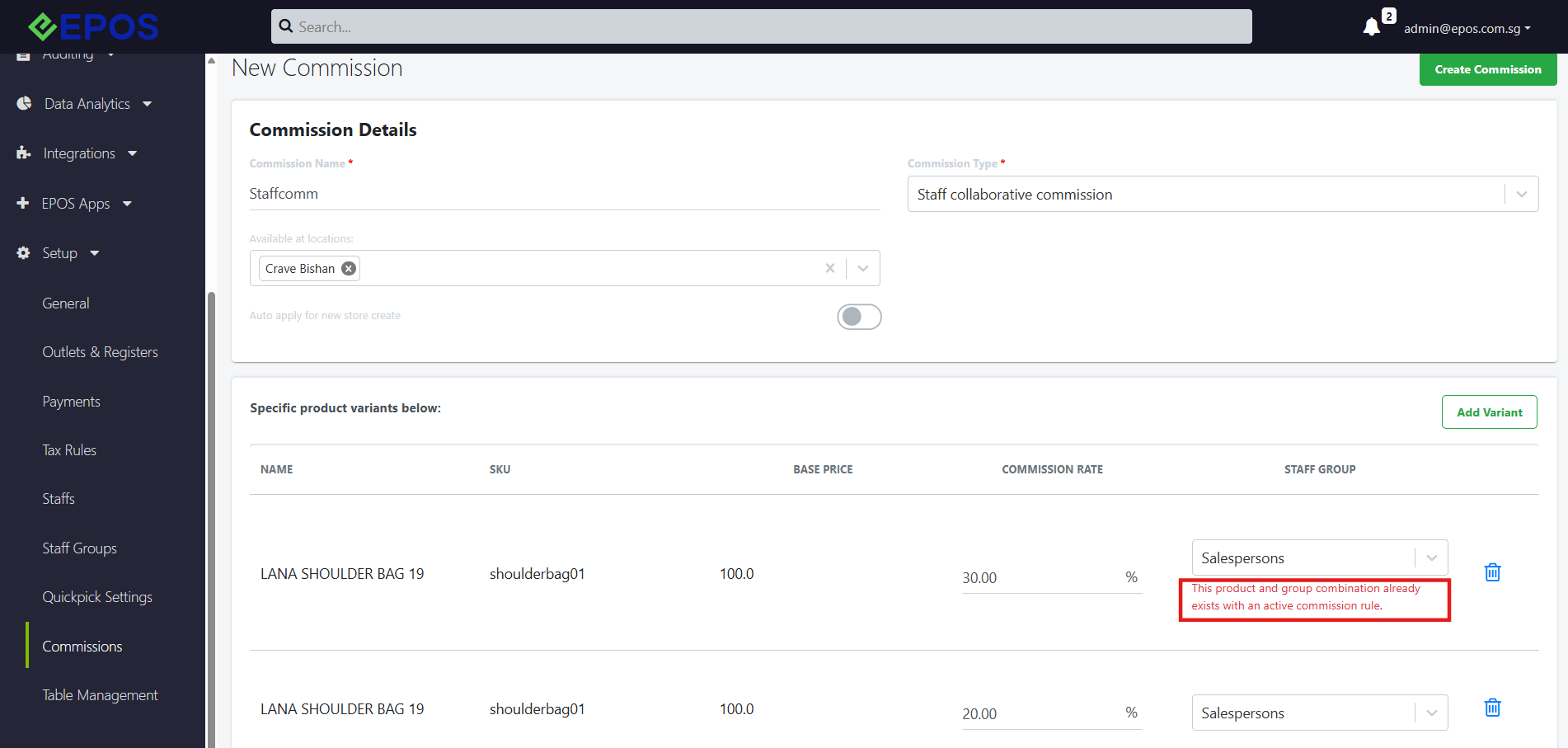
- Within the same commission, the user cannot set up a rule for products with simultaneously, the same SKU and Staff Group as an existing rule.
5. After configuring commission details for all added products, the user can click “Create Commission” to make the commission.
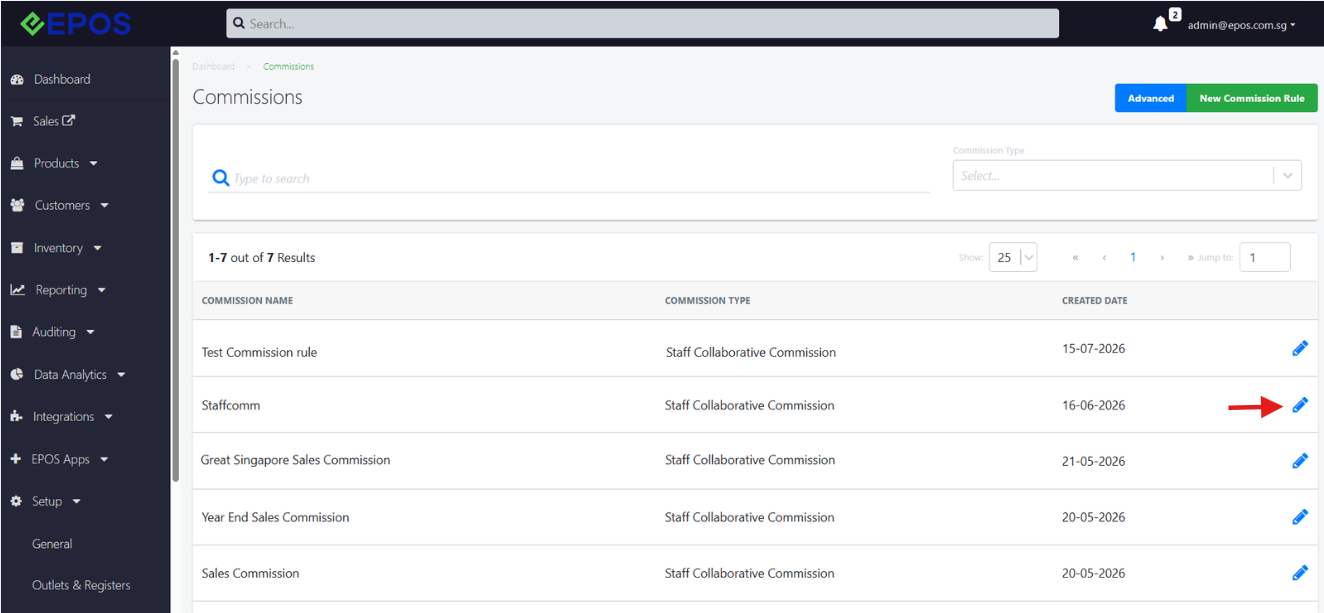
5. To edit commission details of existing commission rules, user can click on the pencil icon beside the relevant commission rule.
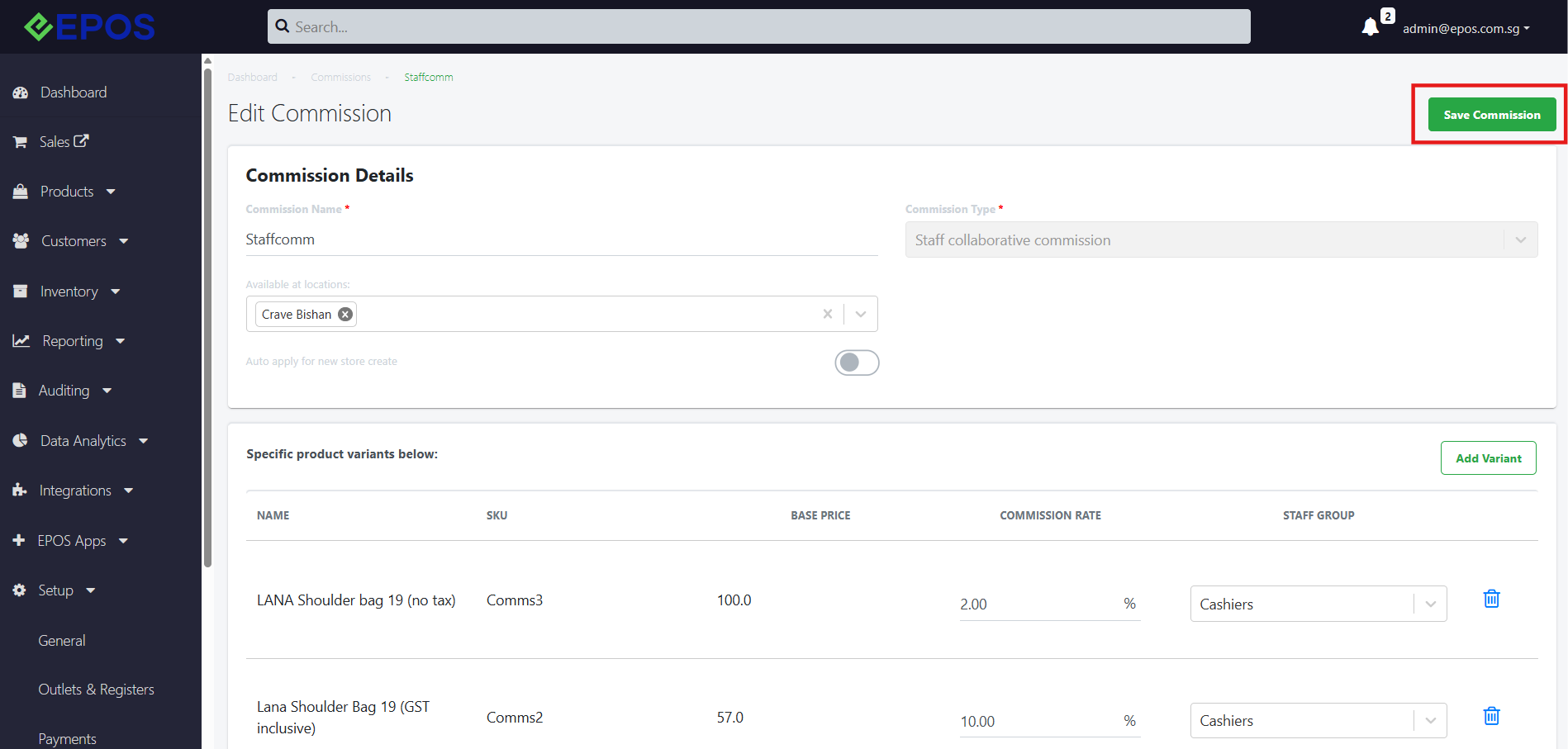
6. After the user has completed editing, “Save Commission” should be pressed to save the details.
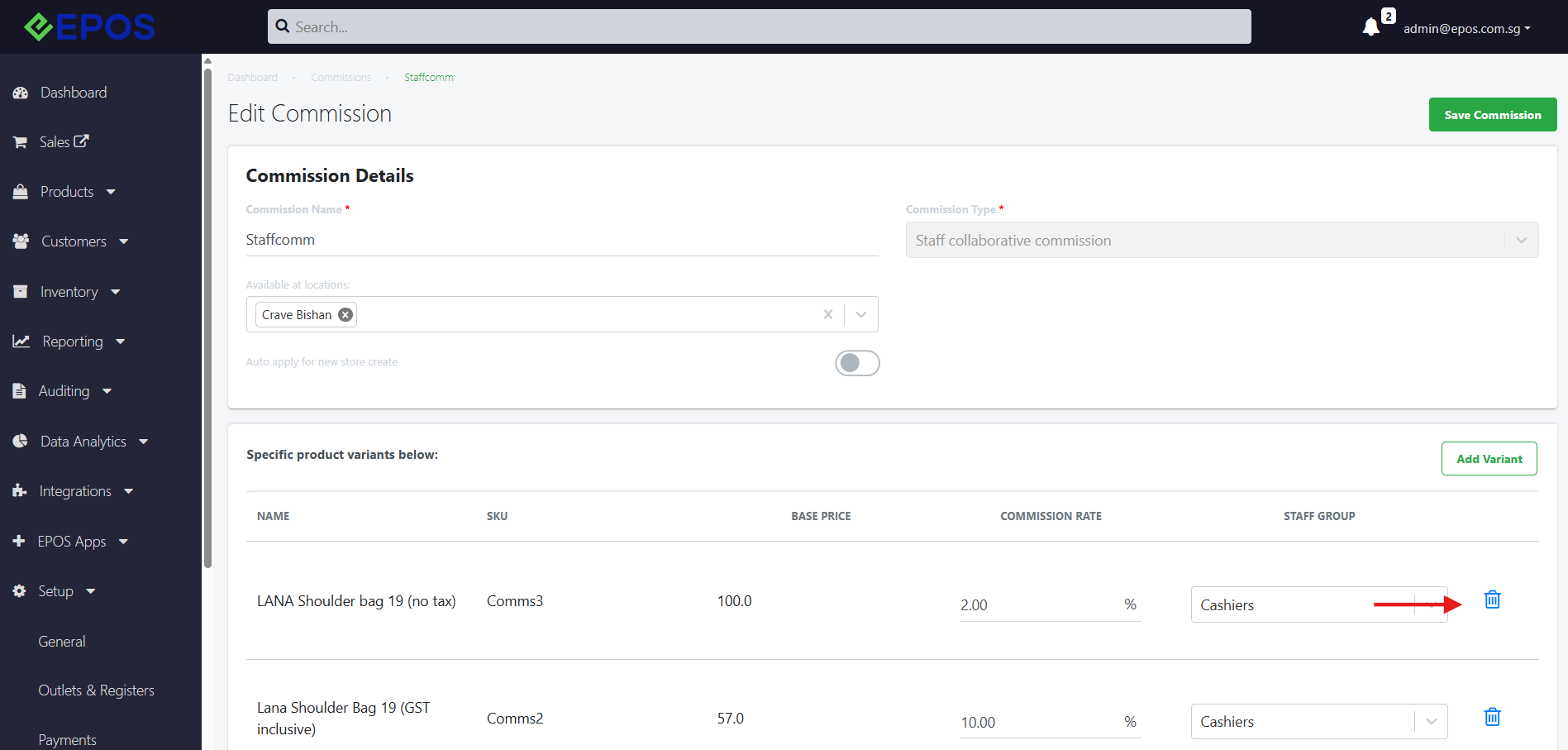
7. If user wishes to remove commissions eligibility for a specific product, this can be done by removing the product using the “trash” button.
Commission Calculation for 1 Salesperson
Commissions for 1 sales person will be calculated using the following formula:
Commission = Sale * commission rate
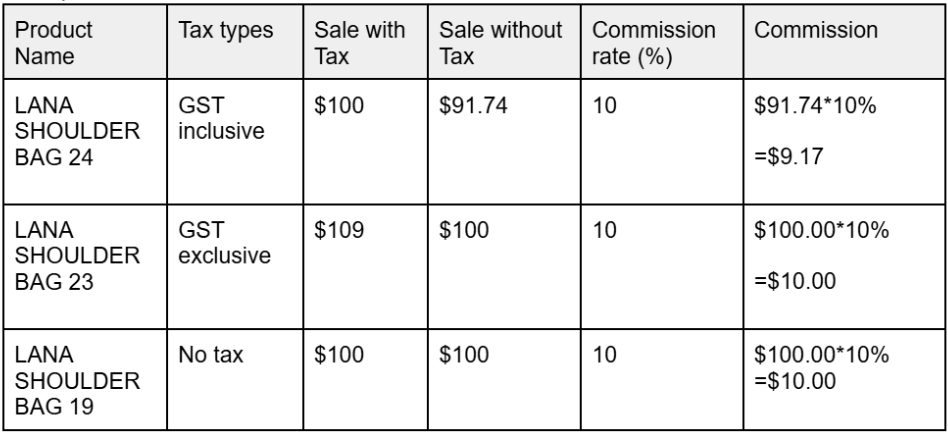
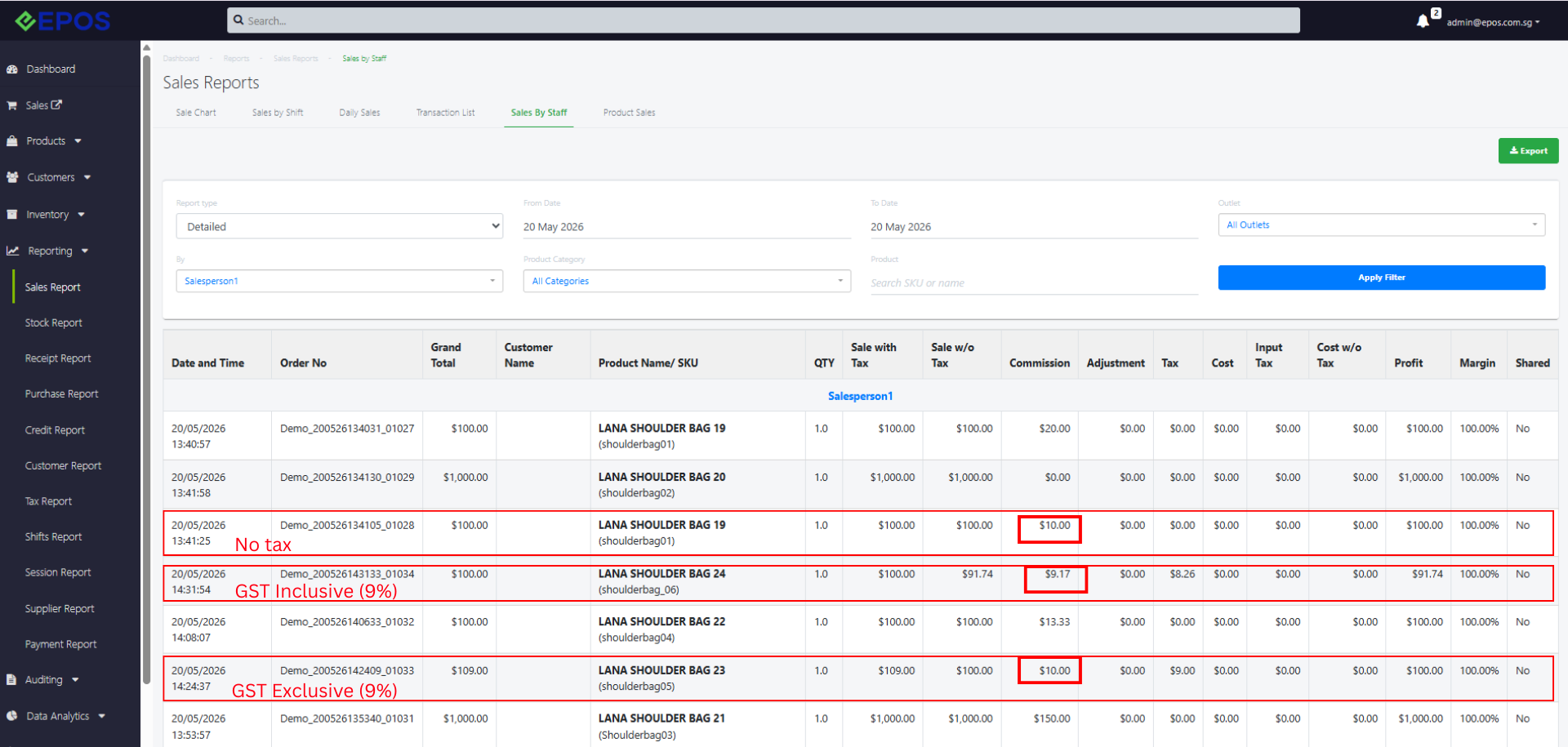
Commission is always calculated based on the sale amount excluding tax, regardless of whether the product is configured with:
- Tax Inclusive
- Tax Exclusive
- No Tax
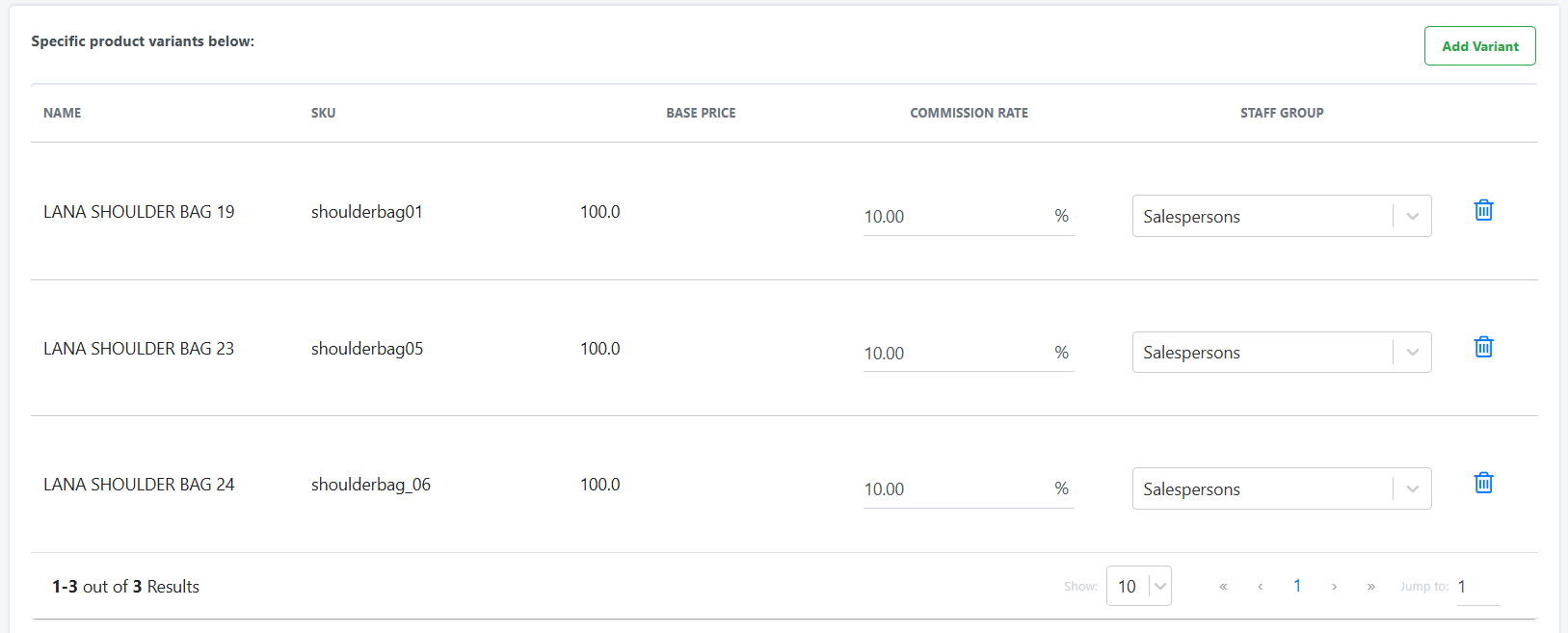
Commission rules configuration:
Calculations:
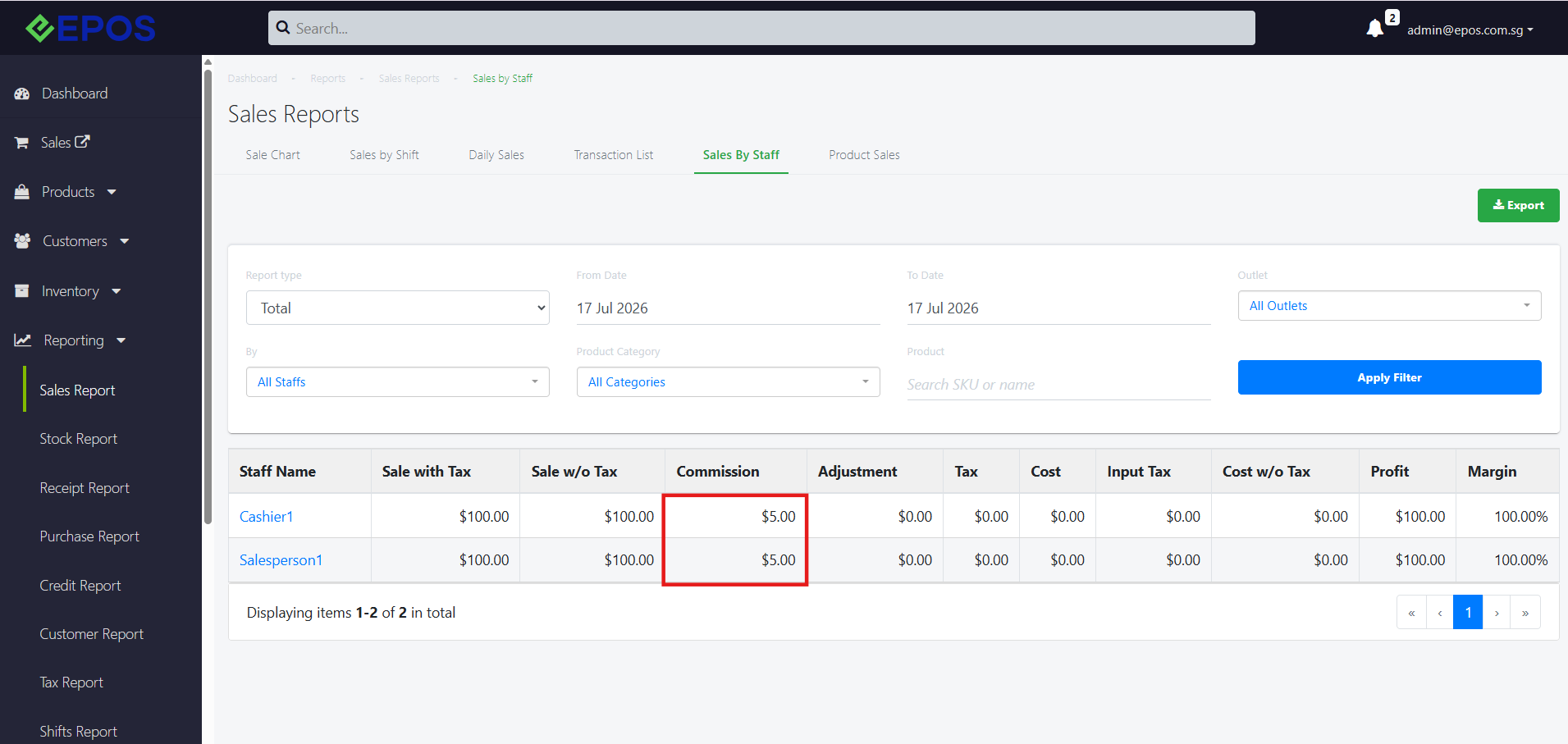
Report Examples
Commission Calculation across multiple staffs
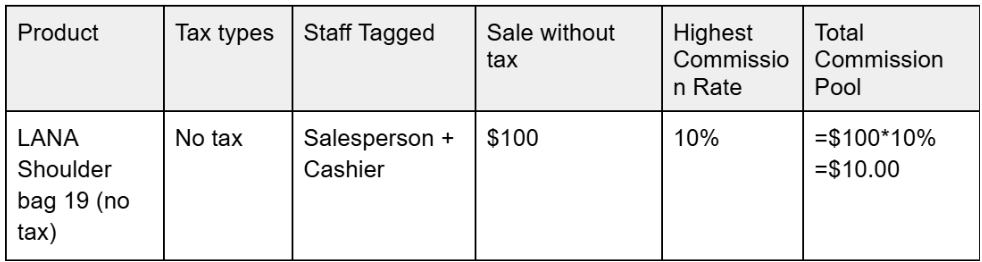
When multiple staff members are assigned commission rates for the same product, the system first calculates a single total commission pool for the sale. This commission pool represents the maximum commission available to be shared among all tagged staff. Commissions are then distributed based on the following logic:
- For same commission rates
- Total commission pool = 1 salesperson’s commission rate * sale without tax
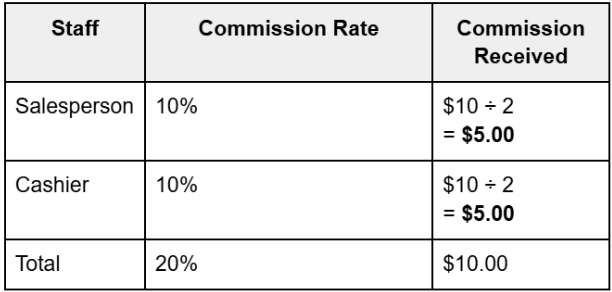
- Individual commission = (Total commission pool) ÷ no. of salespersons
- For different commission rates
- Total commission pool = Highest commission rate * Sale without tax
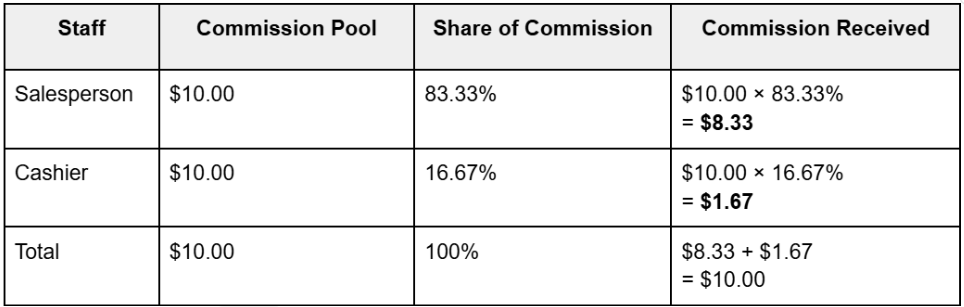
- Individual commission = Individual share of commission * Total commission pool
Commission rules configuration for same commission rates:
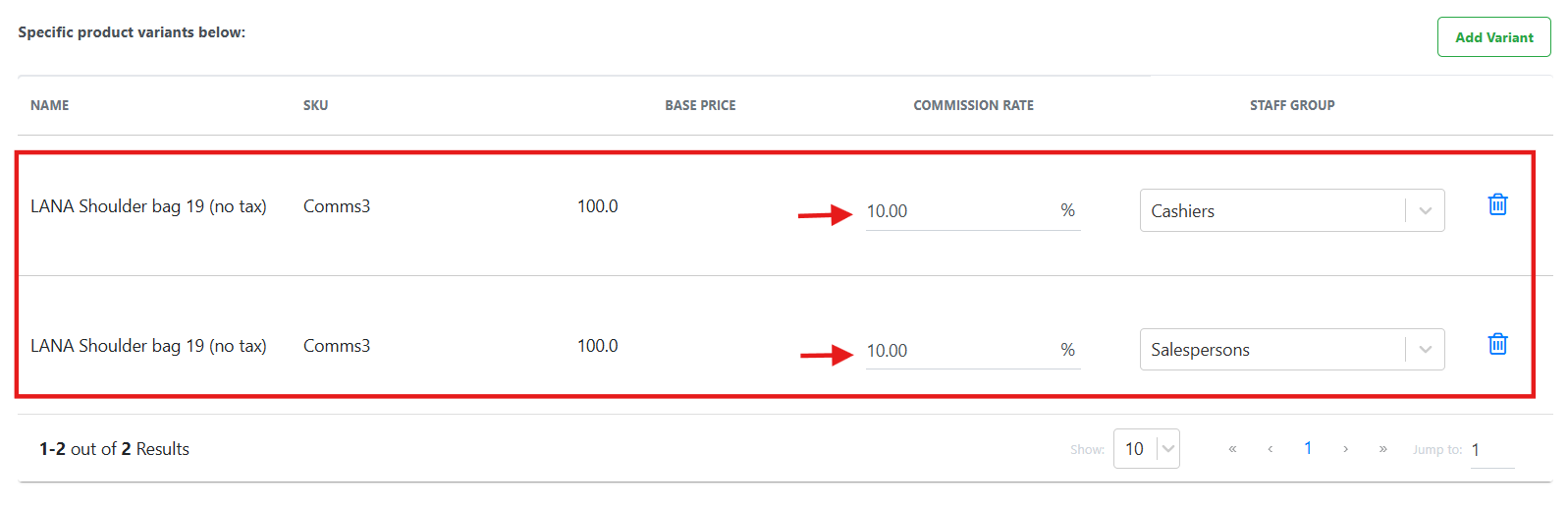
1. The maximum total commission pool across all tagged sales person is calculated using the commission rate of one of the salespersons.
2. The maximum total commission pool is then equally distributed between the staffs.
Commission rules configuration for different commission rates:
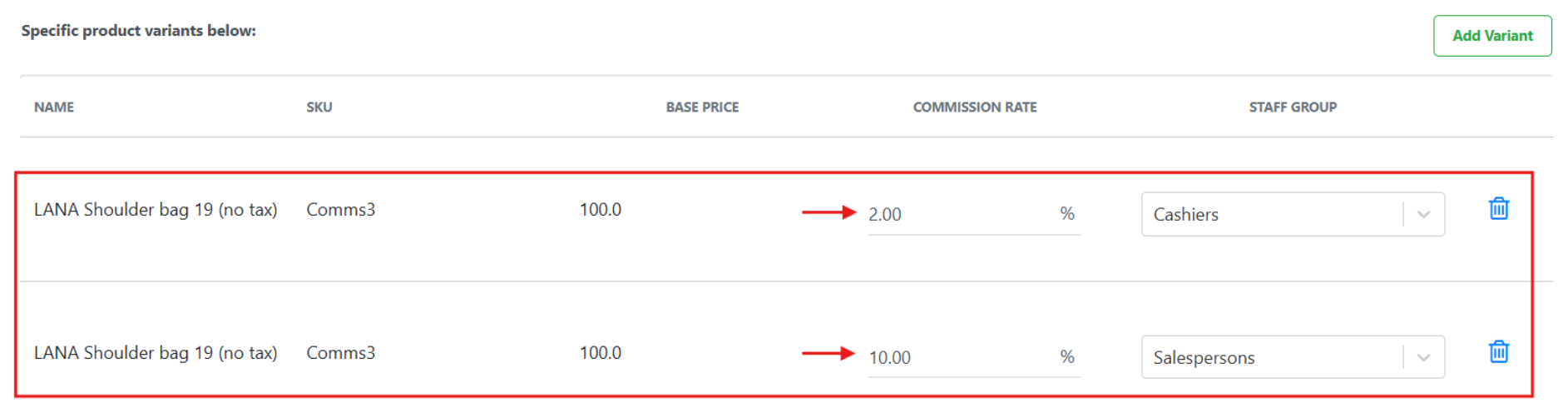
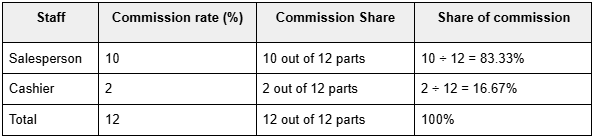
1. The system first determines the highest commission rate configured among the participating staff groups. The maximum total commission pool across all tagged sales person is calculated using this “highest commission rate”.
2. The maximum total commission pool is then distributed between the staffs based on their commission percentage shares.
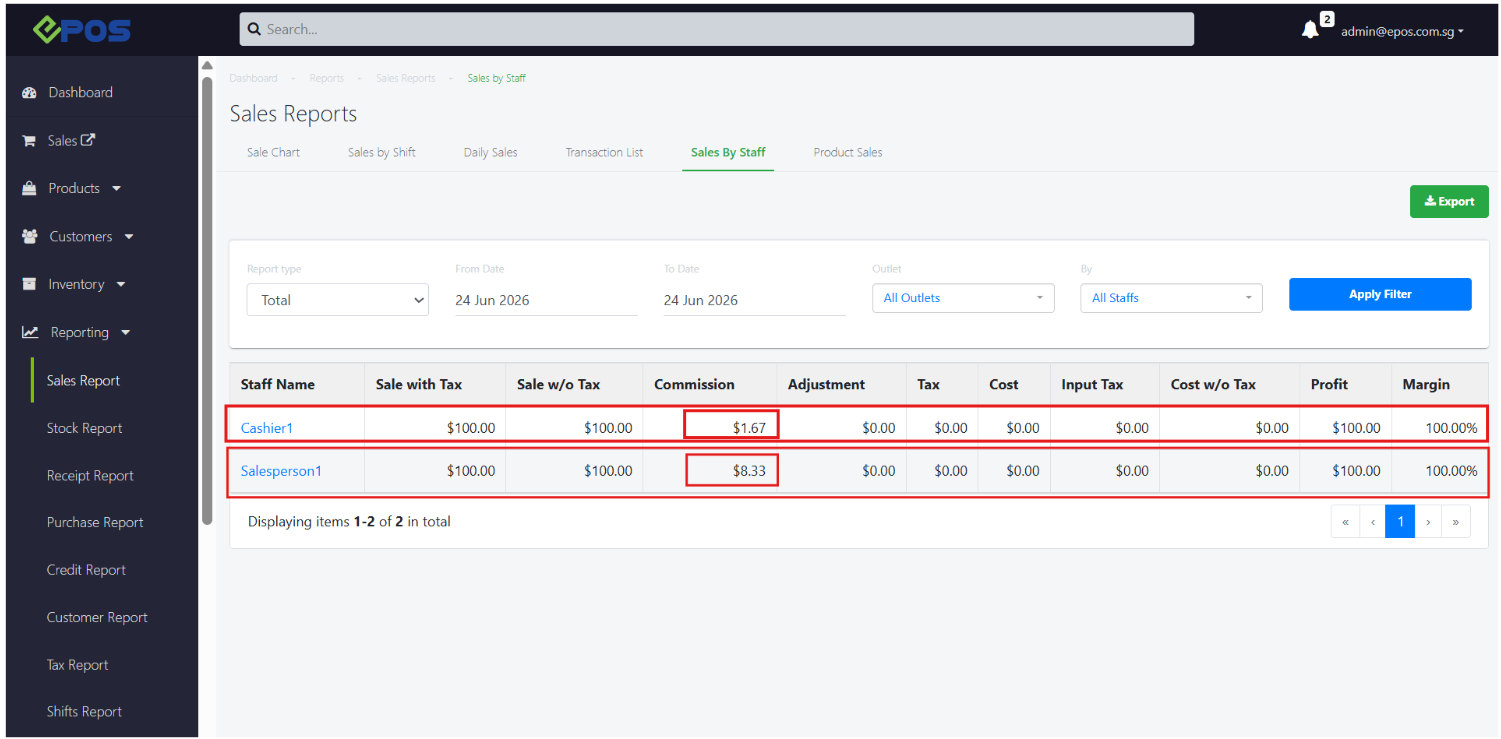
- Determine each staff’s percentage share of total commission pool
- Calculate Final Commission