The Time Sheet provides users the convenience to view actual working hours of each staff member. Using our Time Card feature, operational shift management can be separated from actual employee work logs. Users can utilise this report to:
- Track the total accumulated working hours for payroll and attendance purposes.
- Compare scheduled shifts against actual working hours logged by employees.
- Monitor staff punctuality, overtime hours, and attendance records more effectively.
- Improve manpower planning by identifying staffing patterns during peak and non-peak periods.
- Filter and review records by specific staff members and dates for easier tracking and management.
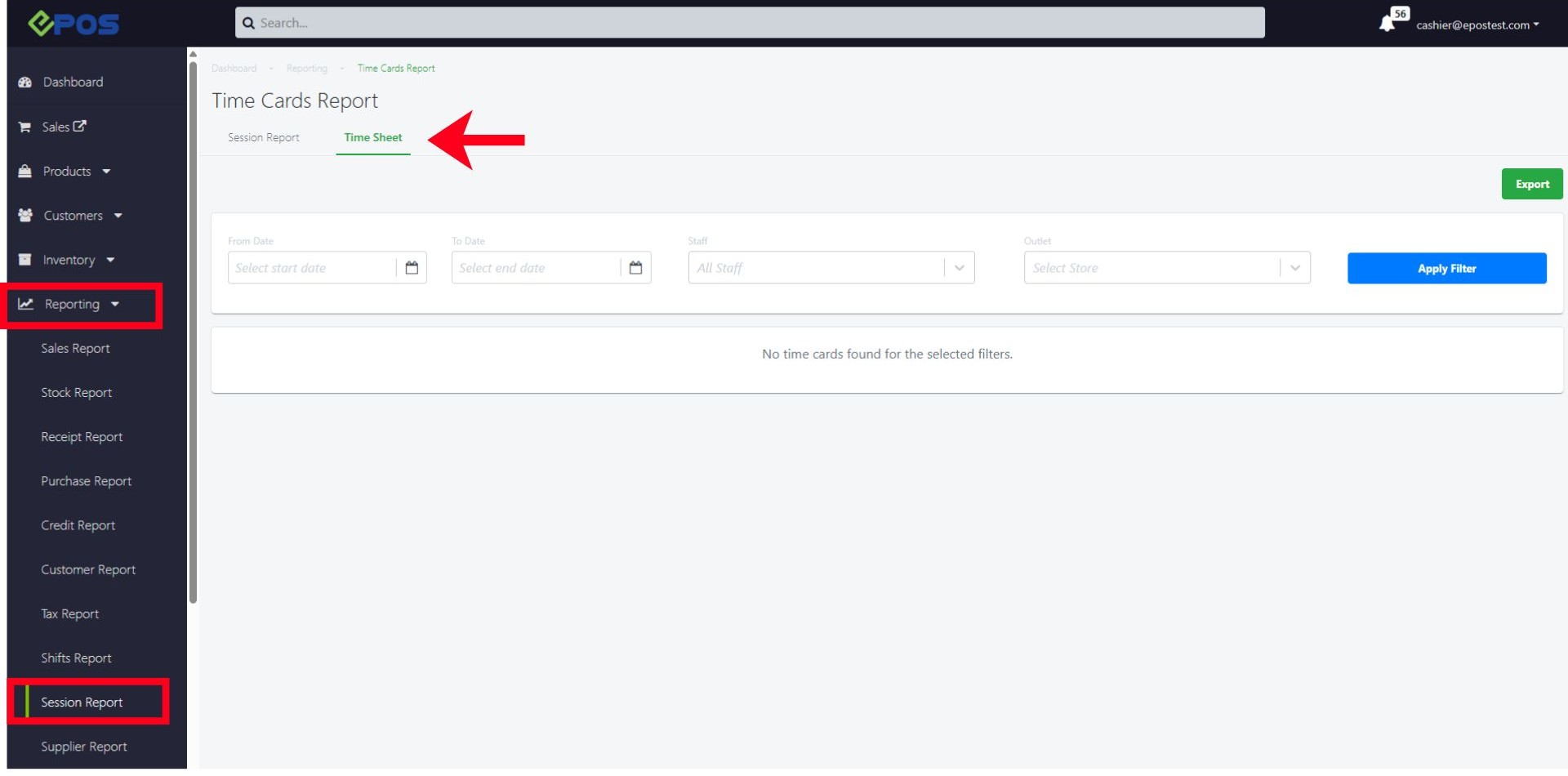
1. Accessing the Time Sheet In the backend, User can view the report under Reporting → Session Report → Time Sheet
2. Filter options User can filter entries based on their “Date Range”/“Staff” / “Outlet”. 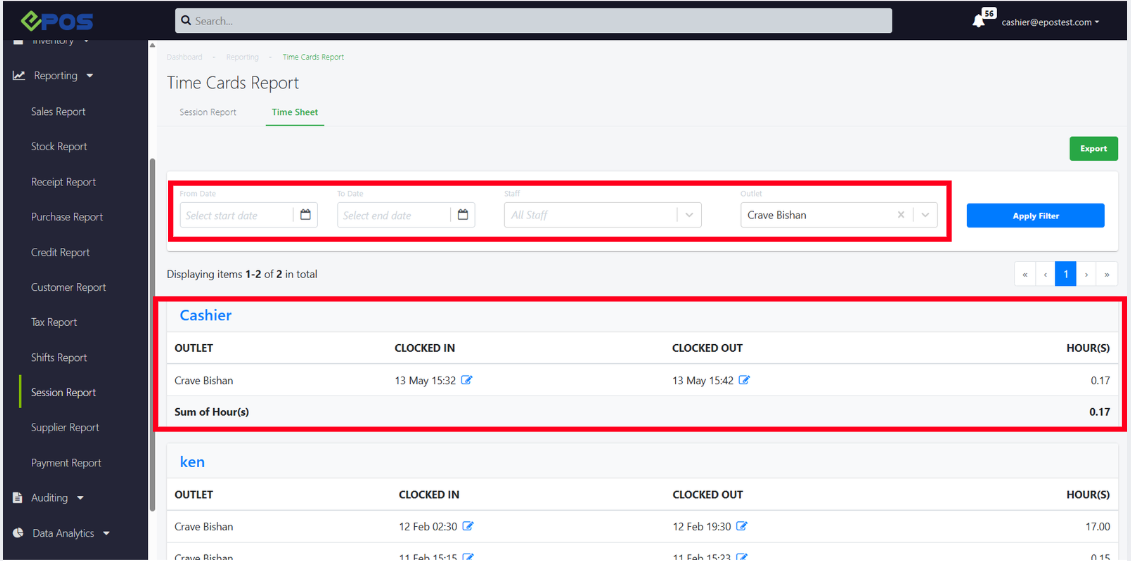
By default, the Time Sheet Report is grouped by Staff, Total Hour(s) are also calculated for each Staff
3. Editing clock in/out sessions manually In the case where user wishes to correct incorrect or missing attendance records, they may edit the date and time for each staff clock in/out sessions manually.
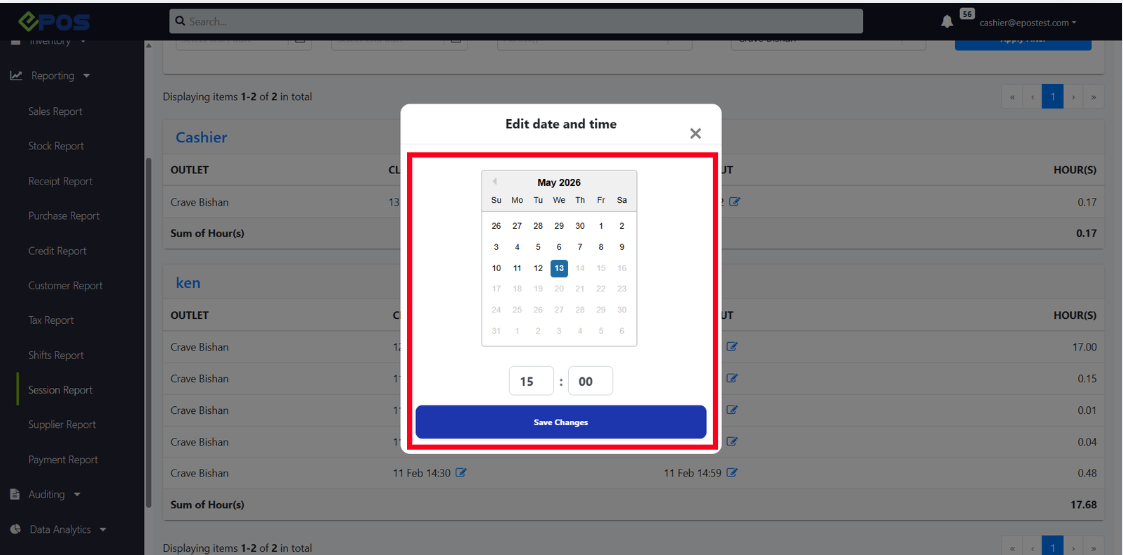
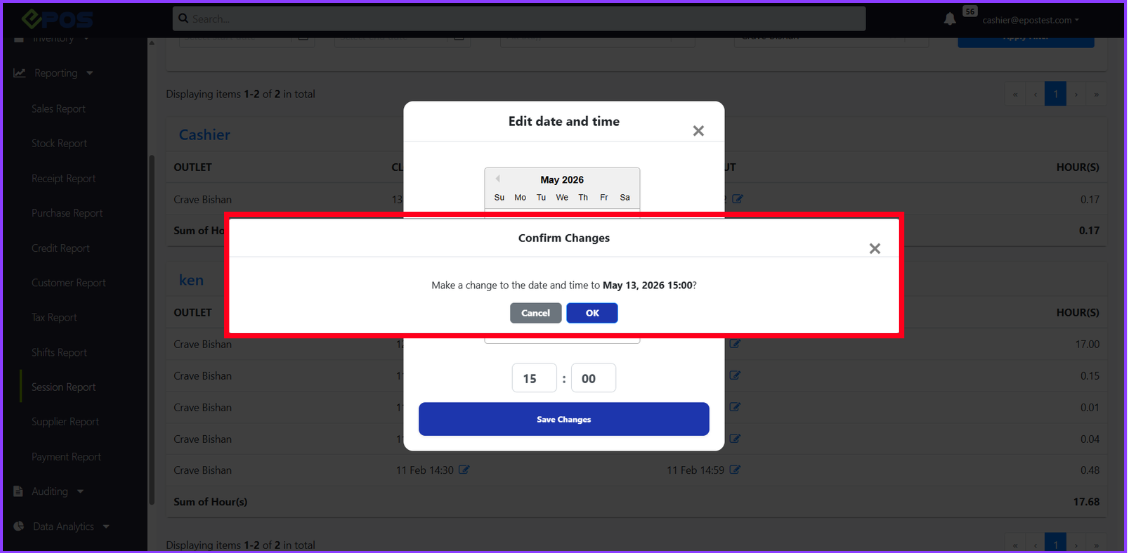
When a valid date and time is entered, a pop-up will appear to prompt user for confirmation.
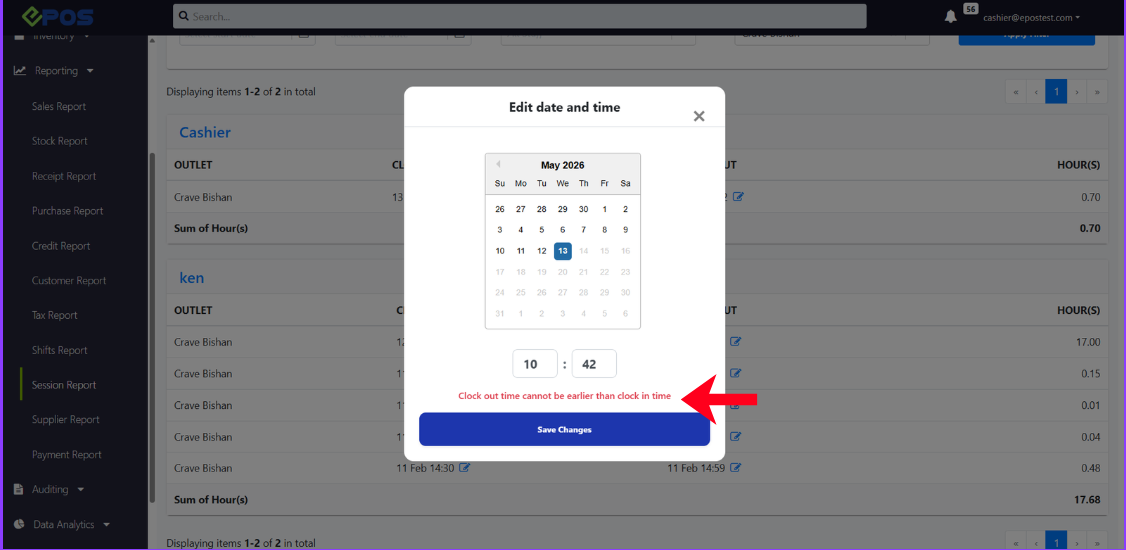
Note: Users should note that an error will be thrown when there is an attempt to change the clock out time to be earlier than the clock in time.
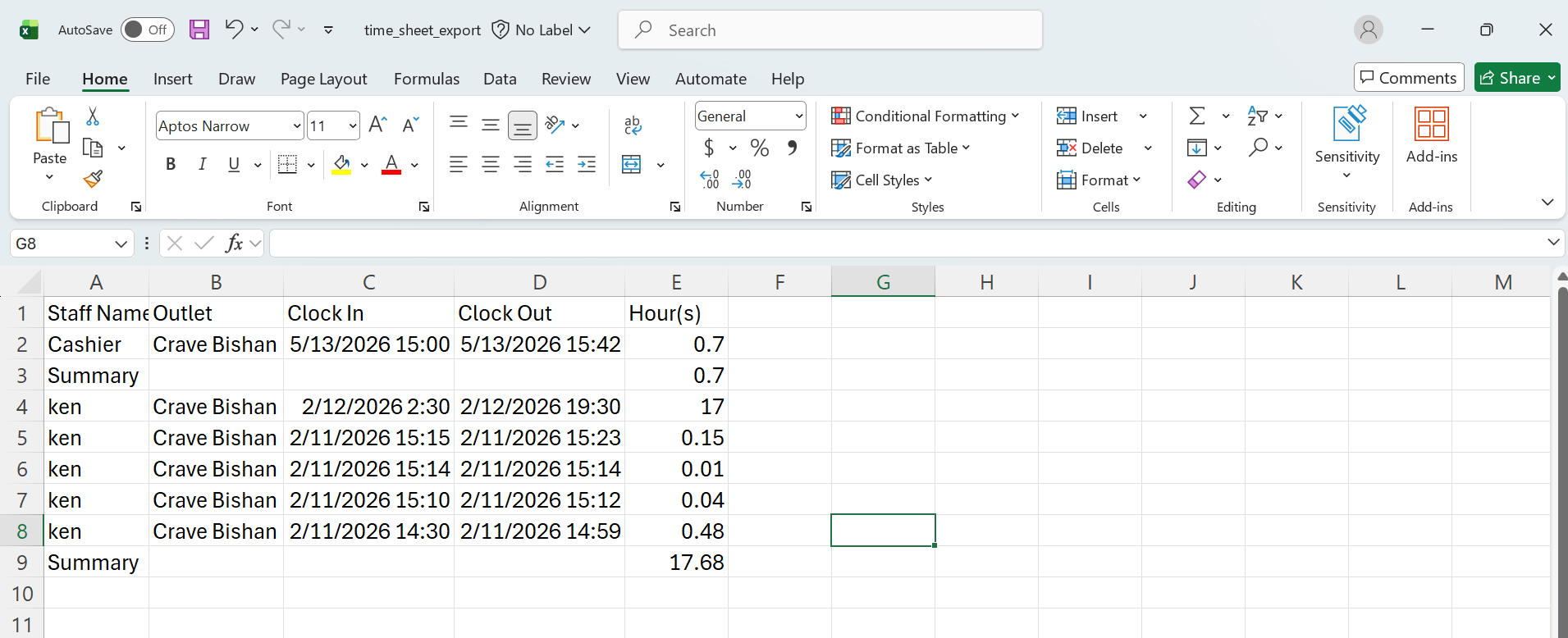
4. Backend Exporting The report is able to be exported as a CSV file using the “Export” Button Default File name: time_sheet_export.csv
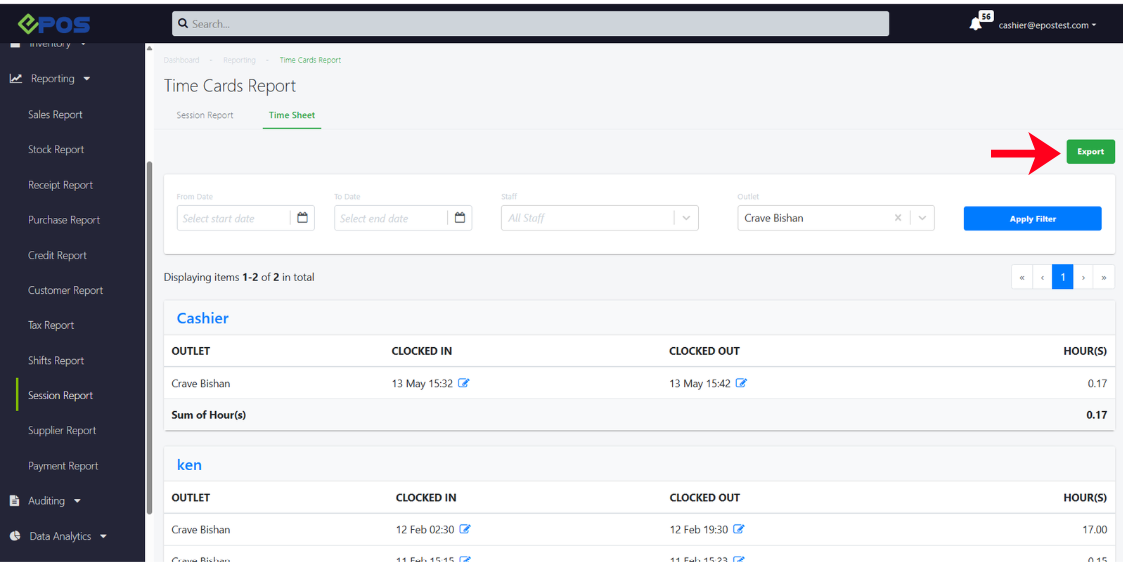
In the exported CSV, user is able to view the following details: Staff name, Outlet, Clock In (Date & Time), Clock Out (Date & Time), Hours Accumulated