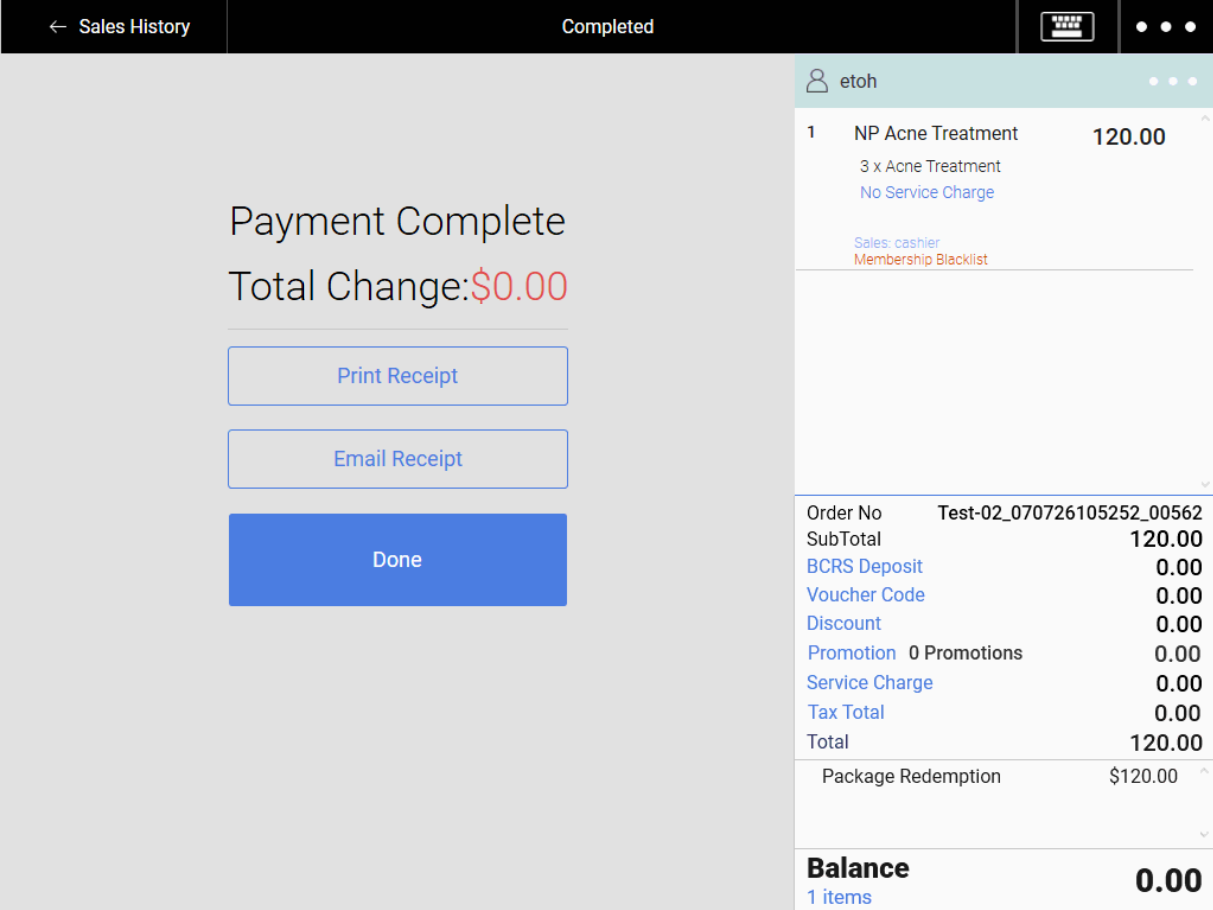
Package products are ideal for merchants who want to sell sessions or bundles that customers can purchase upfront and redeem over multiple visits.
The guides below will explain the package products flow. The features will cover
- Creation
- Selling
- Redemption
Package Products are required to be set up at the backend portal.
You can refer to this configuration guide.
“Redeem Product” payment type is also required to be set up at the backend portal.
You can refer to this configuration guide for the payment creation process.
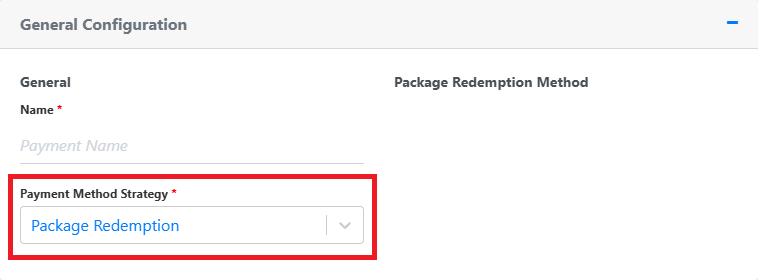
Creation of Package Redemption payment method
Selling Package Products
1. To add a package product to the order cart, users are required to tag a customer to the sales order
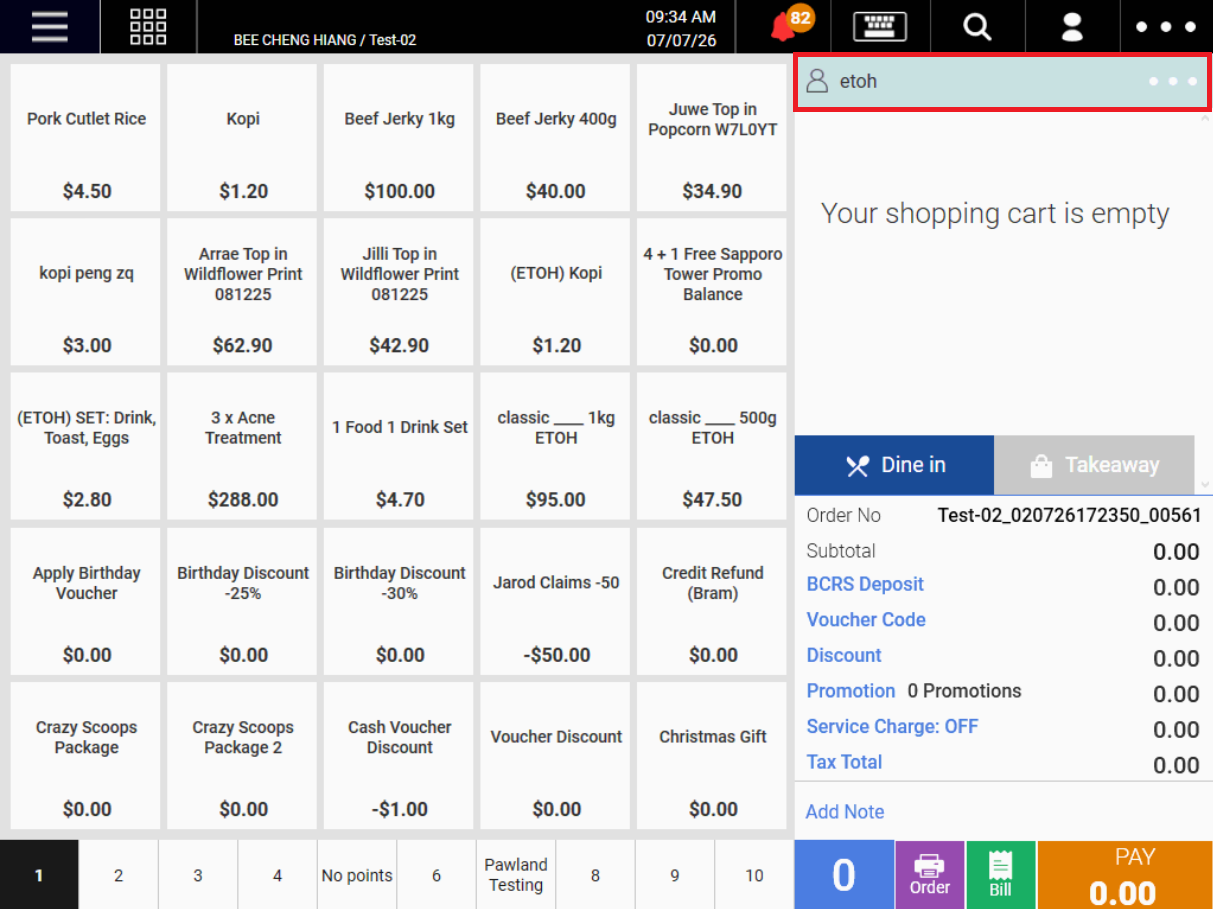
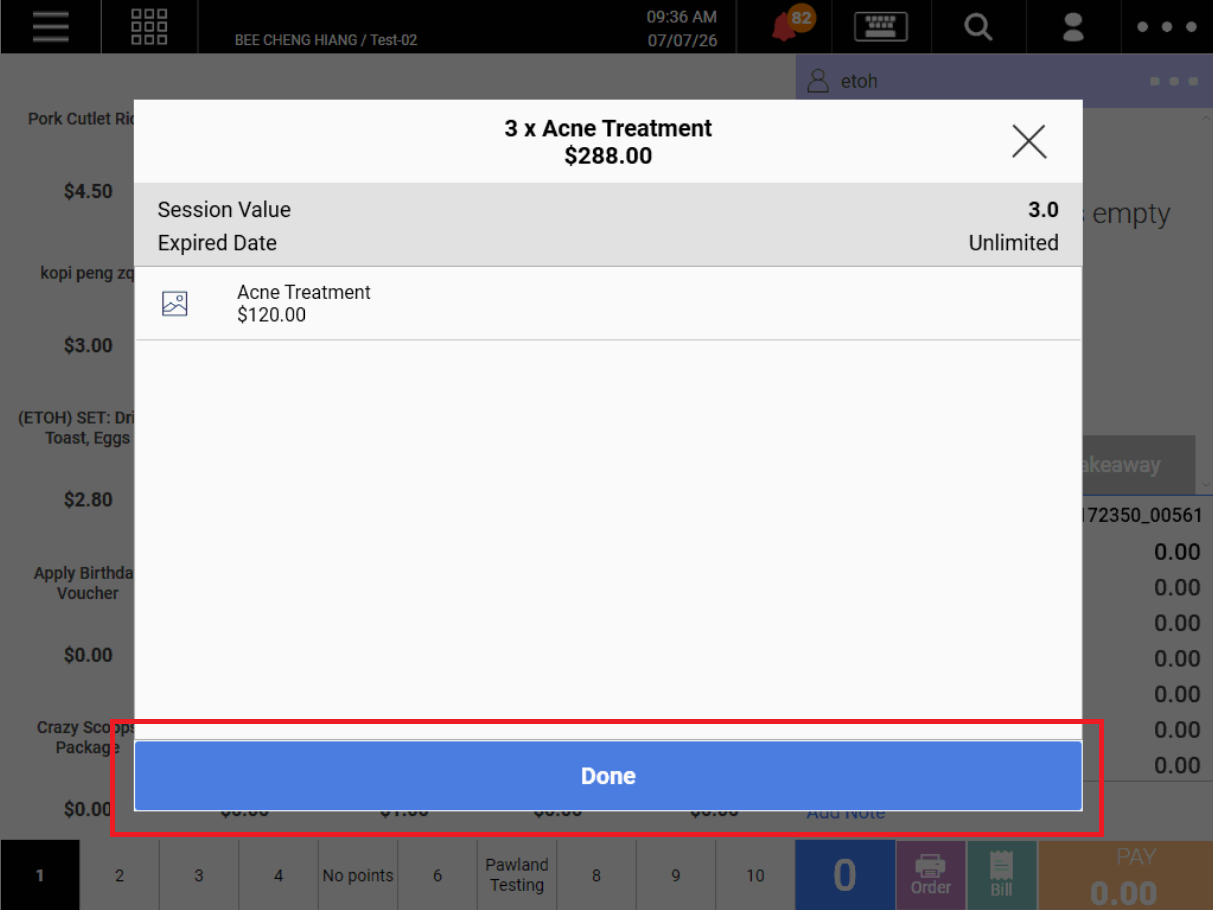
2. Select a package product, click on Done to add it to the order cart.
3. Users checks out the product.
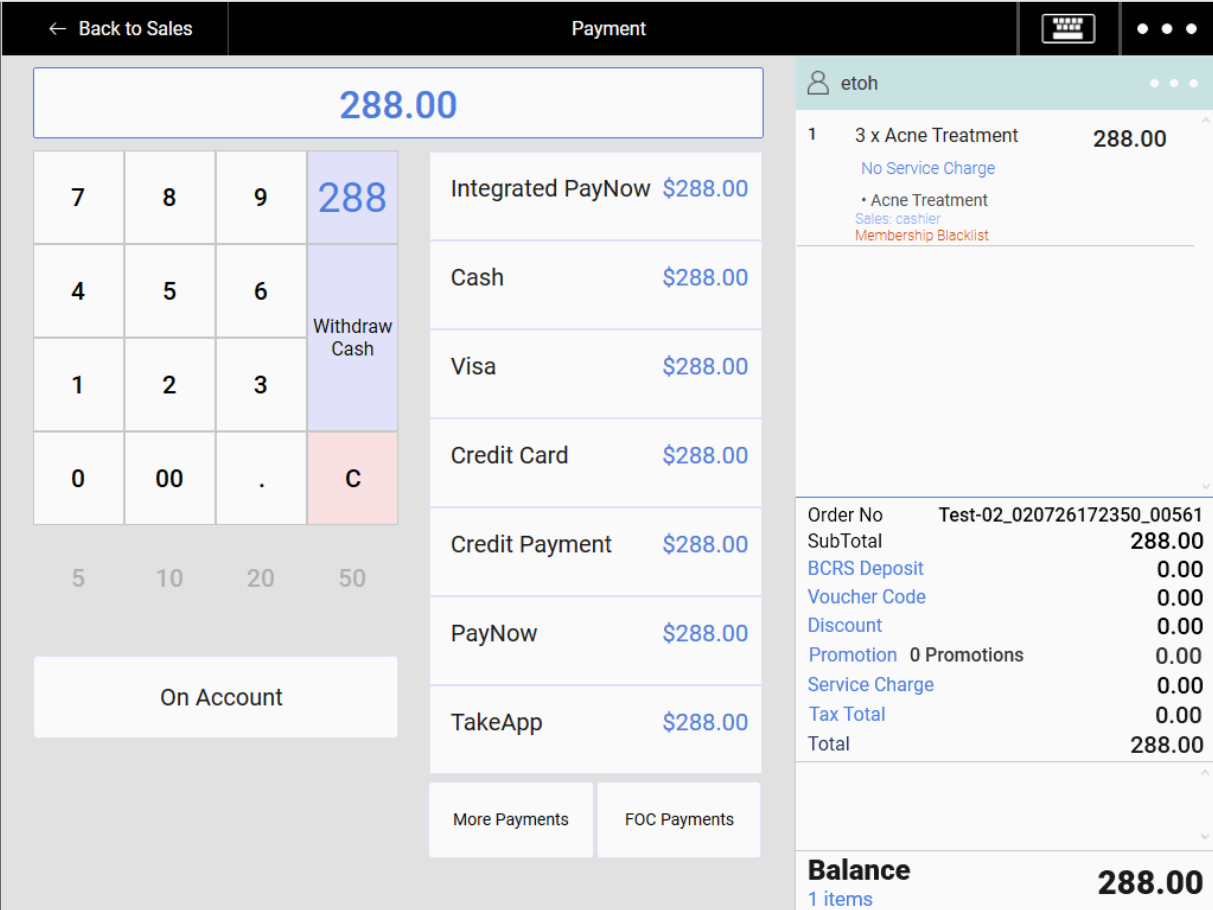
4. Customer has bought a package product!
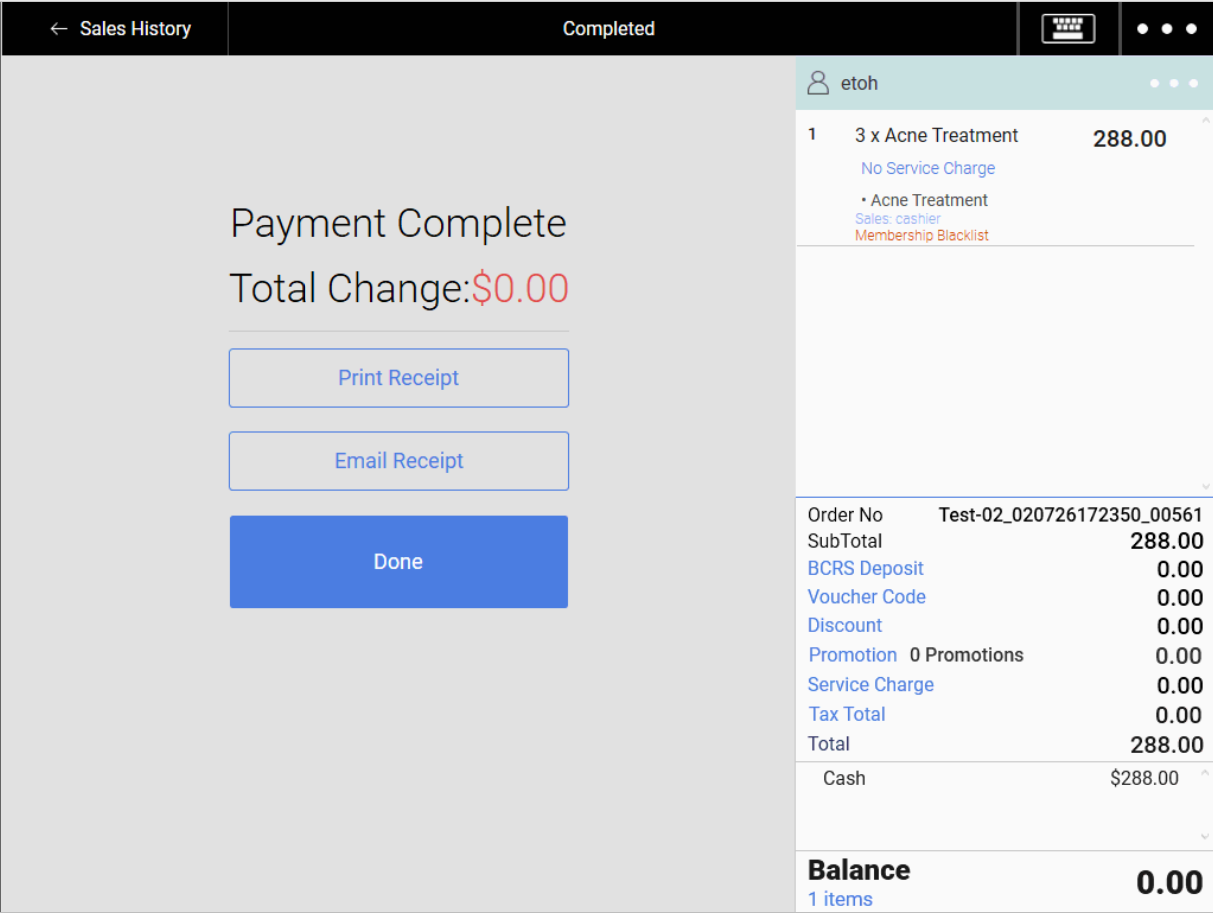
NOTE:
- A package can only be redeemed after selling to a customer.
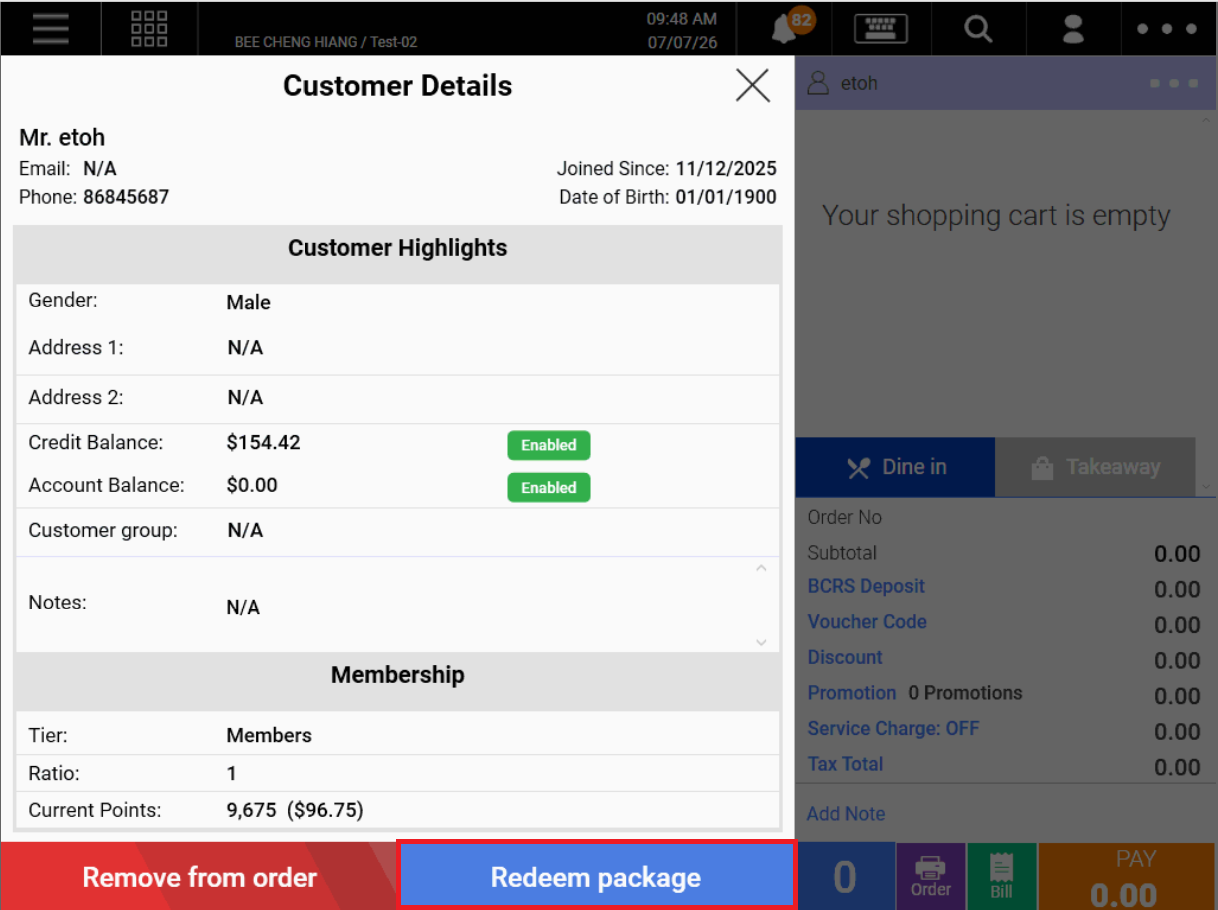
1. To redeem a package product, users are required to tag a customer.
2. Click on the three dots(…) on the right of the customer name > Redeem packages, a package redemption window will be shown.
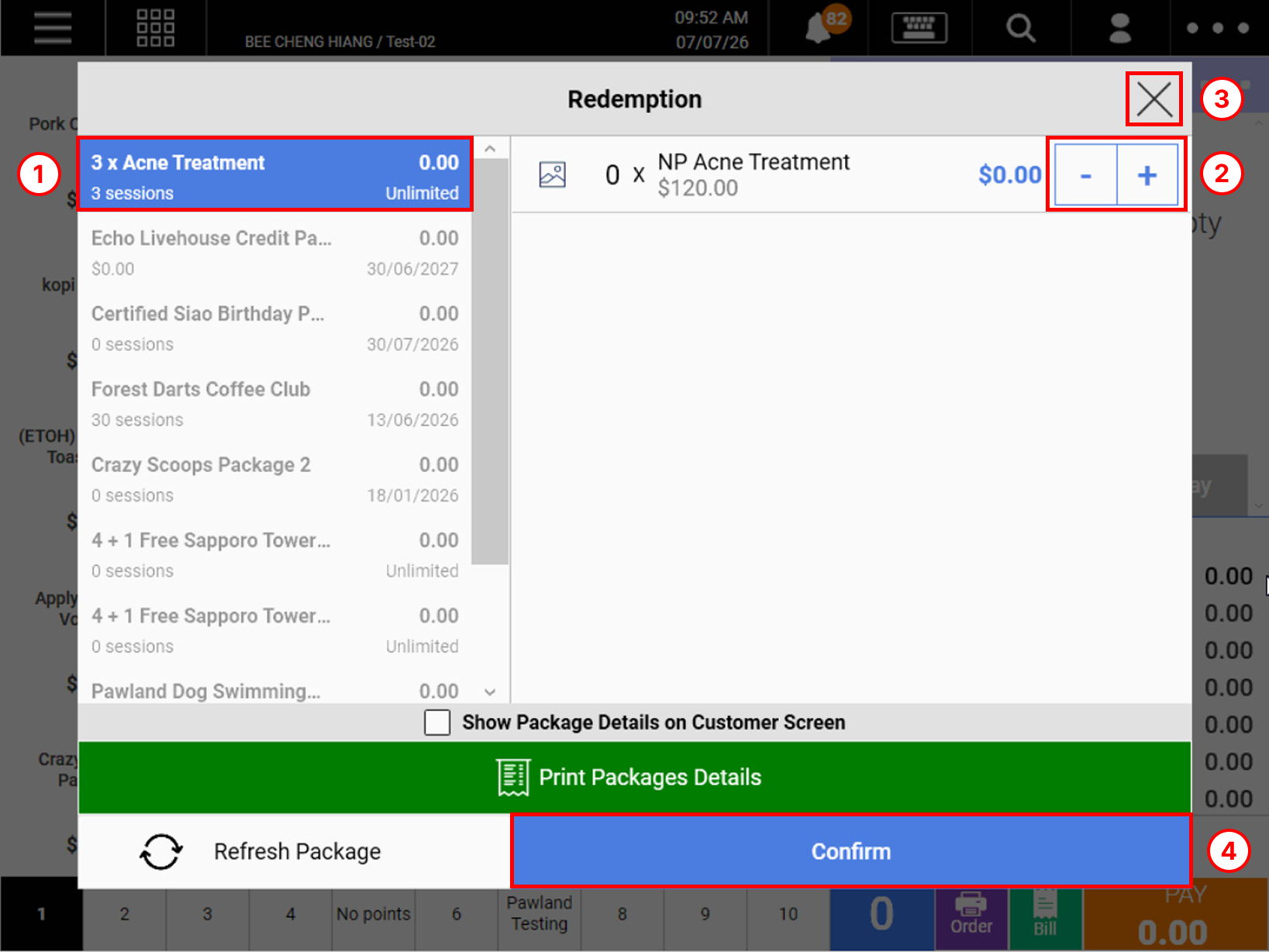
3. Redeem a package for the selected customer
(a) Select the package. If customer has purchased a few packages, every package will be listed. Packages will be separated from active and inactive packages.
- Active packages are sorted by earliest expiry date
- Active packages with no expiry date are sorted by earliest purchase date
(b) Insert the quantity to be redeemed, using ➖or ➕ .
(c) Click on the X button to abort the redemption.
(d) Click on Confirm to proceed with redemption.
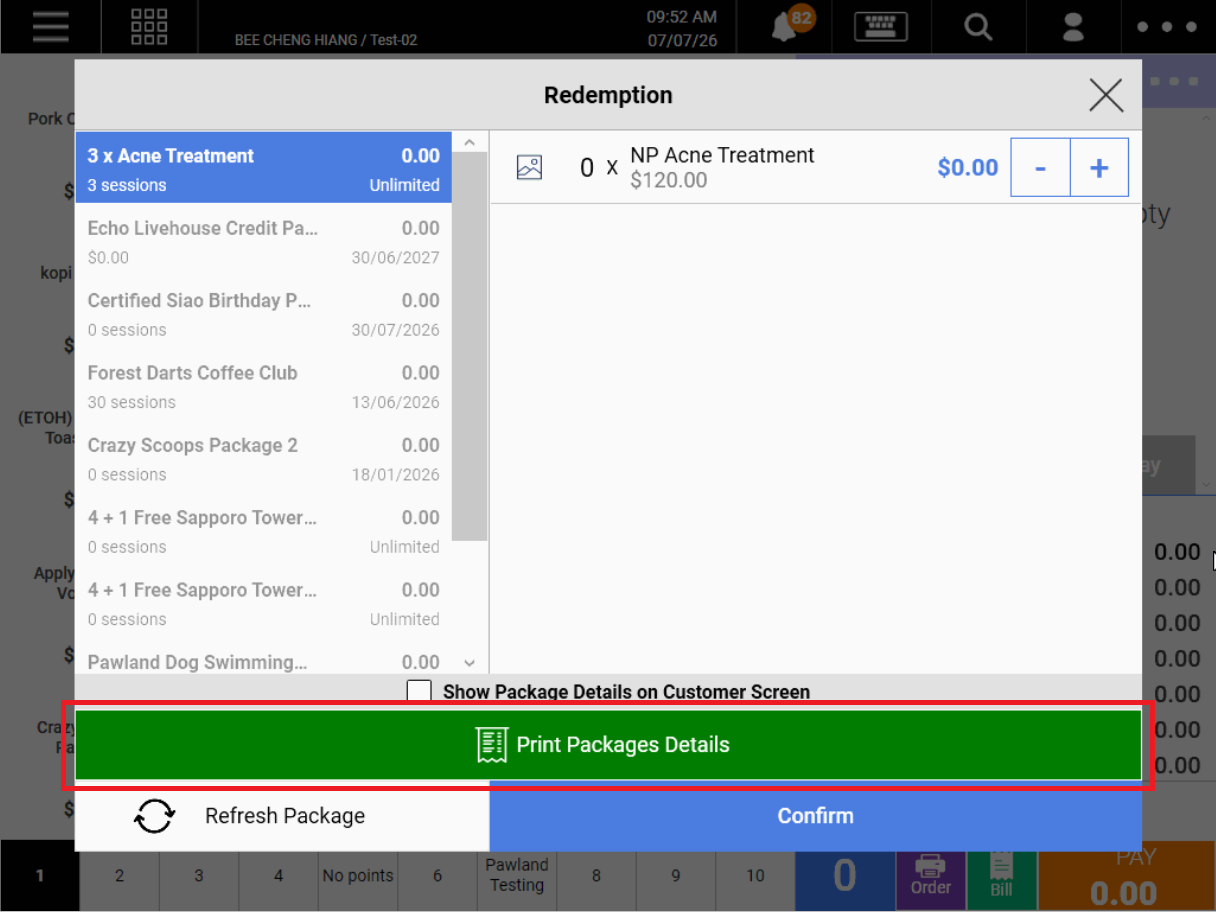
💡Click on Print Package Details if customer would like to check on their active package status/sessions etc.
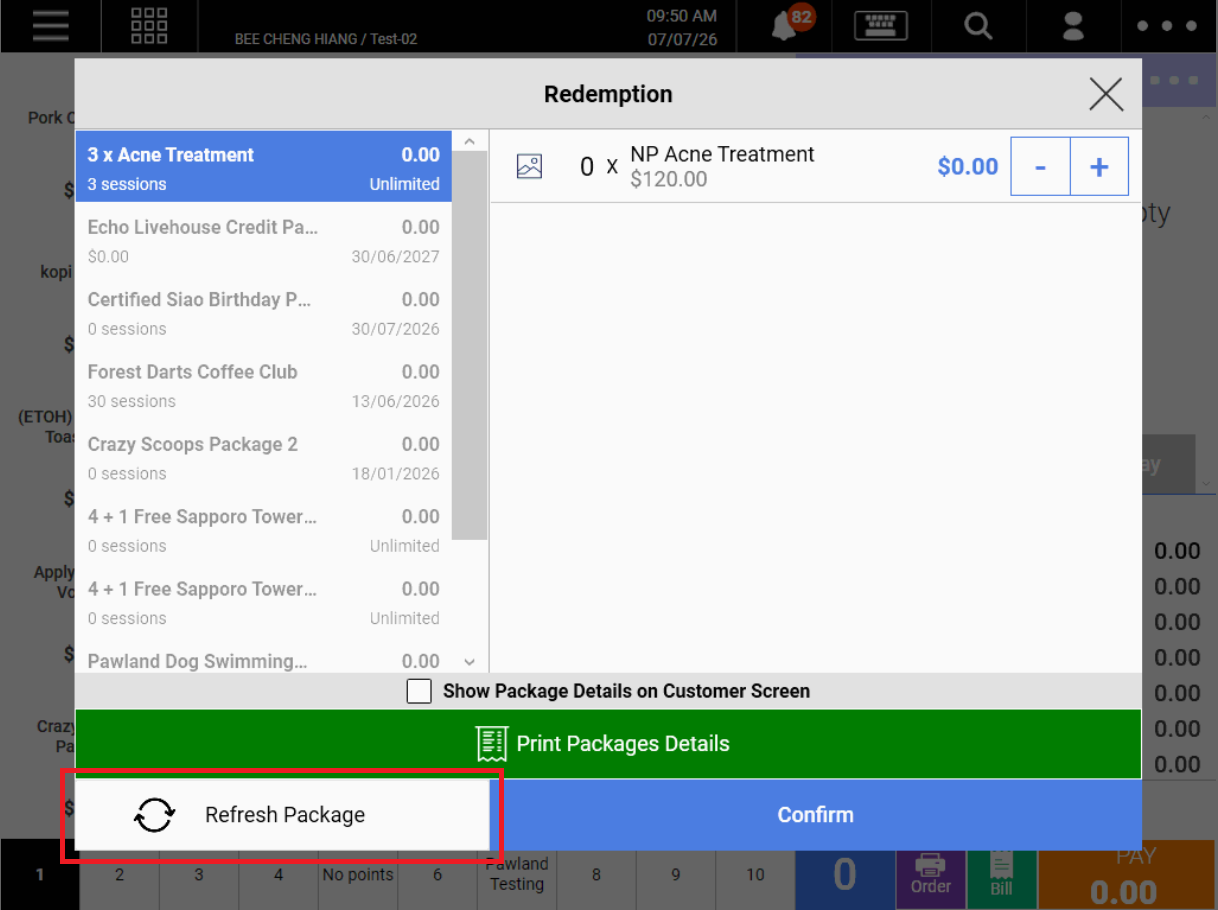
💡Click on Refresh Package if the packages have not been synced to the backend etc.
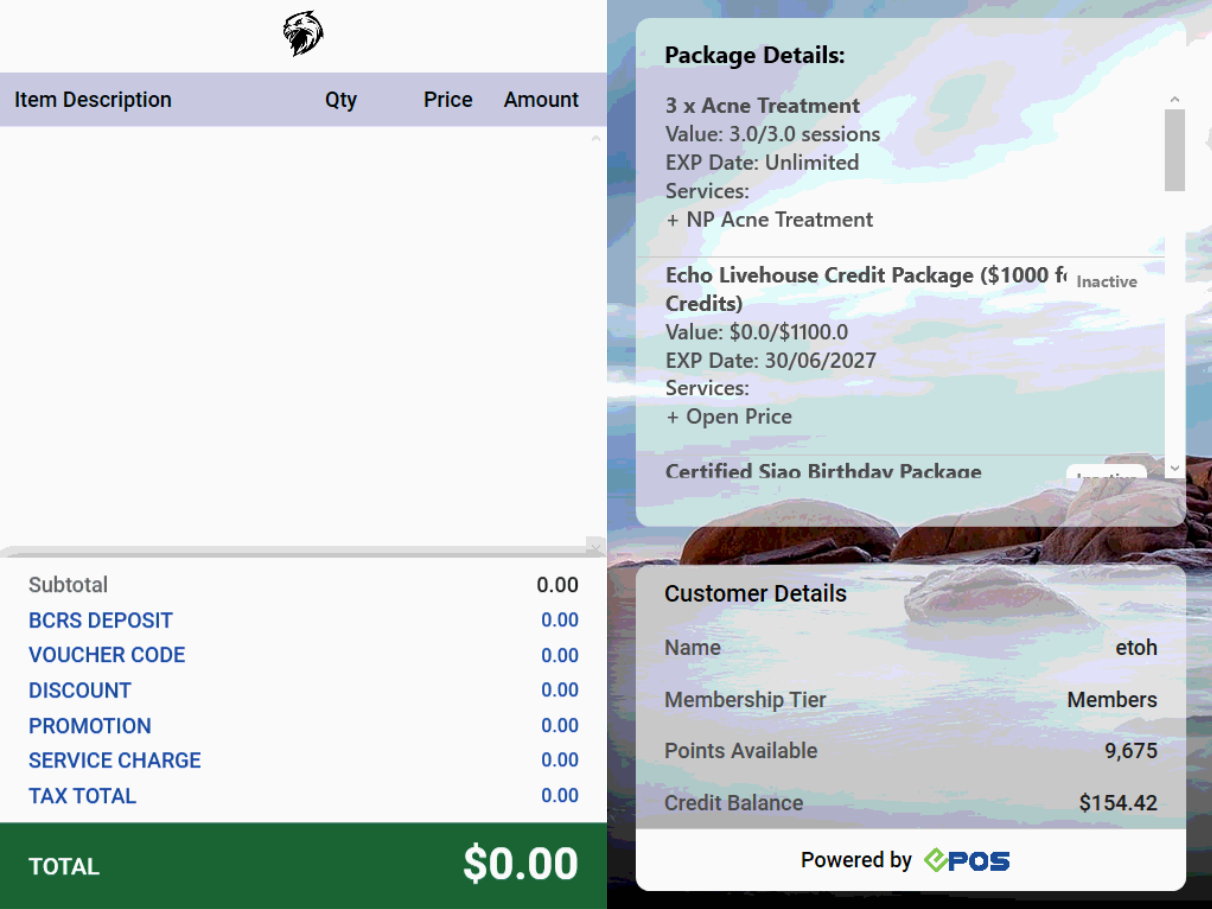
💡If customers want to review their own package details, users can click on Show Package Details On Customer Screen.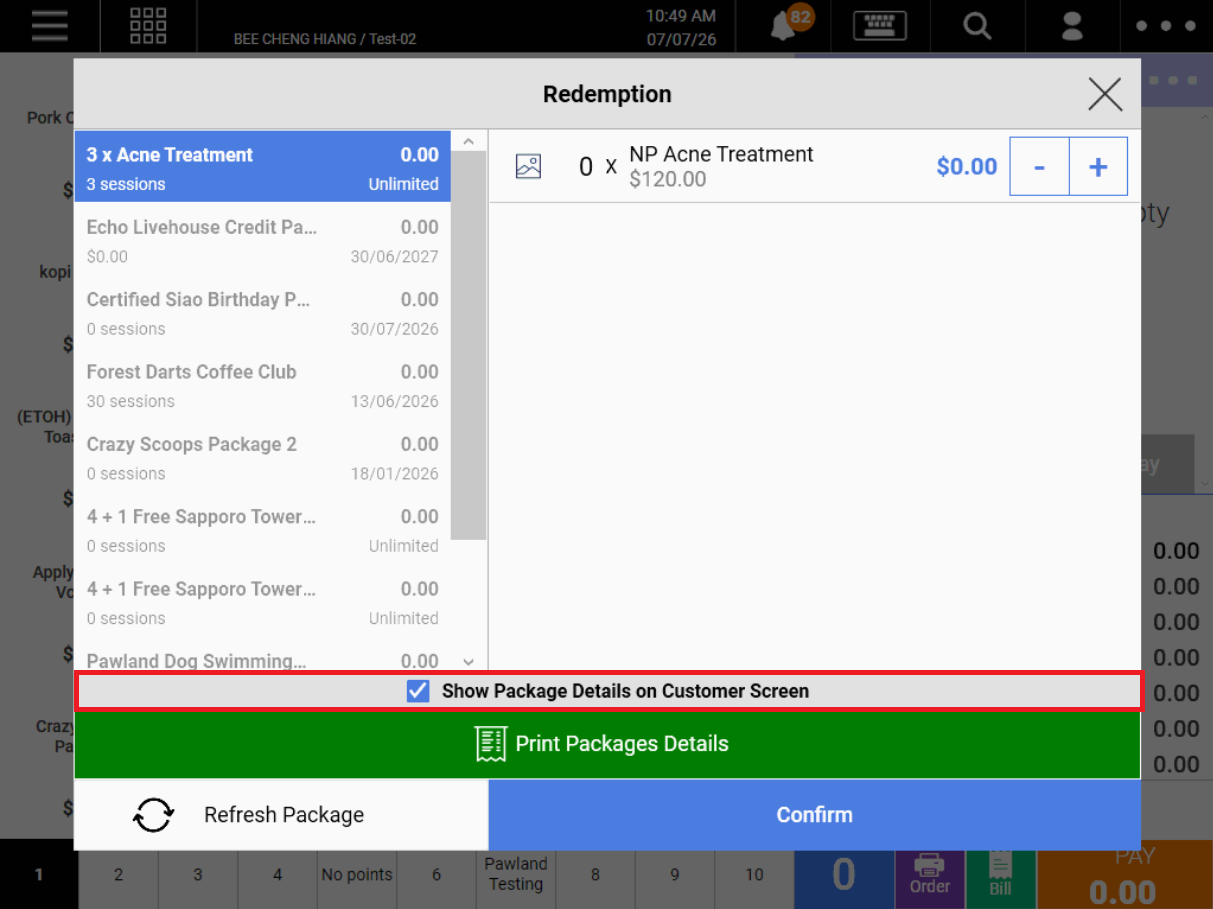
Package order on customer screen will follow the Staff Screen.
Inactive Packages will have an Inactive tag on them.
4. Upon clicking Confirm, package redemption will be added to cart. To proceed with redemption, click on PAY.
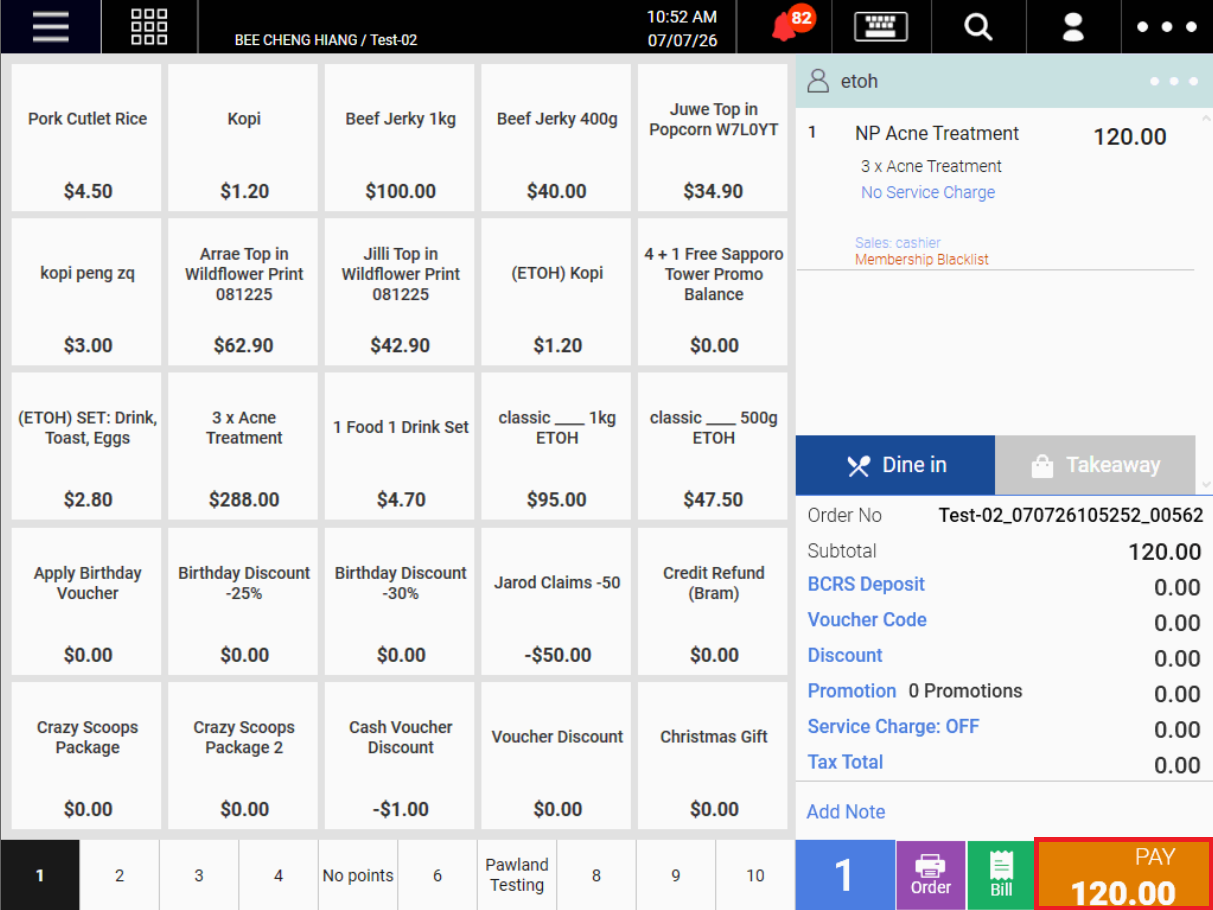
5. Users will be shown a redemption confirmation page
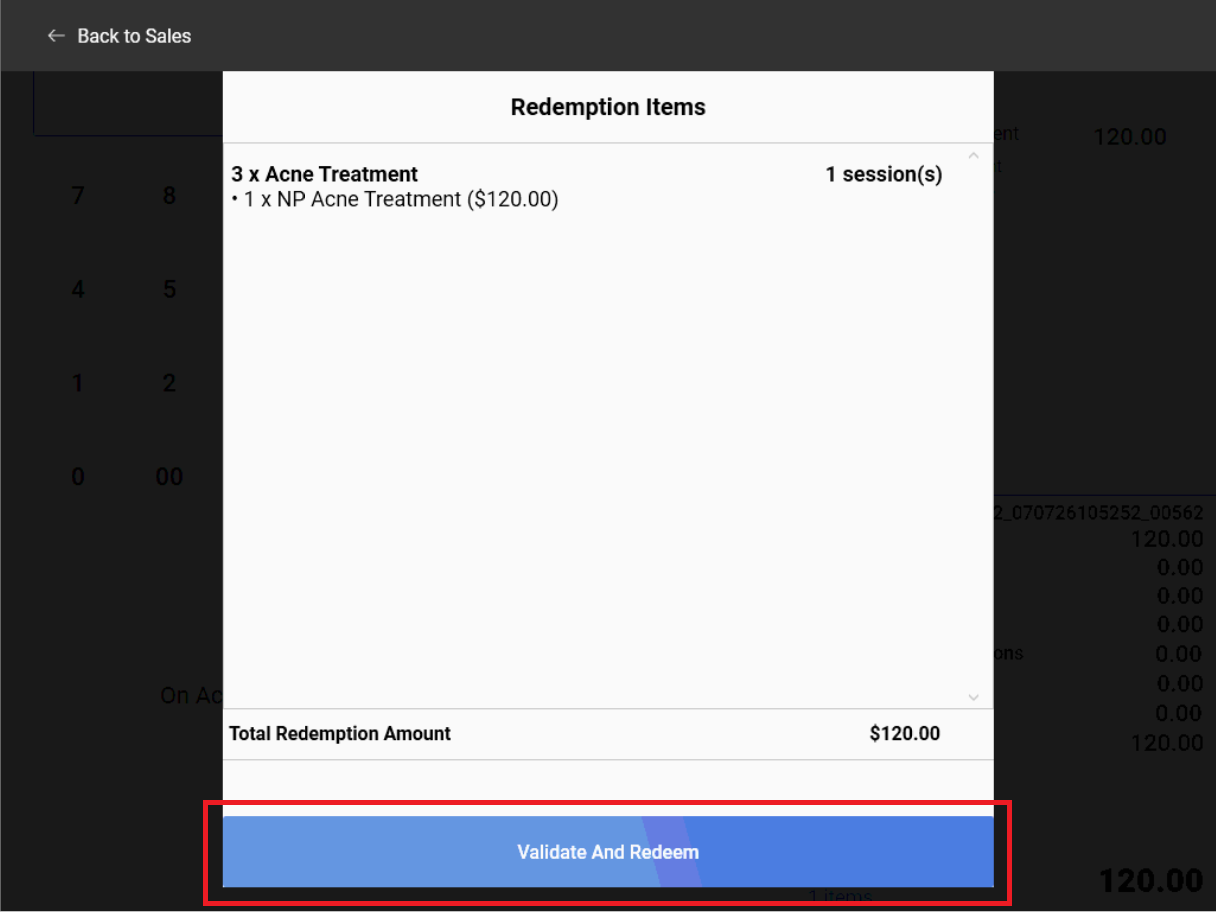
6. Upon double-checking the redemption, users can click on Validate and Redeem. A session will be recorded and the redemption is completed!