The BCRS plugin must be installed in your backend before any BCRS configuration options become available. If you do not see the BCRS-related fields described in this guide, please contact our support team to enable the plugin.
For the backend product configuration guide, please refer to the BCRS Product Setup Article.
Adding a BCRS-Eligible Item to Cart
When a BCRS-eligible item is scanned or added to the cart, the deposit is applied automatically — no additional action is required from the cashier.
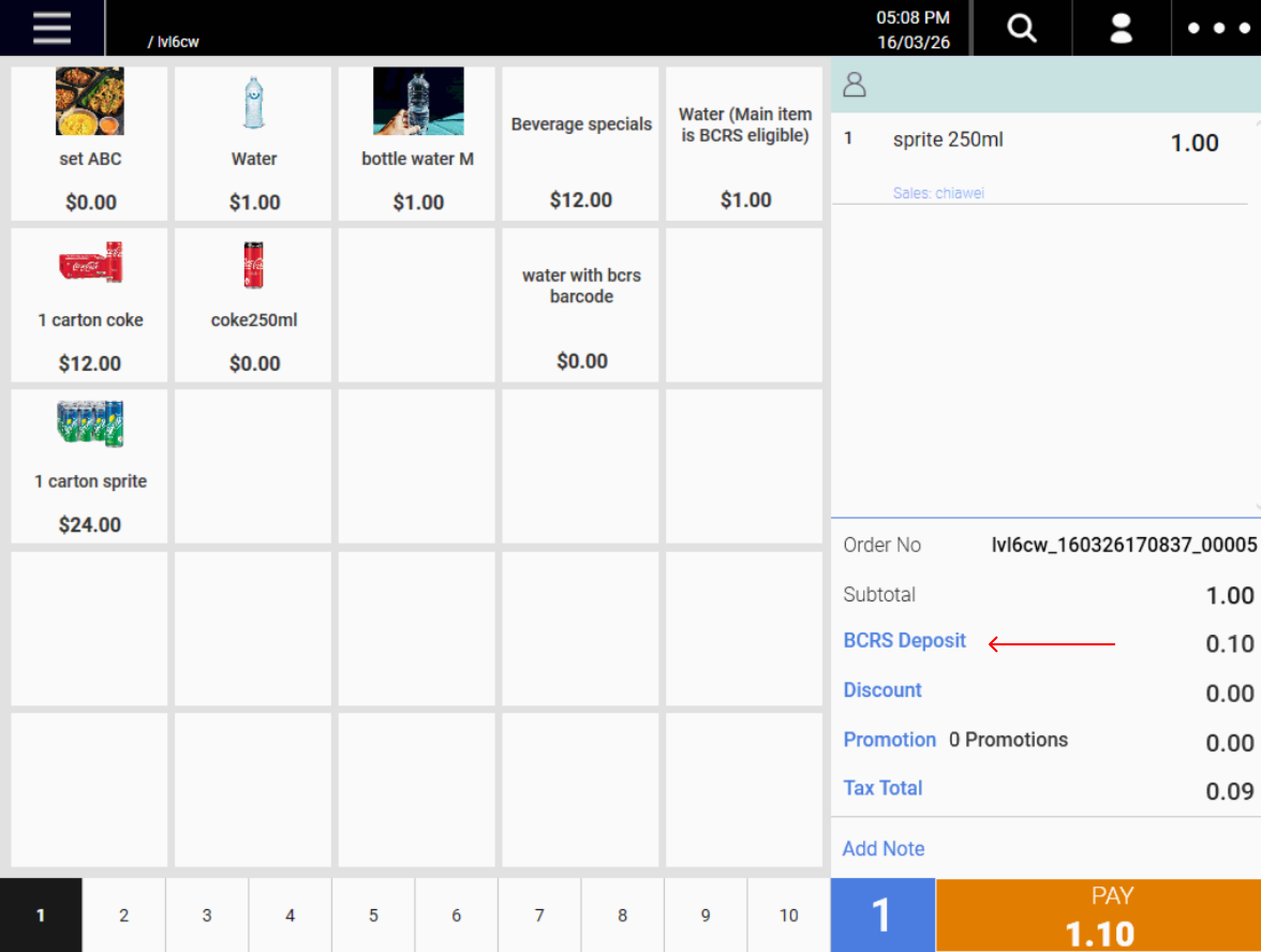
1. Scan the BCRS Barcode of the item, or add it manually from the Quick Pick.
note: To scan or search for the BCRS barcode, ensure that the BCRS barcode is already configured in the backend. For more information, visit Beverage Container Return Scheme (BCRS) setup.
2. In the order summary panel on the right, a “BCRS Deposit” line will appear below the Subtotal, showing the total deposit amount across all BCRS-eligible items in the cart.
Note: The BCRS Deposit is not subject to GST or service charge.
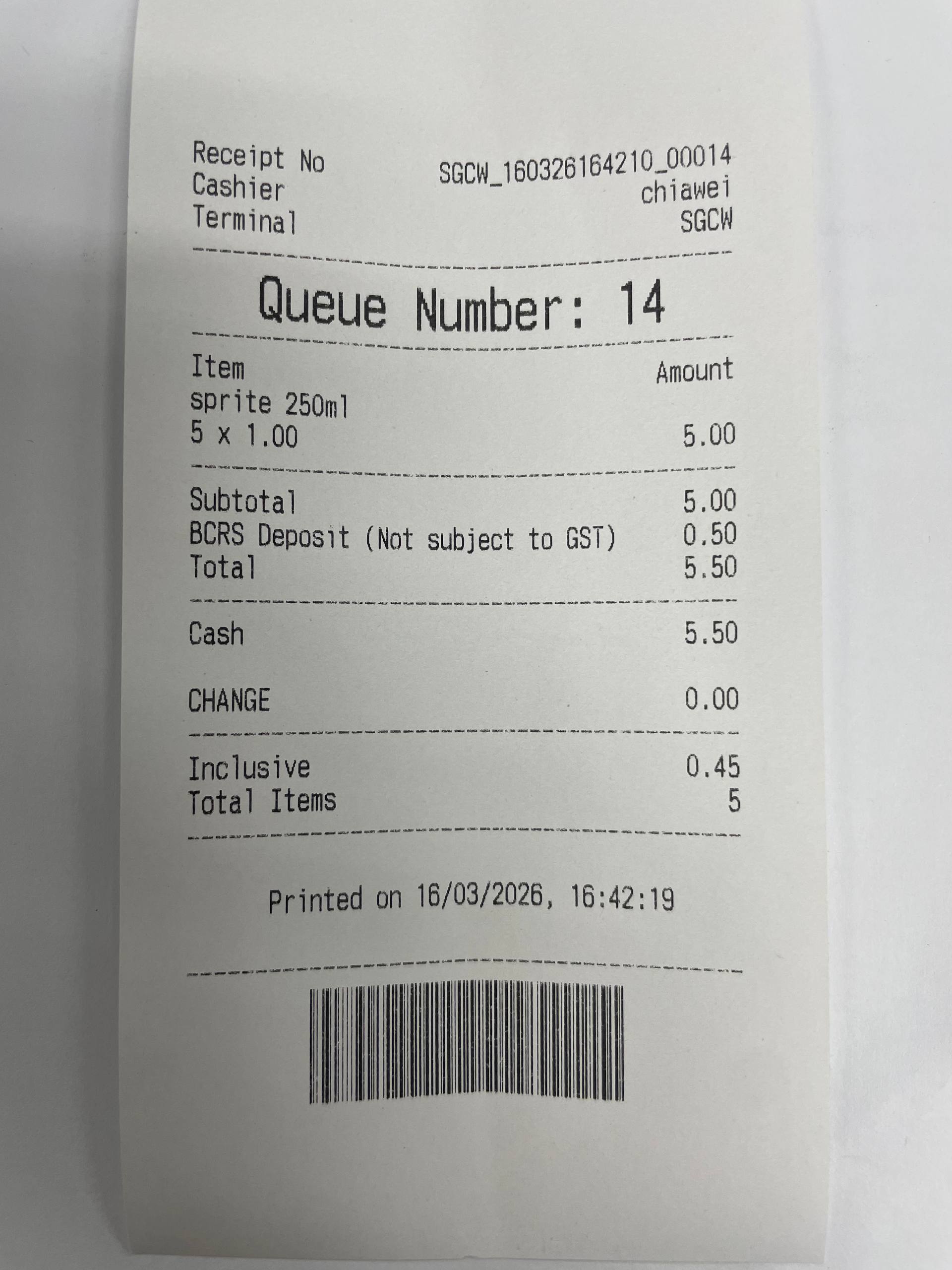
Once payment is collected, the printed receipt will reflect the BCRS deposit clearly.
- The footer of the receipt will include the line: “BCRS Deposit (Not subject to GST): $0.10”
Initiating a Waiver
- With a BCRS-eligible item in the cart, locate the “BCRS Deposit” line in the order summary panel.
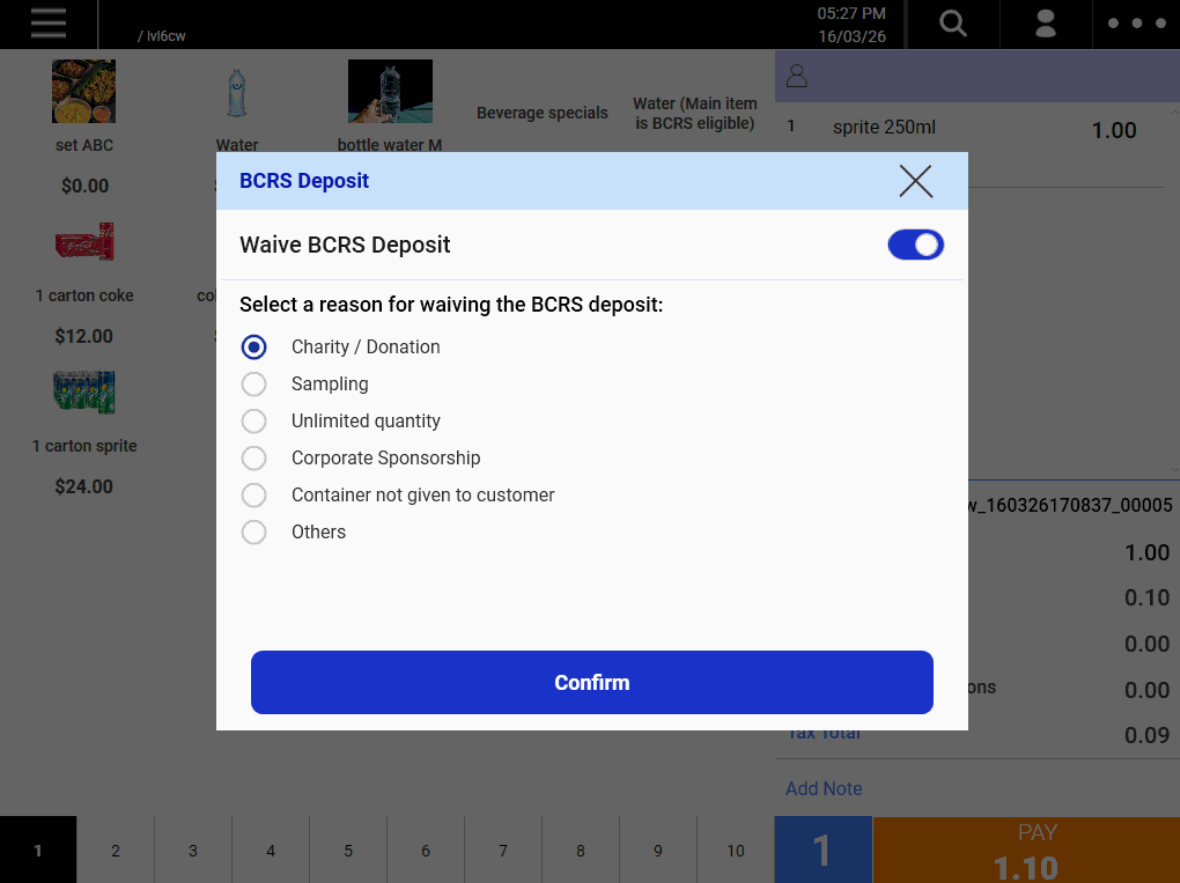
- Click directly on the “BCRS Deposit” label. A popup titled “BCRS Deposit” will appear.

Applying the Waiver
- In the BCRS Deposit popup, toggle the “Waive BCRS Deposit” switch to the ON position.
- A list of pre-filled waiver reasons will appear. Select the reason that applies:
- Charity / Donation
- Sampling
- Unlimited quantity
- Corporate Sponsorship
- Container not given to customer
- Others
- If “Others” is selected, a free-text field will appear. Enter the reason for the waiver. This field is capped at 150 characters.
- Click Confirm to apply the waiver.
After Waiver is Applied
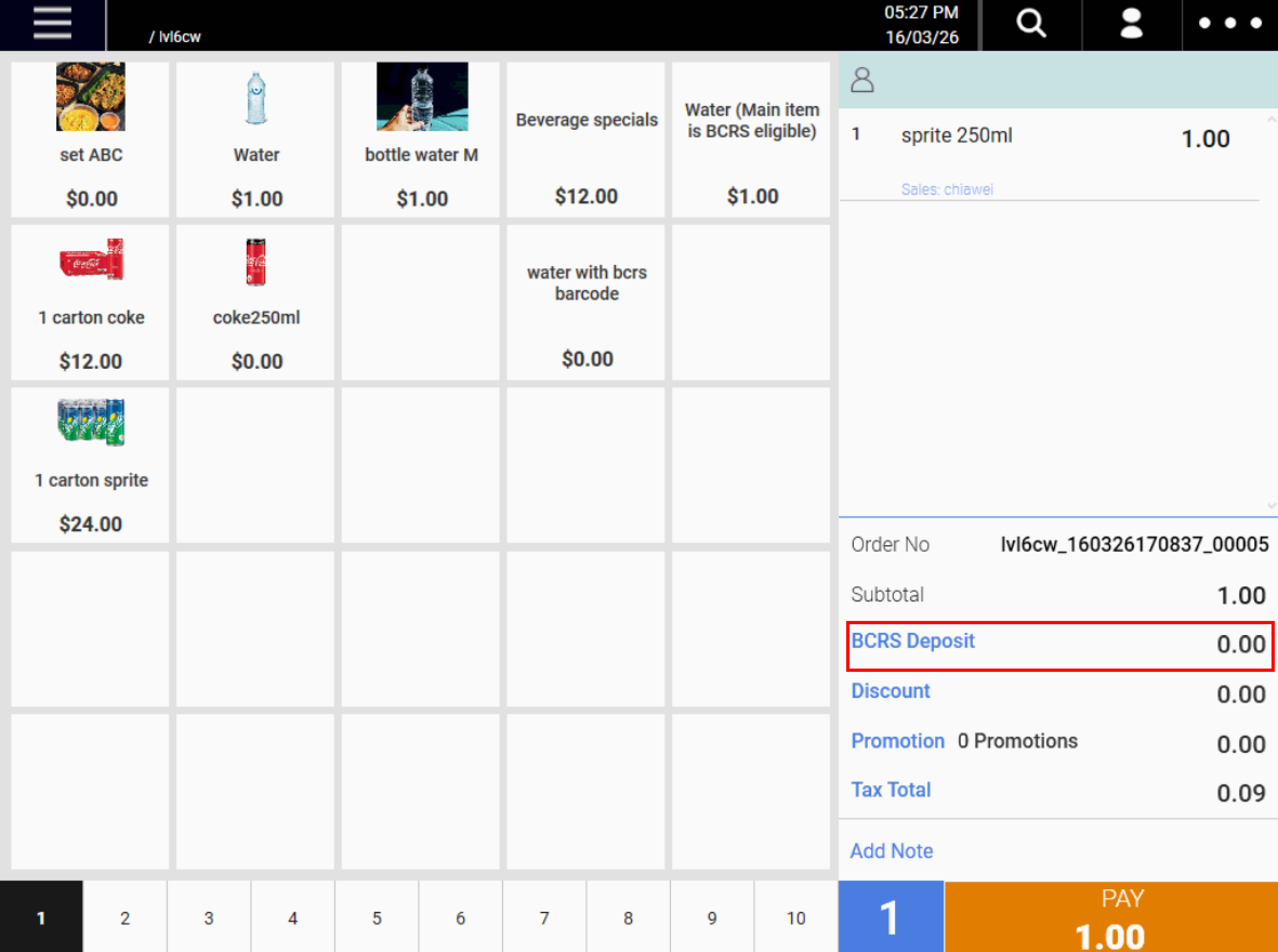
Once confirmed, the BCRS Deposit amount in the order summary will update to $0.00, and the deposit will be excluded from the transaction total.
Note: If you need to change the waiver reason after confirming, you can click the “BCRS Deposit” label again and update the reason before completing payment. The receipt will only print the most recently confirmed waiver reason.
Waiver on the Receipt
The printed receipt for a waived transaction will include the waiver reason in the order note section at the bottom of the receipt, formatted as: “No BCRS Deposit: (Reason)”
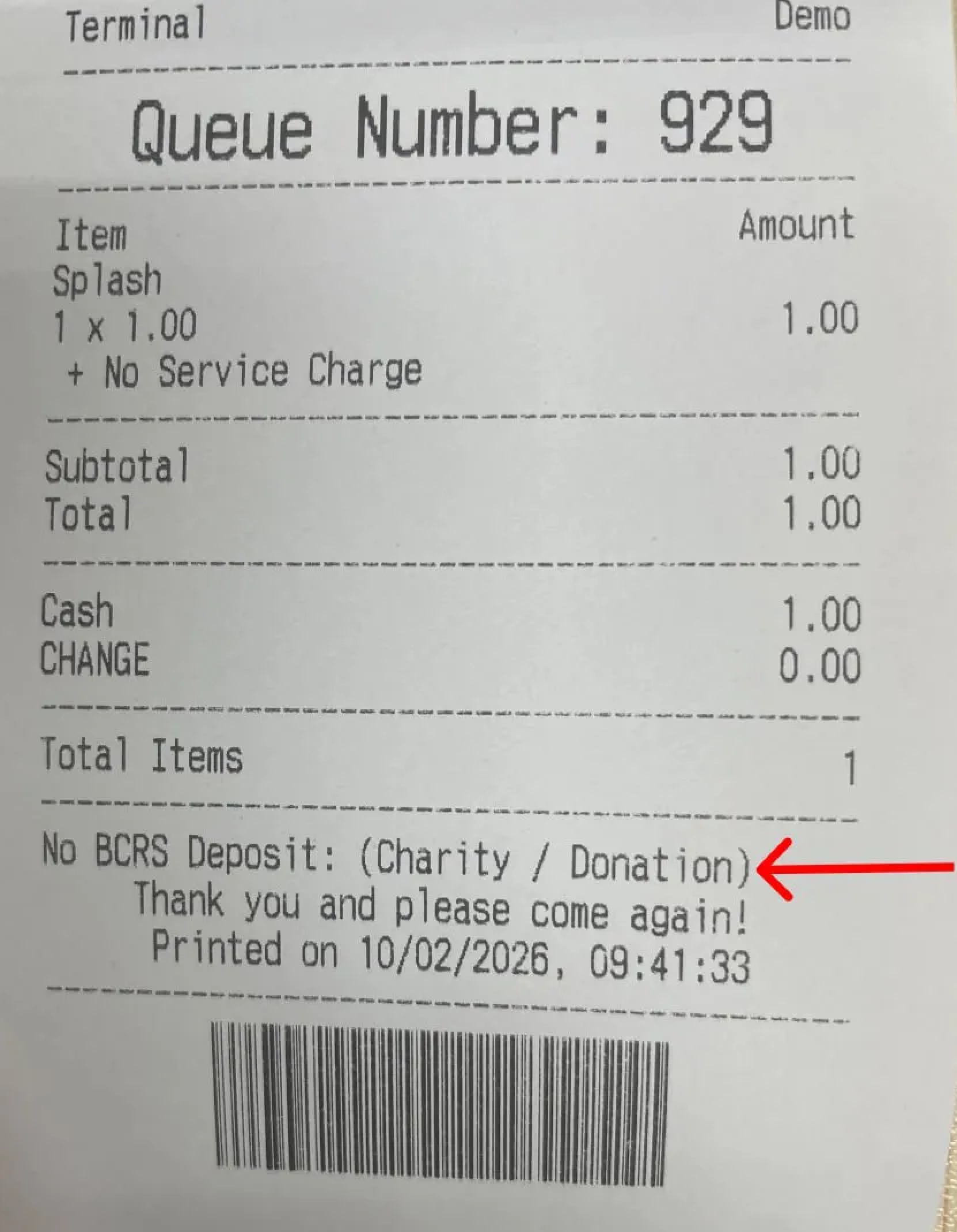
If the cashier has also entered a separate order note, the waiver reason will be printed first, followed by the order note on the next line.
A short video demonstration of the waiver flow:

