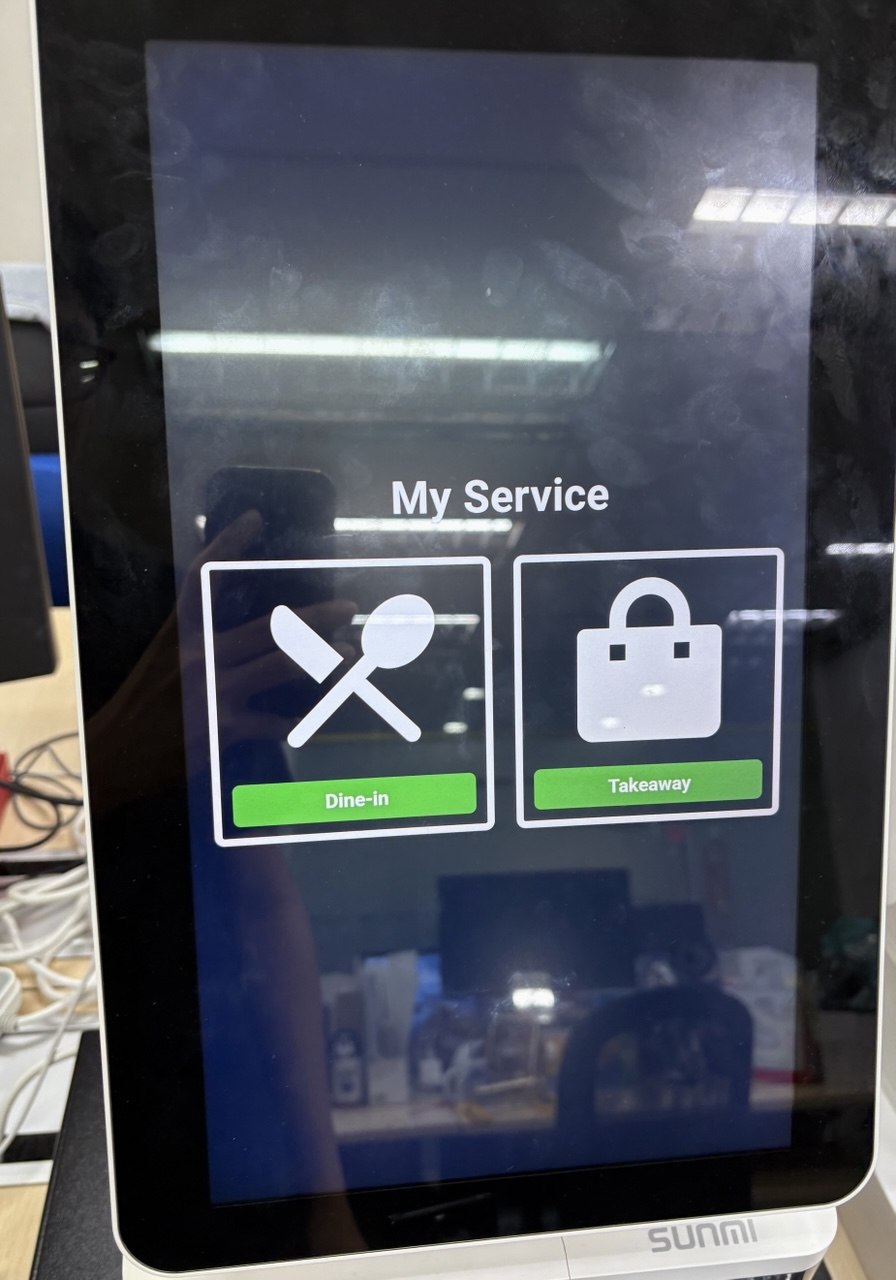
Dining Option
Users are able to select their dining option, either Dine-In or Takeaway
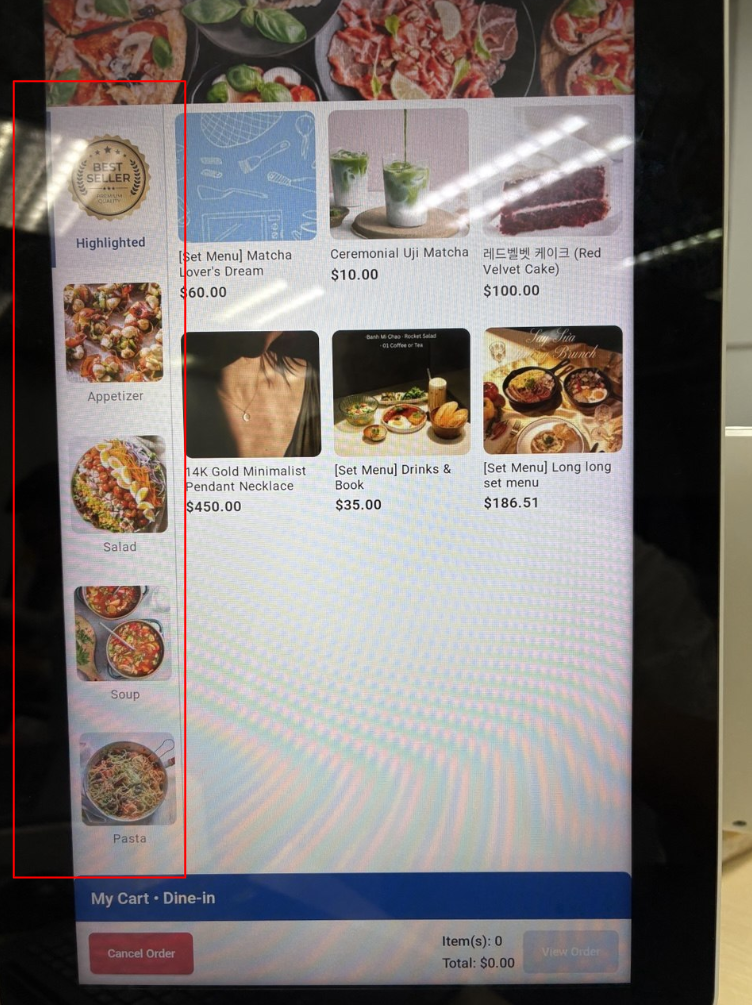
Product Categories
Customers are able to see the product categories on the sidebar of the Kiosk. This will be configured in EPOS backend > EPOS Apps > Kiosk & Web Ordering > Menu Category.
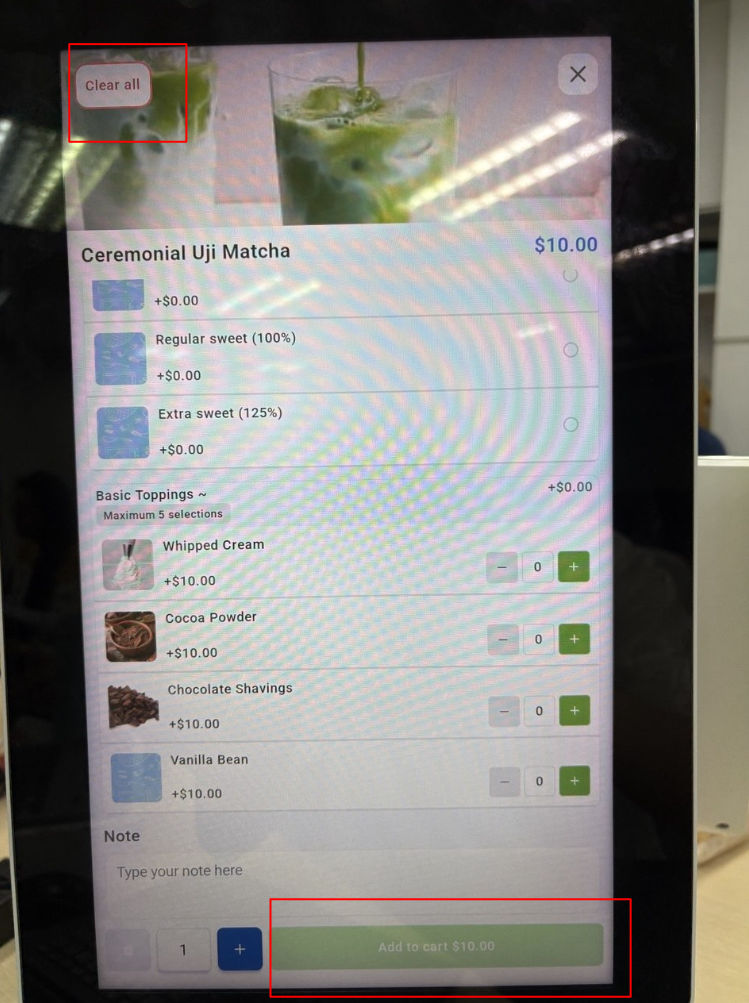
Add Product
User can view products by clicking on it. Users can add product to their order by clicking the “Add to Cart” button, or “Clear All” to cancel their selection.
Set Menu and Modifier Products
For Set Menu and Modifier Products, please refer to the respective links.
Confirmation Page
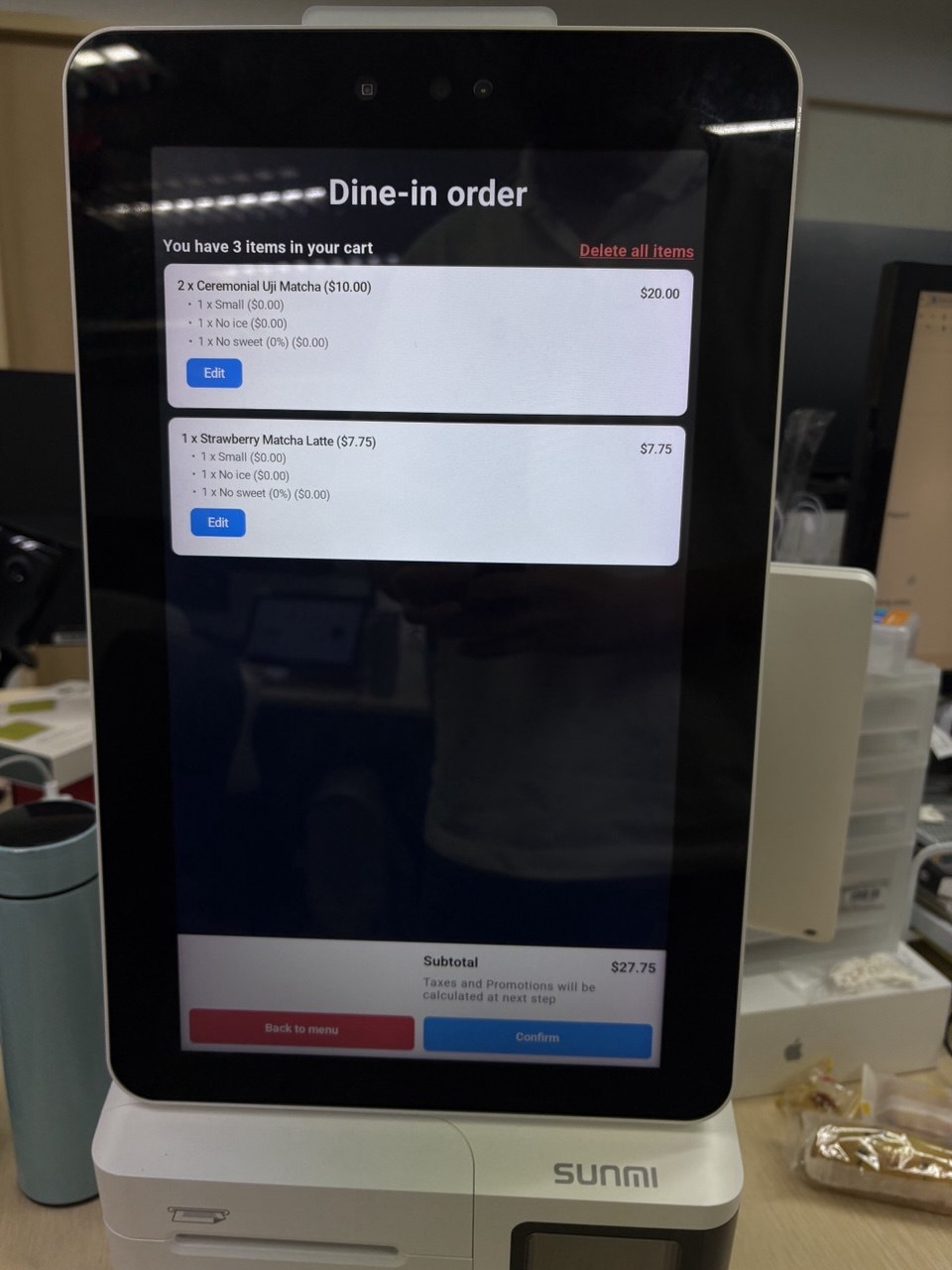
Customer can view their order and subtotal. Once they have confirmed their order, they can click “Confirm” to go to the order summary page.
Order Summary Page
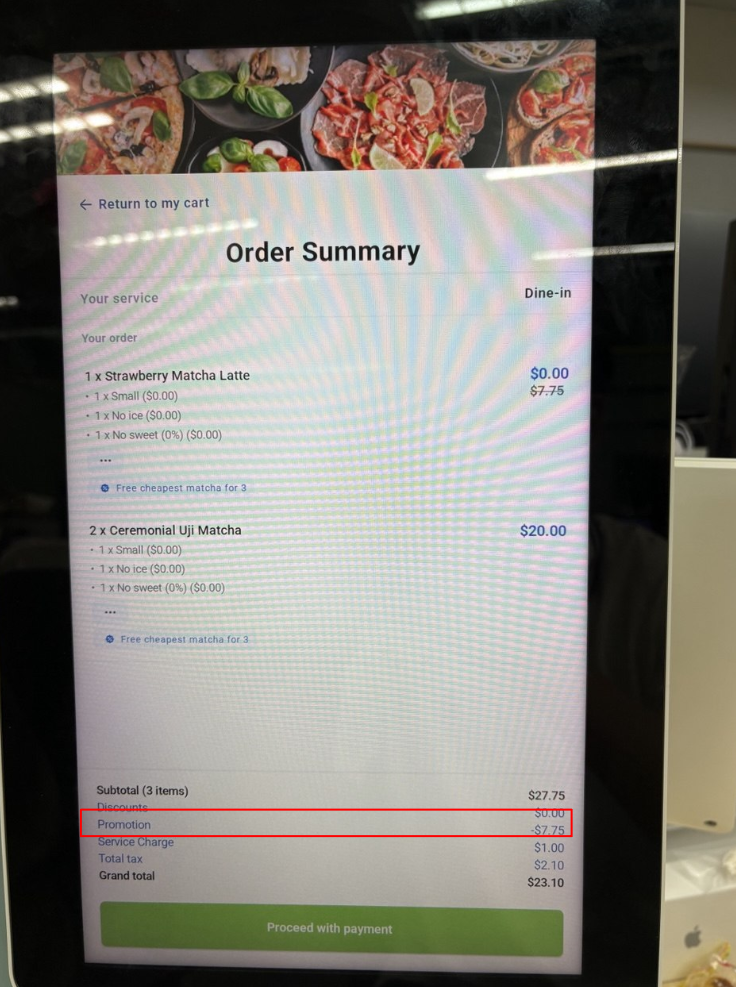
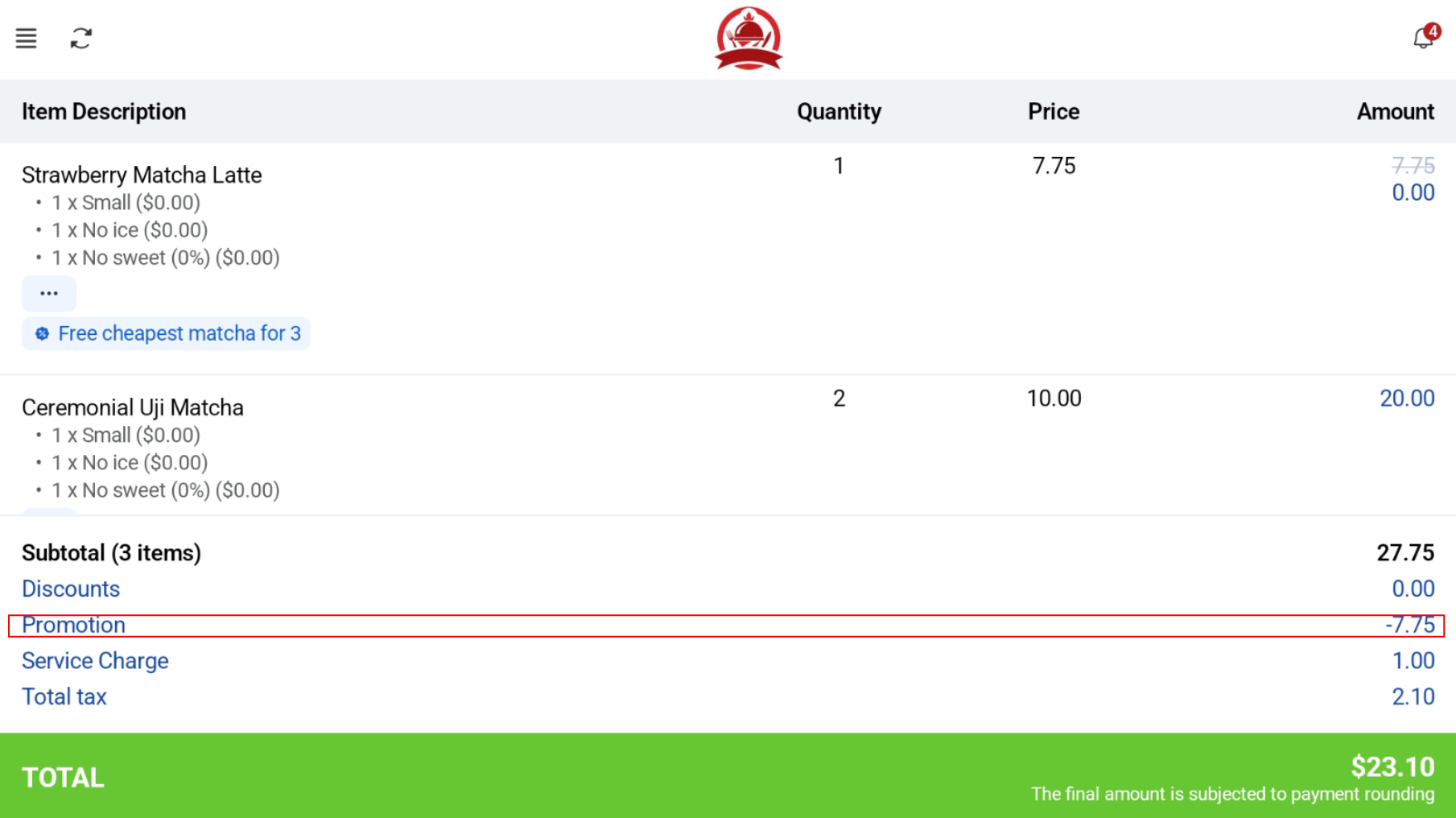
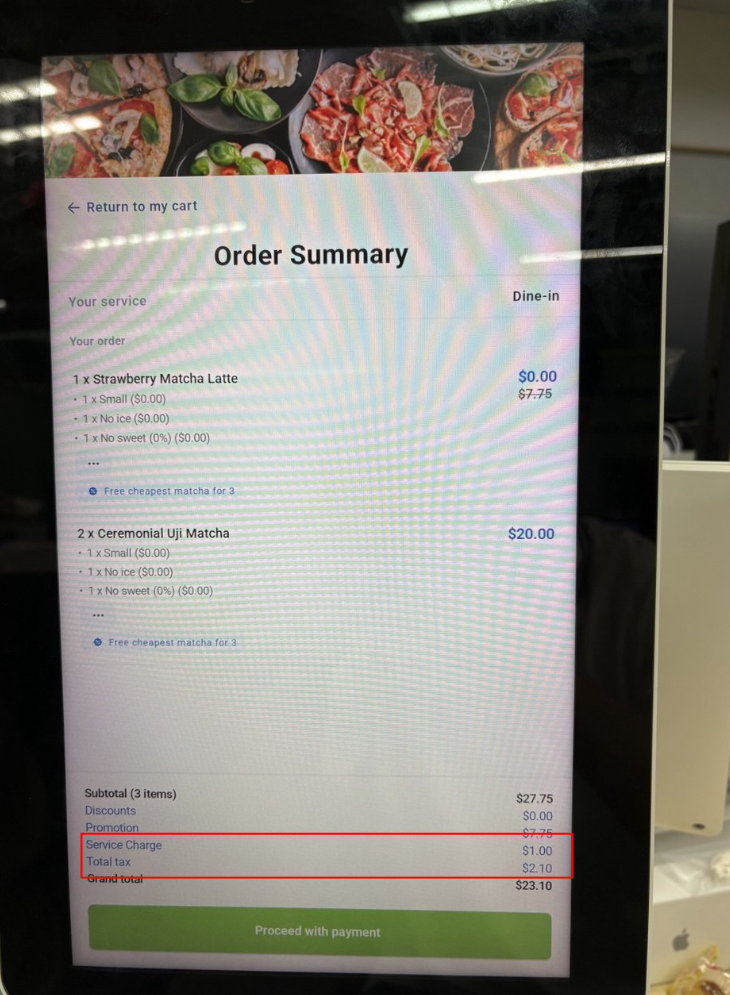
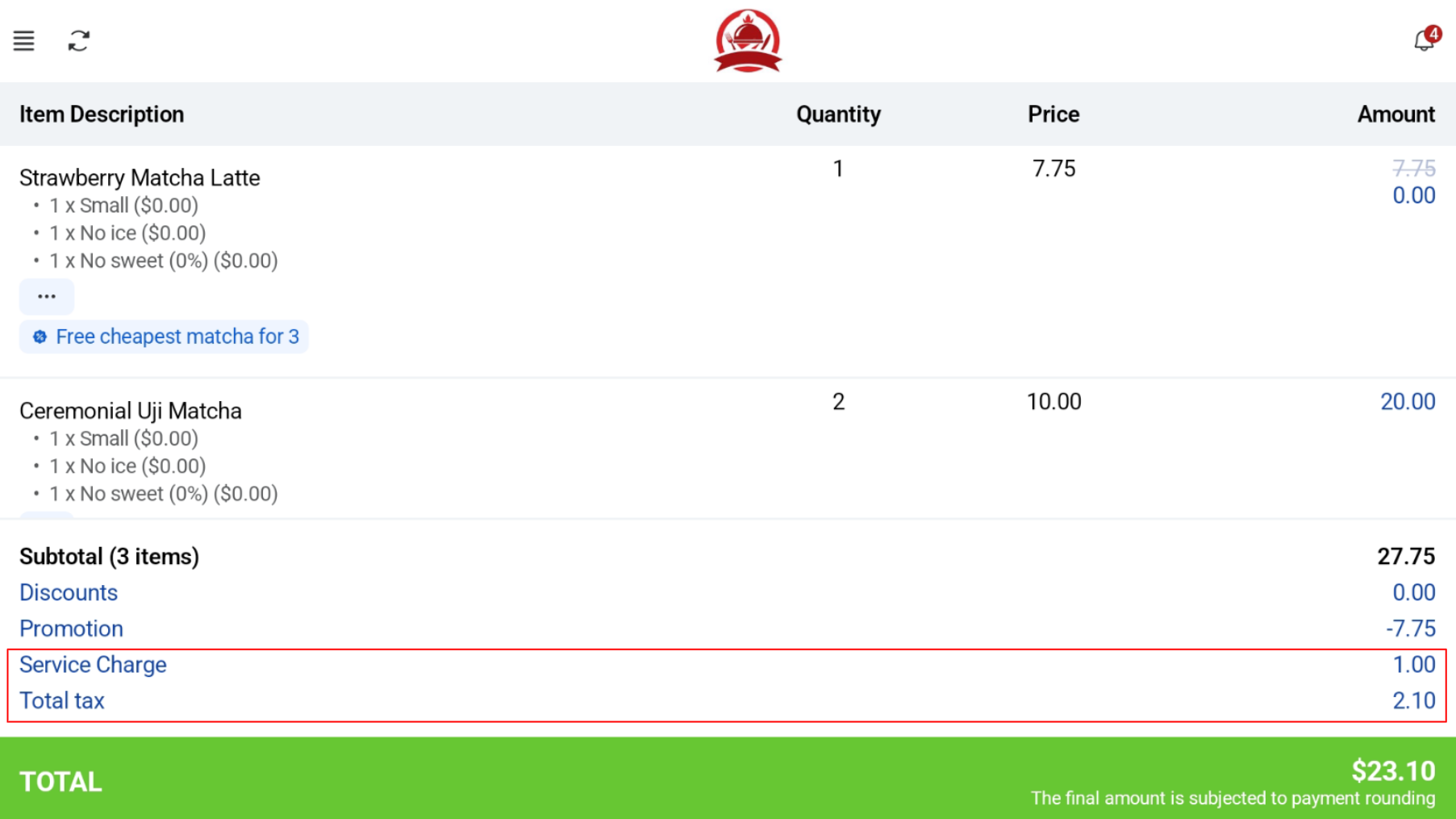
Items ordered, including subtotal, promotion, service charge, tax total and grand total is displayed on the order summary. 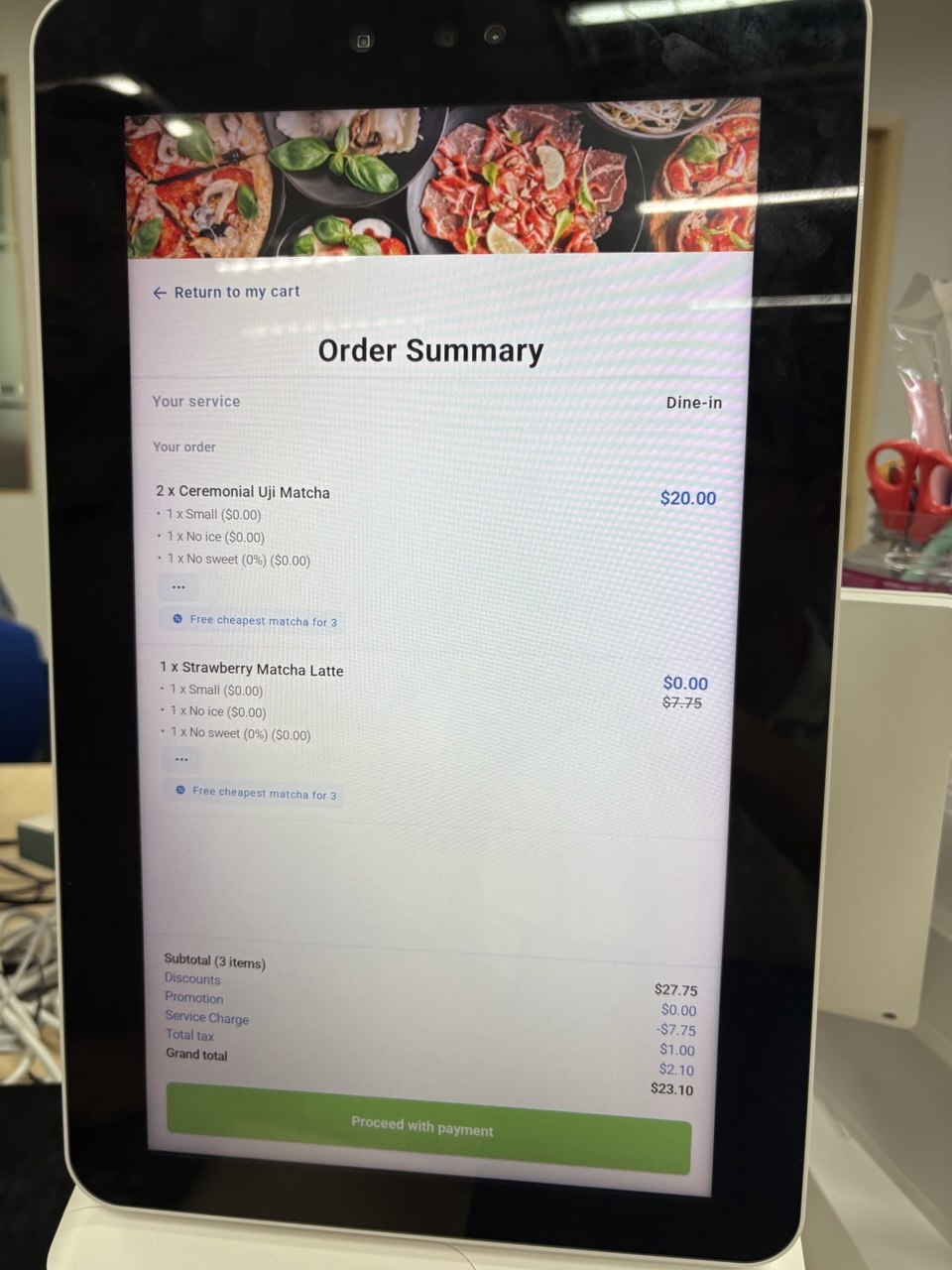
POS Screen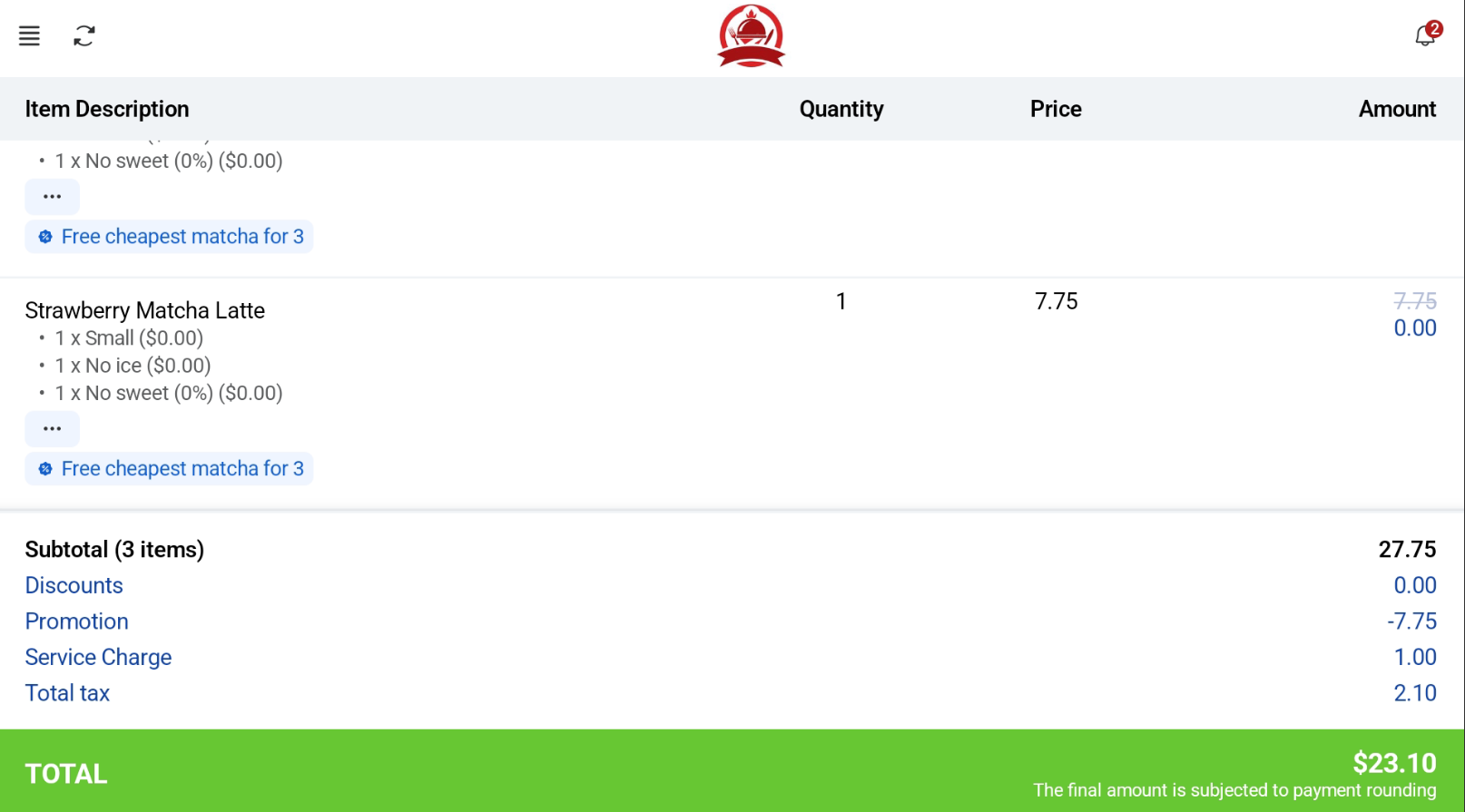
Payment Methods
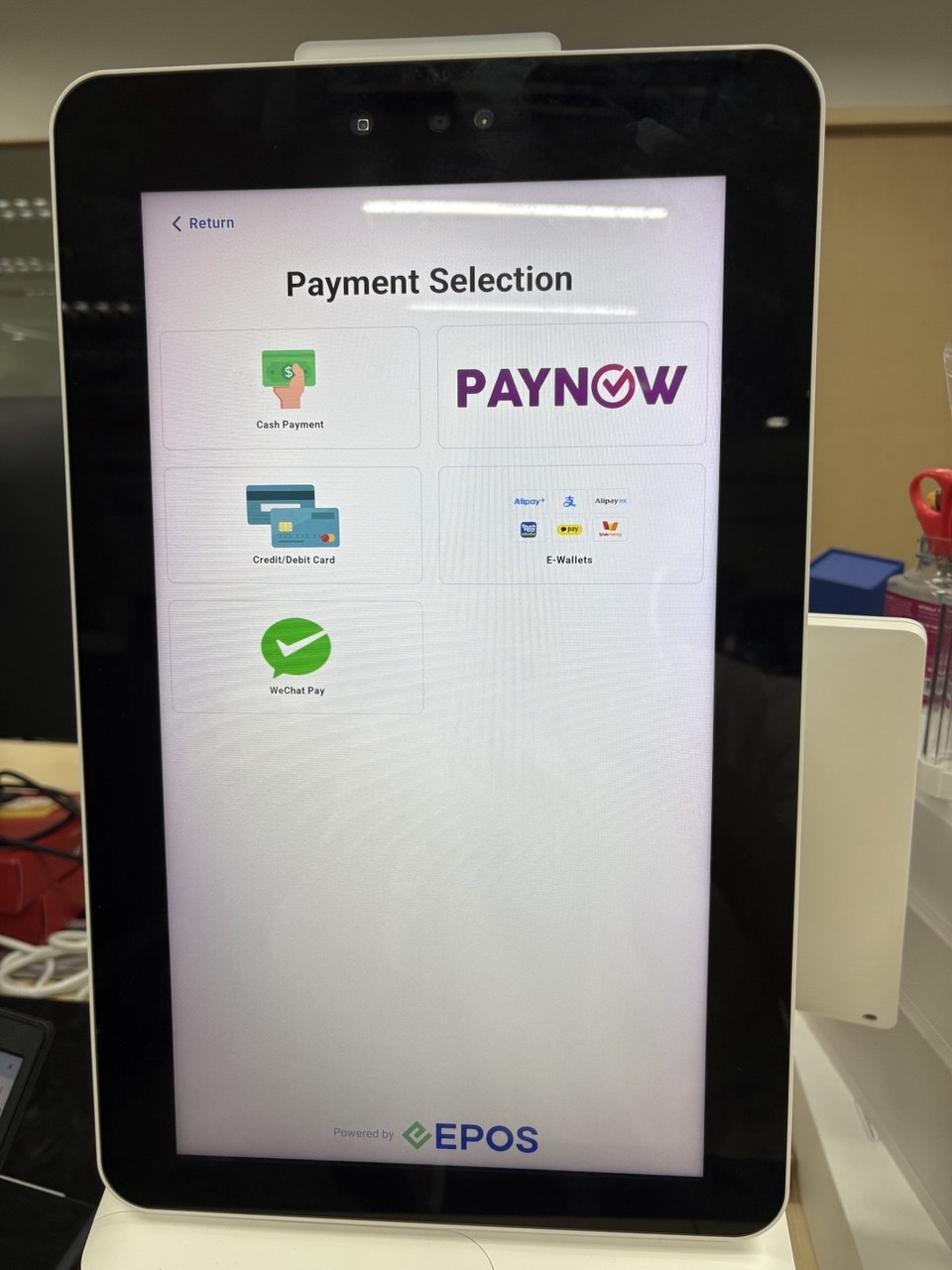
There are several payment methods supported. For more information, please refer to the payments tab.