Overview:
This document aims to provide guideline on how to deal with WhatsApp Business number ban issue. It includes:
- How to check the reason that the Meta ban your number
- How to escalate to WATI / Meta team
- The Ultimate Guide to Avoid Meta Bans on WATI:
https://www.youtube.com/watch?v=iXcuEE9KIsI
Instructions
This guide explains how to deal with a WhatsApp Business number ban. It covers how to check the reason Meta banned your number, how to escalate to the WATI/Meta team, and what to do if the ban is final. For a visual walkthrough, watch “The Ultimate Guide to Avoid Meta Bans on WATI”: https://www.youtube.com/watch?v=iXcuEE9KIsI
Check the reason
If your WATI account shows as restricted or banned, check the latest status directly in the Meta Business Portfolio. Go to Settings > Accounts > WhatsApp accounts and select the affected number — under Summary, the Account status field will show something like “Disabled — This account doesn’t meet our policy guidelines.”
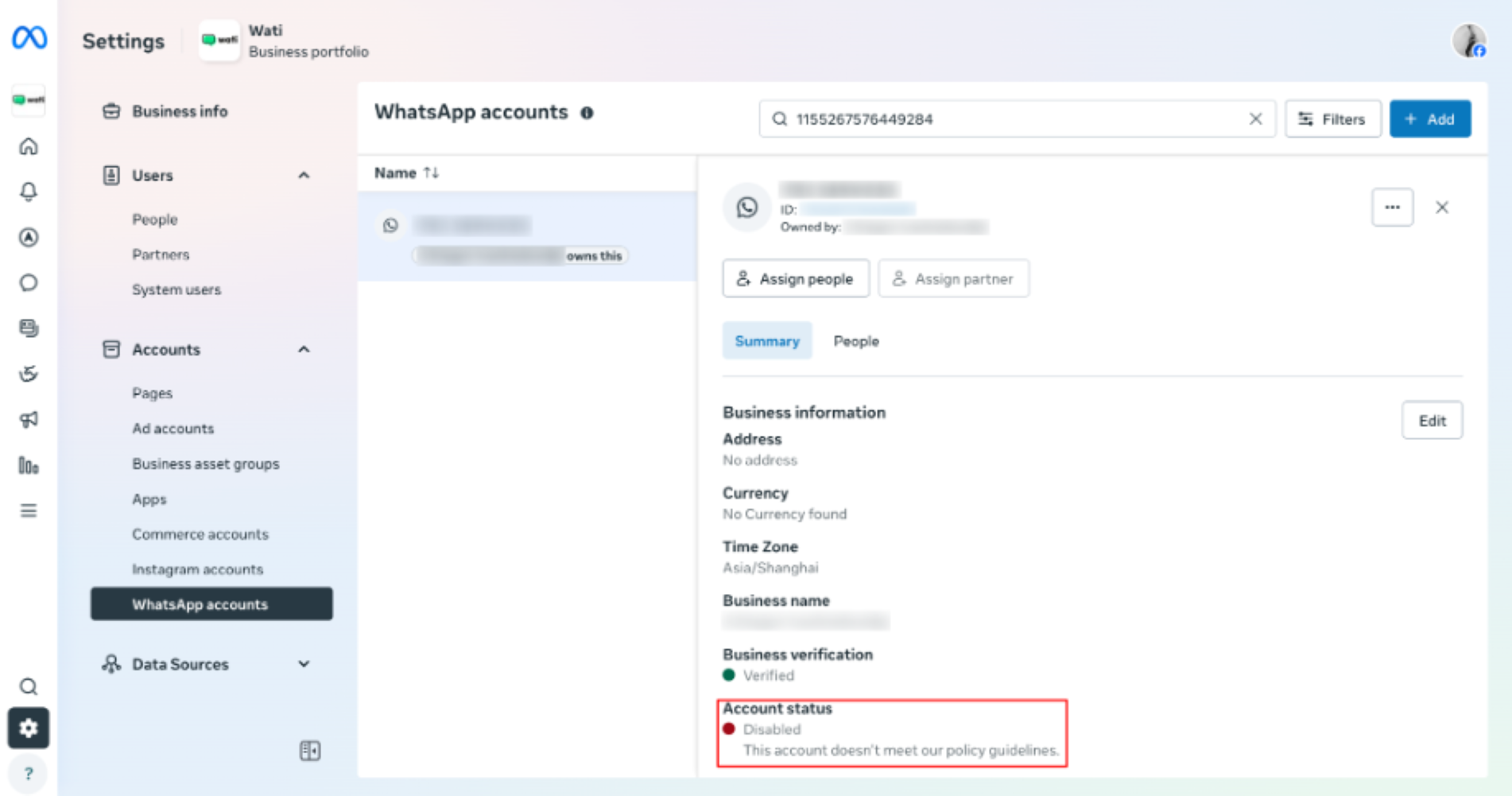
Account status shown in Meta Business Portfolio
To see the full details, open WhatsApp Manager from that account; you’ll normally see an alert at the top of the page, and clicking “View details in Business Support Home” will show the exact reason.
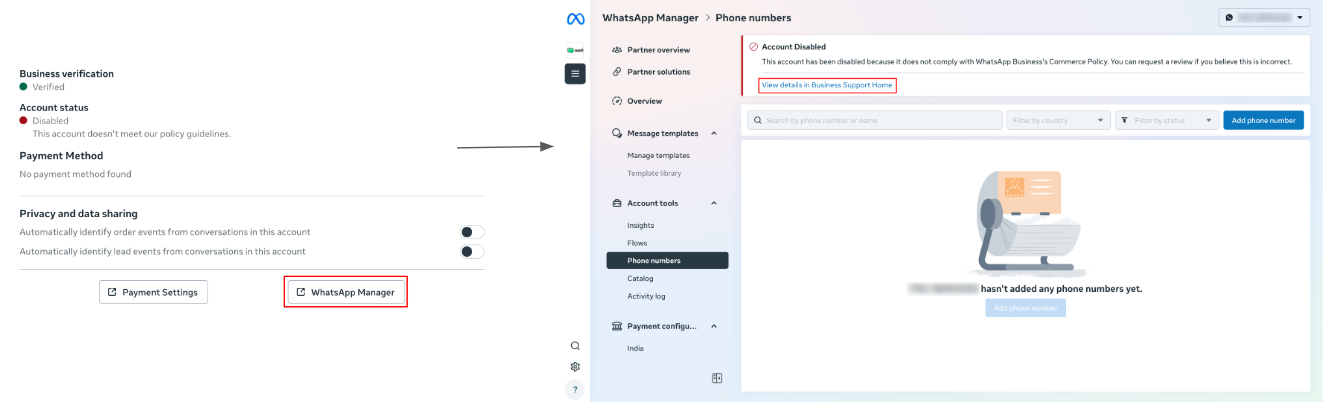
Alert banner in WhatsApp Manager
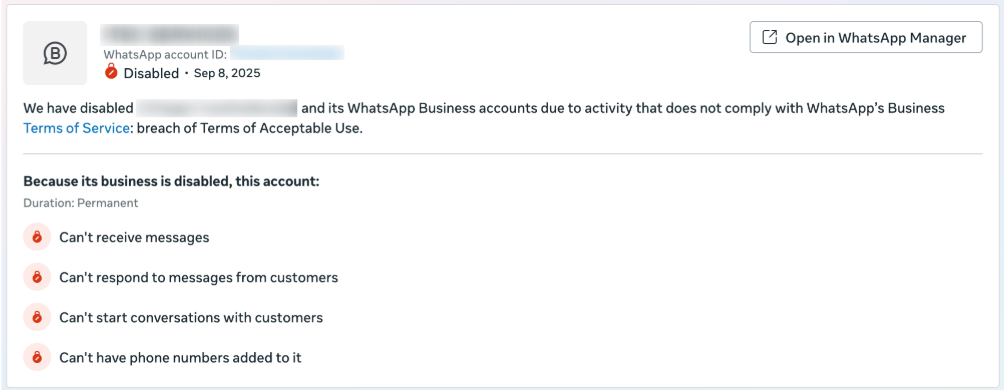
A typical disabled-account message reads: “We have disabled [Business] and its WhatsApp Business accounts due to activity that does not comply with WhatsApp’s Business Terms of Service: breach of Terms of Acceptable Use.” Duration is usually Permanent, and a disabled account can’t receive messages, can’t respond to messages from customers, can’t start conversations with customers, and can’t have phone numbers added to it.
Disabled account details panel in Business Support Home
There are two common reasons Meta bans an account. First, spam or other impermissible communication — the account received an excessively high amount of negative feedback from users (meaning end users blocked or reported your number); in this situation Meta will normally reject your appeal. Second, breach of Terms of Acceptable Use — Meta detected that your organization is promoting restricted goods or services on WhatsApp (refer to Meta’s Business Messaging Policy, point 4, for details).
How to appeal. Click “Request review” on the right-hand side of the Business Support Home page. In the box, fill in: Business name (your company name); Business description; Business website; and How you use WhatsApp — provide as much detail as possible.
For example:
Business name: Clare.ai Limited.
Business description: WATI is a customer engagement platform built on the WhatsApp Business API. It helps businesses manage sales, marketing, and customer support by providing tools like a shared team inbox, no-code chatbots, bulk messaging capabilities, and integrations with other business software. Essentially, it allows companies to communicate with customers at scale using a single WhatsApp number.
Business website: https://www.wati.io.
How do you use WhatsApp: We have a CTWA Ad in the Meta Ad platform, and we use this number to receive inquiries if end users click the WhatsApp button on the ad; we set up automations via the WATI platform for support use cases, where end users can book a demo call; and we send notifications (utility templates) for demo call confirmations and reminders.
Next step: Please contact the WATI Support Team so that we can appeal on our end at the same time. Reminder: you are required to appeal in Business Support Home as the first step — the Meta team will not accept WATI’s appeal if the business did not appeal through Business Support Home first. You can either click the widget at the bottom right corner in the WATI platform, or submit a ticket via https://www.wati.io/wati-support-form/
If the Meta ban decision is final. A lot of brands, regardless of how well-known they are, will face this Meta restriction/ban issue — whether at the very beginning of connecting a number or after already using the WhatsApp Business API for a while; this is common across industries.
Since a Meta ban decision is final, the only solution is to connect to Meta again with a new BM (Business Manager) and a new number. This isn’t complicated: just go into your personal Facebook account, create a new BM, and connect WATI again to Meta to create a new WhatsApp Business Account (WABA).
This is necessary because, from experience, once any number within a BM has been restricted or banned, that BM becomes “polluted” — you can still use it for other purposes like ads, but you cannot connect a new number (create a new WABA) there, as that will also likely be restricted or banned, and other existing numbers within that BM may also be affected.
Brands who follow this advice of connecting a new BM plus a new number usually get the issue resolved, though it may sometimes take a few tries, not just one new BM and one new number. If you’re running ads on the original BM, you can simply grant ads access from the original BM to the new BM.