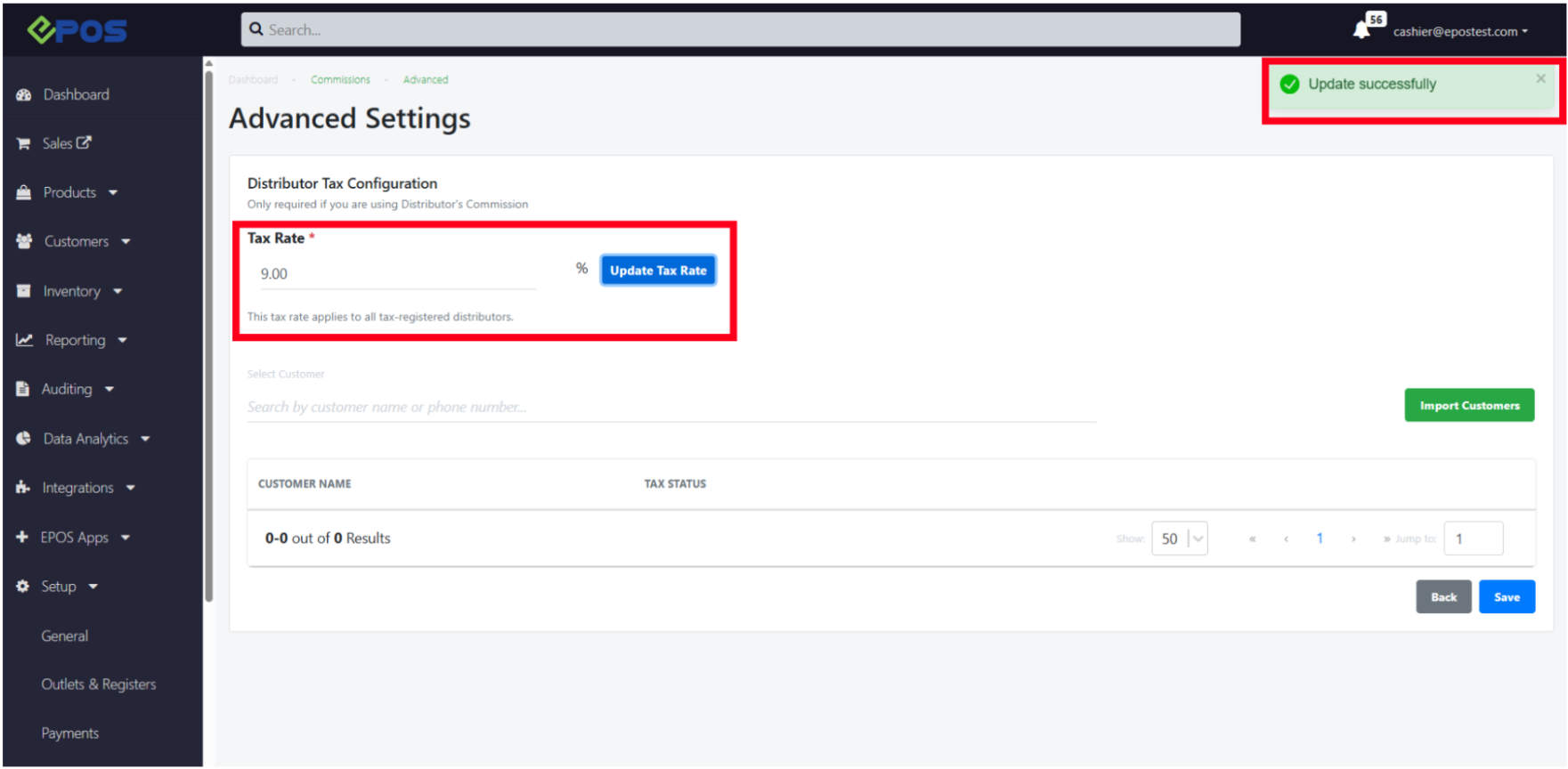
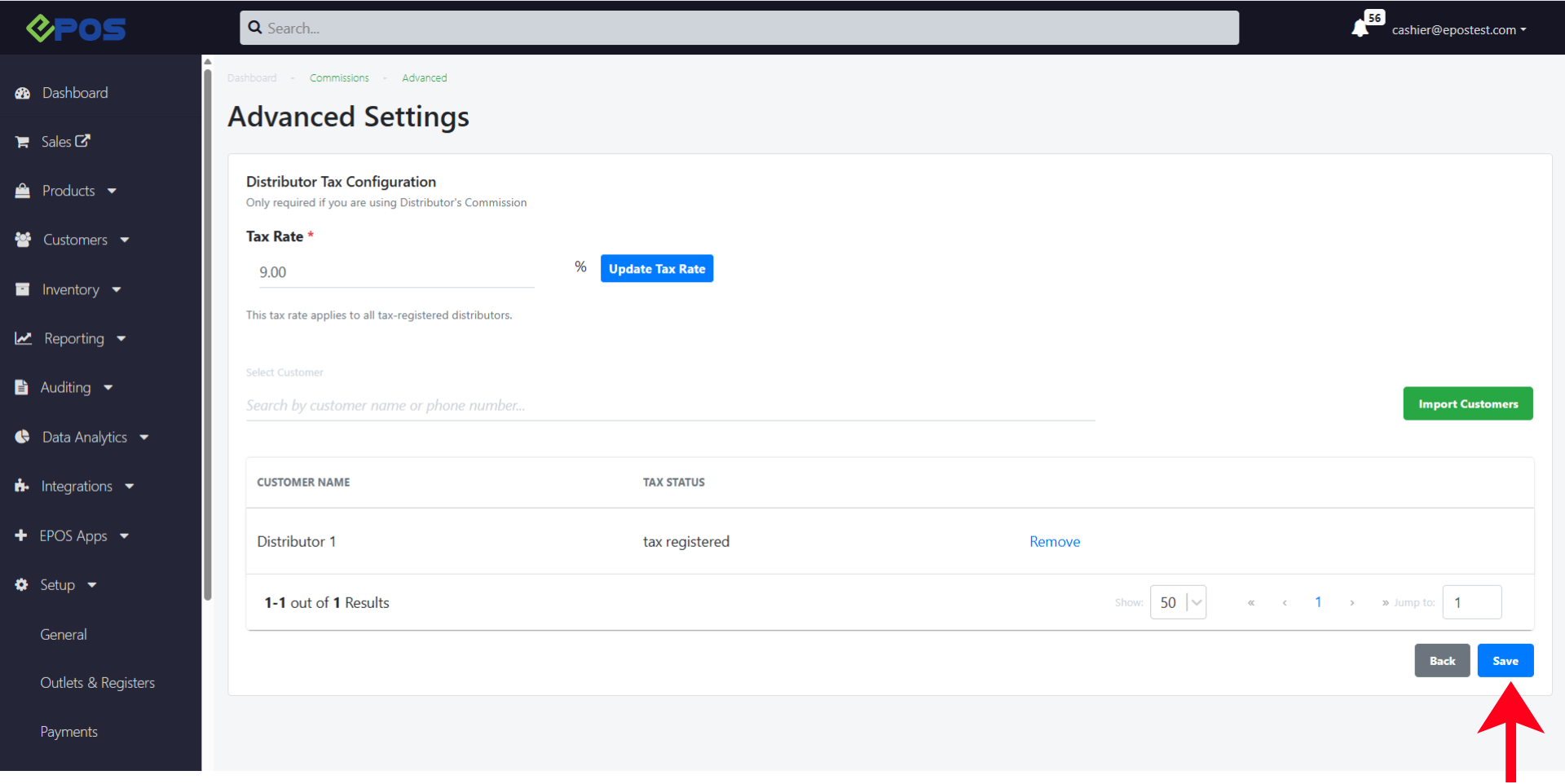
In the scenario where a business operates on B2B transactions, their customers are often distributors or corporate buyers who may also be entitled to commission structures based on sales performance or business agreements.
In this post, we will cover details on configuring distributor commission settings, including how the user can assign different commission rates to distributors, as well as how commissions are calculated under different discount and tax scenarios.
Acquiring these information can enable business to
- Improve efficiency by automating commission calculations within the POS system
- Track distributor payouts with greater accuracy
Distributor Set-up
Before crafting commission rules, the user must first create a pool of distributors that different commission rules could be applicable to.
To do this, the user can follow the following steps:
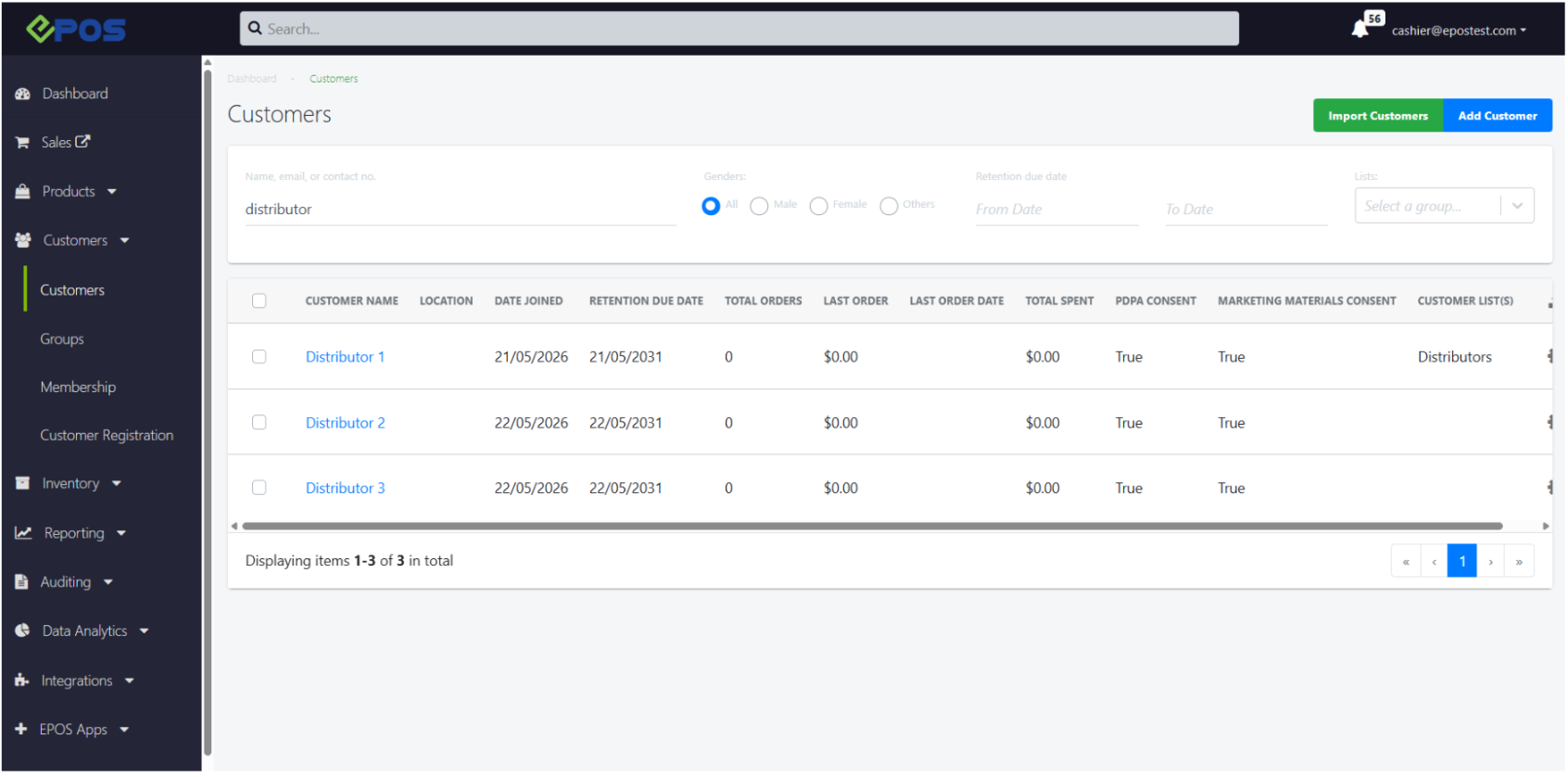
1. Users should create the distributors as customers.
For more information on how to create customers, visit Create Customer.
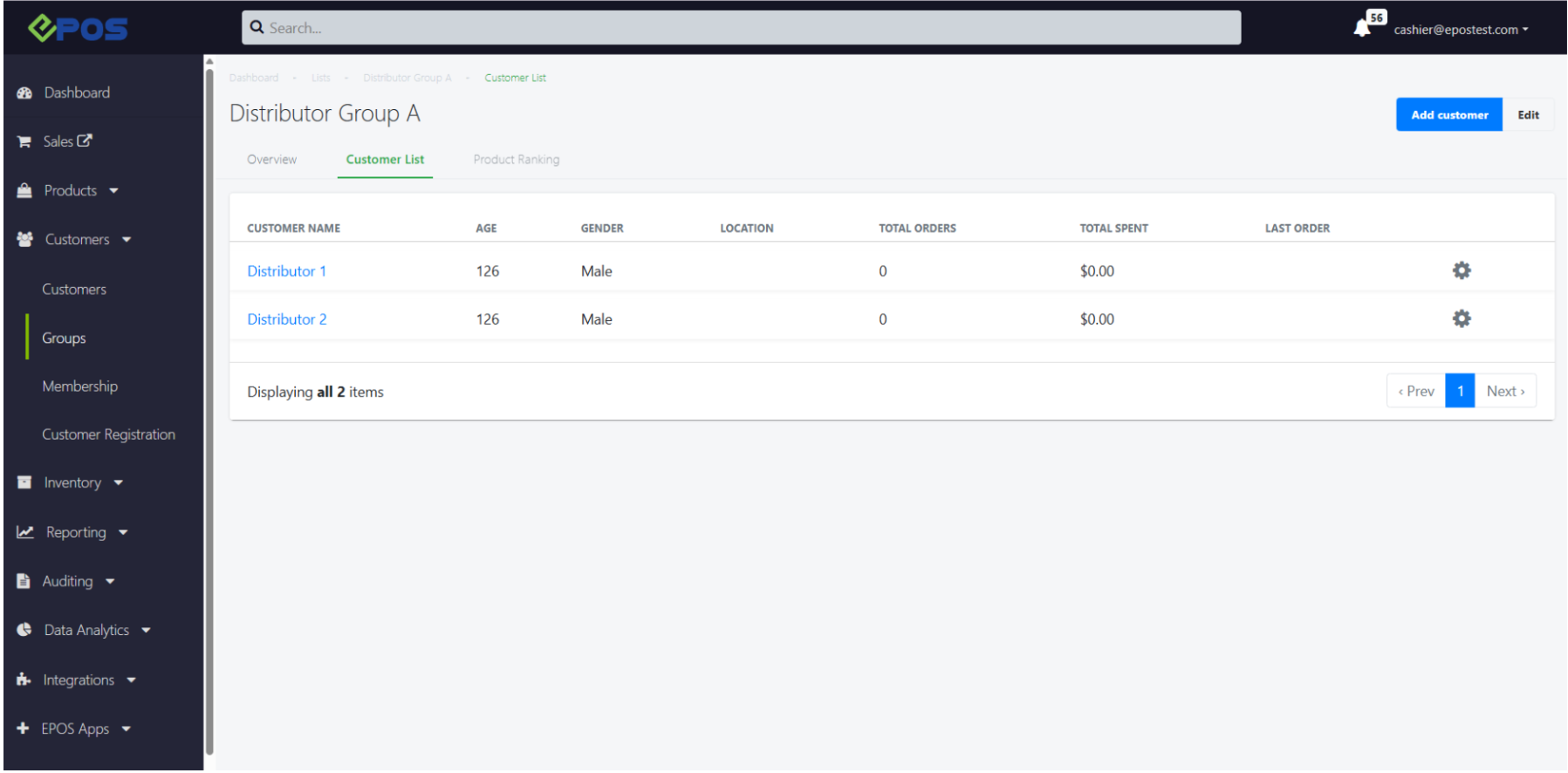
2. Next, the user should allocate a customer group for their distributor. The customer group that each distributor belongs to will determine the distributor commission rates that respective distributors will be tagged to.
For more information on how to allocate customer groups, visit Customer Group.
Commission Rule Set-up
Now that users have created their distributor groups, they can create commission rules that apply to each distributor group.
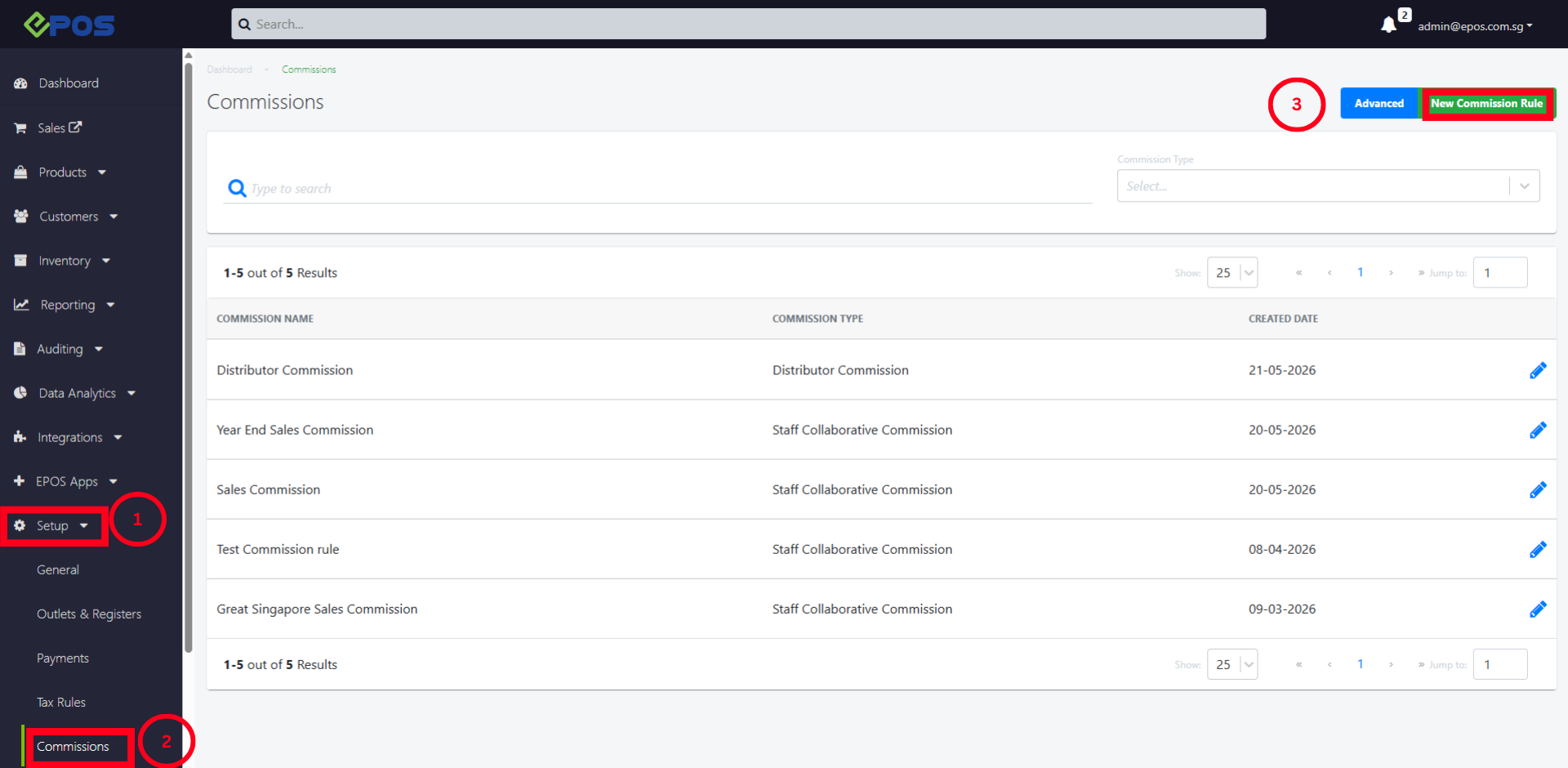
1. Users should navigate to Setup → Commissions → New commission rule
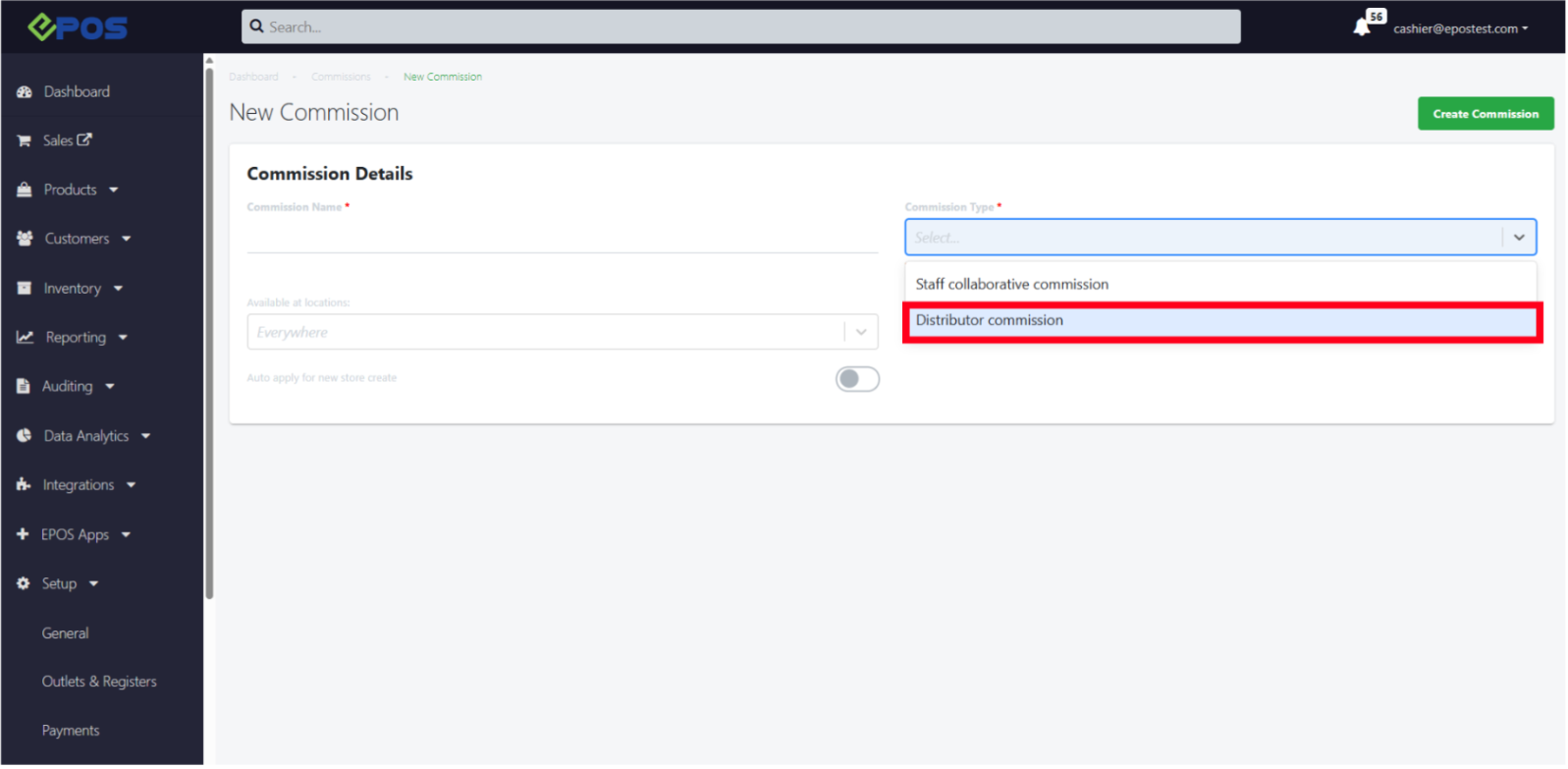
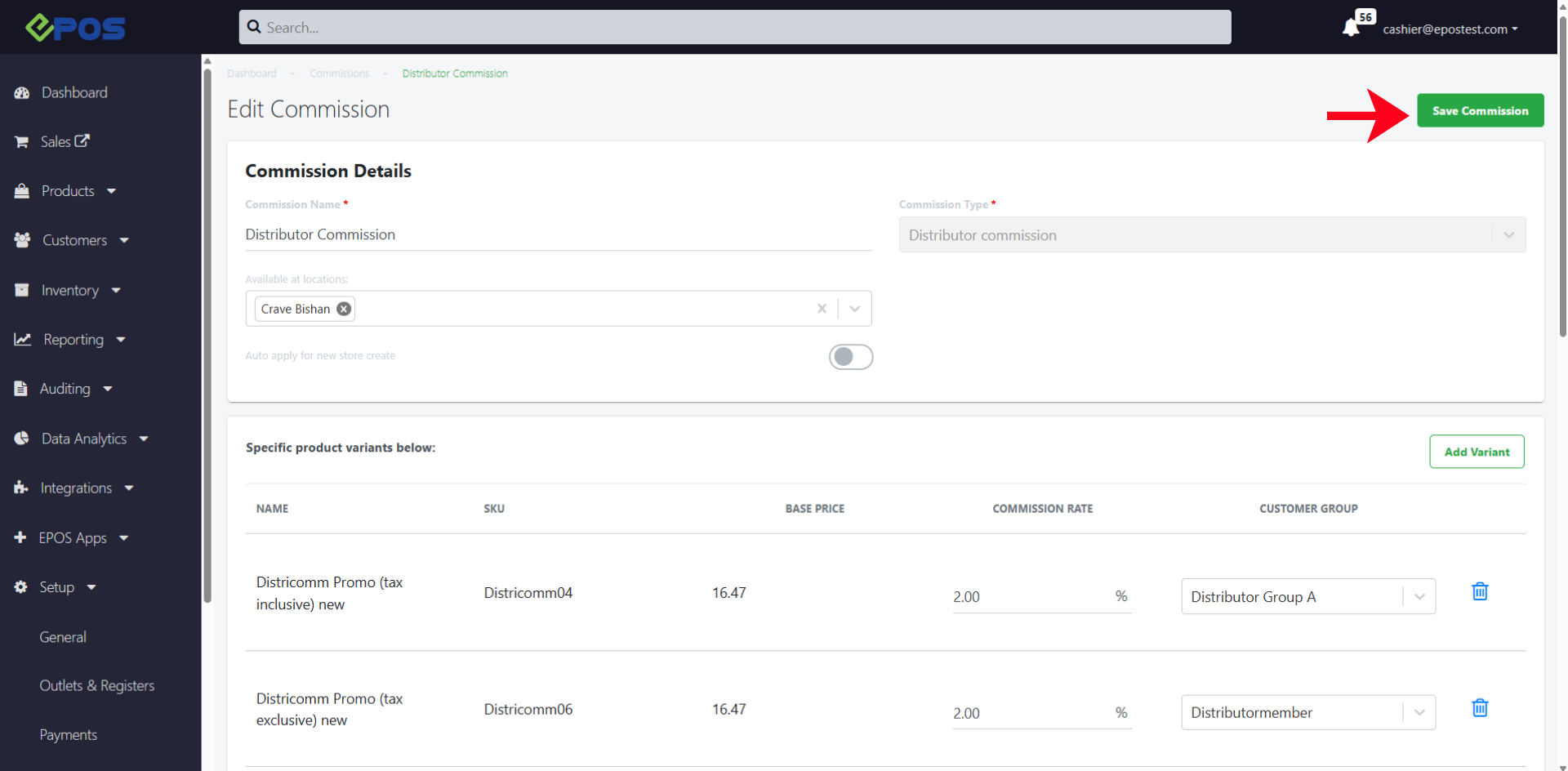
2. After the user clicks on “New commission rule”, they will be redirected to fill up their Commission details. In this case, user should indicate their commission type as “Distributor commission”.
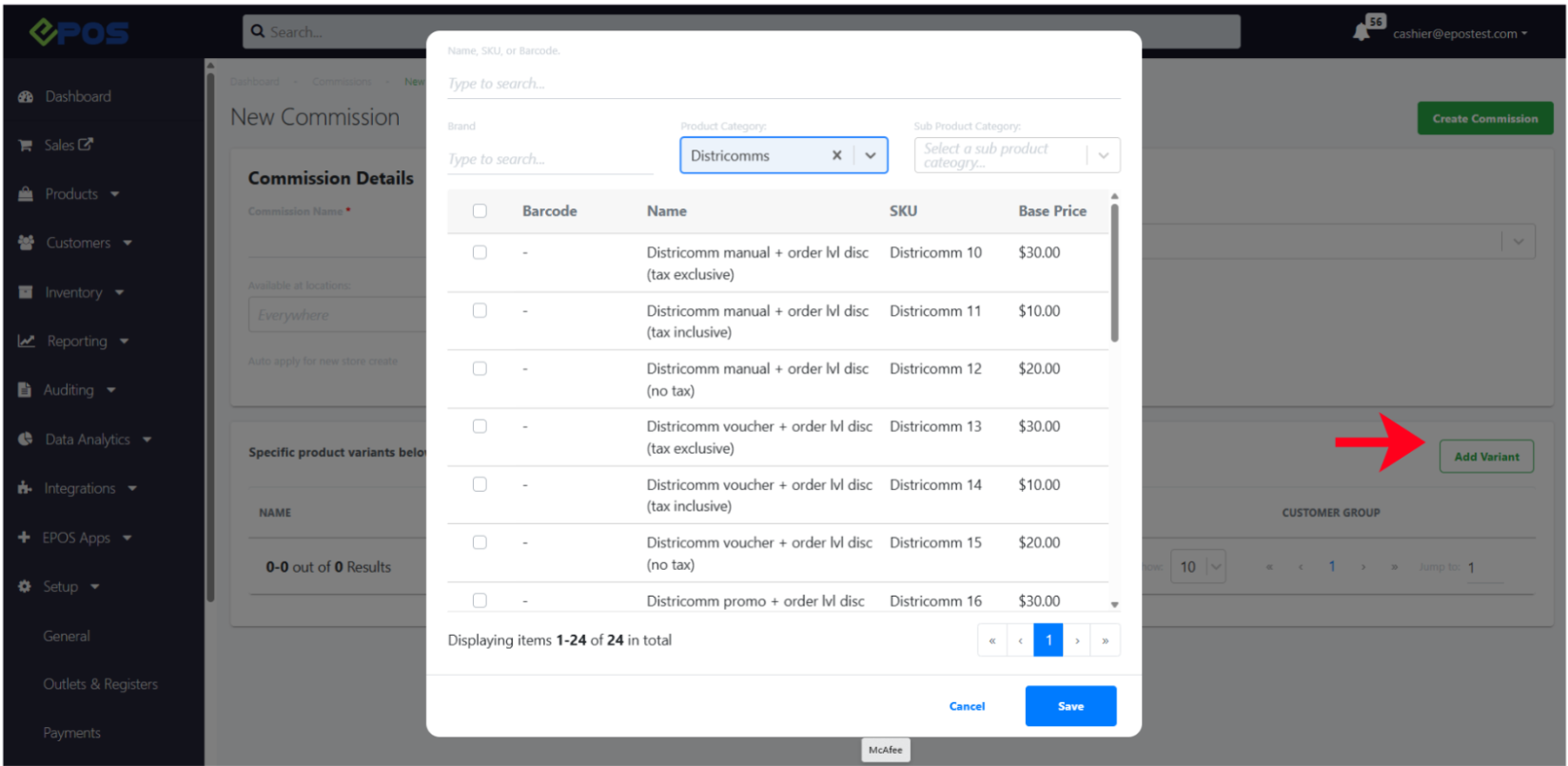
3. After the user has filled up all commission details, they will be prompted to add their products to the commission rule.
4. After selecting a product variant, the user will be prompted to fill in the “commission rate” to be applied, and “customer group” which that rate will be applied for.
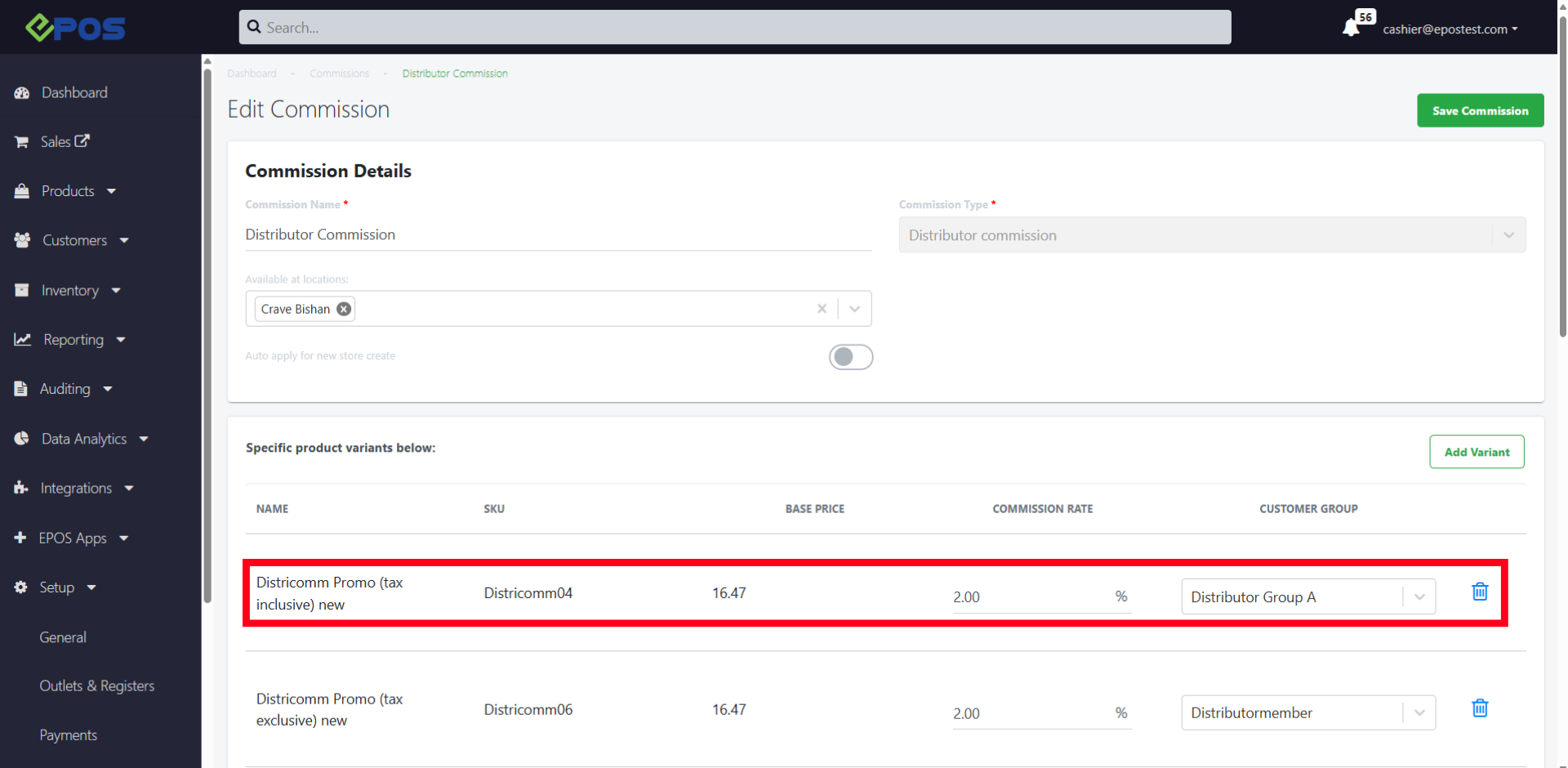
5. After the user is done configuring all commission details for their distributors, they should click on the “save commission” button in the top right corner.
6. After the commission rules have already been created and saved, the user can still update these rules by clicking on the edit button at the commissions page.
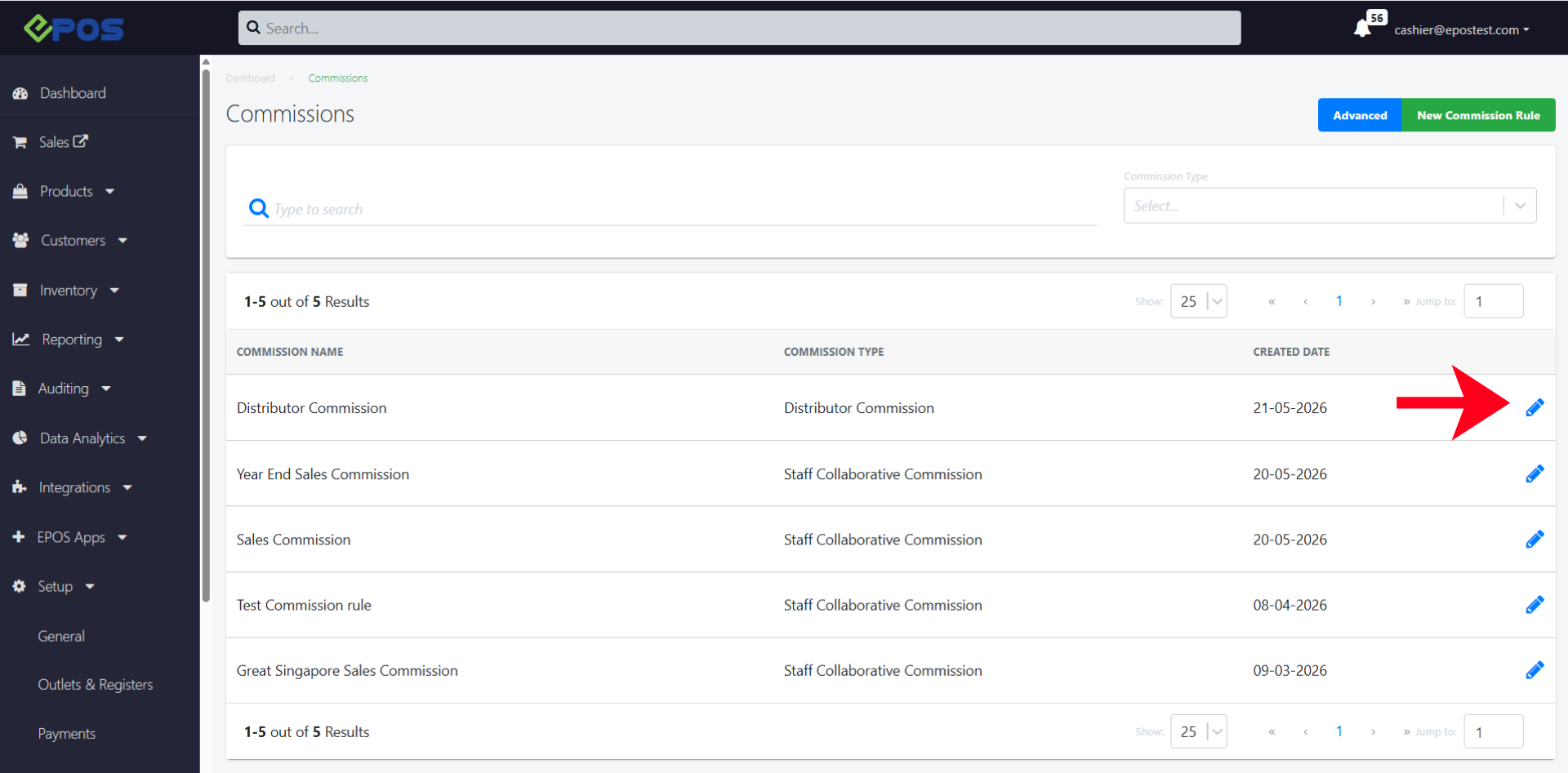
Likewise, after edits are made, the user must save the commission again.