Users are able to hold their orders aside during operations when customers are not planning to check out immediately. Subsequently, users can retrieve orders which are being held and proceed to checkout.
Hold Sale
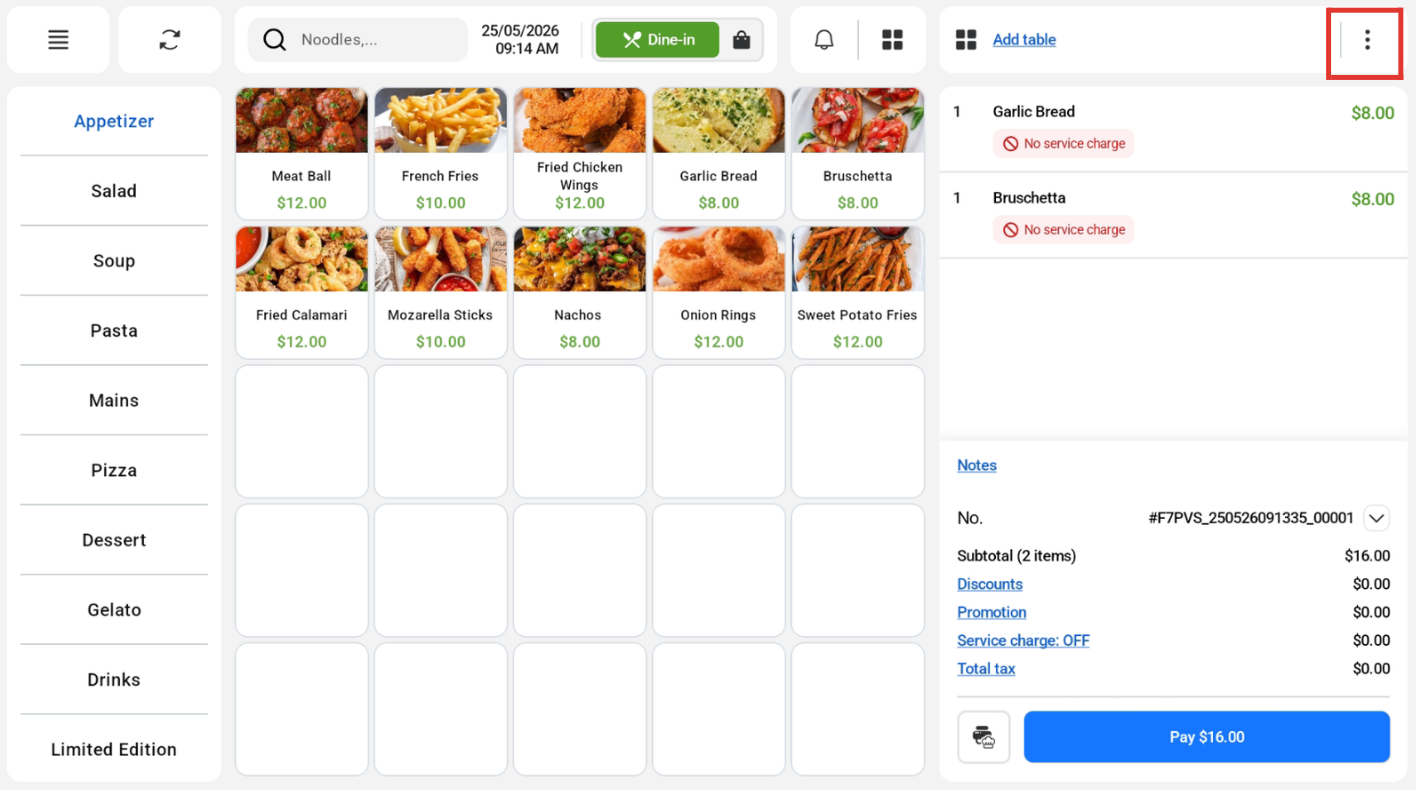
Users can click on the POS Order Menu at the top right corner of the sales screen.
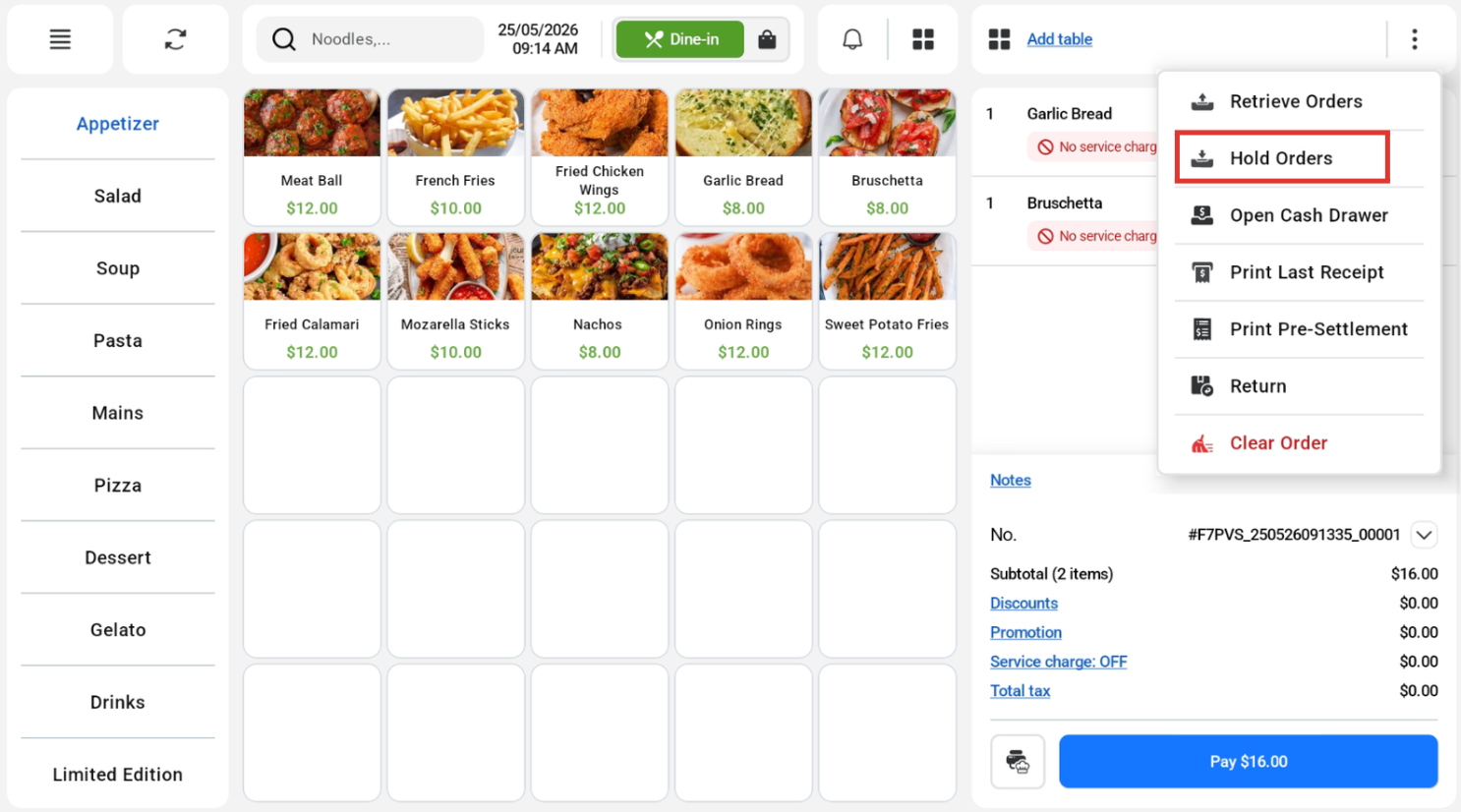
 Users can click on the Hold Orders button to hold the order.
Retrieve Sale
Users can click on the Bell Button near the top of the sales screen.
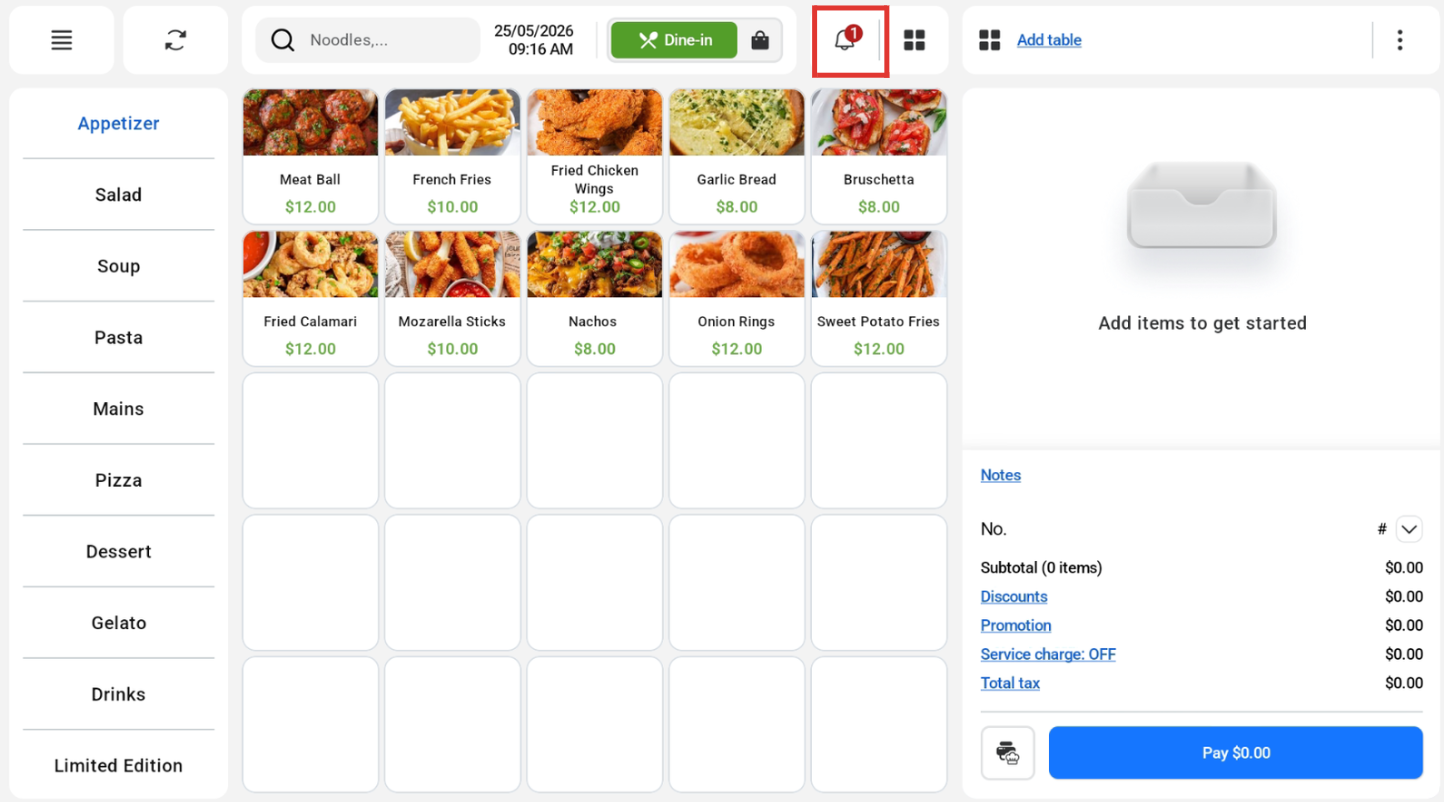 Under the Held Orders tab, Users can look for the held orders from the list of orders and click on the order the user would like to retrieve.
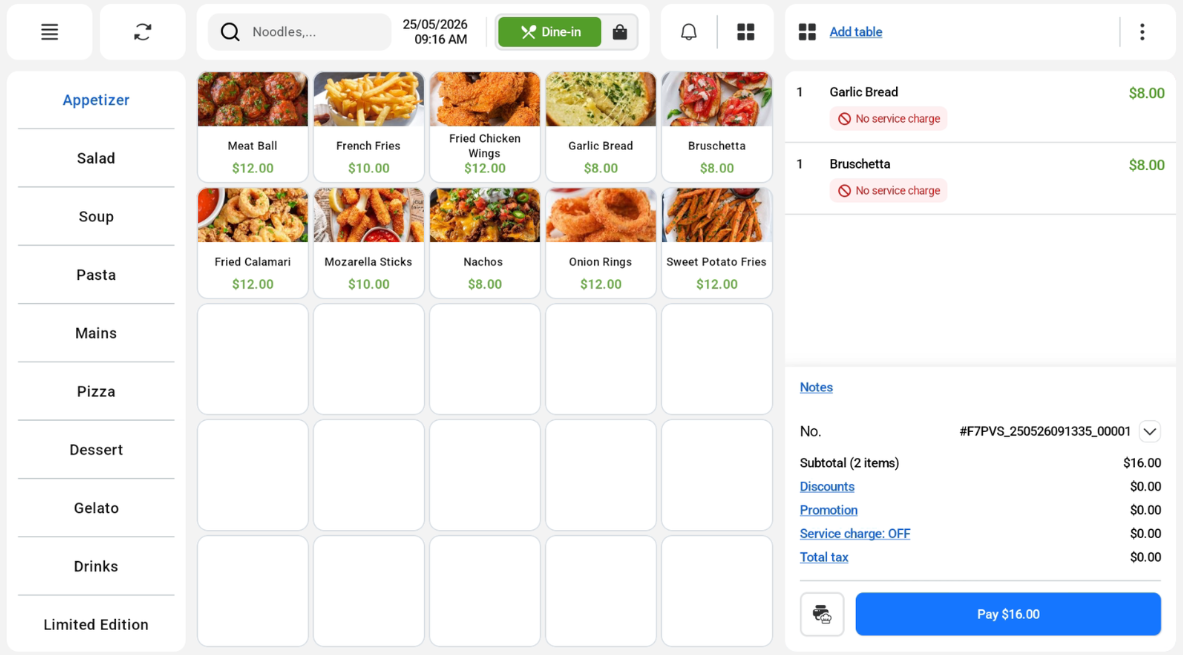
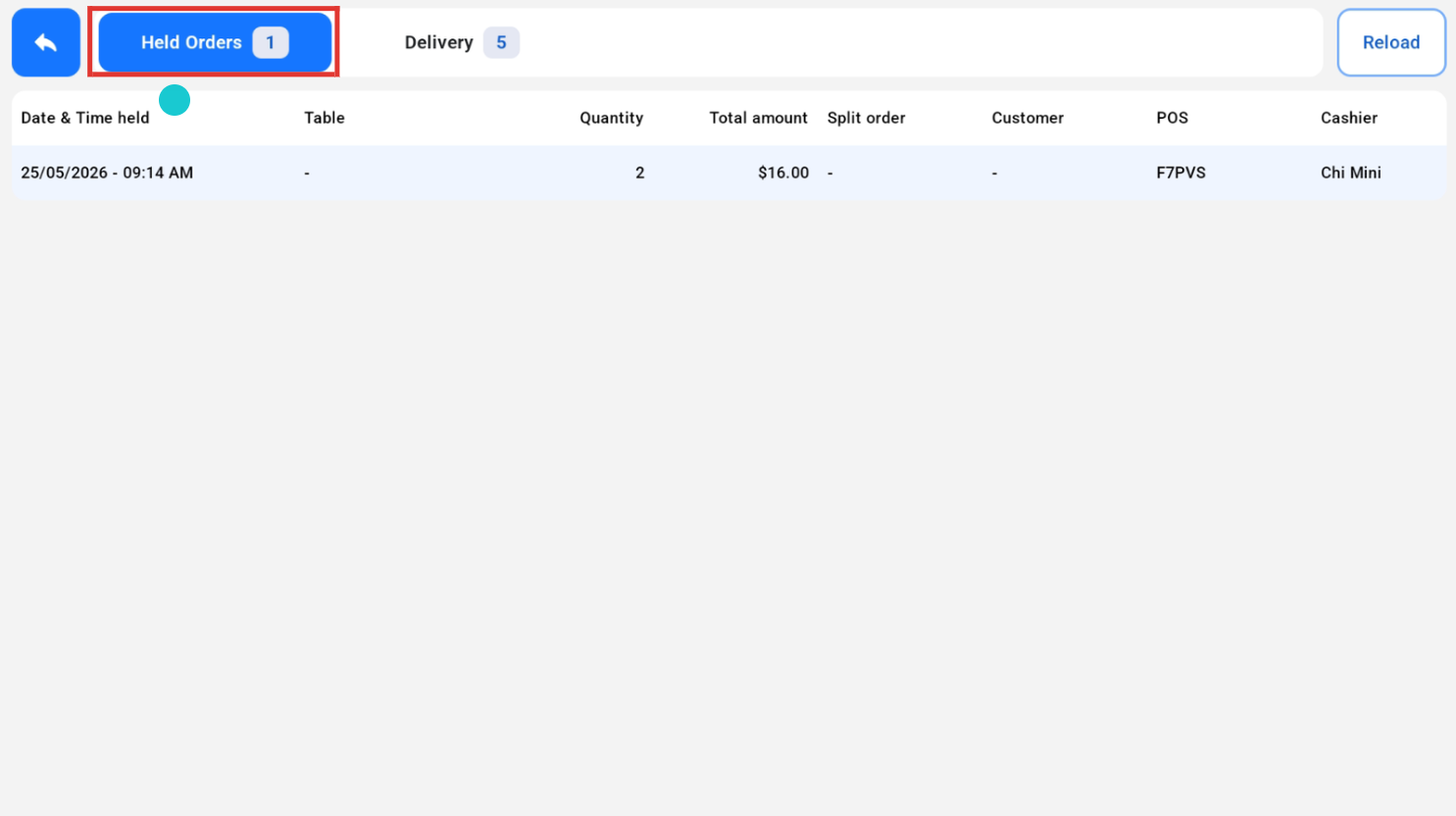 The order will be added to the order cart, and users can proceed to checkout.
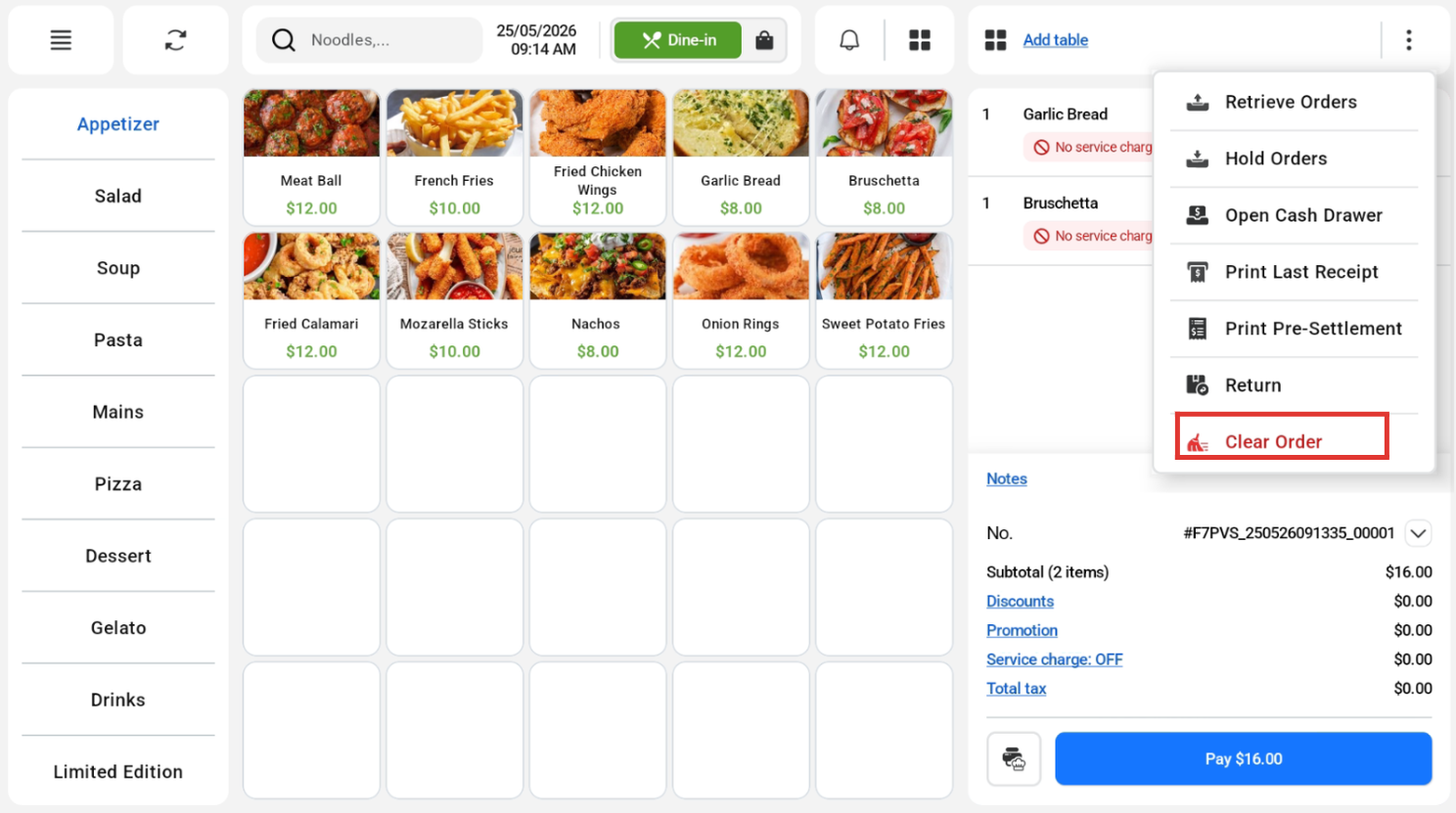
Users can remove all of the products in the order cart. Users can refer to this guide on how to remove products individually.
Users can click on the POS Order Menu at the top right corner of the sales screen.
Users can click on the Clear Order button.
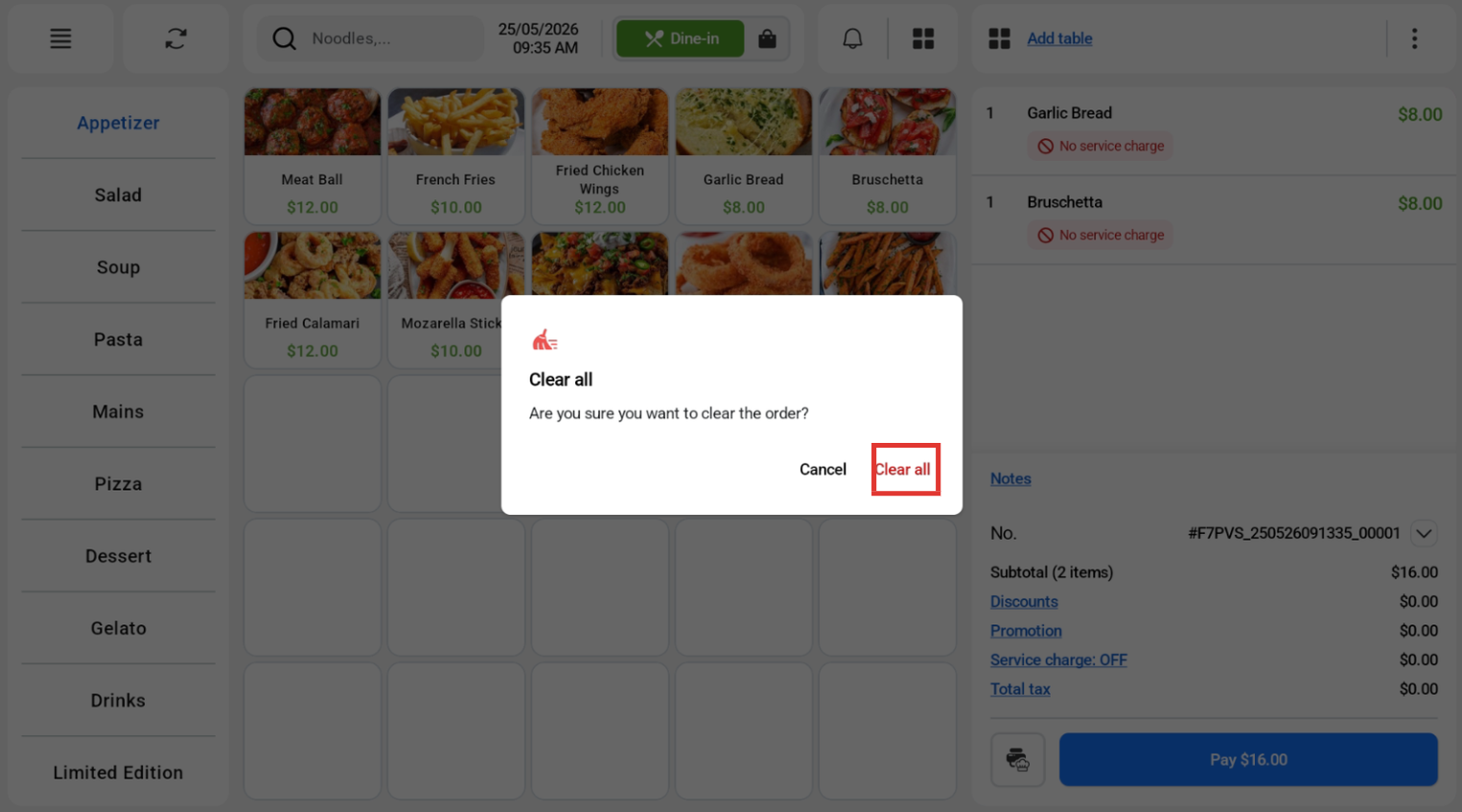
 In the pop up, users can click on the ‘Clear All’ button to remove all of the products in the order cart.
Users can insert a note for orders. Users can refer to this guide on how to insert product notes.
Users can click on the Note button on the sales screen.
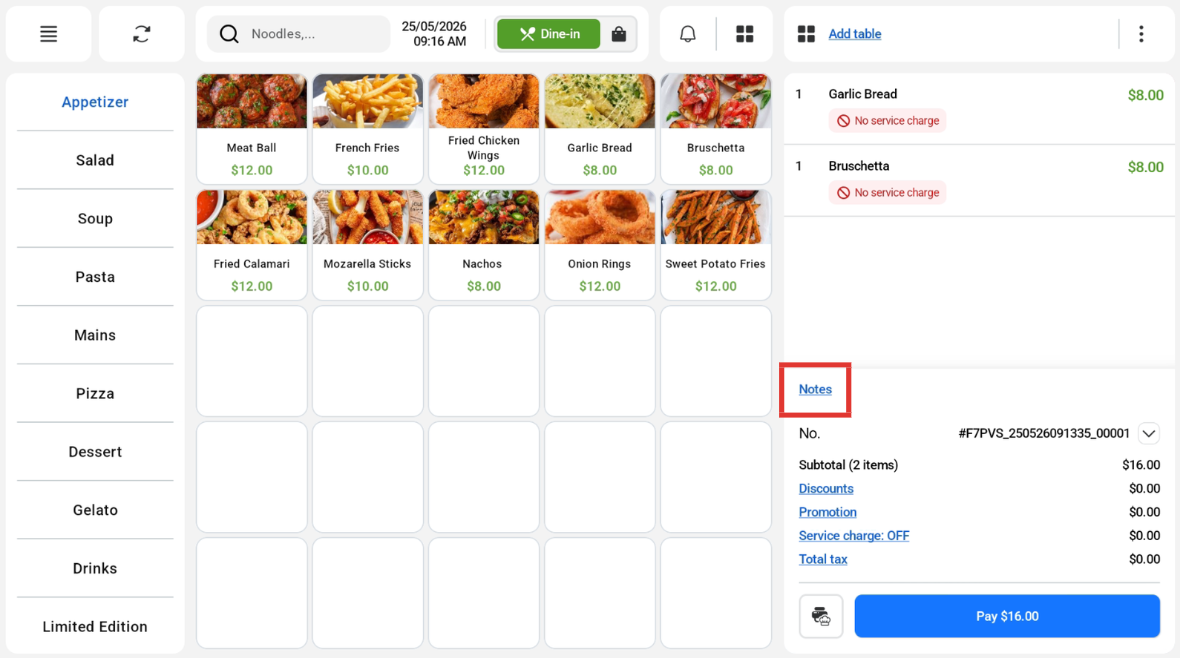
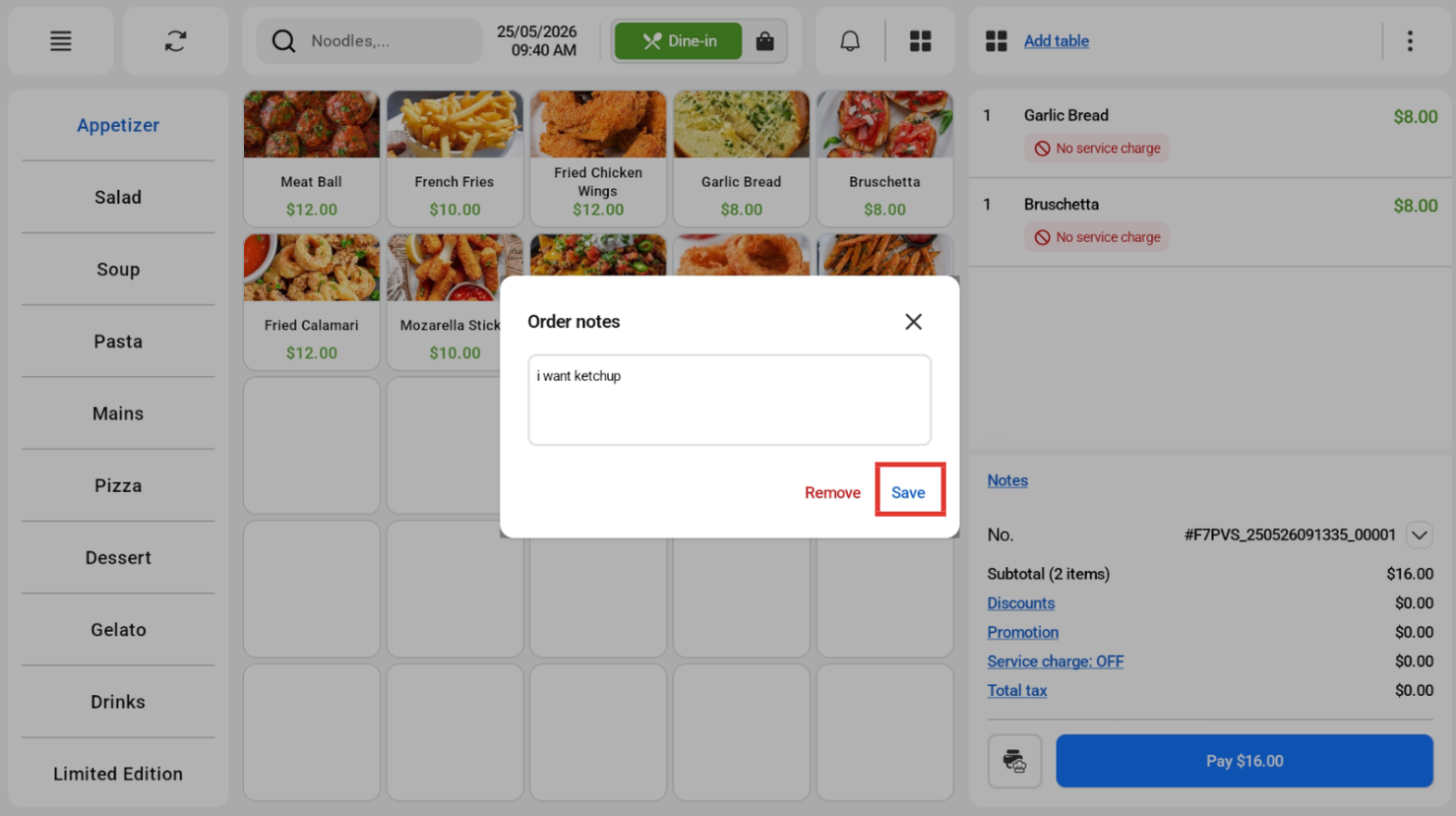
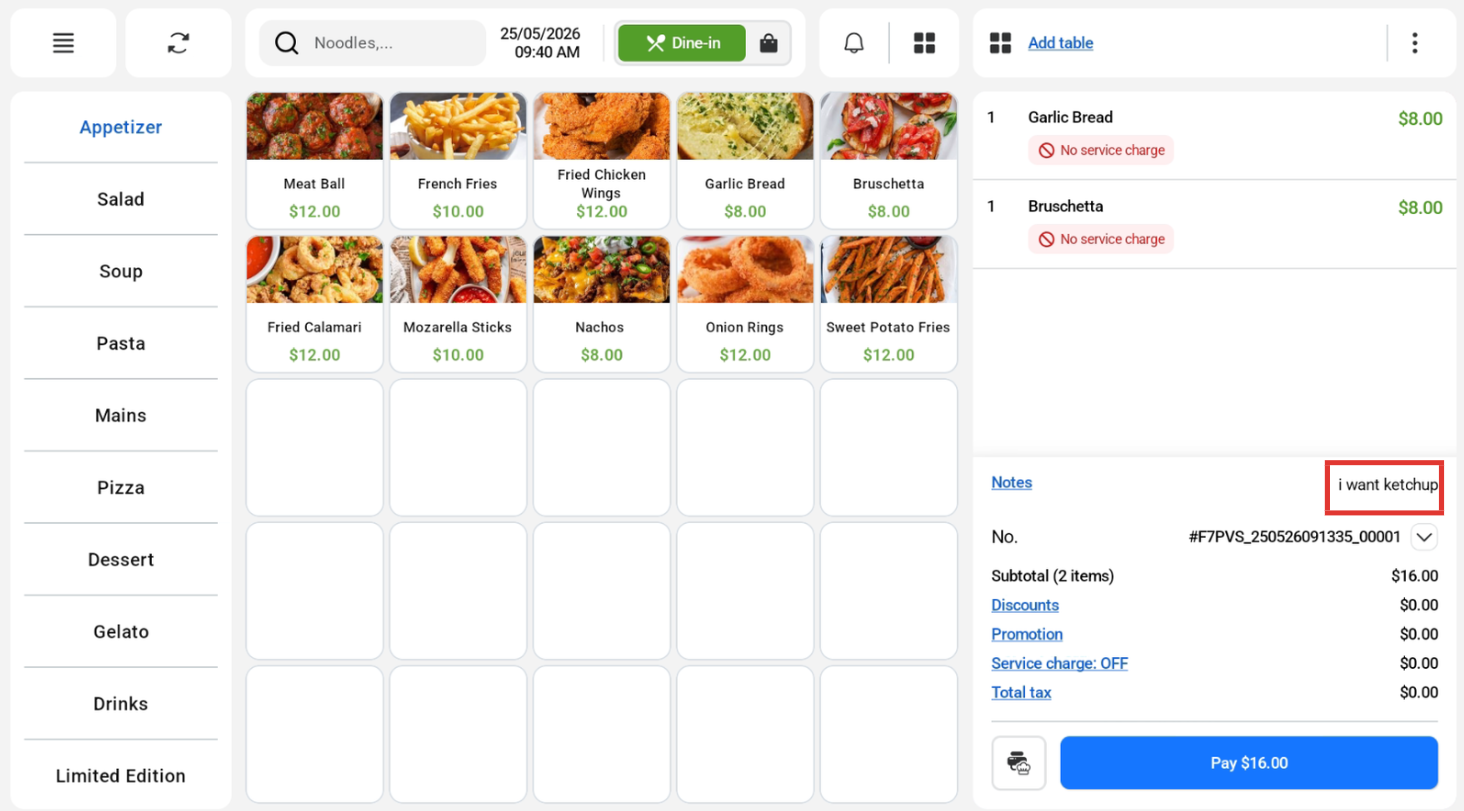 In the textbox, users can insert the note. After inserting the text, users can click on the Save button to save the note.
 The order note will be reflected as seen in the red box.
Users can give discounts to each order. Users can refer to this guide on how to apply discounts for each product.
Users can only apply a percentage discount for the whole order. Users can click on the Promotion text on the sales screen.
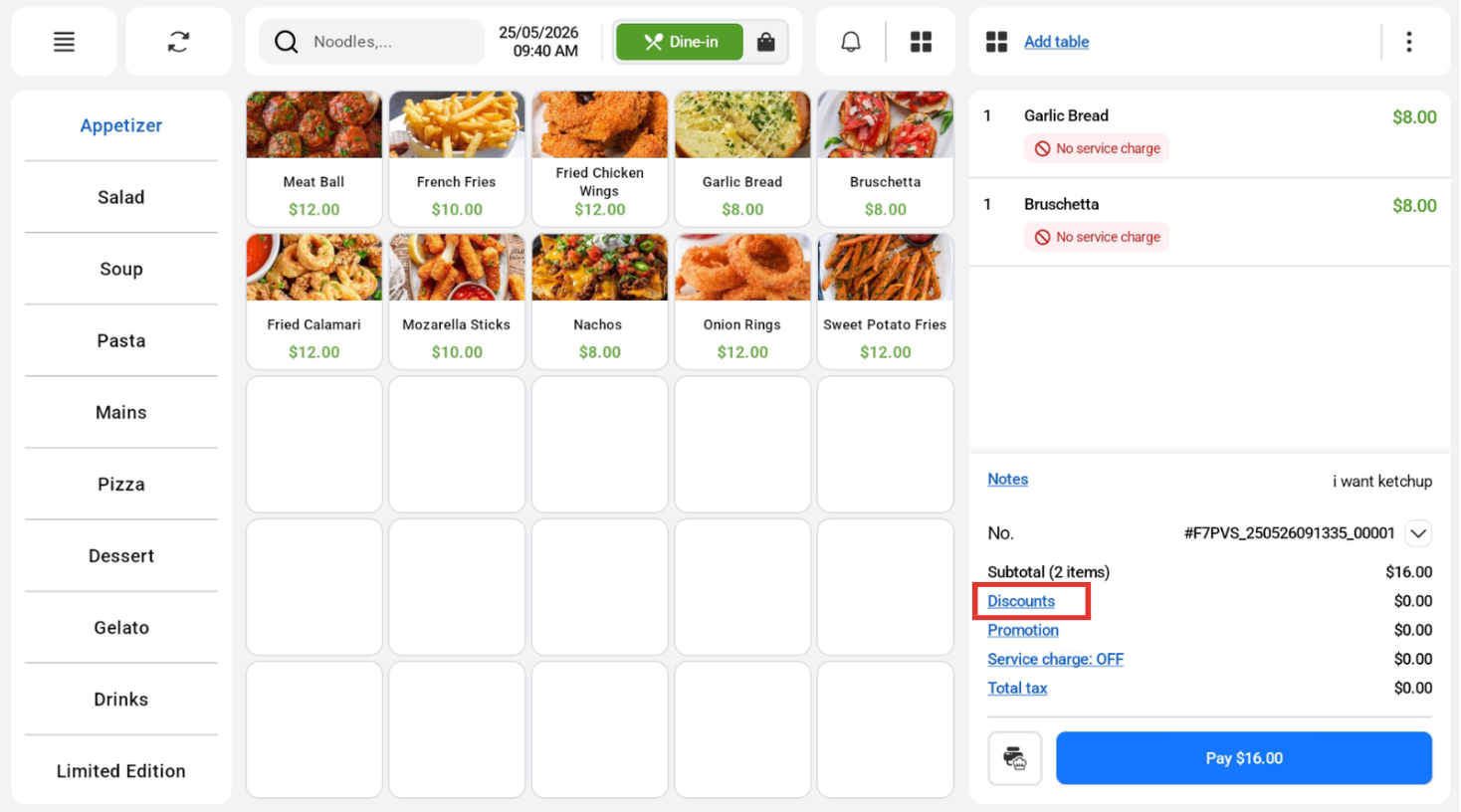 In the pop-up window, users can insert their desired discount and click on the Save button to save the discount.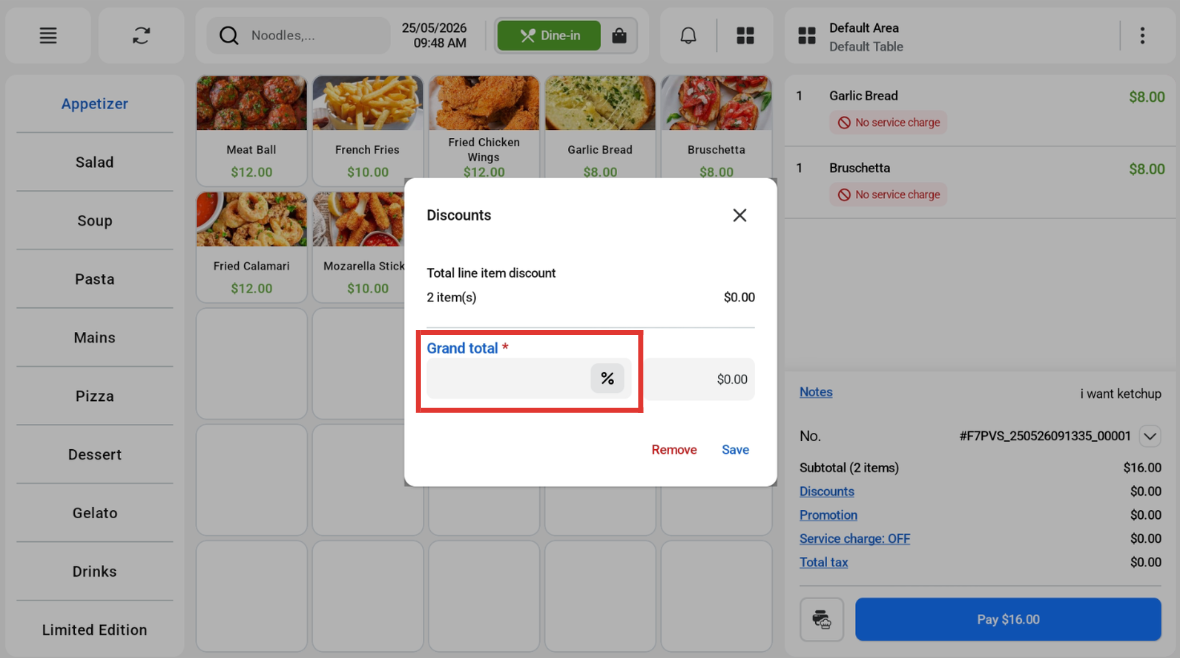
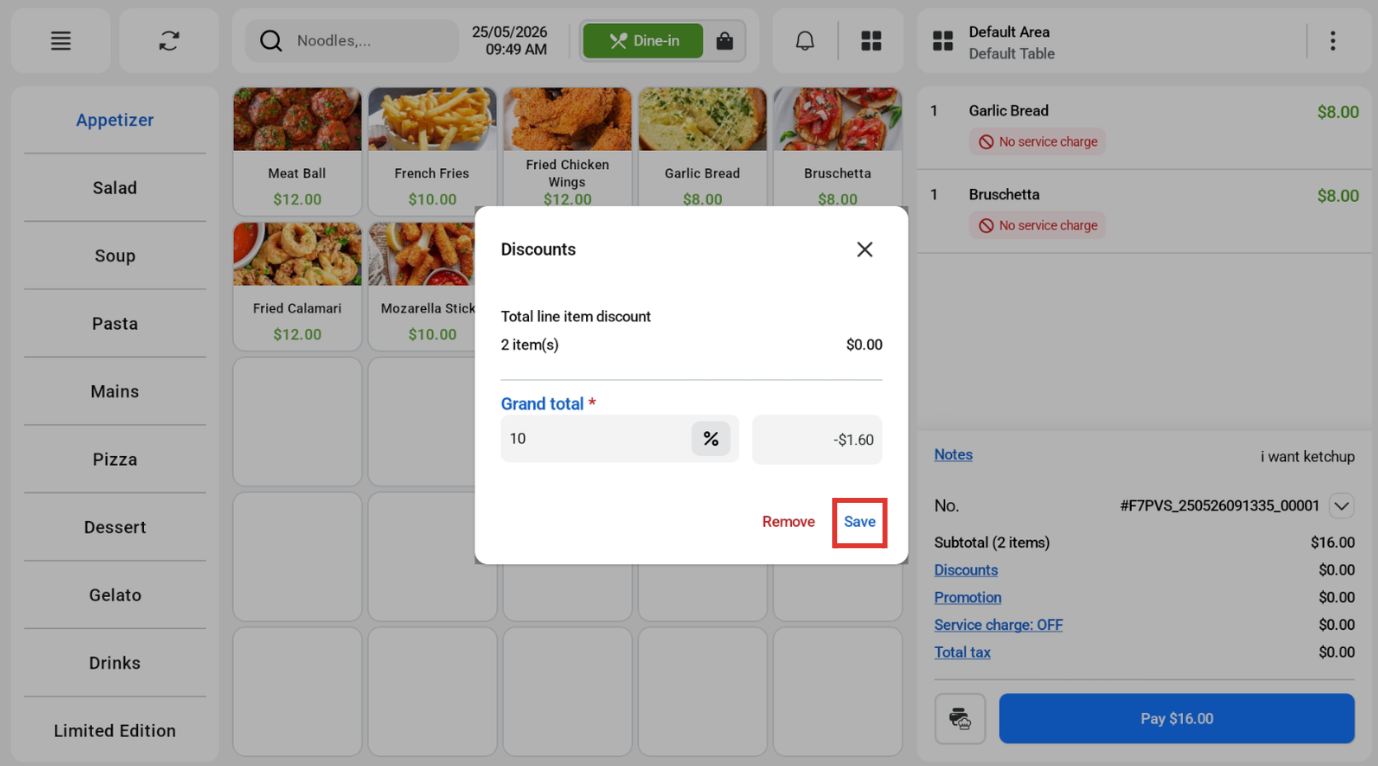
Discount will be displayed. 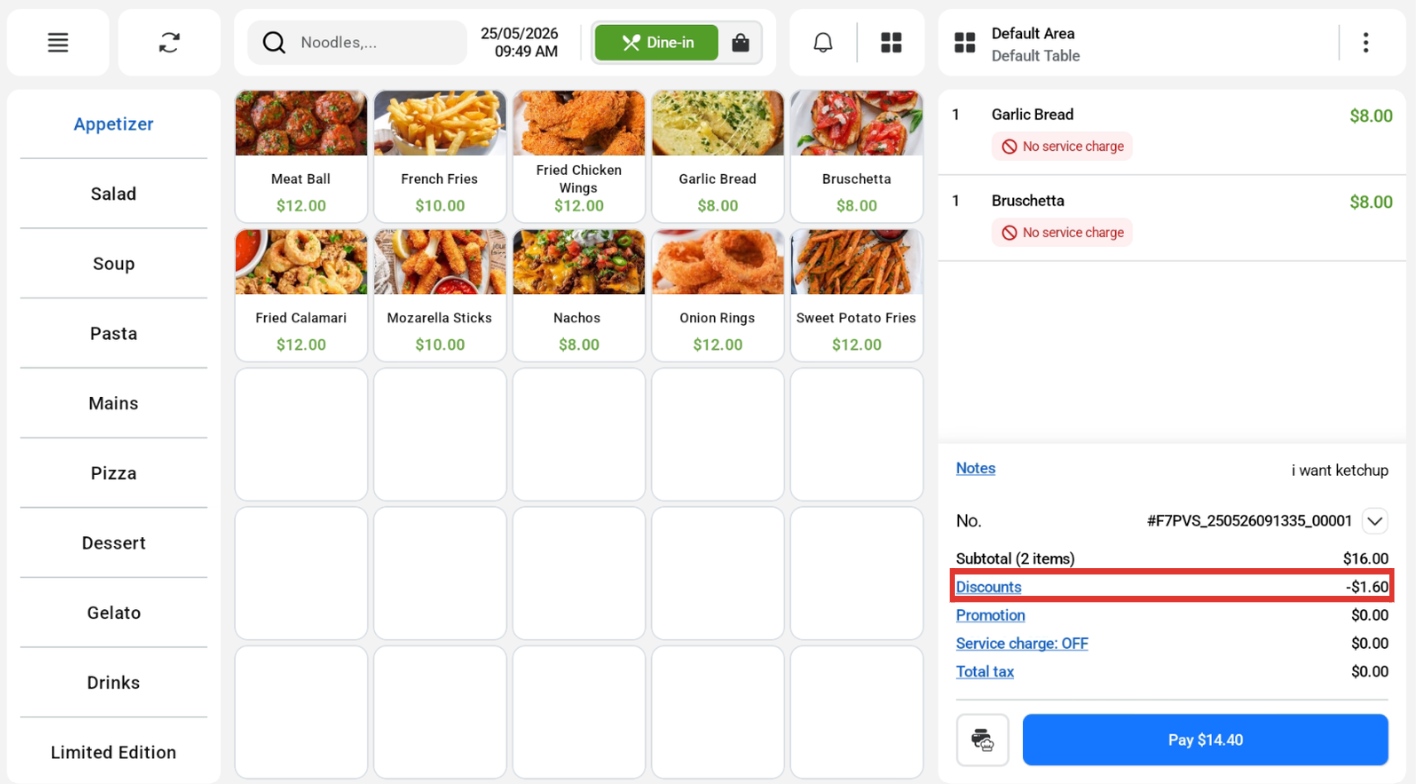
Kiosk View
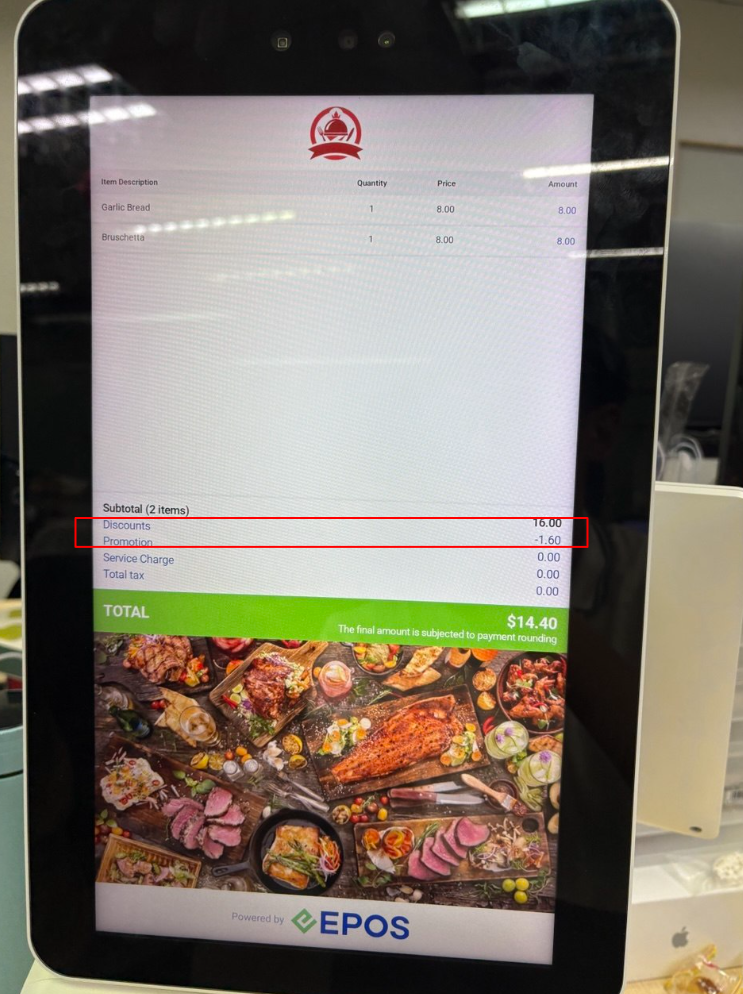
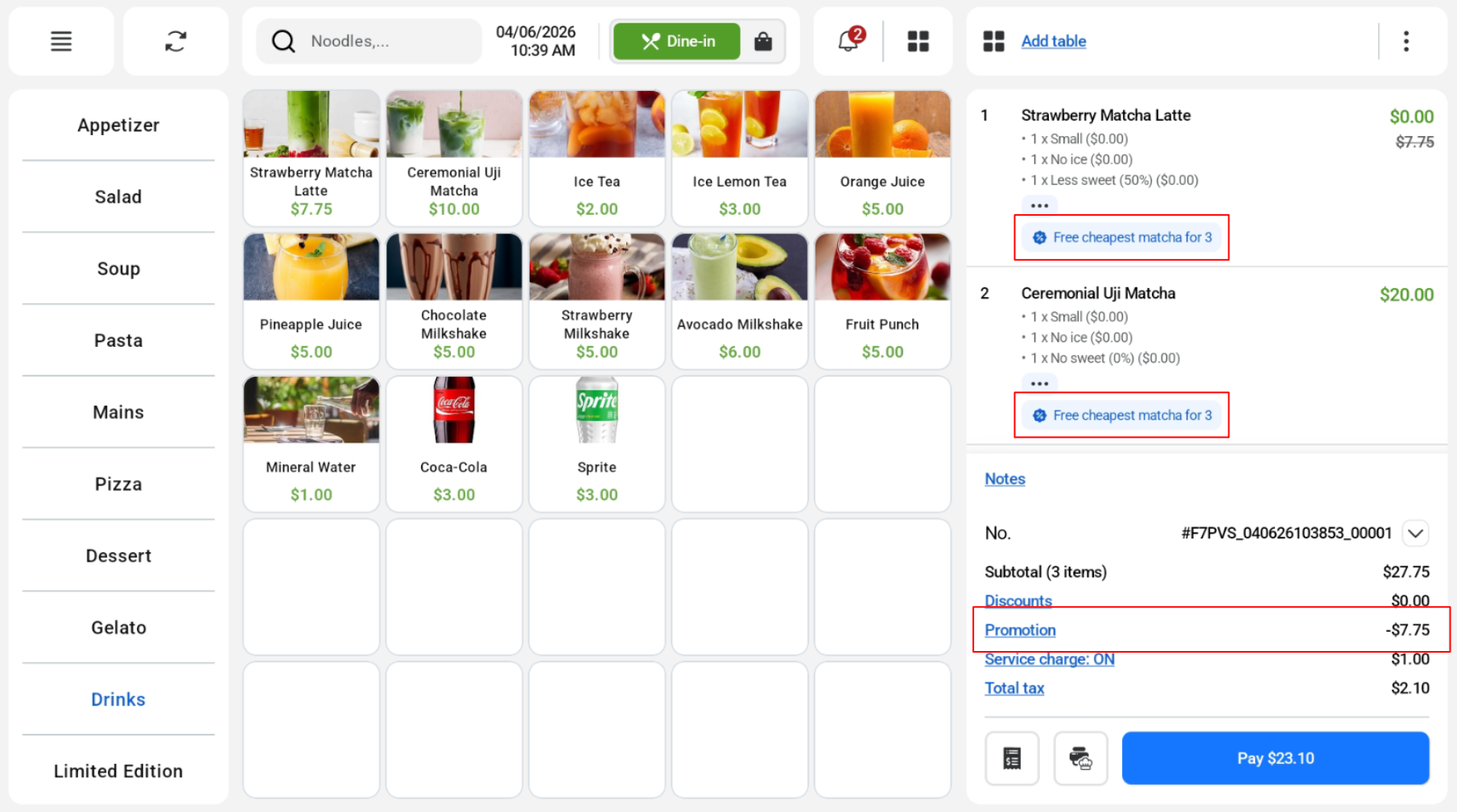
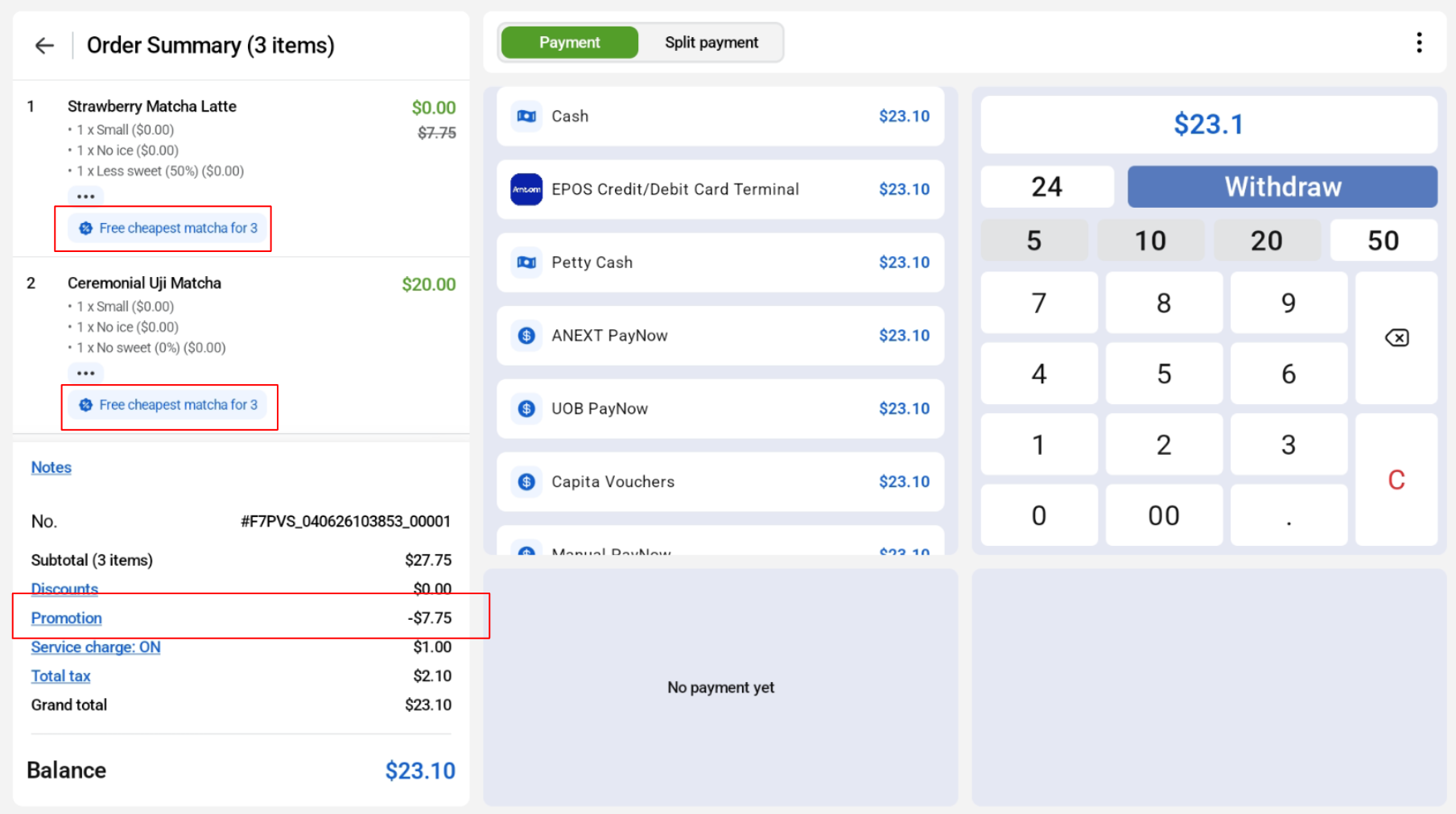
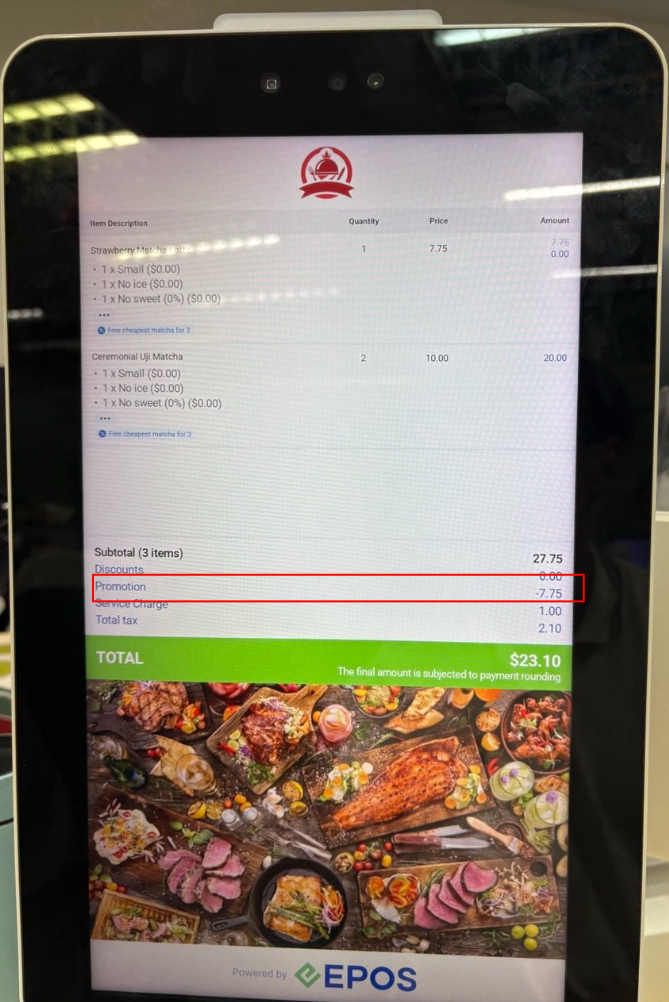
Promotions will be reflected in the POS sales screen and order summary.
Currently there are 3 methods supported:
- Pay Fixed Price for Other Items
- Get a Percentage Discount for Other Items
- Get Cheaper Items at Discounted Rate (Percentage)
POS Sales Screen
Order Summary Page
Kiosk View
Please refer to this link for more information regarding promotions.
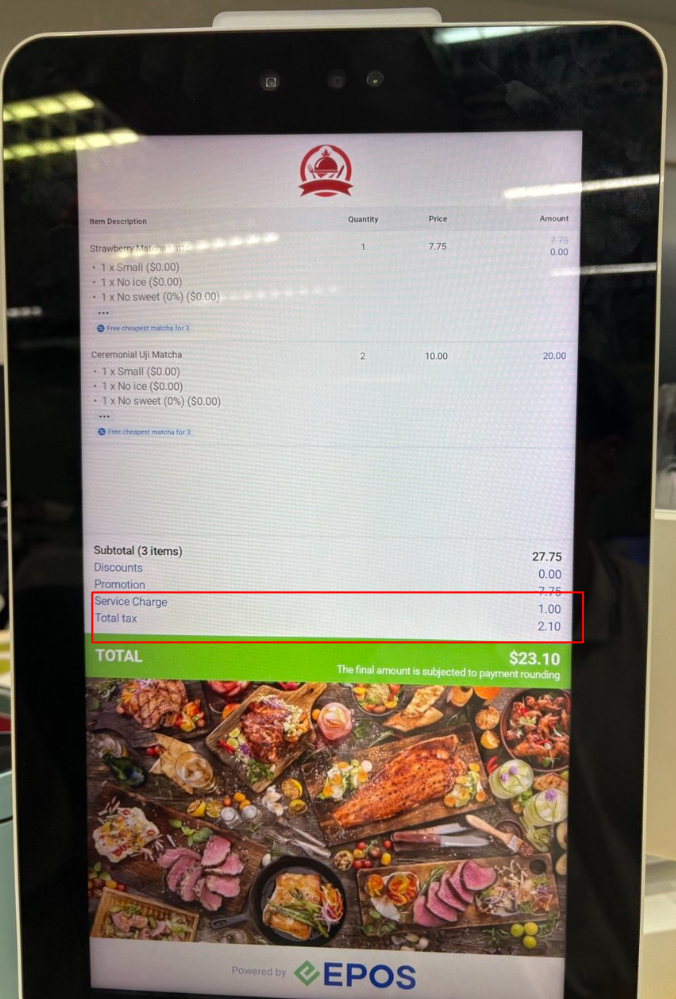
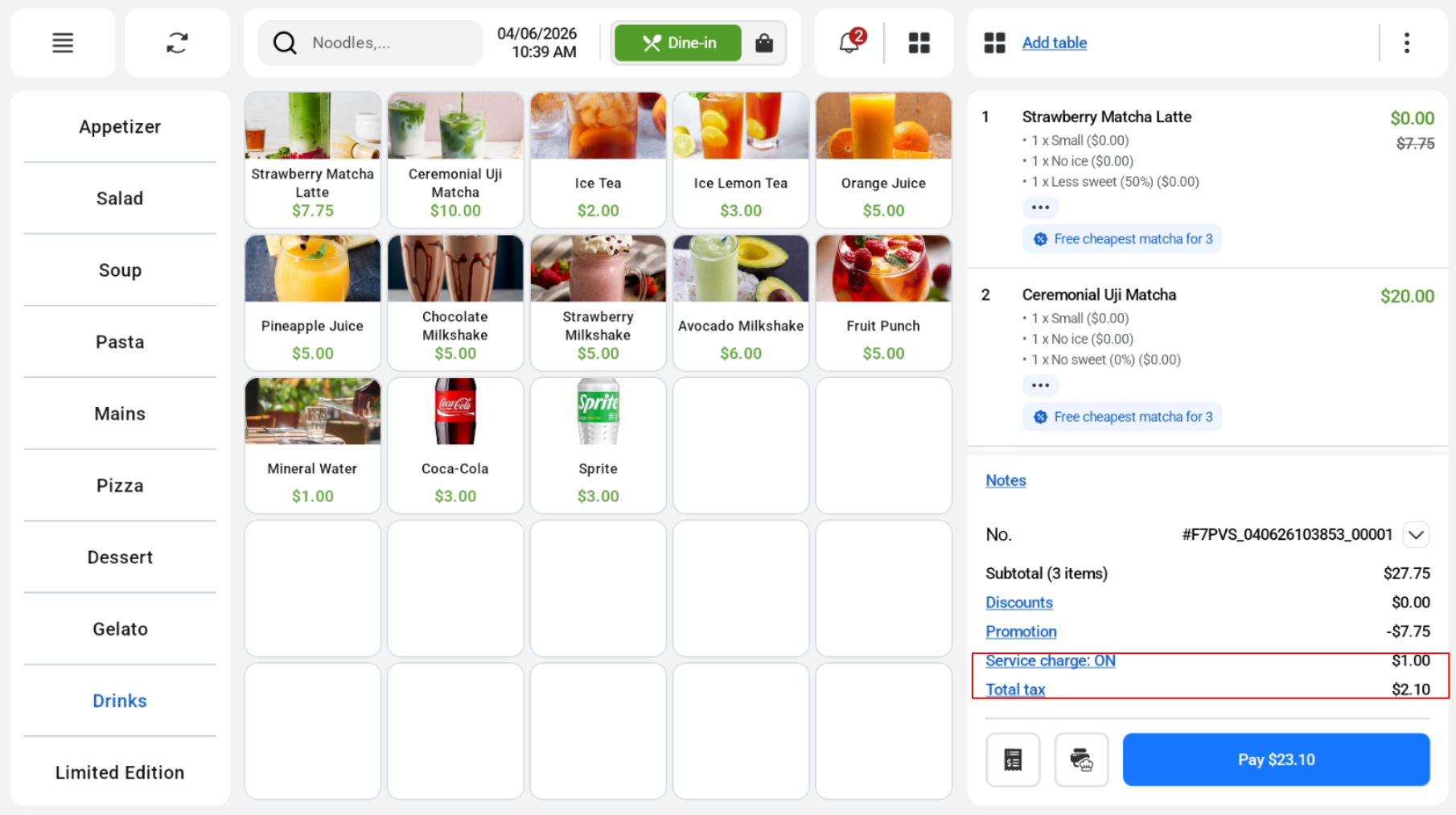
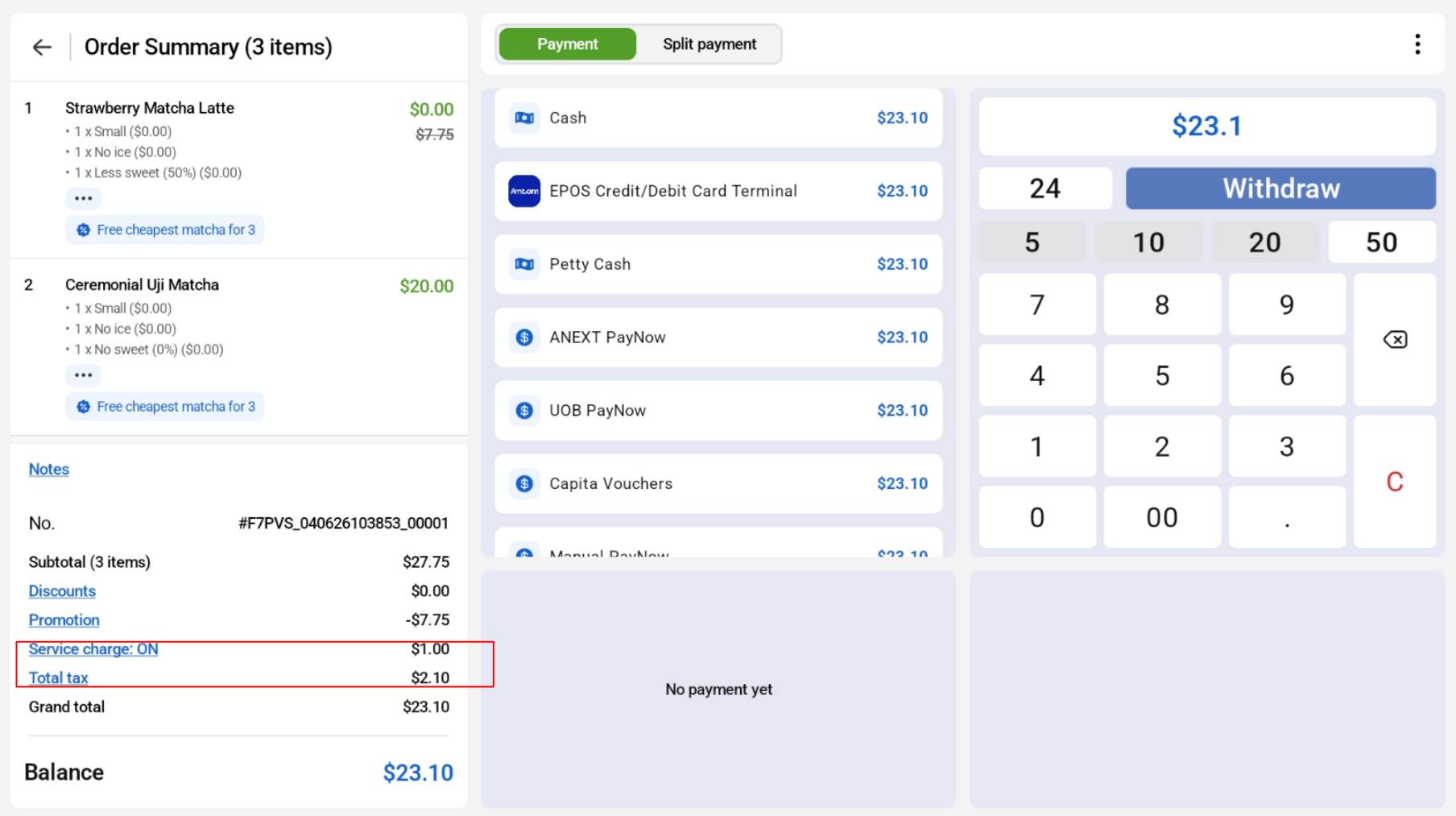
Service charge and total tax will be displayed on the POS sales screen and order summary page.
POS Sales Screen
Order Summary Page
Kiosk View