Queue Display Setup

The queue display requires a few backend settings to ensure the users are able to effectively conduct business operations.

↳ To see the ordering flow for the queue display, see Queue Display.

💡Prior to creating a queue display in the Backend Portal, users must ensure that there is a kitchen printer set to the outlet before proceeding to create a Queue Display.

↳ To set up kitchen printer, see Create A New Kitchen Printer.

⬇ Explore the pages required for the Queue Display Setup by toggling between tabs below.⬇

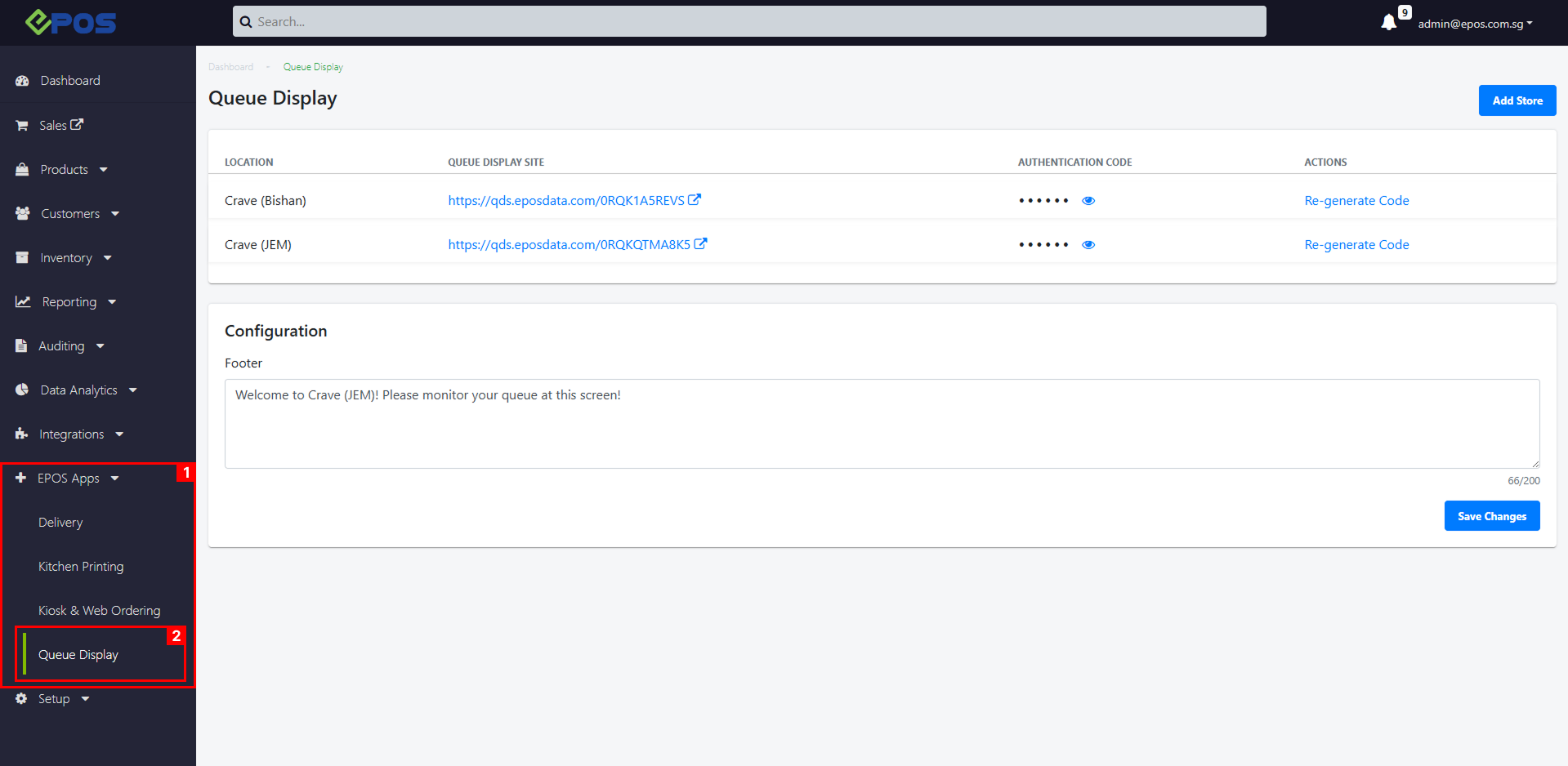
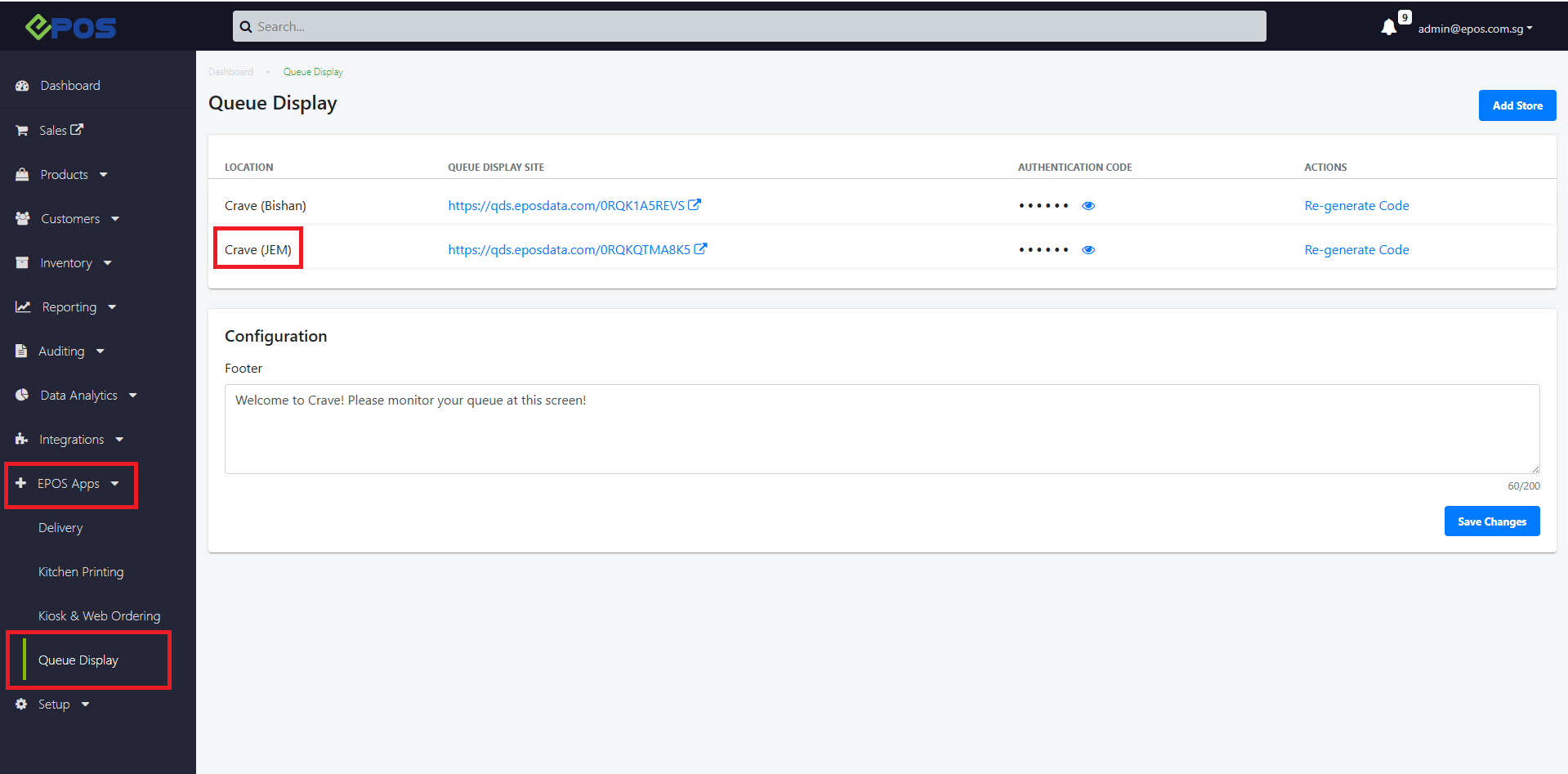
To access the Queue Display Configurations page, follow the following steps:


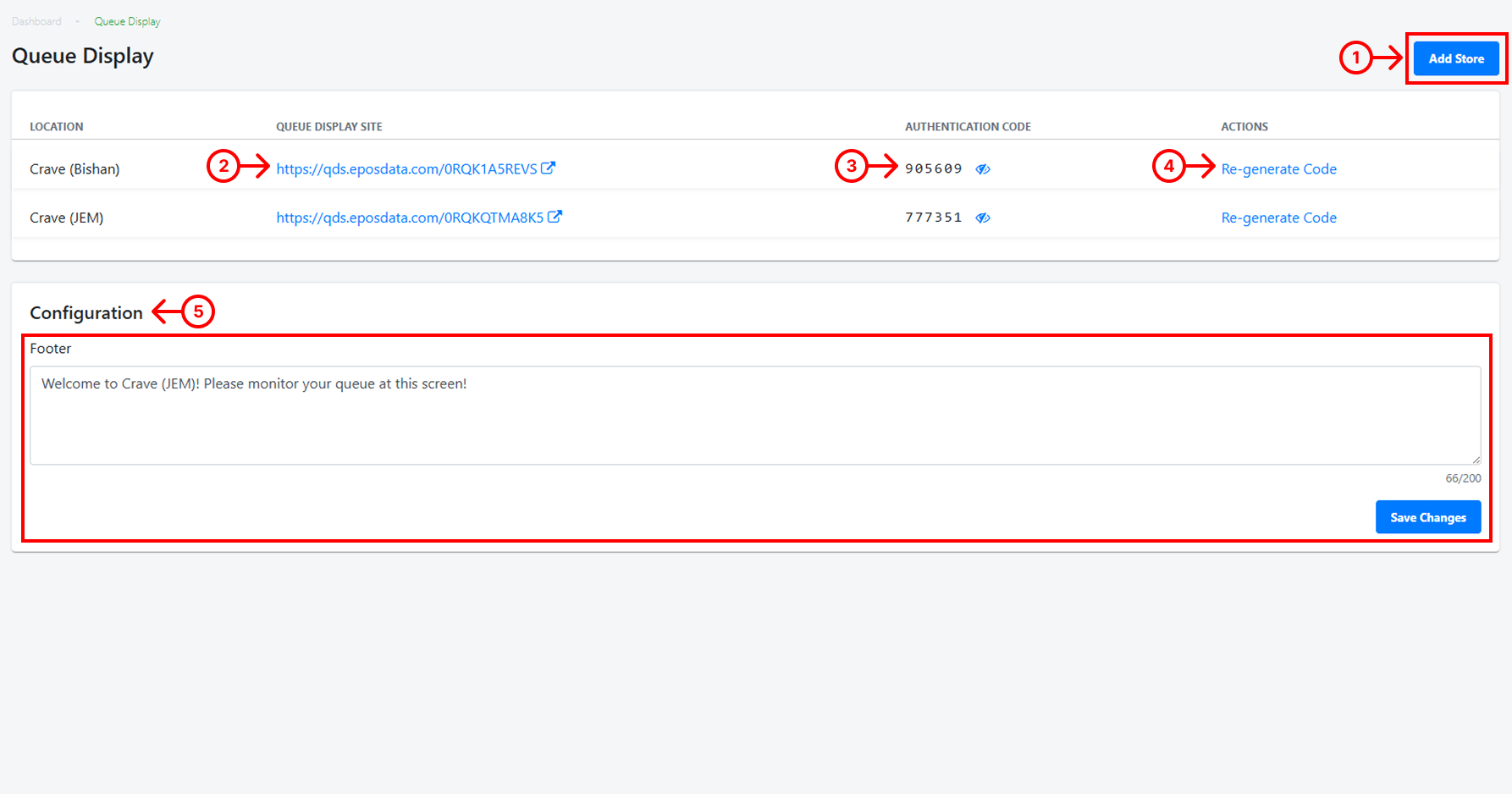
Users will be directed to this page.

1. Add Store

Allow users to create a new Queue Display for an outlet in the Backend Portal.

The store selection is based on the outlets that have the required setup for the Queue Display. To see the requirements for a Queue Display Setup, see Queue Display.


2. Queue Display Link

The link which will display the queue display for the outlet.


3. Authentication Code

To access the authentication code, users will need to click on the unhide icon to reveal the code.


Users will need to key in the code to access the queue display link.


4. Re-generate code

Allows users to “Re-generate code” if needed. Users would need to access the queue display with the new authentication code when the access resets.

The queue display access resets every 24 hours.


5. Footer text

Users can adjust the footer text shown on the queue display using the text box as a preview.

A maximum of 200 words can be written in the text box.

If texts are too long on the queue display, the text will slide across the screen to show the full text.
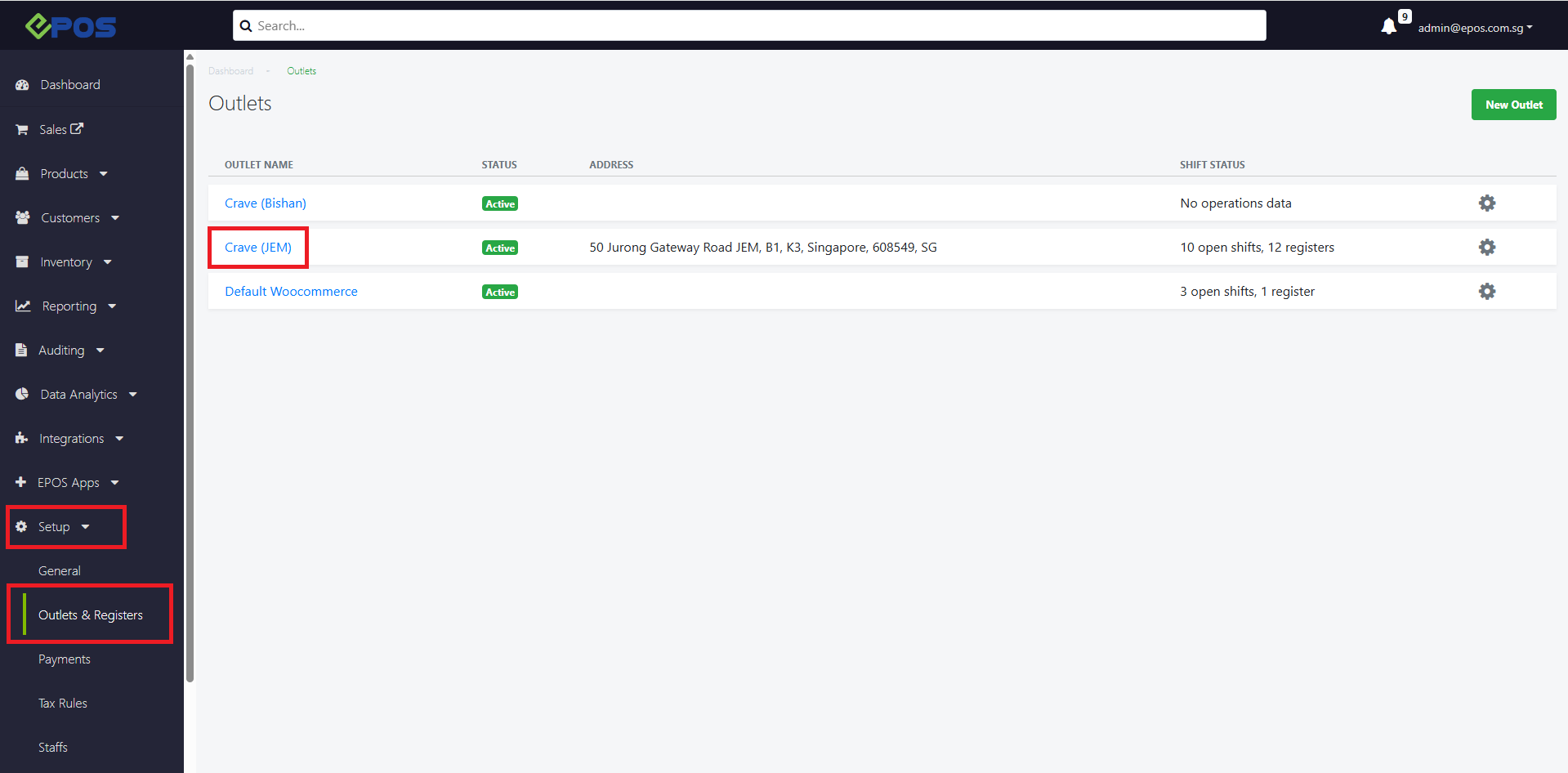
The Queue Display details shown are based on the settings created in Outlet & Registers.

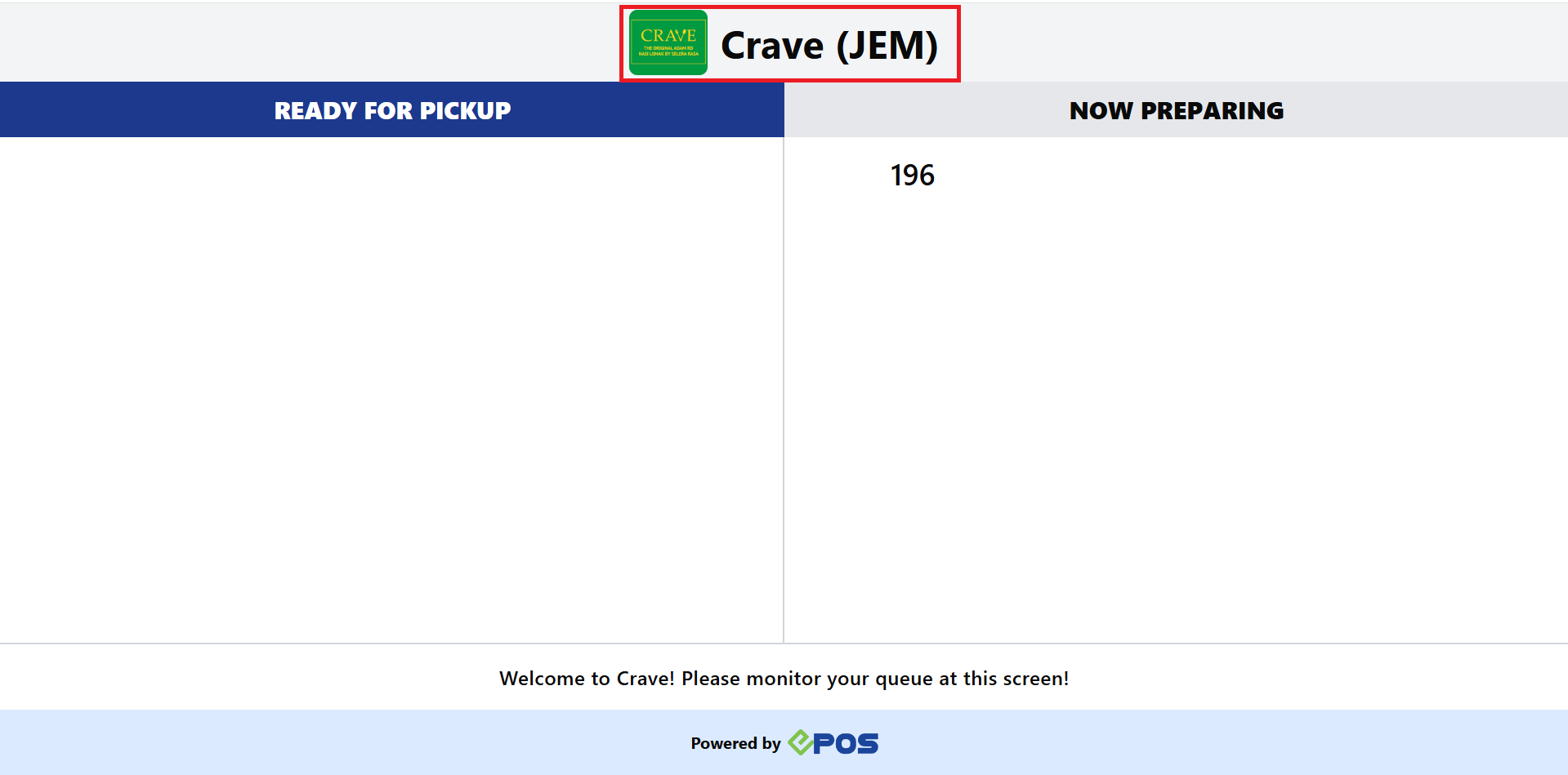
1. Queue Display Outlet Name

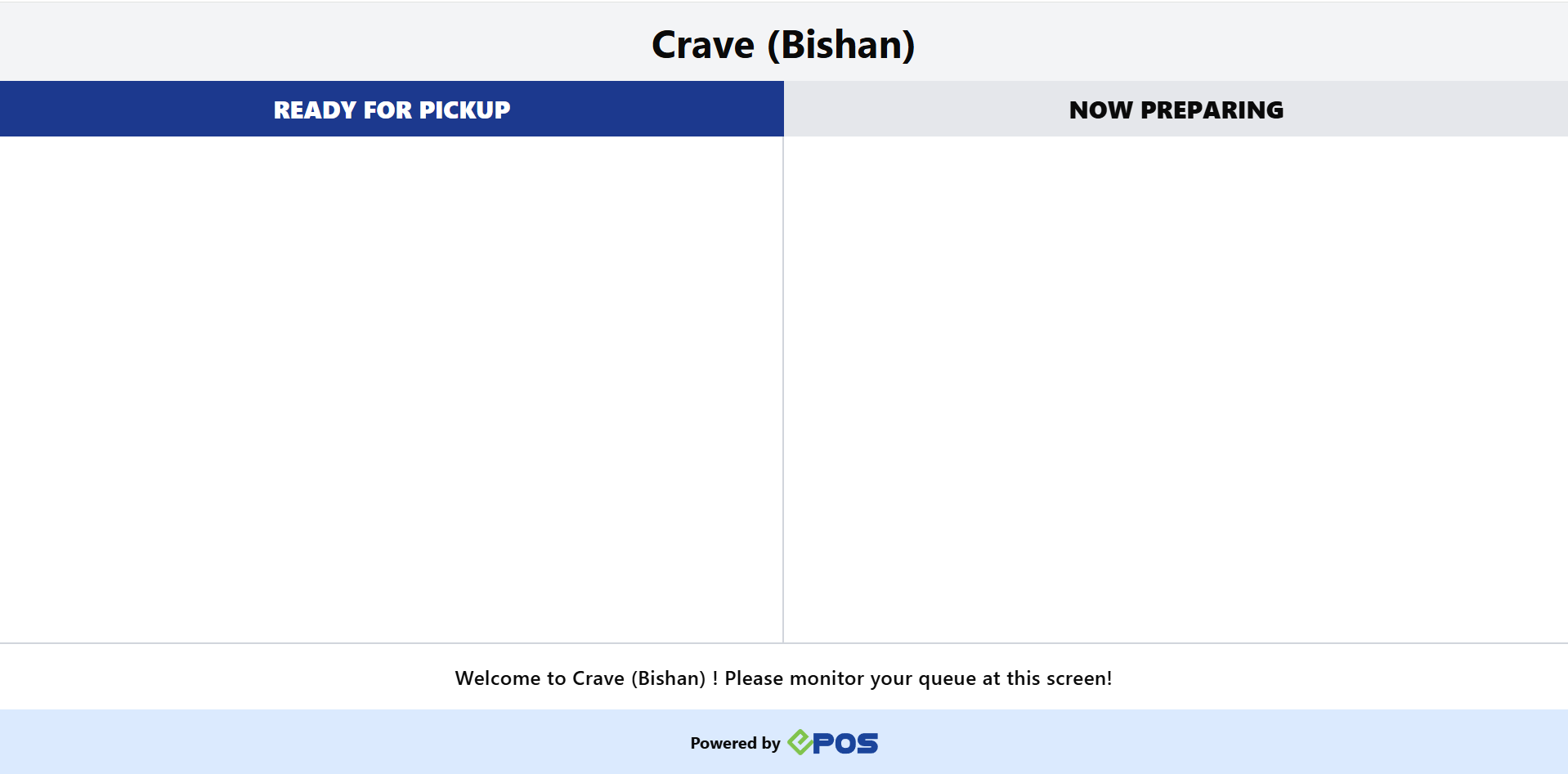
The outlet name displayed on the queue display is based on the name given for the outlet.

Outlet Name in Setup > Outlets & Registers > Outlets

Outlet Name in EPOS Apps > Queue Display > Queue Display

Outlet Name shown on QDS

💡If a user changes the name of the outlet, they would need to “Re-generate Code” for the latest Outlet Name to be displayed on the QDS.

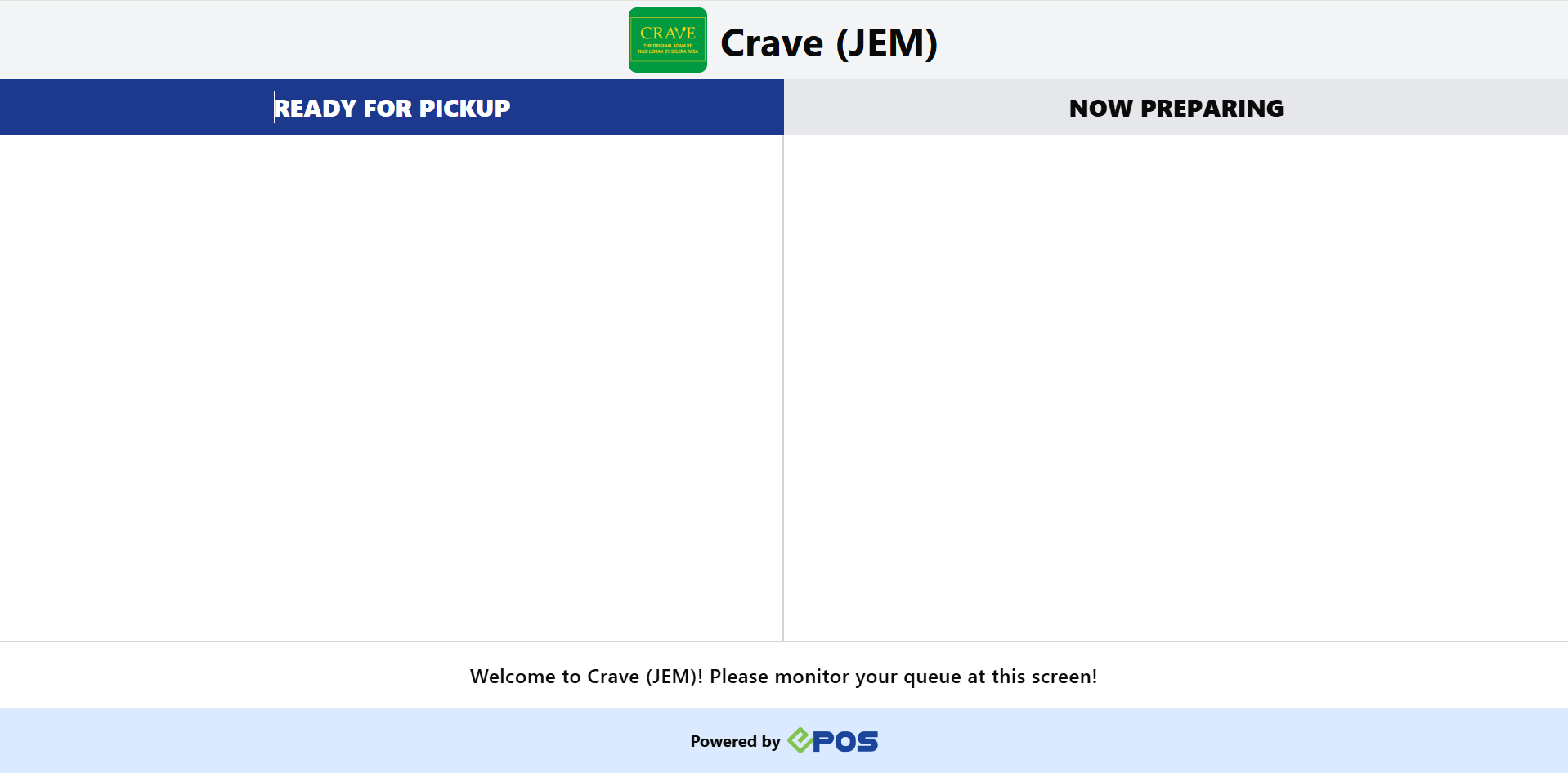
2. Logos beside outlet name in queue display

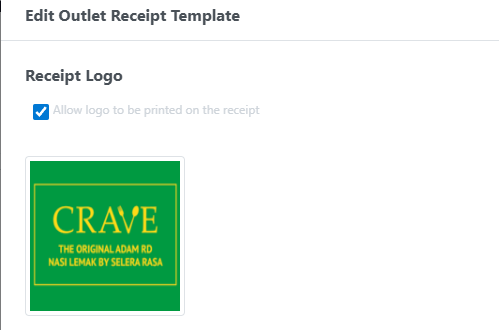
If the user wishes to set a logo on the QDS, they would need to configure the receipt settings of their respective outlets.

If there is no logo set to the Receipt Template, there would be no logo shown on the Queue Display.

If there is a logo set to the Receipt Template, there would be a logo shown on the Queue Display.

If the Queue Display is not updating, check the internet connection of the display device.

The QDS will automatically sync up the orders that were placed, prepared and completed when there was no connection.

QDS syncing the orders after reconnecting to the internet