The Queue Display System (QDS) is an automated screen designed to display the status of customers’ orders in real time.
Compared to a traditional queue calling system, the QDS offers several advantages:
- Reduces manual steps in order processing.
- Offers clearer visual tracking of customer orders.
Interested to get a QDS? Contact us for more info.
Overall view of QDS
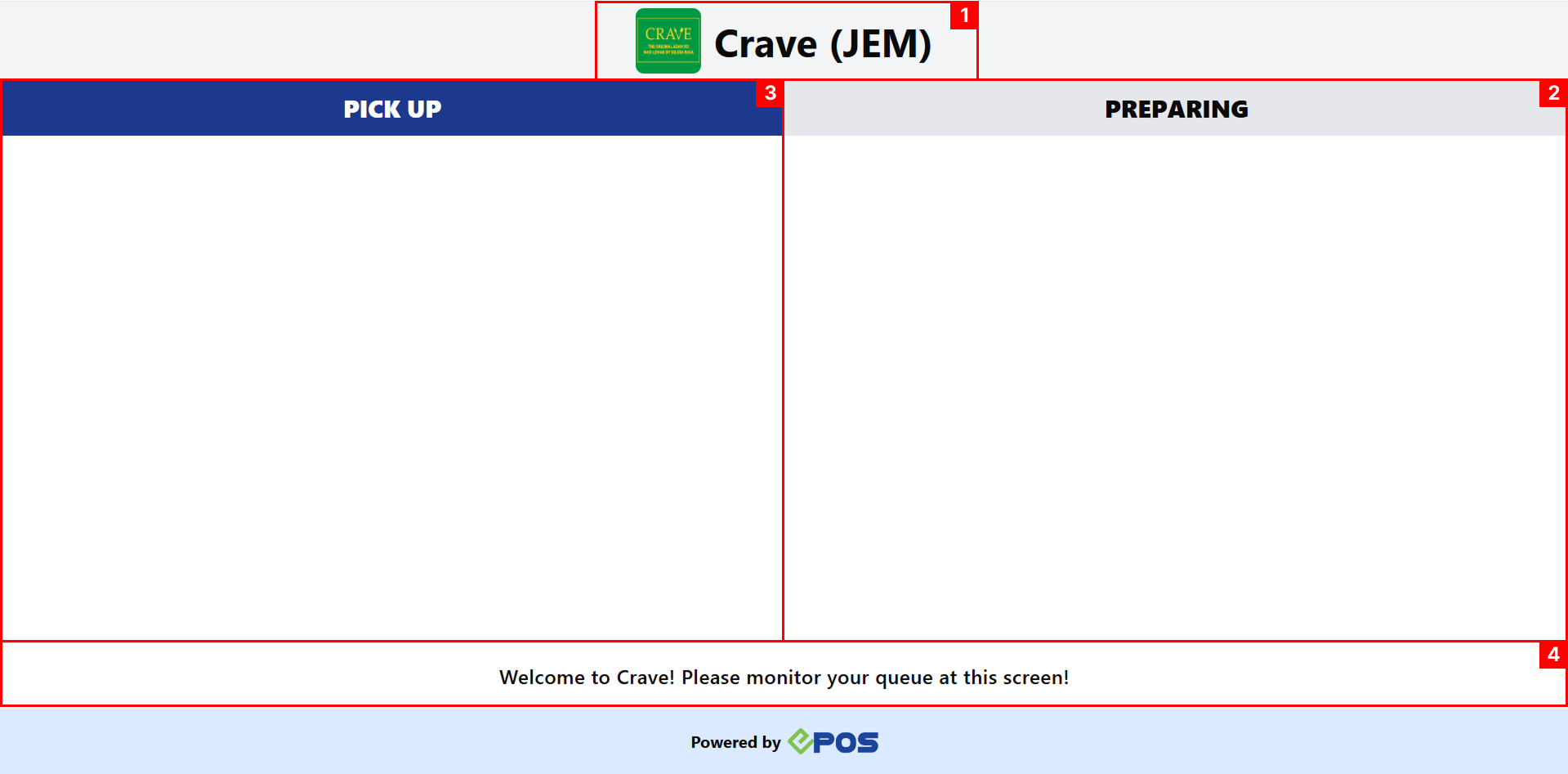 View Section:
- Header: Displays your outlet name and outlet logo.
↳To configure the header, you can refer to Outlet Creation.
↳To configure the logo, you can refer to Receipt Templates.
- Preparing: Shows orders that are currently being prepared in the kitchen. Customers can refer to this column to track their order status.
- Pickup: Shows orders that have been prepared and are ready for collection. Customers can refer to this column to know when to collect their order.
- Footer: Displays custom text that can be configured to show messages to customers.
Upon successful sending of orders to the Kitchen Display System (KDS), the queue number will be shown at the ‘Preparing’ column of the QDS.
💡The queue number won’t appear on the QDS if it fails to send to the KDS.
(No kitchen receipt = No screen display)
Preparing Column
New Orders will appear at the bottom for the ‘Preparing’ column, while the oldest order will be at the top. The order list only shifts when an order is moved from ‘Preparing’ to ‘Pickup’.
A total 15 orders maximum will be at each column.
Orders at ‘Preparing’ will stay for 4 Hours.
QDS flow from ordering to kitchen preparations
When orders are ready, users can confirm by ticking the order within the Kitchen Display System (KDS). The queue number will move from the ‘Preparing’ column to the ‘Pickup’ column of the QDS.
Ready For Pickup Column
New Orders will appear at the top for the ‘Pickup’ column
Orders will be at the ‘Pickup’ column for 15 minutes.
When the Orders are overloaded the latest queue order will push the older orders out of frame.
A total 15 orders maximum will be at each column.
QDS flow from order preparations completion to order pickup
New Orders that have recently been moved from ‘Preparing’ to ‘Pickup’ will flicker for around 5 – 10 seconds.
The 6 latest order that are ready will be highlighted in green.
When an order is voided during preparation or pick up, the queue number will disappear from the QDS.
Preparing Column
Flow when voiding order during Preparing Phase
Pick Up Column
Flow when voiding order during Pickup Phase
The Queue Display can support orders from window, android POS and kiosk system.
Before using the queue display, ensure the queue number option is set in the receipt template for each respective outlet.
Window/Android POS
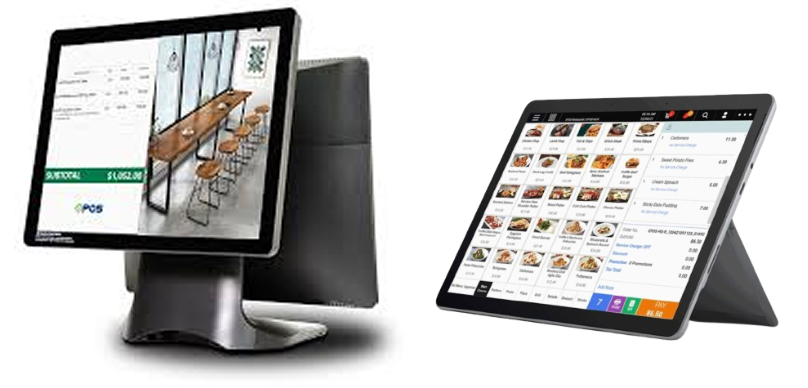
After an order is placed on the POS, the order will be sent to the kitchen and the orders number will be displayed on the QDS.
The queue number format can be seen on the receipt.
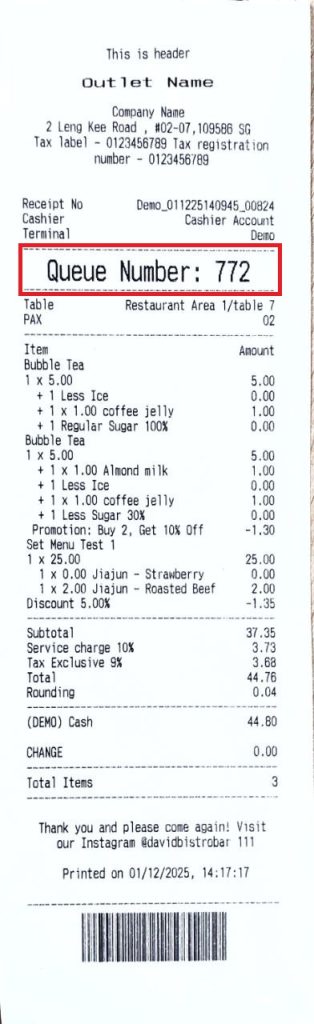 Queue number on the sales receipt printed out from the POS
QR/Web Ordering
After an order is placed on the QR/Web ordering system , the order will be sent to the kitchen and the orders number will be displayed on the QDS.
The queue number format can be seen after payment is made on the respective ordering system.
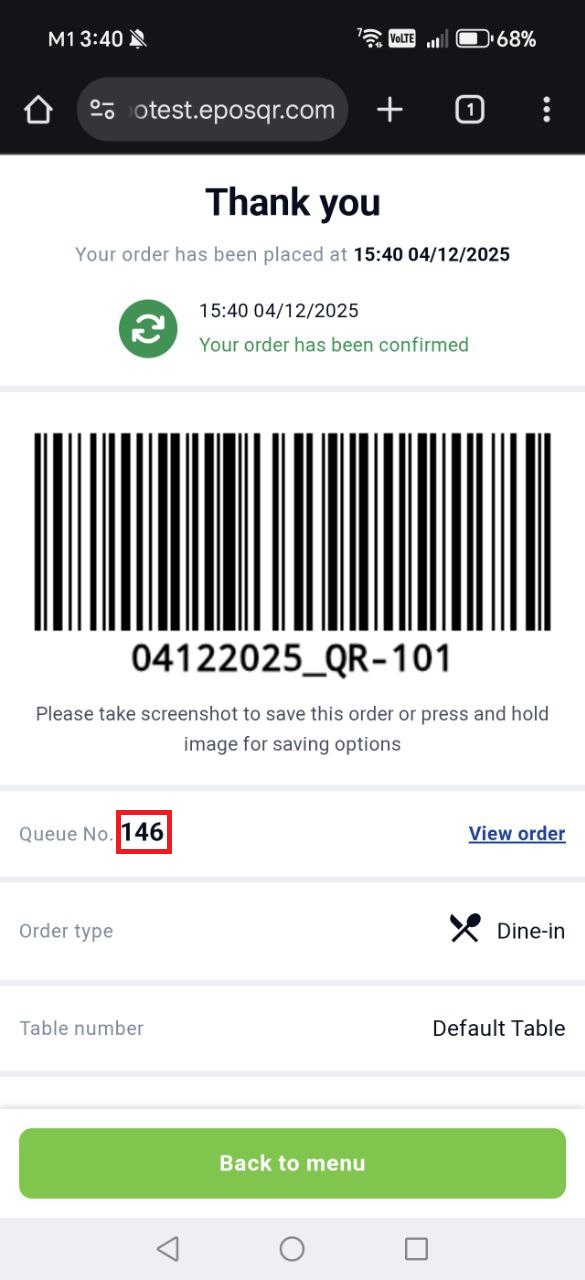
Queue number on the QR order
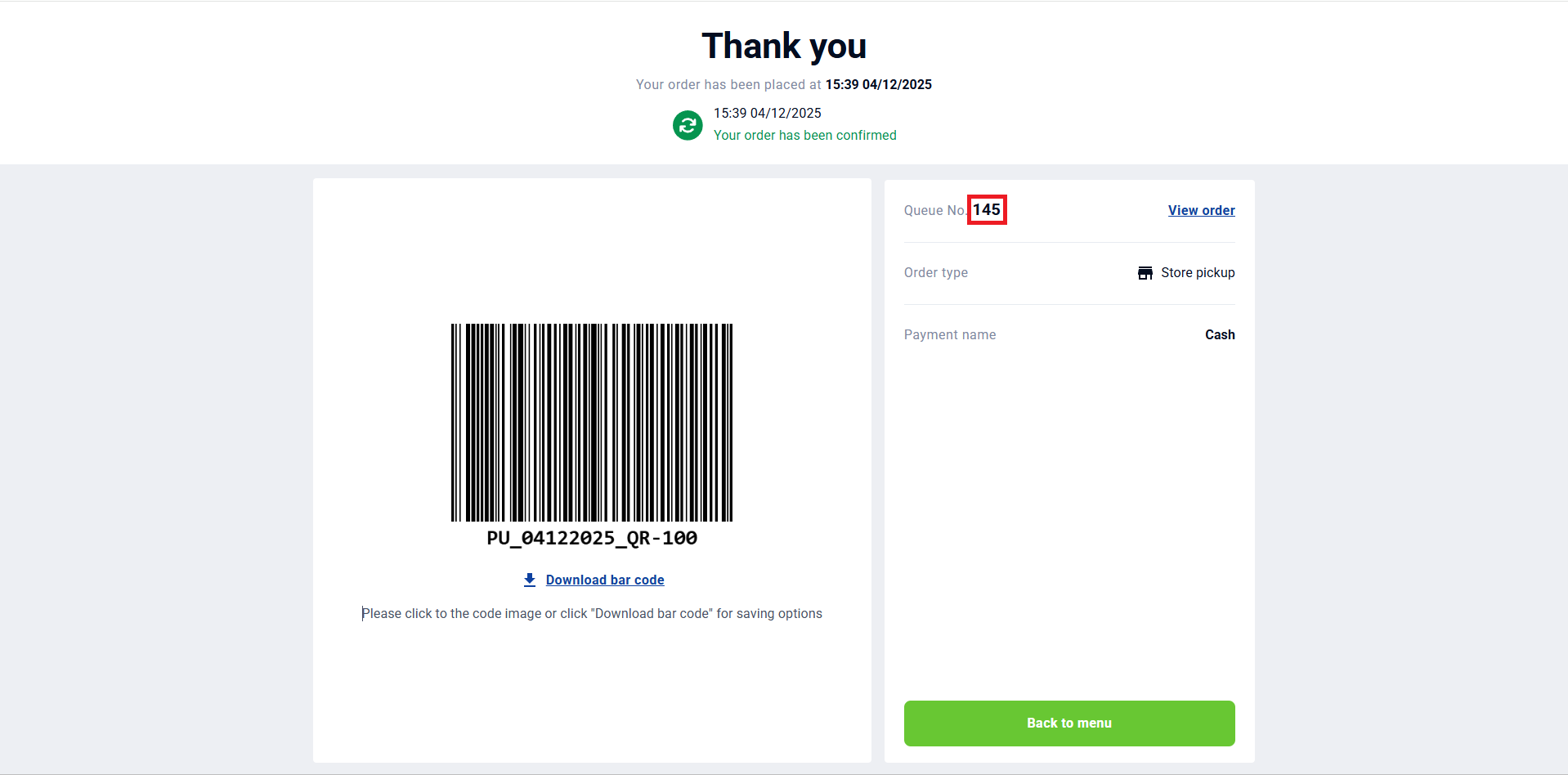
Queue number on the Web Ordering order
Kiosk System
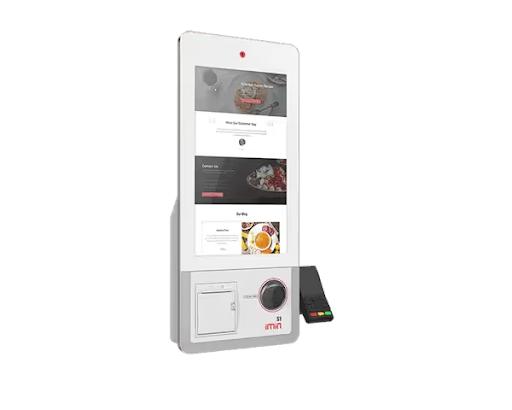
After an order is placed and payment is made on the Kiosk, the order will be sent to the kitchen and the orders number will be displayed on the QDS.
The queue number format can be seen after payment is made on the kiosk system.
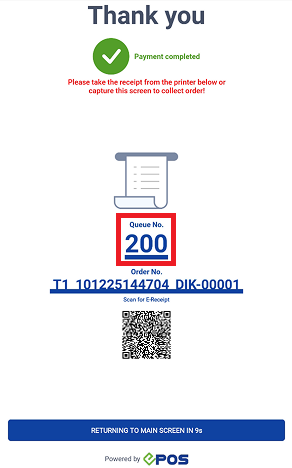
Queue number on the Kiosk
The Queue Display can also support orders from e-commerce platforms.
After an order is placed on the respective integration, the order will be sent to the kitchen and the orders number will be displayed on the QDS.
WooCommerce

The queue number format will be in the form of Woo_xxxx.
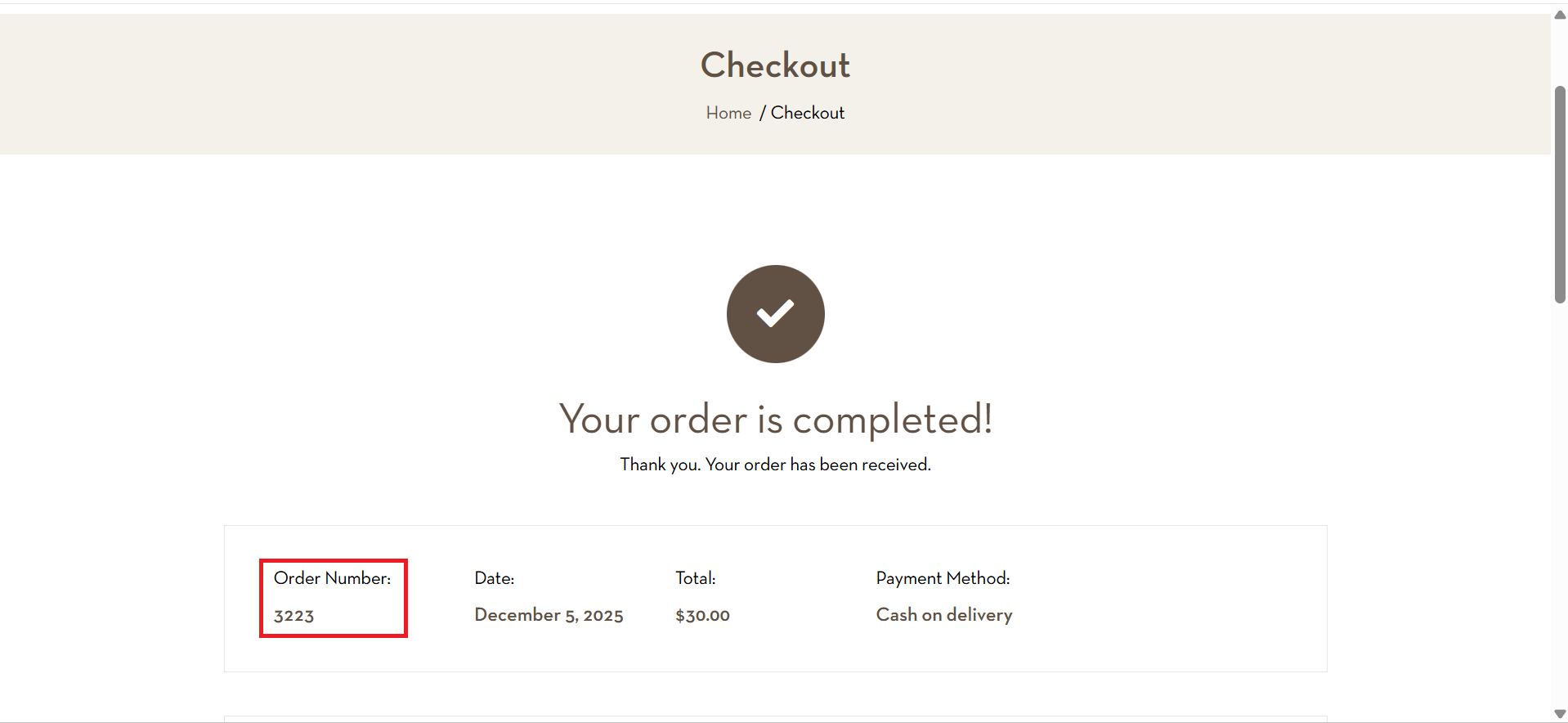
Queue number shown for the order confirmation on WooCommerce platform
(The Queue number for this WooCommerce order is Woo_3223)
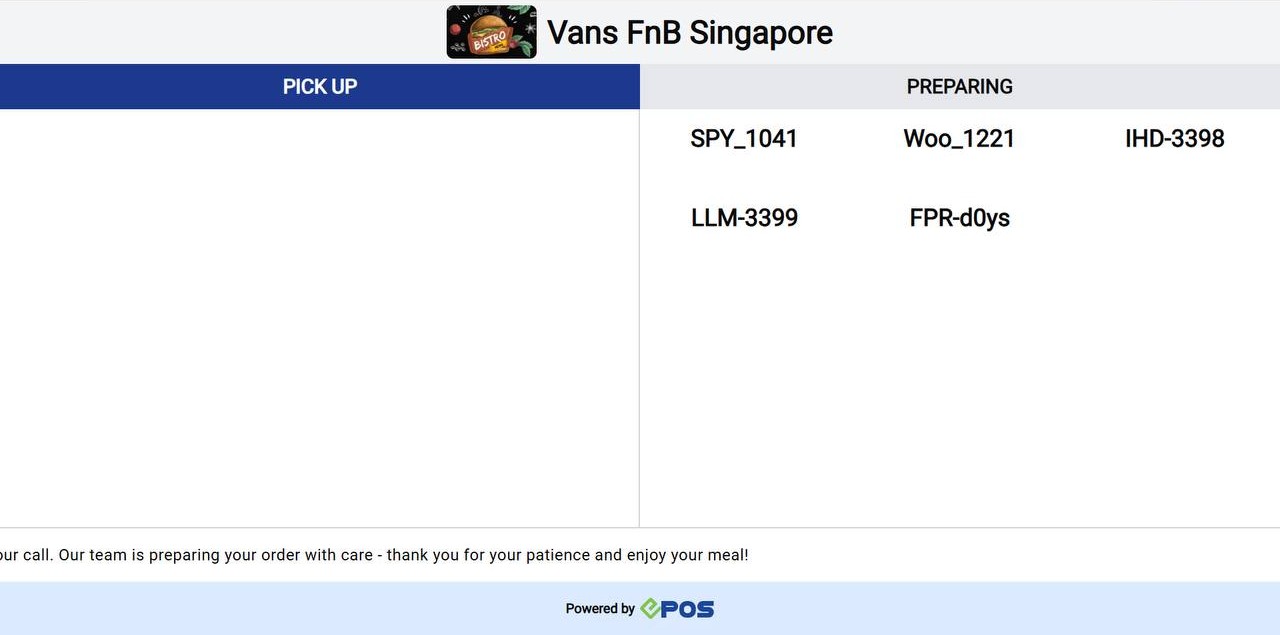
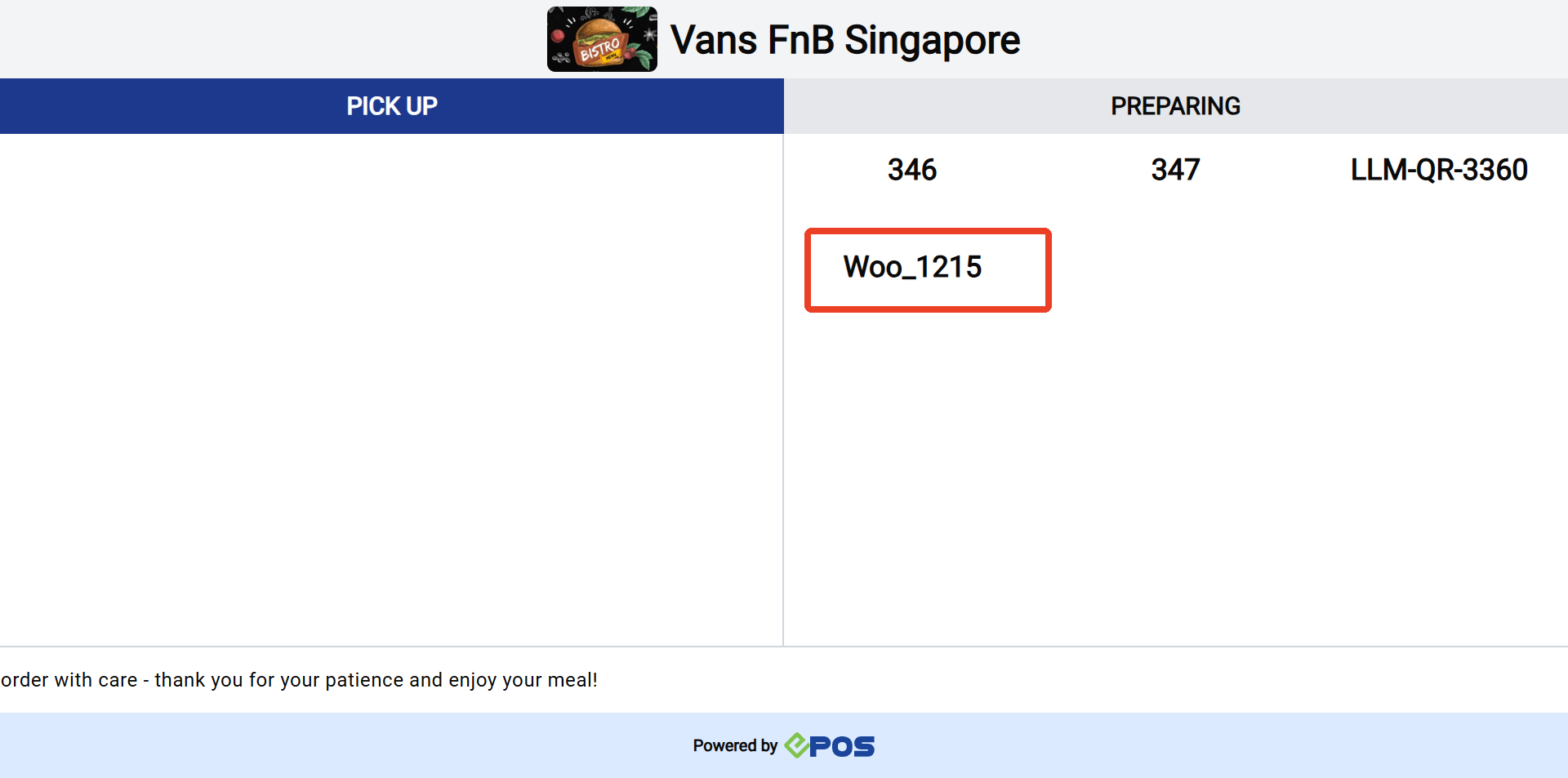 WooCommerce queue number displayed on the QDS
Shopify

The queue number format will be in the form of SPY_xxxx.
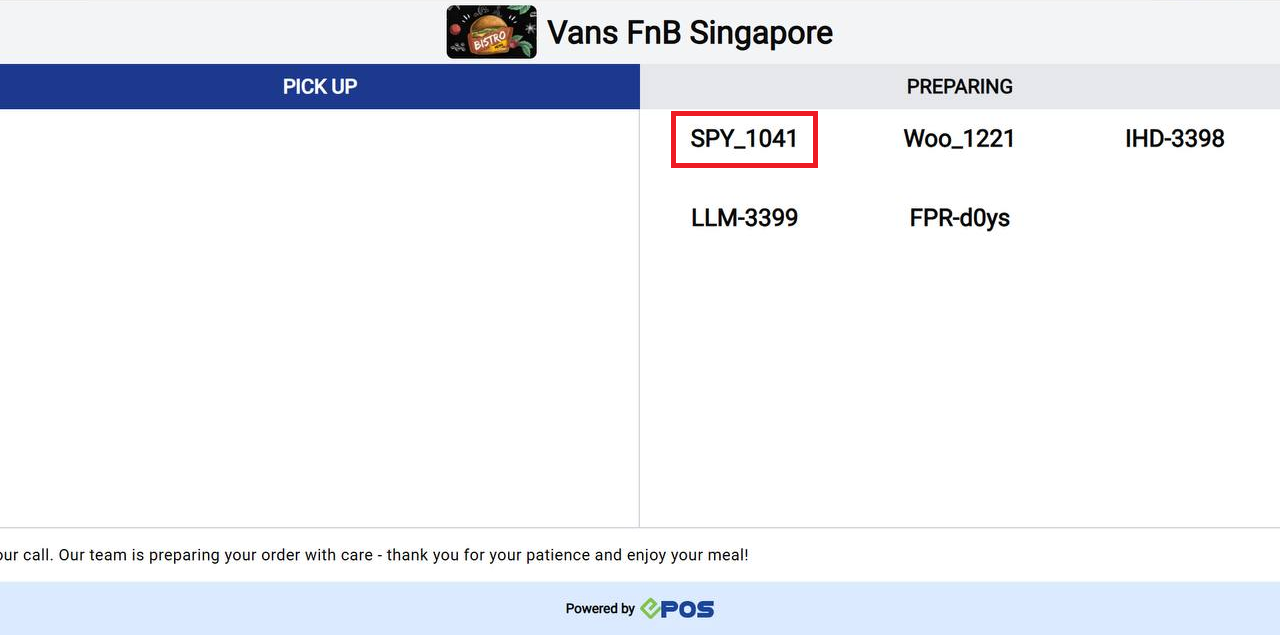 WooCommerce queue number displayed on the QDS
The Queue Display can also support orders from delivery platforms.
After an order is placed on the respective delivery integration, the order will be sent to the kitchen and the orders number will be displayed on the QDS.
In-House Delivery
The queue number format will be in the form of IHD-xxxx.
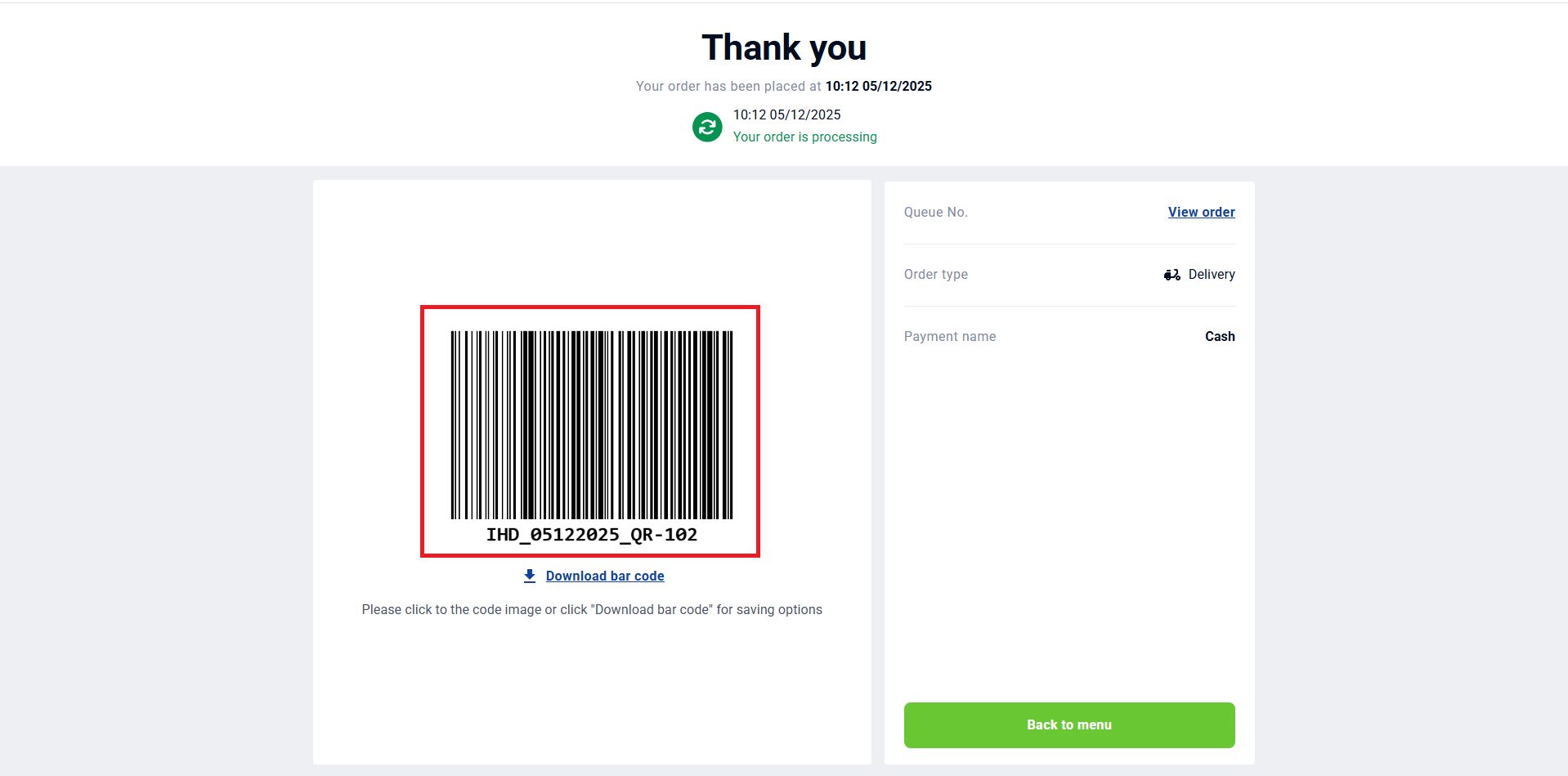
Queue number on the In-House Delivery platform
(The Queue number for this In-House Delivery order is IHD-102)
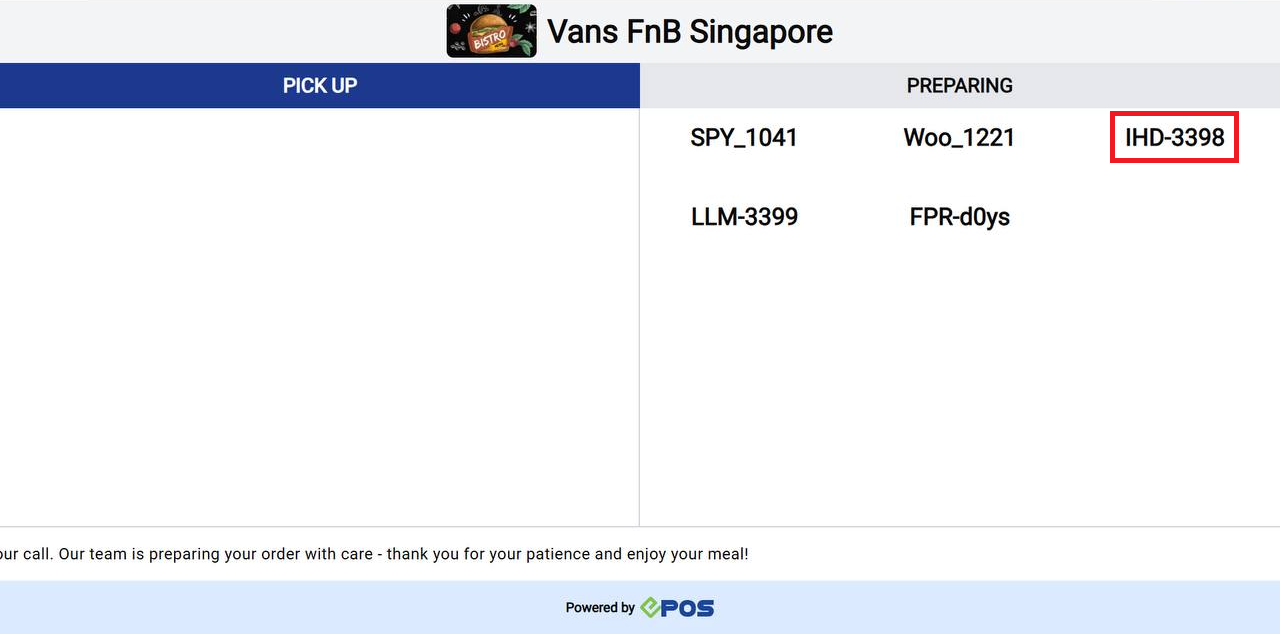 In-House Delivery queue number displayed on the QDS
Lalamove

The queue number format will be in the form of LLM-xxxx.
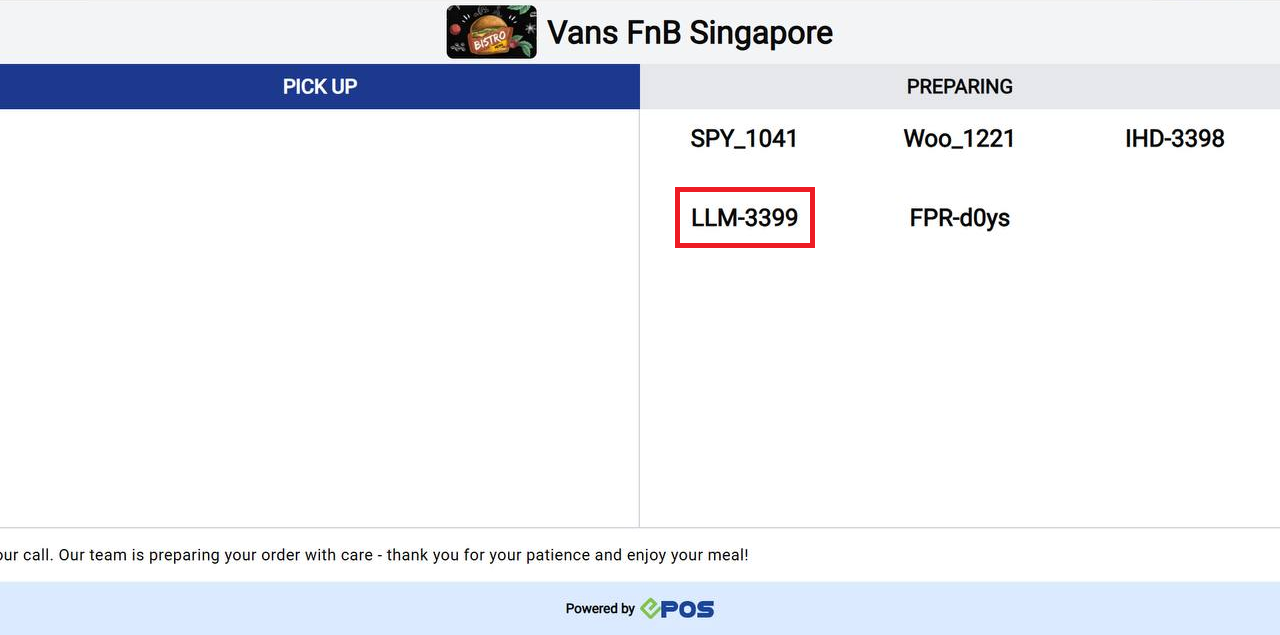 Lalamove queue number displayed on the QDS
Grabmart
The queue number format will be in the form of GM-xxxx.
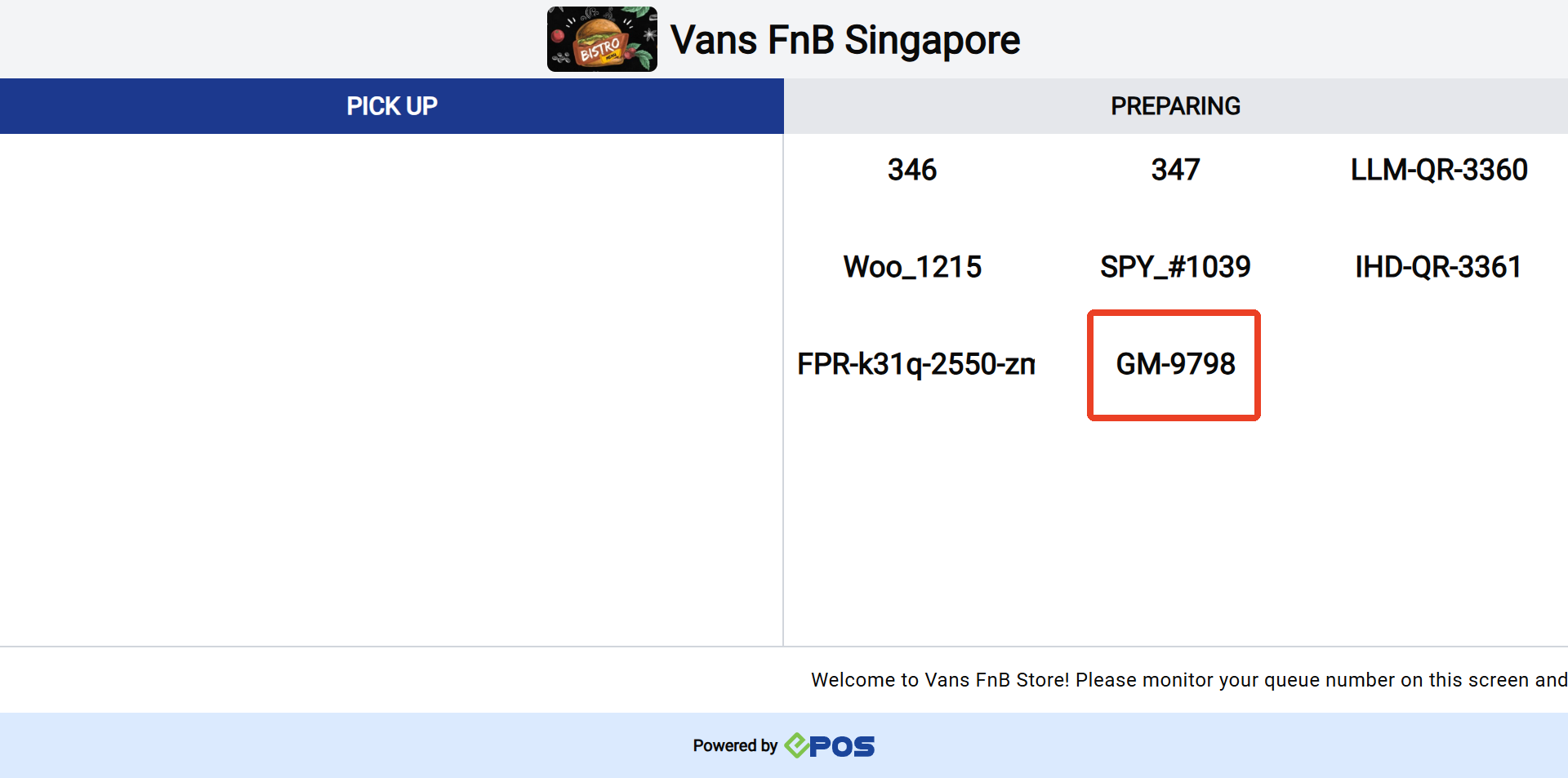 GrabMart queue number displayed on the QDS
Grabfood
The queue number format will be in the form of GF-xxxx.
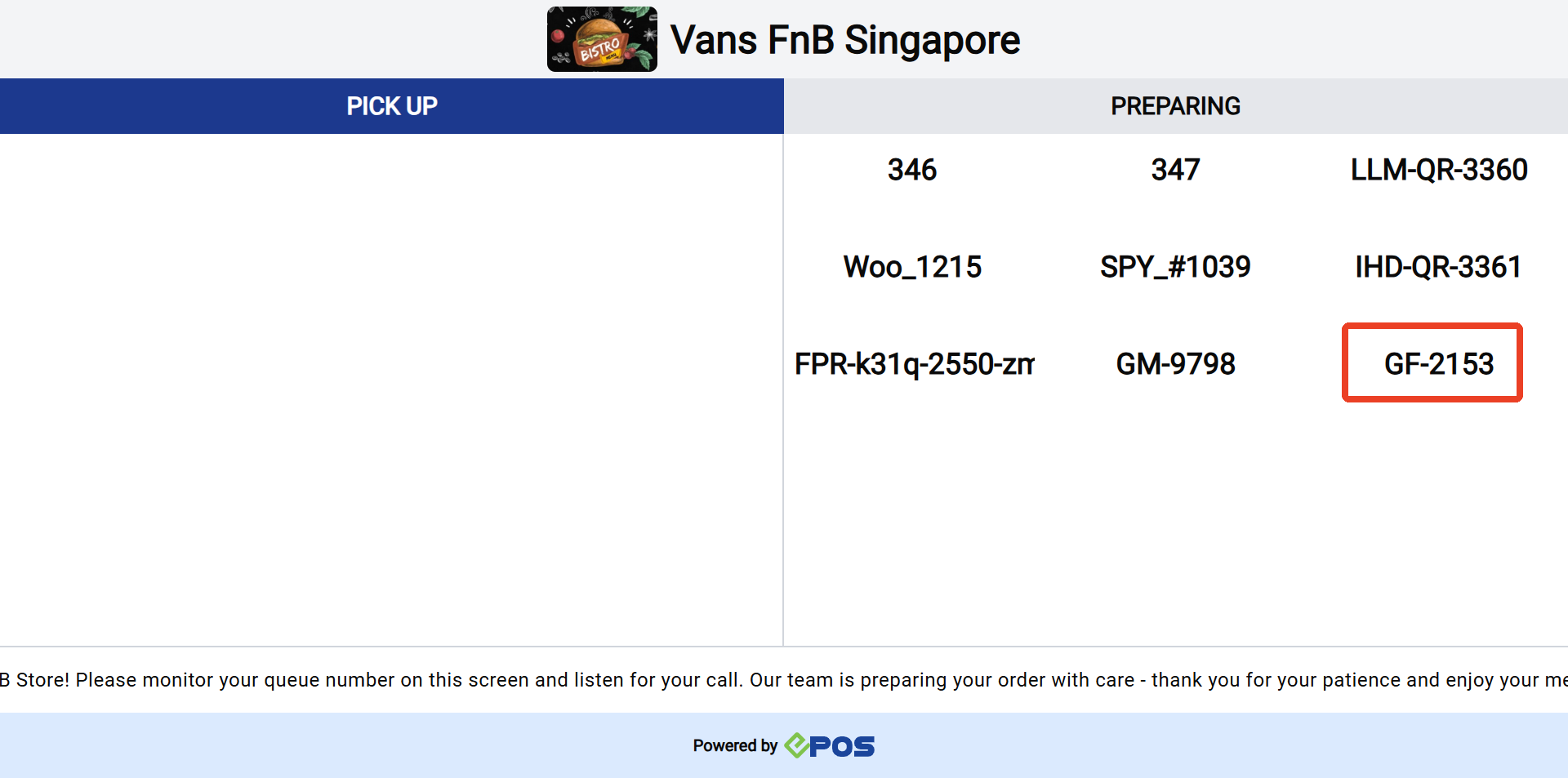 GrabFood queue number displayed on the QDS
Foodpanda

The queue number format will be in the form of FPR-xxxx.
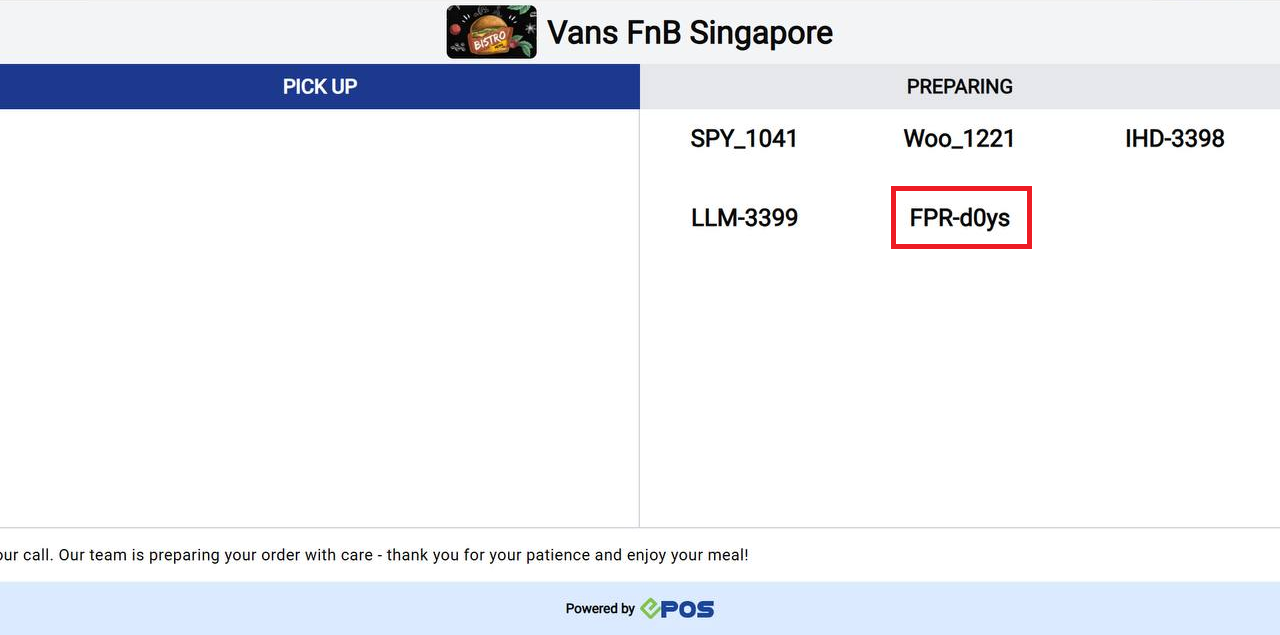 Foodpanda queue number displayed on the QDS
When the order is “ticked” at the KDS, and is moved from the “now preparing” to “ready for pickup” on the QDS, the sound alert will be triggered. This is to notify that the order is ready for pickup.
New Order Pickup Sound Alerts will be based on the queue number displayed on the QDS. Before the queue number is called, there will be a chime sound to alert the customers.
If there are orders that are ready consecutively, the order number will play in full sequentially and will not overlap or cut off.
QDS Sound Alert flow

