WooCommerce Integration supports Serial Number/IMEI product to WooCommerce.
Users can marked the Serial Number/IMEI product as sold, assign or edit serial number/IMEI product on EPOS Backend.
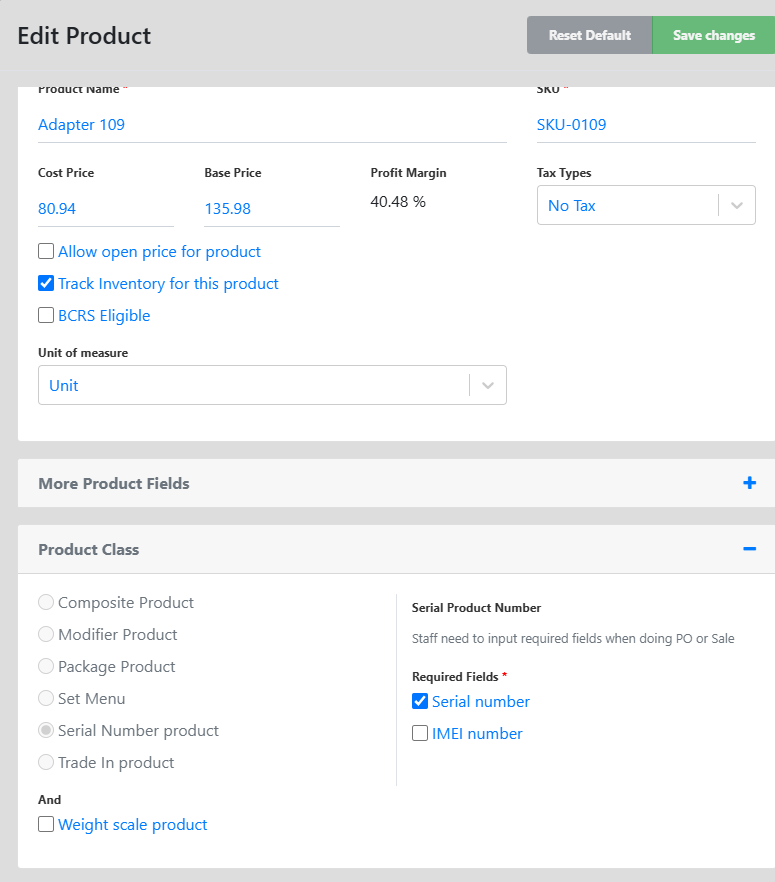
1. Serial Number/IMEI product to be ticked under Product Class
2) Serial Number/IMEI products inventory has stocked to be able to be purchased in WooCommerce website
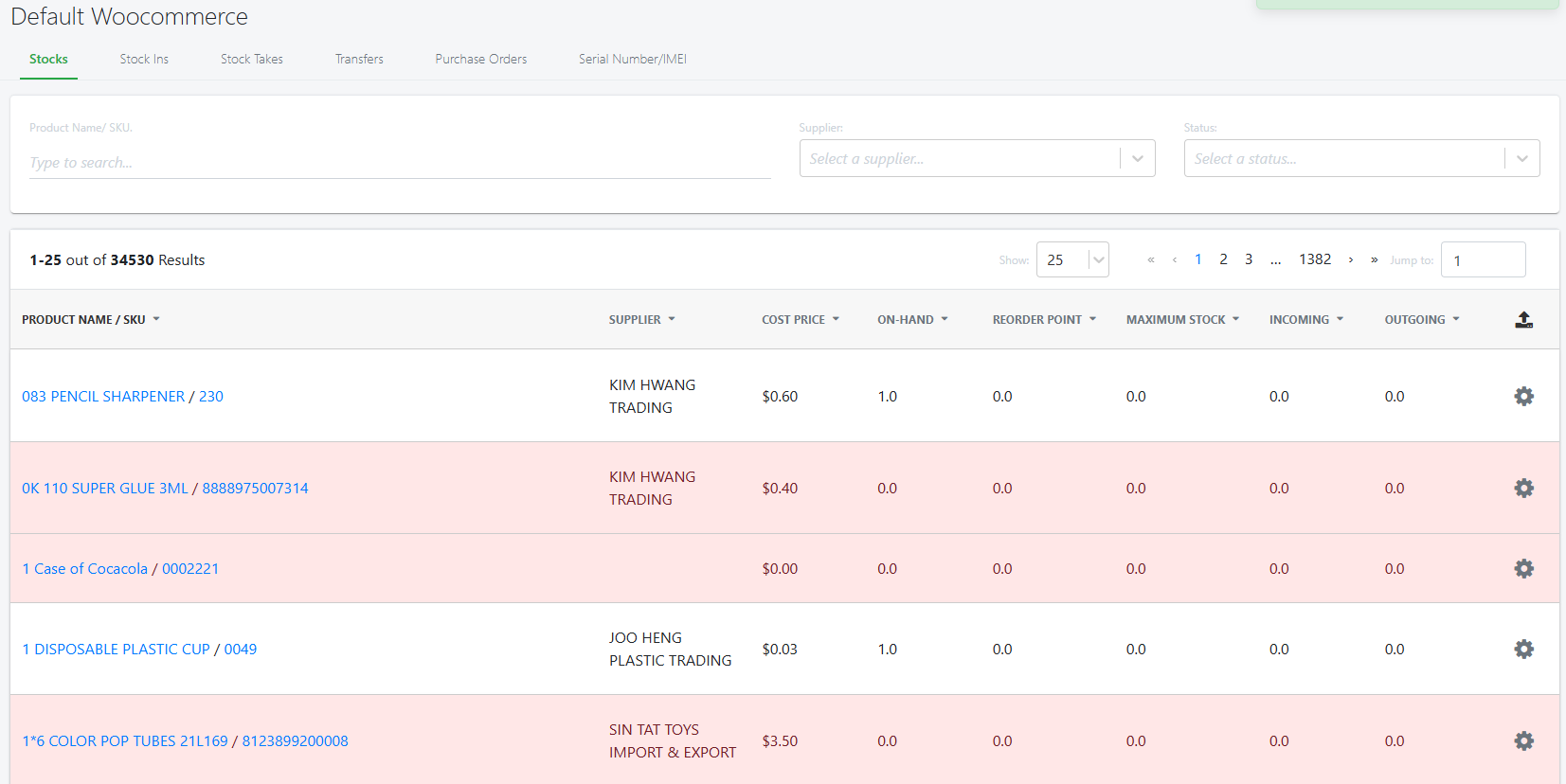
3 ) Assigned the number to product
Inventory > Outlet > Serial Number/IMEI Tab
When orders are made on WooCommerce, users can see the serial number/IMEI product under WooCommerce > Order Tab
When a WooCommerce order contains a product that requires a Serial Number/IMEI, the order is synced to EPOS Backend under WooCommerce > Order Tab
EPOS Backend will automatically deduct the inventory for those products.
Under WooCommerce > Orders there will be 2 new columns.
-
- Item Name — shows the product name for products that require Serial Number/IMEI.
- Serial Number/IMEI — lets staff assign the correct Serial Number/IMEI to the ordered quantity.
- If an order does not contain any Serial Number/IMEI product, the Item Name column should remain empty
Staff should only be able to assign/view Serial Numbers or IMEIs according to their permissions. Please see Staff permissions for more information
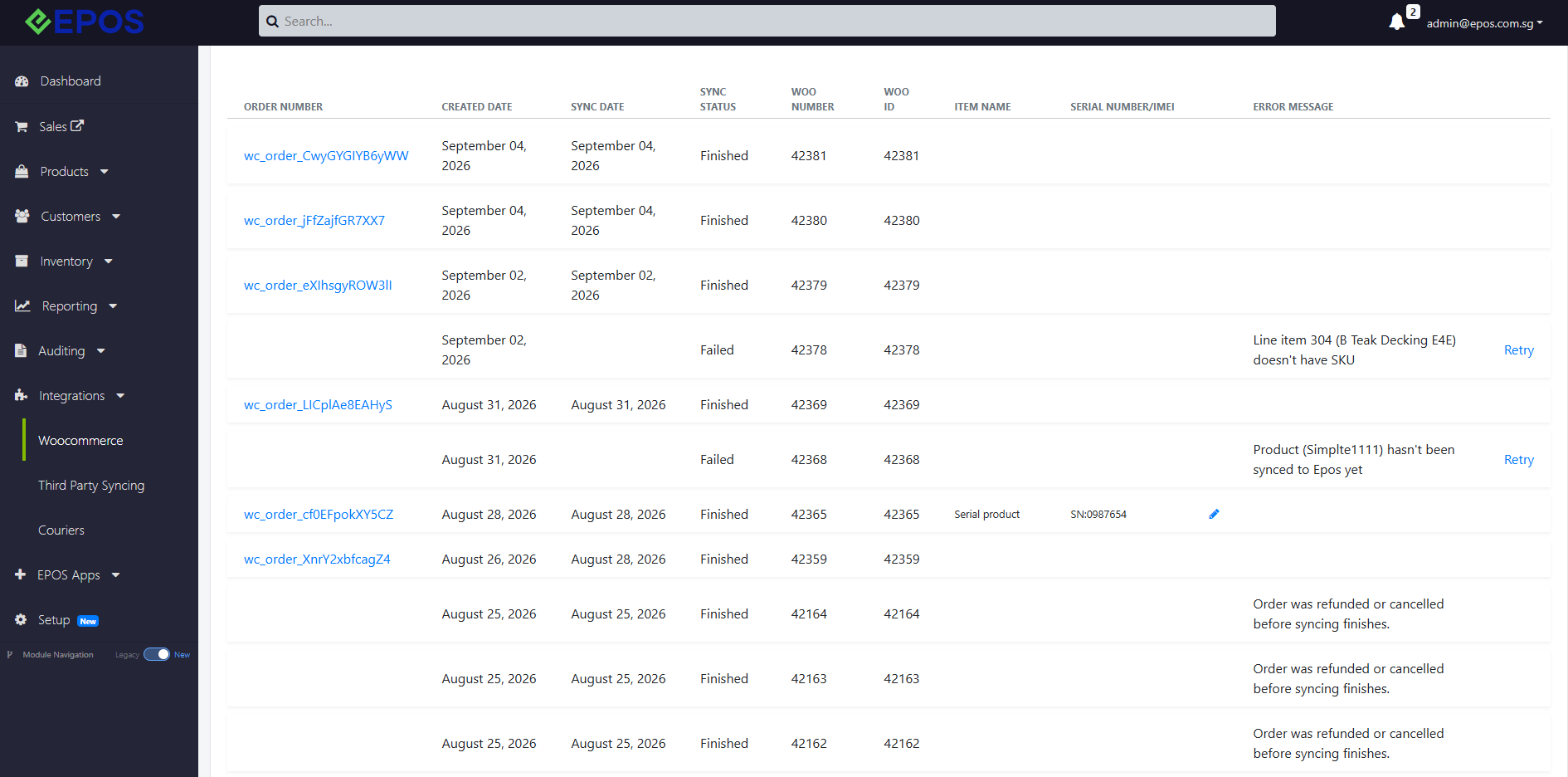
Under Integrations > WooCommerce > Order
Staff can assign/EDIT serial number/IMEI product
If Permission = “Deny” , Staff cannot see t see the pencil icon and assign Serial Number/IMEI to WooCommerce order.
IF Permission = “Allow“, Staff is able to assign serial number/IMEI o WooCommerce order by clicking the pencil icon.
User can click pencil icon to assign serial number/IMEI. Numbers of quantity of SN/IMEI that needs to be assigned for that item will show on the top.
- Assign/Partially all Serial Number/IMEI products to WooCommerce Order and click Save
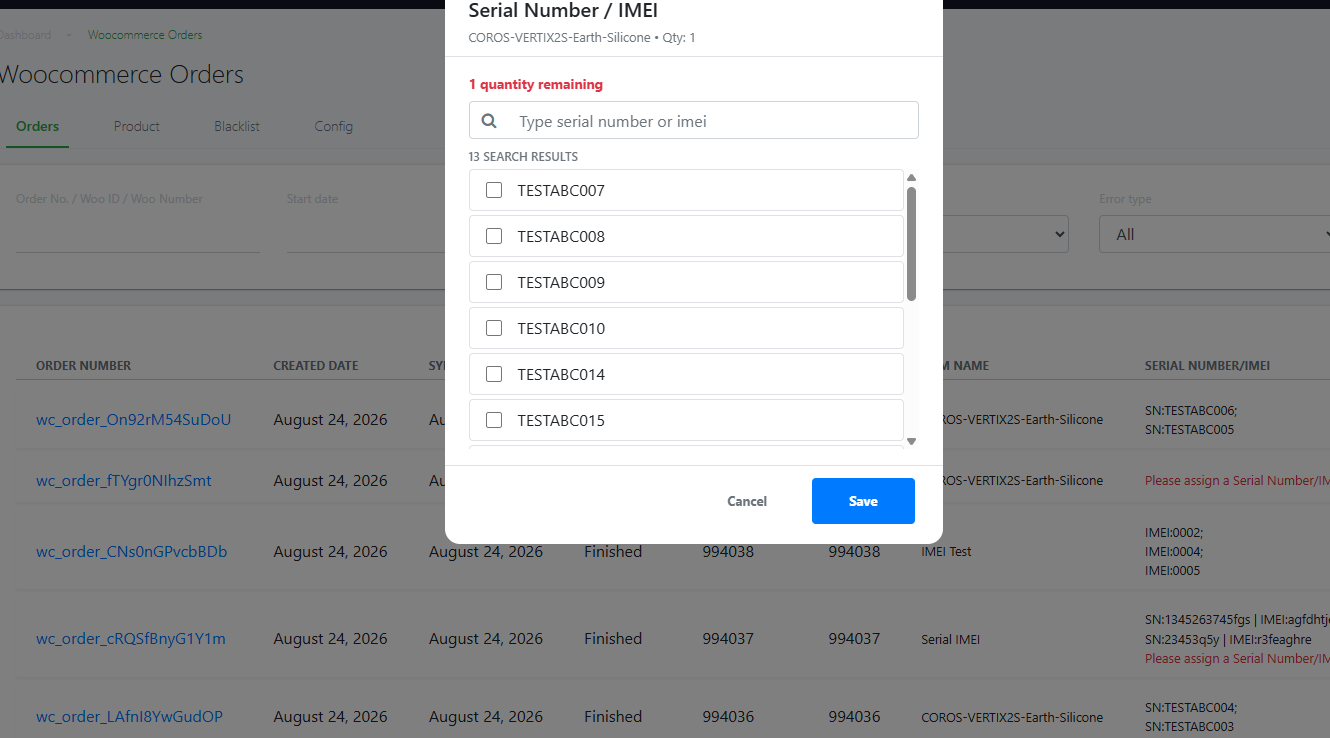
2. Serial Number/IMEI of the WooCommerce order will be assigned and indicated under Serial Number/IMEI column.
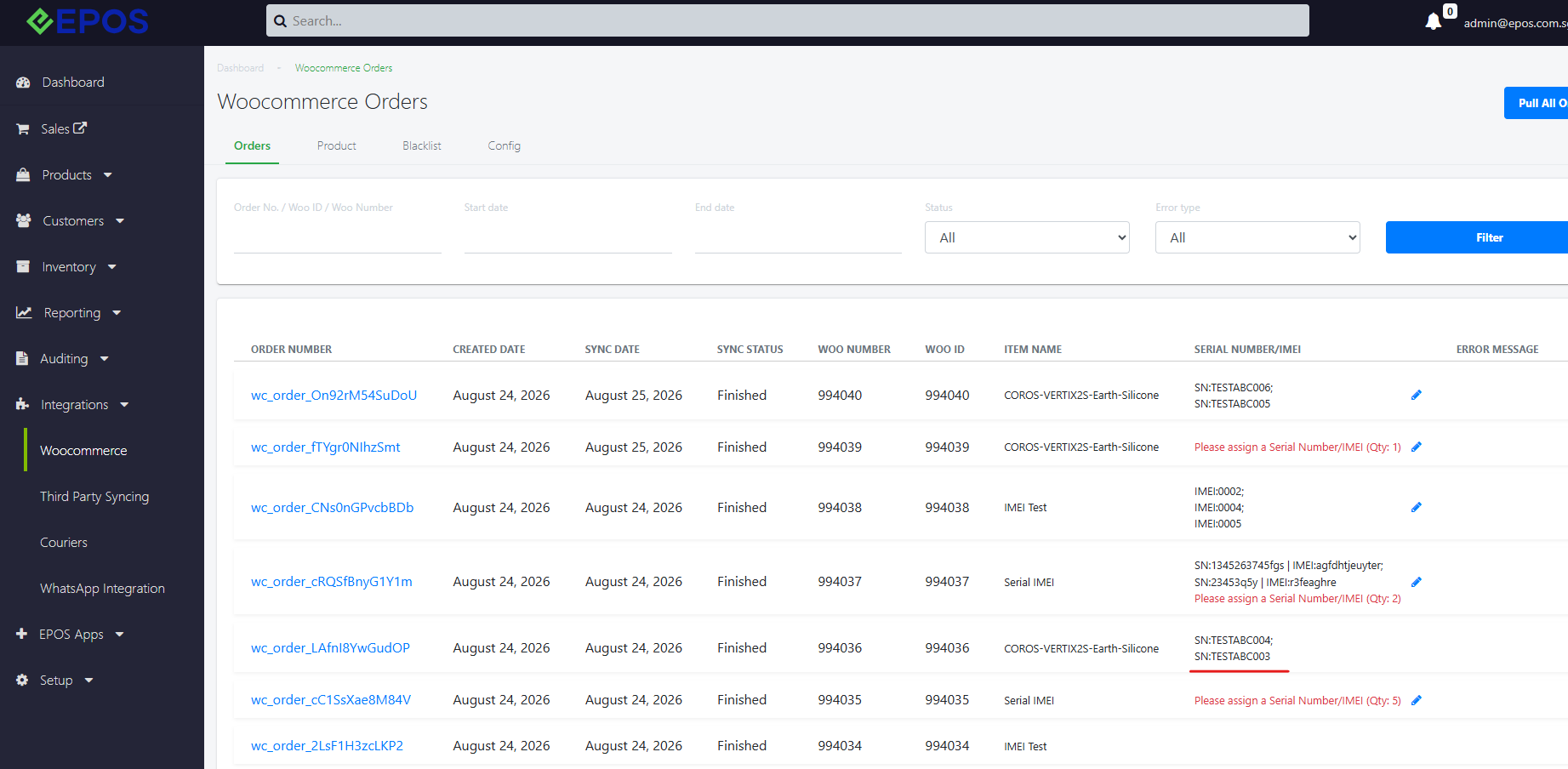
If not all Serial Number/IMEI has been assigned, there will still be red text indication to notify user to assign serial number/IMEI with its quantity.
3.Once Assigned, it will be show under inventory and marked as sold.
Inventory > Store > Serial Number/IMEI
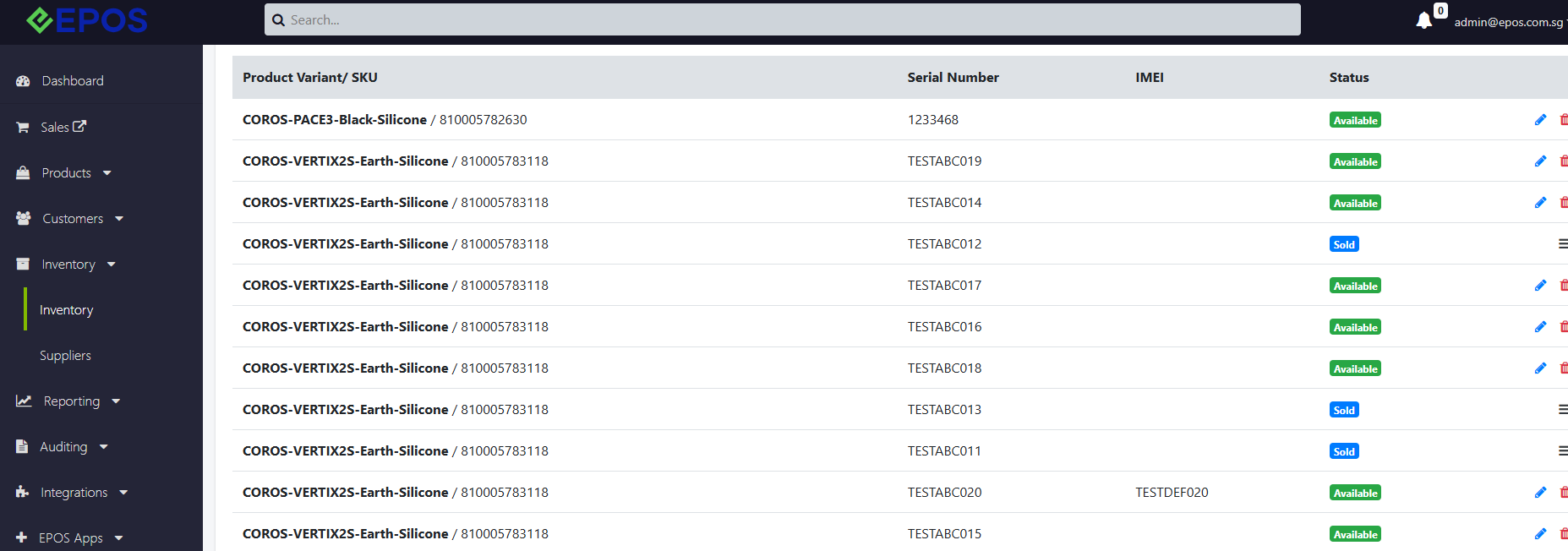
Under Integrations > WooCommerce > Order
User can click pencil icon to edit or change or remove Serial Number/IMEI products. It can be done also before WooCommerce order is confirmed in POS
If Permission = “Deny” , Staff cannot see t see the pencil icon and assign Serial Number/IMEI to WooCommerce order.
IF Permission = “Allow“, Staff is able to assign serial number/IMEI o WooCommerce order by clicking the pencil icon.
- User can click pencil icon and can untick to remove or tick the new serial number/IMEI to edit/ > SAVE
2. Once updated , it will be show under inventory and marked as sold.
Inventory > Store > Serial Number/IMEI
Backend Sales Reporting: SN/IMEI
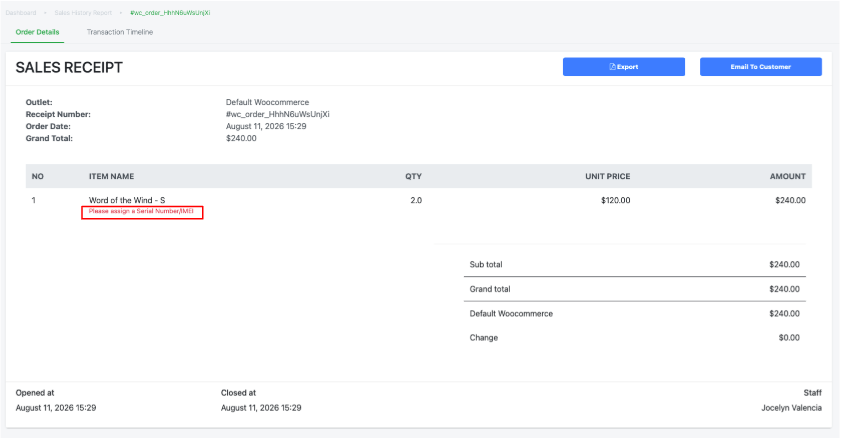
If unassigned serial number, IMEI, it will be reflected in the backend sales reporting.
- A red sub-text below the Serial Number/IMEI product in the sales reporting, to indicate Serial Number/IMEI is needed in both sales receipt and Export PDF
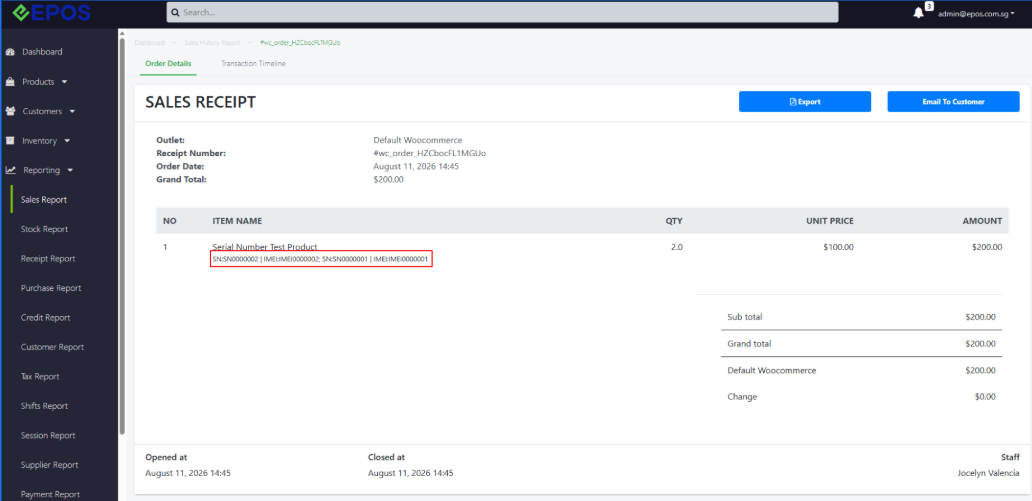
- If assigned, it will be shown below product on receipt in sales reporting
Frontend POS View
POS > Bell ICON > E-Commerce Tab
if no SN/IMEI assigned, there will be red text indicate SN/IMEI has not been assigned in Backend. Cashier is unable to confirm the order.
Unassigned SN/IMEI
Windows POS
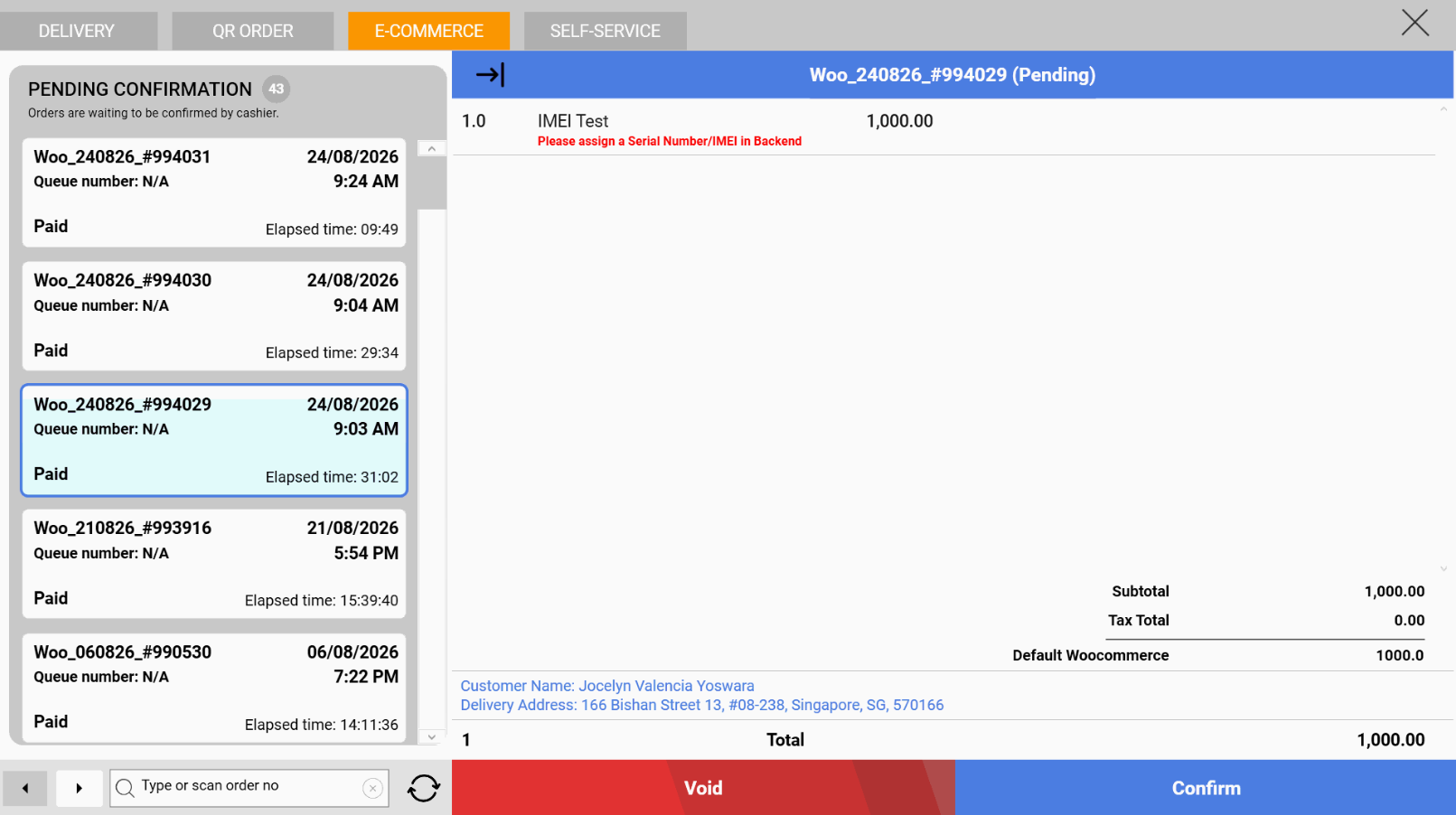
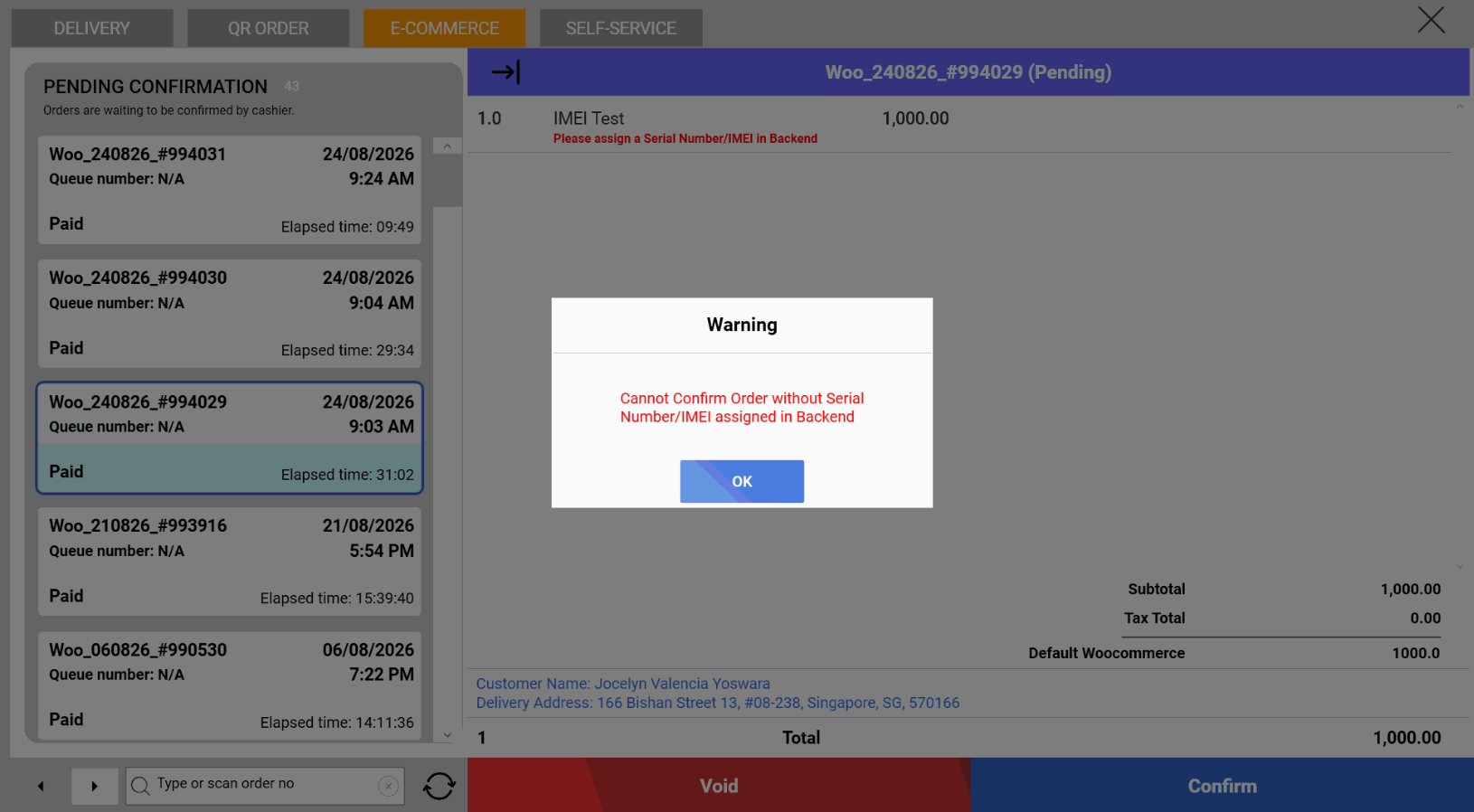
Android POS
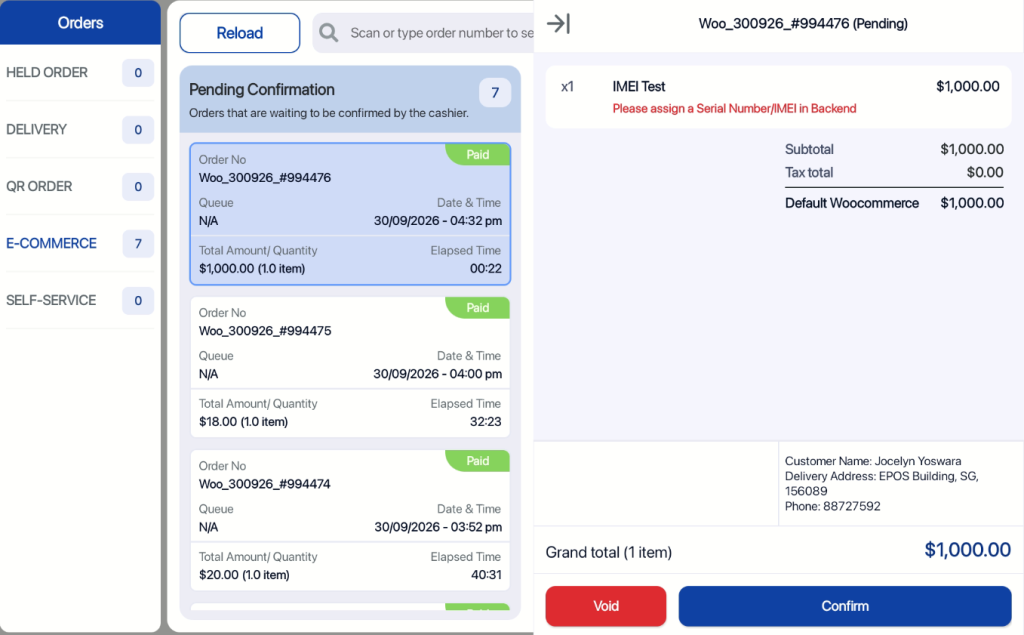
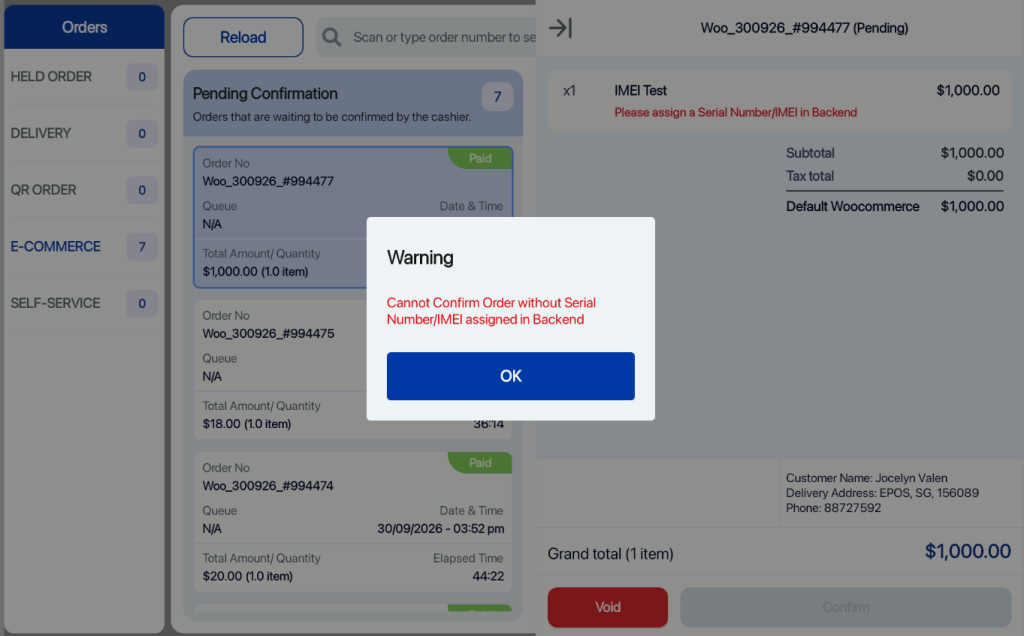
Assigned SN/IMEI
When SN/IMEI is assigned in backend, It can be seen on POS and cashier is able to confirm or void order.
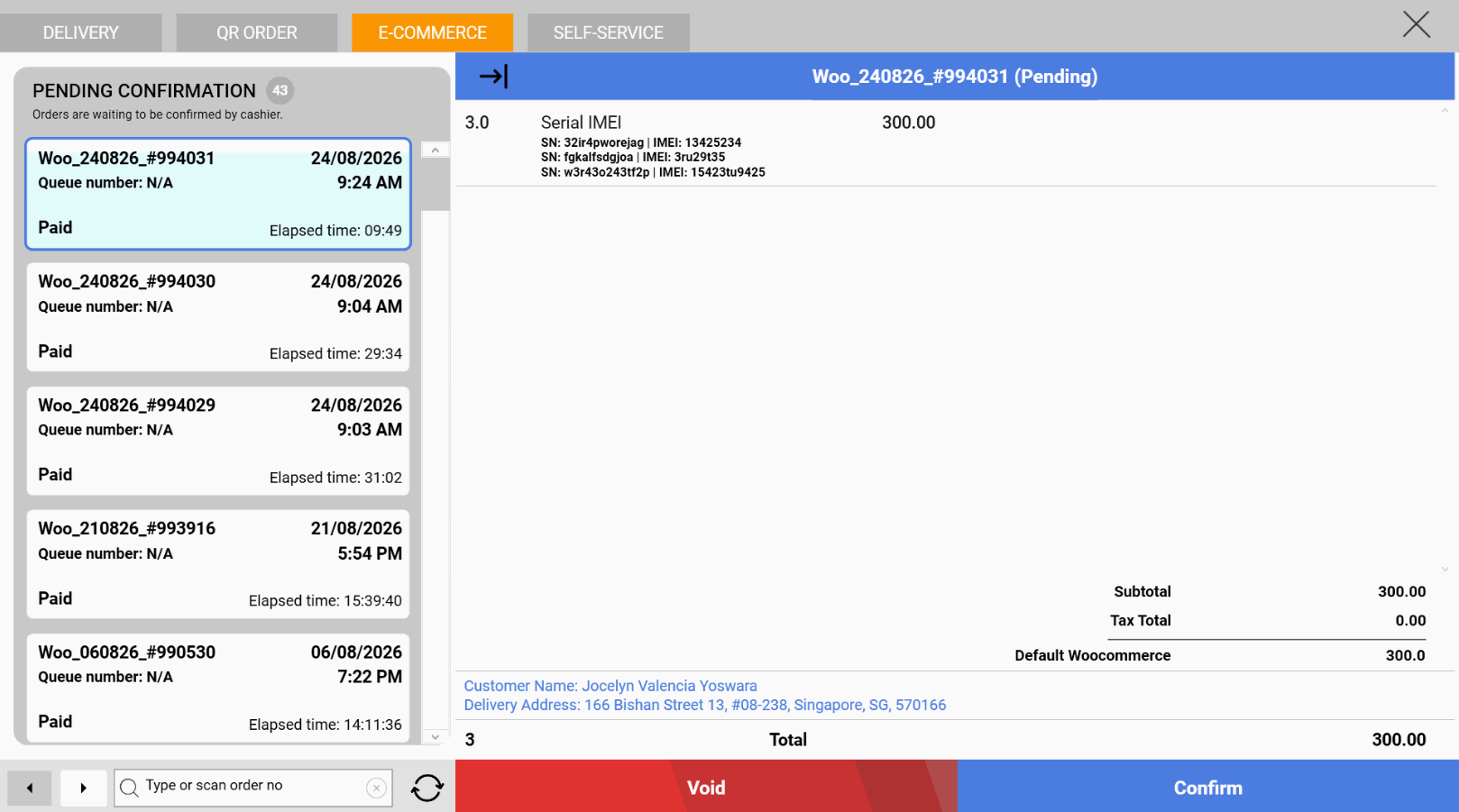
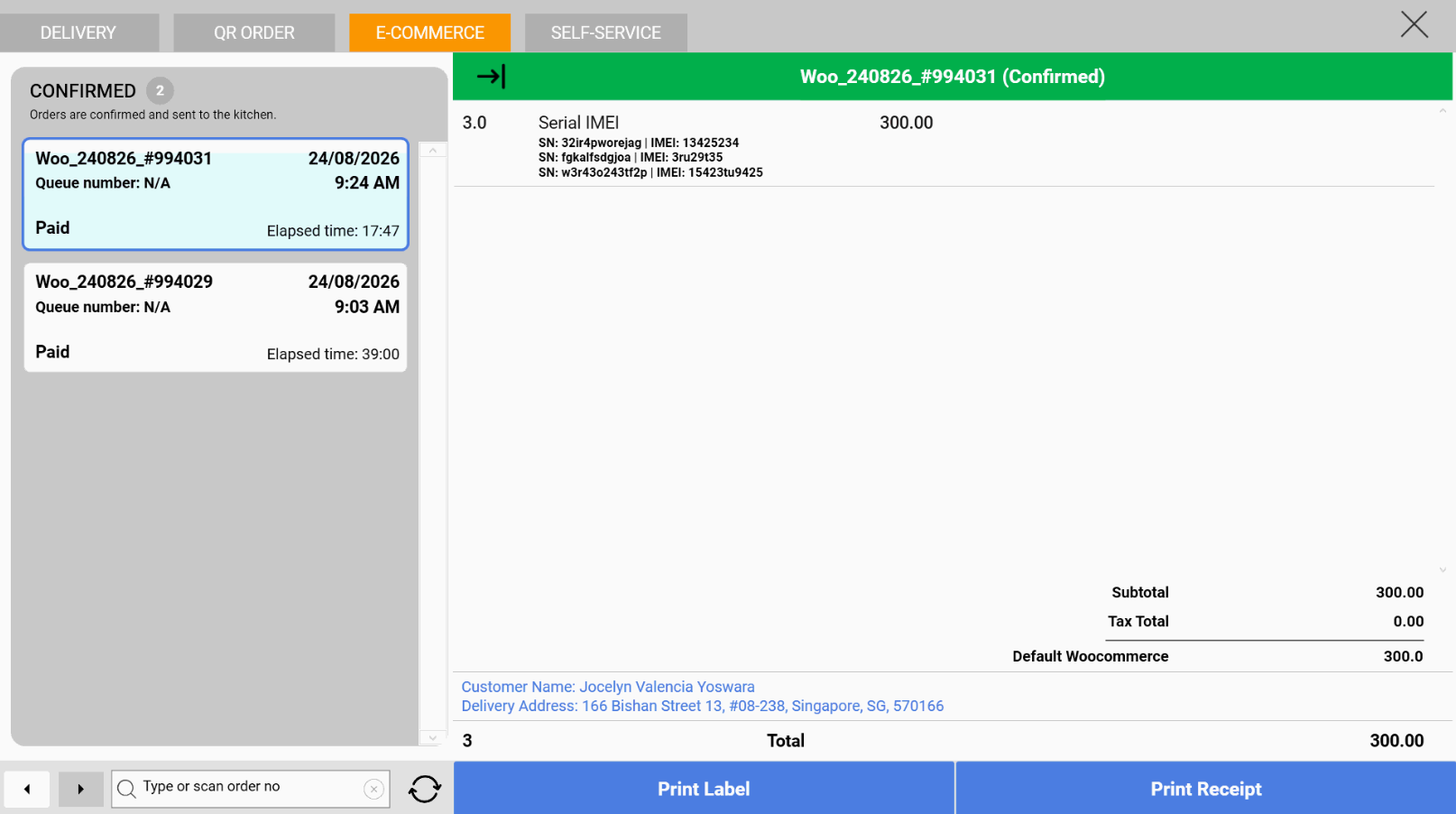
Confirmation view: Green colour highlighted. Pencil icon will no longer appear on backend.
Windows POS
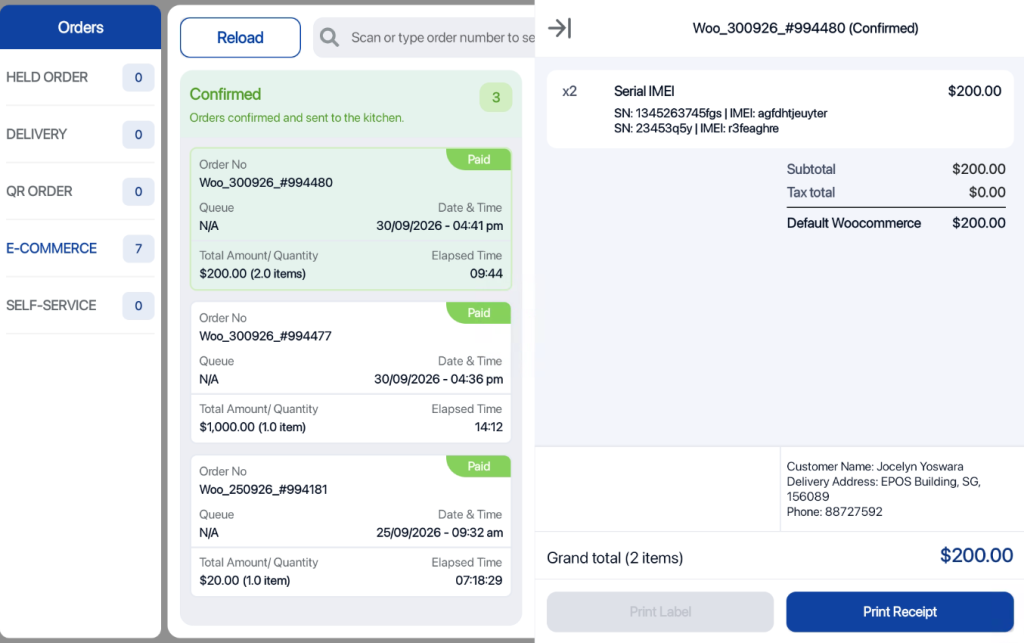
Android POS
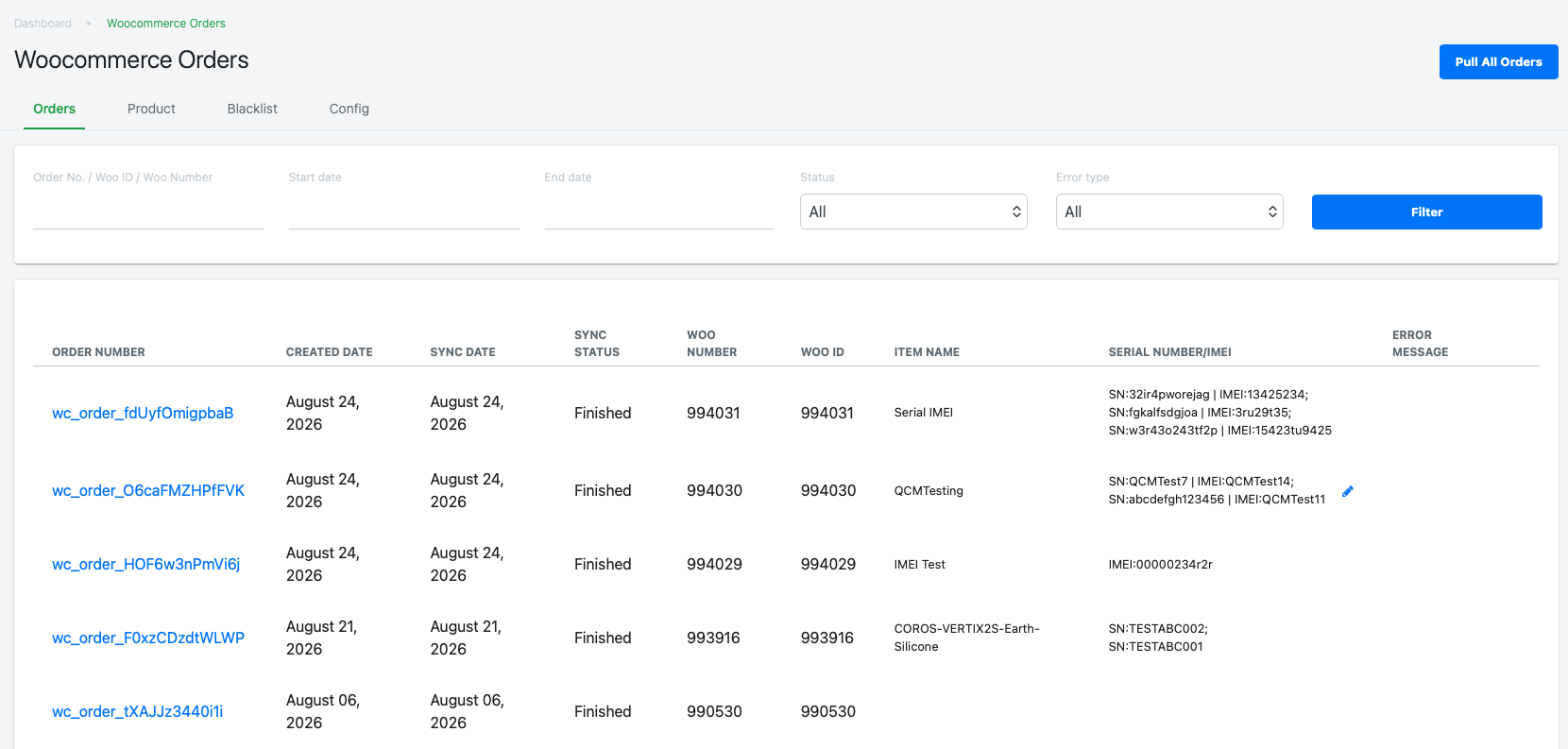
It will be shown in the backend.
Void SN/IMEI Order:
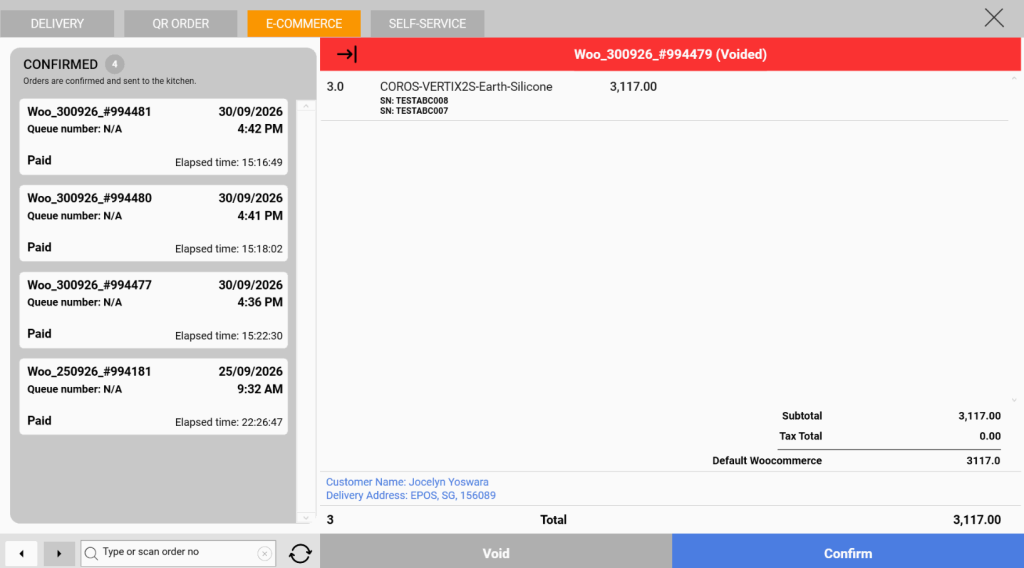
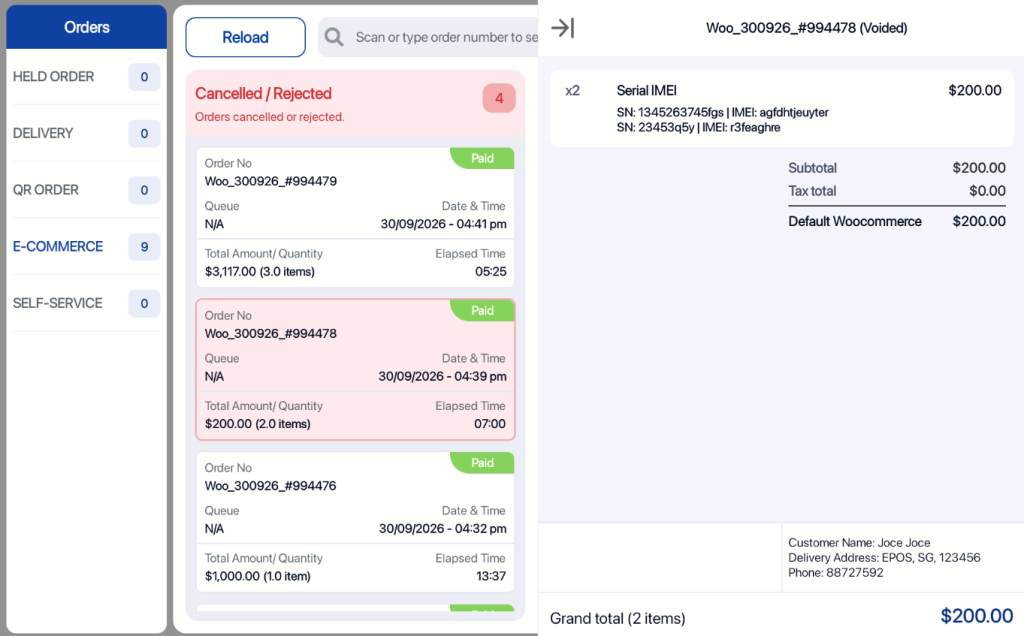
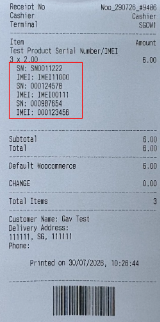
User can void order even though SN/IMEI has not been assigned, partially assigned, or fully assigned in EPOS Backend. The previously assigned SN will be shown in the void transaction list (on both Windows POS and Sales Receipt)
Windows POS
Android POS
Sales Receipt view of serial and IMEI view :
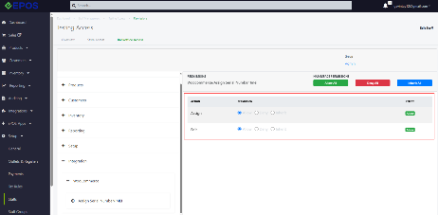
Staff Is able to modify access to assign or edit Serial Number/IMEI products for WooCommerce order.
Staff or Staff Group > Integration > WooCommerce > Assign Serial number
- Assign permission to individual staff.
Note: Please ensure that the staff member has permission to assign Serial Number/IMEI.
If the Edit/Assign Serial Number/IMEI permission is denied for the individual staff member, but allowed in their staff group, the permission will still be denied. The system always follows the permission set for the individual staff member.

