
To display the layout from the backend Quickpick, users must assign a Quickpick template to the respective devices.
Under EPOS Backend > Setup > Quickpick Settings
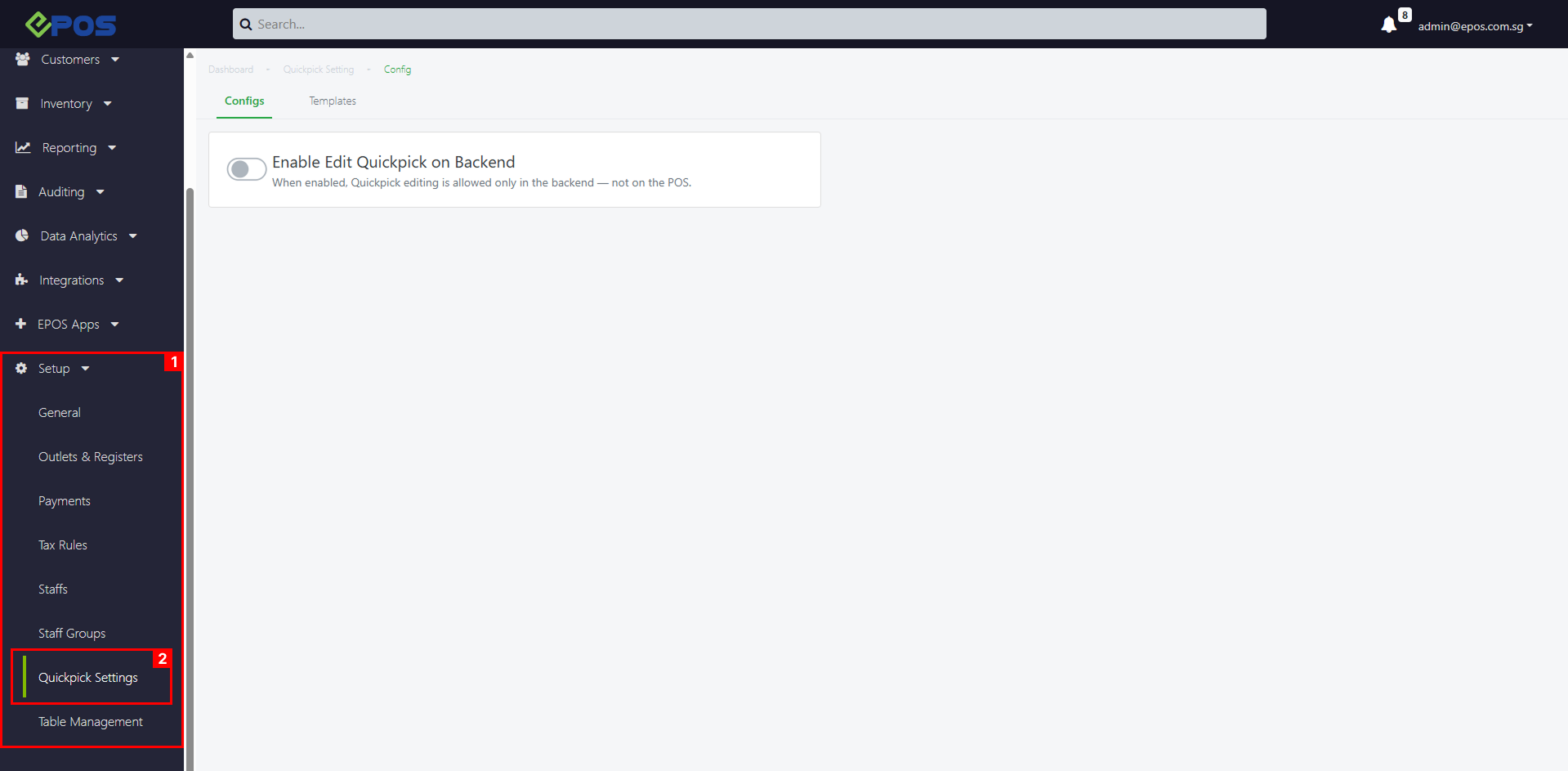
To assign a Quickpick template to device(s), follow the following steps:
1. After enabling Edit Quickpick On Backend, click on Assign Device
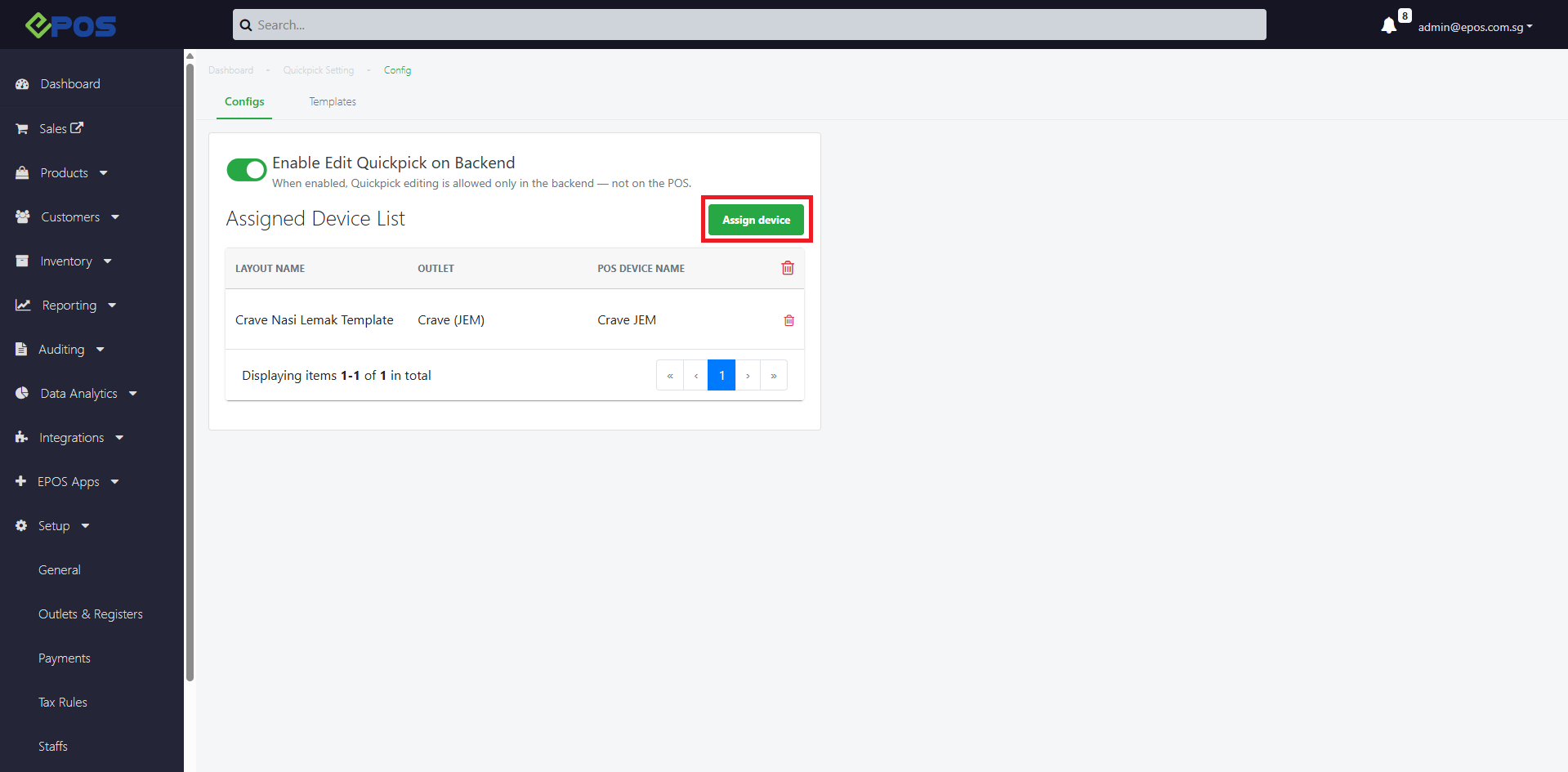
2. Select the Quickpick Template Name
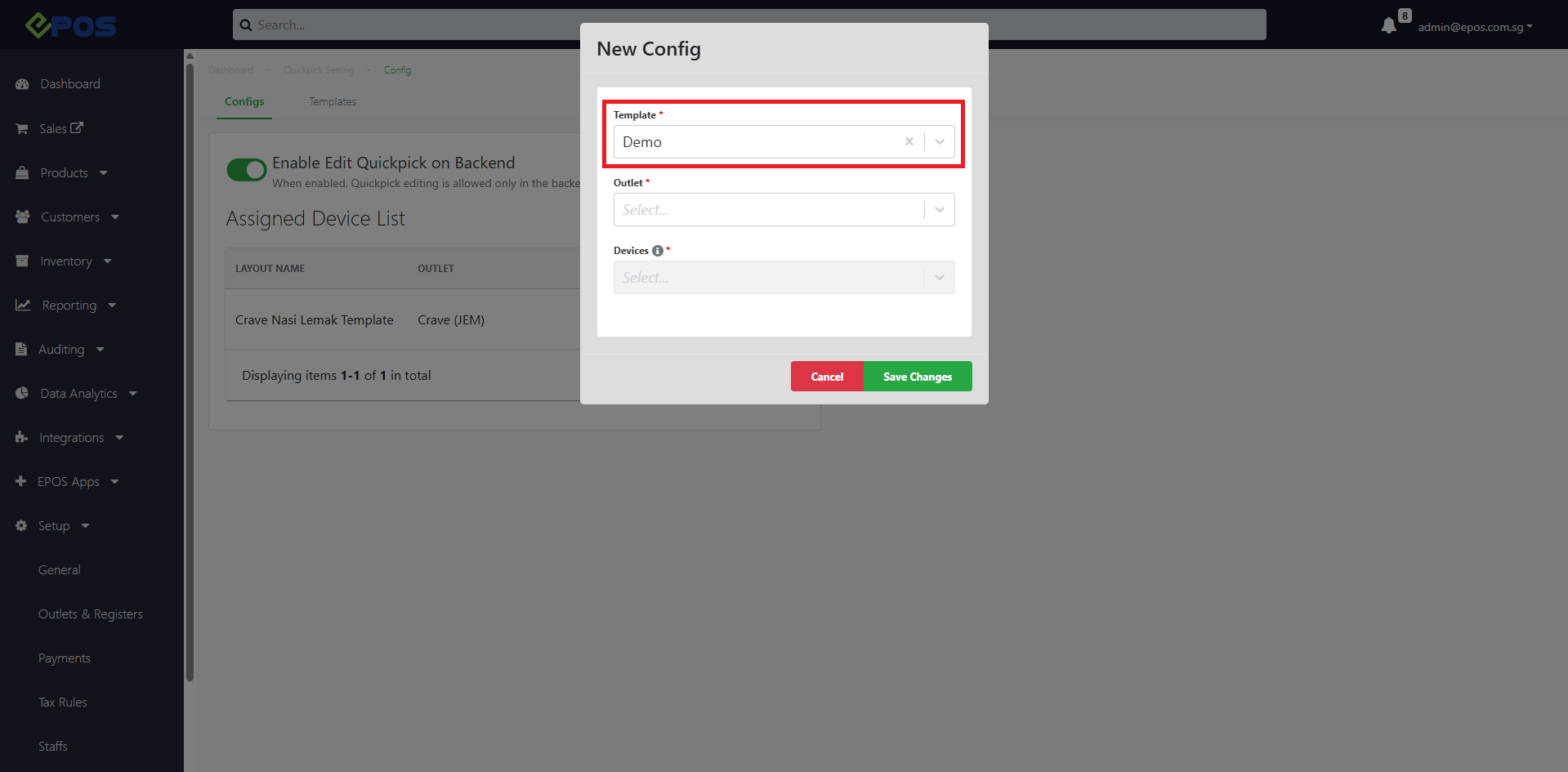
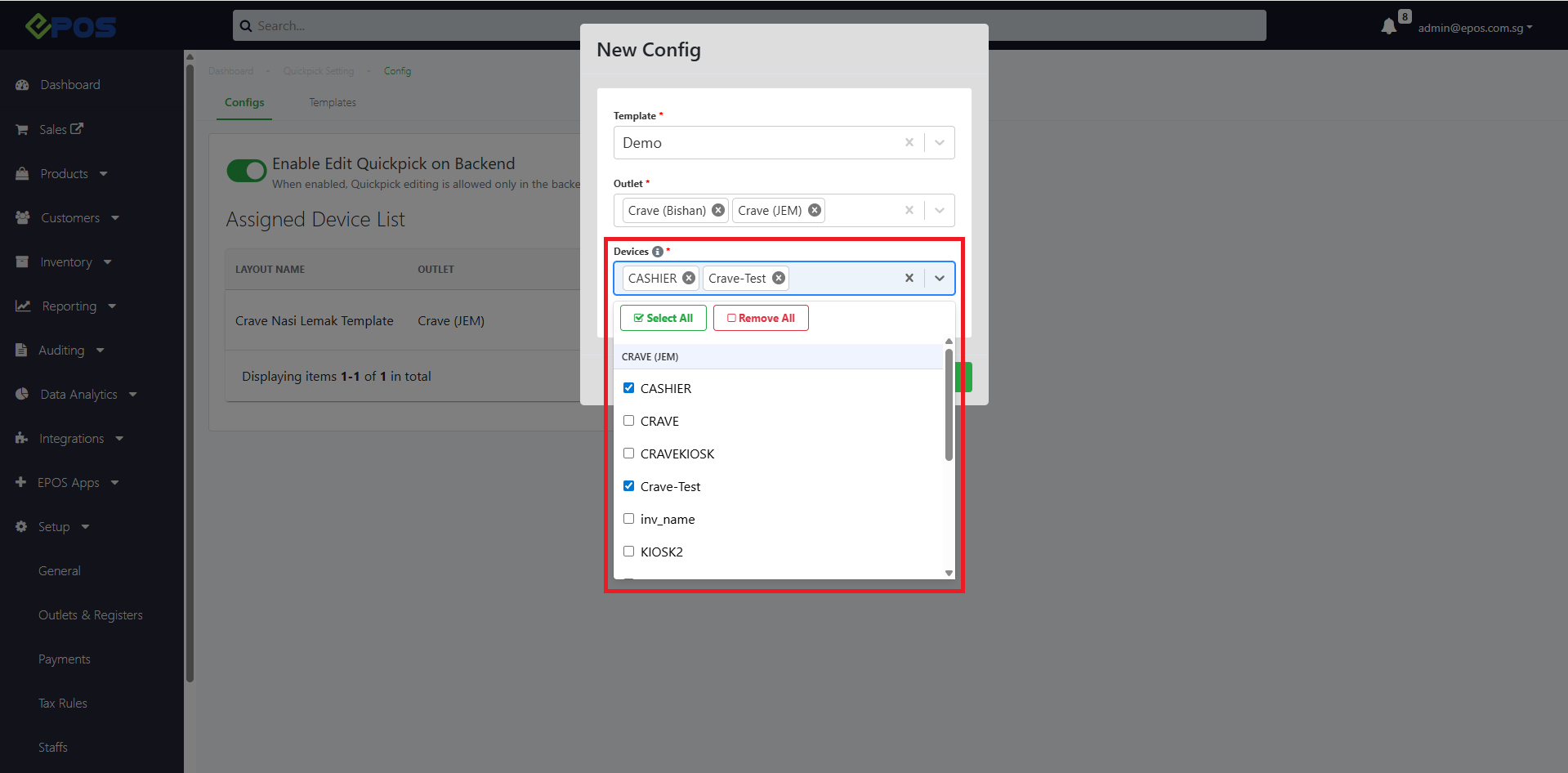
3. Select Outlet to apply the Quickpick template
📝 Users can select multiple outlets to be assigned to a template
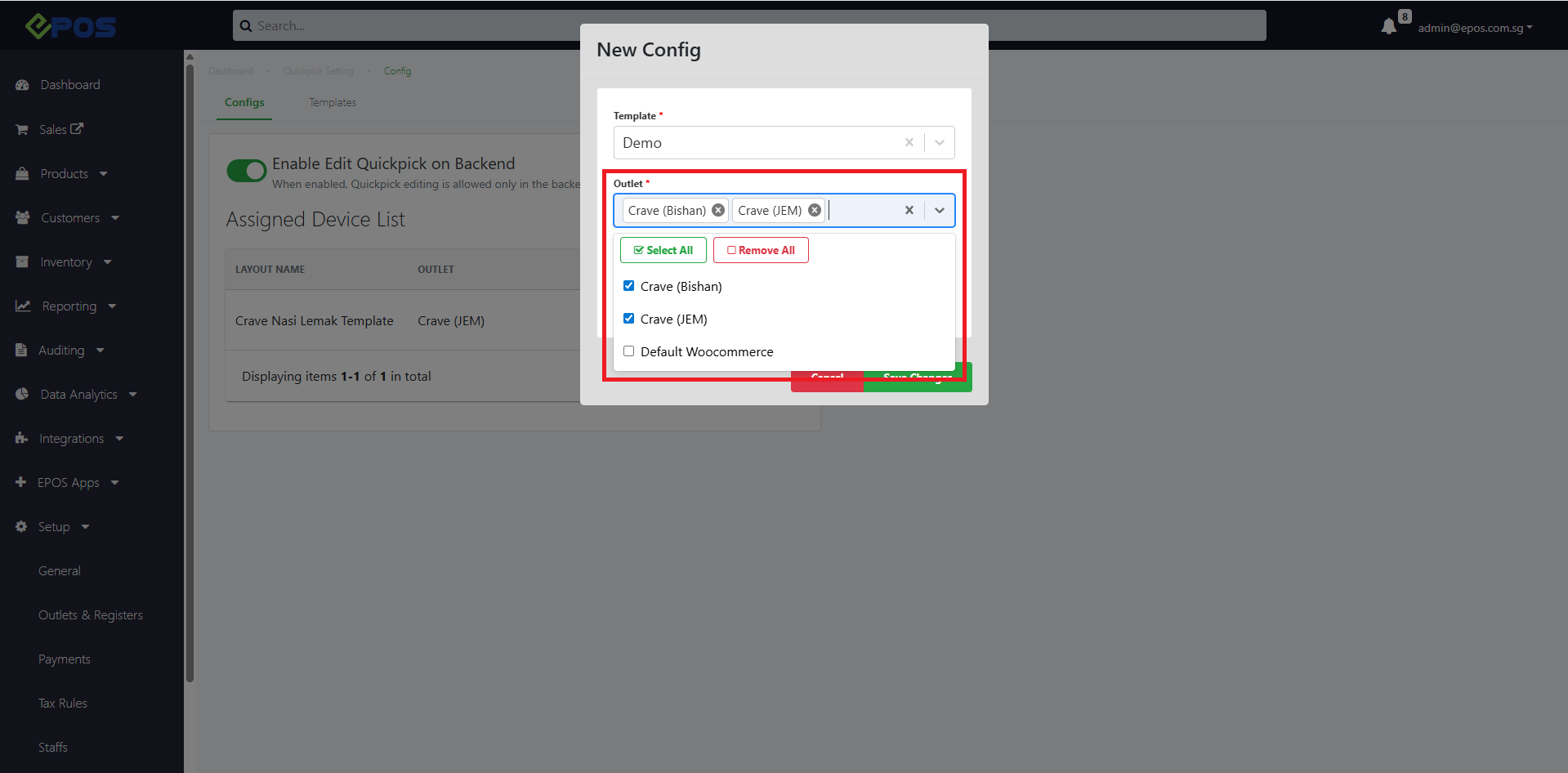
4. Select Devices to apply to the Quickpick template
📝 User can select multiple devices from selected outlets to be assigned to a template. (However, 1 device can only have 1 template.)
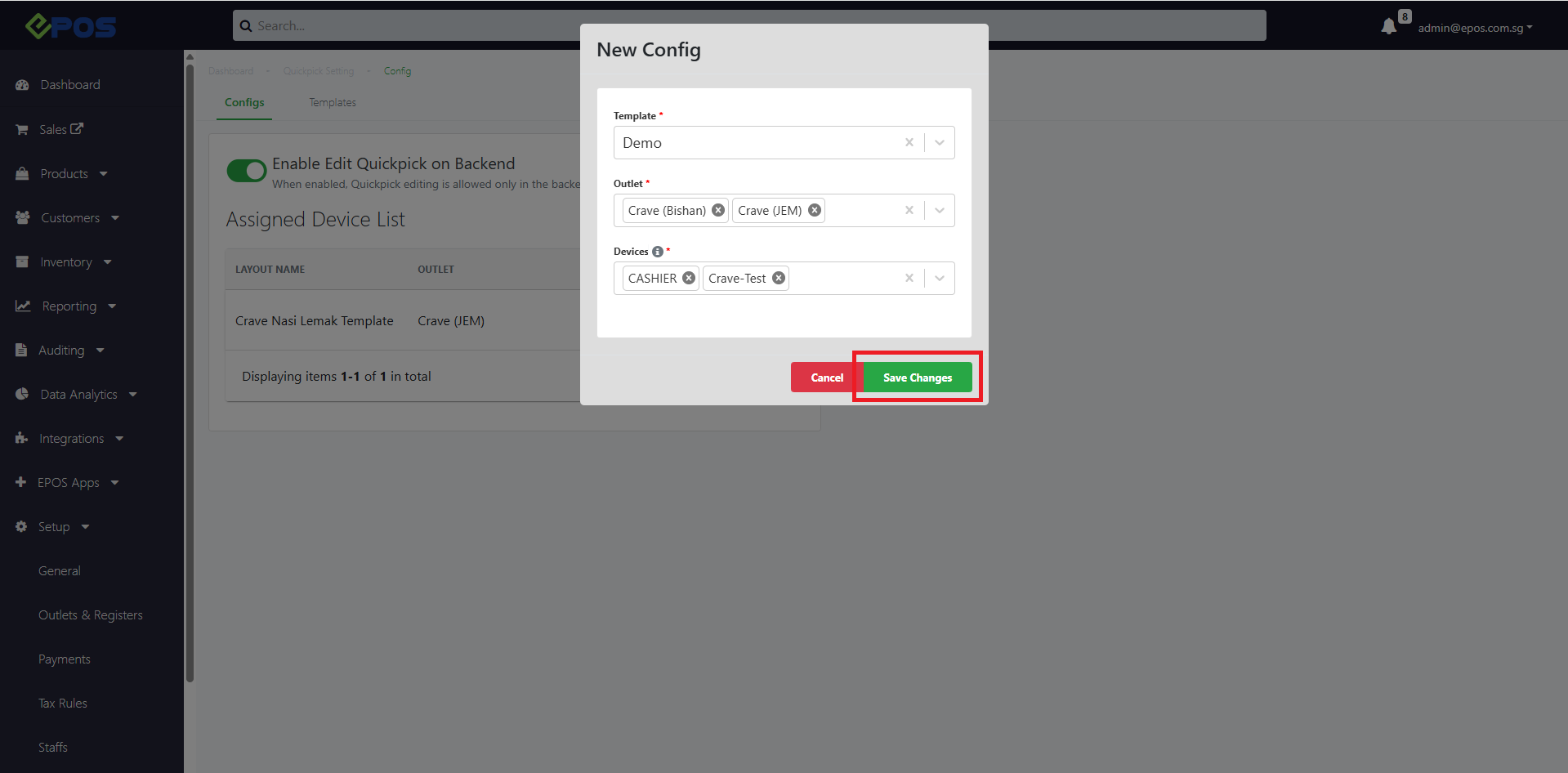
5. Once config is done, user click Save Changes
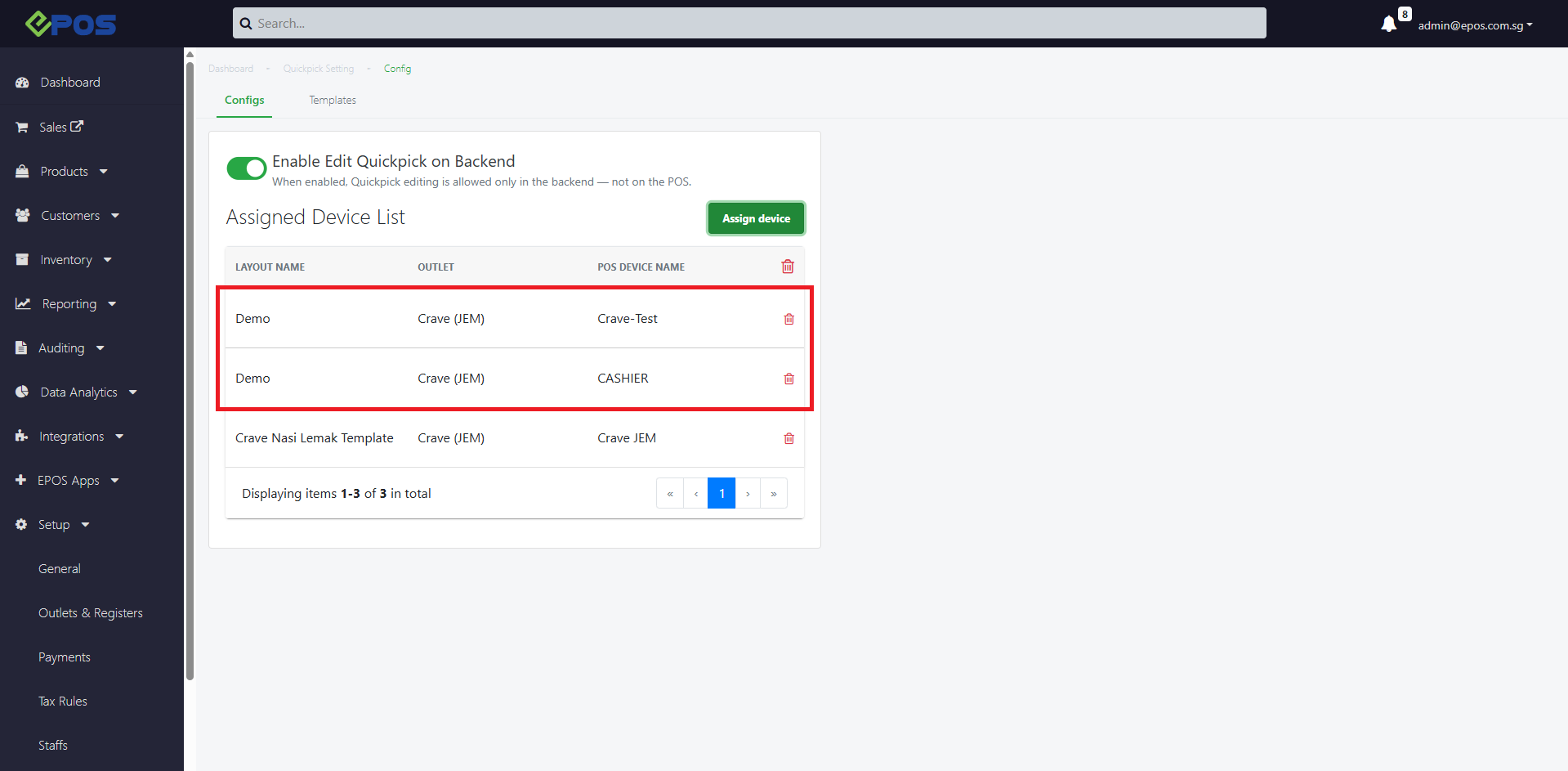
6. Quickpick template will be applied to device(s)
📝 Different devices within an outlet can be assigned to different Quickpick templates
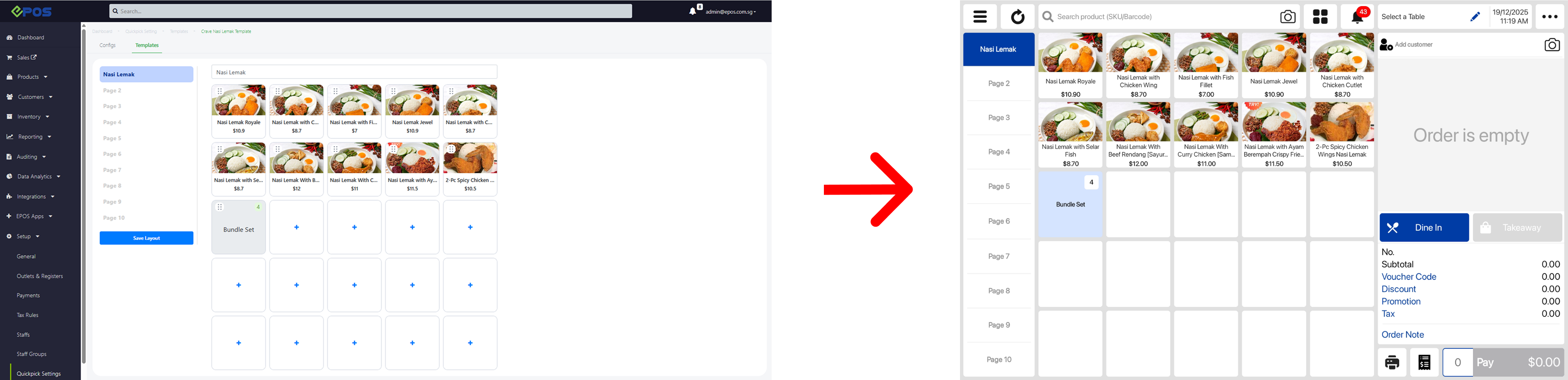
7. Once the toggle is on and Quickpick template has been assigned to device, assigned Quickpick template will be displayed on the POS.
Window POS
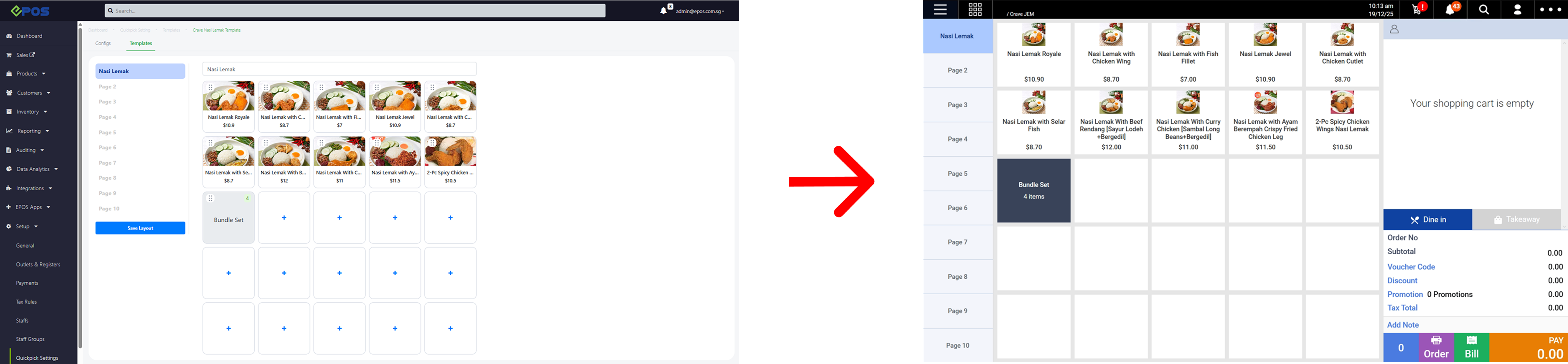 Android POS
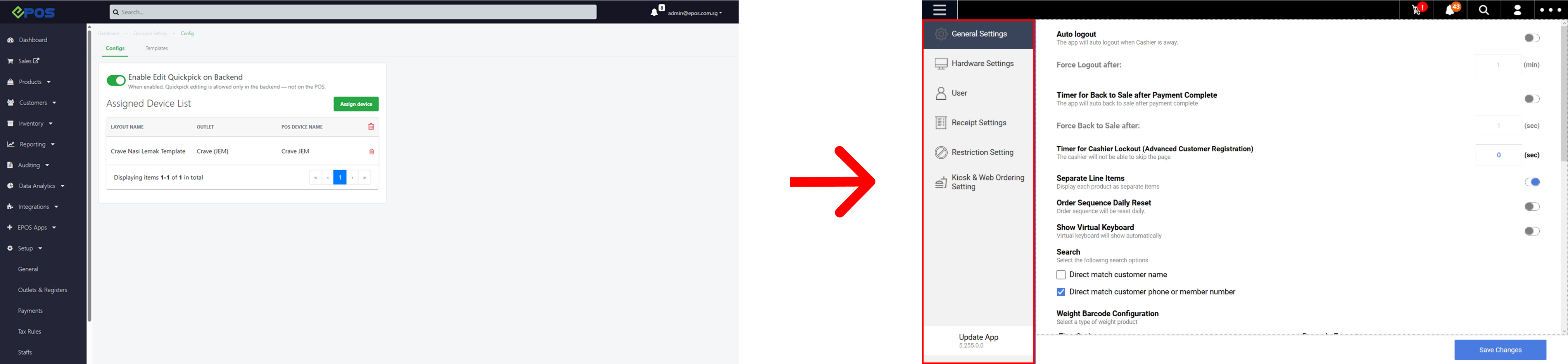
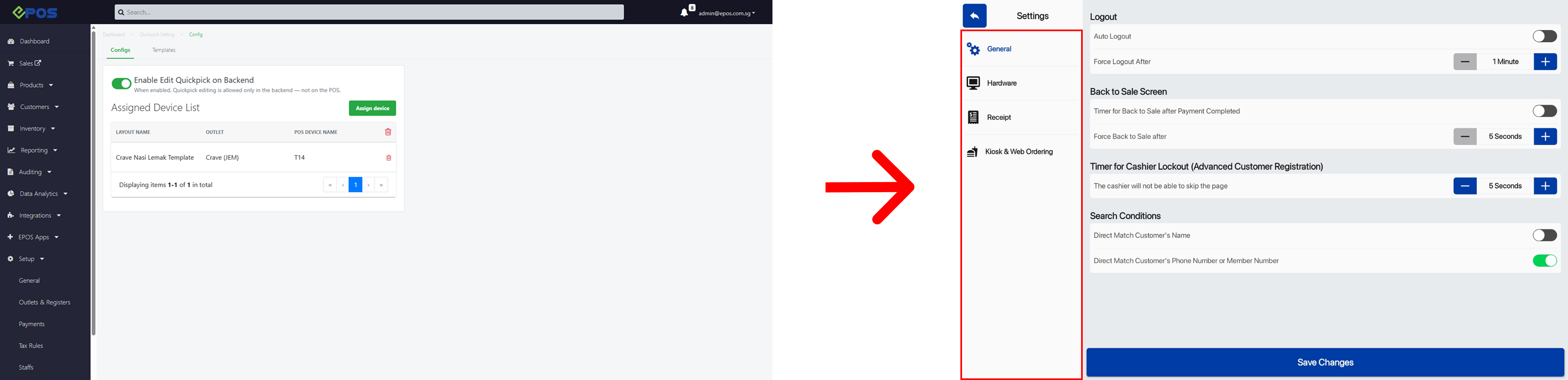
8. Quickpick Settings will be hidden in the POS once the Edit Quickpick Template is enabled from backend
Window POS
 Android POS
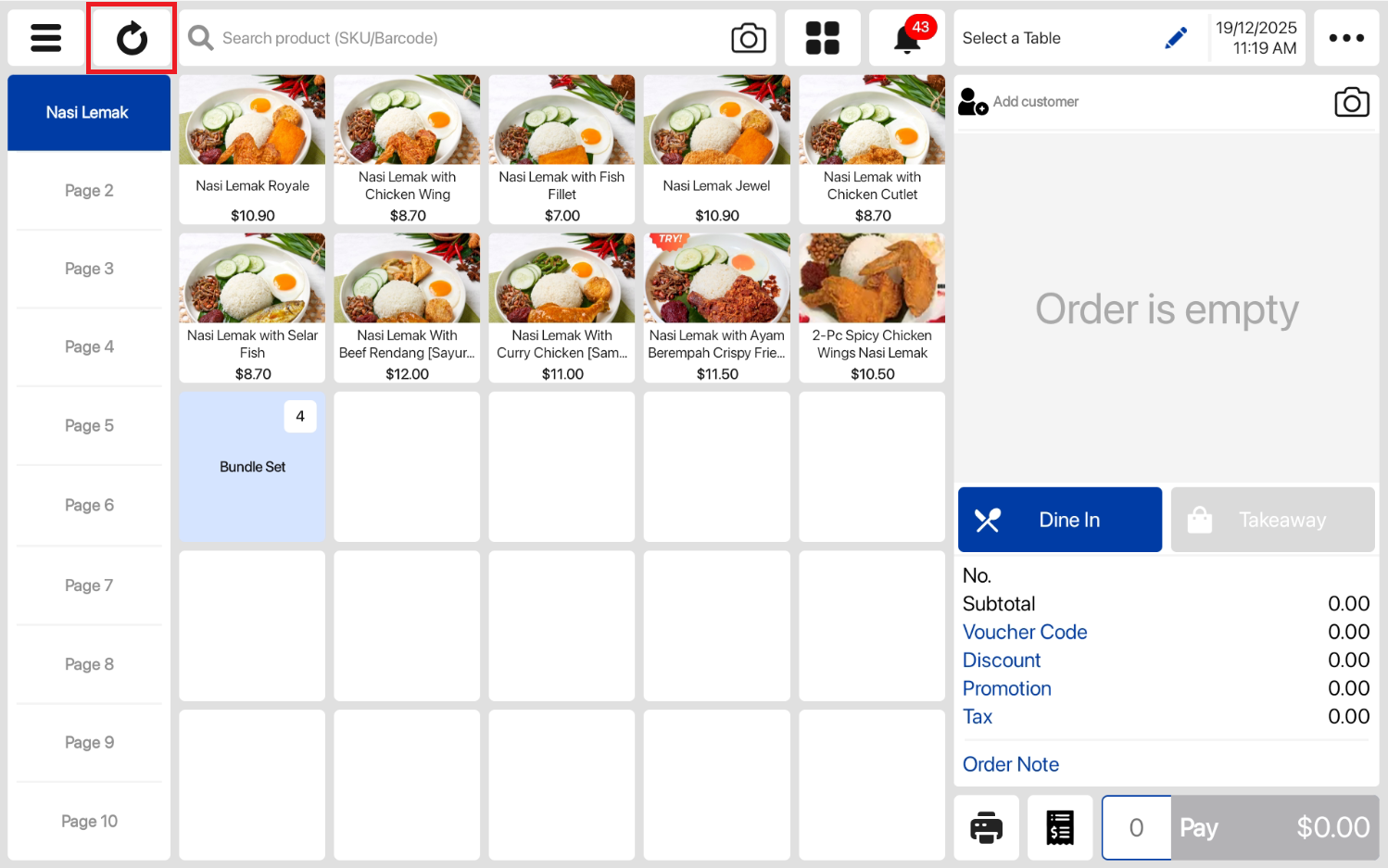
9. Users can sync the POS to immediately apply and display QuickPick configurations from the backend
Window POS
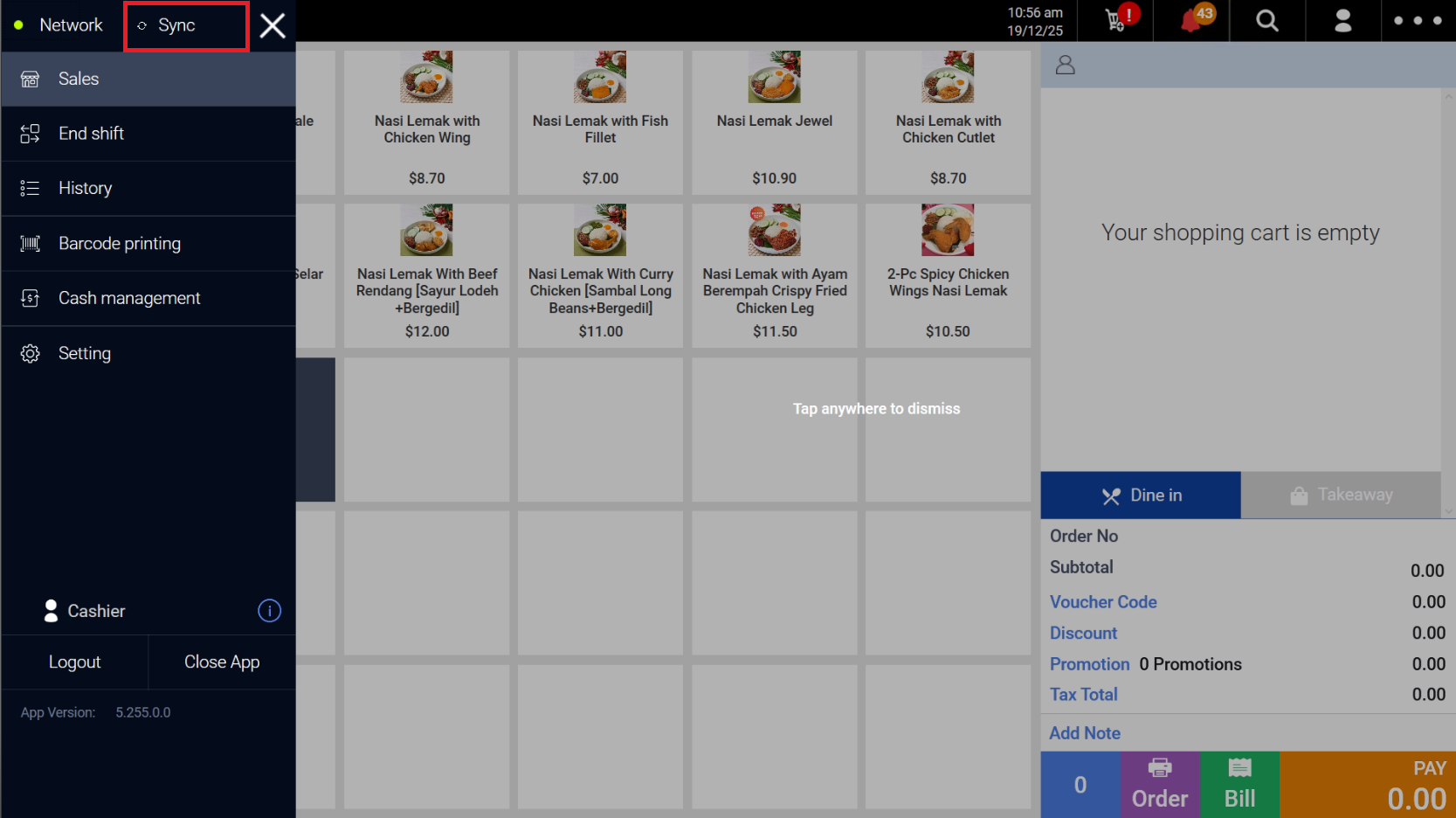 Android POS
- To enable backend Quickpick, refer to Enable Backend Quickpick
- To create Quickpick Templates into your POS Devices, refer to Create Quickpick Template In Backend
