
Before assigning a Quickpick template to devices, users must first create a Quickpick template.
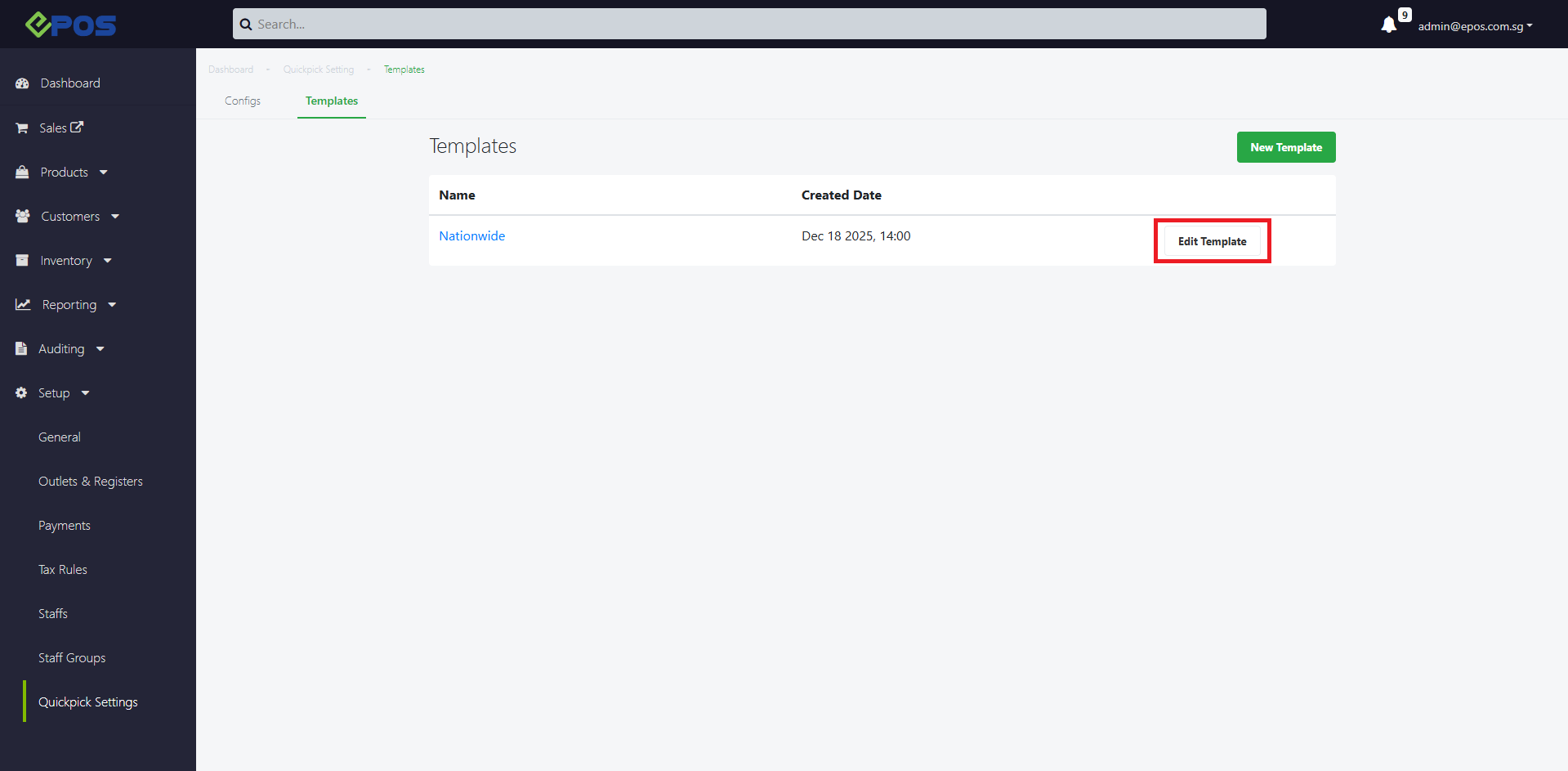
Under EPOS Backend > Setup > Quickpick Settings
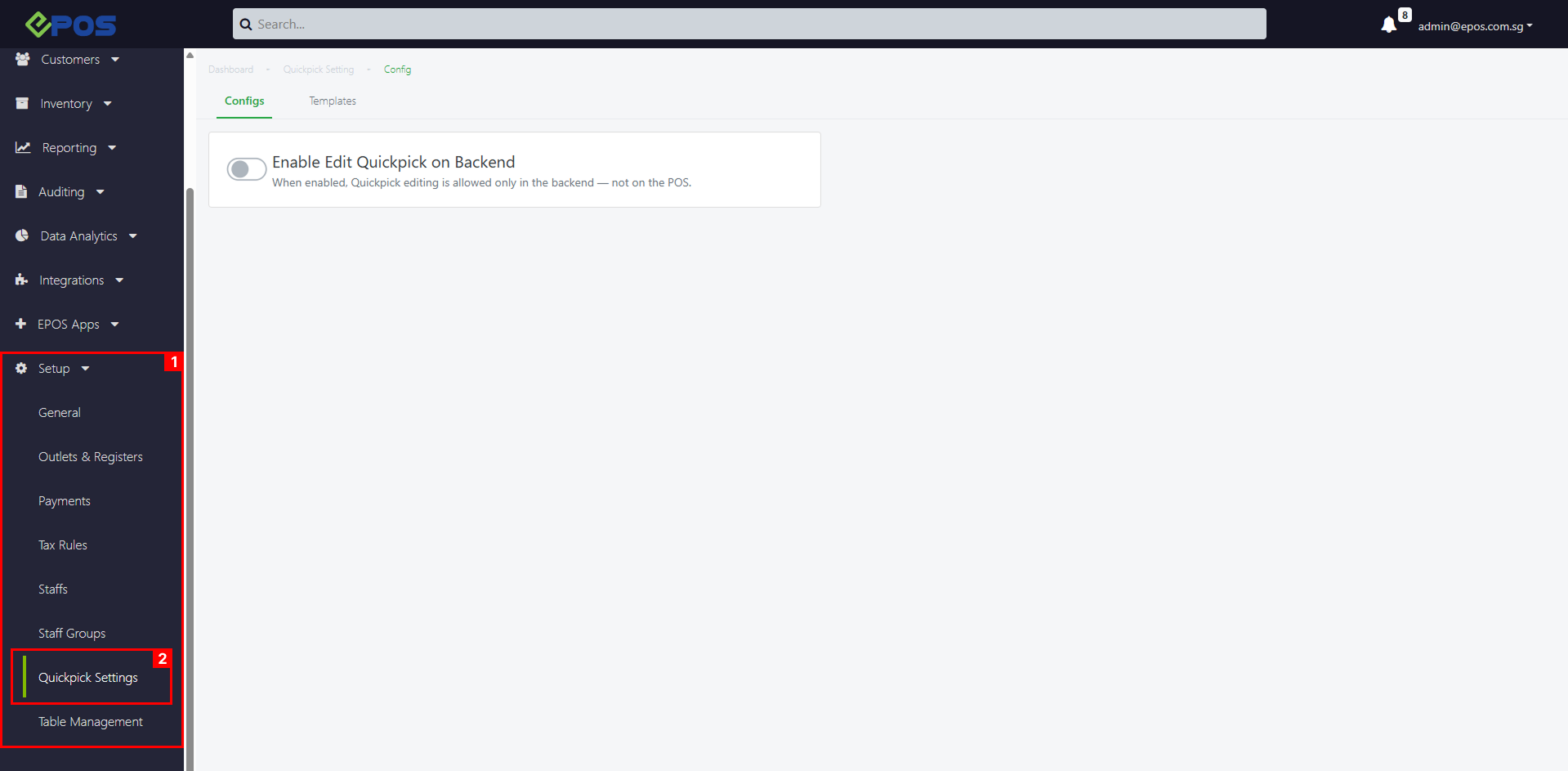 To create a Quickpick Template on the backend, follow these steps:
1. Go to Templates
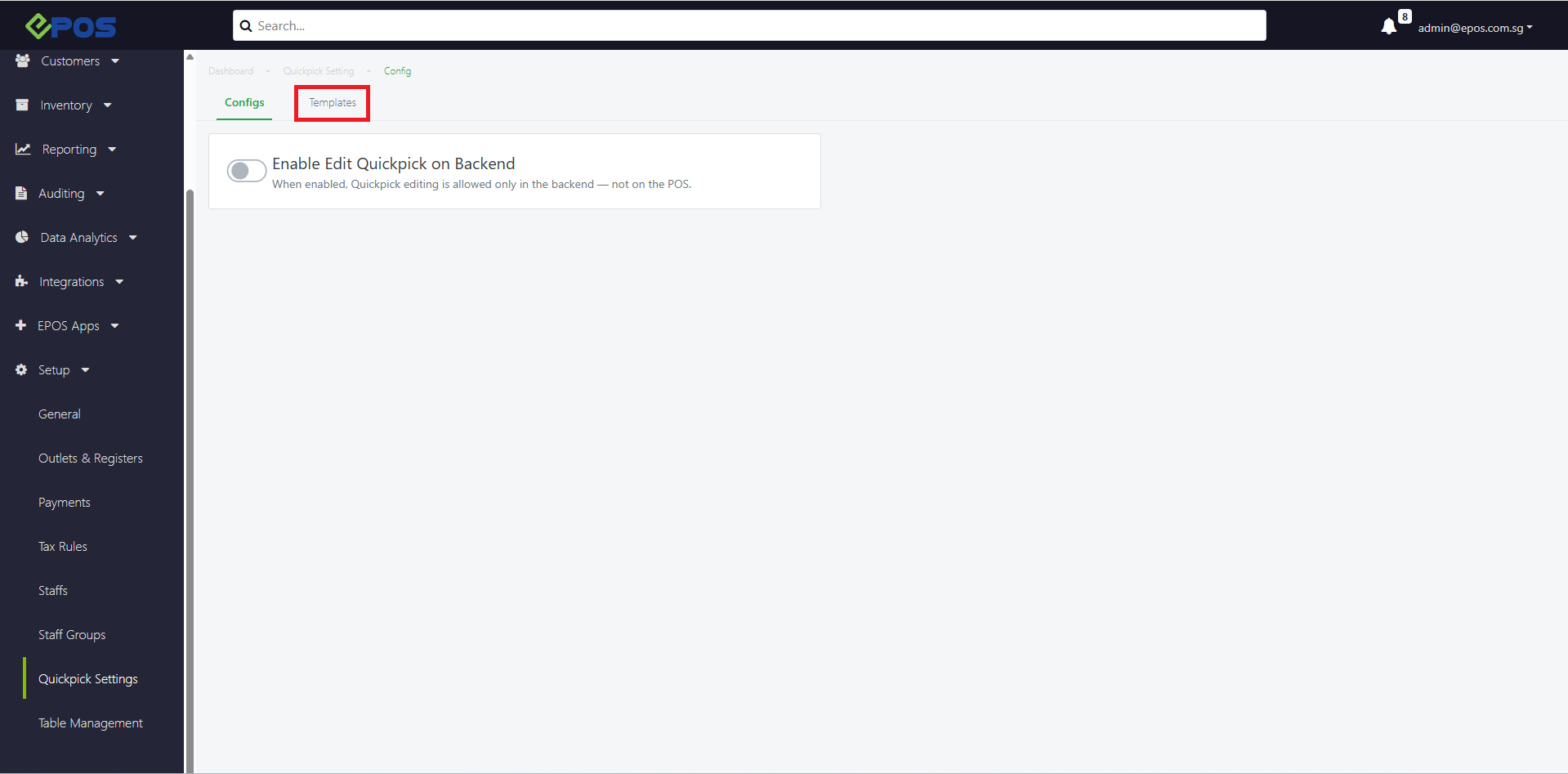
2. Click “New Template”

3. Input the Quickpick Template Name > Create Template
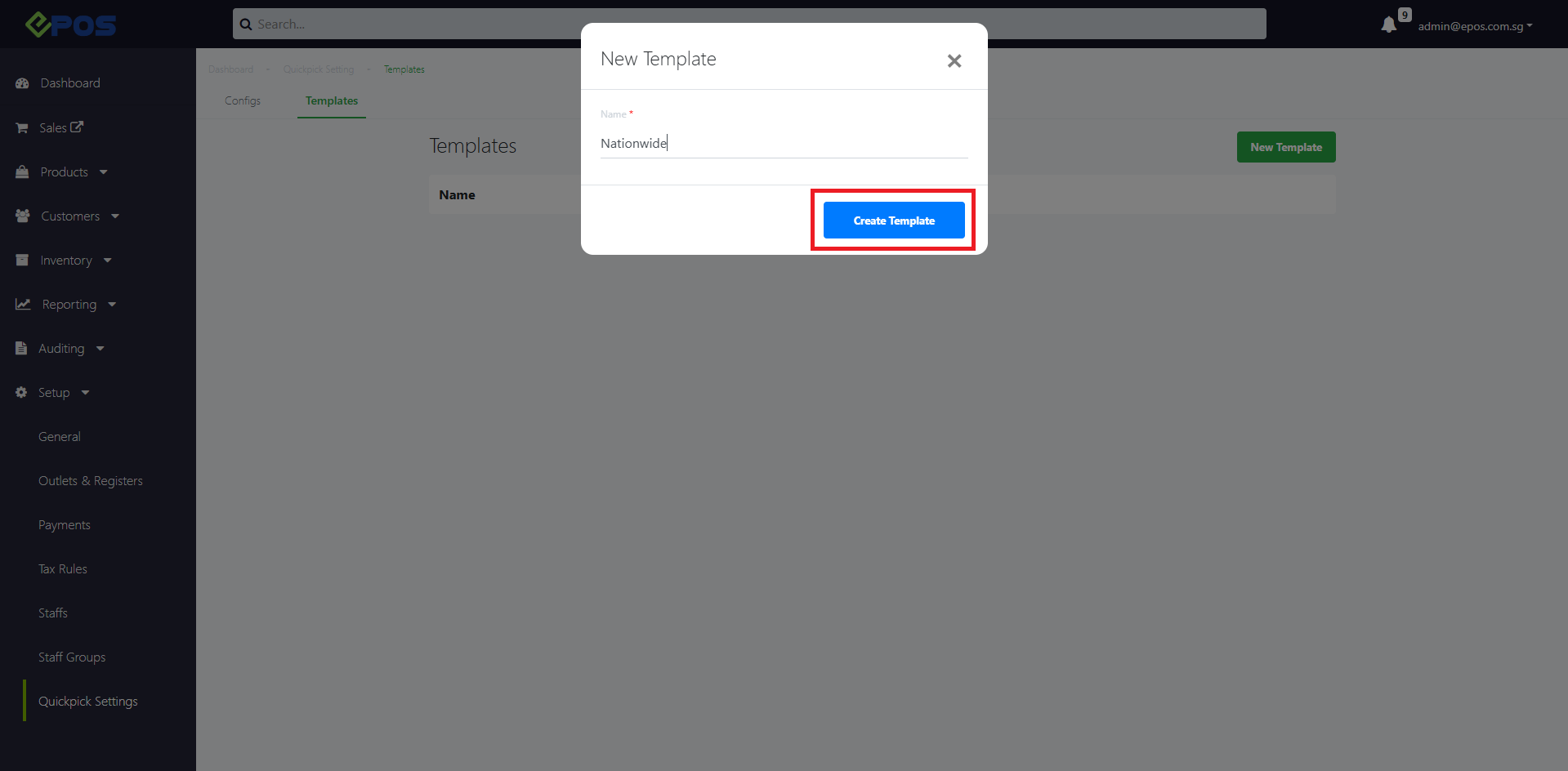
4. New Empty Quickpick Template will be created
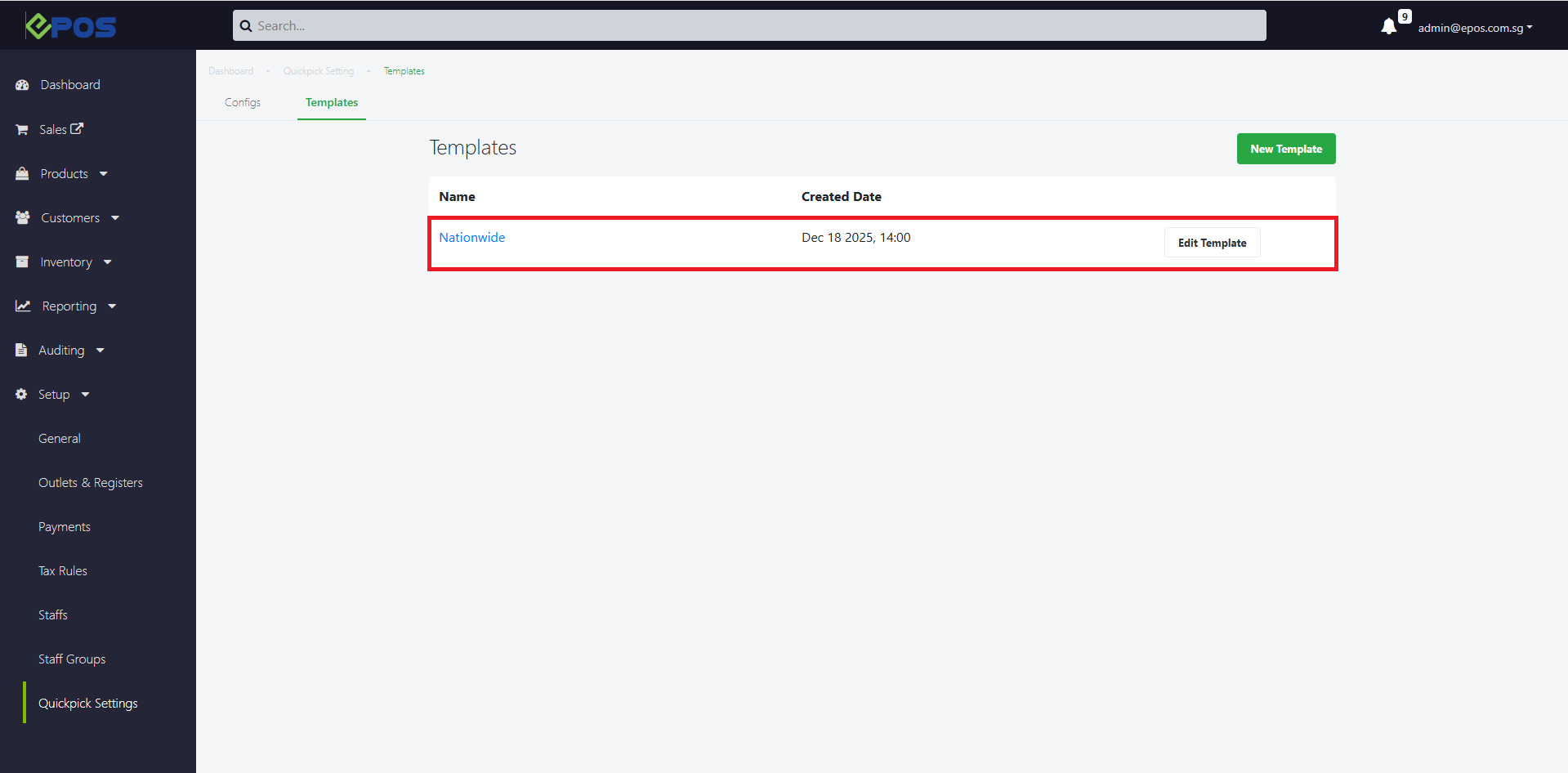
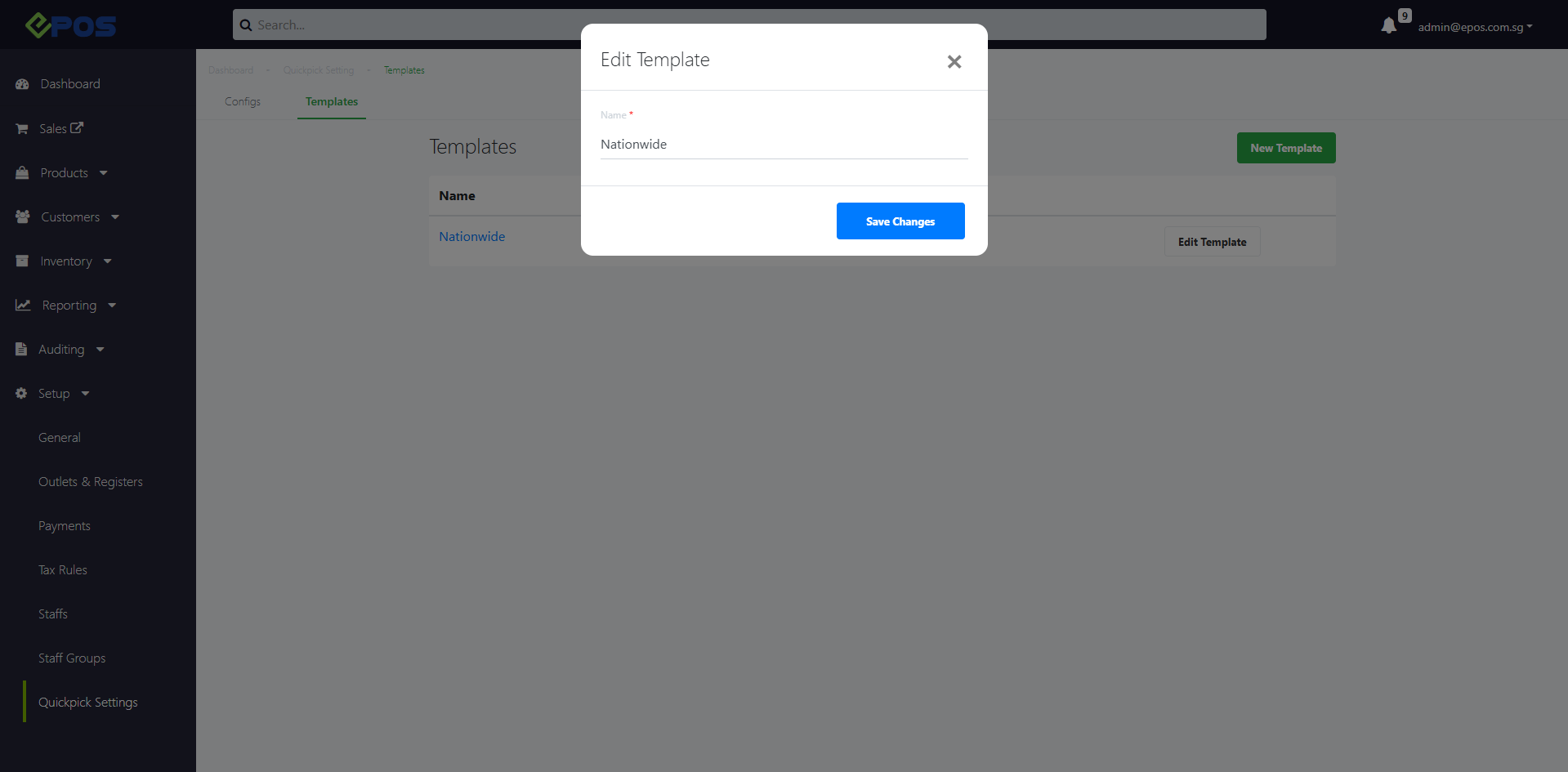
5. To edit template name, user can click “Edit Template” and change the template name (Follow Step 3)
- To enable backend Quickpick, refer to Enable Backend Quickpick
- To assign Quickpick Templates into your POS Devices, refer to Assign Quickpick Template To Devices
- To add products into your Quickpick template refer to Add Products
- To add product groups into your Quickpick template refer to Add Product Groups
