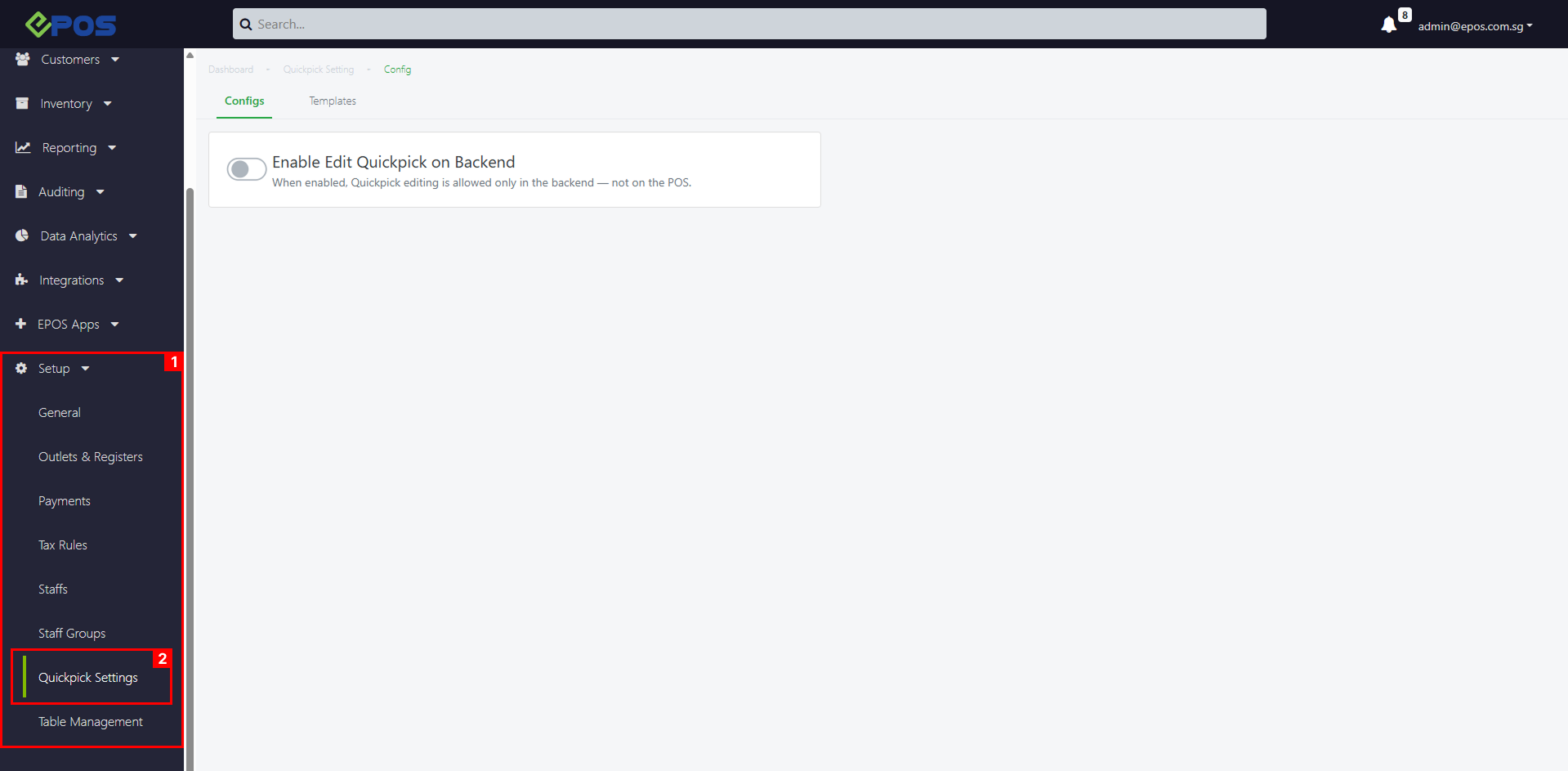
How to Enable Quickpick
To enable Quickpick edit from backend, follow the following steps:
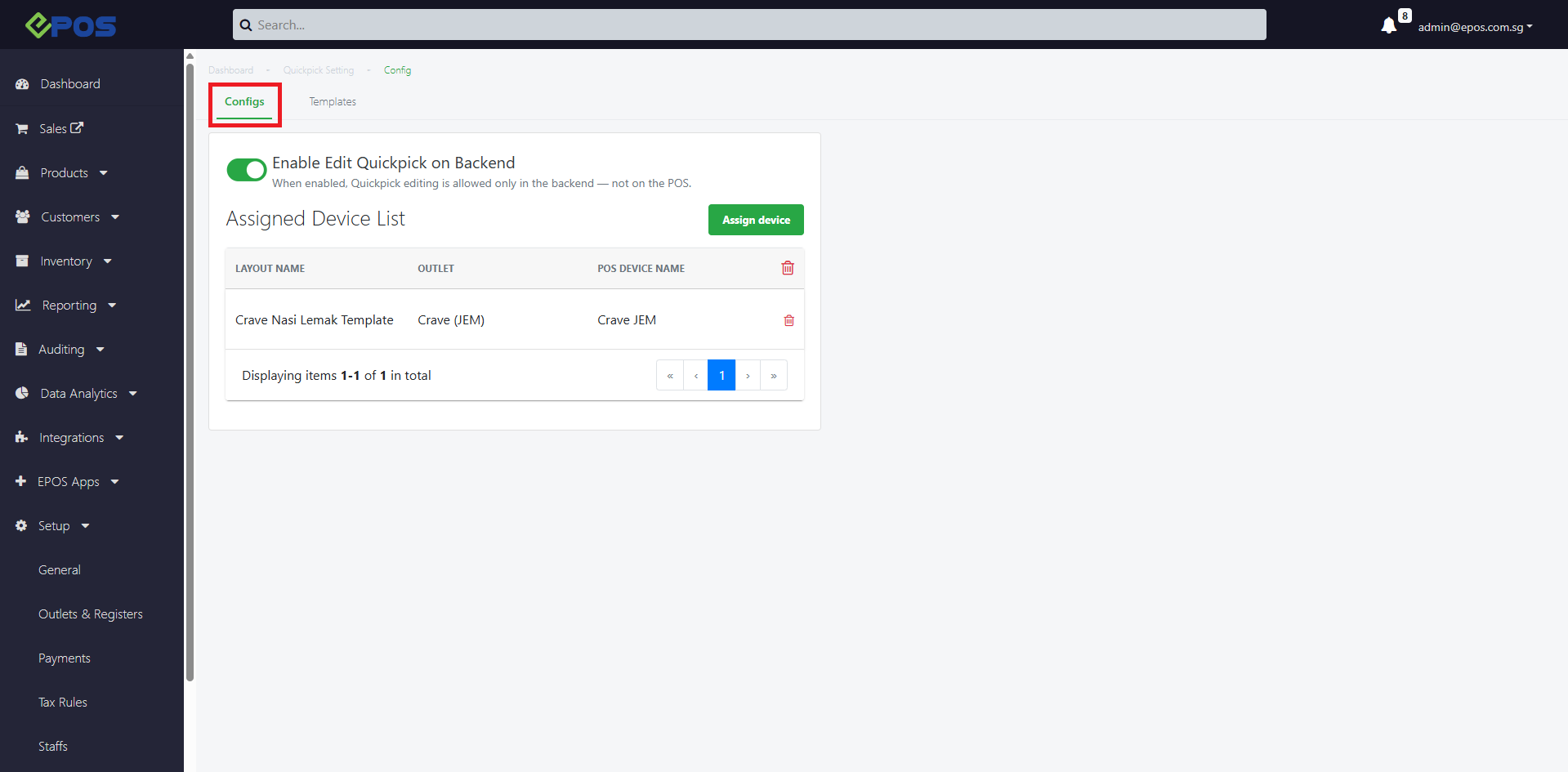
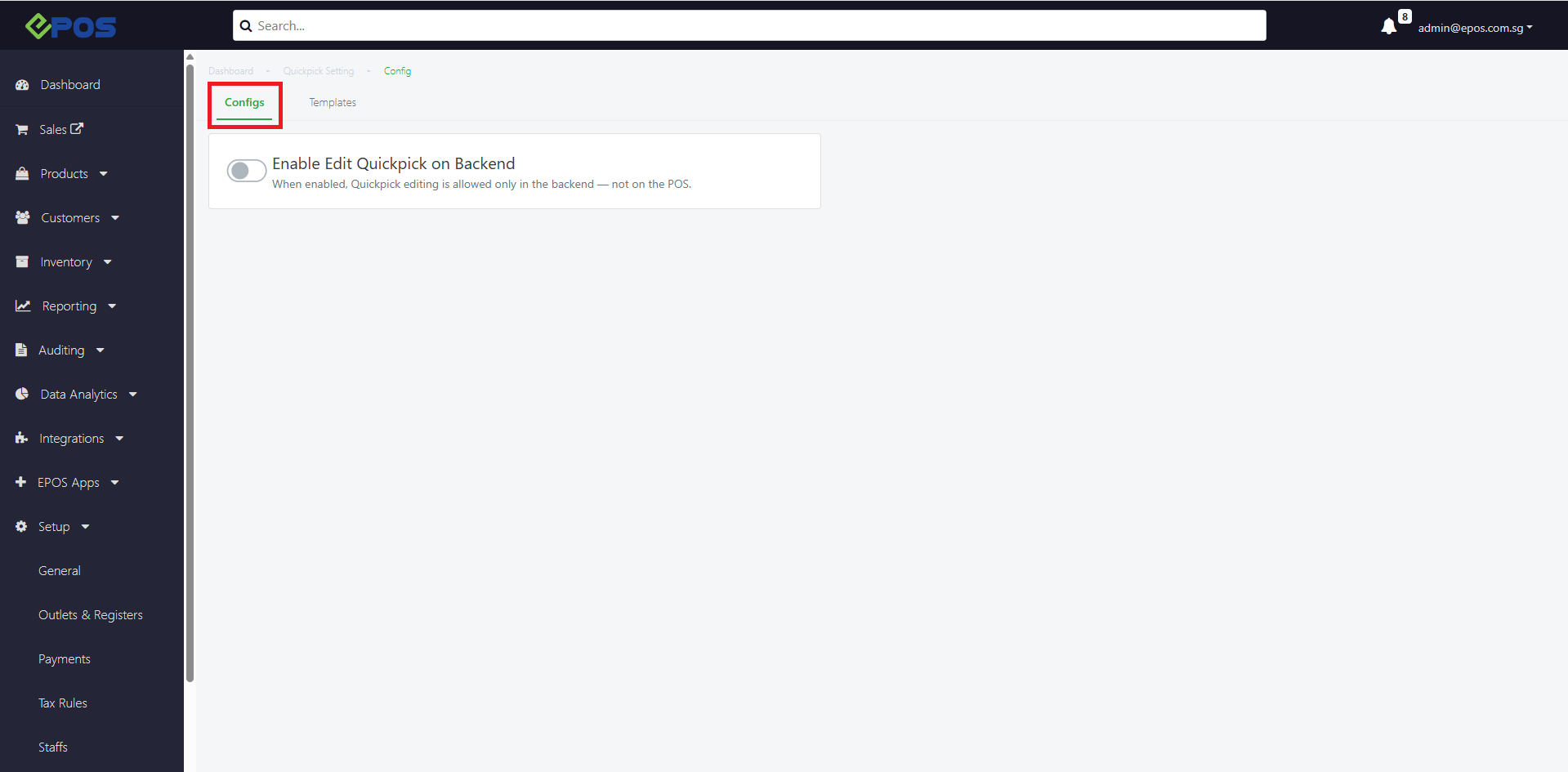
1. Go to Config
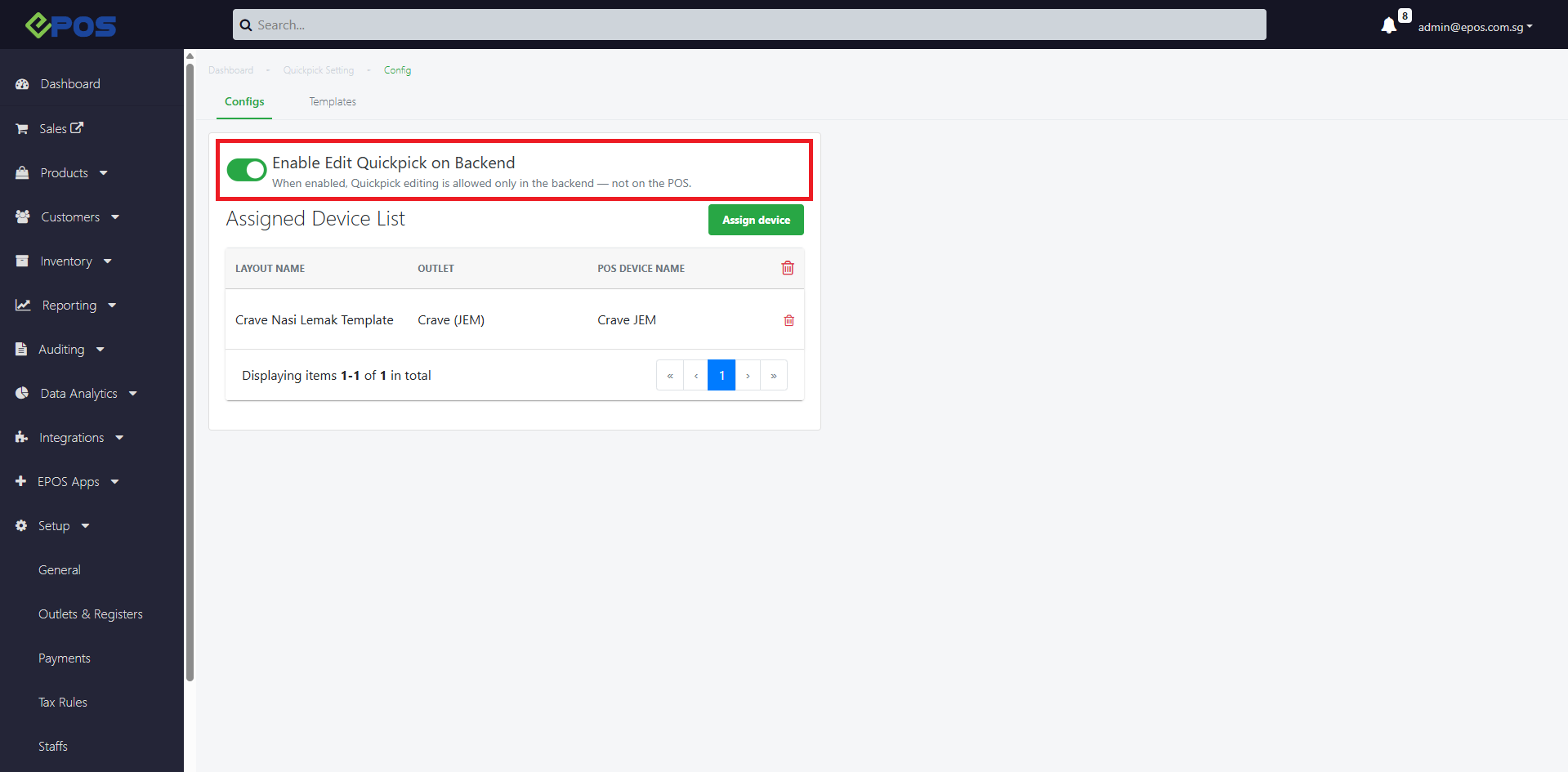
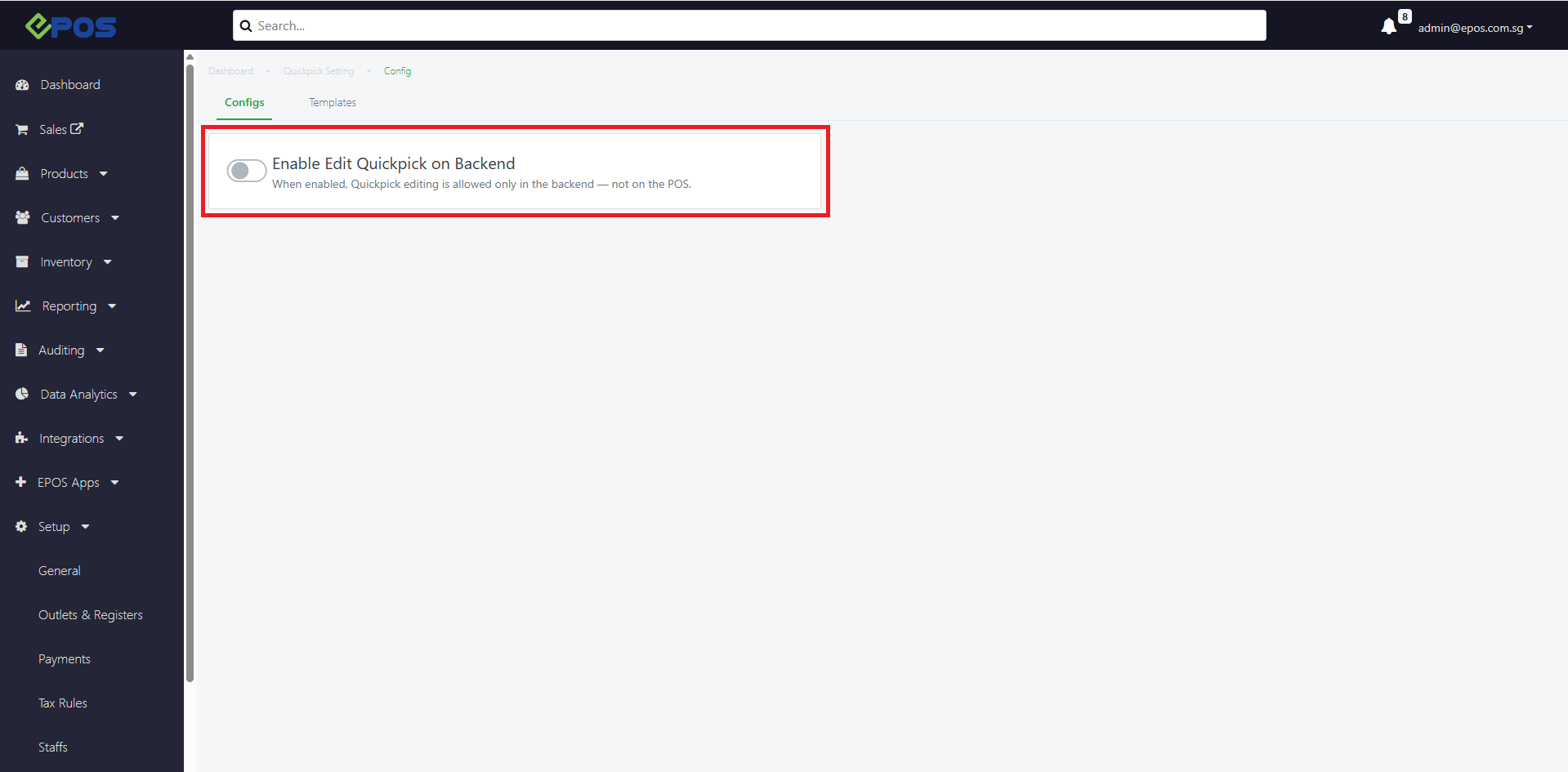
 2. Toggle on the Enable Edit Quickpick On Backend
 3. Once toggle is on, users can only edit Quickpick on backend not on the POS
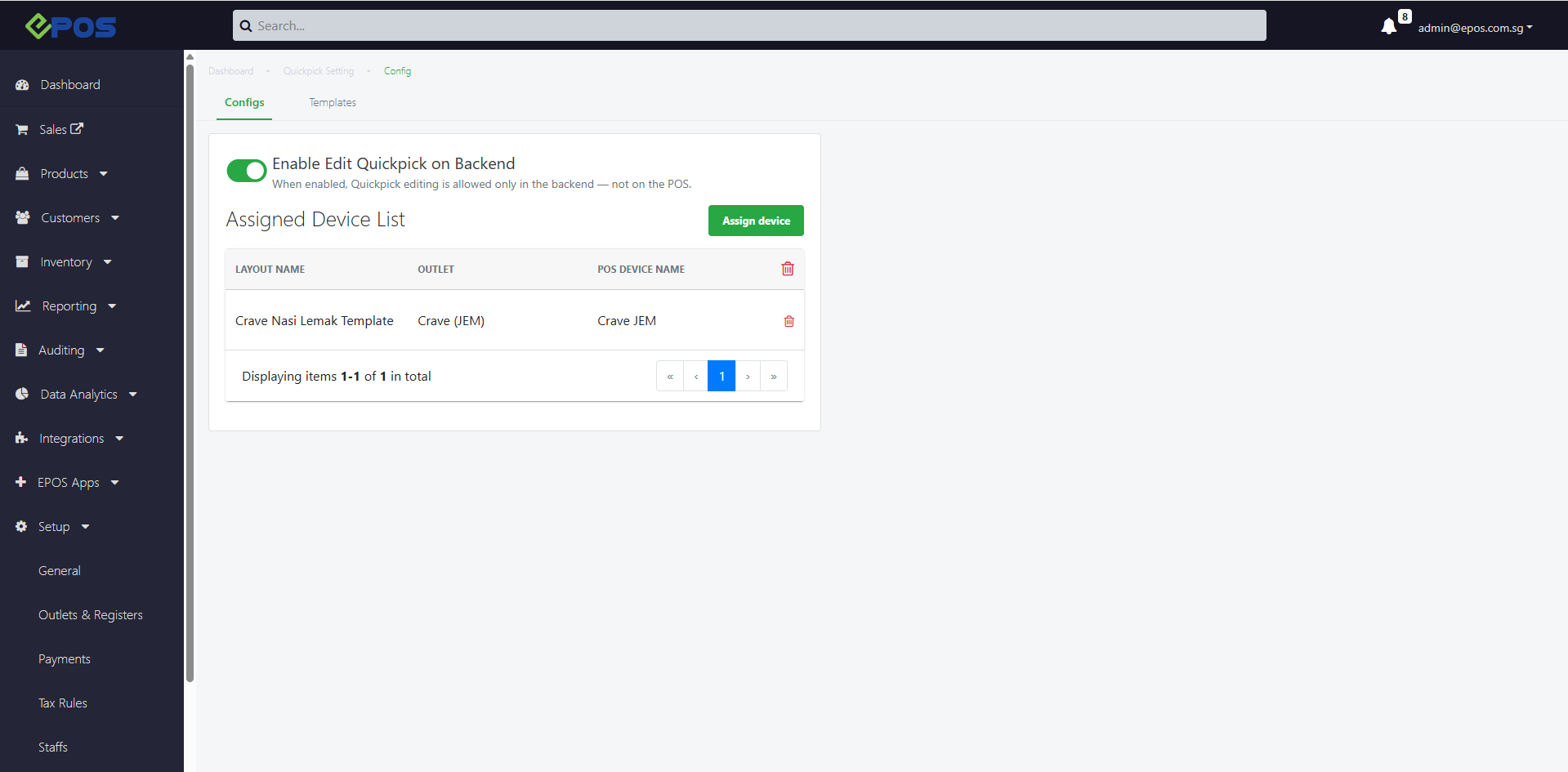
When Quickpick is Enabled
📝 Always create a template before turning on “Edit QuickPick from Backend. To learn how to do this, refer to Create Quickpick Template.
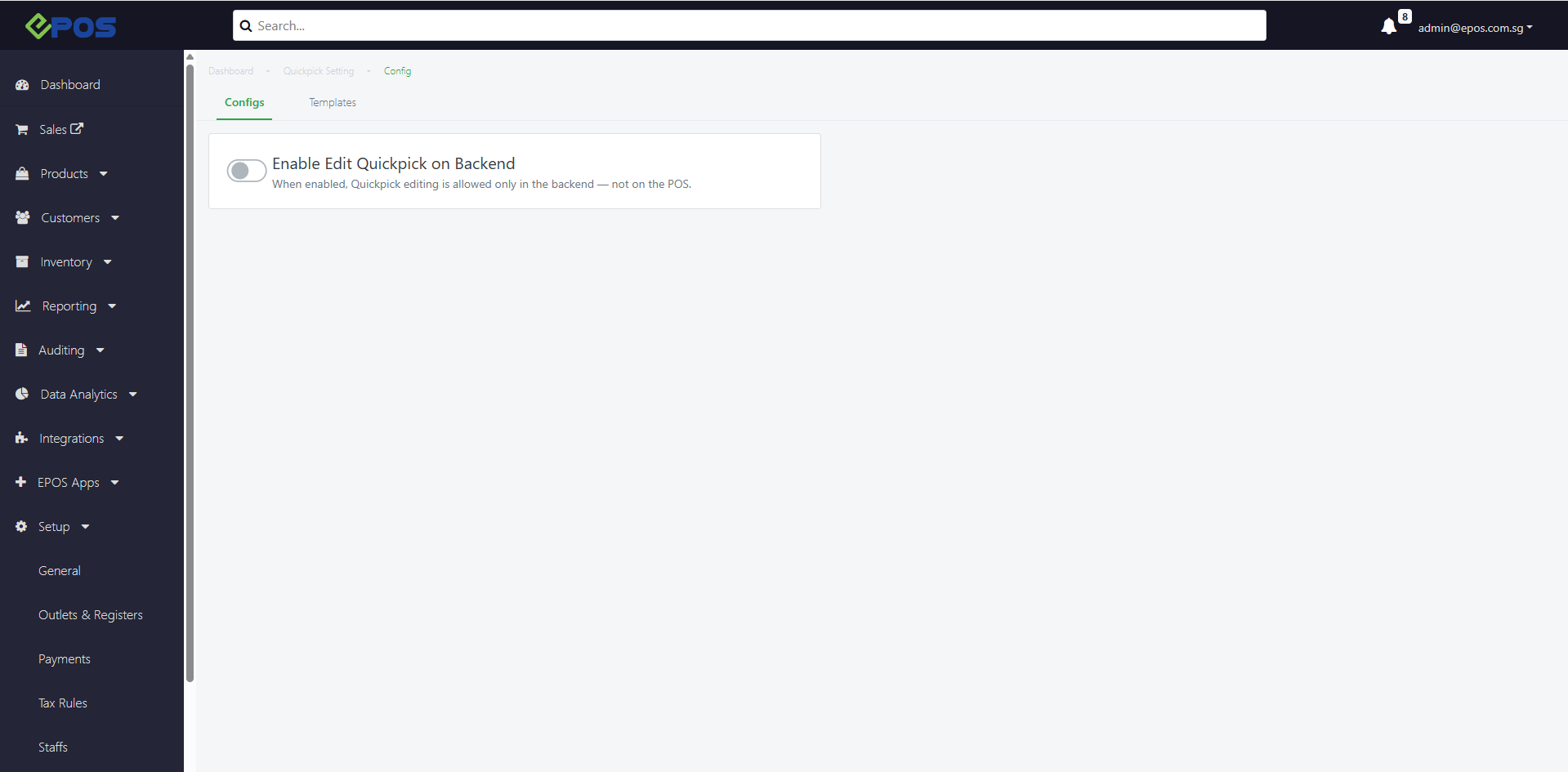
If users enable the toggle first without assigning any template:
→ The POS will display an empty Quickpick layout.
→ Staff cannot edit the Quickpick on the POS because POS Quickpick is disabled when Backend Quickpick is active.
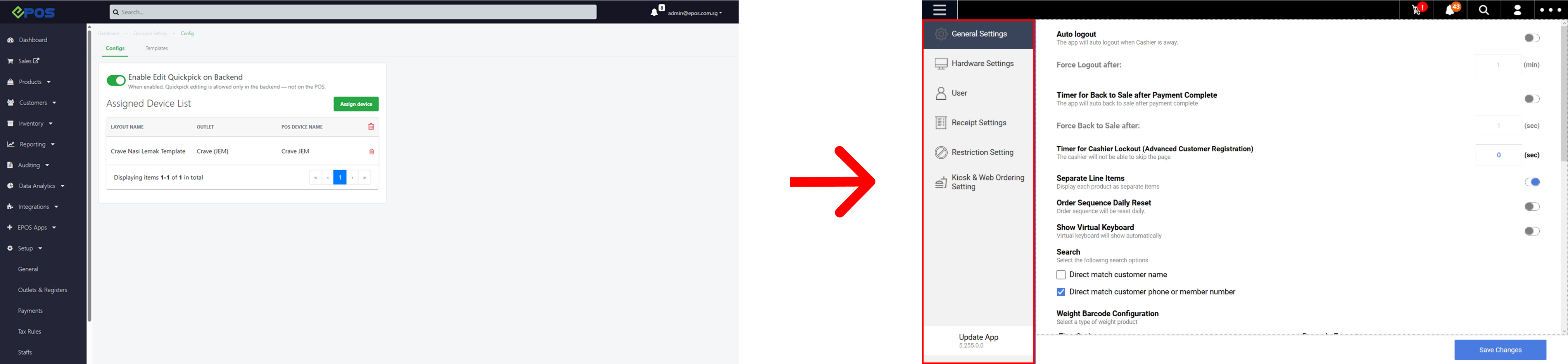
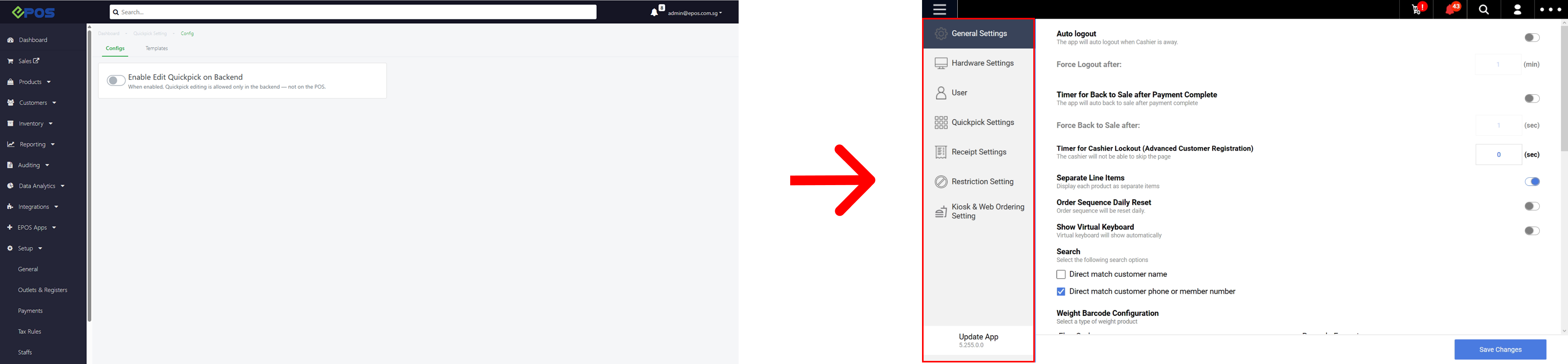
When edit Quickpick on Backend is enabled, the Quickpick Settings tab on the POS is removed
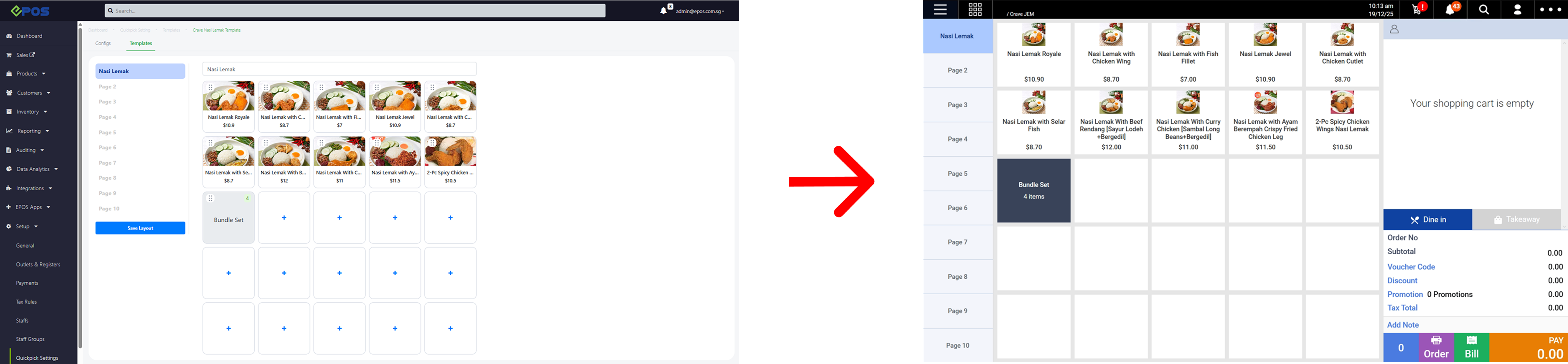 When edit Quickpick on Backend is enabled, POS will display the Quickpick layout that was assigned to this POS on the backend
- To create Quickpick Templates into your POS Devices, refer to Create Quickpick Template In Backend
- To assign Quickpick Templates on the backend, refer to Assign Quickpick Template To Devices