
Users can choose to replace items from the Quickpick template so that only the appropriate items are displayed on the POS product page.
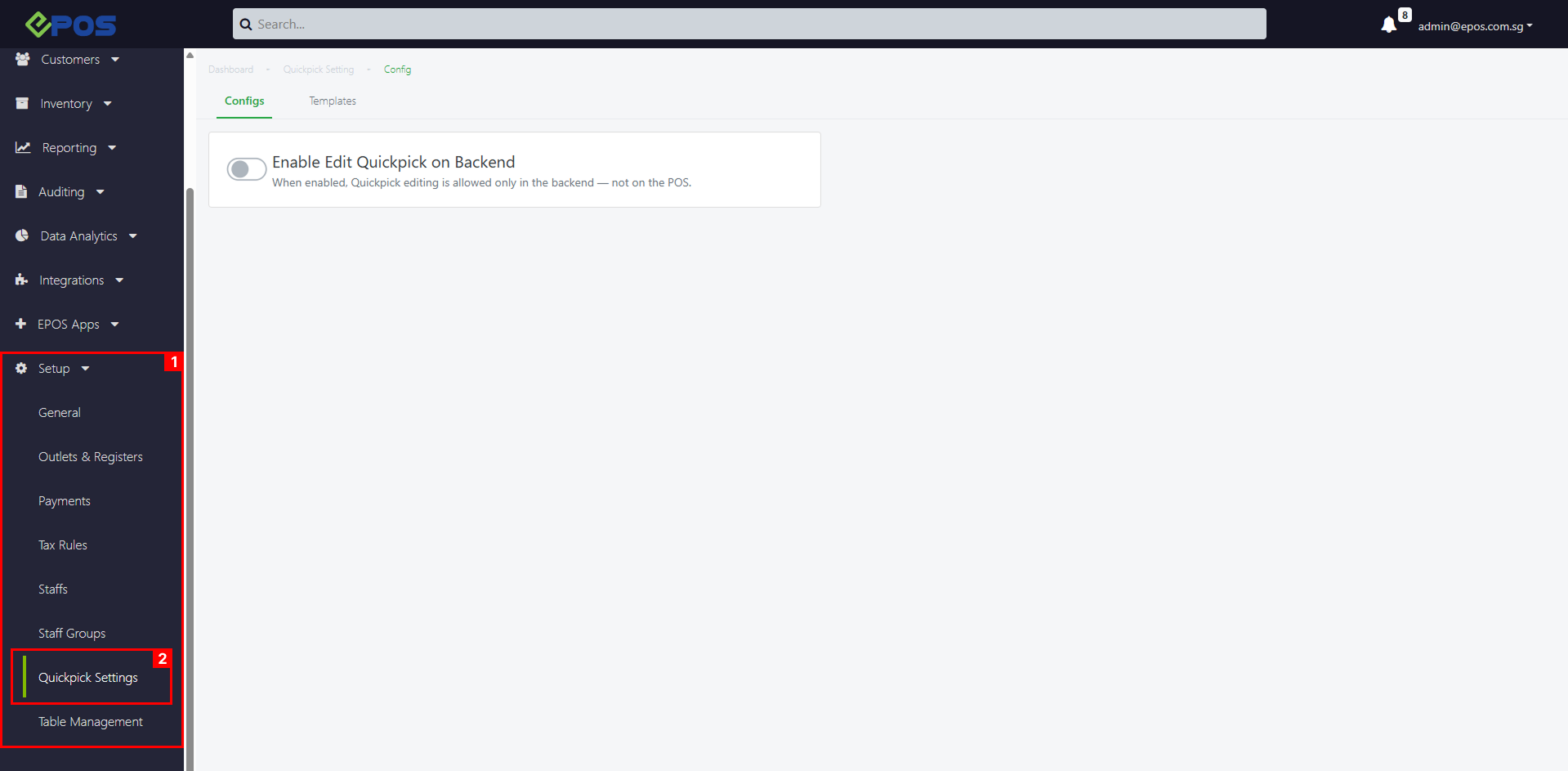
Under EPOS Backend > Setup > Quickpick Settings
 💡Item replacement applies to Products, Product Variants and Product Groups.
To replace Quickpick Items in a Quickpick template, follow these steps:
1. Click the Quickpick item > Edit
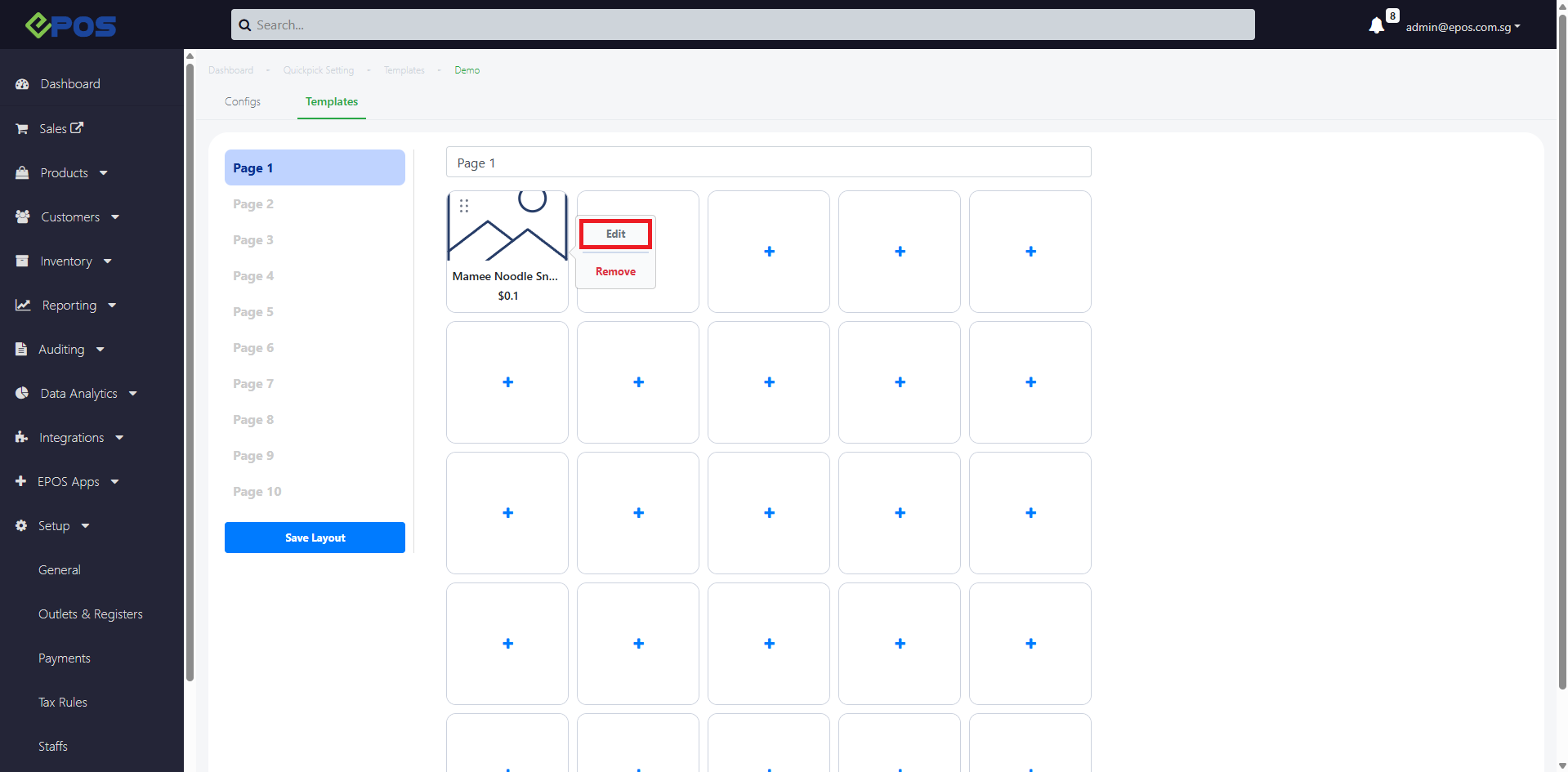
2. Untick the item(s)
3. Select new item(s) > click Save
4. Quickpick item(s) will be replaced with the new item(s)
- If there was a single item selected, the Quickpick item will be converted to a Product
- If there were multiple items selected, the Quickpick item will be converted to a Product Group
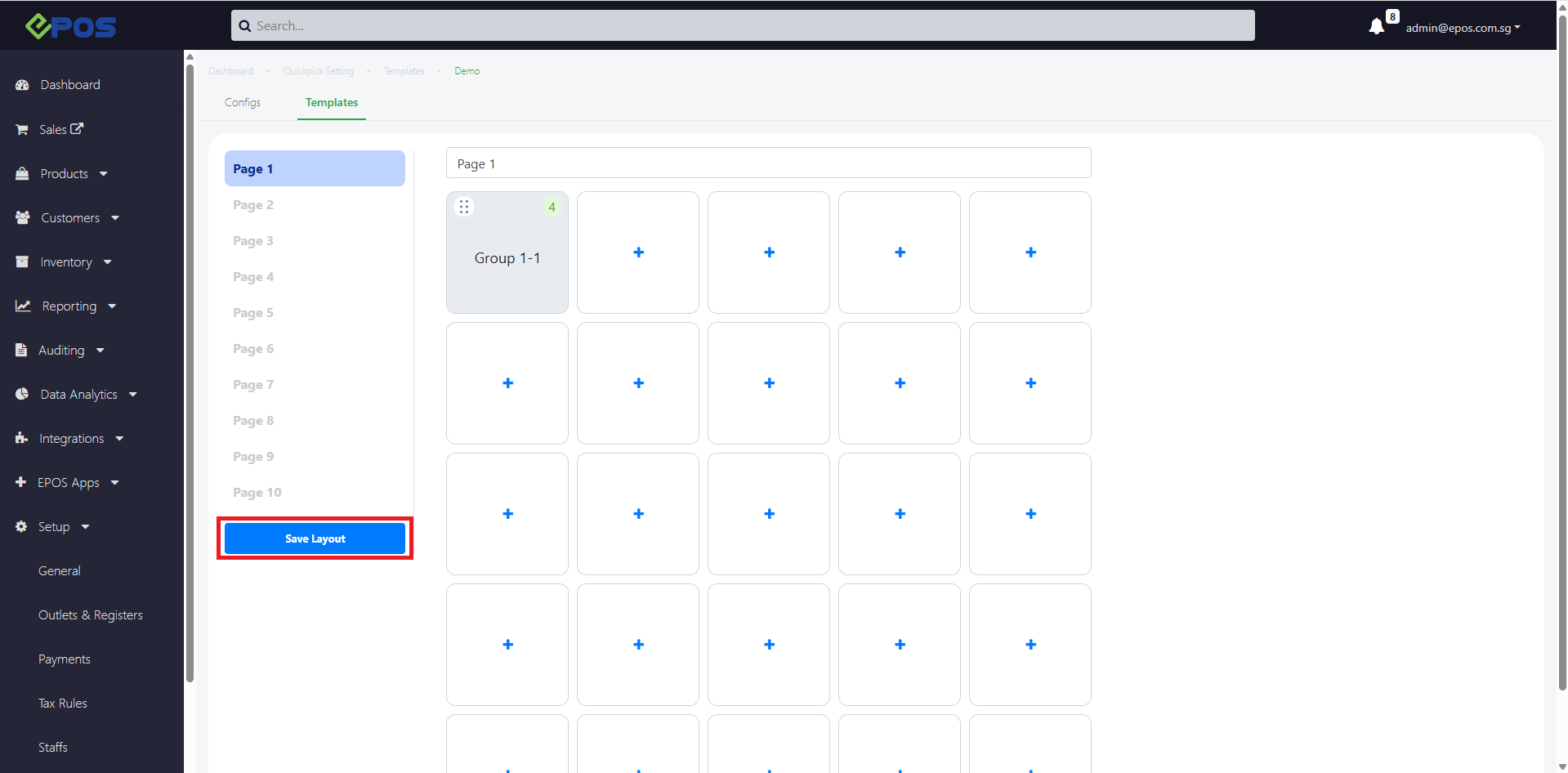
5. To confirm your Template arrangement, click on Save Layout
- To add products into your Quickpick template, refer to Add Products
- To add product groups into your Quickpick template, refer to Add Product Groups
- To delete items in your Quickpick template, refer to Delete Items
