
Membership point payment method can be set up at the backend portal using this guide. In order to use membership points as a payment method, there must be a tagged customer. This payment method will not be shown if there is no customer tagged to the order.
Users can first add item to cart and tag a customer by clicking on the Add customer section.
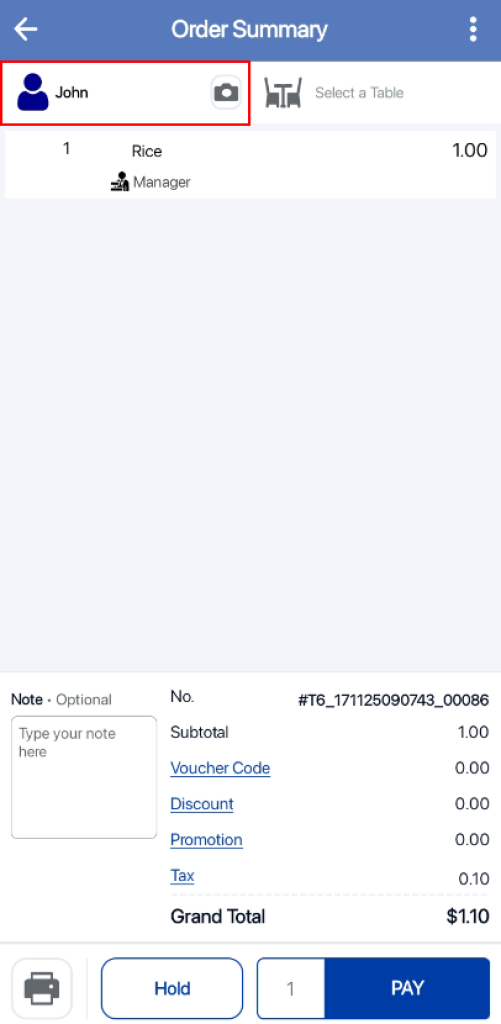
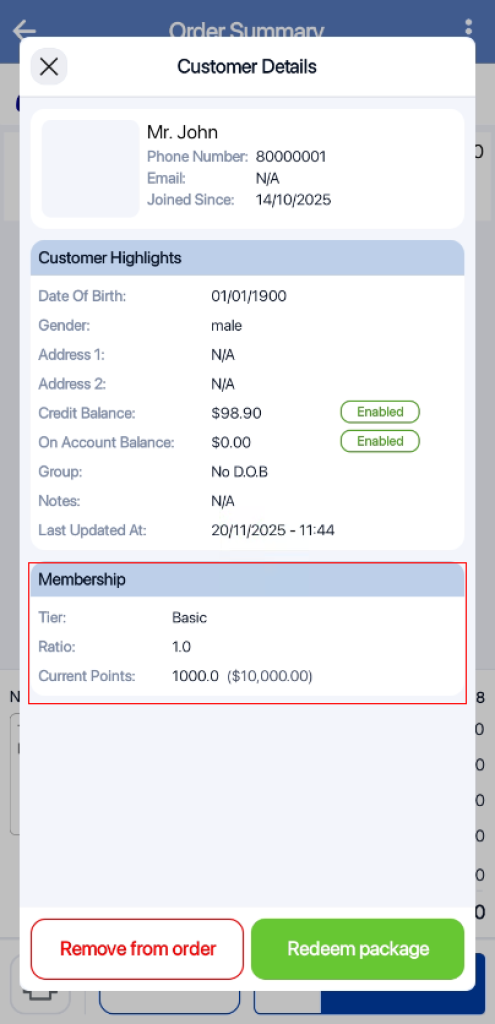
After a customer is tagged, users can click on the customer name. In the pop up window, users will be able to view the customer’s Membership Points.
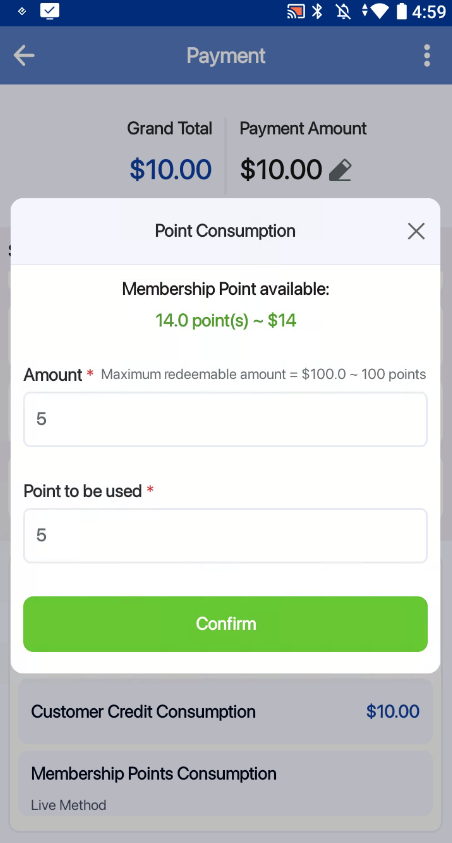
After tagging a customer and adding items to the Order cart, users can click on the Pay button to get directed to the payment page. Under the Payment page, the user can select the Membership Points payment to proceed with the point redemption process.

In the pop up window, users can select the amount that the customer would like to redeem and click on the Confirm button.
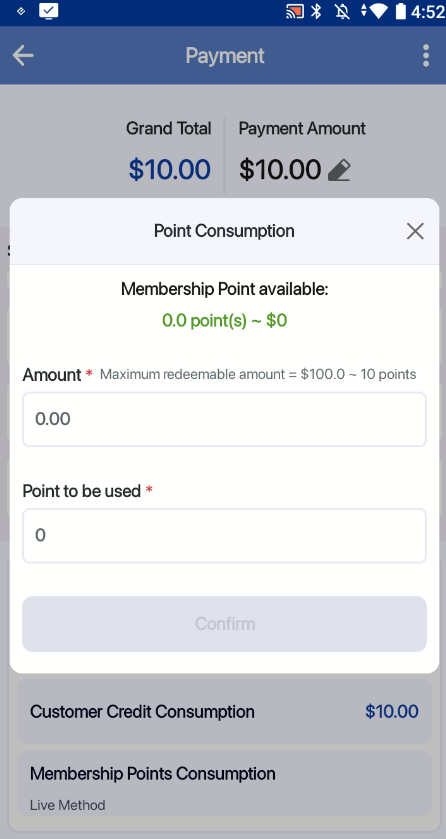
If user does not have sufficient points, the “Confirm” button will be greyed out.
Partial Payment
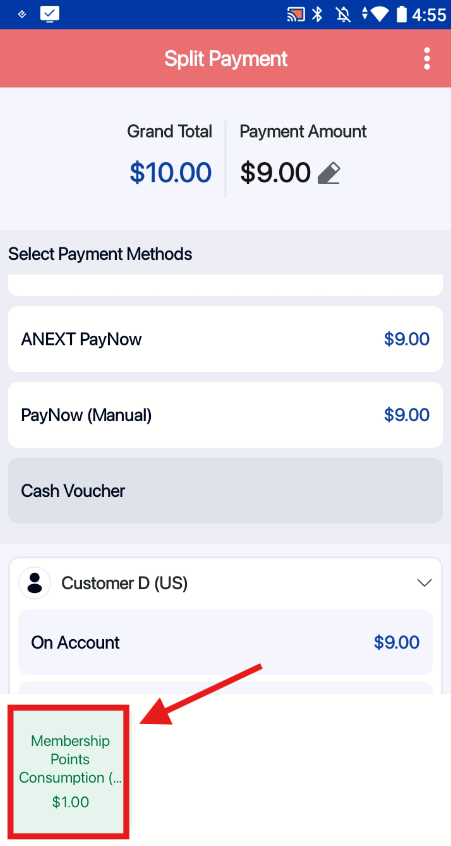
If the customer’s points can only pay partial amount. The user can proceed with the second payment method in Split Payment mode to complete the transaction.
Full Payment
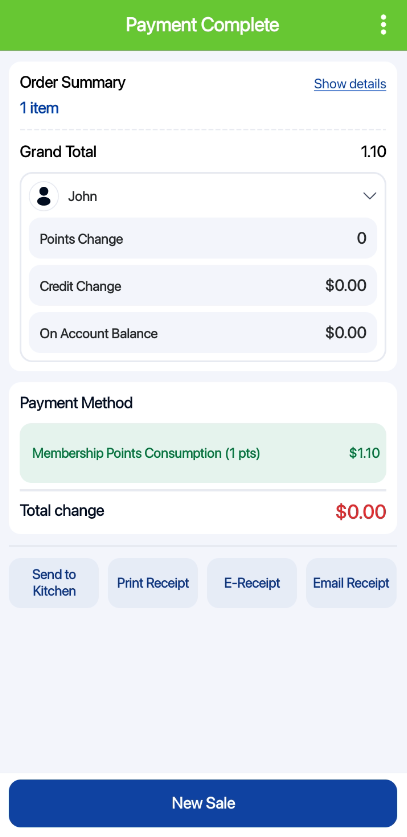
If the redeemed points cover the full amount, the transaction will be completed immediately.
NOTE:
- Partial points usage for points consumption can be configured in the backend portal.
- Membership Point payment method will only appear when a customer is tagged to the order.
- The amount to points ratio can be set on the backend portal.
