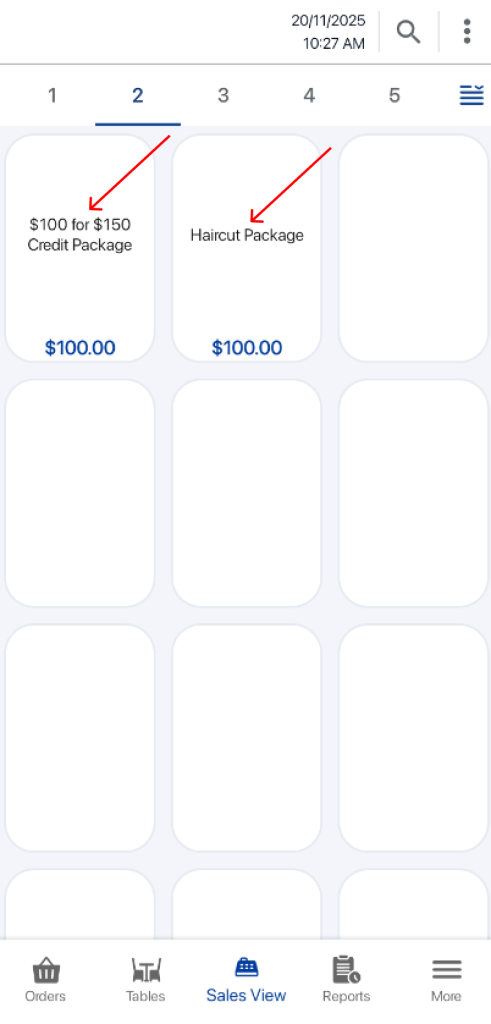
Users can select any package product listed in QuickPick to view its details and proceed with configuration.
To begin, tap on a package product to open the package details page.
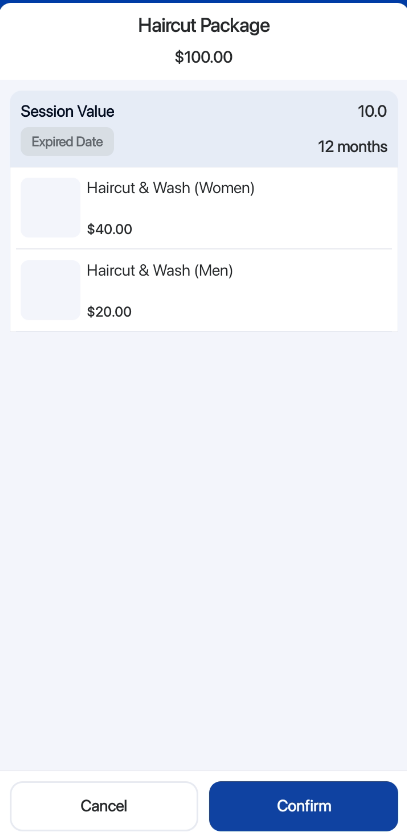
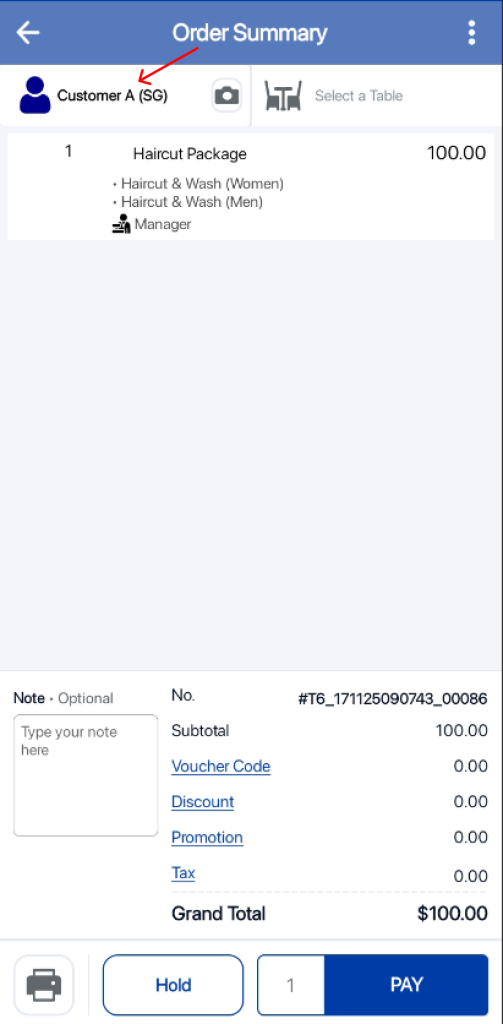
For package products, it is mandatory to tag a customer to the order before proceeding, as packages are tied to individual customer accounts.
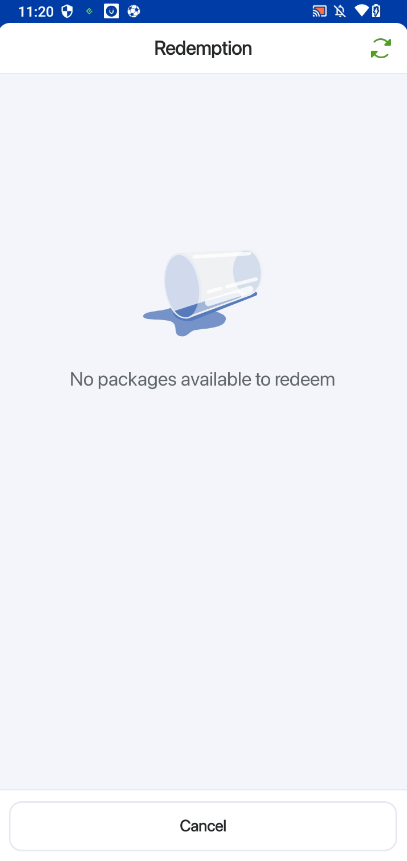
Customers who does not have any packages to redeem will be directed to a page informing them that they have no packages available to redeem.
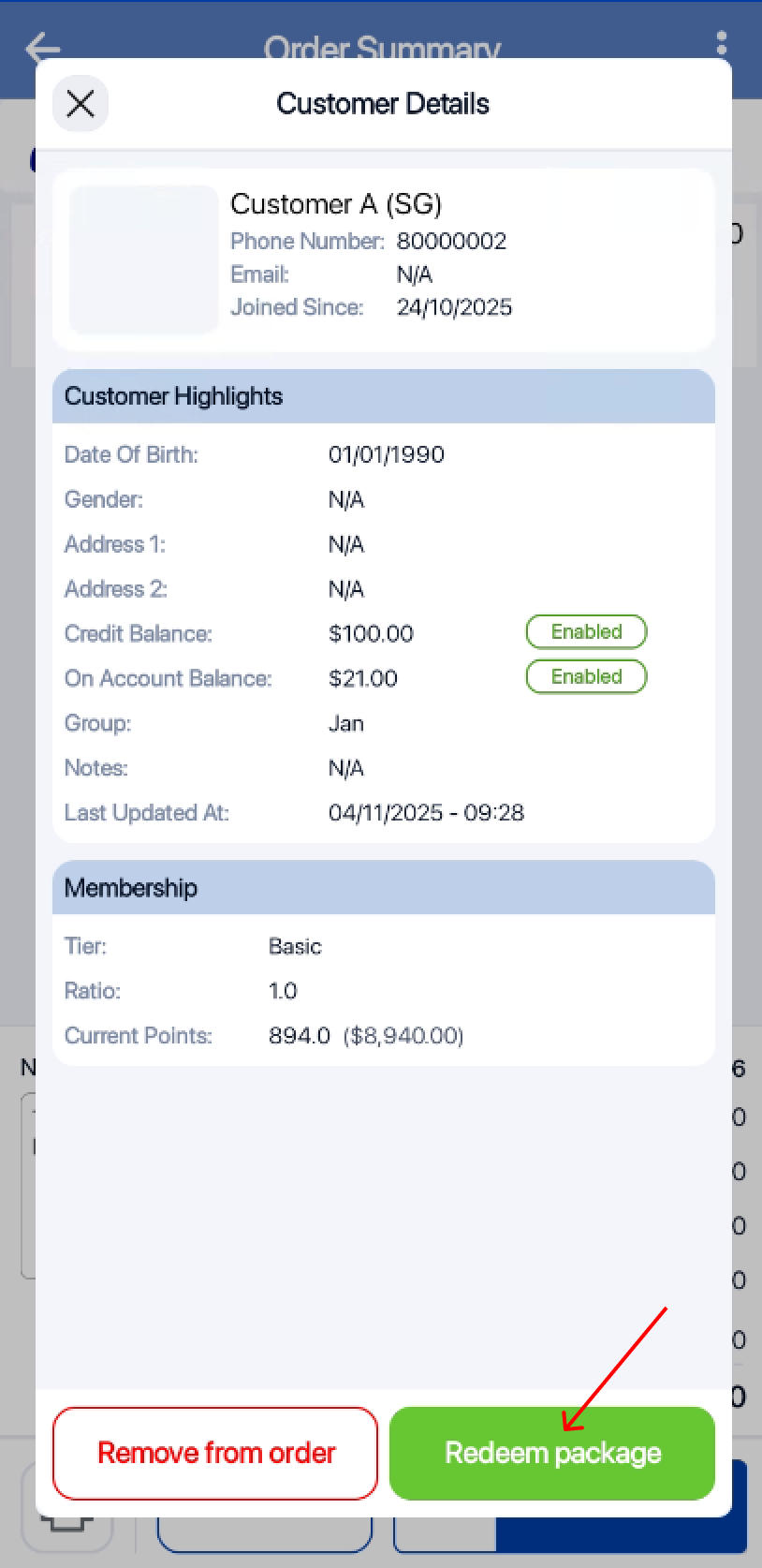
Users can redeem a customer’s package directly from the Customer Details page.
1. Select “Redeem Package”
From the Customer Details popup, tap on Redeem Package to view all packages associated with the customer.
2. Review and select packages
In the Customer Package Redemption page, users can:
- View all purchased packages
- View individual package details
- Print package details
- Cancel and return to Order Summary
- Confirm and redeem the selected package
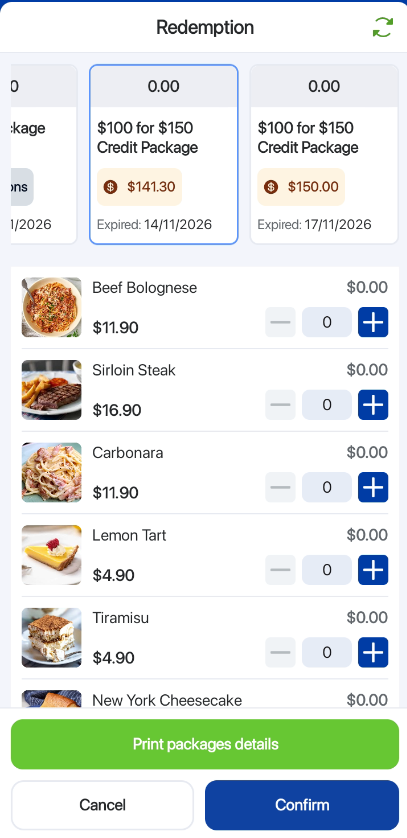
Note: Unavailable packages are greyed out and cannot be selected. Unavailable packages are packages that has been fully redeemed or expired.
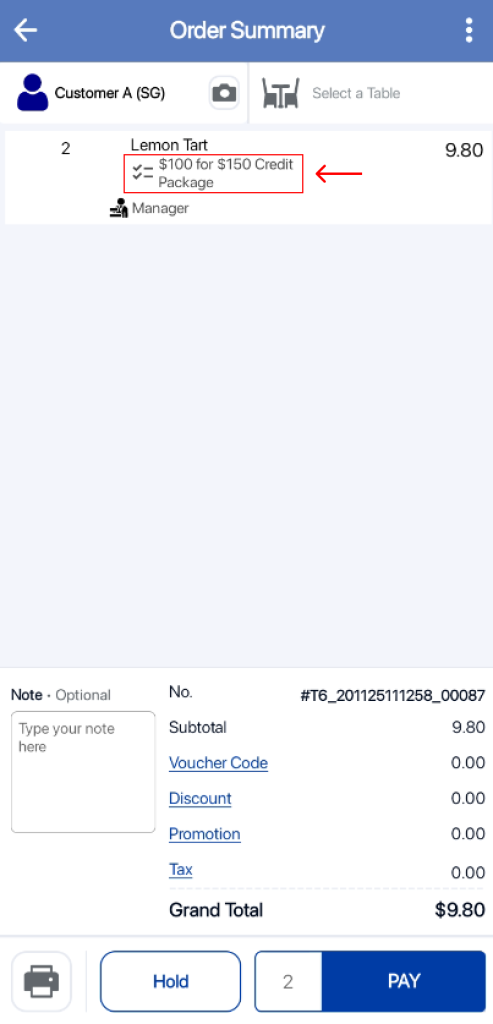
3. Selected package added to Order Summary
Once a package is selected, it will appear in the Order Summary page for review.
4. Proceed to redemption summary
After selecting the package and proceeding to payment, users will be taken to the Redemption Summary page. Here, they can verify the items from the package they want to redeem.
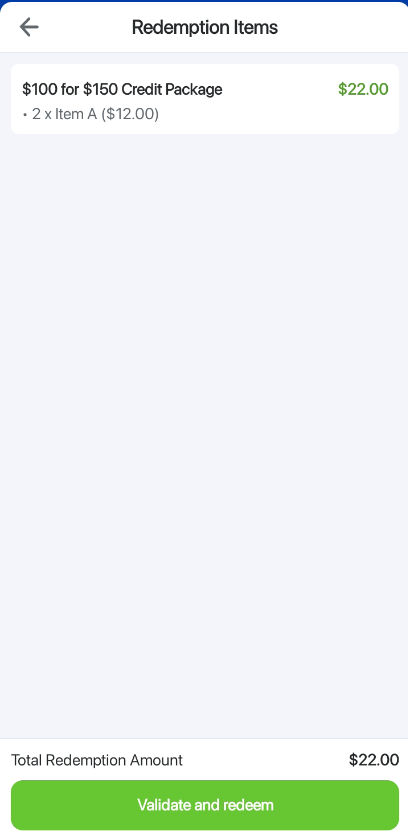
5. Validate redemption and complete payment
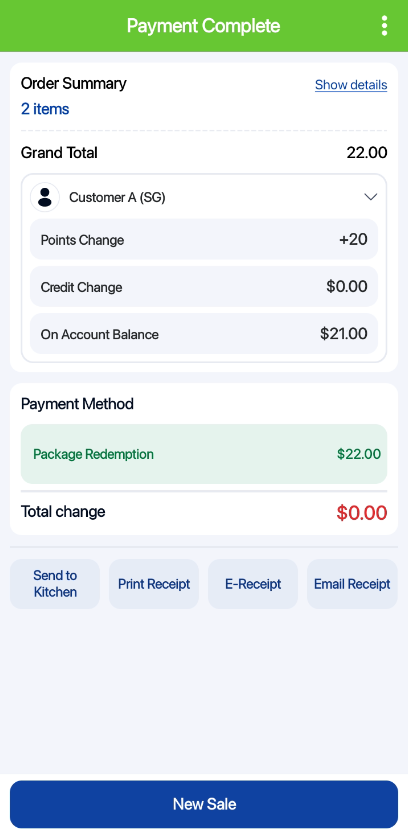
Once users validate and redeem the selected items, they will be redirected to the Payment Complete page — unless there is an outstanding amount to be paid.