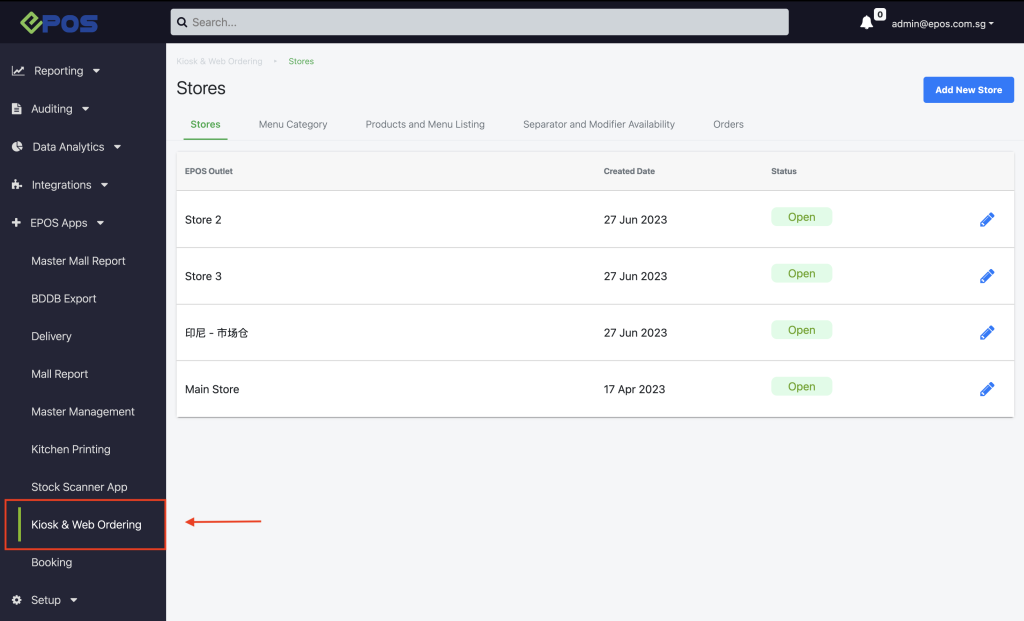
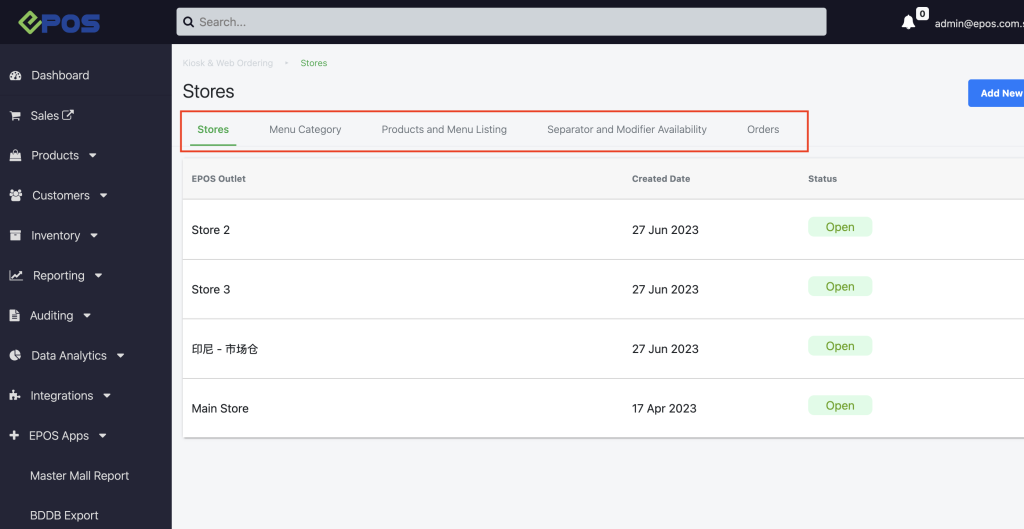
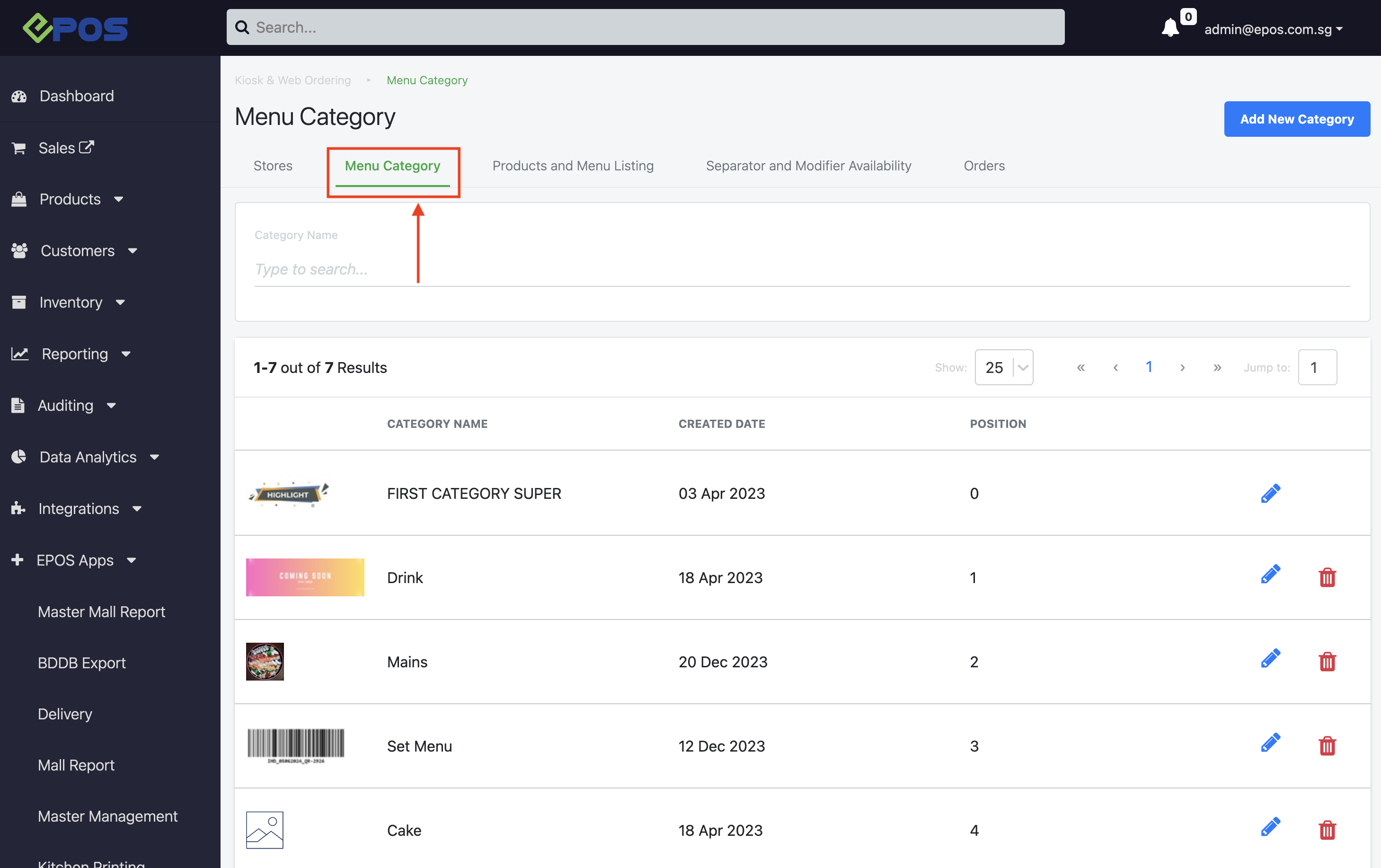
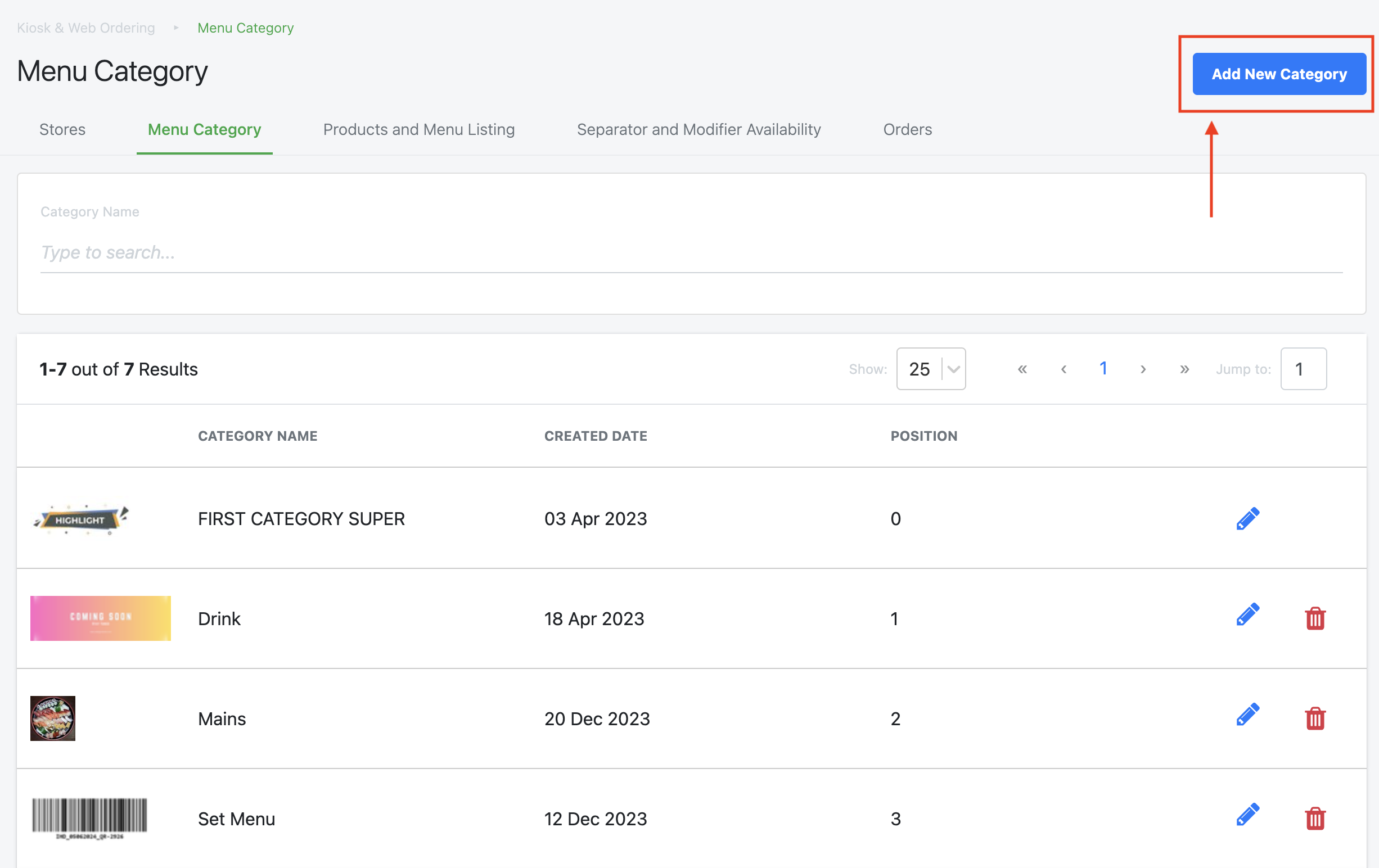
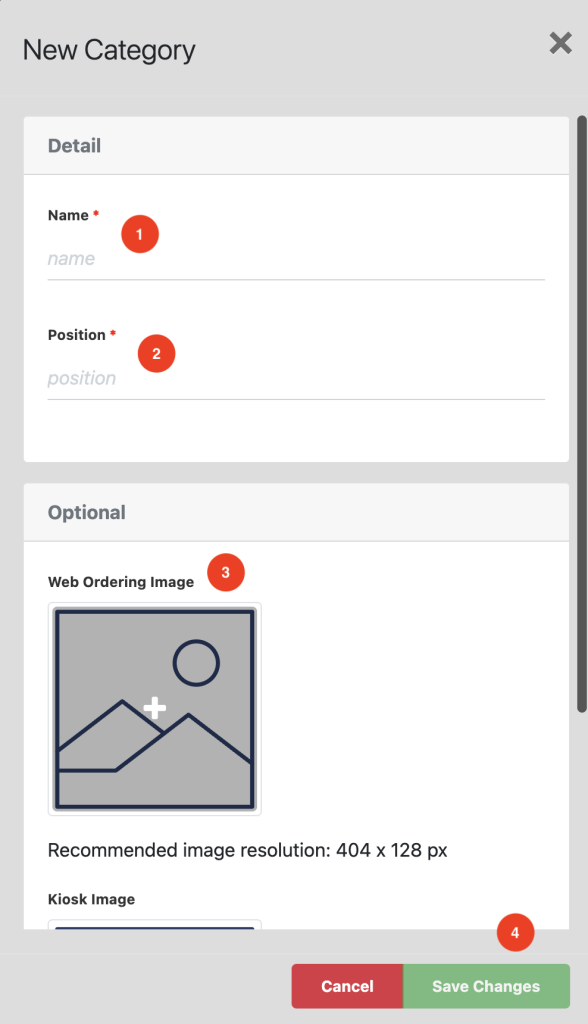
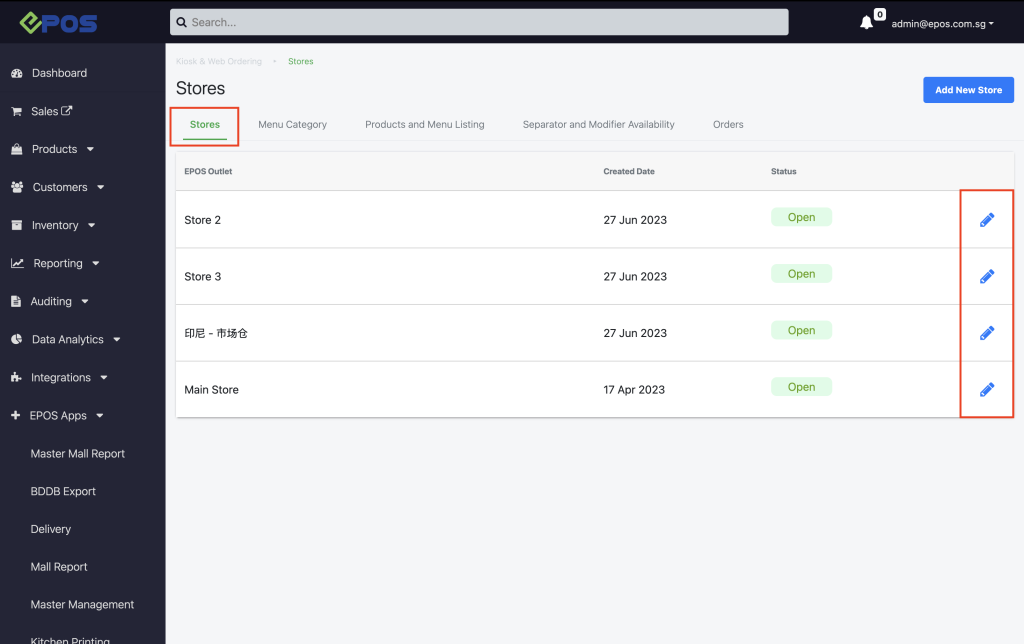
In order for the Web Ordering Store to be operational, users need to set up each store’s configurations. The Stores tab shows all the outlets currently linked to the Web Ordering App. To configure each outlet, click on the pencil icon as shown below.
Users will then be taken to the Store Configurations Page , as shown below.

1. Users can open or close the web ordering app using the toggle switch.
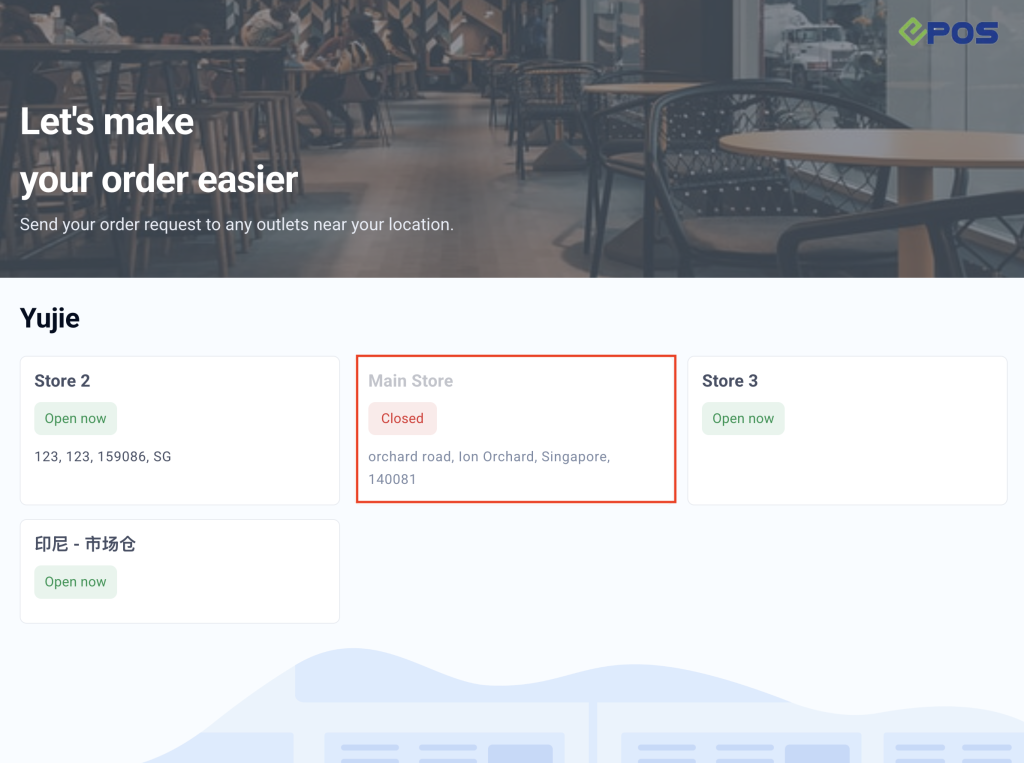
If the toggle switch displays “Closed” as such:
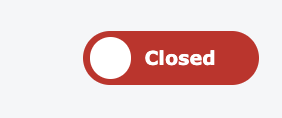
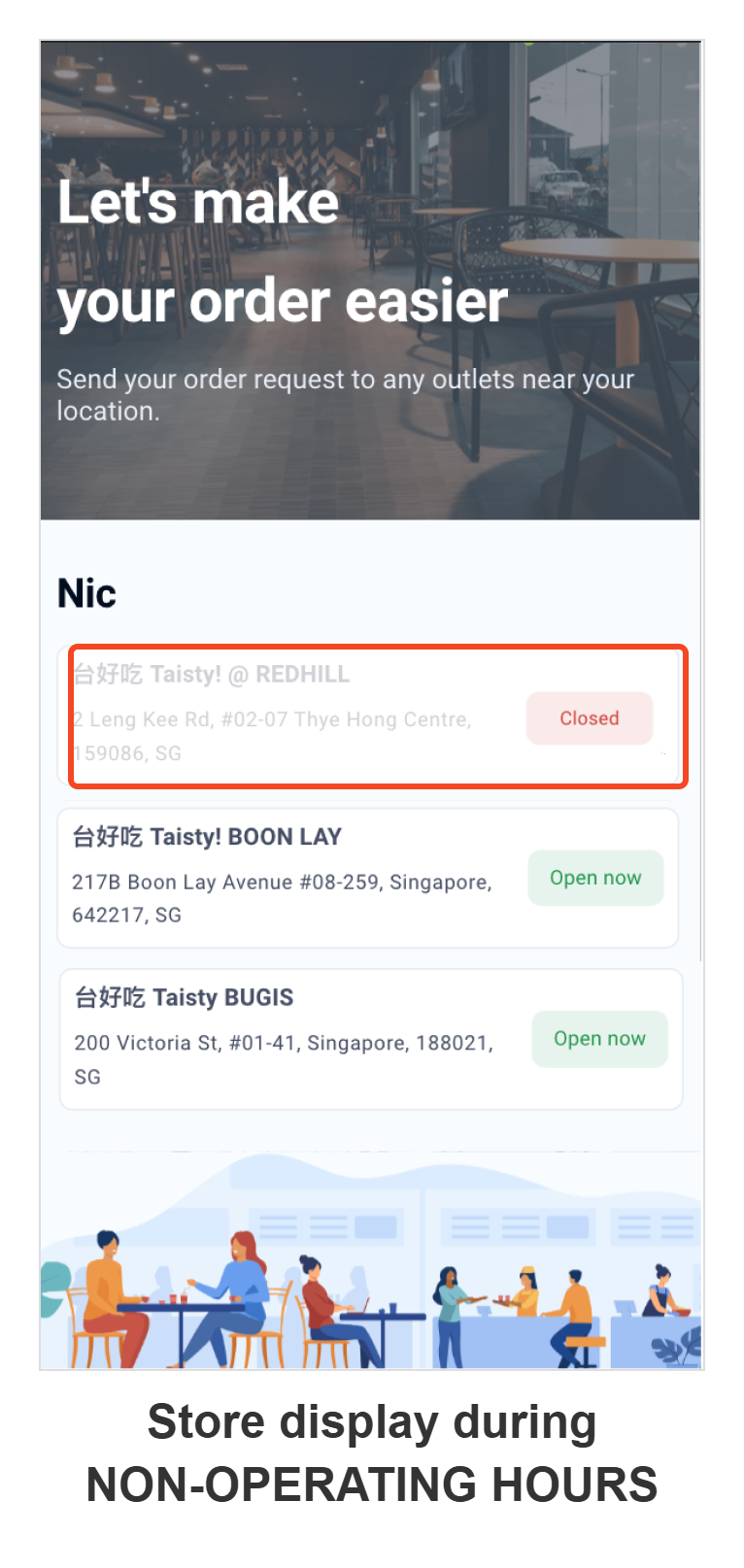
Customers would not be able to access the Web Ordering App for the specific outlet as highlighted below:
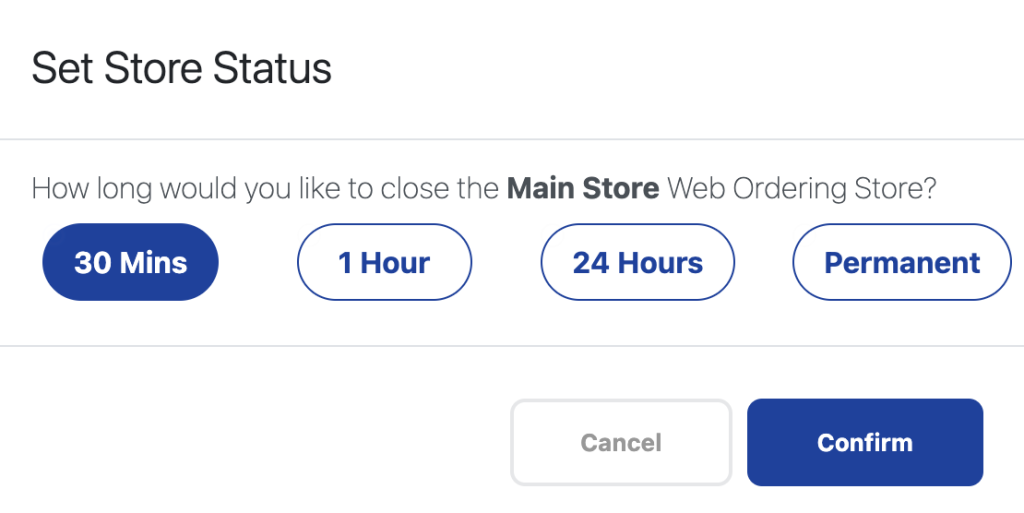
Note: To close the store, simply use the toggle switch. Once activated, a new window will appear where users can set the duration for how long the Web Ordering Store will be closed.
2. Displays the name of the outlet being configured, allowing users to confirm that the changes are being made to the correct outlet.
3. Allows users to set the operating hours for each day of an individual outlet. Users can configure up to 2 opening periods a day (e.g. 9am – 11am and 3pm – 11pm). If customers attempt to order outside of these hours, a “closed” message will appear on the Web Ordering App.
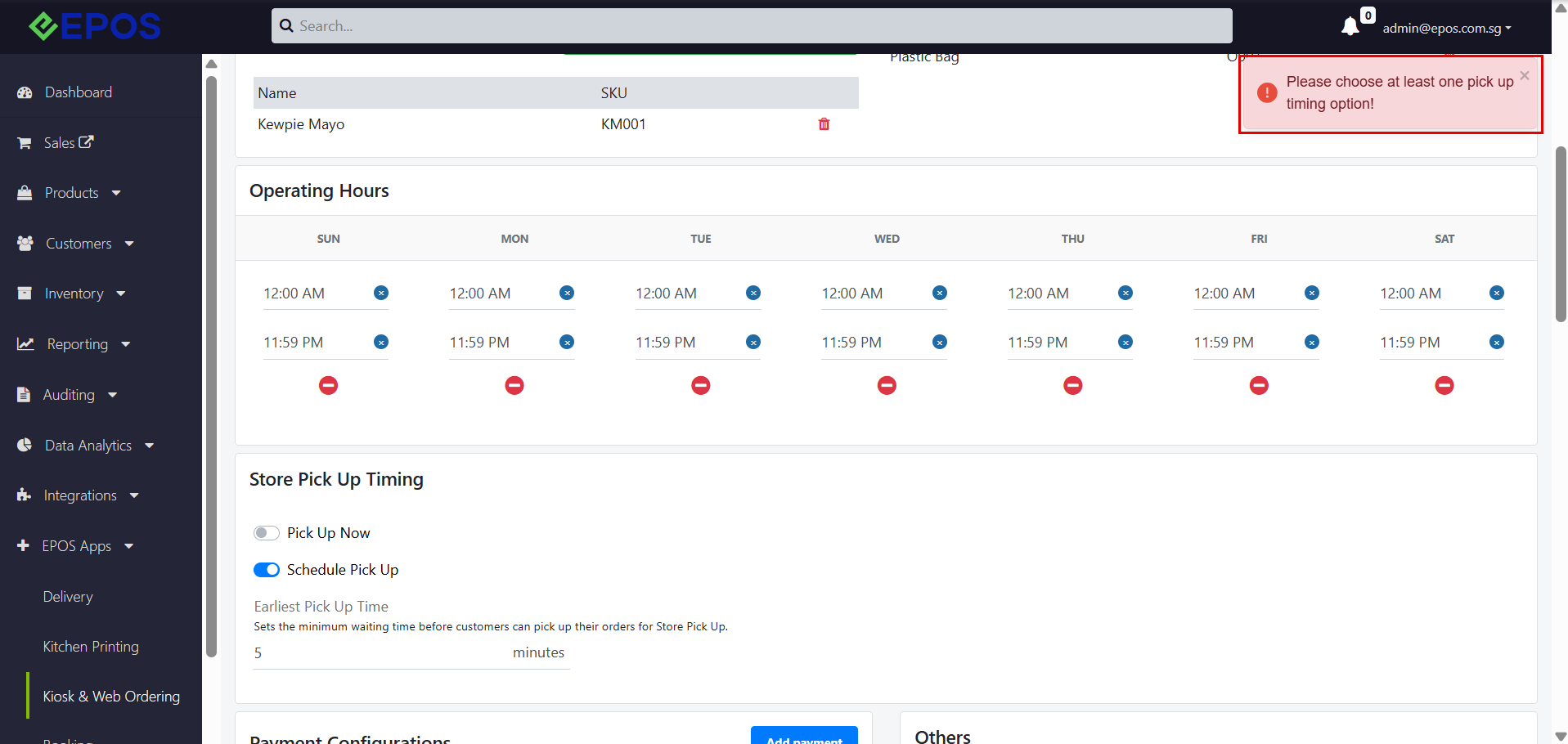
Store Pick Up Timing
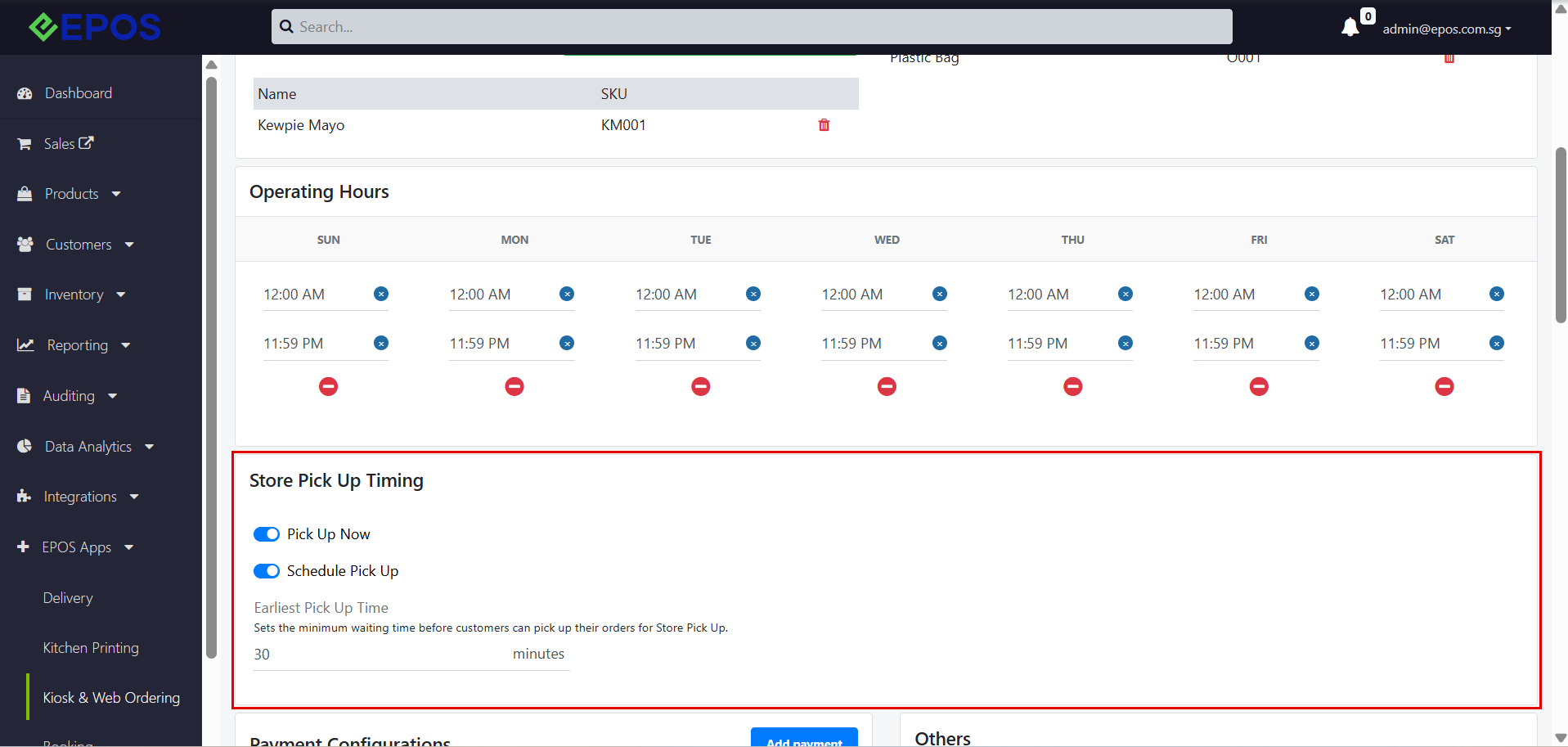
The Store Pick Up Timing section, located below Operating Hours, lets users set when customers can collect their Store Pickup orders at the outlet. Store Pickup orders are placed through the E-Store. These settings apply to each store individually.
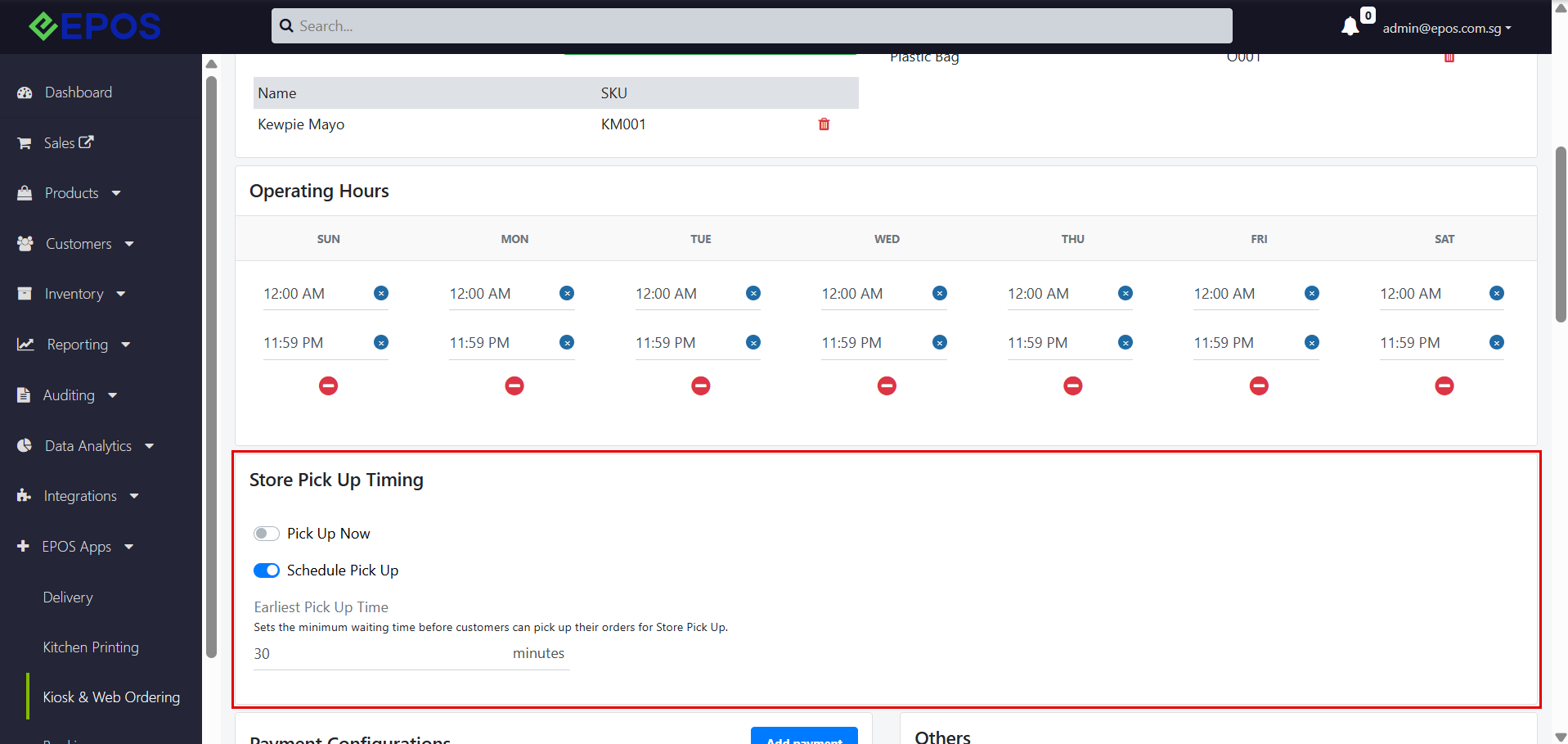
- Pick Up Now: When turned on, customers can choose to pick up their order now. This is turned off by default.
- Schedule Pick Up: When turned on, customers can schedule a pick-up date and time. This is turned on by default.
- Earliest Pick Up Time: Only shown when Schedule Pick Up is turned on. Sets the minimum waiting time (in minutes) before customers can pick up their orders for Store Pick Up. The default is 30 minutes, and the minimum is 1 minute.
Note: By default, Pick Up Now is turned off and Schedule Pick Up is turned on with an Earliest Pick Up Time of 30 minutes, so existing stores are not affected.
Users can turn on both Pick Up Now and Schedule Pick Up at the same time to offer both options to customers.
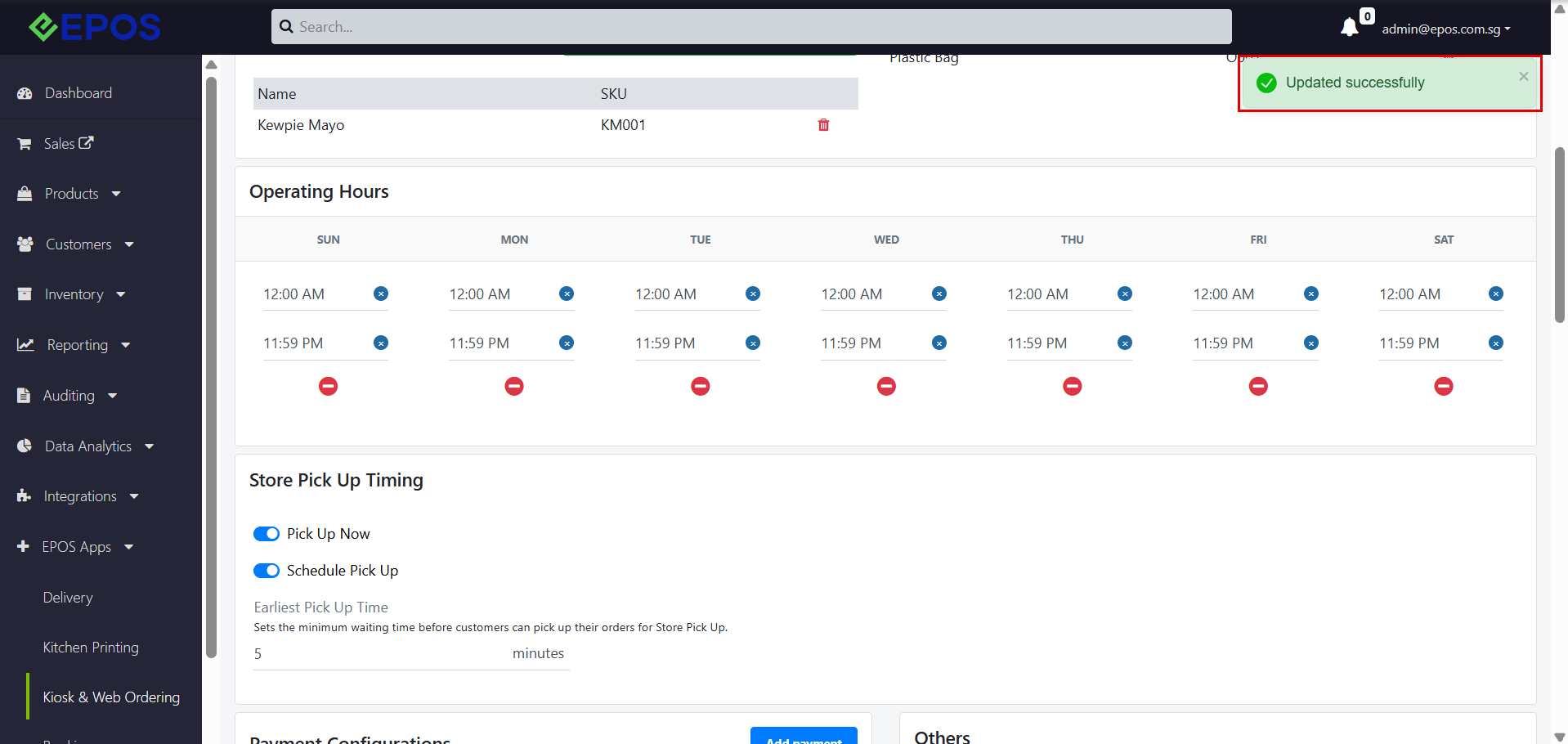
After configuring the store pick-up timing, click “Save Changes”. A message will appear at the top right of the screen to confirm that the changes have been saved: “Updated successfully”.
Note:
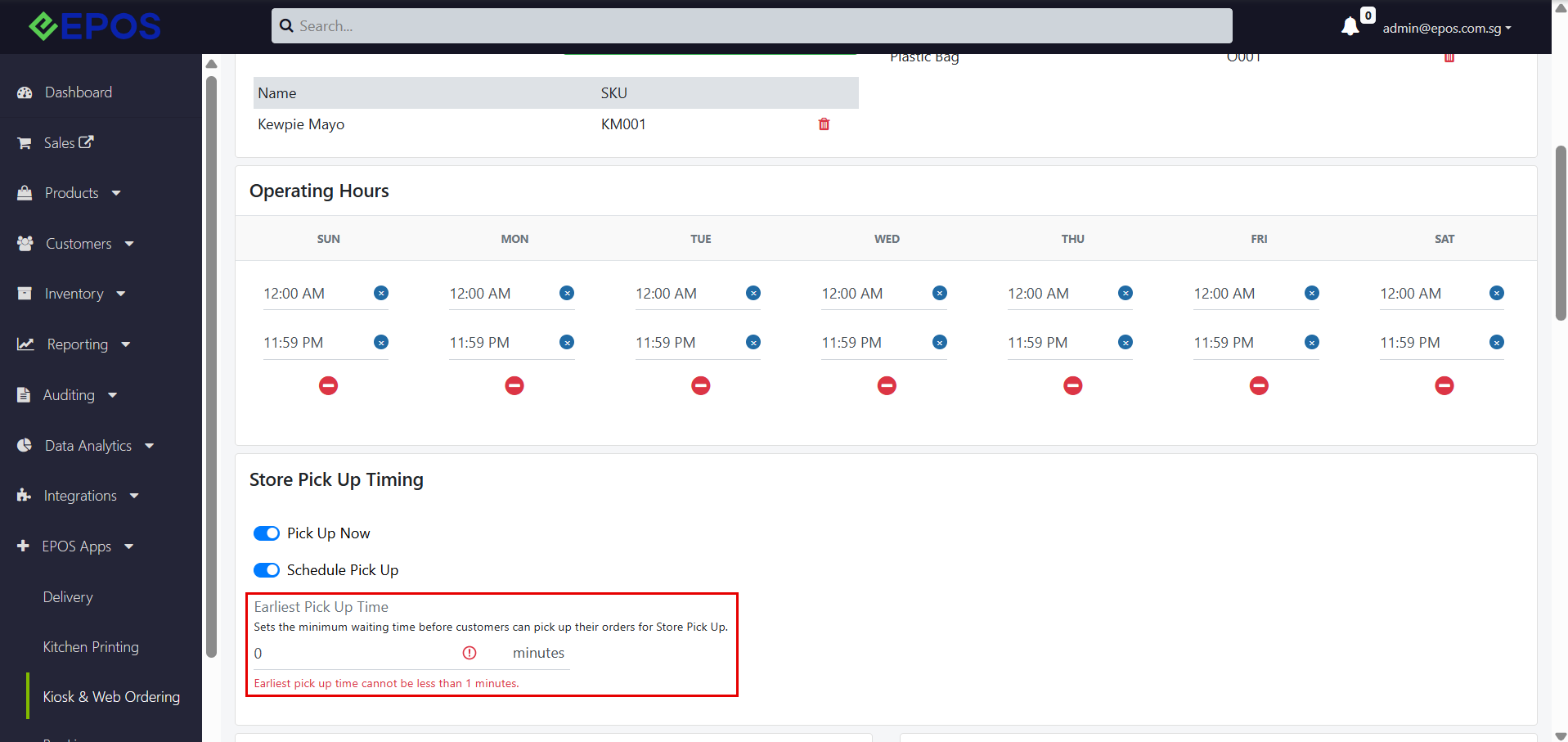
- If the Earliest Pick Up Time entered is less than 1 minute, an error message will appear below the input field: “Earliest pick up time cannot be less than 1 minutes.”
- If the input field is left empty, the placeholder text “Enter the pick up time” will be shown.
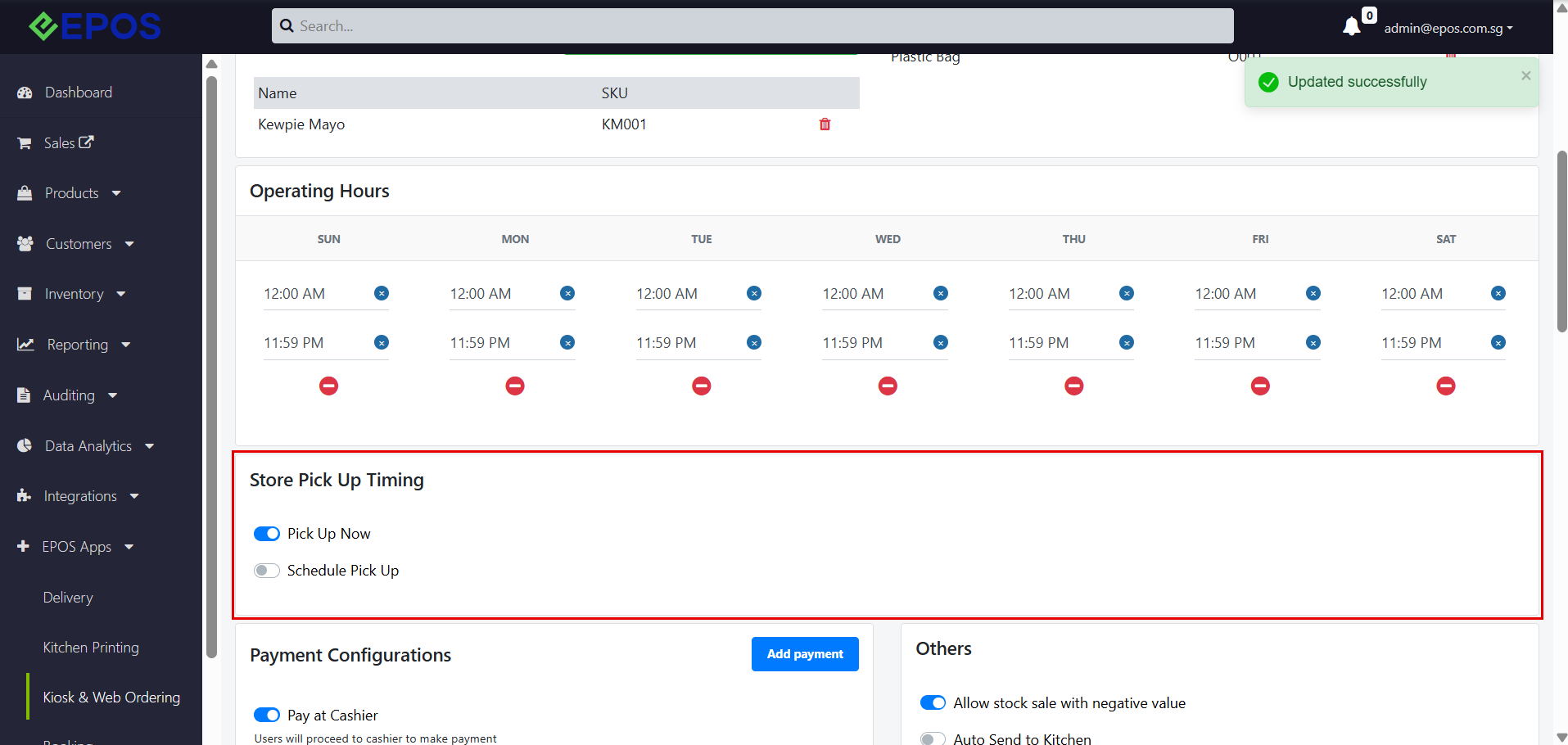
- If Schedule Pick Up is turned off, the Earliest Pick Up Time setting will be hidden. If Schedule Pick Up is turned on again, the previously entered Earliest Pick Up Time will be kept (e.g. if it was changed to 10 minutes, it will still be 10 minutes).
- At least one pick-up timing option must be turned on. If users try to turn off both Pick Up Now and Schedule Pick Up, an error message will appear: “Please choose at least one pick up timing option!”
To learn how these settings appear to customers, refer to E-Store/In-Store Pick Up.
4. (In-Store/QR Ordering only) When enabled, the web ordering site will offer customers the option to place orders and pay later at the cashier.
5. When turned on, customers can pay directly in the Web Ordering App using the payment methods set up.
Note: Payment methods must be added (see point 6) before In-App payments can be enabled.
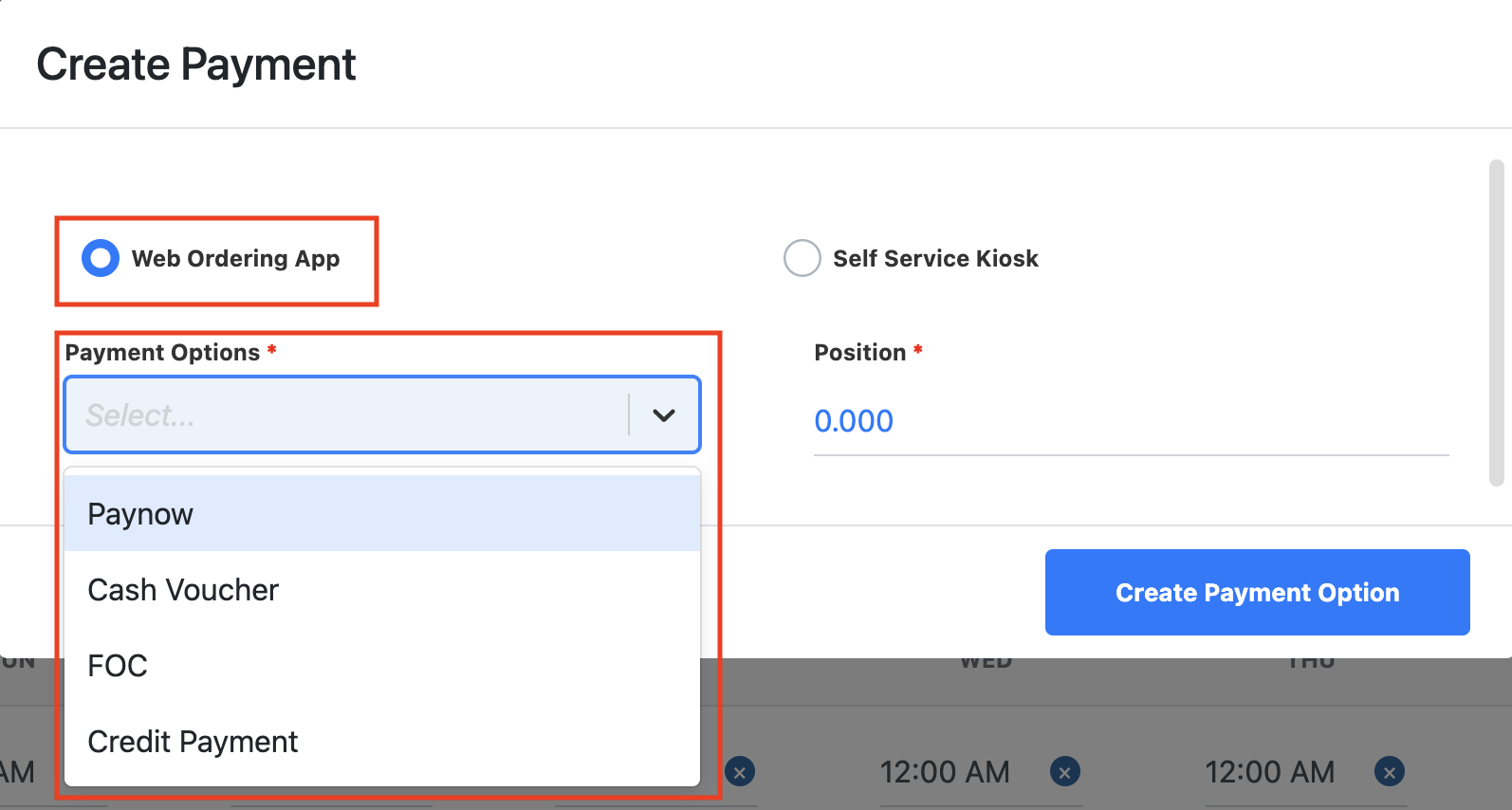
6. Users can manually add the different payment methods to the Web Ordering App.
Note: Clicking “Add Payment” redirects users to a new display. Afterwards, make sure to select the Web Ordering App and the desired payment method from the dropdown list.
For help setting up different payment options, please contact EPOS at 8482-1888.
Available methods include credit card, Google Pay, Apple Pay, and integrated PayNow.
Note: Some payment methods require separate onboarding and additional setup, such as UOB PayNow, EPOSPay Online Card Payments and PayPal. Please contact EPOS at 8482-1888 to set these up.
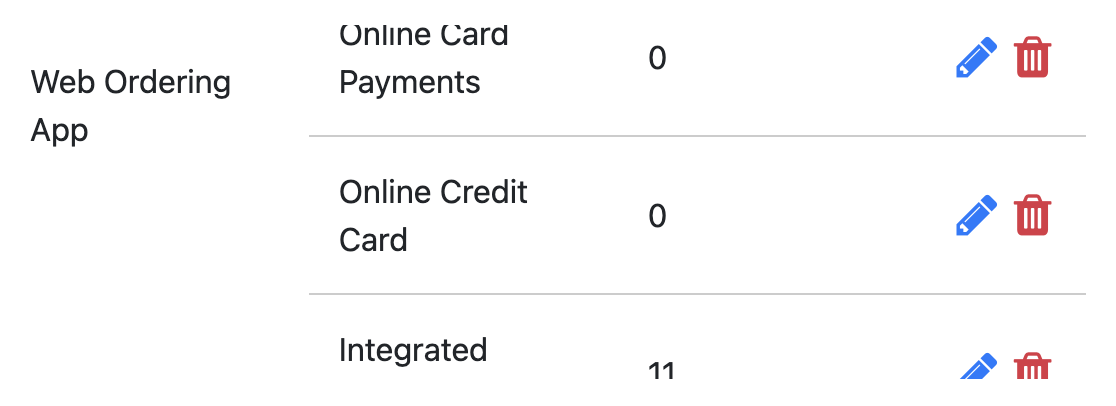
Note: After adding the desired payment method, users can view all available payment options in the section below. The pencil icon allows editing of payment configurations, while the trash can icon deletes them.
7. Negative Stock Sale controls whether products with negative inventory can be sold.
- ON: Products with negative (-) inventory can still be sold in the Web Ordering App.
- OFF: Products with negative (-) inventory cannot be sold in the Web Ordering App.
8. Send to Kitchen controls whether orders are fired to the kitchen printer automatically.
- ON: Orders that flow into the POS will automatically be fired to the kitchen printer.
- OFF: Orders will not be fired automatically. Staff have to retrieve or confirm the order at the POS and fire it to the kitchen printer manually.
9. Menu Preview Mode controls whether customers can place orders using the Web Ordering App.
- ON: Customers can only view the menu, so the QR code functions as an e-menu when scanned. Staff have to take orders manually from the POS.
- OFF: Customers can place their order after viewing the menu.
10. View Order Summary (In-Store/QR Ordering only) controls whether customers can view their order summary in the Web Ordering App.
- ON: Customers who order through the table QR code and choose to pay at the cashier can view their unpaid order summary by clicking the icon at the top right of the Web Ordering App. Once the order is paid, it is considered cleared and the order summary will disappear.
- OFF: Customers cannot view their order summary.
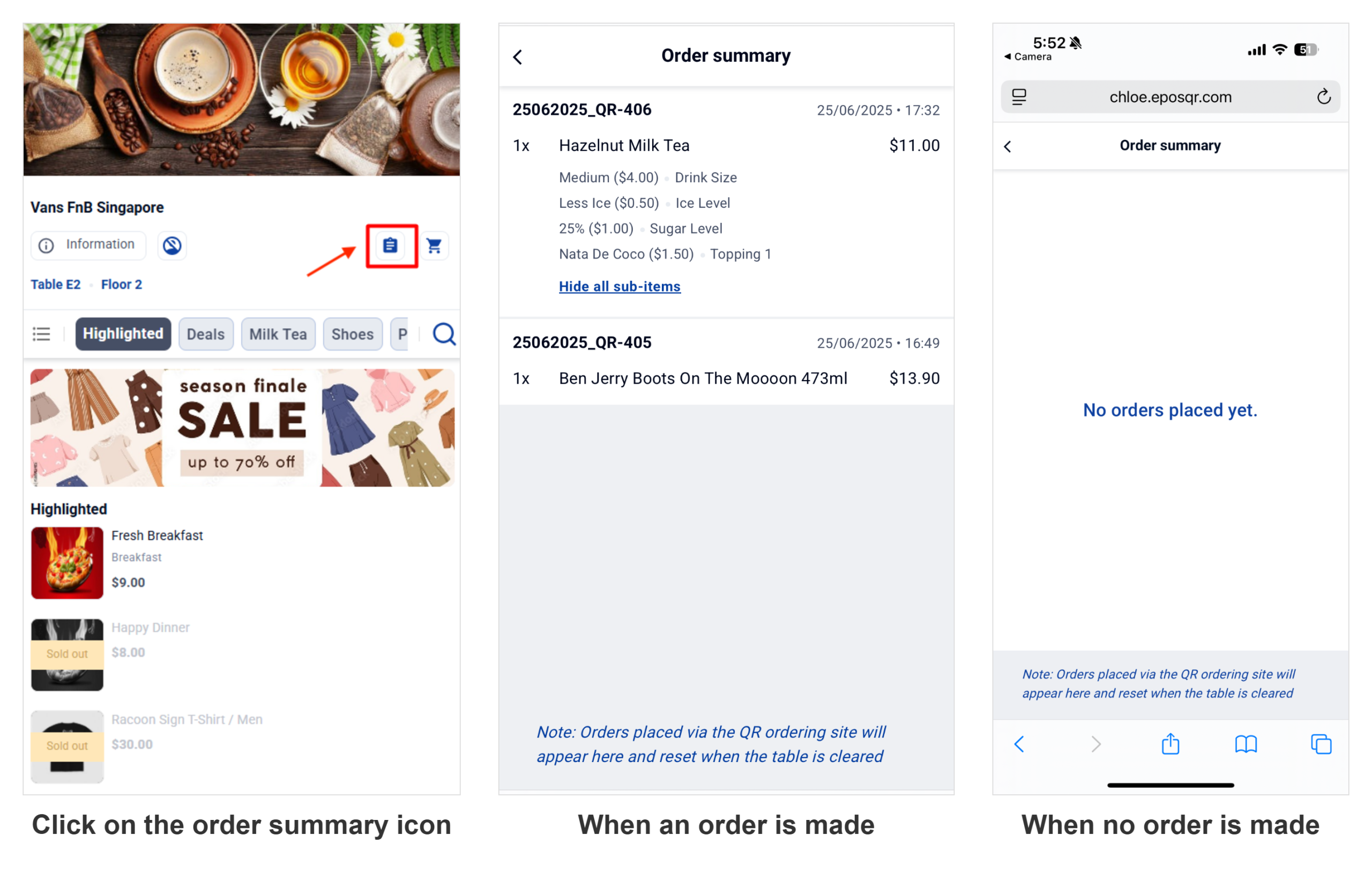
An order is considered cleared when:
- When the payment of the entire table is completed.
- When the order in the table are voided from the 3rd party in POS.
- When the cashier merges the bill from Table B into Table A (Table B is considered cleared).
- When cashier removes tagged table.
- When cashier reassigns the table.
- When the cashier clears the order.
11. Auto Merge Orders (In-Store/QR Ordering only) combines orders from the same table or customer for payment.
- ON: Orders from the same table or customer will be automatically combined for payment.
- OFF: Orders from the same table or customer need to be merged manually by the cashier at the POS.
12. Hide products during unavailable selling times
- ON: Products will be hidden from the Web Ordering App outside of their set selling hours.
- OFF: Products will be visible in the Web Ordering App at all times, although customers will not be able to select them outside of their selling hours.
As you scroll down, additional features for the web app include the following:

13. Upload the image here to display it on the Web Ordering App banner.
14. The image uploaded here will be automatically displayed for any products or product categories in the backend that don’t have an image set.
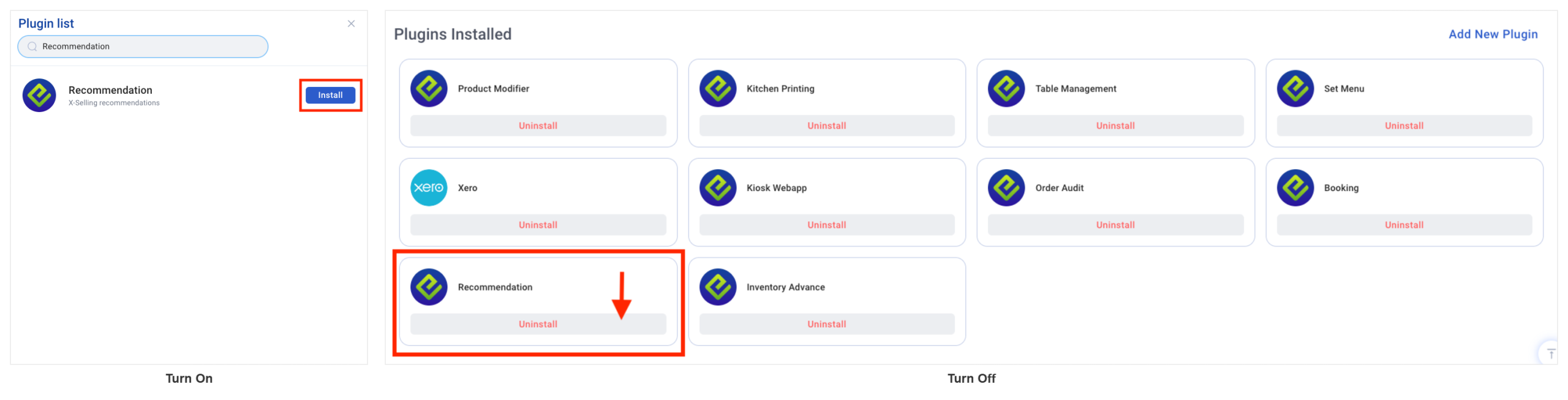
15. AI Recommendation recommends products at the cart view based on the items in the customer’s cart. This feature requires separate onboarding. To turn it on or off, install or uninstall the “Recommendations” plugin in the business’s plugins section.
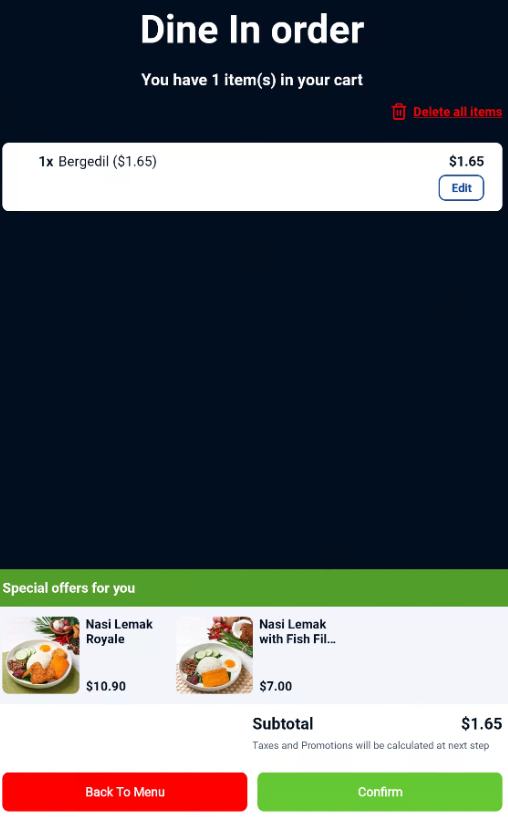
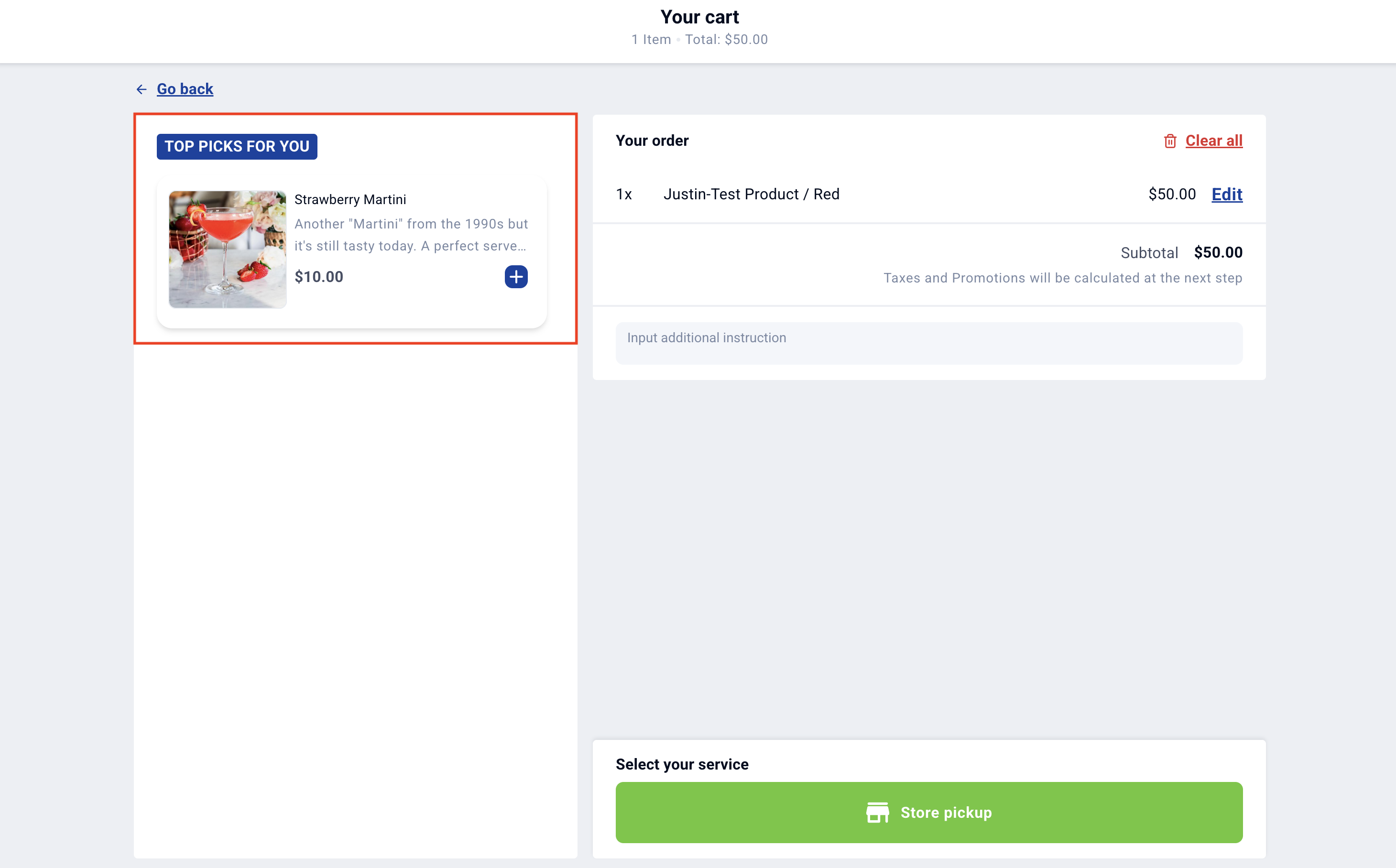
16. Manual Recommendation shows the products added here as recommendations at the cart view, regardless of the items in the customer’s cart, as highlighted in the image below.
Note: Click the “Add Product Variants” button to choose which products to add.
The last section of the store configuration is the promotion display feature.

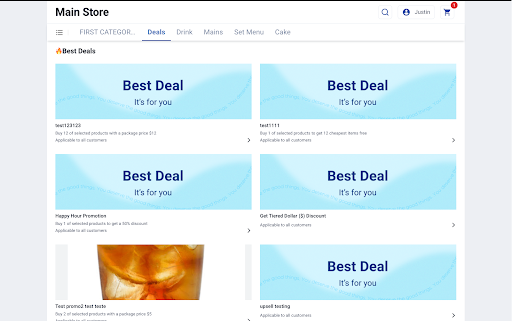
17. In this section, users can manually add existing promotions to appear under the “Best Deals” section in the Web Ordering App, as shown below. Promotions appear in the first section of the Web Ordering App under their own category, and only promotions that are currently active, based on their set timings, will be shown.
Note: Users can set up promotions under the Products tab in the backend, to learn more about setting up promotions click here.
18. Price Book Configuration
Navigate to Kiosk & Web Ordering > Stores > Click on the pencil icon beside the corresponding outlet that is being set up > Scroll down to Pricing Strategy
From the dropdown menu, select ‘Apply Price Book Price’. Users will then be able to add price books directly. If an item is in more than 1 price book added, users can select the price book priority to change the item price. The default selection will be “Apply The Highest Price”. Only price books that are applicable to the store configuration will appear when adding price books.
 Users are able to select which price books to add directly by clicking ‘Add Price Books’.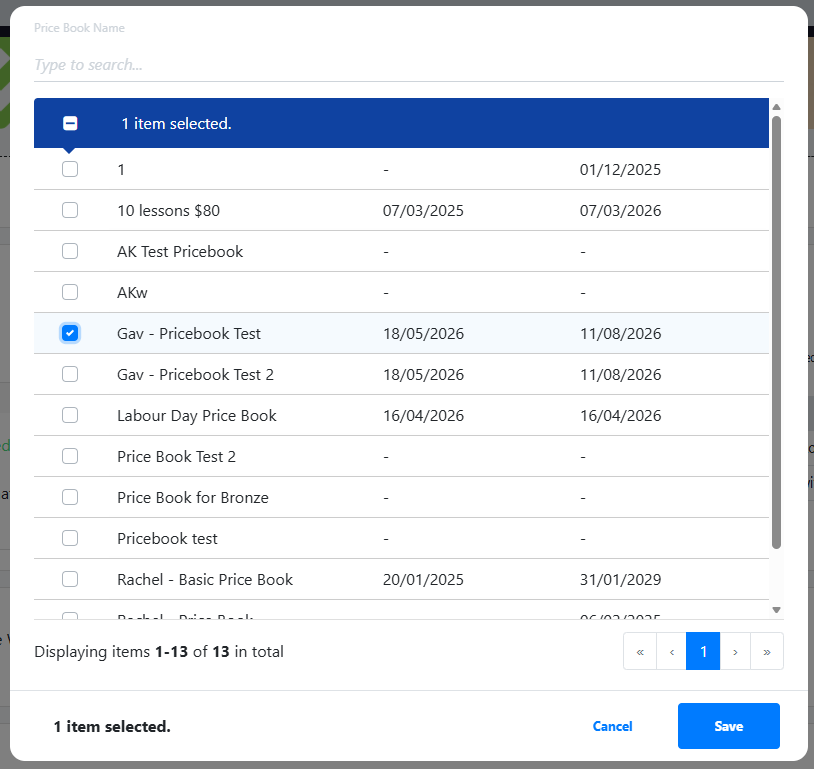
Once saved, users will be able to see which price books are added as shown below. Information such as start and end date, as well as its status is displayed. Users will also be able to delete the price book by clicking the bin icon on the right. To edit a price book’s Start Date and End Date (which changes its status), go to Product > Price Books > Edit Price Book. Please refer below for price book application in both kiosk and web ordering.
Summary of price book scenarios:
| No. |
Scenario |
Result |
| 1 |
No price book applies to the product |
Price remains the same |
| 2 |
1 price book applies to the product and the customer is eligible |
The price book price is applied and displayed |
| 3 |
Multiple price books apply to the product |
The highest or lowest price is displayed, based on the Price Book Priority |
| 4 |
Price book is outside its effective date range |
Price remains the same |
| 5 |
Price book for a recommendation product |
The pricing change is also applied to recommendations |
| 6 |
Voucher applied while price book pricing is applied |
The voucher can still be applied |
| 7 |
Price book operation is changed |
The new operation is reflected in the price |
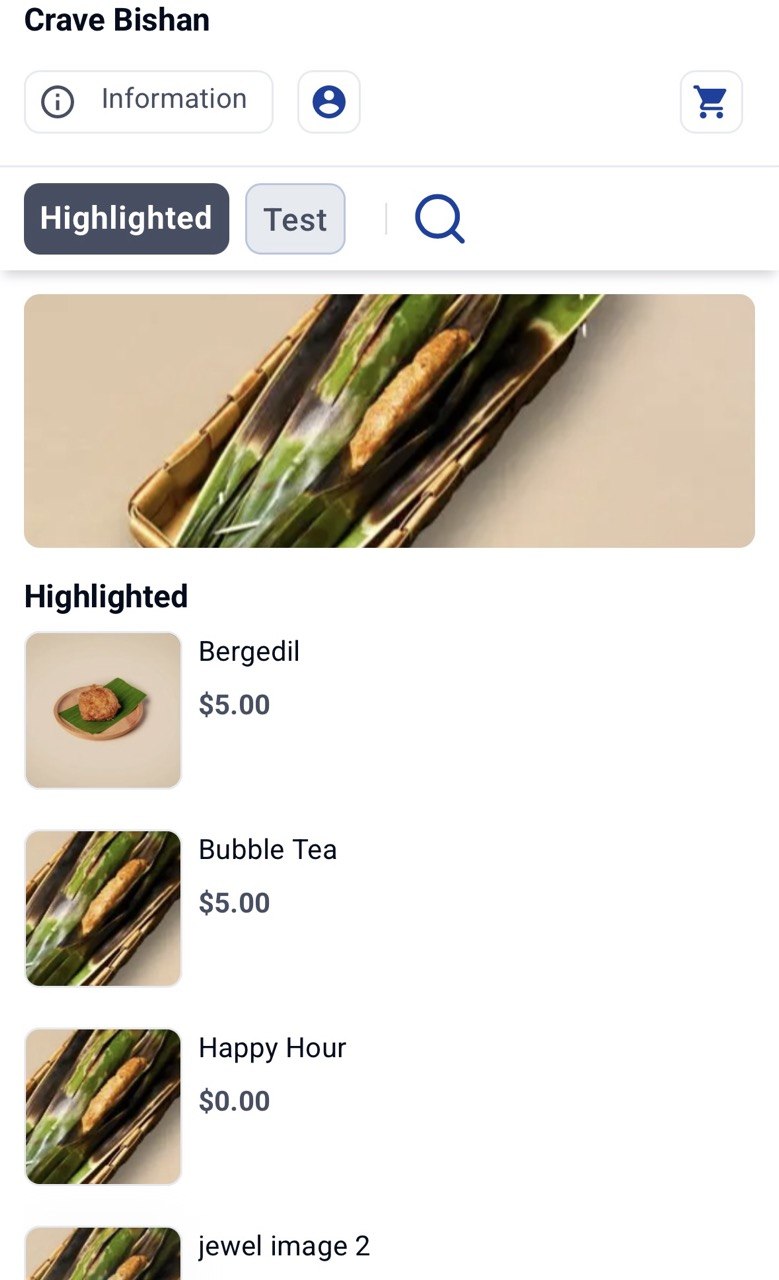
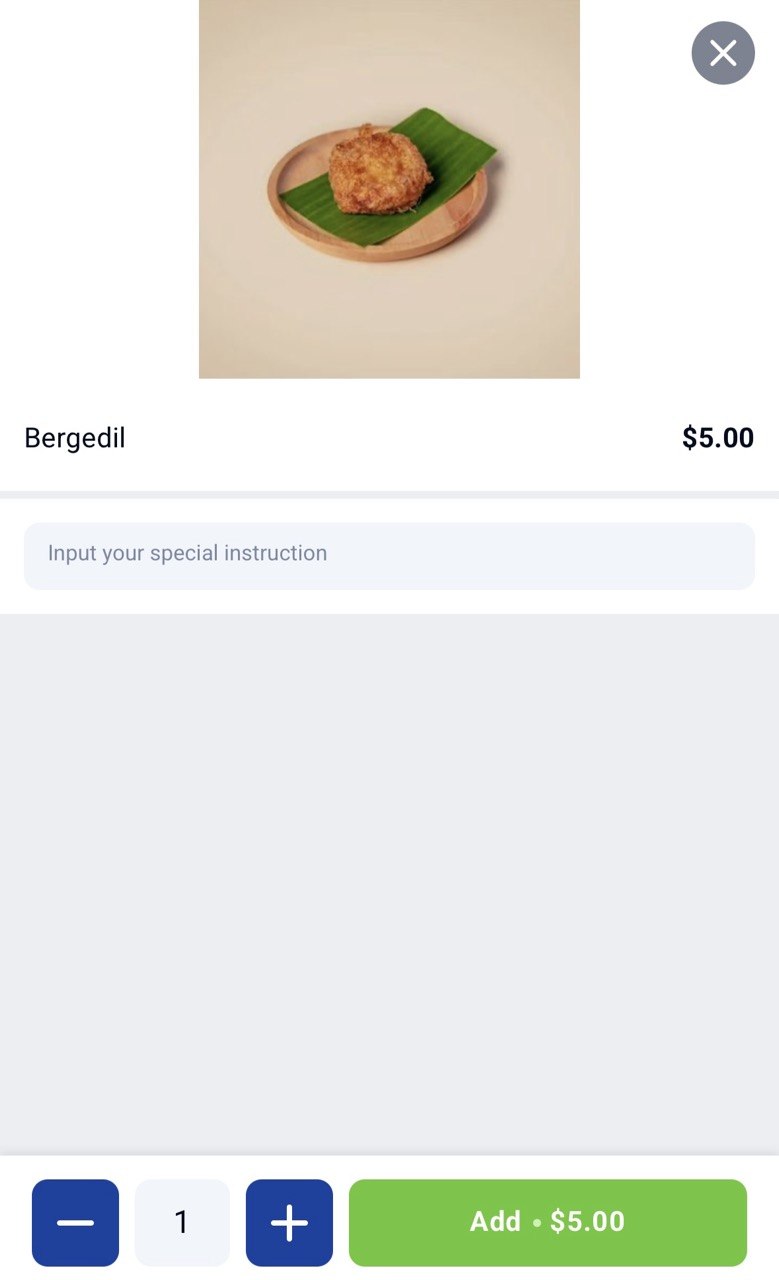
No price book applies to product
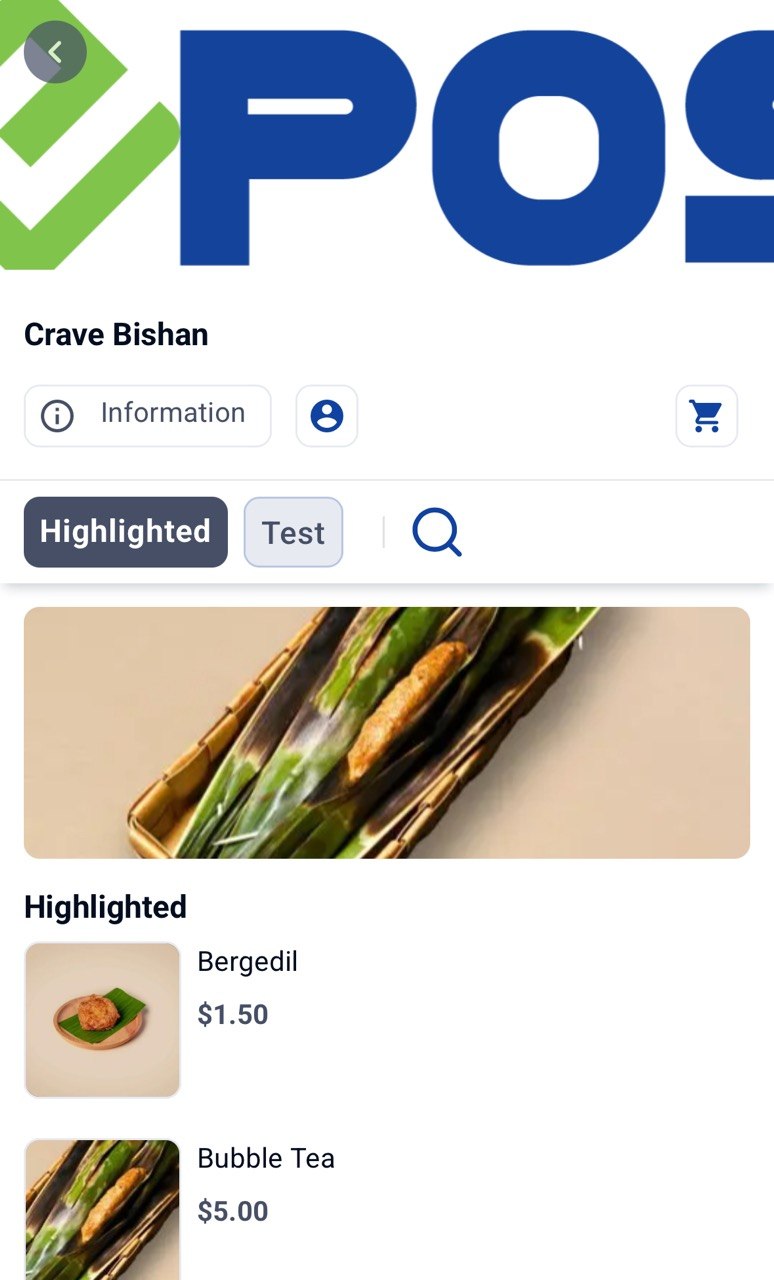
The base price is applied and displayed in Kiosk & Web Ordering. In this case, the standard price for Bergedil is $1.50.
Price book applies to product
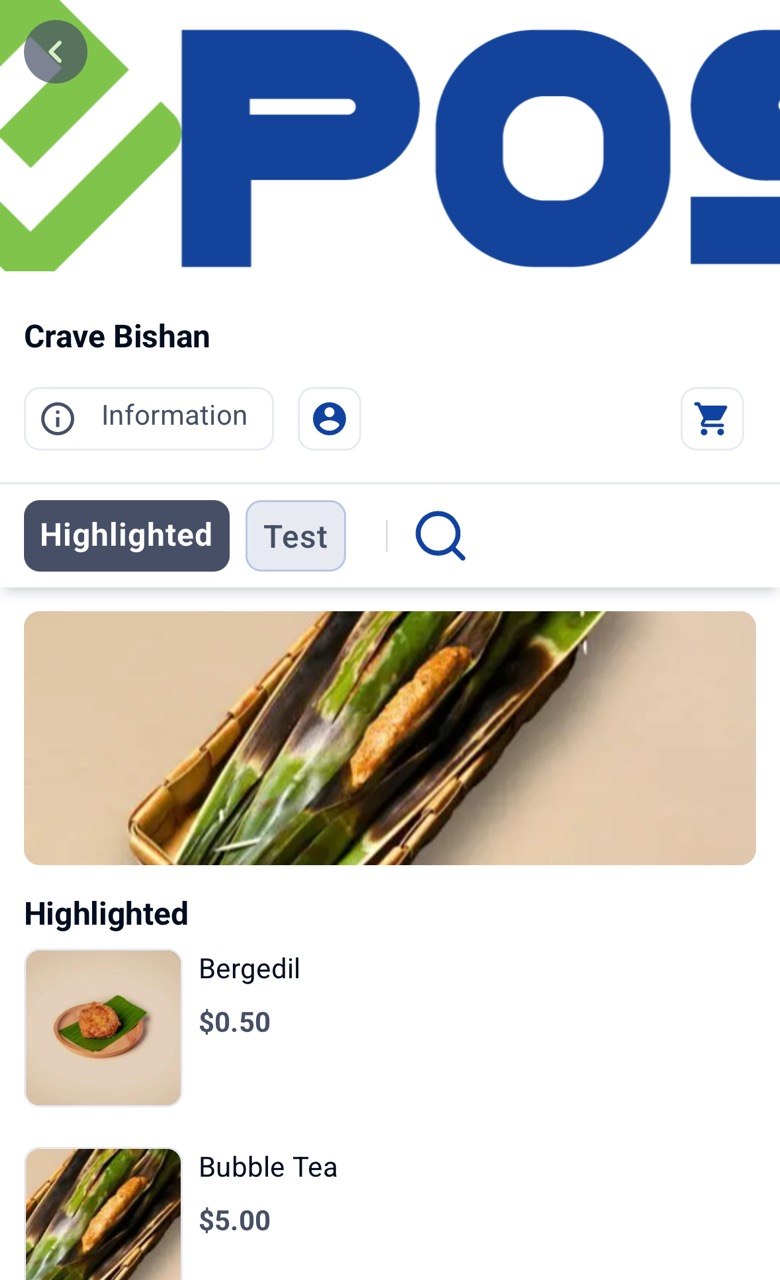
If 1 price book is applied, the product will be replaced with the new price. In this case, under the price book, the Bergedil has a price of $0.50.
The new price of the bergedil is reflected as $0.50.
Multiple price book applies to product
If there are multiple price book that applies to the product, the new price will be configured based on the price book priority. By default, the priority is the highest price.
In this case, Price Book 1 Bergedil = $0.50
Price Book 2 Bergedil = $10
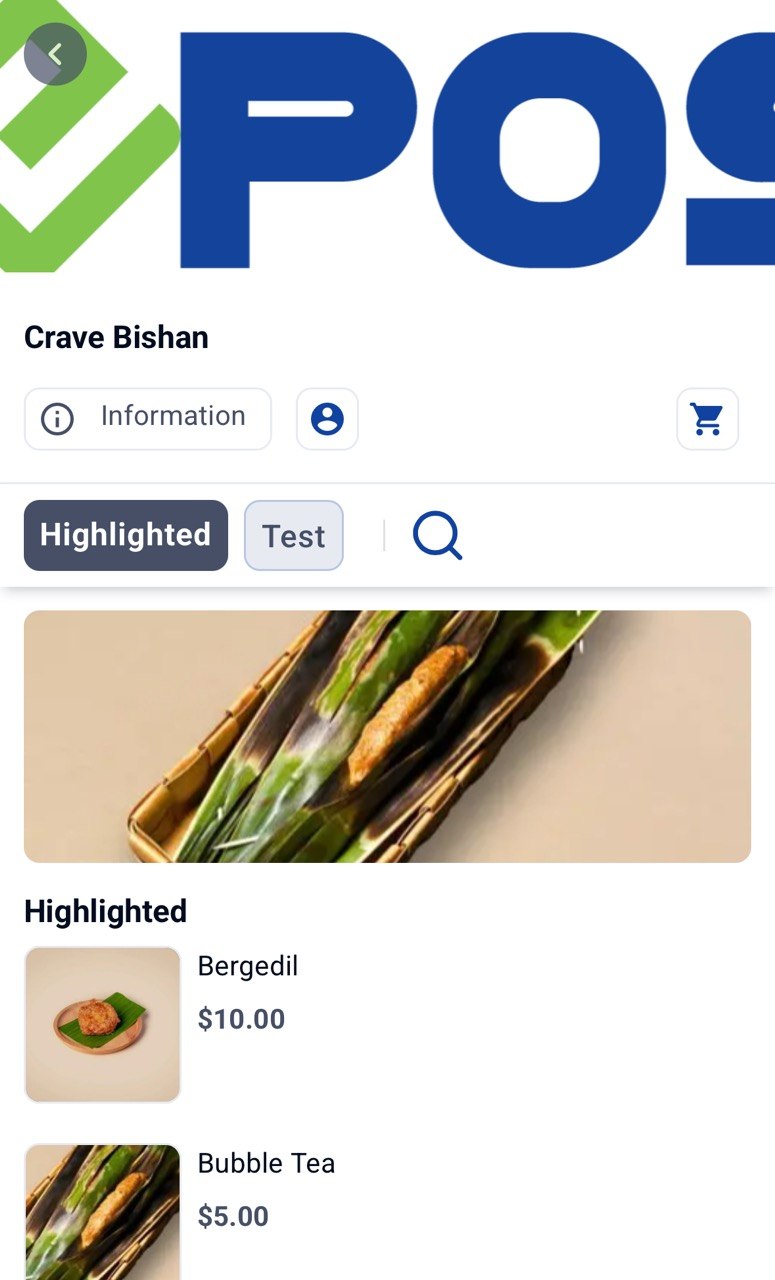
Both price books are added and the priority selected is Highest Price. Since Highest Price priority is selected, the new Bergedil price is $10.


Lowest Price Example
Both price books are added and the priority selected is Lowest Price. If Lowest Price priority is selected, the new Bergedil price is $0.50.
Price Book outside of effective date range
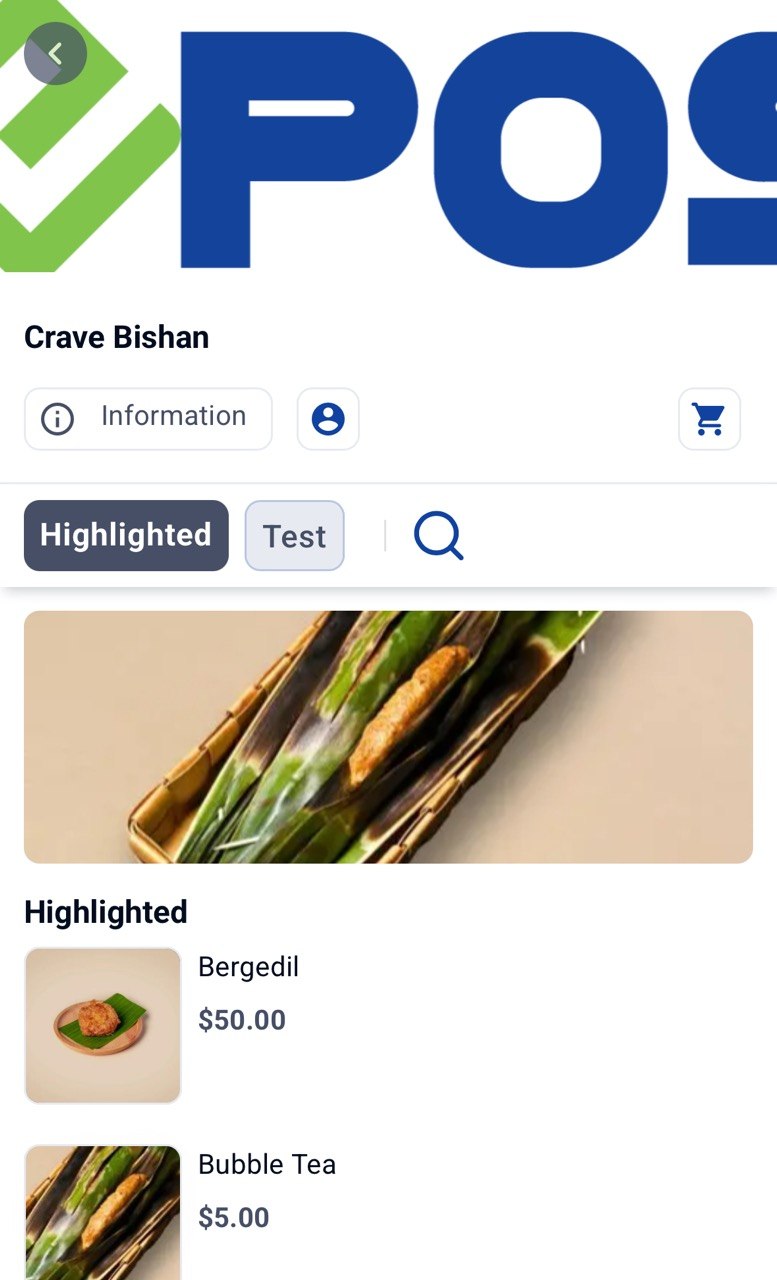
If the price book is outside its effective date range, the pricing from the price book will not have any effect. For example, there is a Vesak Day Price book that has a new Bergedil price of $50.

If the date is outside the price book’s effective date range, the standard price will apply.
However, if it is within the effective date range, the new price of $50 will apply.
Selected customer applicable to price book
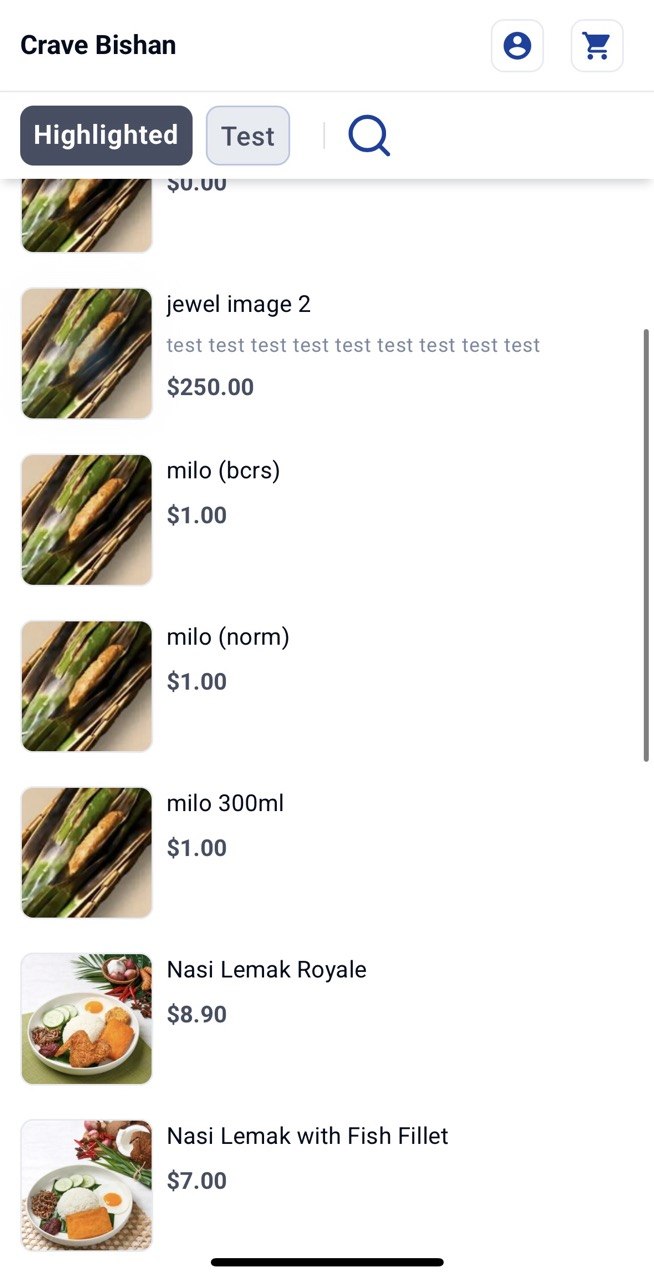
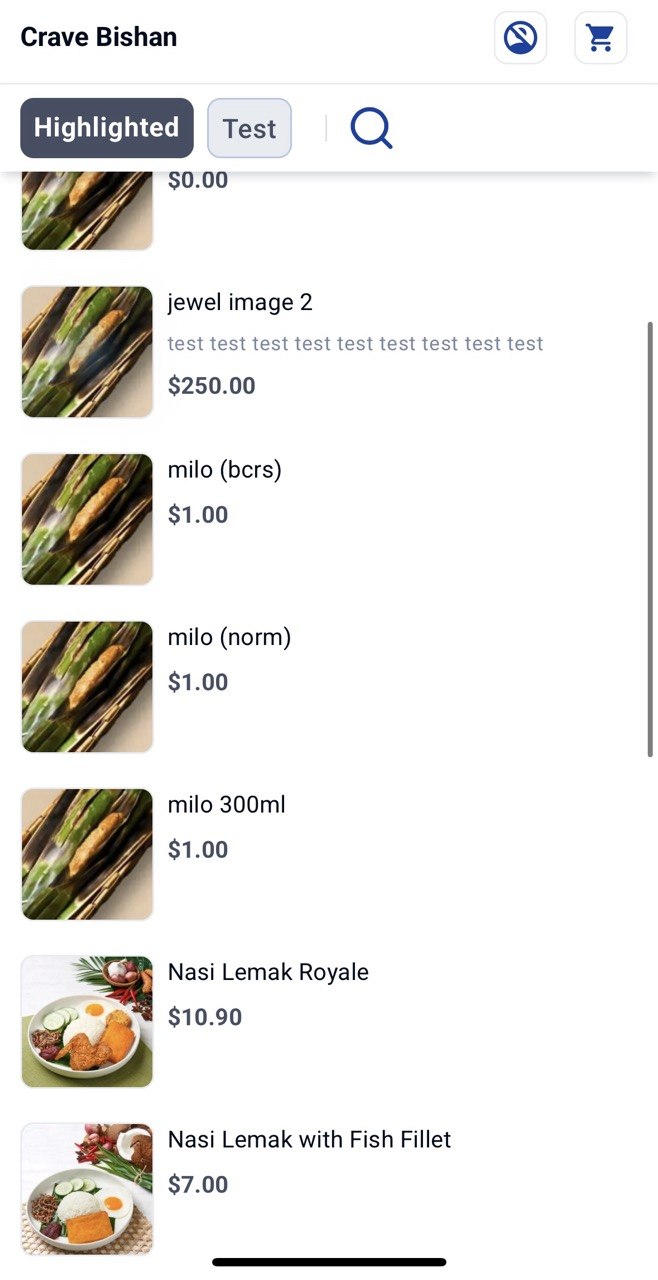
Normal price of Nasi Lemak Royale is $10.90. In this case, the price book for Nasi Lemak Royale is only applicable for Gold customers, where there is a $2 markdown price.
For gold customers, the new pricing will apply, as seen from the pricing of $8.90 for Nasi Lemak Royale instead of the usual $10.90
However, for customers that are not Gold members, they will not get to enjoy this price.
Price book for recommendation product
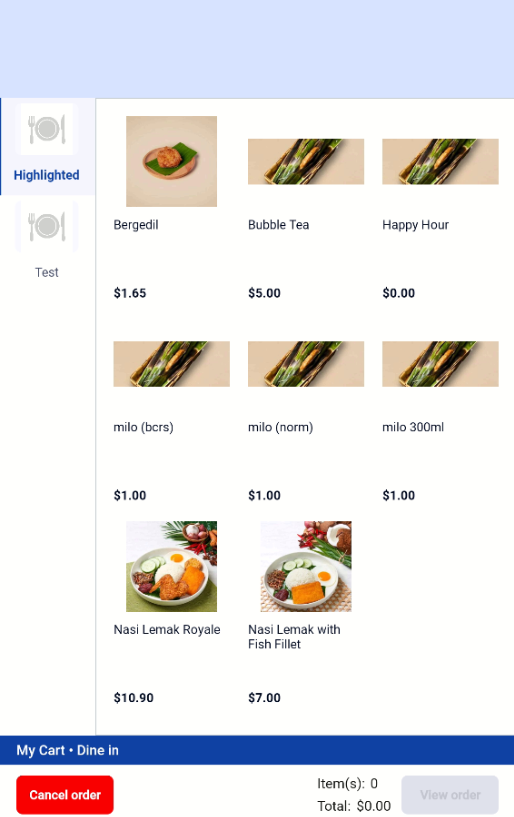
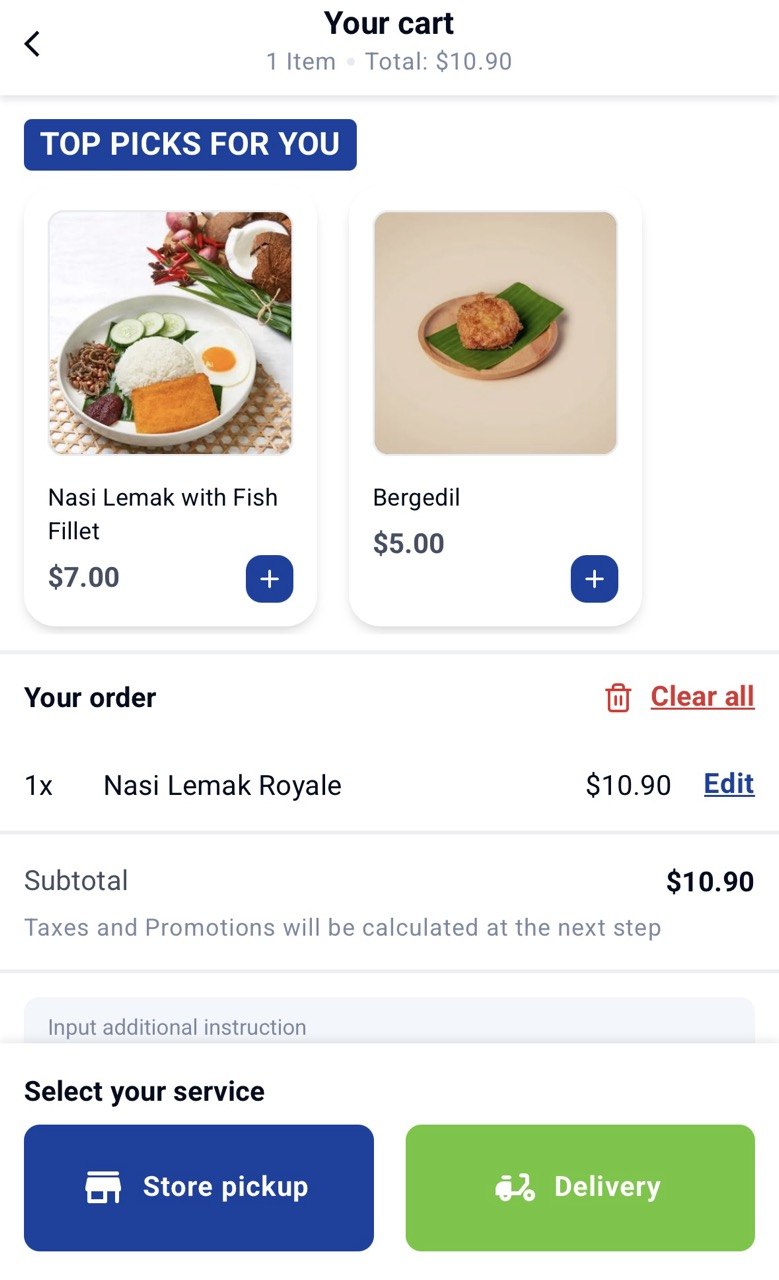
When price book is applied, the pricing change will also be applied to recommendation strategy. In this case, Bergedil = $5.
Pricing for Product Page
Pricing for Product Detail Page
Pricing for Special Offers
Apply Voucher
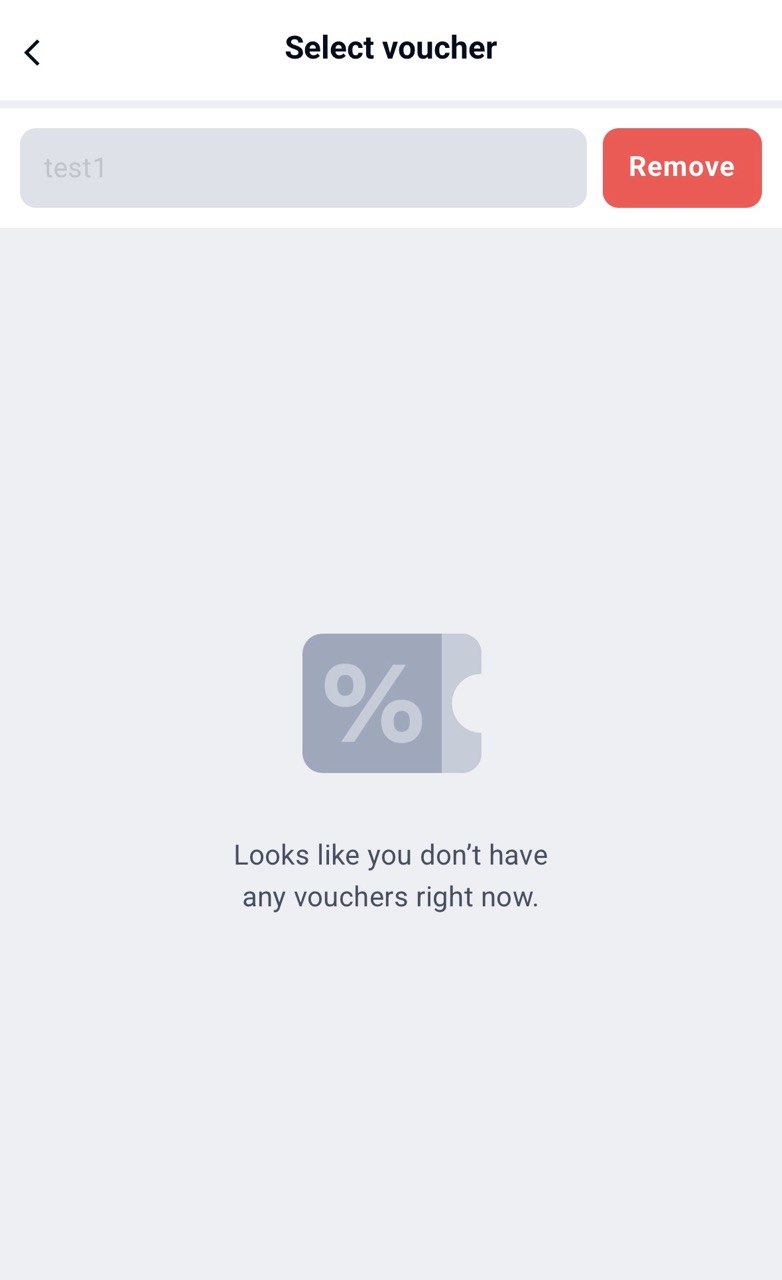
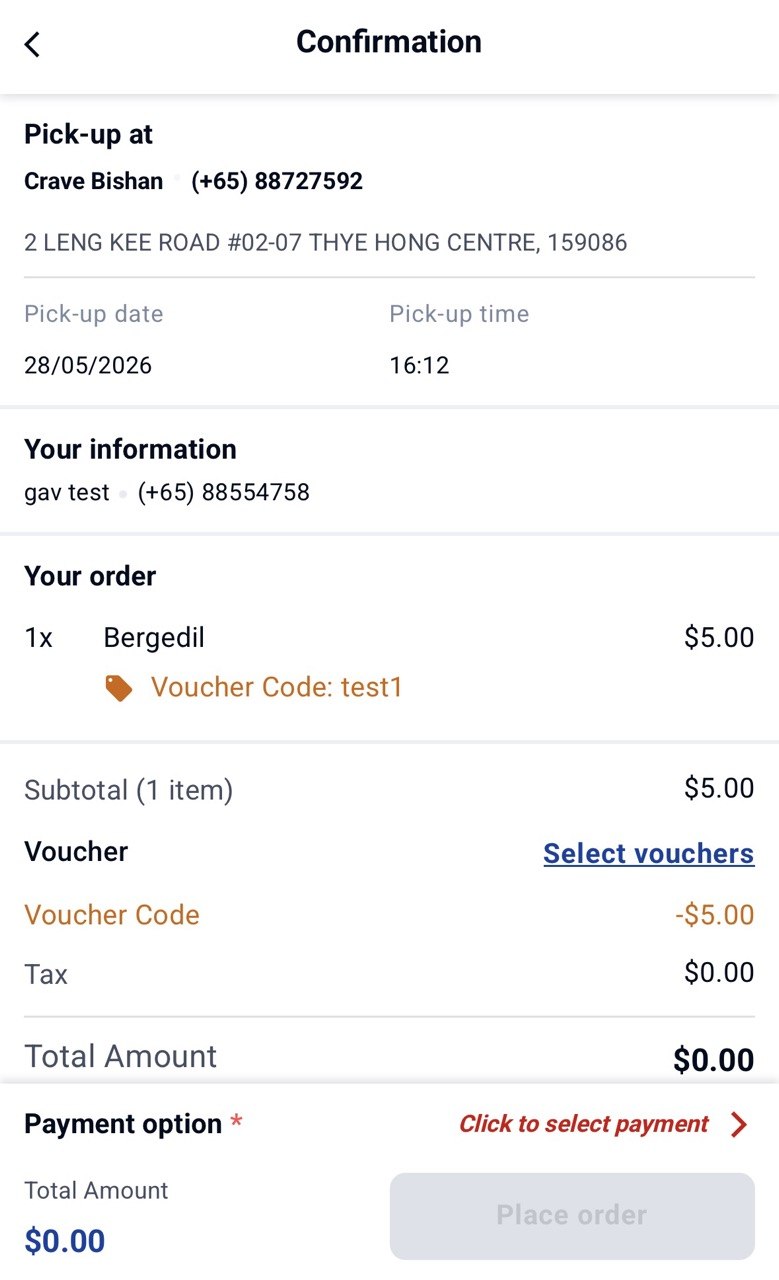
Vouchers are able to be applied when price book pricing is applied as well.
Change Price Book Operation
Users can change the price book operation between 3 options: Override, Flat Markup or Percentage Markup.
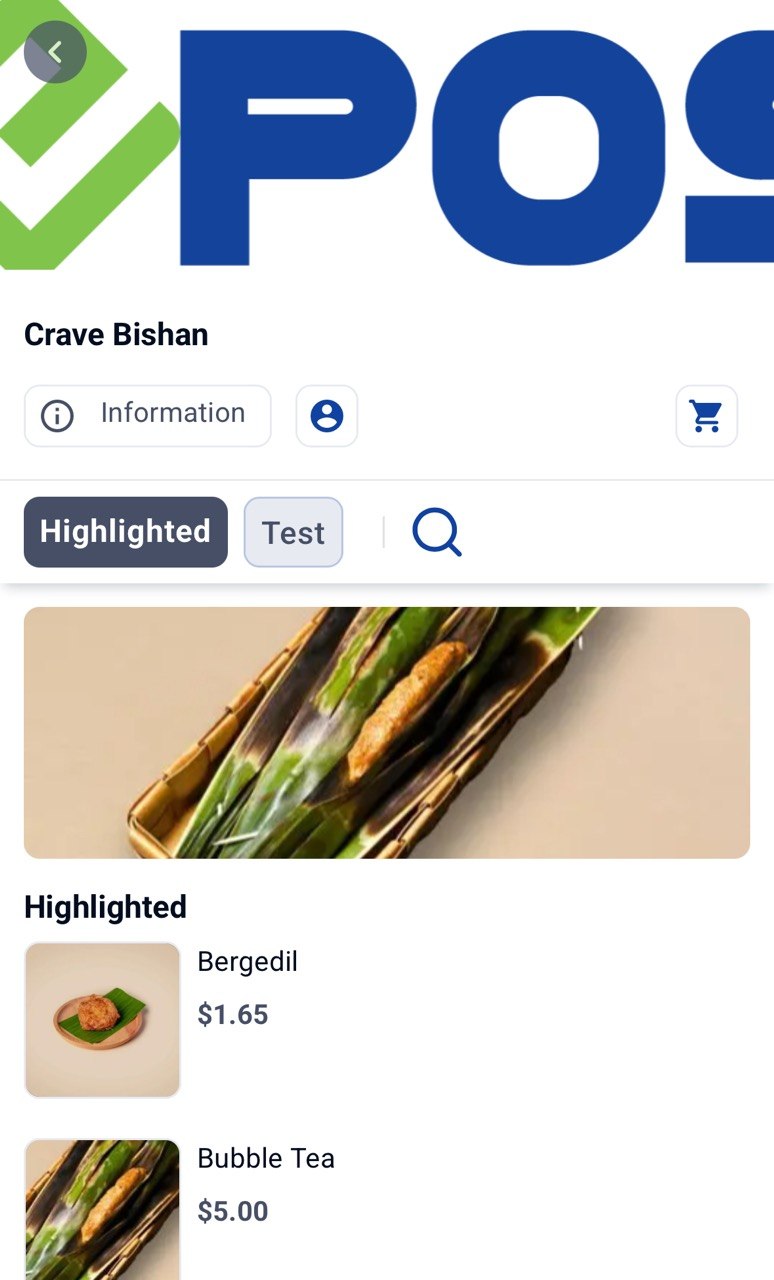
When the price book operation is changed from override with $5 value for Bergedil to percentage markup of 10%, the price of the product changes as expected.
Previously: Bergedil = $5
Updated: Bergedil = $1.65
No price book applies to product
The base price is applied and displayed in Kiosk & Web Ordering. In this case, the standard price for Bergedil is $1.50.
Price book applies to product
If 1 price book is applied, the product will be replaced with the new price. In this case, under the price book, the Bergedil has a price of $0.50.
The new price of the bergedil is reflected as $0.50.
Multiple price book applies to product
If there are multiple price book that applies to the product, the new price will be configured based on the price book priority. By default, the priority is the highest price.
In this case, Price Book 1 Bergedil = $0.50
Price Book 2 Bergedil = $10
Both price books are added and the priority selected is Highest Price. Since Highest Price priority is selected, the new Bergedil price is $10.
Lowest Price Example
Both price books are added and the priority selected is Lowest Price. If Lowest Price priority is selected, the new Bergedil price is $0.50.

Price Book outside of effective date range
If the price book is outside its effective date range, the pricing from the price book will not have any effect. For example, there is a Vesak Day Price book.
If the date is outside the price book’s effective date range, the standard price will apply.
However, if it is within the effective date range, the new price of $50 will apply.
Selected customer applicable to price book
Normal price of Nasi Lemak Royale is $10.90. In this case, the price book for Nasi Lemak Royale is only applicable for Gold customers, where there is a $2 markdown price.
For gold customers, the new pricing will apply, as seen from the pricing of $8.90 for Nasi Lemak Royale instead of the usual $10.90
However, for customers that are not Gold members, they will not get to enjoy this price.
Price book for recommendation product
When price book is applied, the pricing change will also be applied to recommendation strategy. In this case, Bergedil = $5.
Pricing for Product Page
Pricing for Product Detail Page
Pricing for Special Offers
Apply Voucher
Vouchers are able to be applied when price book pricing is applied as well.
Change Price Book Operation
Users can change the price book operation between 3 options: Override, Flat Markup or Percentage Markup.
When the price book operation is changed from override with $5 value for Bergedil to percentage markup of 10%, the price of the product changes as expected.
Previously: