Release Log
Dec 2025: Implemented Out-of-Stock Alerts for Products.
Under the Configuration tab, click on POS Configs. This will direct users to the POS Configurations page to manage the settings for the POS registered for the outlet. For the setting to take effect, users will need to sync the changes at POS.
For more details, refer to POS Menu.
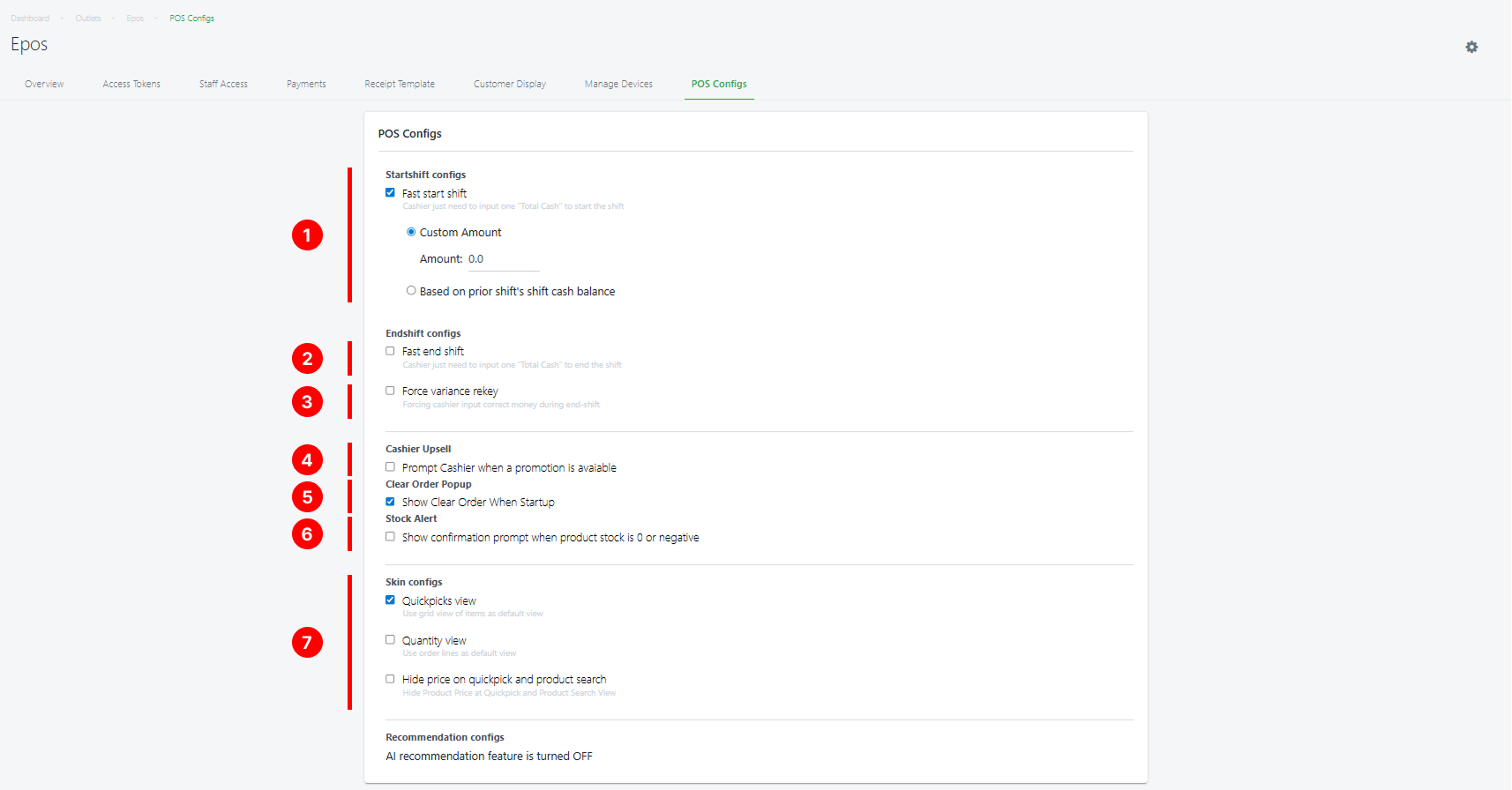
1. Fast Start Shift Config
☑️ This setting is to allow staff to perform fast start shift.
-
- Custom Amount: Enter the default start shift amount so you can save time entering the same amount for every shift
- Based on prior shift’s shift cash balance: The start shift amount will automatically be pre-filled based on the previous end shift amount
2. Fast End Shift Config
☑️ This setting is to allow staff to perform fast end shift (without the need to key in each bank note)
3. Force Variance Rekey
☑️ This setting is to restrict staff from ending a shift when there is a discrepancy in terms of sales and amount collected.
4. Cashier Upsell
☑️ This setting is to enable a pop out window to remind cashier when there is a promotion going on.
5. Clear Order Popup
☑️ This setting is to trigger request for a clear order for every POS start up.
6. Stock Alert
☑️ This setting enables an out-of-stock popup when a product’s stock is 0 or less (setting does not apply in offline mode)
To view the usage on the POS, you can refer to Out Of Stock Alert.
7. Skin Configs
☑️ Quickpick view to use quickpick grid view as default sales screen at POS.
☑️ Quantity view to use order line view as default sales screen at POS.
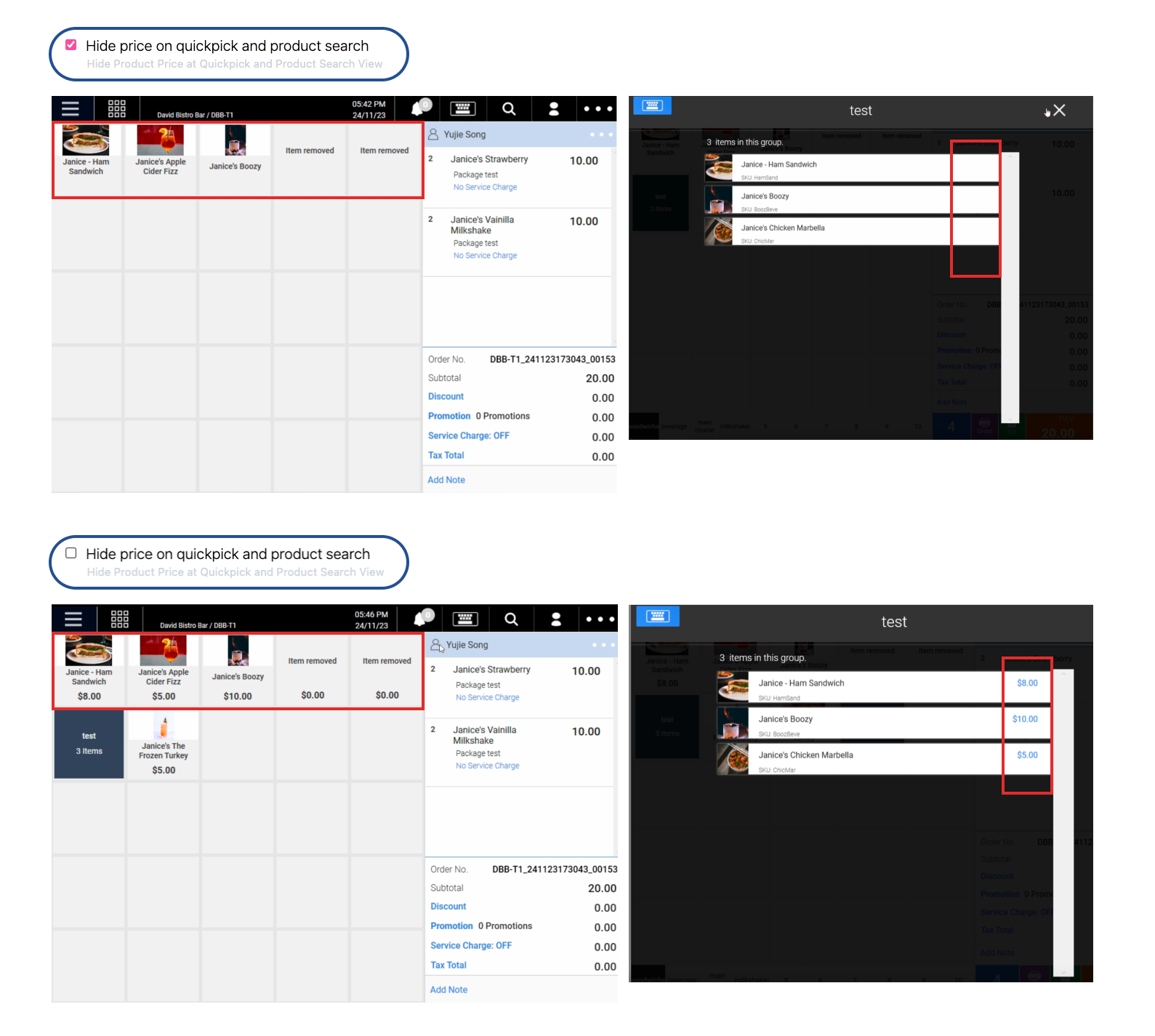
☑️ Hide price on quickpick and product search at POS.