This section provides guidance on the features of Price Book. Usually used when there are customary product selling prices that need to be applied to either
-
- Specific customer group/ membership tier
- Specific outlet
- Specific period
- Or all of the above at once
With this feature, users do not need to make amendments to the actual product information through the edit product function or product override function.
At the Features Panel, Click on Price Books to access Price Books main page.
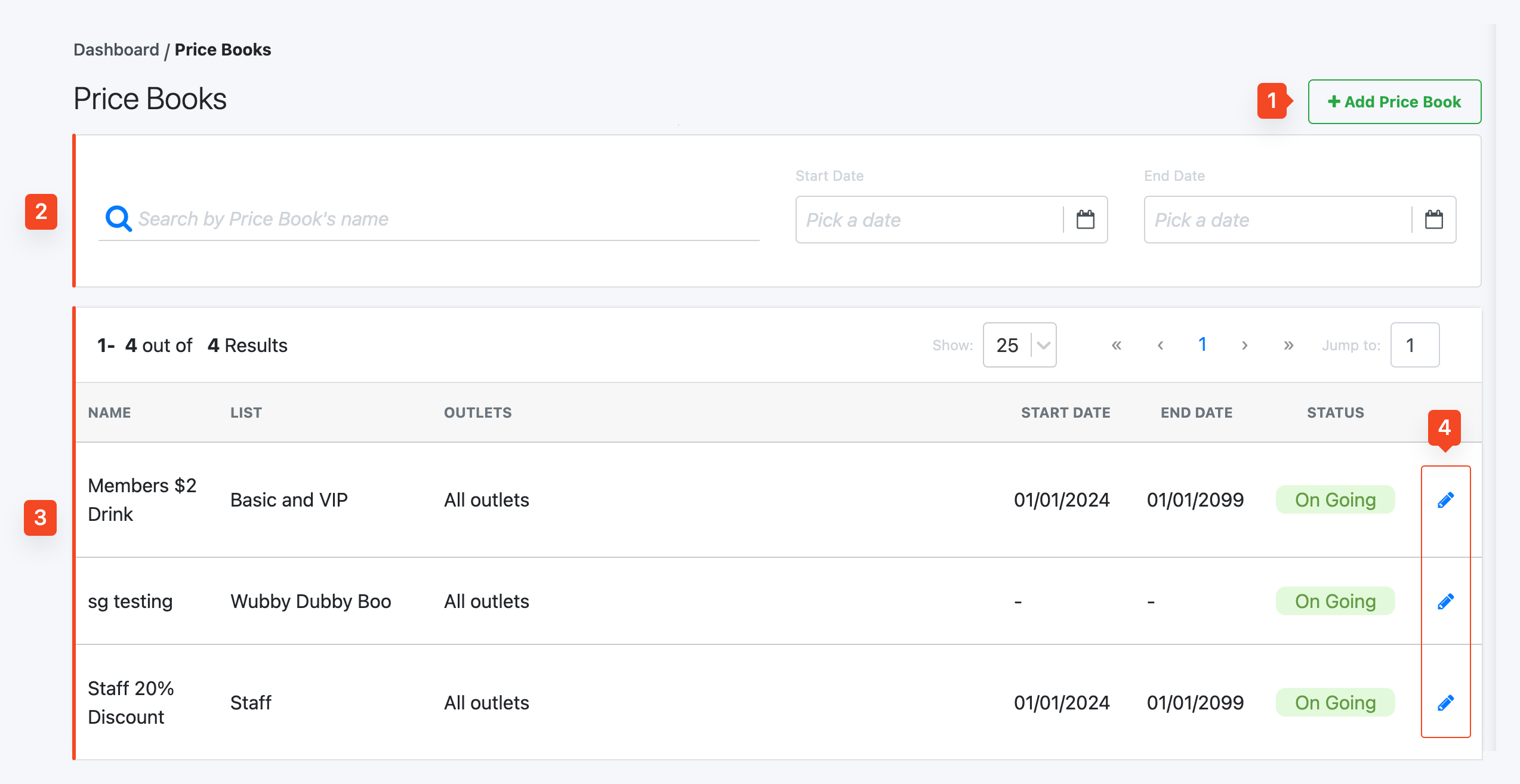
1. New Price Book
The New Price Book window will be shown.
For more information, see the Create New Price Book tab.
2. Search Filter
Allows users to search for price books based on date filters and typing the price book name.
3. Price Book Details
Shows the details related to all price books created in BACKEND PORTAL.
-
- Name of Price Book
- Applicable Customer Groups and Memberships
- Applicable Outlets
- Start date and end date
4. Price Book Overview
Click on the name to access the overview page of a particular Price Book.
For more information, see the Configurations tab.
To create a new Price Book, access the Price Book main page and click New Price Book.
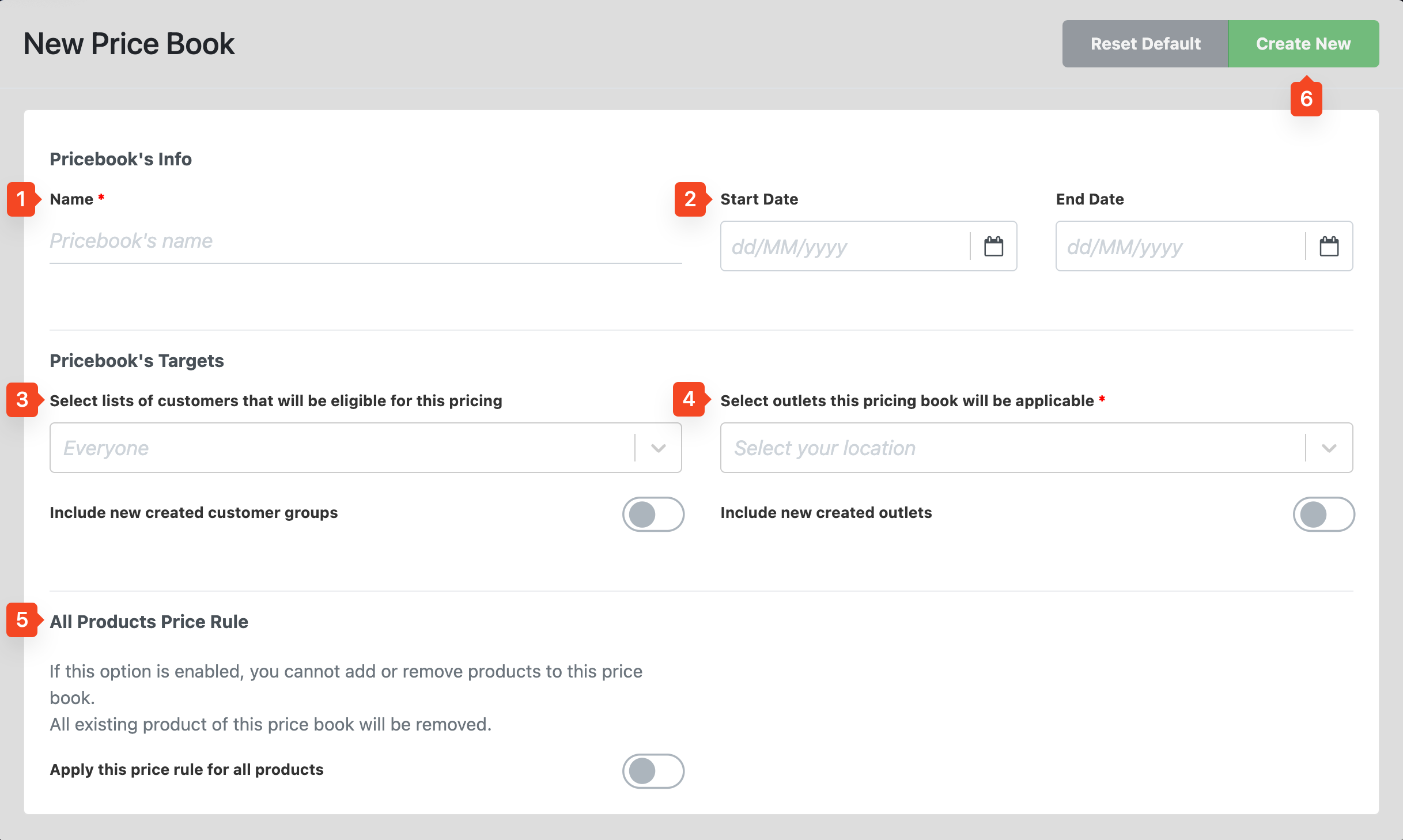
1. Name
Enter name of Price Book.
2. Start and End Date
Select the validity period of the Price Book.
3. Customer List
-
- Enables users to select Customer Groups and Membership Tiers which will be included in the effect of the Price Book.
- Include new lists: ☑️ the checkbox if new customer groups or memberships are to be included automatically when created in the future.
4. Outlet Applicability
-
- Enables users to select relevant outlets that the Price Book will take effect at.
- Include new stores: ☑️ the checkbox for new stores to be included automatically when created in the future.
5. All Product Option
-
- ☑️ the checkbox only if the user wants the entire products list to be included in the Price Book.
- Do not ☑️ the checkbox if the Price Book is only applicable to certain products.
6. Create Price Book
Click on Create Price Book when done and users will be directed to Price Book Configuration.
To access Price Book configuration, click on the pencil tool of the Price Book.
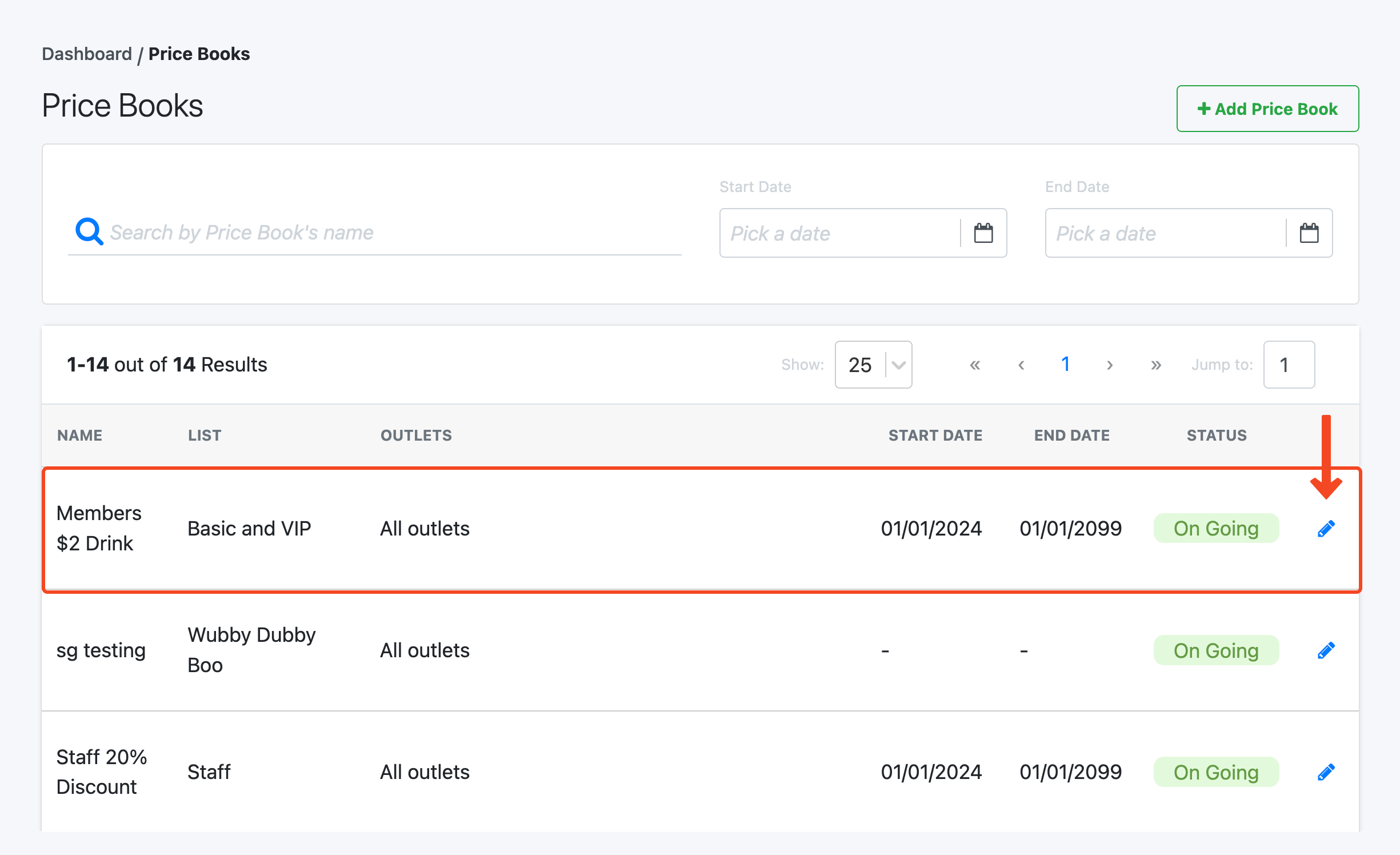
Alternatively, once users click on Create Price Book while creating a new Price Book, users will also be directed to the Price Book Configuration Page.
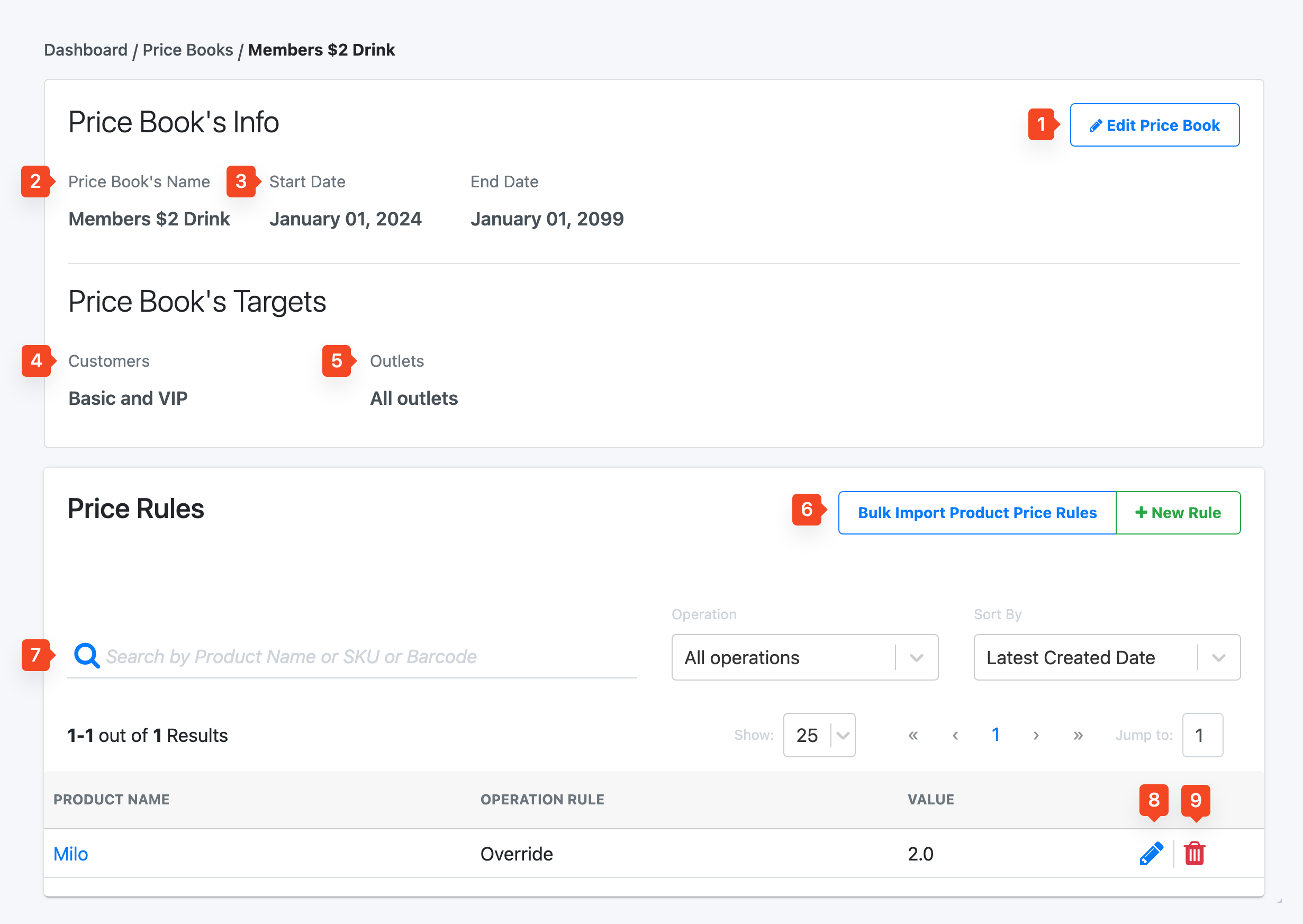
1. Edit Price Book
The Edit Price Book window will open.
For more information, see Create New Price Book tab.
2. Name
Shows the name of the Price Book.
3. Effective Date
Shows the start and end date.
4. Customers
Shows the applicable customer list and membership tiers.
5. Outlets
Shows the applicable outlets/stores.
6. Bulk Import Product Price Rules / + New Rule
Click on + Bulk Import Product Price Rules to bulk import price book rules. See Bulk Import Price Book Common Error Messages.
Click on + New Rules to create a product name, operation and value. Enables users to add products to the Price Book with respective price book operations and value.
7. Search Filter
Enables users to search based on:
-
- Product Name
- Price Book Operation
- Sort by latest created date/ oldest created date/ product name
8. Edit
Allows users to edit product name, operation and value.
9. Delete
Allows users to delete products from price book.
Once products are added successfully to the Price Book, product(s) will be listed with associated Price Book operations. Users can see the revised selling price based on the Price Book in the Output field.
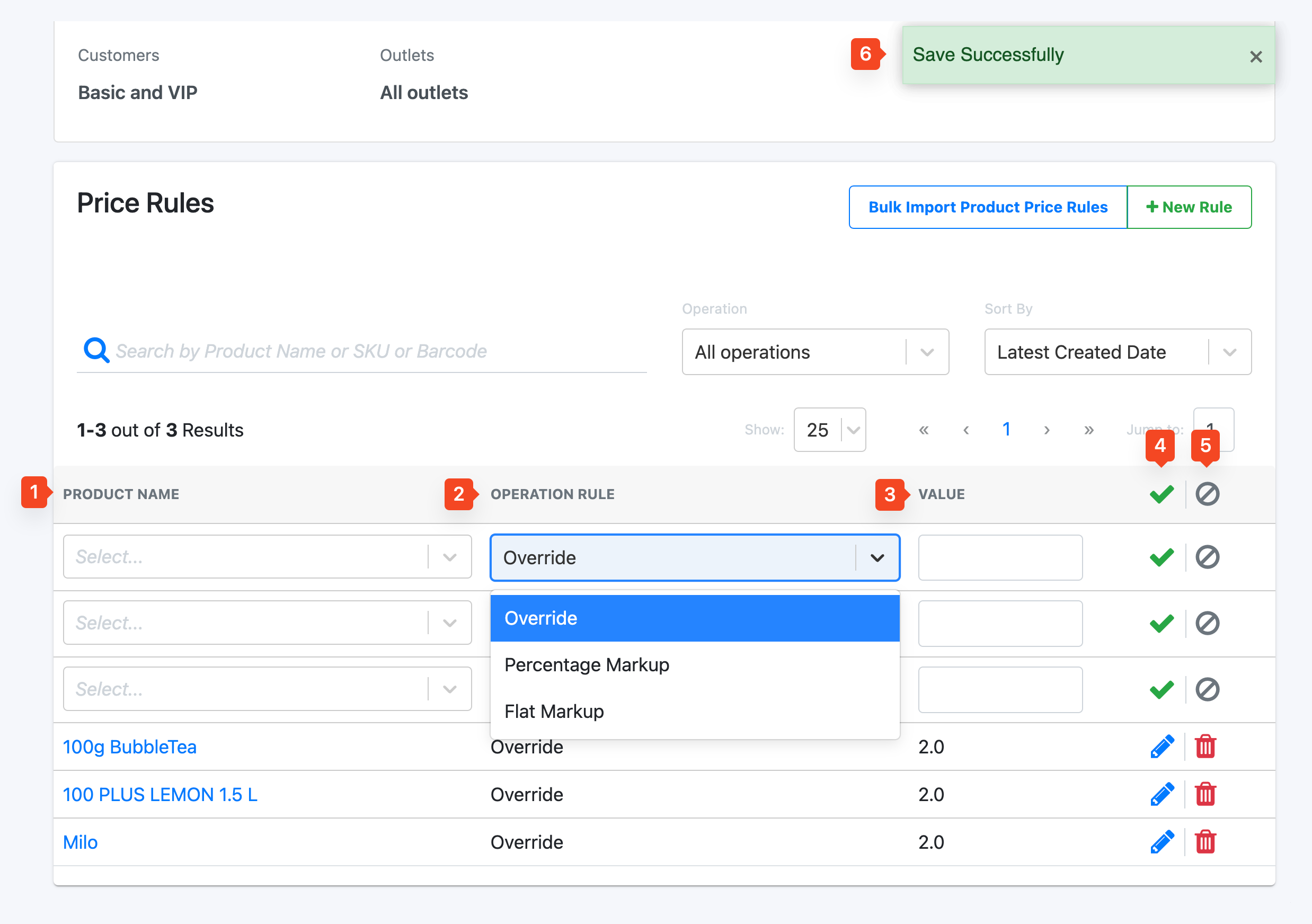
1. Product Name
Enter product name in this field
2. Operation
User is required to choose the type of operation desired:
-
- Override: Complete override product with value entered.
- Percentage Markup: Gives a percentage increase/decrease in product base price. (At the value field: “+” for increase; “-“ for decrease)
- Flat Markup: Gives a dollar increase/decrease in base price. (At the value field “+” for increase; “-“ for decrease)
3. Value
User is required to input value.
4. Save
When user is done making changes, click on the Save button.
5. Cancel
If the user wishes to abort the changes, click on the Cancel button.
6. Save Successfully
If the changes were saved successfully, the user will see this green banner.
Below are the list of common error messages during bulk import process.
Linked Product can not be composite product!
How to rectify: Users should not assign a composite product to another composite product.
Can not find product with sku: < >
How to rectify: Users should double check if product was created in the backend. To create a new product, refer Adding a New Product.
Validation failed: Product variant has already been taken
How to rectify: Users should not re-import composite products with the same linked product which have already been linked.
Validation failed: Quantity must be greater than 0
How to rectify: Users should ensure that composite_linked_qty filled
[Error] Content is invalid:
-
- Row #< >: COMPOSITE_LINKED_QTY is required
- Row #< >: COMPOSITE_SKU is required
- Row #3: COMPOSITE_LINKED_SKU is required
How to rectify:
Users should ensure that all the columns are filled in without empty cells.

