
After tables are created, at the Table Management page, users are able to print the QR codes which is essential for users’ Web Ordering App. See below.
1. Under Setup -> Table Management -> Edit Layout -> Print All QR
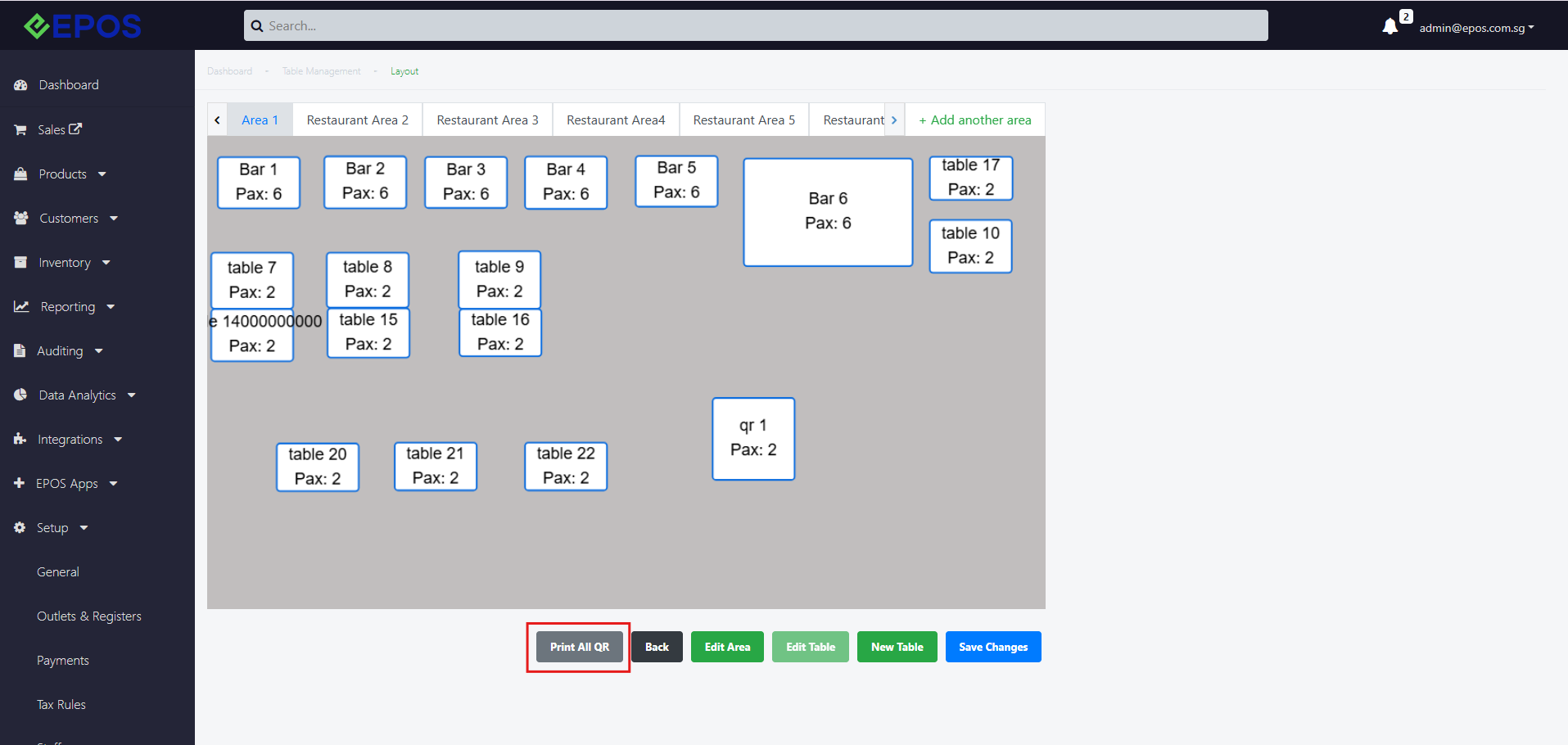
2. Click on “Print all QR Codes”, the following window will be shown
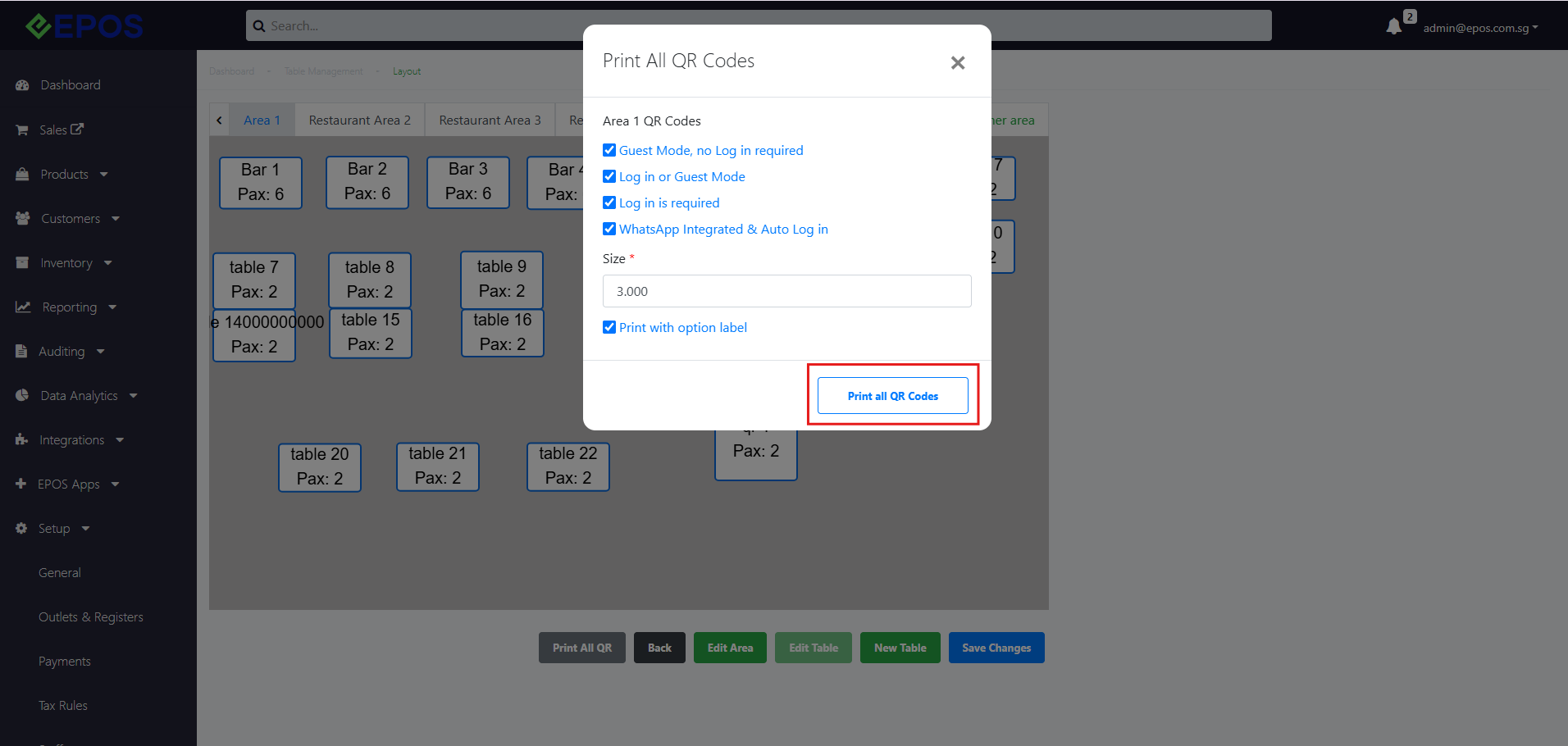
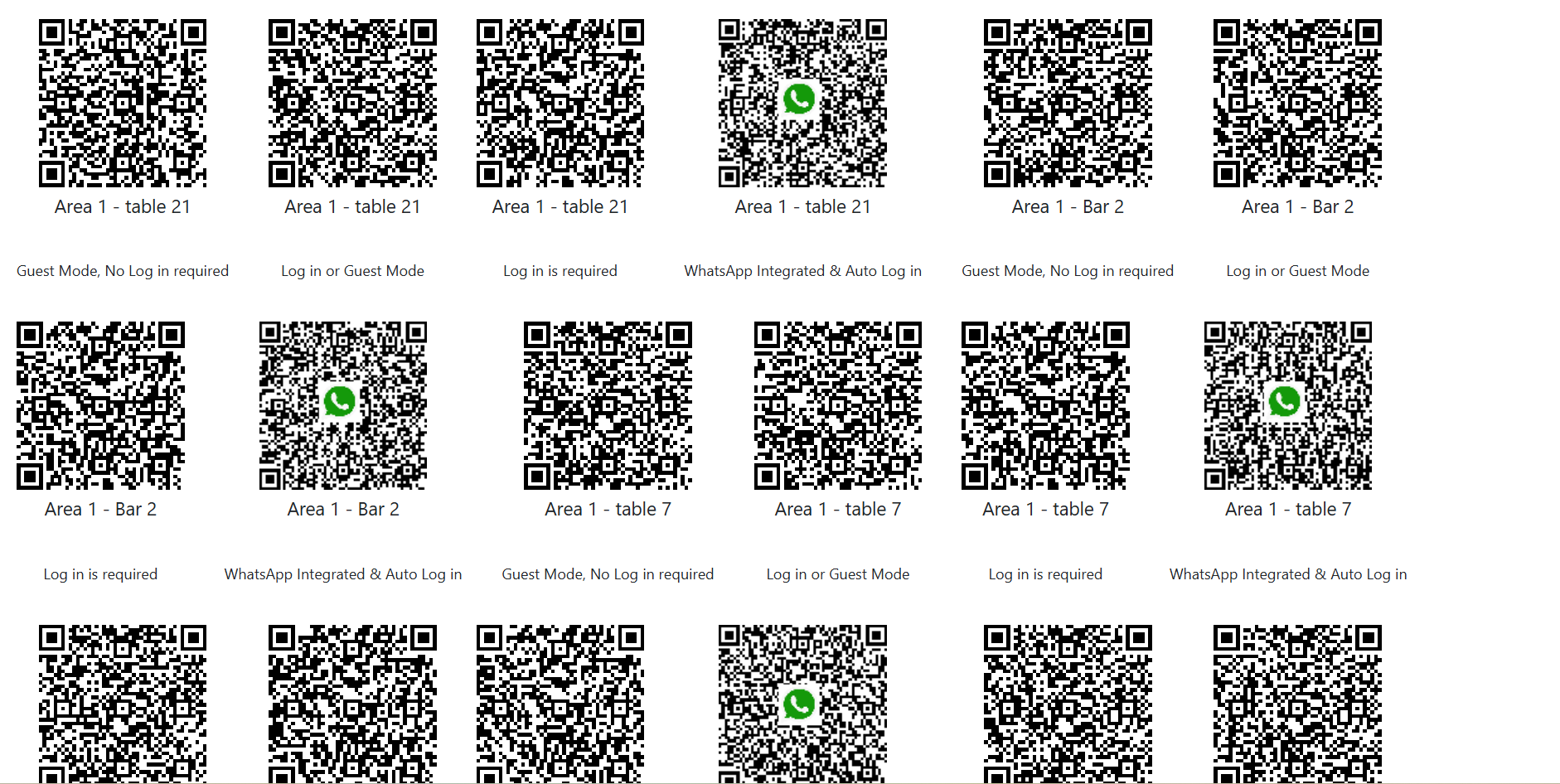
3. Select the relevant fields and sizes to be printed and click Print all QR Codes. Users will then be directed to a new browser tab where all QR codes across different areas and tables are shown.
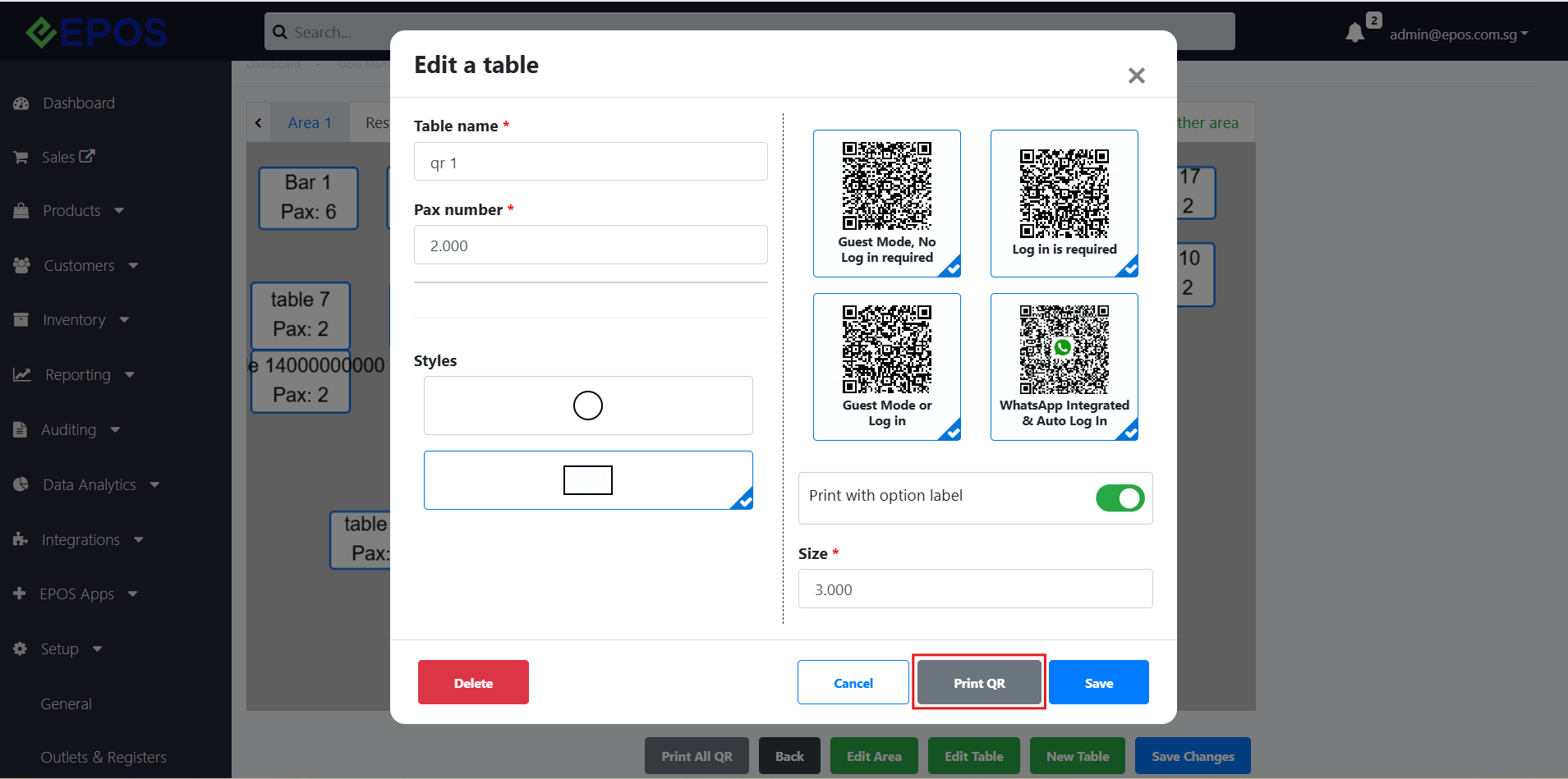
4. To obtain the dedicated QR code link for a specific table instead, click on the corresponding table, and click “edit Table”
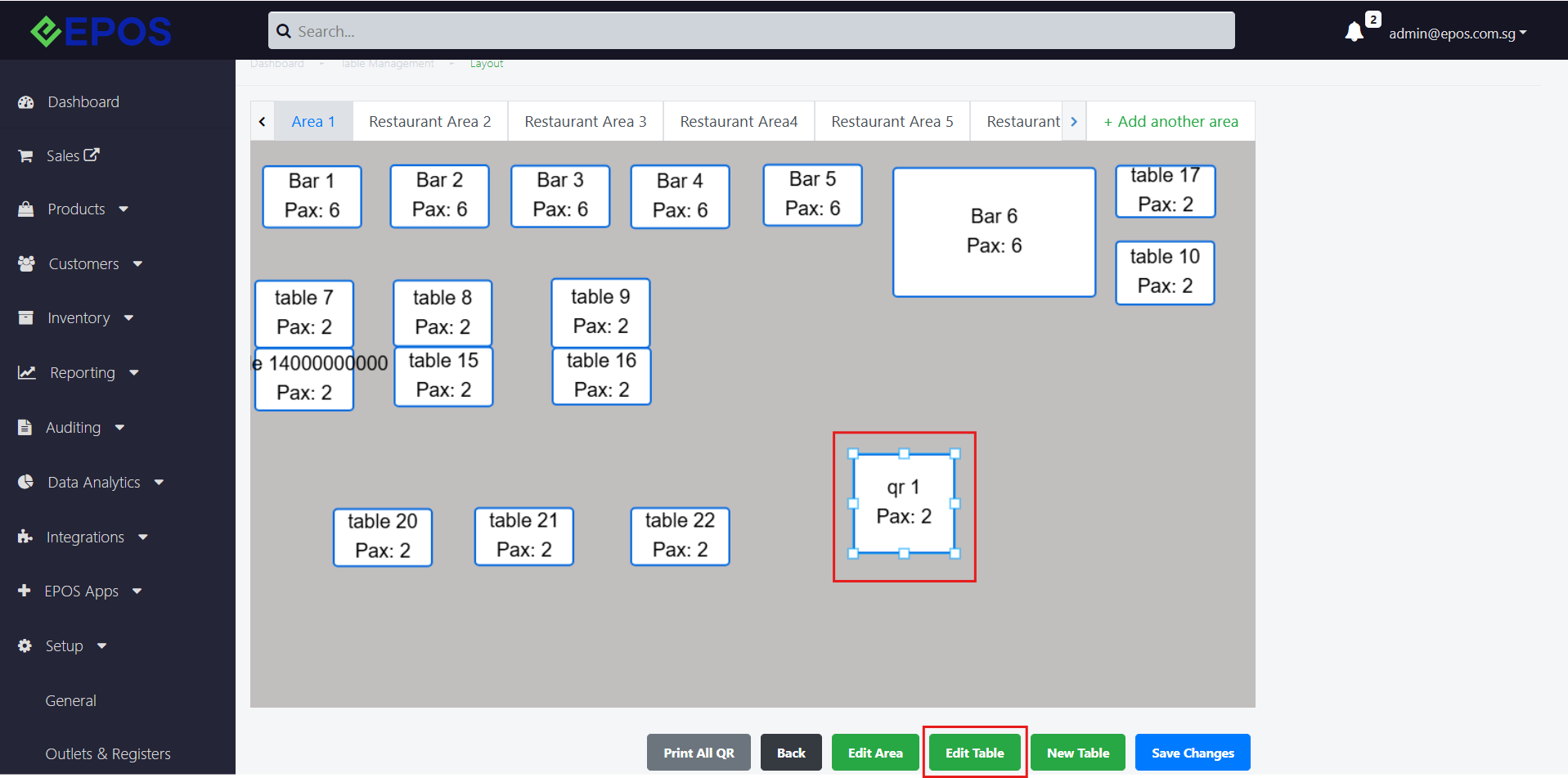
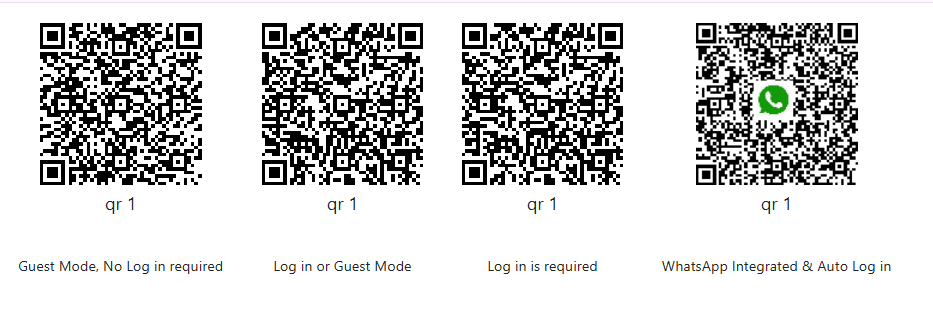
After that, the user should click on “Print QR”. to obtain all the QR codes of that table.
Related Posts

Was this article helpful?
YesNo
