
This section describes Product Sales and Sales Reports. Users will be guided on:
- Generating and Exporting Sales Reports
- Checking Voucher Usage in Sales Reports
Product Sales report allow users to review the total sales broken down to each product recorded from all POS terminals in every outlet.
The typical usage of Product Sales report includes:
- Reviewing the breakdown of revenue by product/ product category sales
- Enhancing sales efficiency through stocking in high sales volume & profit-generating products
- For F&B operations, users are able to retrieve information on average sales per pax.
To access the Product Sales report, under Sales Report, click on the Product Sales tab.
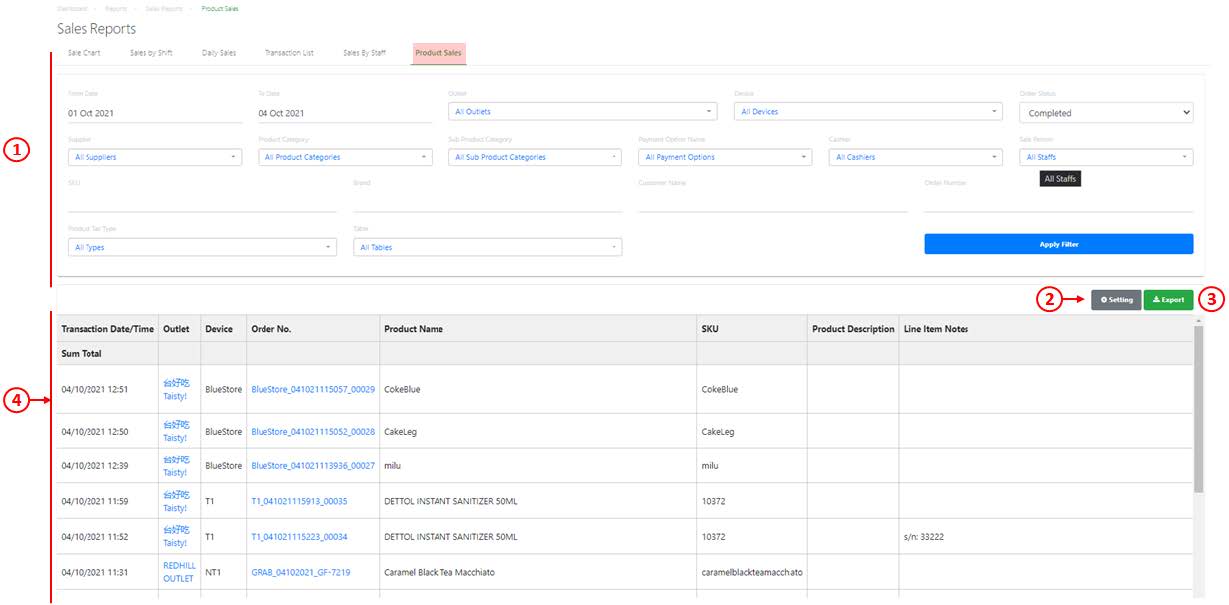
1. Filter and Search
Allow users to generate a product sales report based on date range, outlet, device, order status, supplier, product category, sub product category, cashier, salesperson, product SKU, brand, customer name, order number, product tax type and table. Click on Apply Filter to generate a report.
2. Setting
Allow users to customize their reports, users may hide the columns they do not use often.
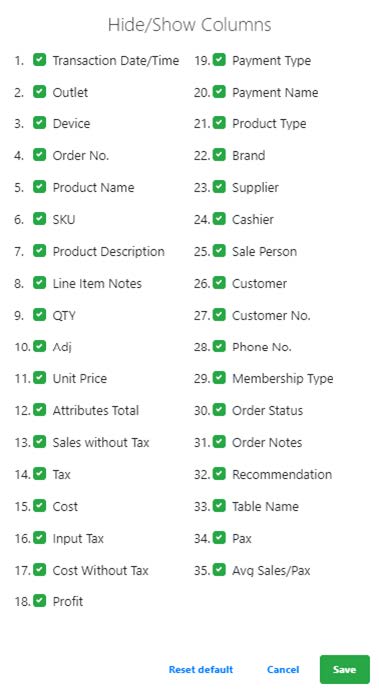
☑️ to show column, ⬜ to hide column, click on Save once done.
💡Drag and drop to re-assign the sequence as preferred.
3. Export
Allow users to export the product sales report based on the filtered criteria.
💡 Users are advised to export the report for further analysis of data generated.
4. Product Sales Report
Report generated will be based on the filtered criteria made in No.1 and columns selected in Settings (No.2).
💡 Input Tax : For products to carry input tax, users must create stock-in / PO with relevant input tax. (refer to Creating a New Stock-In or Creating a new Purchase Order)
💡 For companies with No tax rules : Profit = Net – Cost 💡 For companies with Tax Inclusive and Tax Exclusive : Profit = Net- Net Cost
Steps:
1. Navigate to Reporting > Sales Report > Product Sales > Settings
2. Select columns to be shown
2.1. In the Hide/Show Columns pop-up box, ensure that “Adjust” and “Adjustment Description” are checked ✅. Columns that are not of interest can be unchecked. Once the user is happy with the selection of columns to be shown, click “Save”.

3. Filter the data (if required)
3.1. For more details on filtering and using the Product Sales report, see here: https://www.epos.com.sg/knowledge-base-back-end-product-sales/
4. Look for transactions with data in Adjustment and Adjustment Description columns
4.1. If a transaction made use of a voucher, the “Adjustment Description” column will show the name of the voucher used. The amount deducted due to the use of voucher will be shown in the “Adjustment” column.

